Naming style
ReSharper helps you define, control, and apply desired naming styles for symbols in your code. There is a set of rules, each of which targets specific identifiers with the set of constraints (for example, a rule can target static private readonly fields) . Each rule can have one or more associated styles that define capitalization of compound words, underscores, suffixes, prefixes, and so on.
These rules are taken into account when ReSharper produces new code with code completion and code generation features, applies code templates and performs refactorings. ReSharper also helps you detect and fix violations of naming rules. If necessary, the automatic checkup of naming rules can be configured or disabled.
Configure naming rules
Out of the box, ReSharper provides a set of naming rules that cover all kinds of identifiers. These rules are based on the Microsoft Naming Guidelines, .NET Platform Coding Style, and various best practices.
If your personal preferences or company standards differ from ReSharper defaults, you can configure the naming style in a flexible way: for each type of identifier you can choose capitalization rules, prefixes and suffixes, variations for different access rights, abbreviations to ignore, and more.
Your naming style preferences are saved using the mechanism of layer-based settings. Among other things, this mechanism allows you to maintain different preferences for different solutions as well as to keep these preferences under a VCS and automatically share them with your team members.
Properties of a naming rule
Each naming rule has the following properties:
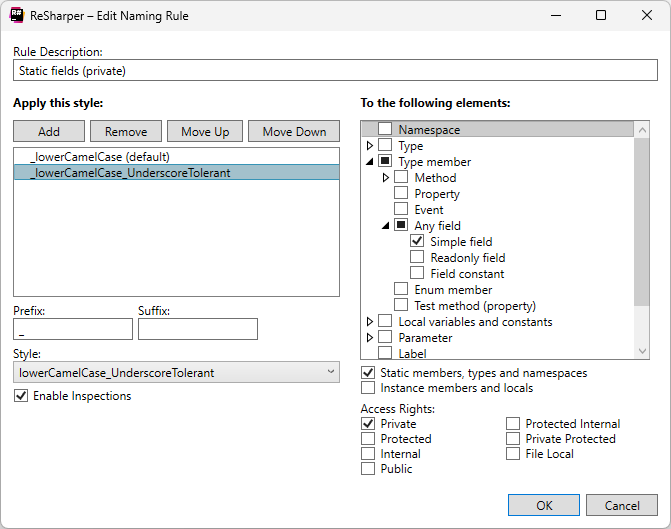
Rule Description: An arbitrary description that helps understand where the rule is applied.
Apply this style: One or more naming styles allowed by the rule. Use the corresponding buttons to add or remove styles.
When a style is selected in the list, choose the base style such as
UpperCamelCaseorlowerCamelCasein the Style selector, and optionally add prefix and suffix.When there are several styles for a single rule, ReSharper does not report code style violation if a corresponding symbol name matches at least one of these styles. Otherwise, ReSharper detects a code style violation and suggests renaming the symbol according to the default style (the first style in the list). To change the default style, use Move Up
.png "ThemedIcon.Up.Screen.(Gray).png") and Move Down
and Move Down .png "ThemedIcon.Down.Screen.(Gray).png") buttons.
buttons. To the following elements: This area defines where the naming rule is applied. Use the corresponding checkboxes to specify what kinds of types and members with which modifiers must comply with the rule.
Enable inspections: This checkbox allows you to disable reporting code style violations associated with this rule, while still allowing ReSharper to detect other naming rule violations.
When this checkbox is disabled, the rule will be respected when ReSharper produces new code with code completion and code generation features, applies code templates and performs refactorings. There are also several ways to disable automatic checkup for all naming rules.
Modify a naming rules
Do one of the following:
Press Alt+Enter on a highlighted symbol with inconsistent naming, then choose Inspection 'Inconsistent Naming' | Change settings for naming rule '[rule name]'.
From the main menu, choose , select the desired rule, and click Edit
.png "ThemedIcon.EditorOptionsPage.Screen.(Gray).png") or double-click it.
or double-click it.
Configure the properties of the naming rule as needed.
If the rule editor was opened from the Options dialog, click OK to close the Edit Rule Settings dialog.
Click Save in the Options dialog to apply the modifications and let ReSharper choose where to save them, or save the modifications to a specific settings layer by choosing this layer from the Save To selector. For more information, see manage and share resharper settings.
If the existing rules are not granular enough for your naming convention, you can add more rules. For example, you may want that enums had upper camel case capitalization and the E prefix.
Add a naming rule
Select from the main menu or press Alt+R O, then choose on the left.
Click '+'.
Configure the properties of the naming rule as needed.
Click OK to close the Add Naming Rule dialog.
Click Save in the Options dialog to apply the modifications and let ReSharper choose where to save them, or save the modifications to a specific settings layer by choosing this layer from the Save To selector. For more information, see manage and share resharper settings.
Any naming rule can be removed. A potential consequence of removing a rule is that some kinds of identifiers will not be covered by any rule. In this case, ReSharper will apply its internal defaults when ReSharper produces new code with code completion and code generation features, applies code templates and performs refactorings.
To remove a rule, select it on the page of ReSharper options Alt+R, O and click Delete .png "ThemedIcon.Delete.Screen.(Gray).png") .
.
Use EditorConfig to configure naming rules
If you use EditorConfig to maintain code styles for your project, you can also configure naming rules from .editorconfig files.
To configure naming rules from EditorConfig, you have to select the Read settings from editorconfig and project settings checkbox on the page of ReSharper options Alt+R, O.
You can also export naming styles that you already configured in ReSharper settings to an .editorconfig file.
Naming style settings in .editorconfig files are configured using the properties of .NET naming conventions for EditorConfig: dotnet_naming_rule.*, dotnet_naming_style.*, dotnet_naming_symbols.* — will work if the specified kinds of symbols can be matched by kinds of symbols available in ReSharper naming settings.
In addition to that, ReSharper can use a number of custom properties to support cases not covered by .NET naming conventions. These properties mainly appear in .editorconfig files when you export ReSharper naming settings.
import_to_resharperThis suffix allows specifying whether a specific property should be ignored by ReSharper (
trueorfalse).When ReSharper exports its settings to editorconfig, it could also write
as_predefined— don't change that manually. Example:dotnet_naming_rule.protected_rule_rule.import_to_resharper = falseresharper_descriptionAllows specifying a rule description for tooltips. Example:
dotnet_naming_rule.protected_rule_rule.resharper_description = Somethingresharper_guidReSharper can use this property when exporting, do not change it manually. Example:
dotnet_naming_rule.protected_rule_rule.resharper_guid = eb5720f3-bc0a-442d-9f3c-8dc32b7c5c12resharper_styleAllows specifying a list of possible styles, which can extend the list of .NET naming styles. Each style could be "style" or "prefix + style + suffix" or "prefix + style" or "style + suffix".
A style can be one of
AaBb,AaBb_AaBb,AaBb_aaBb,aaBb,aaBb_AaBb,aaBb_aaBb,AA_BB,aa_bb,Aa_bbYou can add
:do_not_checkat the end of the list to disable inspections.Example:
dotnet_naming_rule.protected_rule_rule.resharper_style = AA_BB, aa_bb, I+AaBb, aaBb_AaBb, AaBb+Localresharper_applicable_kindsIdentifier kind to apply the naming rule to:
namespace,type,test_type,class,pure_class,record,struct,interface,delegate,enum,type_member,test_member,method,async_method,extension_method,property,event,any_field,field(simple field, not readonly or constant),readonly_field,constant_field,unity_serialised_field(if the Unity Support plugin is installed),enum_memberlocal,local_variable,catch_variable,local_constant,parameter,lambda_parameter,label,type_parameter,local_functionExample:
dotnet_naming_symbols.protected_rule_symbols.resharper_applicable_kinds = pure_classresharper_required_modifiersstatic,instance(none, one of these or both). Example:dotnet_naming_symbols.protected_rule_symbols.resharper_required_modifiers = static, instanceresharper_csharp_naming_ruleUse the same value as for
resharper_style, but this setting could only be used to specify one of predefined rules:types_and_namespaces,interfaces,type_parameters,method,property,event,locals,local_constants,parameters,public_fields,private_instance_fields,private_static_fields,constants,private_constants,static_readonly,private_static_readonly,enum_member,local_functions,otherExample:
resharper_csharp_naming_rule.private_instance_fields = I+AaBb_AaBb,_+aaBb:do_not_check
As EditorConfig convention suggests, ReSharper applies naming rules defined in files named .editorconfig in the directory of the current file and in all its parent directories until it reaches the root directory or finds an EditorConfig file with root=true. File masks specified in .editorconfig files, for example *Test.cs are also taken into account.
Ignore uppercase abbreviations that conflict with a CamelCase naming style
Sometimes you may want to use uppercase abbreviations, acronyms, or initialisms (such as MS for MicroSoft) in CamelCase symbol names. By default, ReSharper reports that as inconsistent camel casing because several uppercase letters go in a row:

To avoid that, you can configure the list of abbreviations to be ignored by the inconsistent naming inspection.
It is important to note that uppercase abbreviations should not contradict the naming style defined for specific kind of identifier.
For example, if you added MS to the ignored abbreviations, MSBuilder will be an acceptable name for identifiers with the UpperCamelCase style, but not for identifiers with lowerCamelCase or all_lower naming styles.
Similarly, myMSBuilder will be OK for lowerCamelCase - but not for UpperCamelCase-styled identifiers.
Add an abbreviation to the ignore list
In the editor, place the caret at a highlighted symbol that uses the abbreviation in its name.
Press Alt+Enter or click the action indicator to the left of the caret to open the action list.
Choose Inspection 'Inconsistent Naming' | Add [abbreviation] to the abbreviations list
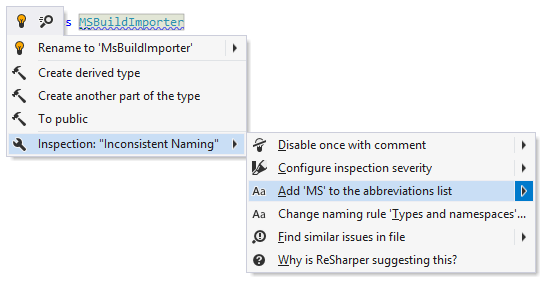
if necessary, you can choose to save the ignored abbreviation to a specific settings layer:
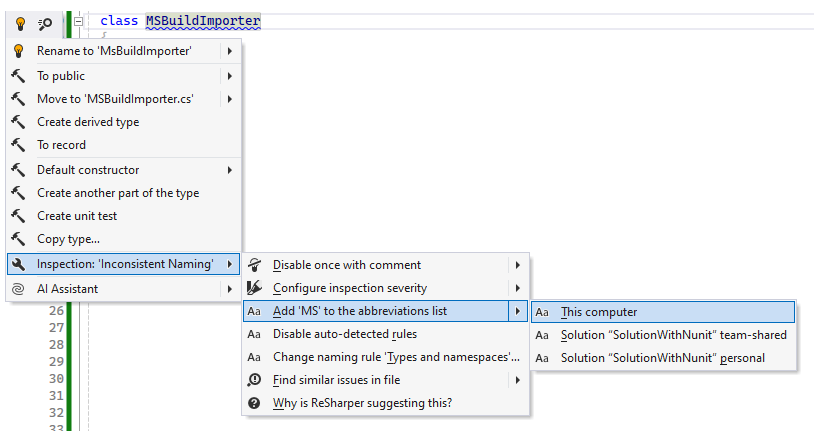
If you have many abbreviations that should be allowed in symbol names, you can edit the list of ignored abbreviations.
Edit the list of ignored abbreviations
Select from the main menu or press Alt+R O, then choose on the left.
Click ... next to the Abbreviations.
Type and abbreviation and click Add. Repeat this for all necessary abbreviations, then click OK.
Alternatively, edit the Abbreviations field manually, using spaces as delimiters.
Click Save in the Options dialog to apply the modifications and let ReSharper choose where to save them, or save the modifications to a specific settings layer by choosing this layer from the Save To selector. For more information, see manage and share resharper settings.
Detect and fix violations of naming rules
ReSharper uses the 'Inconsistent Naming' code inspection to detect violations of naming rules in your code. By default, this inspection is always applied during the design-time code inspection and highlights the detected violations as warnings in the editor. For example, according to the default style, names of interfaces should have 'I' prefix. If an interface name does not match this rule, ReSharper highlights this name and informs you about the problem when you hover over it:

If you want to find naming style violations beyond the current file, you can run the 'Inconsistent Naming' inspection in the project or in the entire solution.
Find naming style violations in a specific scope
In the editor, place the caret at a highlighted symbol that has inconsistent naming.
Press Alt+Enter or click the action indicator to the left of the caret to open the action list.
Choose Inspection 'Inconsistent Naming' | Find similar issues in file and then select the desired scope.
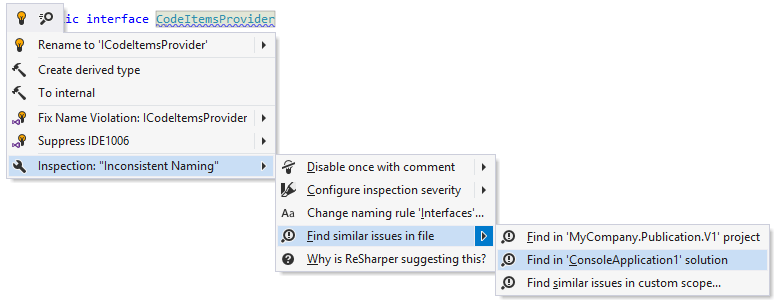
All found naming style violations will be displayed in the Inspection Results window.
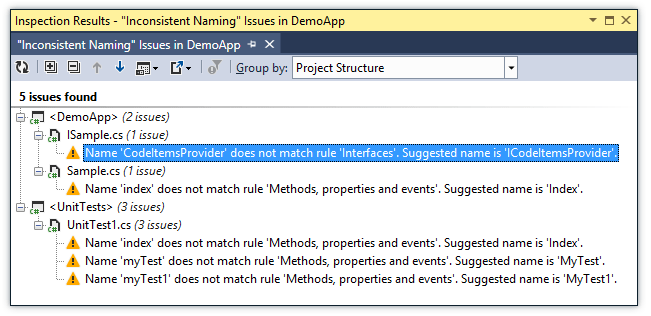
You can double-click the detected problems to navigate to the code of the corresponding symbols.
For most of the naming style violations highlighted in the editor, ReSharper suggests a quick-fix with a conforming name. You can press Alt+Enter and choose Rename to [conforming name] in the action list.
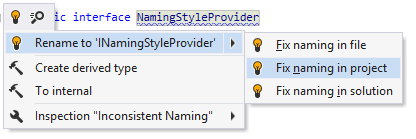
Automatic correction of naming style violations can also be performed in the current file, project or solution using the fix in scope feature.
However, if the symbol with the calculated conforming name already exists in the same namespace, the quick-fix is not suggested. You can fix the naming of such symbol with the Rename refactoring.
Configure and disable automatic checkup of naming rules
If you do not want ReSharper to check naming style in the existing codebase, you can either disable the code inspection that is responsible for it, or disable the automatic checkup of a specific rule. However, even if the automatic checkup is disabled, all naming rules will be respected when ReSharper produces new code with code completion and code generation features, applies code templates and performs refactorings.
Disable automatic checkup of naming style
Press Alt+Enter on a highlighted symbol with inconsistent naming, then choose Inspection 'Inconsistent Naming' | Configure inspection severity | Do not show.
Clear the Enable 'Inconsistent Naming' inspection checkbox on the page of ReSharper options Alt+R, O.
On the page of ReSharper options Alt+R, O, start typing 'Inconsistent Naming', and then clear the checkbox next to the corresponding code inspection.
If you use .editorconfig in your solution, you can disable the 'Inconsistent Naming' inspection in the specific scope:
resharper_inconsistent_naming_highlighting=none
Disable automatic checkup of a specific naming rule
Do one of the following:
Press Alt+Enter on a highlighted symbol with inconsistent naming, then choose Inspection 'Inconsistent Naming' | Change settings for naming rule '[rule name]'.
From the main menu, choose , select the desired rule, and click Edit
or double-click it.
In the Edit Rule Settings dialog that opens, clear the Enable inspections checkbox.
Click Save in the Options dialog to apply the modifications and let ReSharper choose where to save them, or save the modifications to a specific settings layer by choosing this layer from the Save To selector. For more information, see manage and share resharper settings.
Use C# naming rules from existing code
If you check out a solution from a public repo or temporarily join a team where a different code naming style is established, you will probably want to follow naming rules in this solution but at the same time not to change your globally configured naming rules.
ReSharper will handle such situations automatically — when you open a new solution where symbol naming differs from your global settings, it will detect the naming rules that diverge from your global settings, modify these rules accordingly, and then save the modified rules to the 'Solution personal' settings layer (.sln.DotSettings.user file next to the solution).
If this happens when you open a new solution, ReSharper will show a notification in the editor:
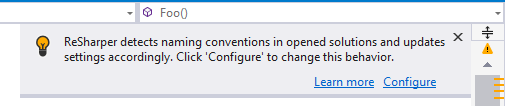
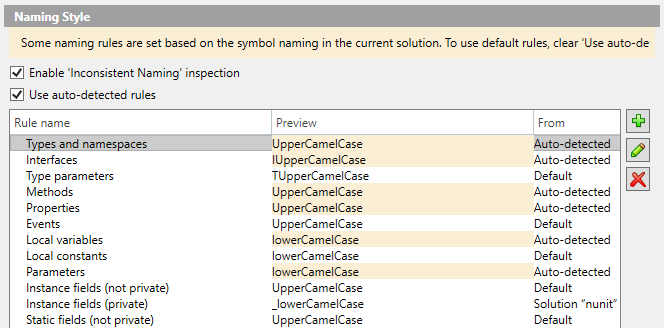
You can click Configure to open the corresponding settings page (). On this settings page, the rules that were changed based on the solution code are highlighted with yellow. If you want to use ReSharper's default naming rules or configure naming style in your own way, clear the Use auto-detected rules checkbox.
Deal with Visual Studio naming style for events
By default, ReSharper suggests $object$On$event$ naming pattern for event subscriptions on fields and On$event$ for event subscriptions on this, which is used both when ReSharper generates new events, and when it checks the naming style of the existing events. You can change these patterns on the page of ReSharper options if necessary.
When new events are generated by Visual Studio, it uses another naming pattern: $object$_$event$. If you have an existing project where events are named this way, and you do not want to rename them, make sure that the Support Microsoft events naming style checkbox on the page of ReSharper options is selected. This will suppress 'Inconsistent Naming' warnings on these events.
Applicability in different languages
This feature is supported in the following languages and technologies:
|
|
|
|
|
|
|
|
|
|---|---|---|---|---|---|---|---|---|
|
|
|
| |
| | |
|


The instructions and examples given here address the use of the feature in C#. For more information about other languages, refer to corresponding topics in the Languages and frameworks section.