Bookmarks
If you want to return to some place in your code later, you can mark any code line in your solution or in library code with a bookmark.
There are two kinds of bookmarks that you can use:
Bookmarks with mnemonics — are most useful for marking code lines that you often refer to, like top 10 places in your current solution. You can have up to 10 numbered bookmarks simultaneously. They are indicated by the following icons on the left editor gutter:
.png "ThemedIcon.Bookmark3.Screen.(Gray).png")
Use dedicated shortcuts for this kind of bookmarks: Ctrl+Shift+[digit] toggles the bookmark with this digit; Ctrl+[digit] navigates to the bookmark with this digit.
Anonymous bookmarks— are allowed in unlimited numbers so you can mark any line, which you think is worth returning to at some time in the future. They are indicated by the following icon on the left editor gutter:
.png "ThemedIcon.AnonymousBookmark.Screen.(Gray).png")
You can toggle bookmarks of this kind and navigate them from the bookmarks popup.
Add a bookmark with mnemonic
Place the caret at the code line you want to mark.
Do one of the following:
Press Ctrl+Shift+<digit>.
Toggle the bookmark using a popup:
Press Control+` or choose from the main menu. The Bookmarks popup will appear where you see which digits are free and which are occupied:
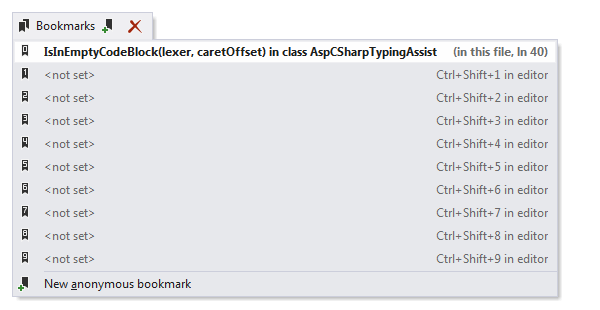
Select the desired digit in the list and press Insert.
If the digit that you chose is occupied by another bookmark, this existing bookmark will be removed and replaced by the new one.
Add an anonymous bookmark
Place the caret at the code line you want to mark.
Press Control+` or choose from the main menu. Alternatively, you can press Control+Shift+A, start typing the command name in the popup, and then choose it there.
In this popup, either click New anonymous bookmark, or select this item and press Insert or Enter.
Navigate bookmarks
To navigate to a numbered bookmark, press Ctrl+<digit>
To navigate to any of the existing bookmarks, use the Bookmarks popup.
Press Control+` or choose from the main menu.
Click a bookmark or select this bookmark and press Enter to open the marked code in the editor.
Remove bookmarks
To remove all bookmarks in the currently opened document, choose in the main menu.
To remove all bookmarks in the solution, choose in the main menu.
To remove a bookmark with mnemonic, press the corresponding Ctrl+Shift+[digi] shortcut when the caret is at the line marked with this bookmark.
Press Control+` or choose from the main menu. In the bookmarks popup, choose a bookmark that you want to remove and press Delete.
This feature is supported in the following languages and technologies:
|
|
|
|
|
|
|
|
|
|---|---|---|---|---|---|---|---|---|
|
|
|
|
|
|
|
|
|


The instructions and examples given here address the use of the feature in C#. For more information about other languages, refer to corresponding topics in the Languages and frameworks section.