Declare template parameters
Code templates can adjust to the surrounding context or even act interactively when you apply them. All this is done with template parameters and template macros.
You can define and edit template parameters in the Template editor. As soon as you type a parameter (prefixed and suffixed with $), it becomes available in the Parameters section to the right of the text area . You can then configure its behavior by clicking Choose macro:
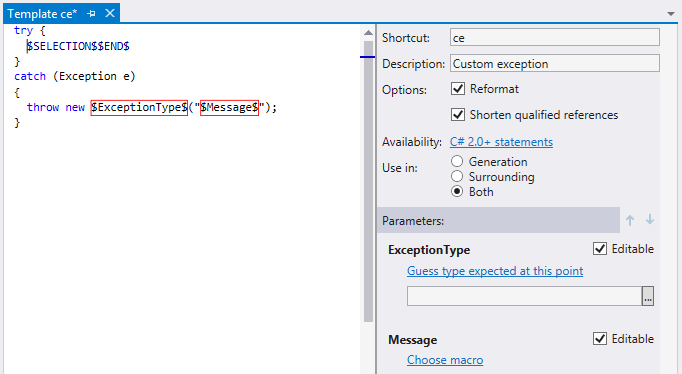
You can use any parameter in a template more than once; their values will be synchronized when the template applies.
Declare a template parameter
Create a new template or open an existing template for editing.
Enter a parameter as
$parameter_name$in the text area of the template editor.To define a macro that calculates parameter value, find the parameter in the Parameters section to the right of the text area and click Choose macro. If a macro is already defined, you can click its hyperlink to switch to another macro.
In the Choose macro dialog that appears, select a macro from the list and click OK. If the selected macro has a macro-parameter, is displayed in bold in the dialog (for example, format or type). In this case, after you choose a macro, a text field or a selector appears under the template parameter. You can specify the macro-parameter there.
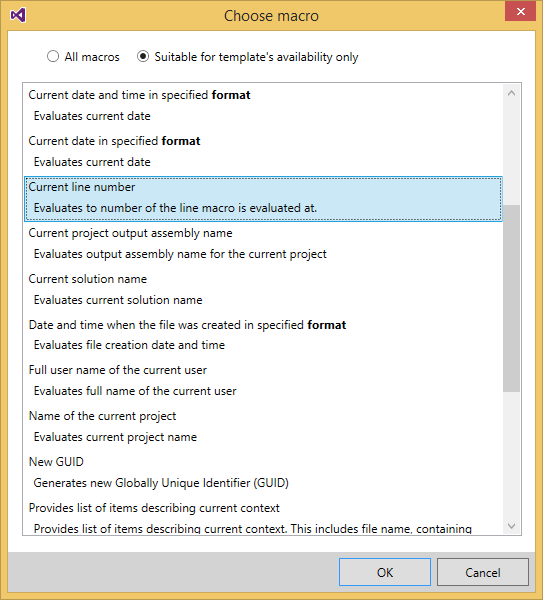
If you want the parameter to be editable, the Editable checkbox next to it should be enabled (which it is by default). Depending on the number of parameter occurrences within the template, do one of the following:
If the parameter is used in the template only once, make sure that the checkbox is selected.
If the parameter is used in the template more than once, a combo box appears, where you can select a sequential number of the editable occurrence. This number specifies to which occurrence of the parameter the input focus will be set when the template is deployed with a Hot spot session. You may also notice that the numbers are prefixed with 'M' or other letters. These letters define in which file of a multi-file template the input focus should be set for this parameter. 'M' stands for the main file and appears in all templates.
Optionally, you can select the newly declared parameter in the Parameters area and use up and down arrows to change the order of parameter. The position in the list of parameters defines the order, in which the parameters are switched during the hot spot session when the template is applied. It affects only editable parameters.
To save the template, choose on the Visual Studio menu or press Ctrl+S.