Code cleanup
ReSharper allows you to apply formatting and other code style preferences in a bulk mode to instantly eliminate code style violations in one or more files, in a project or in the entire solution.
Code cleanup profiles
Code cleanup can have various configurations (profiles) to apply in different cases according to your needs. There are three default profiles available out of the box:
Built-in: Reformat Code that only applies code formatting preferences
Built-in: Reformat & Apply Syntax Style that applies code formatting preferences and code syntax styles.
Built-in: Full Cleanup that applies all available cleanup tasks except updating file header.
These profiles help in most cases but you cannot configure them. If you want to run code cleanup with the custom set of cleanup tasks, you need to create a custom profile and specify the set of desired tasks there.
Create a new custom cleanup profile
Select from the main menu or press Alt+R O.
Go to the cleanup profiles settings page: .
Select one of the existing profiles on the left and click Duplicate on the top of the page. ReSharper will create a new cleanup profile with the same set of tasks as in original profile.
Select the newly created profile in the list of profiles.
Click Configure on the top of the page.
The tasks of the selected profile become editable on the right. Configure them as desired.
If you want to create or edit other profiles before saving your modifications, click Done on the top of the page to temporarily remember modifications to the current profile.
Click Save in the Options dialog to apply the modifications and let ReSharper choose where to save them, or save the modifications to a specific settings layer by choosing this layer from the Save To selector. For more information, see manage and share resharper settings.
Your newly created cleanup profile will be available in the Code Cleanup dialog when you are running code cleanup. You can also set this profile to be used for the silent cleanup.
Use different cleanup profiles simultaneously
ReSharper allows you to use a specific code cleanup profile for most files in your solution, but a different code cleanup profile for a subset of files. You can also skip the cleanup entirely for specific files.
To do so, use the resharper_substitution_for_cleanup_profile EditorConfig property with the following syntax:
This syntax allows you to use a different profile either when Code Cleanup is started with a specific profile — in this case, specify the name of that profile to the left of =>, or when Code Cleanup is started with any profile — in this case, write * to the left of =>. Specify the name of the profile that should be used to the right of =>, or write skip if Code Cleanup should not be applied to the matching files.
Run code cleanup
ReSharper can apply code cleanup to an arbitrarily selected block of code, all code in the current file, all files in a directory, the current project, or even the current solution. Make sure that you select the right set of cleanup tasks by choosing the right cleanup profile.
Clean up selection or file
Select the scope where you want to clean up code:
Make a selection in the editor to clean up code in the selection.
Place the caret anywhere in the file to clean up code in the file.
If you are cleaning up a selection, press Alt+Enter and choose .
Alternatively, you can follow the below steps, which work for both selection and file.
Do one of the following:
Press Control+Alt+F or choose from the main menu.
Right-click anywhere in the text editor or right-click the selection and choose Cleanup Code in the context menu.
In the Code Cleanup dialog that opens, choose a cleanup profile to apply. Use the area to the right of the selected profile to check the tasks included in that profile.
If none of the available profiles suits you, choose one of the existing profiles and click Duplicate to create a new custom profile.
Note that if you create or modify cleanup profiles in this dialog, your changes will be saved using the smart save logic. If you need to save your modifications to a shared settings layer, make your modifications on the page of ReSharper options, click Save To and then choose the desired settings layer.
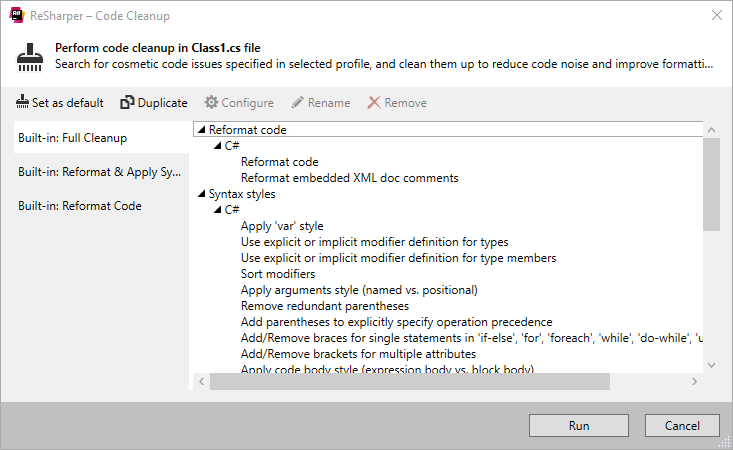
Click Run to clean up code in the selected scope.
By default, files that are opened in the editor are not saved automatically after cleanup. If you want to enable auto-saving after cleanup, select Save after cleanup is applied to the whole file on the page of ReSharper options Alt+R, O.
You can clean up not only an individual file, but also multiple files in a directory, project or entire solution. To do so, run code cleanup from the Solution Explorer.
Clean up multiple files, projects, or entire solution
Select one or more items (files, directories, projects, or the solution) in the Solution Explorer.
Do one of the following:
Press Control+Alt+F or choose from the main menu.
Right-click the selection and choose Cleanup Code in the context menu.
Choose a cleanup profile as described above.
Click Run to clean up code in the selected scope.
You can run Code Cleanup every time you save changes in a file to make sure that your edits always comply with your code style.
Automatically run Code Cleanup on saving changes
Select from the main menu or press Alt+R O.
Go to the cleanup profiles settings page: .
Select which Code Cleanup profile should be applied on save and click Set as default (the default profile is also used for silent cleanup).
Go to the options page and select Automatically run cleanup when saving a file.
Optionally, you can restrict automatic cleanup to specific files by a file mask.
You can also select Only changed parts of file to make sure that cleanup is applied to the code affected by your changes, and the rest of the code in the file is not modified.
If you choose to clean up only the changed parts of files, you can fine-tune this behavior with the following options:
Perform full cleanup if partial cleanup is not possible — depending on this option, ReSharper will either clean up the whole file or skip the file if it is not possible to restrict the cleanup to the modified parts of the file.
Allow cleanup on save for shared files — use this option to enable or disable partial cleanup in files that are included in the solution several times, such as files from shared projects.
Click Save in the dialog to apply the modifications and let ReSharper choose where to save them, or save the modifications to a specific settings layer by choosing this layer from the Save To selector. For more information, see manage and share resharper settings.
The next time you finish editing and save the file (Ctrl+S) or all files (Ctrl+Shift+S) , ReSharper will clean up the affected files using the selected profile. If the default cleanup profile is not selected, ReSharper will prompt you to choose one of the profiles.
You can also run code cleanup in files that you recently opened or modified.
Clean up recently modified files
Expand the submenu at ReSharper | Edit | Cleanup Recent Files.
Choose whether to run cleanup for all opened files or for all recently modified files.
Cleanup... actions will prompt you to choose a cleanup profile, Silent Cleanup... actions will use the default cleanup profile selected on the page of ReSharper options Alt+R, O.
If you choose to clean up recently modified files, ReSharper will apply the selected cleanup profile to all files in the solution that were edited during the last 7 days.
You can change the number of days during which changes should be considered recent on the page of ReSharper options Alt+R, O.
You can also select Only changed parts of file to make sure that cleanup is applied to the code affected by your changes, and the rest of the code in the file is not modified.
Silent cleanup
You can also run code cleanup in the silent mode — that is, without displaying the Code Cleanup dialog. Since in this case you will not be able to choose a profile explicitly, you have to assign some cleanup profile to use for the silent code cleanup.
Assign a profile for silent code cleanup
Select from the main menu or press Alt+R O.
Go to the cleanup profiles settings page: .
Select a cleanup profile on the left and click Set as default at the top of the options page.
Click Save in the Options dialog to apply the modifications and let ReSharper choose where to save them, or save the modifications to a specific settings layer by choosing this layer from the Save To selector. For more information, see manage and share resharper settings.
Run code cleanup in silent mode
Do one of the following:
To run silent code cleanup in a specific code file, open it in the text editor or select it in the Solution Explorer.
To apply silent code cleanup to a set of files (directory, project, or solution), select the corresponding item in the Solution Explorer.
Press Control+Shift+Alt+F or choose from the main menu. Alternatively, you can press Control+Shift+A, start typing the command name in the popup, and then choose it there.
Available code cleanup tasks
The tables below list available cleanup tasks for different languages. If you need the cleanup to perform only a part of these tasks, you can create a custom cleanup profile for that.
Reformat code
C# | |
Reformat code | Reformats your code according to the preferences that you can configure on the page of ReSharper options . For more information, refer to Apply formatting rules. |
Reformat embedded XML doc comments | Reformats XML doc comments according to options configurable on the page of ReSharper options . Note that ReSharper does not reformat plain comments like: // A plain single-line comment or /* A plain multi-line comment */ |
C++ | |
Reformat code | Reformats your code according to the preferences that you can configure on the page of ReSharper options . For more information, refer to Apply formatting rules. |
Visual Basic | |
Reformat code | Reformats your code according to the preferences that you can configure on the page of ReSharper options . For more information, refer to Apply formatting rules. |
Reformat embedded XML doc comments | Reformats XML doc comments according to options configurable on the page of ReSharper options . Note that ReSharper does not reformat plain comments like: // A plain single-line comment or /* A plain multi-line comment */ |
XML | |
Reformat code | Reformats your code according to the preferences that you can configure on the page of ReSharper options . For more information, refer to Apply formatting rules. |
HTML | |
Reformat code | Reformats your code according to the preferences that you can configure on the page of ReSharper options . For more information, refer to Apply formatting rules. |
CSS | |
Reformat code | Reformats your code according to the preferences that you can configure on the page of ReSharper options . For more information, refer to Apply formatting rules. |
JavaScript/TypeScript | |
Reformat code | Reformats your code according to the preferences that you can configure on the page of ReSharper options . For more information, refer to Apply formatting rules. |
Reformat embedded XML doc comments | Reformats XML doc comments according to options configurable on the page of ReSharper options . Note that ReSharper does not reformat plain comments like: // A plain single-line comment or /* A plain multi-line comment */ |
Syntax styles
C# | |
Apply 'var' style | Applies the rules for 'var' usage during the cleanup. The rules are configurable on the page of ReSharper options Alt+R, O. |
Use explicit or implicit modifier definition for types | Applies the rule for type modifiers - whether on not to use the |
Use explicit or implicit modifier definition for type members | Applies the rule for type member modifiers - whether on not to use the |
Sort modifiers | Applies the preferred order of type/member modifiers. The rule is configurable on the page of ReSharper options Alt+R, O. For more information, refer to Code Syntax Style: Modifiers. |
Apply arguments style (named vs. positional) | Applies the preferences for named/positional arguments for specific types of parameters. The preferences are configurable on the page of ReSharper options Alt+R, O. For more information, refer to Code Syntax Style: Named/Positional Arguments. |
Remove redundant parentheses | Removes redundant optional parentheses in cases specified on the page of ReSharper options Alt+R, O. For more information, refer to Code Syntax Style: Optional Parentheses. |
Add parentheses to explicitly specify operation precedence | Adds optional parentheses to clarify precedence of operations in cases specified on the page of ReSharper options Alt+R, O. For more information, refer to Code Syntax Style: Optional Parentheses. |
Add/remove braces around single statements | Adds or removes optional braces around single nested statements as specified on the page of ReSharper options Alt+R, O. For more information, refer to Code Syntax Style: Braces for Single Nested Statements. |
Add/remove brackets for attributes | Applies the rules for multiple attributes as specified on the page of ReSharper options Alt+R, O. For more information, refer to Code Syntax Style: Multiple Attributes. |
Apply code body style (expression body vs. block body) | Applies preferences for bodies of type members (expression body or block body) as specified on the page of ReSharper options Alt+R, O. For more information, refer to Code syntax style: bodies of type members. |
Arrange trailing commas | Applies preferences for trailing commas in declarations with multiple items and similar constructs (object, array, and collection initializers, as well as enums and switch expressions) as specified on the page of ReSharper options Alt+R, O. For more information, refer to Code Syntax Style: Trailing Commas. |
Apply object creation style ('new()' vs 'new T()') | Applies preferences for using the target-typed |
Apply default value style ('default' vs 'default(T)') | Applies preferences for using optional type specification in default value expressions as specified on the page of ReSharper options Alt+R, O. For more information, refer to Code Syntax Style: Default Value Expressions ('default' vs 'default(T)'). |
Arrange namespaces (file-scoped vs. block-scoped) | Applies preferences for using file-scoped namespace declarations in files containing a single namespace as specified on the page of ReSharper options Alt+R, O. For more information, refer to Code syntax style: file-scoped namespaces. |
Arrange null checking pattern style | Applies the preferred way of checking an expression for null with the type-testing 'is' operator (with |
Arrange qualifiers | Applies the rules for qualifying type members. The rules are configurable on the page of ReSharper options Alt+R, O. For more information, refer to Code Syntax Style: Optional Member Qualifiers. |
Fix built-in type references | Applies the rule for built-in type names (C# keyword or CLR type name). The rule is configurable on the page of ReSharper options Alt+R, O. For more information, refer to Code Syntax Style: Built-In Type References. |
C/C++ | |
Add/remove braces for single statements | Applies preferences for braces around single nested statements under the |
Apply 'auto' style | Applies preferences for using the |
Apply function declaration style (regular vs. trailing return types) | Applies the preferred style of trailing or regular return types in function declarations as specified on the page of ReSharper options Alt+R, O. |
Apply nested namespaces style | Applies the rule for enforcing the C++17 syntax for nested namespaces, which allows you to declare multi-level namespaces in a more concise manner. The rule is configurable on the page of ReSharper options Alt+R, O. |
Apply type alias style (typedefs vs. type aliases) | Applies the preferred way to define type synonyms as specified on the page of ReSharper options Alt+R, O. |
Arrange cv-qualifiers | Applies the preferred order of cv-qualifiers - whether the |
Arrange slashes in include directives (forward slashes vs. backslashes) | Applies the preferred style of path separator for |
Arrange specifiers ('virtual' and/or 'override') on overriding functions | Applies the preferred style for overriding functions - which specifiers should be required on overriding functions and destructors. The rules are configurable on the page of ReSharper options Alt+R, O. |
Sort include directives | Applies the rules for sorting and regrouping |
Sort member initializers | Applies the order of member initializers according to constructor initializer lists as specified on the page of ReSharper options Alt+R, O. |
XAML | |
Collapse empty tags | Removes the closing tag if the tag body is empty. |
HTML | |
Normalize quotes around attribute value | Applies the preferred quote style: single quote |
JavaScript/TypeScript | |
Normalize quotes around string literal | Applies the preferred quote style: single quote |
Apply statement termination | Adds the optional semicolon |
TypeScript specific | |
Synchronize 'public' presence with code style | This option lets you add or remove explicit 'public' modifier according to settings configurable on the page of ReSharper options Alt+R, O. |
Add explicit 'any' type annotation if needed | This option lets you add explicit 'any' annotation to types according to settings configurable on the page of ReSharper options Alt+R, O. |
Synchronize type annotation presence with code style | This option lets you enforce explicit/implicit type specification according to settings configurable on the page of ReSharper options Alt+R, O. |
Fix relative path style in 'require' if needed | Applies the Relative file reference style in 'require' code style preference for relative paths in the |
Use 'as' instead of type assertions | Replaces var bar = <string> foo; with var bar = foo as string; which is a recommended way to avoid ambiguity with JSX syntax. |
Optimize imports
C# | |
Optimize 'using' directives |
For more information, refer to Code Syntax Style: Namespace Imports. |
Embrace 'using' directives in region | If this checkbox is selected, a new region for wrapping all namespace import directives is created during cleanup. |
Region name | Allows specifying a name for the region wrapping namespace import directives. |
Shorten qualified references | Replaces fully qualified names with short names when possible by importing namespaces, according to the preferences configured on the page of ReSharper options Alt+R, O |
Visual Basic | |
Optimize 'import' directives |
For more information, refer to Code Syntax Style: Namespace Imports. |
Embrace 'using' directives in region | If this checkbox is selected, a new region for wrapping all namespace import directives is created during cleanup. |
Region name | Allows specifying a name for the region wrapping namespace import directives. |
Shorten qualified references | Replaces fully qualified names with short names when possible by importing namespaces, according to the preferences configured on the page of ReSharper options Alt+R, O |
XAML | |
Remove redundant namespace alias | Remove all redundant namespace aliases in the scope of cleanup. Redundant aliases are also detected with the code inspection and can be removed with a quick-fix. |
TypeScript specific | |
Optimize 'import' statements | Use this option to remove redundant 'import' statements or fully-qualified names according to the settings configurable on the page of ReSharper options Alt+R, O. |
Optimize reference comments | Use this option to remove redundant reference comments. |
ASP.NET | |
Optimize @Register directives | Removes unused |
Rearrange code
C# | |
Apply file layout | Reorders type members in files according to the rules configurable on the page of ReSharper options Alt+R, O. For more information, refer to Rearrange members with file and type layout patterns. |
CSS | |
Alphabetize properties | Rearranges CSS properties in the alphabetical order. |
Remove redundancies & apply optimizations
C# | |
Remove code redundancies | On the page of ReSharper options Alt+R, O, in the Redundancies in Code categories of most languages, ReSharper lists dozens of cases that have associated code inspections. Some of them require special attention, and you cannot process them in the batch mode, but most of them can be fixed automatically whenever you select Remove code redundancies in your cleanup profile. |
Use auto-property, if possible | Replaces simple properties and corresponding backing fields with auto-properties. For more information, refer to Use auto-properties. |
Make field read-only, if possible | Adds the |
Make auto-property get-only, if possible | Removes the redundant ReSharper automatically detects and uses C# version specified in the project file *.csproj. To change the version, open the project file in the editor and change the To set the C# version for all projects in your solution, specify it in a Directory.Build.props file in your solution directory as described here. Note that language versions defined in the .csproj files will override the versions specified in the Directory.Build.props file. |
C/C++ | |
Add required 'typename' and 'template' keywords | Adds missing |
Join declarations and assignments | Joins declaration and assignment for cases when a local variable is reassigned in all paths before being read. |
Make local variables const | Adds |
Make member functions 'const' when possible | Adds |
Make member functions 'static' when possible | Makes member functions |
Remove redundant casts | Removes redundant cast expressions. |
Remove redundant 'else' keywords | Removes |
Remove redundant elaborated type specifiers | Removes redundant elaborated type specifier when it's not used to declare a new class or to refer to a previously declared struct hidden by a more local non-type declaration. |
Remove redundant lambda parameter lists | Removes redundant |
Remove redundant member initializers | Removes member initializers in constructors that duplicate the corresponding default member initializers. |
Remove redundant parentheses | Removes parentheses that are redundant in their context. |
Remove redundant qualifiers | Removes qualifiers that are redundant in their context. |
Remove redundant specifiers | Removes specifiers that are redundant in their context. |
Remove redundant statements | Removes statements that are redundant in their context. |
Remove redundant template arguments | Removes redundant template arguments that can be deduced by the language according to the C++17 class template argument deduction rules. |
Remove redundant 'typename' and 'template' keywords | Removes |
Remove unreachable code | Removes unnecessary code that will never be executed. |
Remove unused #include directives | Removes never used |
Remove unused lambda captures | Removes unused capture if a local variable is captured by a lambda but not used inside the lambda body. |
Replace C-style and functional-style casts with static casts | Replaces C-style, |
Replace constants in boolean context with boolean literals | Replaces integral constants with |
Replace if statements with constant conditions with 'if constexpr' | Replaces |
Replace postfix operators with prefix variants | Replaces postfix operators with their prefix variants. |
Replace smart pointer constructors with make functions | Replaces smart pointer constructors with standard ( |
Replace throw expressions with rethrow where possible | Updates the |
Replace type traits with corresponding template aliases or variable templates | Shortens C++11 type trait expressions with C++14 alias templates. |
Replace zero valued expressions in pointer context with nullptr | Replaces zero constants with |
Replace 'tie(..)' with structured binding declarations | Replaces |
Use 'contains' for associative containers wherer possible | Replaces |
Use 'std::erase'/'std::eraseif' instead of remove-erase idiom | Replaces the old erase-remove idiom with C++20 |
Visual Basic | |
Remove code redundancies | On the page of ReSharper options Alt+R, O, in the Redundancies in Code categories of most languages, ReSharper lists dozens of cases that have associated code inspections. Some of them require special attention, and you cannot process them in the batch mode, but most of them can be fixed automatically whenever you select Remove code redundancies in your cleanup profile. |
XAML | |
Remove redundant 'Freeze' attribute | Removes |
Remove redundant modifiers attribute | Removes |
Remove redundant name attribute | Removes |
Remove redundant resource | Removes resource references that are not used |
Remove redundant empty collection property setter | |
Remove redundant attached property setter | Removes unused setters for the |
Remove redundant style property setter | Removes unused setters for the |
Remove forbidden name attribute | Removes |
Remove redundant definitions | Removes definitions if they are redundant in the context. |
Remove redundant UpdateSourceTrigger attribute | Removes |
Remove redundant Mode attribute | Removes |
Remove redundant span attribute | Removes |
JavaScript/TypeScript | |
Correct 'var' to 'let'/'const' where possible |
|
Move let/const to most possible inner scopes | Moves variables defined outside of a function/compound statement, and so on closer to their usages if there are no other usages in outer scopes. |
Convert string concatenations to template strings | In JavaScript code, if the target JavaScript language level is ECMAScript 6 (you can choose it on the page of ReSharper options Alt+R, O) , as well as in TypeScript 1.4 or later, this option will convert string concatenations to template strings. For example:
var str1 = "Hello,";
var str2 = "Test: " + str1 + " World1";
will be converted to
const str1 = "Hello, ";
const str2 = `Test: ${str1} World1`;
|
TypeScript specific | |
Remove redundant qualifiers | Use this option to remove redundant type name qualifiers. |
Update file header (copyright)
C# | |
Update file header | Inserts or updates the file header comment that you can configure on the page of ReSharper options Alt+R, O or using the |
C/C++ | |
Update file header | Inserts or updates the file header comment that you can configure on the page of ReSharper options Alt+R, O or using the |
Run external cleanup tools
C/C++ | |
Apply Clang-tidy fix-its | In this node, you can choose all or specific fixes that will be applied according to the Clang-Tidy checks. The selected fixes will be applied even if the corresponding inspections are turned off on the page of ReSharper options Alt+R, O. Be careful when enabling too many checks at once — code cleanup runs Clang-Tidy only once for a given file, so if multiple fixes touch the same block of code, the changes might conflict with each other. |