Generate Missing/Overriding Members
For inherited types, ReSharper provides two related code generation features:
Implement missing members implements any interface members or abstract members missing from the current class.
Override members does the same as Implement missing members, but it also overrides virtual members if applicable.
Normally, you would not need the Implement missing members command because ReSharper highlights types with non-implemented base members as error and lets you generate the missing members with a quick-fix (Alt+Enter):
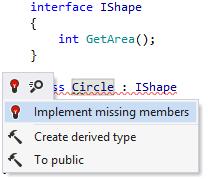
Implement and/or override members
Place the caret within a class where you would like to implement and/or override members from base types.
Press Alt+Insert or choose from the main menu. Alternatively, you can press Control+Shift+A, start typing the command name in the popup, and then choose it there.
In the Generate popup, select Missing Members / Overriding Members.
In the Generate dialog that appears, select members to implement and/or override:
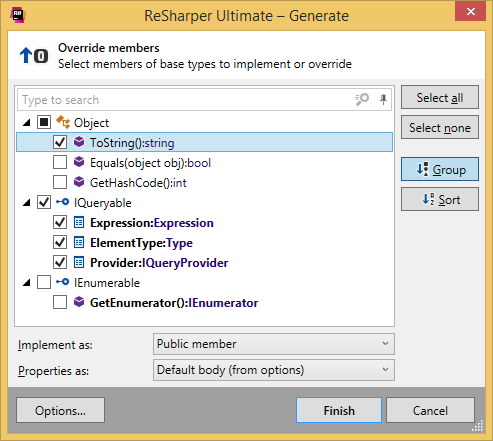
The Implement missing members page differs from Override members in two ways:
It does not show overridable members (such as members of the
Objectclass in this case).It does not emphasize must-implement members with bold.
Optionally, use the following controls that are applied to all implemented/overridden members at this point (see next step for guidelines on configuring individual members):
Implement as lets you choose whether to implement members as:
Public members
Public virtual members
Explicitly implement them as private members
Make properties mutable appears if there are get-only properties in the implemented interface. By default, ReSharper will generate get-only implementations. Use this checkbox to add setters to the implementations of get-only properties.
Properties as lets you choose whether to implement properties as:
Traditional properties with default accessor bodies.
Traditional properties that access private fields
Automatic properties
Click Finish to complete the wizard.
You can also click Options to review or modify common code generation preferences on the page of ReSharper options.
This feature is supported in the following languages and technologies:
|
|
|
|
|
|
|
|
|
|---|---|---|---|---|---|---|---|---|
|
|
| | | | | | |


The instructions and examples given here address the use of the feature in C#. For more information about other languages, refer to corresponding topics in the Languages and frameworks section.