Generate Properties
ReSharper will help you generate properties for all fields that you want to expose.
In the example below, this command is used to generate properties for _radius and _center fields.
Before generation | After generation |
|---|---|
class Circle
{
int _radius;
readonly Point _center;
public Circle(int radius, Point center)
{
_radius = radius;
_center = center;
}
}
|
class Circle
{
int _radius;
readonly Point _center;
public int Radius
{
get { return _radius; }
set { _radius = value; }
}
public Point Center
{
get { return _center; }
}
public Circle(int radius, Point center)
{
_radius = radius;
_center = center;
}
}
|
Generate properties that will expose selected fields
In the editor, place the caret at the type name or within a type at the line where you want to insert properties that will expose selected fields. If the caret is on the type name, the generated code will be added in the beginning of the type declaration.
Press Alt+Insert or choose from the main menu. Alternatively, you can press Control+Shift+A, start typing the command name in the popup, and then choose it there.
In the Generate popup, select Properties / Read-only Properties.
In the Generate dialog that appears, select fields to generate properties for.
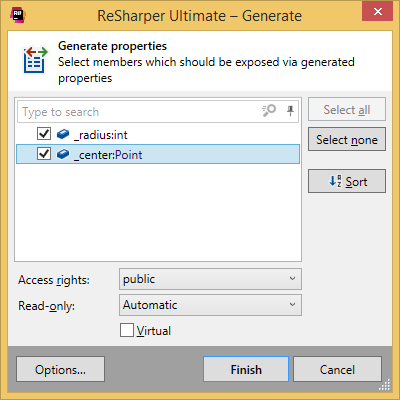
Optionally, use the following controls that are applied to all generated properties:
- Access Rights
defines access rights modifiers for generated properties.
- Read-only
defines whether to generate properties as read-only or not. If you choose Automatic, ReSharper will generate only getters for read-only fields, and both getters and setters for any other fields.
If you have selected Read-only Properties in the Generate popup, the selector is set to Yes, but you can change it if necessary.
- Virtual
(if applicable) adds the
virtualmodifier to generated properties.- Notify on property changes
(if applicable) If your class implements the
INotifyPropertyChangedor inherits from a class that supports property change notifications (for example, Prism’sNotificationObject) and the method that notify property change is decorated with the [NotifyPropertyChangedInvocator] attribute, you can choose to implement properties with change notification calls. For more information, refer to INotifyPropertyChanged support.
Click Finish to complete the wizard.
You can also click Options to review or modify common code generation preferences on the page of ReSharper options.
This command generates properties leaving the original fields intact. If necessary, you can convert the generated properties to auto-implemented properties by pressing Alt+Enter on any of the properties:
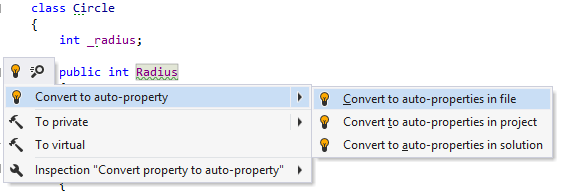
This feature is supported in the following languages and technologies:
|
|
|
|
|
|
|
|
|
|---|---|---|---|---|---|---|---|---|
|
|
| | | | | | |


The instructions and examples given here address the use of the feature in C#. For more information about other languages, refer to corresponding topics in the Languages and frameworks section.