Context actions
Context actions are code transformations helpers available right in the editor. In contrast to quick-fixes, context actions do not aim to resolve a problem or improve your code, instead, they allow you to quickly introduce minor changes like changing access modifiers, generating code that checks for null, convert 'foreach' to 'for', etc.
ReSharper provides hundreds of context actions in all supported languages. You can find the full list on the page of ReSharper options Alt+R, O and in the list of context actions.
Apply context actions
As soon as a context action becomes available for the current caret position, ReSharper displays the corresponding action indicator .png "ThemedIcon.ContextAction.Screen.(Gray).png") to the left of the caret. Sometimes however, ReSharper provides several contextually available features for the current caret position. In this case, the action indicator corresponding to the action with the highest priority is shown, and all other actions only appear when you expand the action list by clicking on the action indicator or pressing Alt+Enter Context actions have the lowest priority, therefore, they often appear at the bottom of the action list.
to the left of the caret. Sometimes however, ReSharper provides several contextually available features for the current caret position. In this case, the action indicator corresponding to the action with the highest priority is shown, and all other actions only appear when you expand the action list by clicking on the action indicator or pressing Alt+Enter Context actions have the lowest priority, therefore, they often appear at the bottom of the action list.
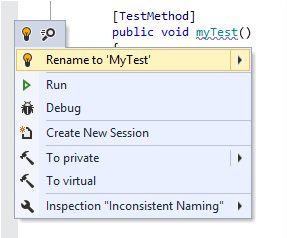
In most cases, a context action is applied immediately. However, some actions require user interaction to choose how exactly they transform your code. In these cases, a Hot spot session is deployed in the editor, where you can select one of the suggested values or provide your own values in the active input positions.
For example, here is what happens when you apply the Iterate collection via 'foreach' context action:

After creating the foreach statement, a hot spot session helps you complete editable parameters of the generated statement:

To complete the hot spot session:
If ReSharper suggests some values for the current parameter, use Up and Down arrow keys to navigate through the list of suggested values, or just type in a desired value.
Press Tab or Enter to accept the value and move to the input position of the next parameter. If this is the last parameter, the hot spot session completes and the caret moves to the end position defined for the session.
Press Shift+Tab to move the input focus to the input position of the previous parameter.
Press Esc to exit the hot spot session. In this case, all session parameters will be initialized with default values.
Configure context actions
By default, most of the context actions are enabled, but you can easily disable those that you consider unhelpful.
Select from the main menu or press Alt+R O.
Use the search field in the Options dialog to find specific context action.
Alternatively, open the page and look for the context actions that you want to disable.
Clear the checkbox next to a context action to disable it.
Click Save in the Options dialog to apply the modifications and let ReSharper choose where to save them, or save the modifications to a specific settings layer by choosing this layer from the Save To selector. For more information, see manage and share resharper settings.
Apply context actions in wider scope
Some context actions can automatically find and change similar code items in a larger scope - in the current file, in the current project or in the whole solution. These context actions work the same as Fix in scope. For example, you can move all types from the current file to new matching files:
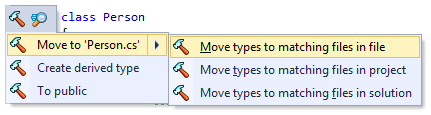
The full list of context actions that can be applied in wider scopes includes:
C++
Sort definitions by the order of declaration
C#
Add another accessor
Add block braces to switch section statements
Add braces
Add deconstruct pattern component name
Add explicit name of anonymous property
Add name to argument
Add tuple component name
Add warning description comment to a '#pragma' directive
Change between 'set' and 'init' accessor
Chop formatting for list-like language constructs
Convert anonymous type to tuple
Convert array creation or collection initialization into collection expression
Convert collection initializer into 'Add' method calls
Convert explicit to implicit implementation
Convert expression body member to statement body
Convert expression to 'StringBuilder'
Convert expression to 'StringBuilder' calls
Convert implicit to explicit interface implementation
Convert integer literal to binary form
Convert integer literal to the hexadecimal form
Convert integral literal to decimal form
Convert member value check expression to recursive pattern
Convert multiline string to separate 'AppendLine' calls
Convert not-null check into object pattern check
Convert object initializer into assignment statements
Convert object initializer into constructor invocation
Convert string interpolation to concatenation of string
Convert string interpolation to 'string.Format' call
Convert 'switch' expression to conditional ?: expression(s)
Convert 'switch' expression to 'if' statements
Convert 'switch' expression to 'switch' statement
Convert 'switch' statement to 'if' statements
Convert 'switch' statement to 'switch' expression
Convert to array creation expression
Convert to classic extension method
Convert to classic extension methods
Convert to collection initializer
Convert to separate 'Append' and 'AppendLine' invocations
Convert to 'using' statement
Convert verbatim to raw string interpolation
Convert verbatim to raw string literal
Convert 'with' expression into temporary variable mutations
Create collection expression from 'params' parameter arguments
Create explicit array creation from 'params' parameter arguments
Create explicit collection creation from 'params' parameter arguments
Create explicit constructor declaration for primary constructor
Create explicit field declaration for parameter of primary constructor
Create explicit property declaration for positional parameter
Delete comment
Fully qualify reference to type, static member, or namespace
Include member access into object pattern
Inline temporary variable
Inline using alias
Inline variable into condition expression
Insert digit separators in integer literal
Insert digit separators in real literal
Insert generic method invocation type arguments
Insert lambda expression parameters signature
Insert lambda expression return type specification
Insert type specification after default literal
Invoke extension method as ordinary static method
Join attributes into single section
Join local variable declaration and assignment
Merge sequential checks into null-propagating expression
Merge sequential null/pattern checks into single pattern check
Migrate to #nullable enable
Move annotation to another part of the partial declaration
Move assignment in constructor to initializer
Move type to another file to match its name
Qualify static members imported via 'using static' directive
Remove #region, #endregion directives
Remove argument name
Remove deconstruct pattern component name
Remove digit separators from numeric literal
Remove redundant parenthesis
Remove redundant preprocessor parentheses
Remove tuple component name
Replace '?:' conditional operator with null-propagating expression
Replace array initializer with expression
Replace auto-implemented property accessor with explicitly implemented accessor
Replace auto-property with property and backing field
Replace auto-property with property and 'field' keyword
Replace explicit type specification with 'var'
Replace 'field' keyword with explicit field declaration
Replace null-propagating expression with '?:' conditional operator
Replace separate deconstruction declarations with single declaration
Replace 'var' with explicit type declaration
Replace with access expression
Sort 'using' directives
Specify created type
Specify enum member values
Split 'and' patterns into multiple 'is' expressions or guard expression
Split attributes into separate sections
Split into nested patterns
Split list pattern into several consecutive checks
Split null-propagating expression into sequential checks
Split 'or' patterns into multiple 'is' expressions or 'switch' cases
Split recursive pattern into several consecutive checks
Split 'var' pattern into separate variable declaration
To block-scoped namespace
To file-scoped namespace
To named property patterns
Use ""
Use 'ConfigureAwait(false)' call
Use explicit discard declaration
Use implicit discard declaration
Use 'nameof' expression to capture name of entity
Use object/collection initializer instead of assignments/.Add() method calls
Use positional deconstruction pattern
Use separate declarations in deconstruction declaration/patterns
Use string interpolation
Use 'string.Empty'
Use target-typed new
Use 'var (...)' syntax for deconstructing declarations with multiple variables
TypeScript
Move type to another file to match its name
Unity
Convert to named assembly definition reference
VB.NET
Use string interpolation
List of context actions
Use the links below to see the full list of context actions available for specific languages:
- Language-independent context actions
- Context actions for C#
- Context actions for Visual Basic
- Context actions for HTML
- Context actions for ASP.NET
- Context actions for Razor
- Context actions for JavaScript
- Context actions for TypeScript
- Context actions for JSON
- Context actions for CSS
- Context actions for XML
- Context actions for XAML
- Context actions for Build Scripts
- Context actions for C++
This feature is supported in the following languages and technologies:
|
|
|
|
|
|
|
|
|
|---|---|---|---|---|---|---|---|---|
|
| |
|
|
|
|
| |


The instructions and examples given here address the use of the feature in C#. For more information about other languages, refer to corresponding topics in the Languages and frameworks section.