Highlight current line
You can opt to highlight the line where the caret currently resides with a configurable color.
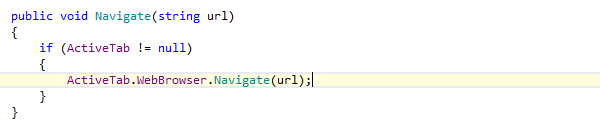
By default, highlighting of the current line is disabled. To enable it, tick the Highlight current line checkbox on the page of ReSharper options and then restart Visual Studio.
To specify the color to highlight the current line, go to the Visual Studio options (), open the Environment | Fonts and Colors page, and then select the desired color for the ReSharper Current Line Highlight item.
26 May 2024