Code Inspection and Quick-Fixes in JavaScript
The key features of ReSharper's code analysis are also supported in JavaScript. You can find the detailed information on these features in the corresponding topics of the Code analysis section. In the main topic of the section, you can also find the feature matrix and check what exactly is supported in JavaScript.
In this topic, you can find some examples of using code analysis features in JavaScript.
Code Inspection
ReSharper's static code analysis can detect more than a hundred different errors and problems in JavaScript code.
The analysis is performed by applying code inspections to the current document or in any specified scope.
To look through the list of available inspections for JavaScript, open the page of ReSharper options Alt+R, O, and then expand the JavaScript node.
Resolving global variables
ReSharper highlights usages of undefined variables as warnings. There are cases, however, when these usages are valid. For instance, some variables can be defined directly in the markup.
One way to deal with this, is to disable or suppress the corresponding code inspection. However, you can define such variables using the // global comment. In this case, the inspection will stay active and help you to find typos in variable names.
You can place these comments either at the top of the current file or use a single file for all global variables of the project. Each variable requires a new comment, for example: // global variableName
Quick-fixes
Quick-fixes let you automatically resolve most of code issues found with code inspection. If one or more quick-fixes are available for a code issue, you will see the corresponding action indicator when your caret is on the highlighted code. Press Alt+Enter to see and apply the desired fix.
ReSharper provides dozens of quick-fixes for JavaScript. Here are some examples:
Create from usage
This is one of the most useful quick-fixes. Whenever you use anything that was not declared, ReSharper can help you create a valid declaration taking into account the usage and the surrounding context.
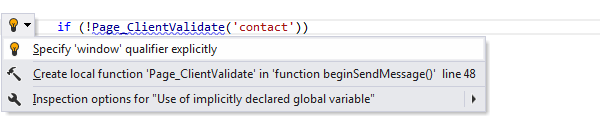
Specify qualifier explicitly
In case an explicit qualifier is missing, use this quick-fix to add a qualifier.
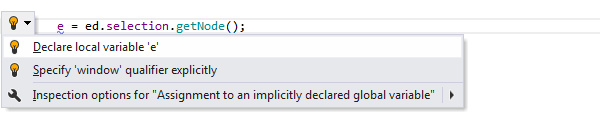
Declare local variable
When ReSharper finds out that a variable has been assigned without being declared, use this quick-fix to transform the assignment into a variable declaration.
Make ReSharper ignore specific code
To exclude parts of your solution's code from code analysis, navigation, and other features, ReSharper allows you to ignore specific files, folders, and file masks in different ways.
To improve performance, ReSharper also automatically detects and starts ignoring large web files that have no references and were probably added to the solution by mistake.
If any of such files are detected, you will see a notification where you can stop ignoring any of those files if you need them. You can also find all automatically ignored files on the page of ReSharper options .
To stop auto-detection and ignoring large unused web files, clear the Search for web files that can affect performance and exclude them from indexing checkbox on the page of ReSharper options .