Coding assistance in Visual Basic
All ReSharper's coding assistance features available in C# are also supported in Visual Basic. You can find the detailed information on these features in the corresponding topics of the Coding assistance section.
In this topic, you can find some examples of using coding assistance features in Visual Basic.
Syntax highlighting
You can establish a custom font and color scheme, for more information, refer to Configure fonts and colors.
Default syntax highlighting:

Code completion
Code Completion features help you write code faster by providing a set of items to complete based on surrounding context. For more information, refer to Code completion.
Three Code Completion features are available in Visual Basic:
Automatic and basic completion
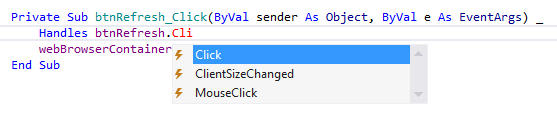
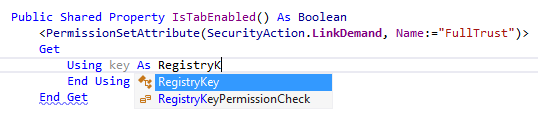
Basic completion suggests namespaces, types, methods, fields, properties, and so on.
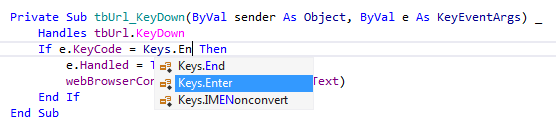
Enum members are also included in basic completion list.
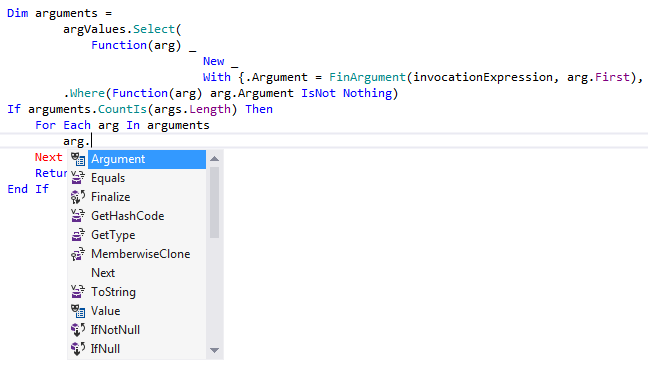
If you use anonymous types, ReSharper takes their properties into account and displays them in completion list along with other available items.
Smart type-matching completion
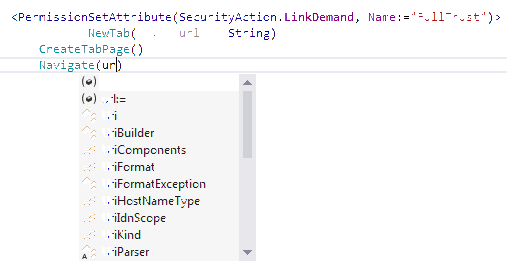
Smart completion filters items in code completion list according to the type expected in current context. Look at the example below, only those items that have string type are displayed in the list.
Import symbol completion
Import Symbol Completion provides completion items for types and extension methods that are not visible through import directives in current context.
Examples of context actions
ReSharper provides a set of context actions that target Visual Basic code. You can find the full list of these actions in the Code Editing | Visual Basic | Context actions page of ReSharper Options. If necessary, you can also disable some of the actions using this page.
As soon as a context action becomes available for the current caret position, ReSharper displays the corresponding action indicator .png "ThemedIcon.ContextAction.Screen.(Gray).png") to the left of the caret. Sometimes however, ReSharper provides several contextually available features for the current caret position. In this case, the action indicator corresponding to the action with the highest priority is shown, and all other actions only appear when you expand the action list by clicking on the action indicator or pressing Alt+Enter Context actions have the lowest priority, therefore, they often appear at the bottom of the action list.
to the left of the caret. Sometimes however, ReSharper provides several contextually available features for the current caret position. In this case, the action indicator corresponding to the action with the highest priority is shown, and all other actions only appear when you expand the action list by clicking on the action indicator or pressing Alt+Enter Context actions have the lowest priority, therefore, they often appear at the bottom of the action list.
Here are some examples of context actions for Visual Basic:
Add new format item
If you need to add some dynamic data to a string literal, use this context action.

It wraps the string literal with the String.Format method call, adds a placeholder at the current caret position and lets you specify the corresponding parameter.
Change member visibility
If you need to adjust member visibility, ReSharper provides a context action that allows doing this quickly.


Convert Function to Sub
In case you want to convert a Visual Basic Function to a Sub, there's the corresponding context action as well.

Convert to property with backing field
You can easily transform an automatic property to a property with backing field. Place the caret at the name of an automatic property and press Alt+Enter. ReSharper suggests the appropriate context action.

Create overload without parameter
For each parameter of a function there's a context action that will create a function without that parameter which calls the original function.


Implement member
After you add a new member to a base class, the next logical step is to implement this member in all classes derived from the base class. You can write code manually, but a better decision is to apply the appropriate context action.

ReSharper automatically detects all derived classes and prompts you to decide where a base class member should be implemented and generates code.

Rearrange code
Rearrange code elements is available in Visual Basic as well. For example, you can move a member declaration up or down within a type.

You can move a statement out of or into a block of code. For example, to move If statement out of For Each loop, press Control+Alt+Shift+Left.

You can reorder parameters of a method call or a method declaration. For example, to move FileId argument to the right, press Control+Alt+Shift+Right.
