RubyMine Quick Start
RubyMine is an integrated development environment (IDE) that helps you be more productive in every aspect of Ruby/Rails projects development – from writing and debugging code to testing and deploying a completed application. RubyMine is available for different platforms including macOS, Windows, and Linux.
In this tutorial, we’ll show you the main RubyMine capabilities using a fork of a sample application created for the Ruby on Rails Tutorial. Before starting this tutorial, do the following:
Install Git.
Install the Ruby distribution for your platform.
Install and set up RubyMine.
We'll perform all steps using RubyMine installed on macOS.
Clone a project
First of all, we need to clone the repository containing the sample application:
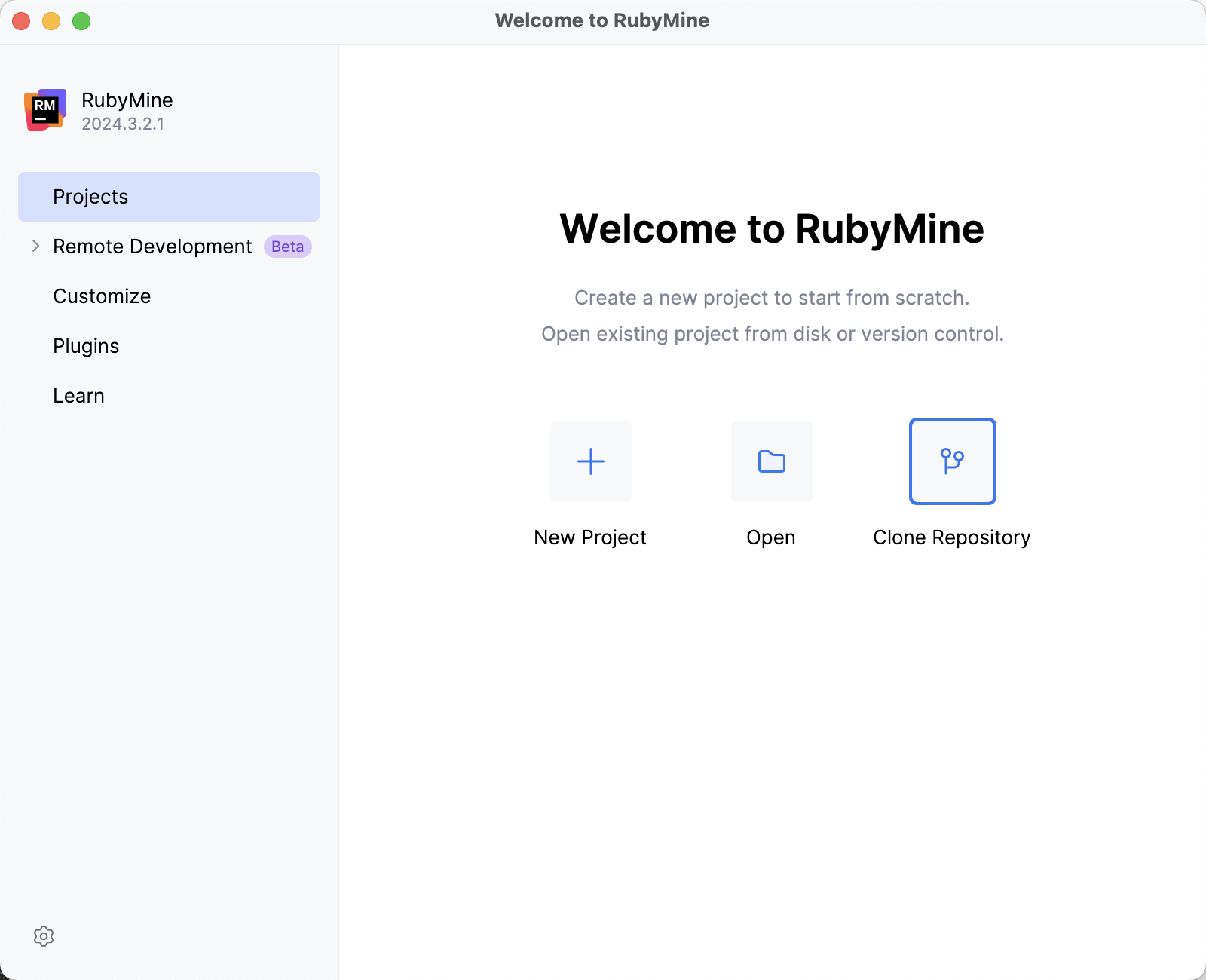
Run RubyMine and click Clone Repository on the Welcome Screen.
In the Clone Repository dialog, do the following:
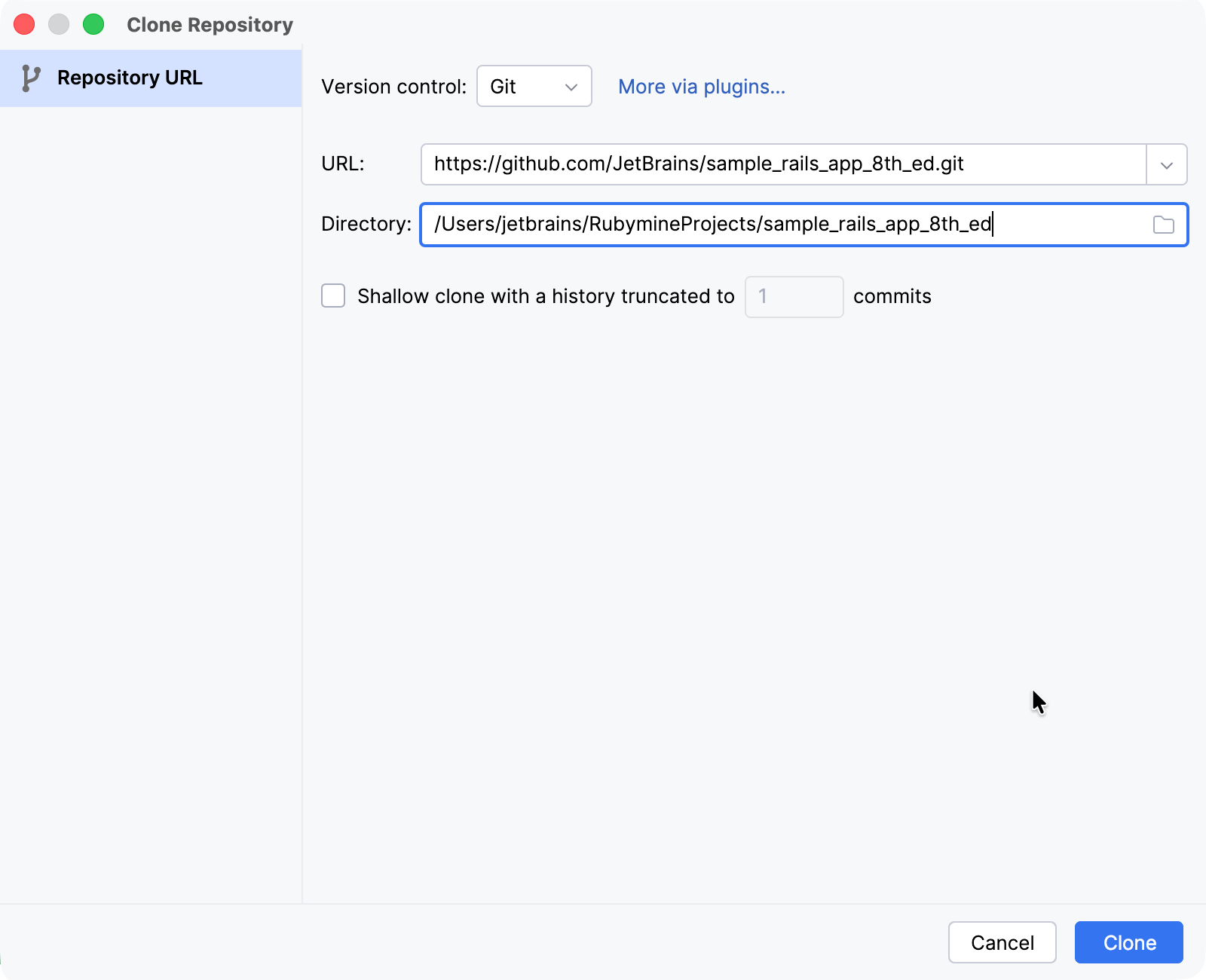
Make sure that Git is selected in the Version control field.
Insert the following address in the URL field:
https://github.com/JetBrains/sample_rails_app_8th_ed.git
Click the Clone button. RubyMine will show a progress bar indicating a cloning process.
After cloning the repository, RubyMine opens the project and starts the project analysis process. You can see the progress in the Status Bar.
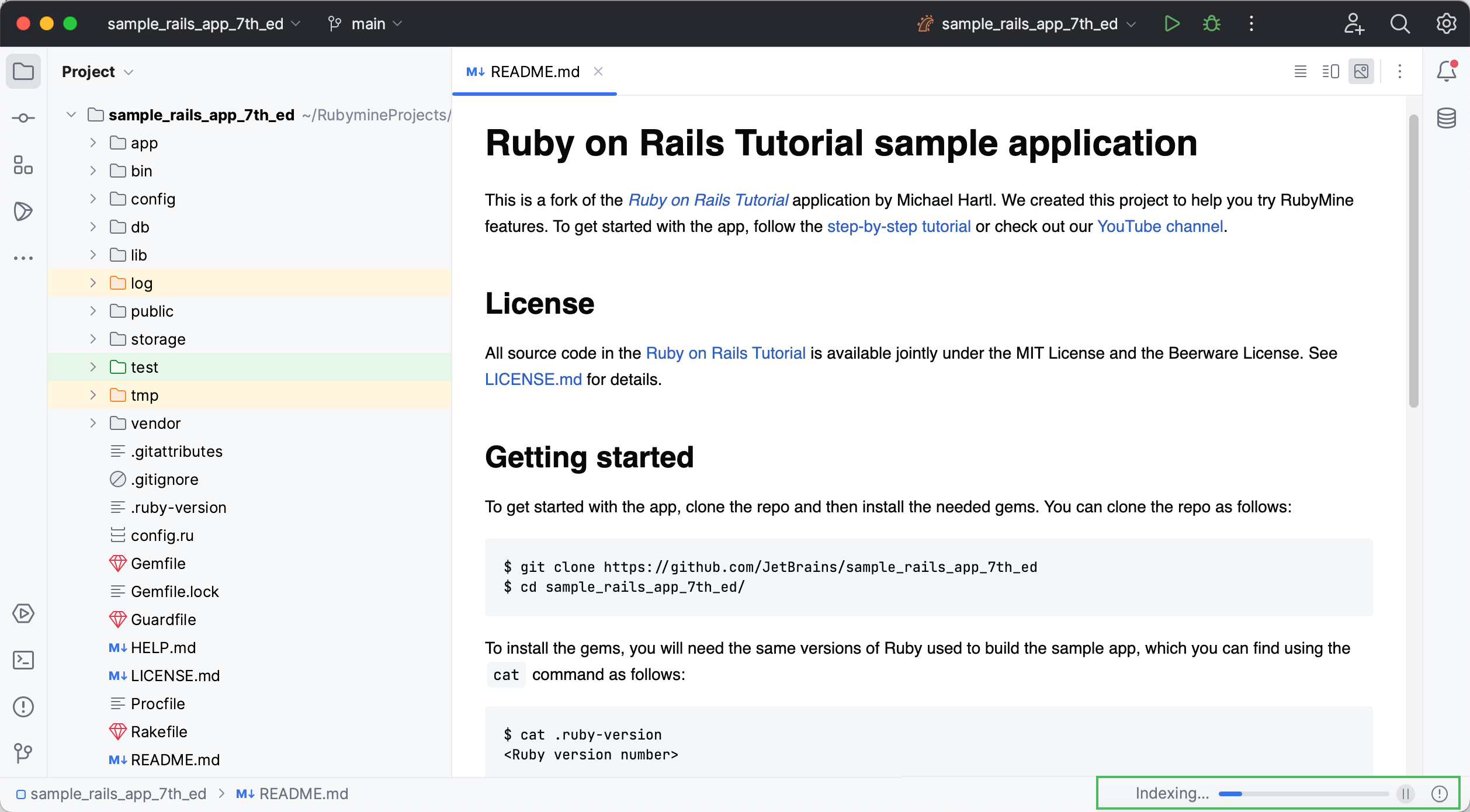
RubyMine analyzes your project to examine its sources and collects the information on available files, class and method definitions, and so on. This is required for code insight features such as code completion and navigation.
Select a Ruby interpreter and install gems
After you opened the project, it is necessary to make sure the required Ruby interpreter is configured and install the dependencies specified in the project's Gemfile.
The IDE detects all installed Ruby interpreters and selects the appropriate option based on the project. If there's a conflict between the automatically selected Ruby interpreter and the project settings or no interpreter was detected, you can configure it manually.
Install the gems
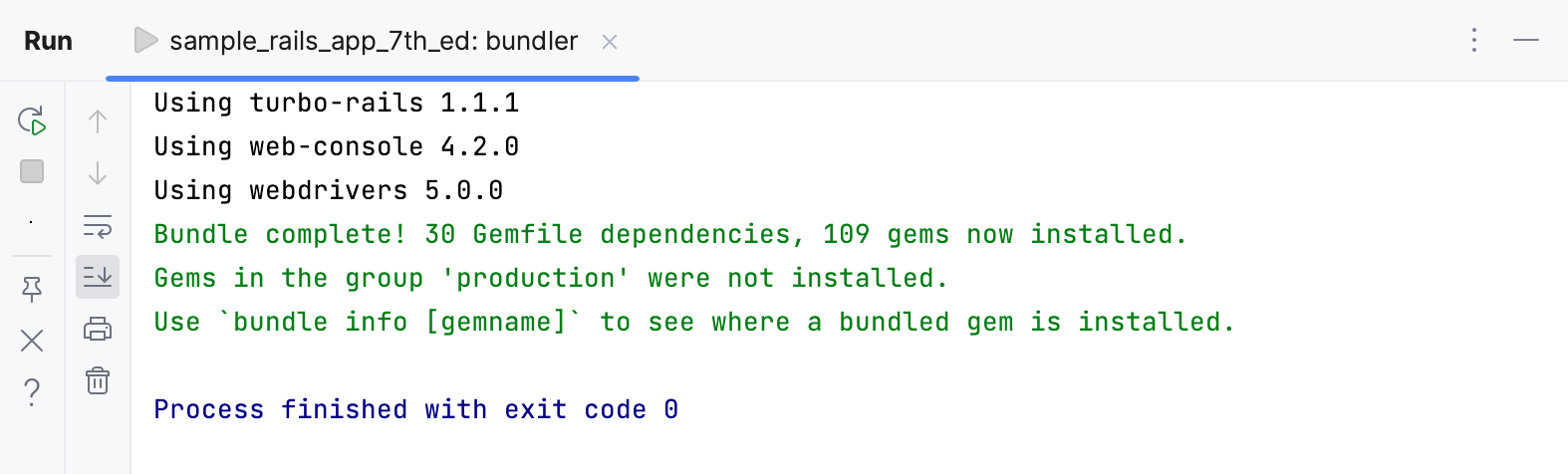
Install the gems specified in the Gemfile. RubyMine allows you to use Bundler to manage gems. Press Ctrl twice and start typing bundle install. Then, select the
bundle installcommand from the list and press Enter.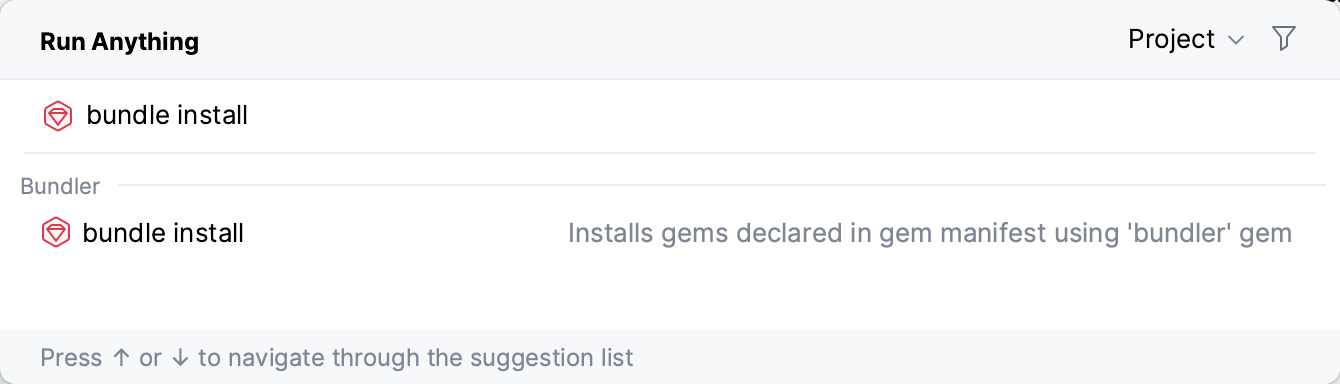
Wait until RubyMine installs all gems.
Run migrations
Before running our Rails application, we need to migrate the database.
Press Ctrl twice and type
db:migrate. Select rake db:migrate in the dropdown and press Enter. Press Ctrl twice, typedb :migrate, and press Enter.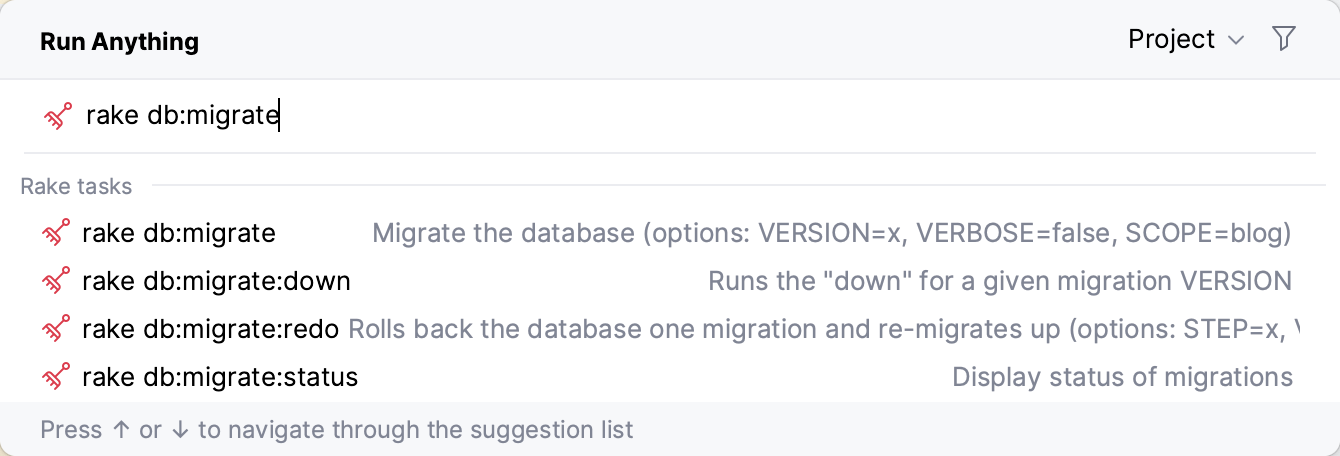
Leave the default settings in the invoked Execute ‘db:migrate’ dialog and click OK.
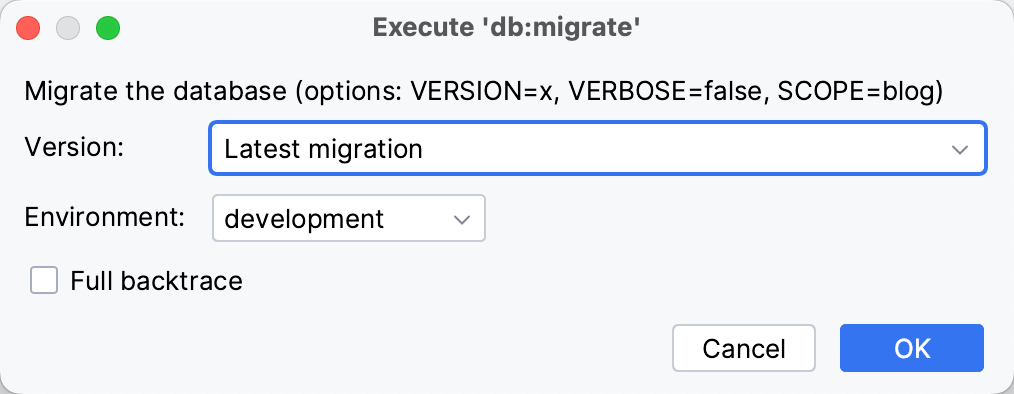
This creates the development.sqlite3 database in the db folder.
Run
rake db:migrateone more time as described in the first step. This time, set the Environment option to test in the Execute ‘db:migrate’ dialog and click OK. The created test.sqlite3 database will be used to run tests.
Navigate through the project
RubyMine provides rich navigation capabilities to explore projects of any sizes. You can navigate between files, go to declarations, search entities of any types, and so on.
Project view
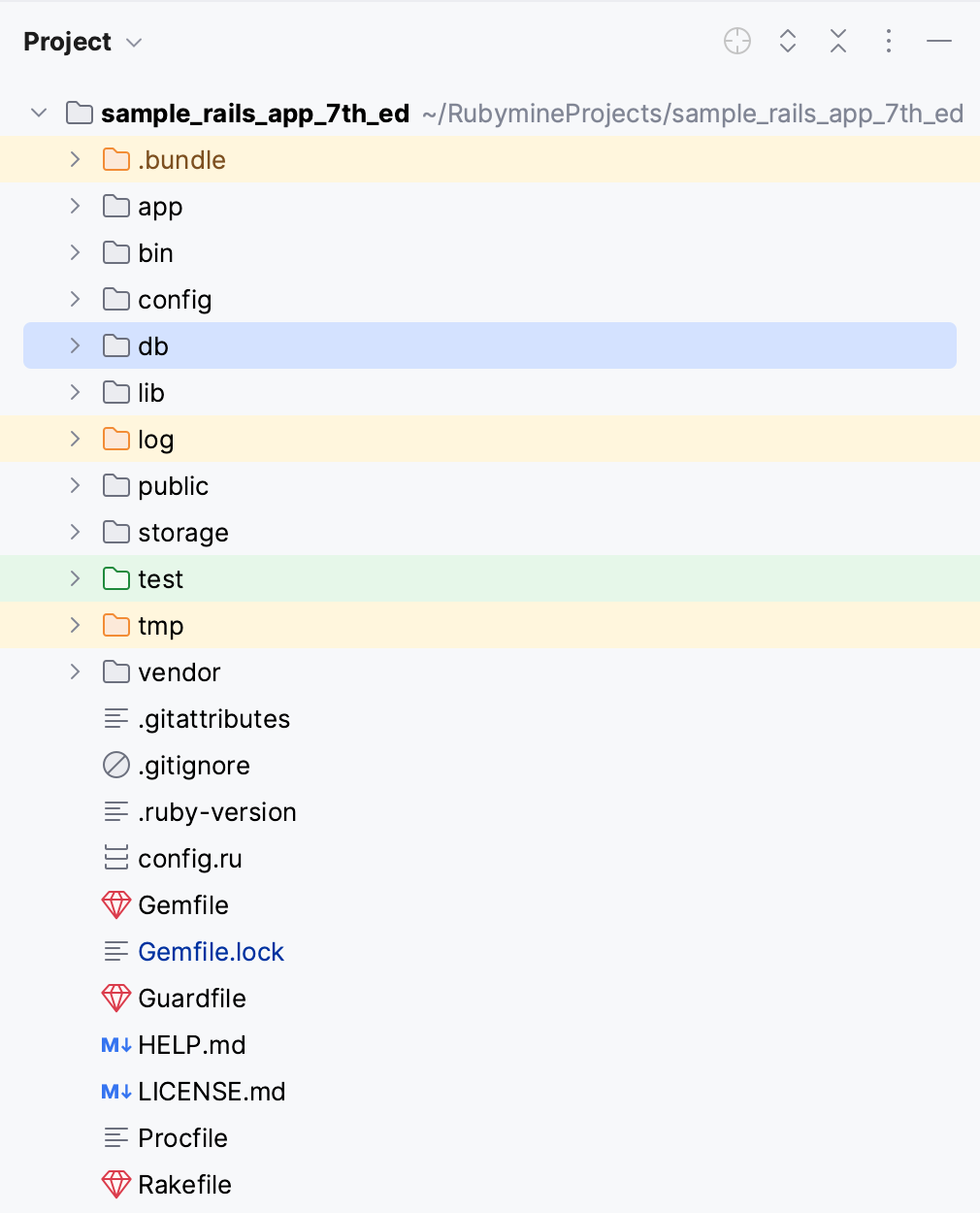
The Project view (Alt+1) on the left side of the IDE displays the project structure. You can use it to open any file in your project, create new files, and so on.
Go to declaration
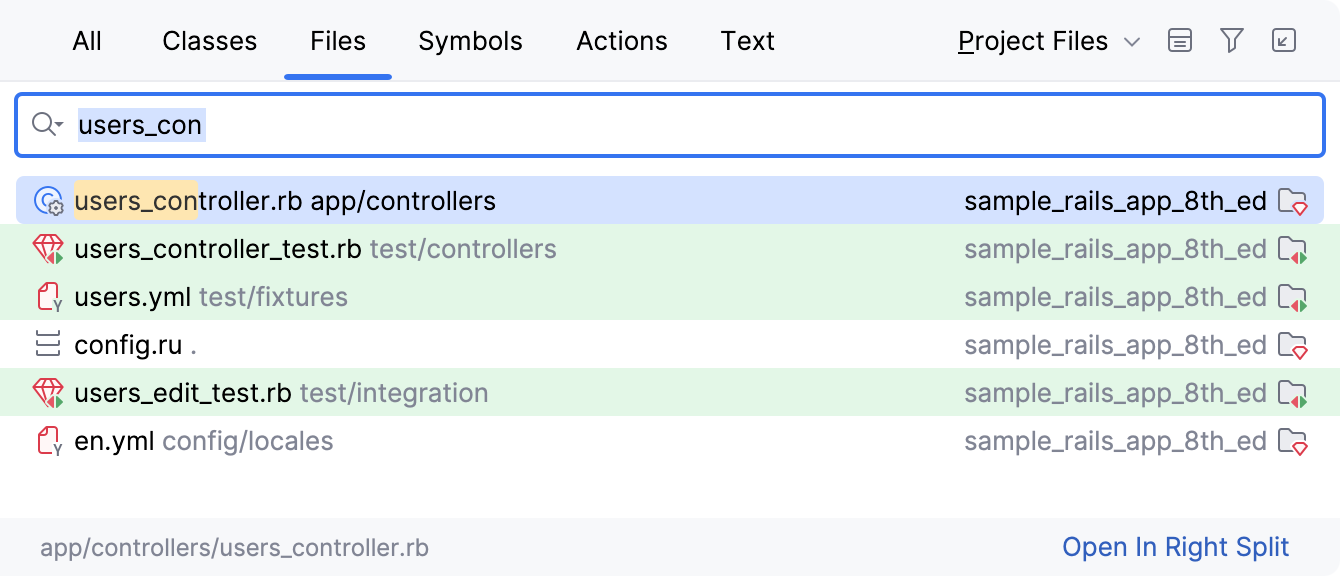
Go to declaration allows you to navigate to the declaration of a symbol from any symbol usage. To see this capability in action, press Ctrl+Shift+N, start typing users_controller, select the users_controller.rb file and press Enter.
In the opened users_controller.rb file, place the caret next to the User class and press Ctrl+B.
You'll jump to the class declaration in the user.rb file.
Note that you can jump not only to project entities but to definitions within external libraries (which are gems in our case). For instance, keeping Ctrl pressed, hover over the has_many method. When the method turns into a hyperlink, click it without releasing the key.
RubyMine will open the method definition within the ActiveRecord Rails module.
Find usages
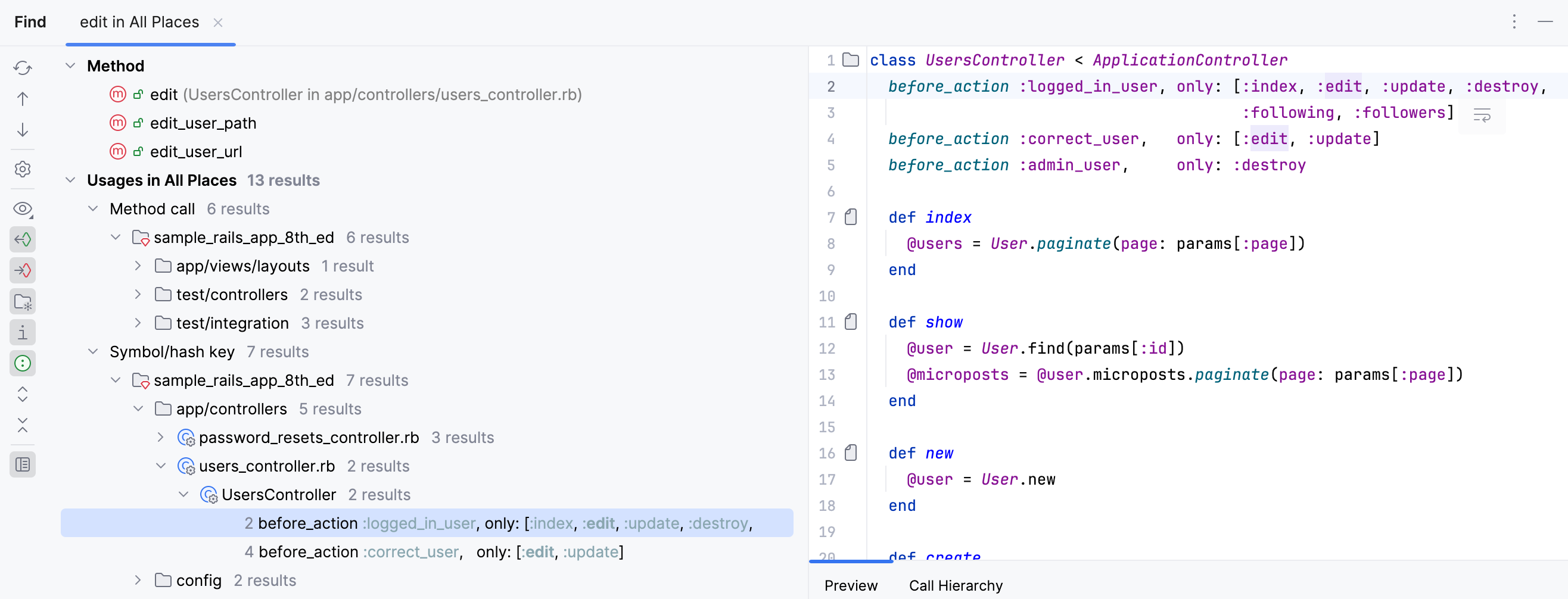
Let’s try the Find Usages action. In the users_controller.rb file, scroll down to the edit method, place the caret next to it and press Alt+F7. In the Find window, you can explore the places where this action is used.
Navigate between Rails entities
When working on a specific Rails entity, like a controller, you can navigate to the related view, model, test, or helper. Place the caret next to the edit method, press Ctrl+Alt+Home, and click View. RubyMine will open the edit.html.erb file containing the corresponding view.
You can use the same shortcut within a view or use the  icon in the editor gutter to quickly go to the corresponding action.
Search everywhere
The next RubyMine feature allows you to search for files, classes, symbols, or options and jump to the entity you need.
Let’s try to find the destroy action within UsersController. Press Shift twice and start typing destroy. RubyMine lists all the found results where your query is found. Select the destroy action from UsersController and press Enter.
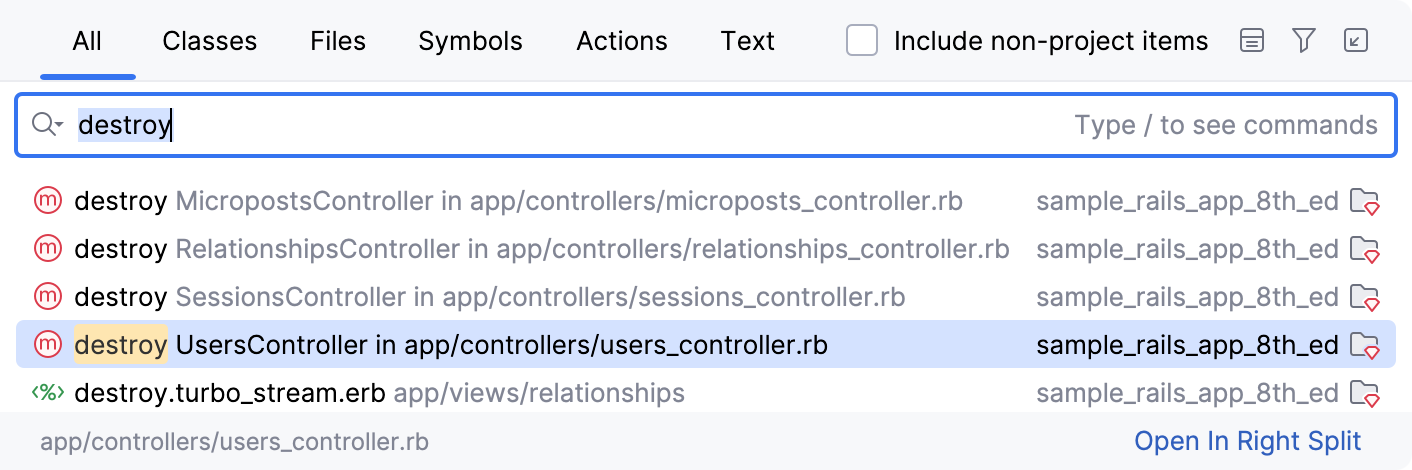
The users_controller.rb file will be opened and the caret will be placed on the definition of the destroy action.
Edit code
RubyMine provides multiple code editing features available in the editor that allow you to speed up the development process. These include code completion, refactorings, code inspections, and so on.
Code completion
RubyMine can help you complete the names of classes, methods, keywords, and so on. When you invoke code completion, RubyMine analyzes the context and suggests the choices applicable to the current caret position.
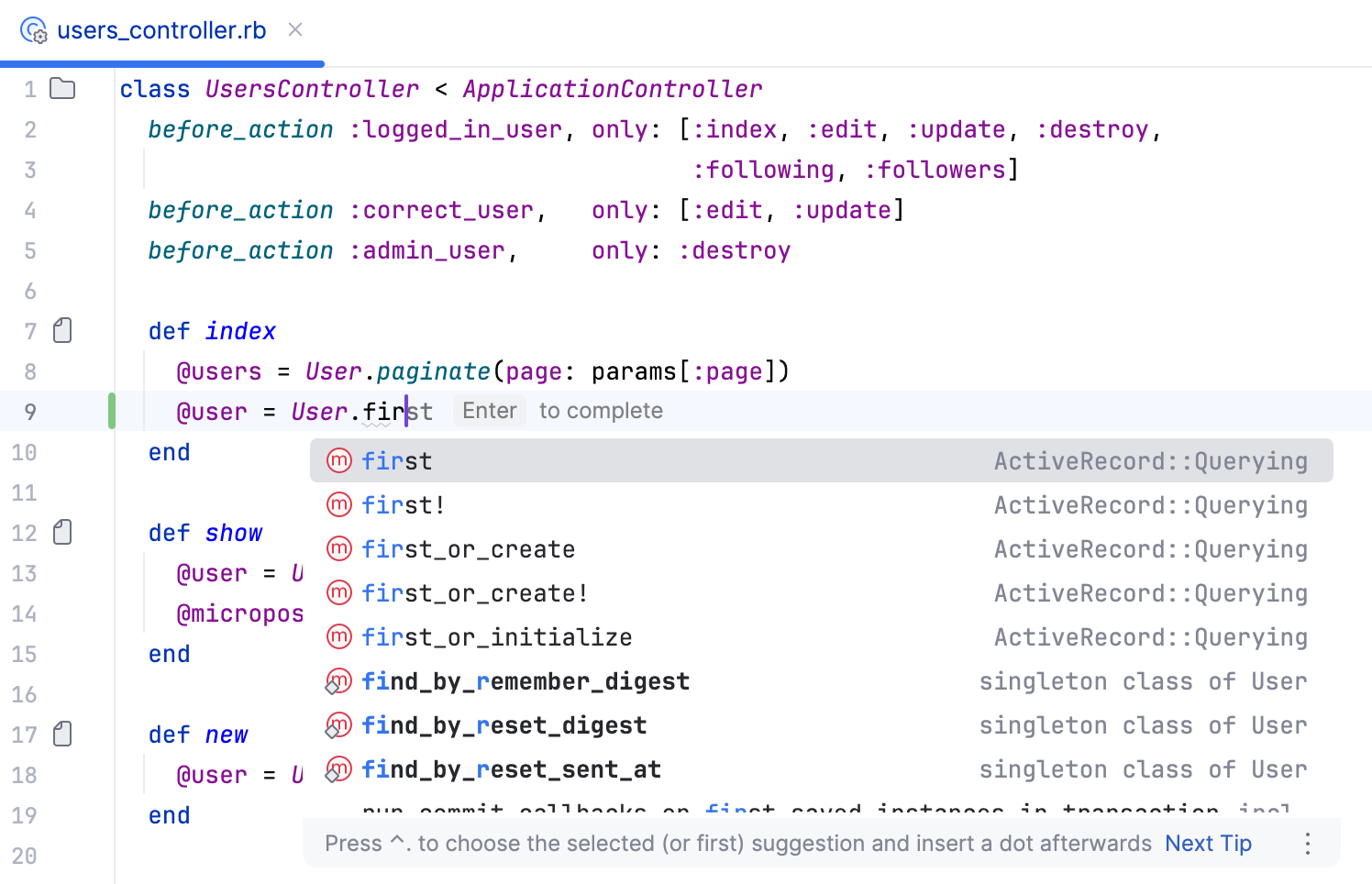
For instance, open the users_controller.rb file and go to the index method declared in the UsersController class. Type the following code inside the method and then type dot.
Because the User class is inherited from the ApplicationRecord module, the editor will display all inherited members.
After that, start typing first to filter the list and find the corresponding member from the Querying module, and press Enter.
Intentions
Intentions help you apply various code changes quickly: convert statements for better code style, add strings to locale dictionaries, use language injections, and so on.
To see intentions in action, open the user.rb file and scroll down to the User.digest method, which uses a multiline ternary operator ?:. According to the Ruby Style Guide, it is preferable to replace such an operator with the if/then/else/end block. To do this, place the caret at this ternary expression (for instance, next to ActiveModel) and press Alt+Enter. Press Enter to convert a ternary operator to the if/then/else/end block.
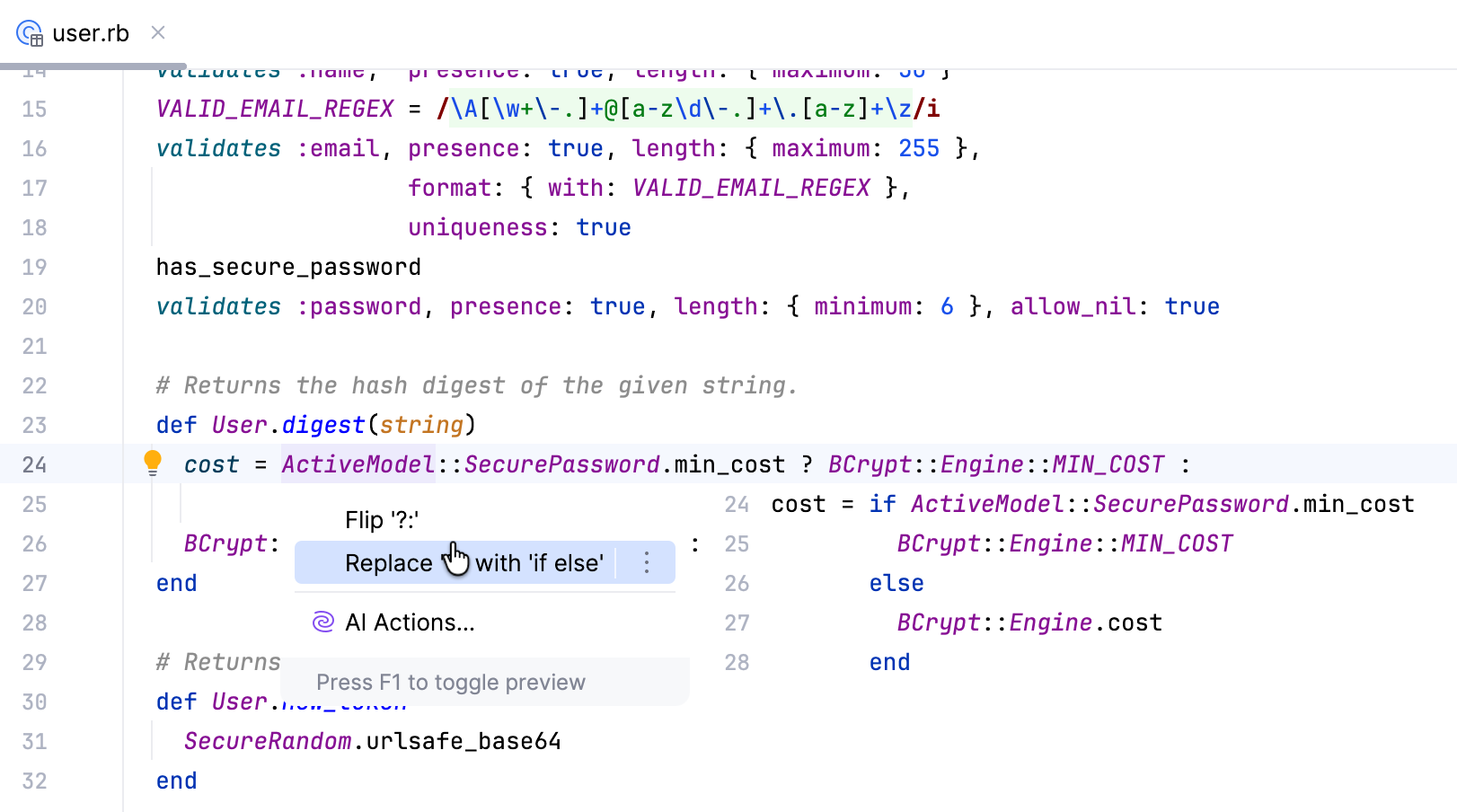
Refactor code
Refactoring is the process of modifying source code in order to make it easier to maintain and extend, but without changing its behavior. Let’s look at some refactoring features available in RubyMine.
Rename refactorings allow you to rename classes, methods, files, variables, and parameters with all the references to them in the code corrected accordingly. Open the user.rb file and scroll down to the downcase_email method raised in the before_save callback. Place the caret next to this method and press Ctrl+Shift+I to see its definition.
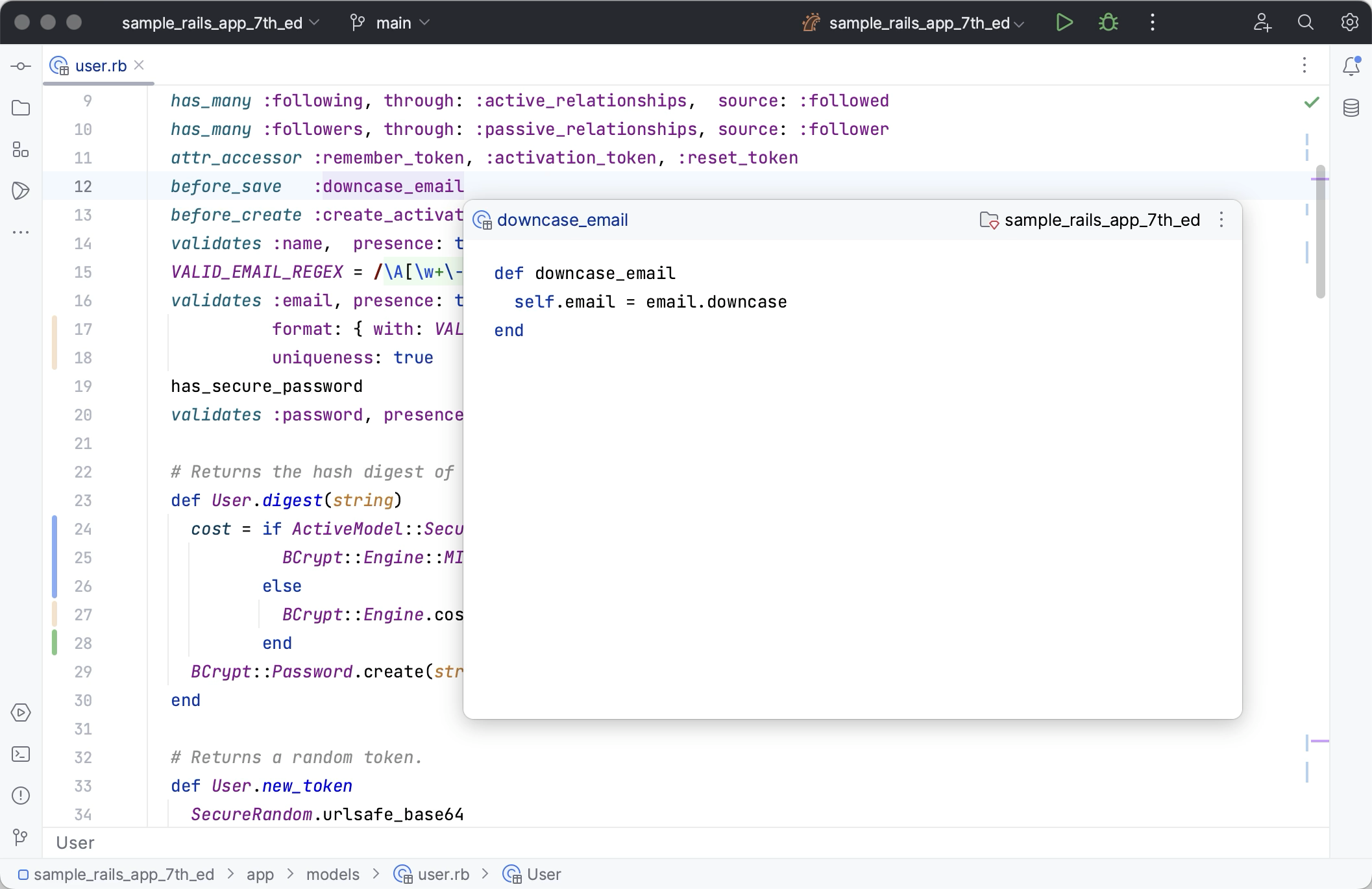
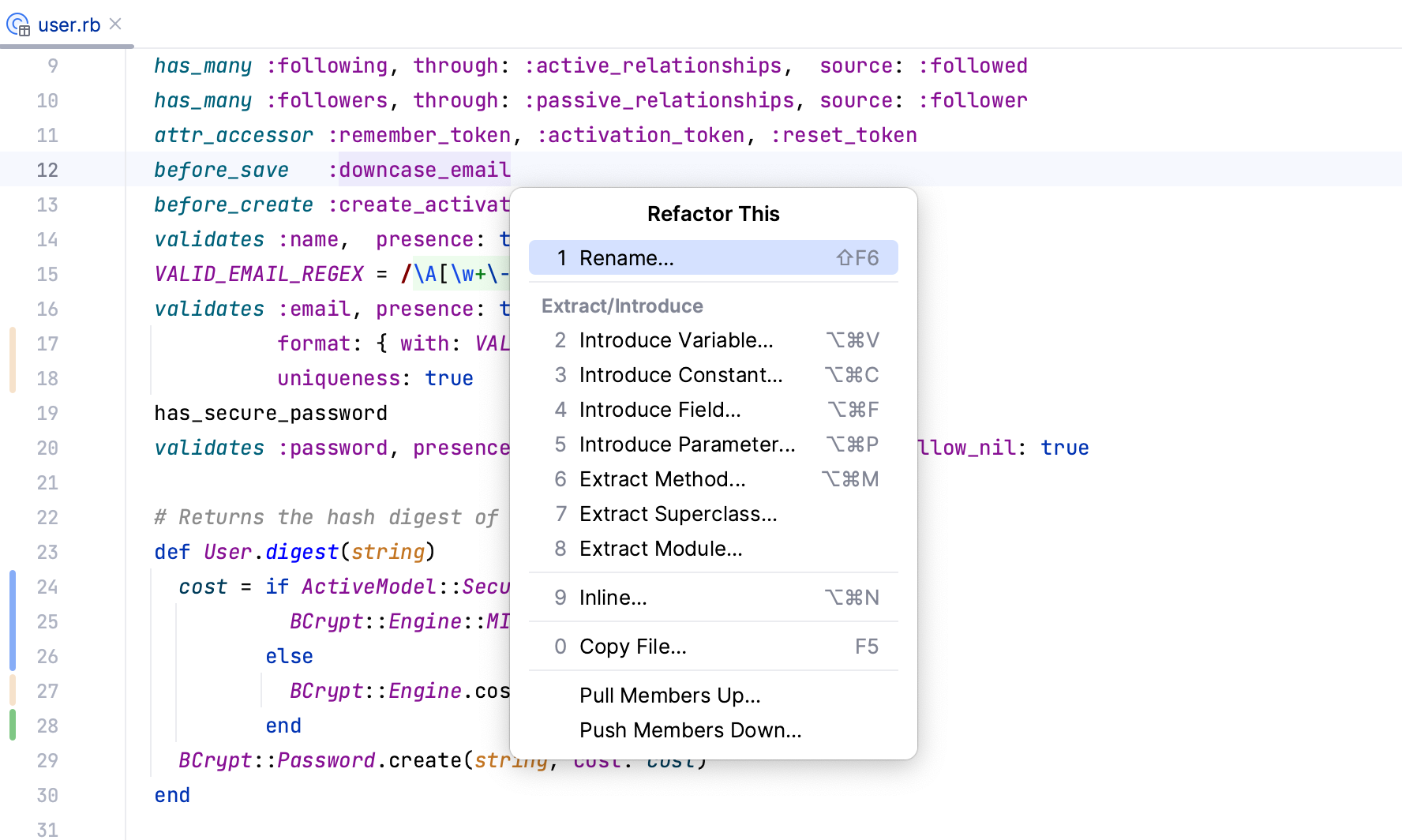
Press Escape, then press Ctrl+Alt+Shift+T. Select Rename in the Refactor This popup, which suggests various refactorings.
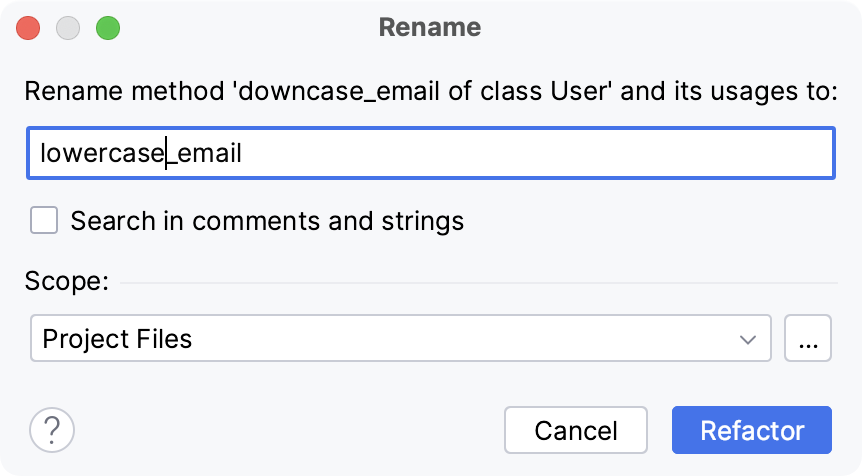
In the Rename dialog, specify a new method name (lowercase_email in our case) and click Refactor
The Refactoring Preview window will display all references to the renamed method.
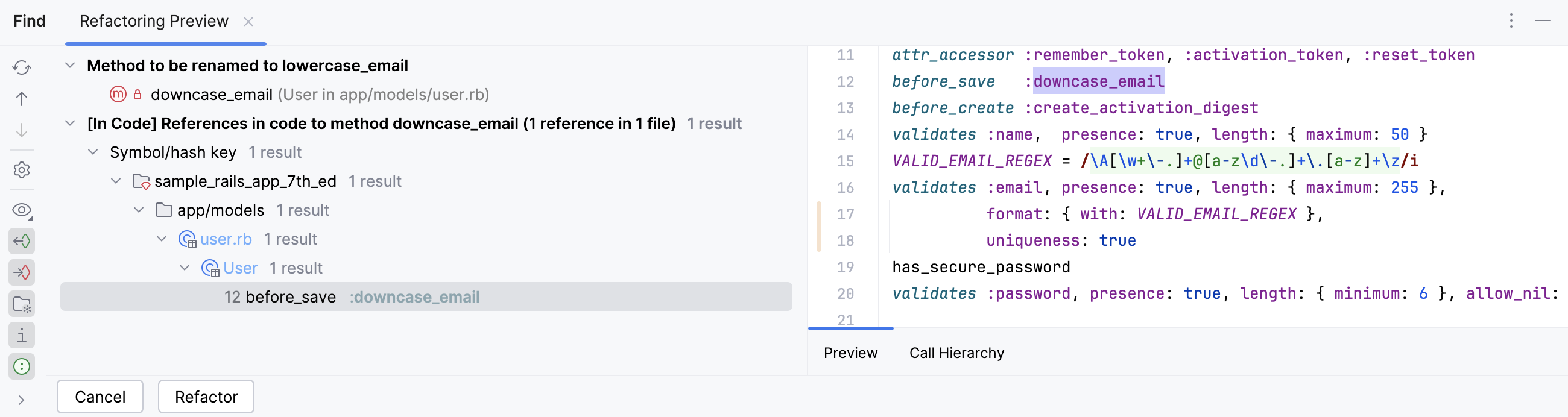
Click Refactor to rename the method in all places.
Reformat code
RubyMine allows you to reformat source code to meet the requirements of your code style.
Let's reformat the code of the user.rb file. Open this file and press Ctrl+Alt+L.
RubyMine will reformat the entire file and display a number of changed lines.
Analyze code
In this part, we’ll perform static code analysis and detect problems.
RubyMine supports multiple inspection types and, moreover, allows displaying RuboCop offenses inside the IDE. The RuboCop inspection is enabled in RubyMine by default and requires the RuboCop gem to be added to the project interpreter. .
Add and install RuboCop gem
Open the Gemfile containing a list of gems used by the application.
Add
gem 'rubocop', require: falseinsidegroup :development do.Hover the added line and click Install missing gems using 'bundler'.
Use RuboCop
In the Gemfile file, hover the active_storage_validations gem.
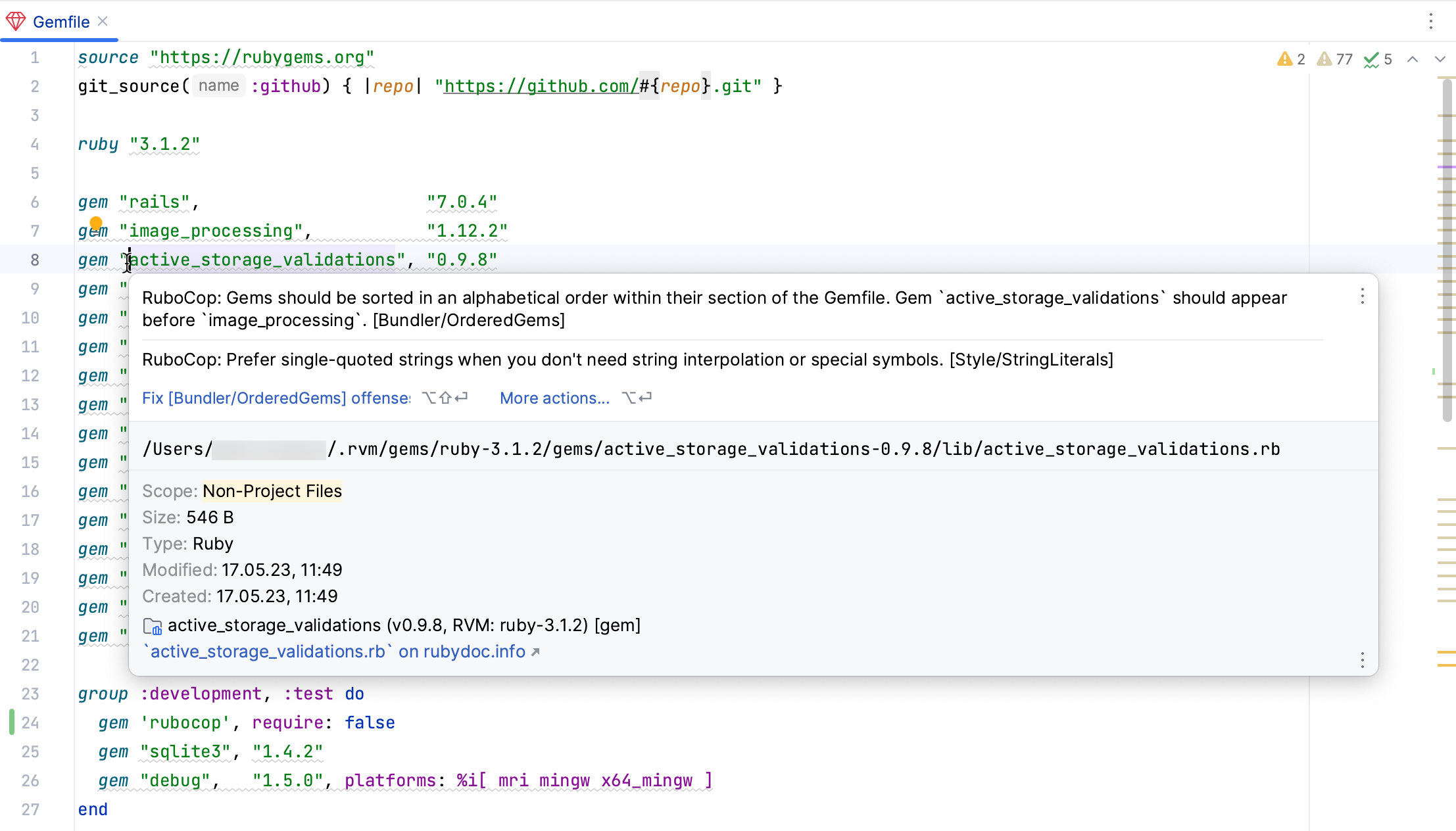
RubyMine will display a Rubocop notification suggesting that you sort the gems in the alphabetical order (refer to OrderedGems).
In the notification, click Fix [Bundler/Ordered Gems] offenses.
You can also check the entire project and display all warnings in a single report. To do this, select in the main menu. In the invoked dialog, you can specify the required inspection scope.
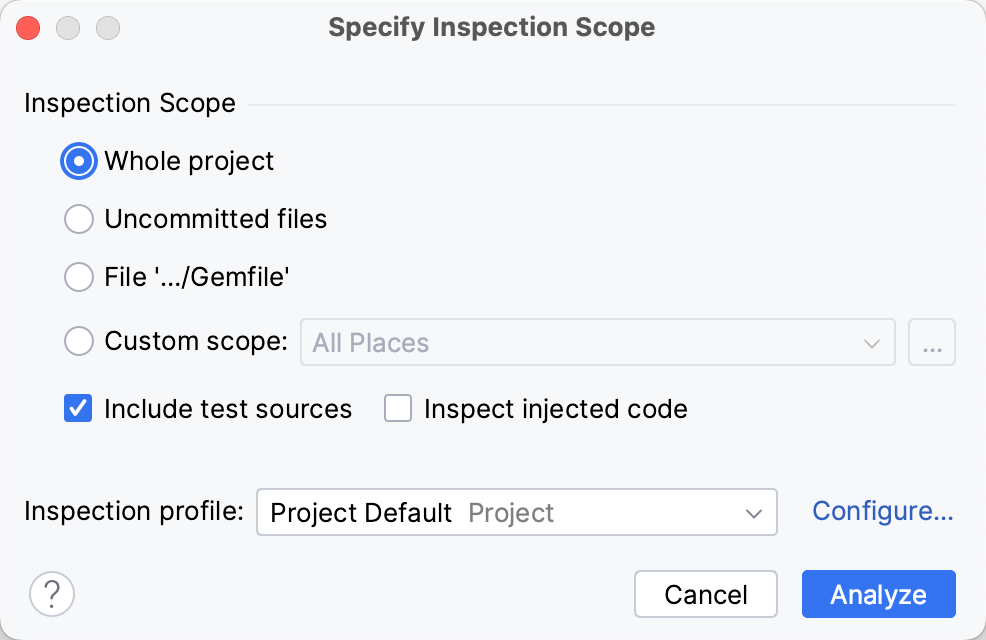
Leave the Whole project option and click Analyze. The inspection results window will show warnings for a whole project.
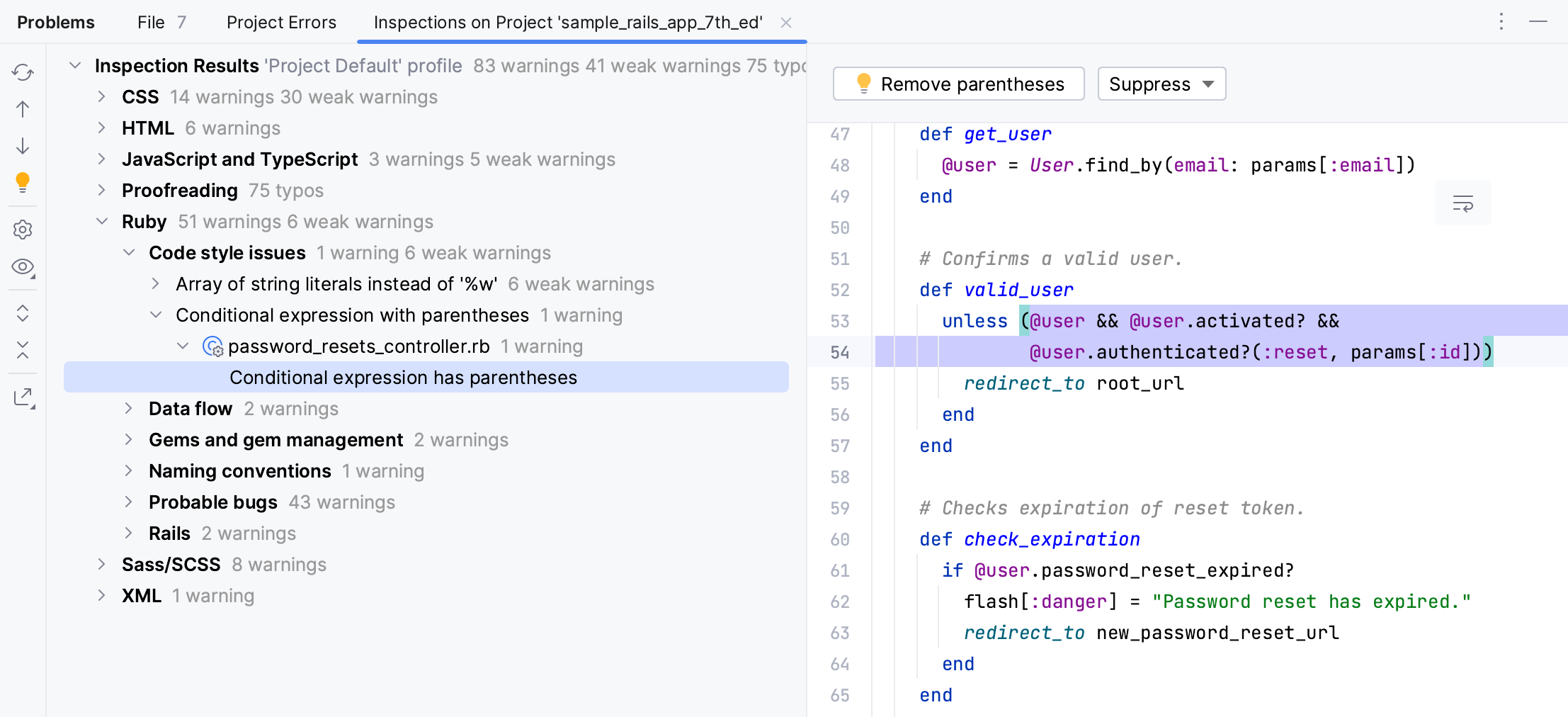
You can navigate through this report and fix or suppress specific warnings.
Run tests
RubyMine enables you to use different testing frameworks such as Minitest, RSpec or Cucumber.
Run all tests
Our project contains Minitest tests in the test folder. To run all tests, open the Project view by pressing Alt+1. Then, right-click the test folder and select from the context menu.
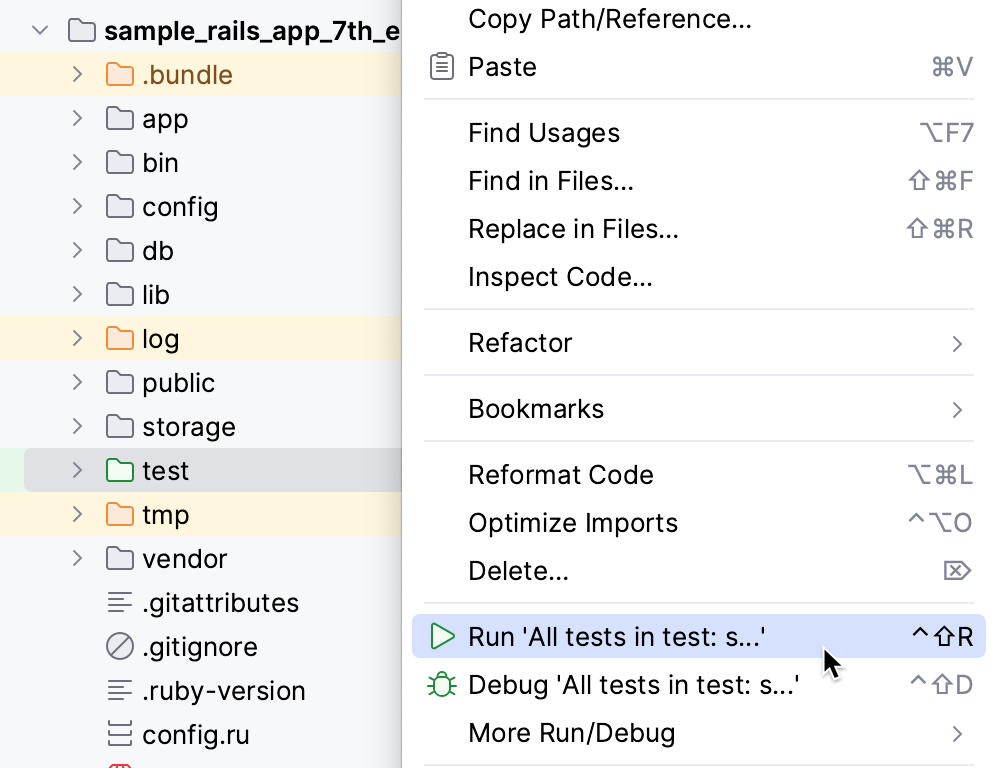
RubyMine will run and display test results in the Run tool window.
Run specific tests
Now let’s see how to run a specific test. Open the users_controller_test.rb file, scroll down to the should redirect index when not logged in test, and click the Run button on the left gutter next to this test.
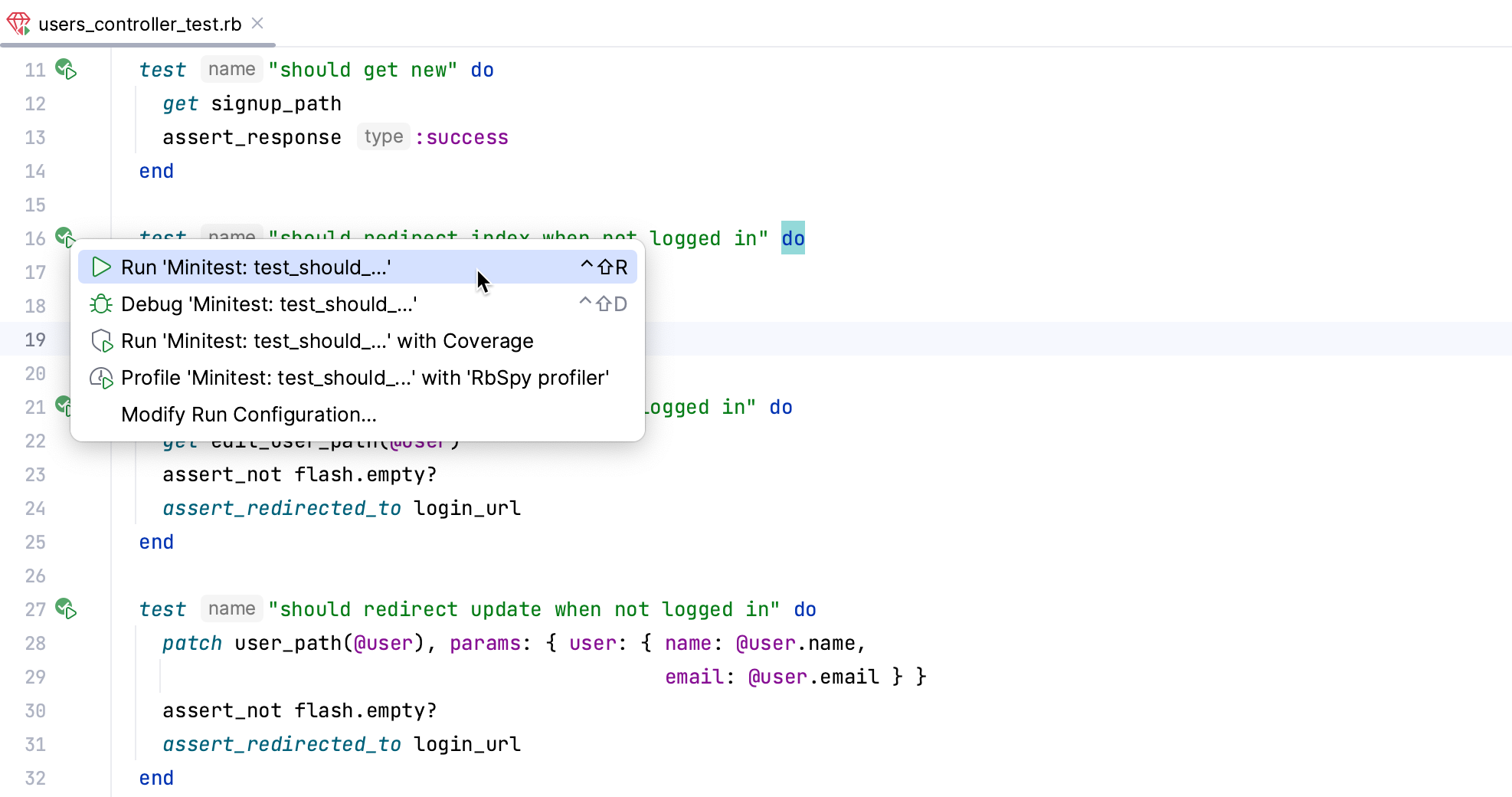
In the invoked menu, select Run ‘Minitest: test_should_...’. RubyMine will display the result for this test.
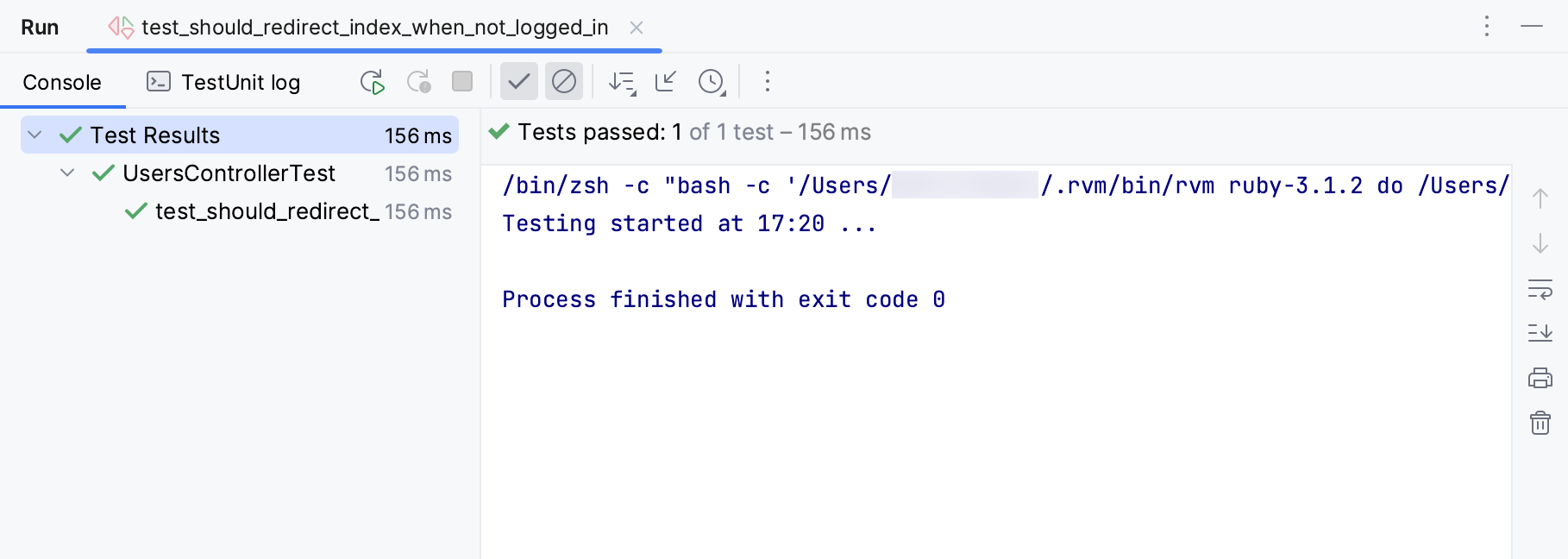
Rerun failed tests
Now let’s go back to users_controller_test.rb and break two tests. For the should get new and should redirect index when not logged in tests, comment out the get signup_path and get users_path lines. To do this, select these lines and use the Ctrl+/ shortcut.
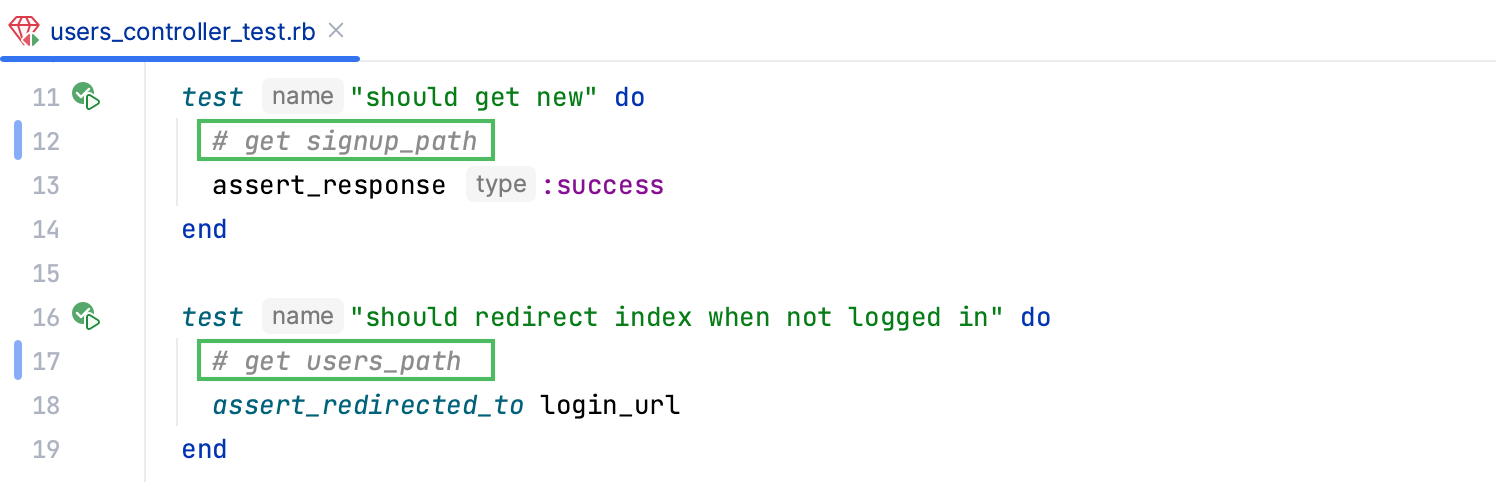
Run all tests again as described in Run all tests. You can see now that these tests failed.
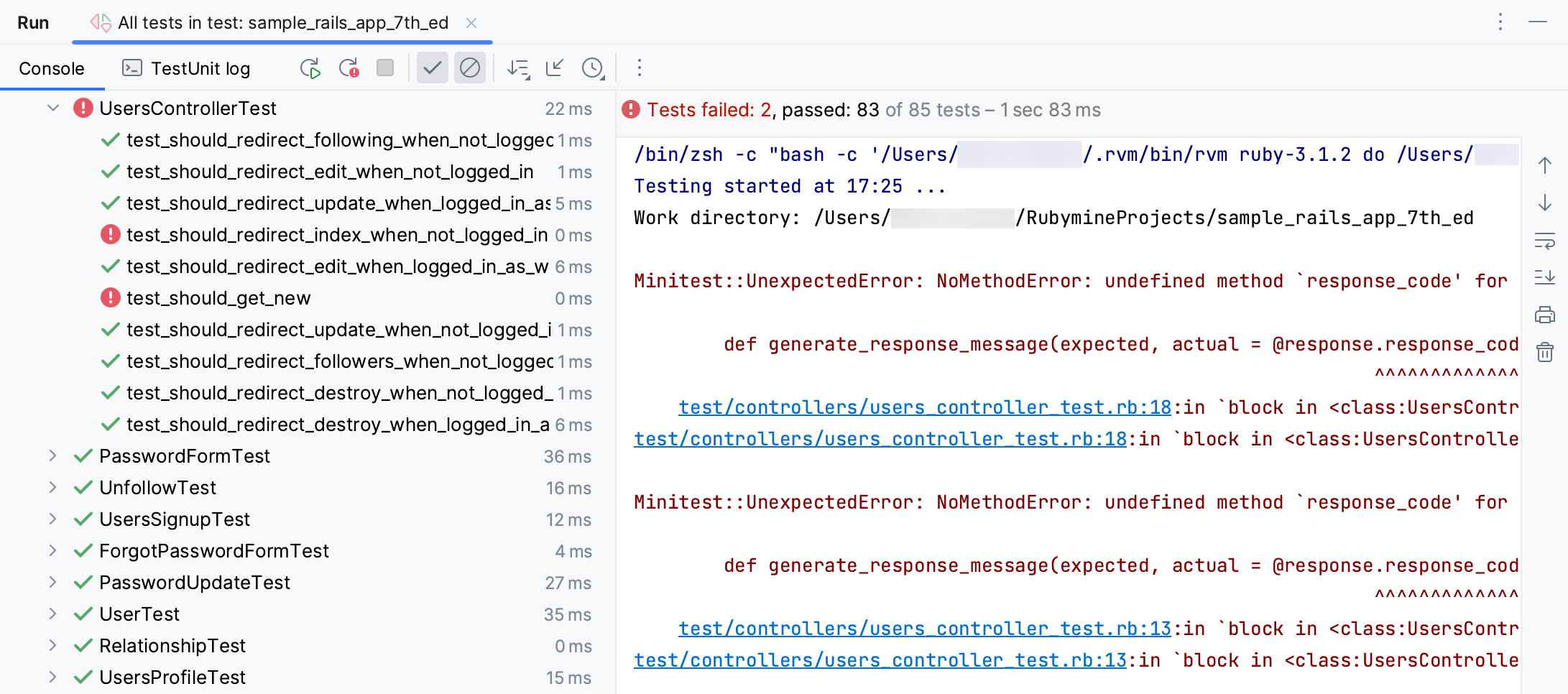
Let’s fix these tests in the currently opened users_controller_test.rb file by uncommenting the same lines: get signup_path and get users_path. Use the same Ctrl+/ shortcut. We can now rerun only these failed tests using the  button.
Now we are ready to run our application.
Run the application
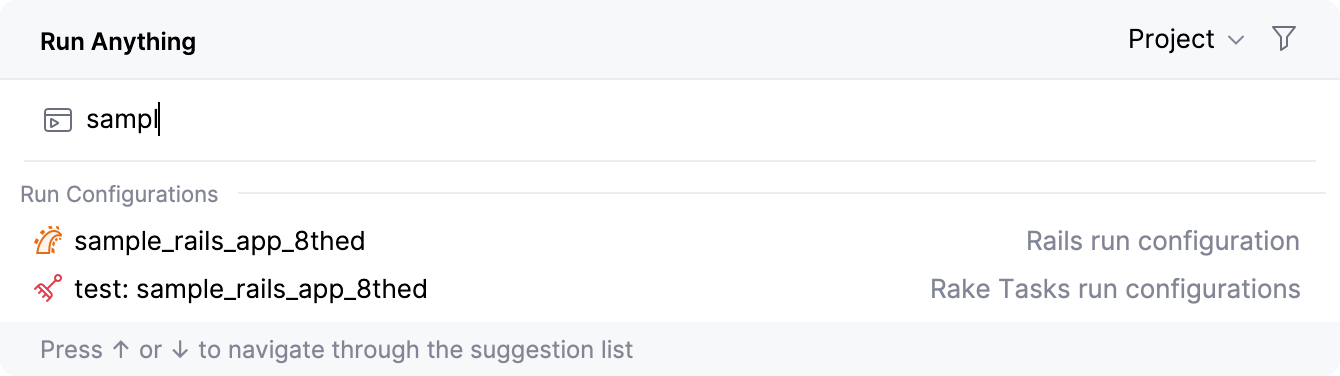
To run our Rails application, press Ctrl twice and start typing sample_rails_app. Select the sample_rails_app_8th_ed configuration from the list and press Enter.
RubyMine will show the process of preparing the application to run.
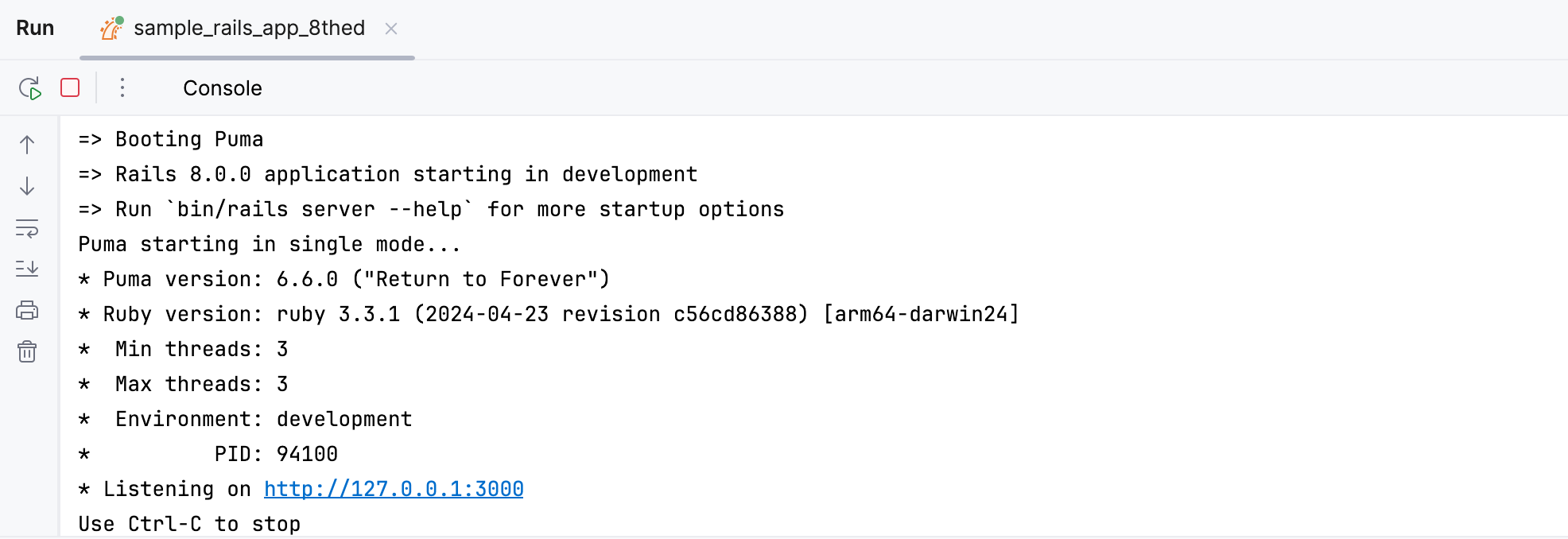
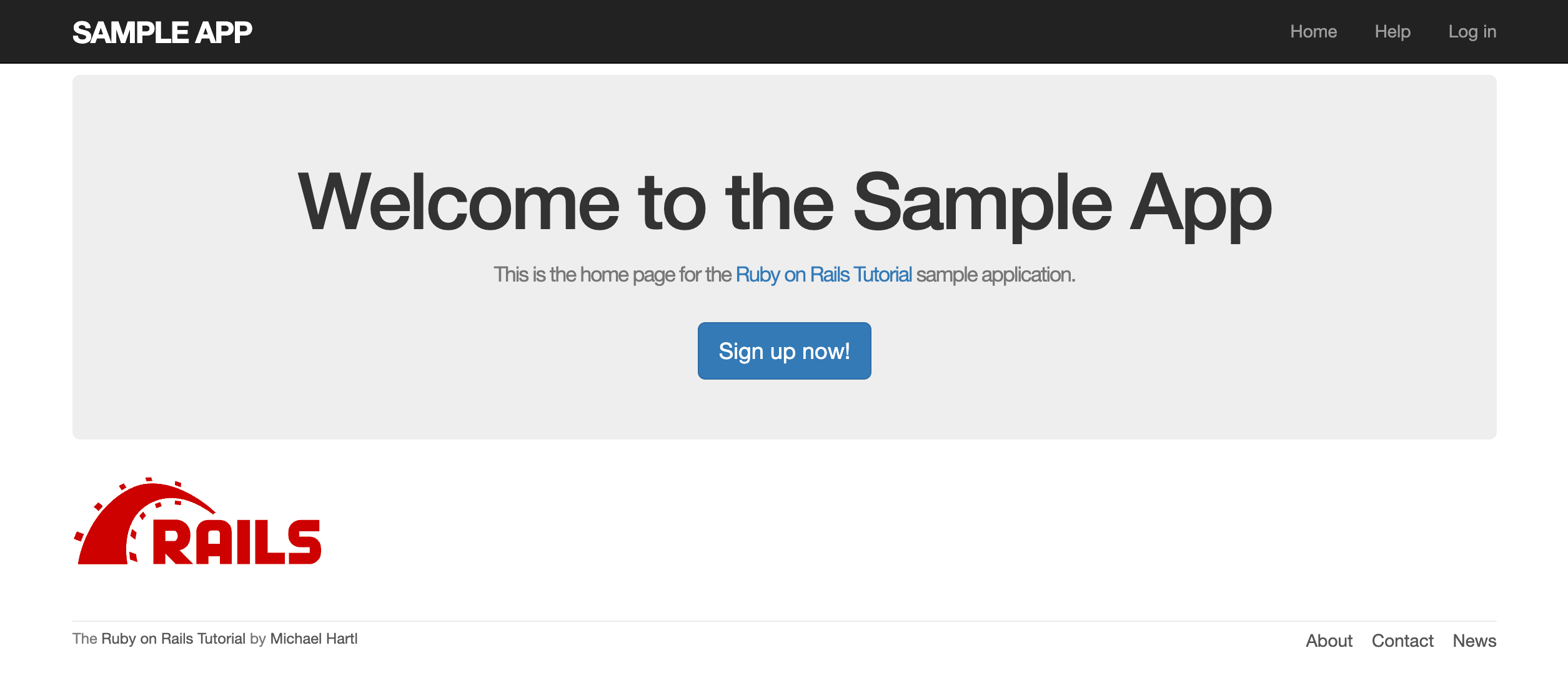
Open your app in the browser at http://127.0.0.1:3000 (or http://localhost:3000) to see our working application.
Debug the application
One of the key features of RubyMine is debugging support. The debugger provides various ways to examine the state of a running application. You can step through your code and check variable values, set watches on variables to see when values change, and so on.
Set a breakpoint and start debugging
First, open the users_controller.rb file. Set a breakpoint within the create method next to the line where a new user is created.
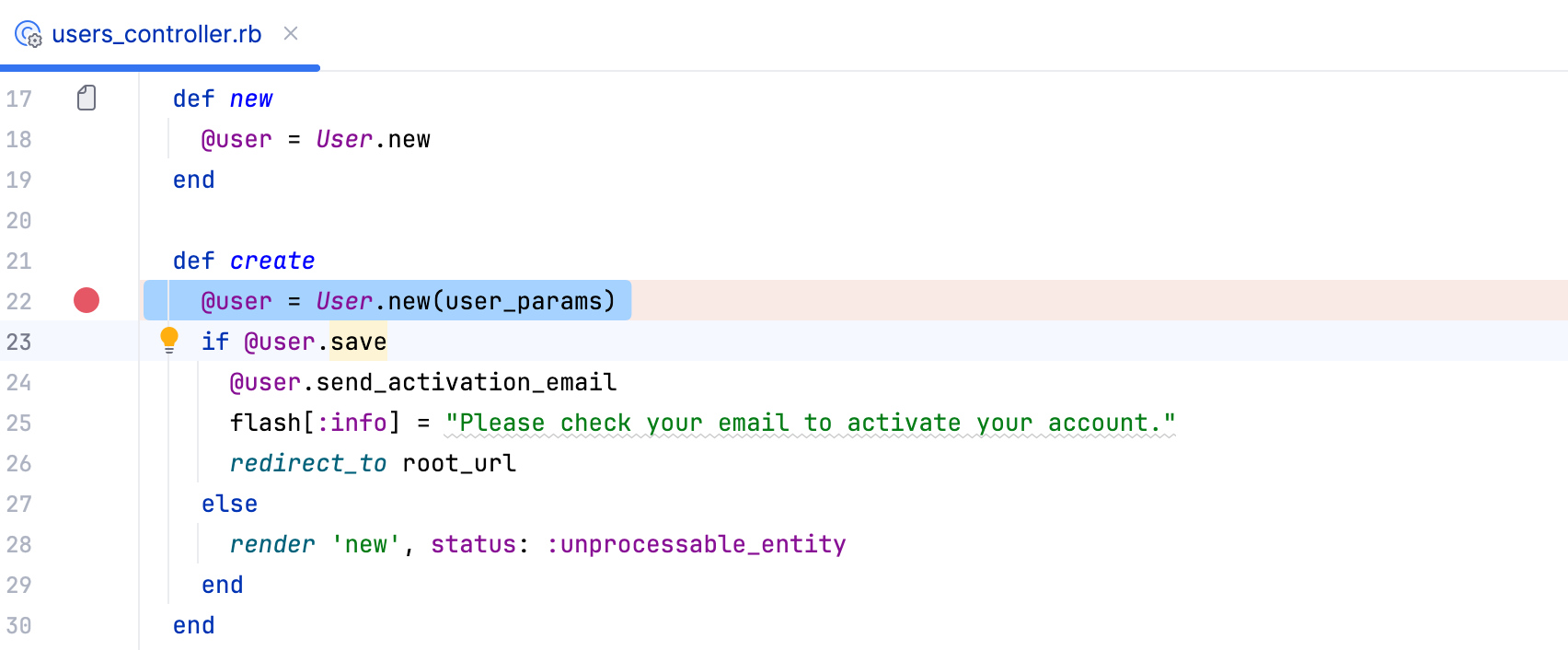
To start debugging, press Ctrl twice and start typing sample_rails_app. Select the sample_rails_app_8th_ed configuration from the list, hold down the Shift key (the dialog title will change to Debug), and press Enter.
The Debug tool window will show the application output.
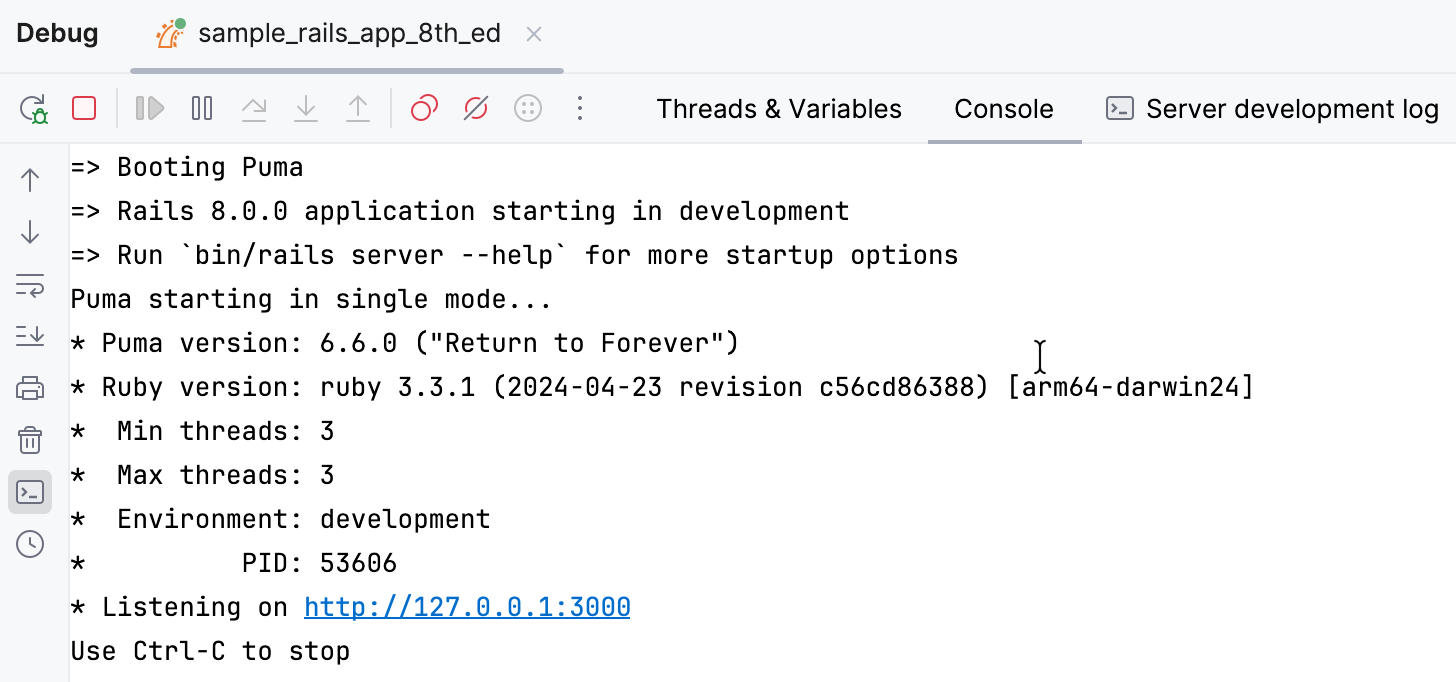
Open a web browser on your local machine and navigate to http://127.0 .0.1:3000.
Click the Sign up now! button. On the Sign up page, enter your credentials and click Create my account.
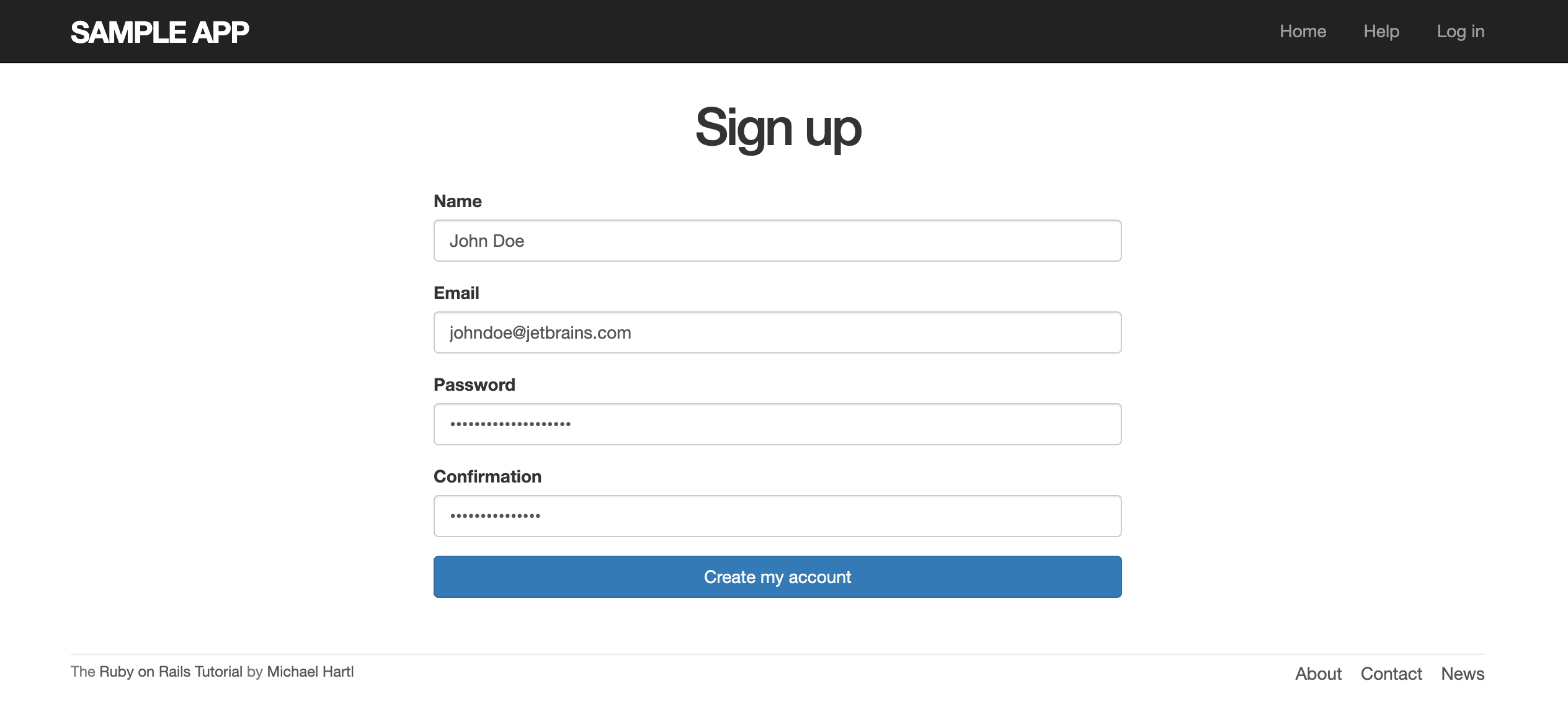
The program will stop when it reaches the breakpoint.
Examine variables
You can now examine the application state and the values of variables.
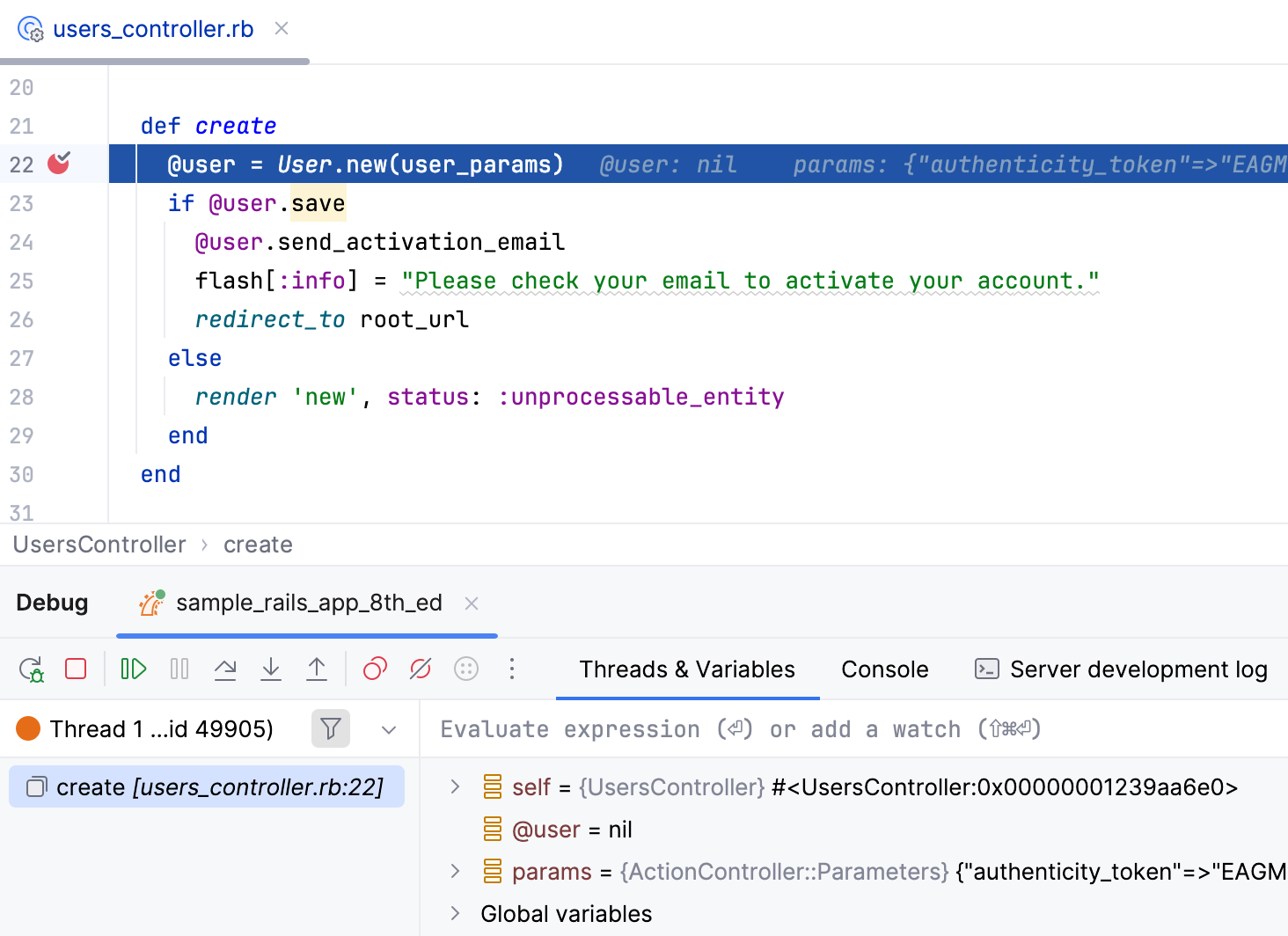
The Threads & Variables pane displays the application threads and the corresponding call stacks. In our case, the create method is called in Thread 1. In the right part of the pane, you can examine variables available in the current context.
Let’s add the user_params variable to the list. On the right side of the pane, type user_params in the search field and click  .
.
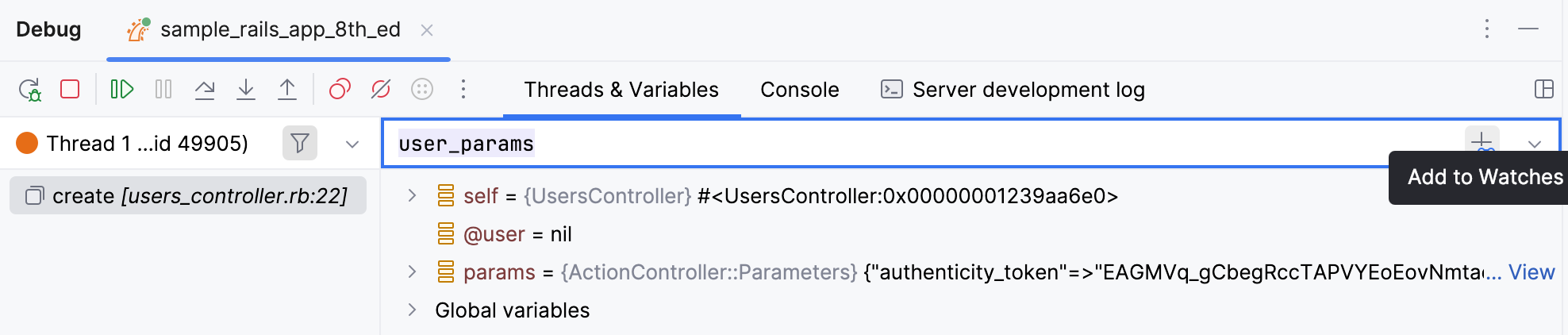
Then, click the  icon next to this variable and then expand the @parameters variables in the same way. You will see the user credentials specified in the Signup form.
Once the breakpoint is hit, we can step through the code.
Step over
Step over proceeds to the next line in the current scope (for example, goes to the next line), without descending into any method calls on the way.
The User object is not created yet and the @user variable not initialized (equals nil).
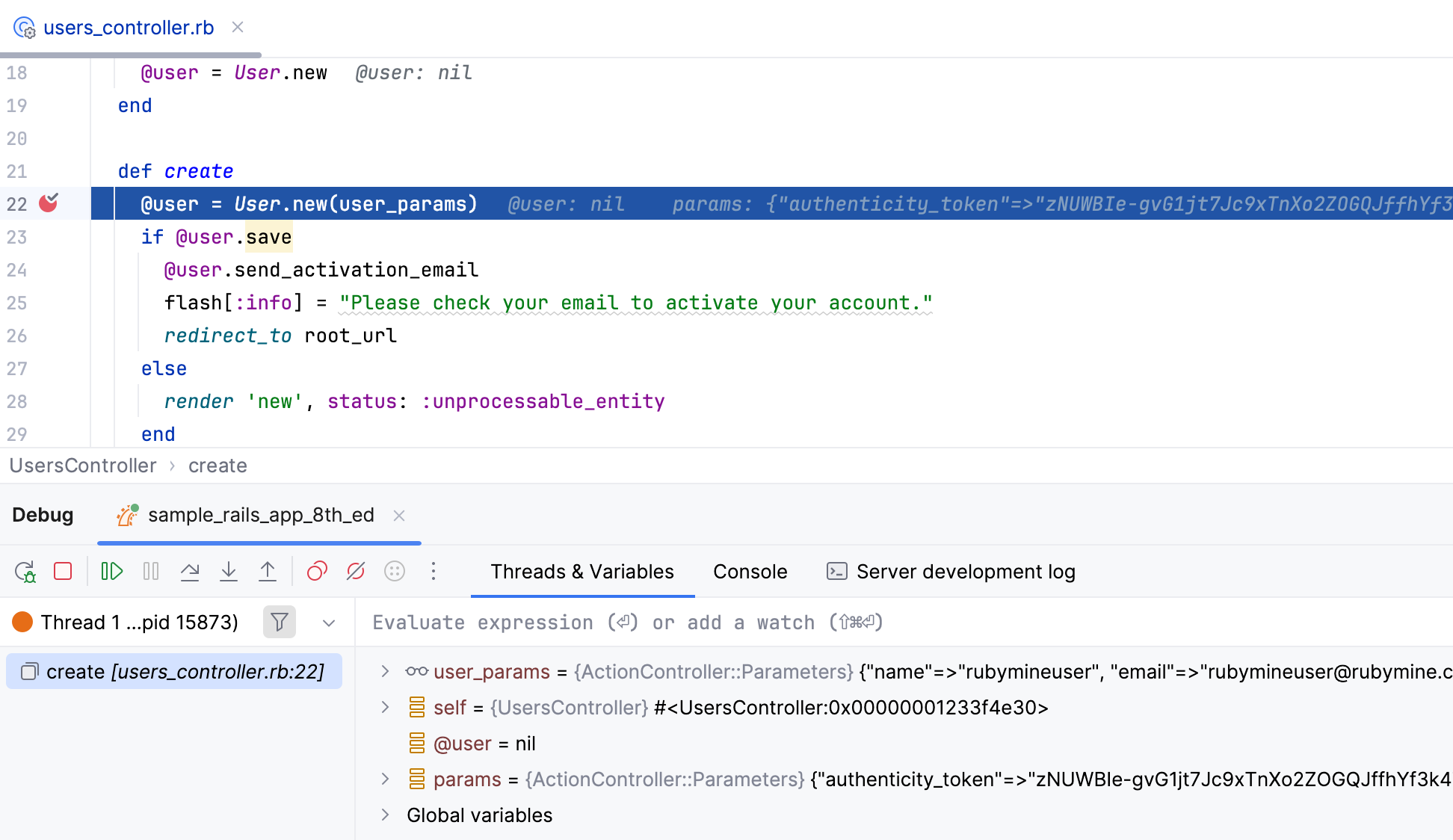
Press F8 or click  in the Debug tool window toolbar. The debugger will go to the next line - the
 if statement, and the @user variable will be initialized.
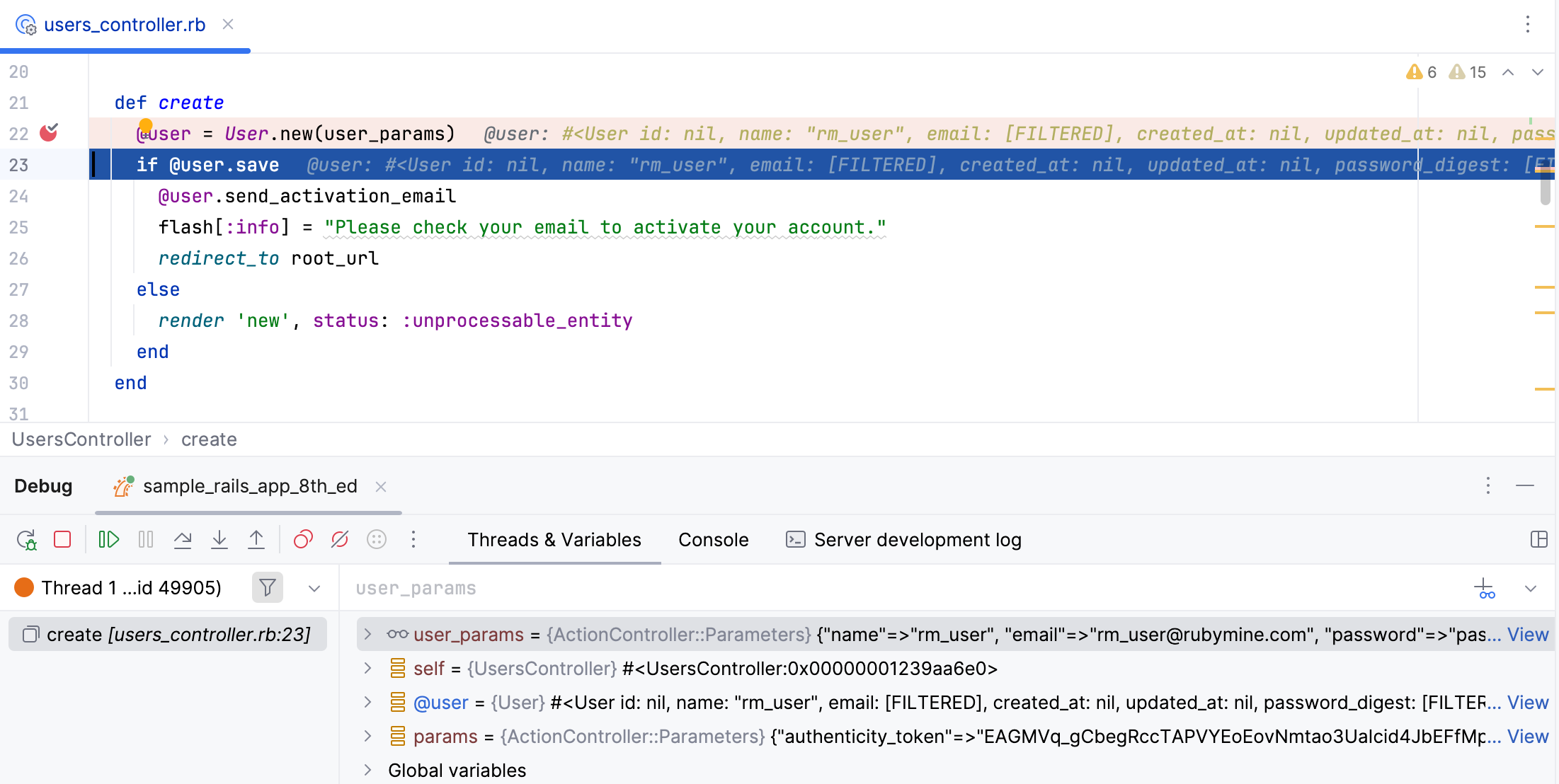
Use the icon to expand and examine @user properties.
Step into
Step into will cause the debugger to descend into the method calls or blocks on the current line and follow them through. If there are multiple method calls or blocks, you can choose the required target.
Click  to resume program execution. Go to the browser again and create another user in the Sign up form. The script will stop when it reaches the line where a user is created.
Press F7 or click the  button.
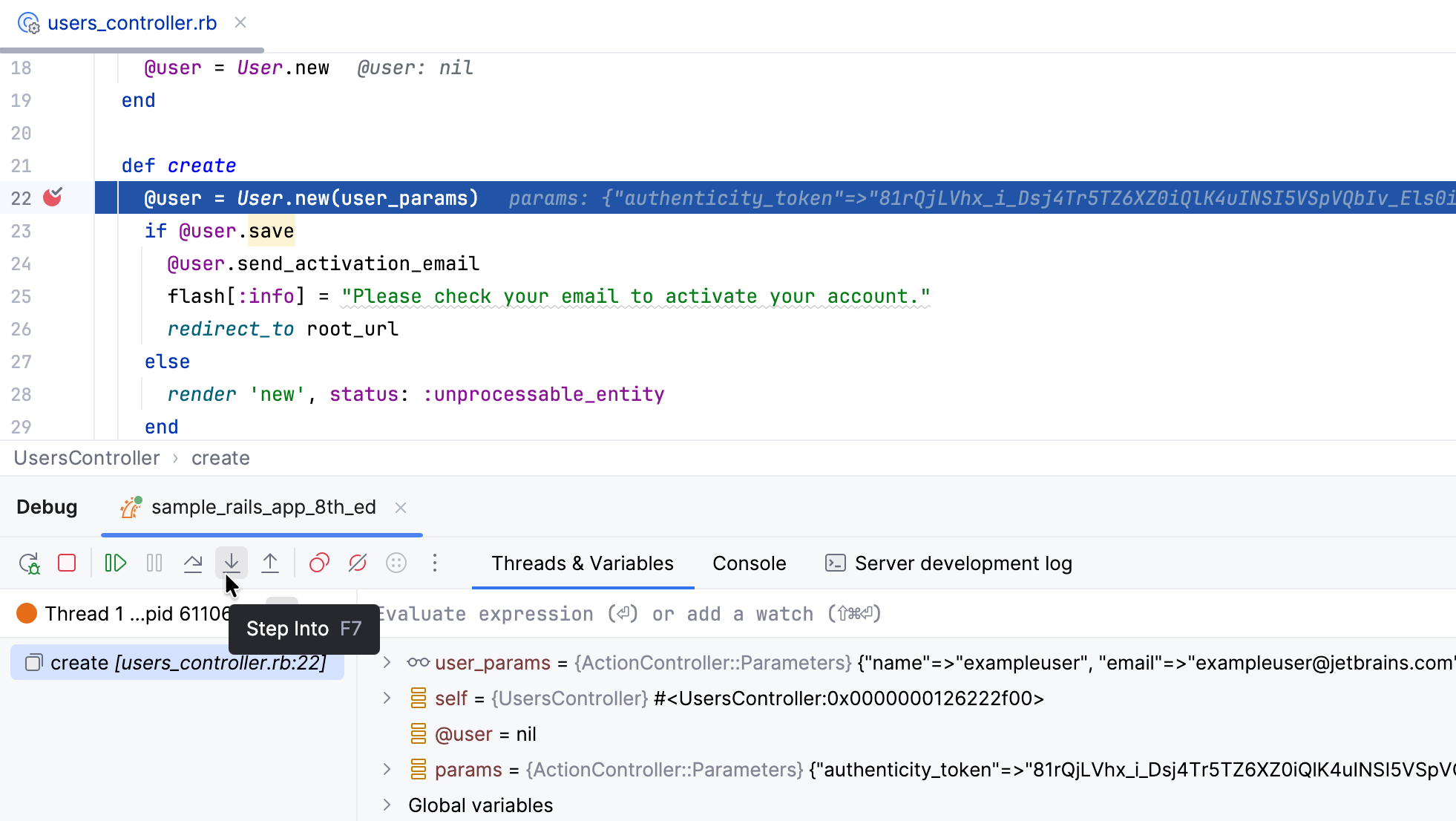
The editor will set a focus on the user_params method. You can use arrow keys or Tab to choose the required method to step into (new or user_params in our example). Select user_params and press Enter. The program execution will jump to the user_params method definition.
If you press F7 another time, the debugger will suggest selecting between the params and require methods from the StrongParameters module.
Debug in console
The debugger has the Console tab that enables you to interact with a debugged application with an IRB-like console.
Start typing user_params in the console, select the corresponding variable, and press Enter.
The Console window will display the values of variables.