Version control integration support
RubyMine supports version control integration at two levels:
At the IDE level, VCS integration is provided through a set of bundled plugins enabled by default.
At the project level, VCS integration is enabled by associating project folders with one or several version control systems.
Associate a project root with a version control system
RubyMine allows you to quickly enable your project's integration with a version control system and associate it with the project root. For more information about associating separate project directories with different version control systems, refer to Associate a directory with a version control system.
Press Alt+` to open the VCS Operations Popup and select Enable Version Control Integration.
Alternatively, go to .
In the Enable Version Control Integration dialog that opens, select a version control system that you want to associate with your project root.
After VCS integration is enabled, RubyMine will ask you whether you want to share project settings files via VCS. You can choose Always Add to synchronize project settings with other repository users who work with RubyMine.
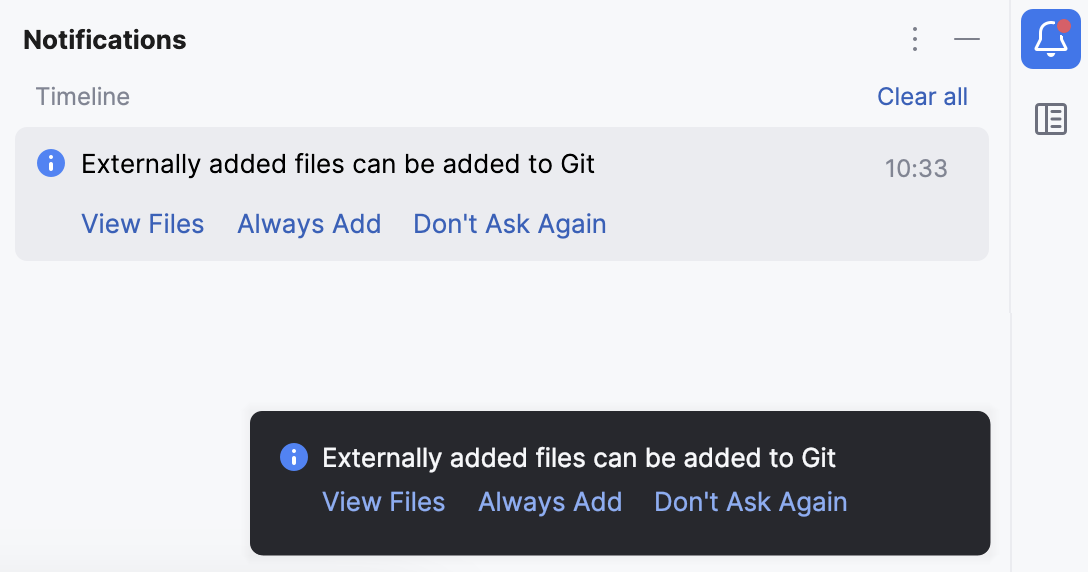
Note that this is only applicable to Git and Mercurial.
For the next steps, refer to:
Configure directory mappings
RubyMine supports a directory-based versioning model, which means that each project directory can be associated with a different version control system.
Associate a directory with a version control system
Press Ctrl+Alt+S to open settings and then select .
The Directory Mappings page shows a list of project directories and version control systems associated with them (if no directories have been added, the list only contains the project root).
Click the Add button
 on the right.
In the Add VCS Directory Mapping dialog that opens, select the Directory option. Type the path to the directory that you want to associate with a version control system, or click the Browse button
 and select the directory in the dialog that opens.
From the VCS list, select the version control system that will be used to control the files in this directory. Note that this list only contains the version control systems for which the corresponding plugins are currently enabled.
Click OK to save the mapping and return to the Directory Mappings page.
Manage unregistered directories
For projects with Git or Mercurial integration enabled, RubyMine scans project directories to check if there are Git/Mercurial repositories that are not controlled by the IDE. If such repositories are detected, RubyMine displays a notification.
To add an unregistered root, click the Add roots link in the notification. Alternatively, open the Version Control settings page, select the unregistered root you want to add (they are marked grey), and follow the procedure Associate a directory with a version control system.
If you do not want to be notified about these roots again, click the Ignore link in the notification. Note that if new unregistered repositories are added to the project, RubyMine will notify you about them.
Change VCS associations
Press Ctrl+Alt+S to open settings and then select .
The Directory Mappings page shows a list of project directories and version control systems associated with them (if no directories have been added, the list only contains the project root).
Locate the row that corresponds to the directory which you want to put under another version control system.
Click the VCS column. From the list that appears, select a new version control system.
Click OK to save the mapping and return to the Directory Mappings page.