Macros
Macros provide a convenient way to automate repetitive procedures you do frequently while writing code. You can record, edit, and play back macros, assign shortcuts to them, and share them. For example, you can create a macro for reformatting a file when saving it Ctrl+S.
Macros can be used to combine a sequence of editor-related actions within a file.
You can't record button clicks, navigating to popups, and accessing tool windows, menus, and dialogs.
A temporary macro can be used without a name. For permanent macros, assign unique names.
Record a macro
In the main menu, go to .
Perform necessary actions that you want to be recorded.
Select .
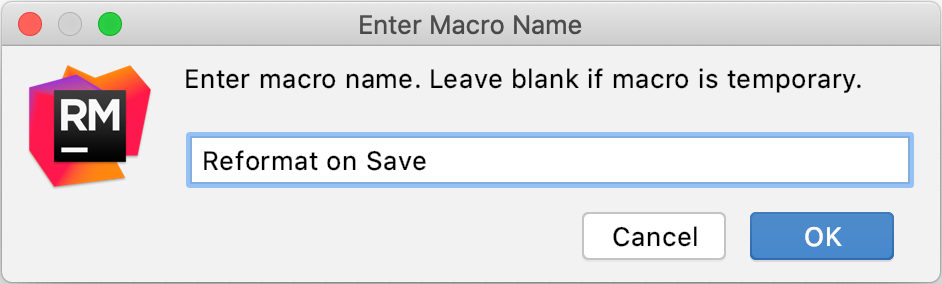
In the Enter Macro Name dialog, specify the name for the new macro and click OK.
If the macro is intended for temporary use only, you can leave the name blank.
Play back a macro
To play back a temporary macro, select .
To play back a named macro, select and click the necessary macro name.
Edit macros
Select .
The left side of the dialog shows a list of available macros with the following buttons:

Remove the selected macro.

Edit the name of the selected macro.
The right side of the dialog shows a list of actions in the selected macro with the following button:
Remove the selected action from the macro.
Bind a keyboard shortcut to a macro
Press Ctrl+Alt+S to open settings and then select .
Create a new keymap or select an existing keymap from the list of keymaps.
Expand the Macros node and select the macro for which you want to create a keyboard shortcut.
Alternatively, you can press Ctrl+Shift+A to open the Find Action… dialog, type your macro name, select it, and then press Alt+Enter to bind a shortcut .
Share macros
If you have at least one macro recorded, you can export them along with any other settings and share them with others.
In the main menu, go to .
In the Export Settings dialog, select Macros and any other settings that you want to share.
Select the path for the s archive and click OK.
Give the settings archive to someone who will import the settings and use your macros.
Example: Create a macro for reformatting a file on save
This example shows how to create a macro that reformats the current file Ctrl+Alt+L and saves your project when you press Ctrl+S.
Record a macro with the reformat and save actions.
Bind the Ctrl+S shortcut to the created macro.
Record the macro
Open any file in the editor.
In the main menu, go to .
Press Ctrl+Alt+L to reformat code () and then press Ctrl+S to save all changes (). RubyMine will show the performed actions in the status bar.
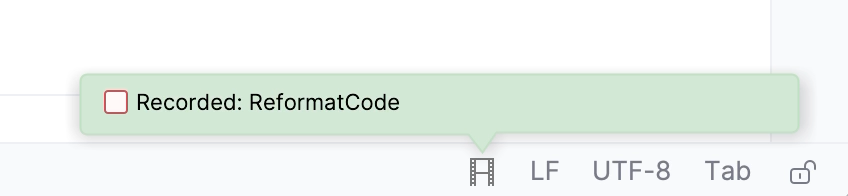
Select .
In the Enter Macro Name dialog, specify the name for the new macro and click OK.
Assign a shortcut for the new macro
Press Ctrl+Alt+S to open settings and then select .
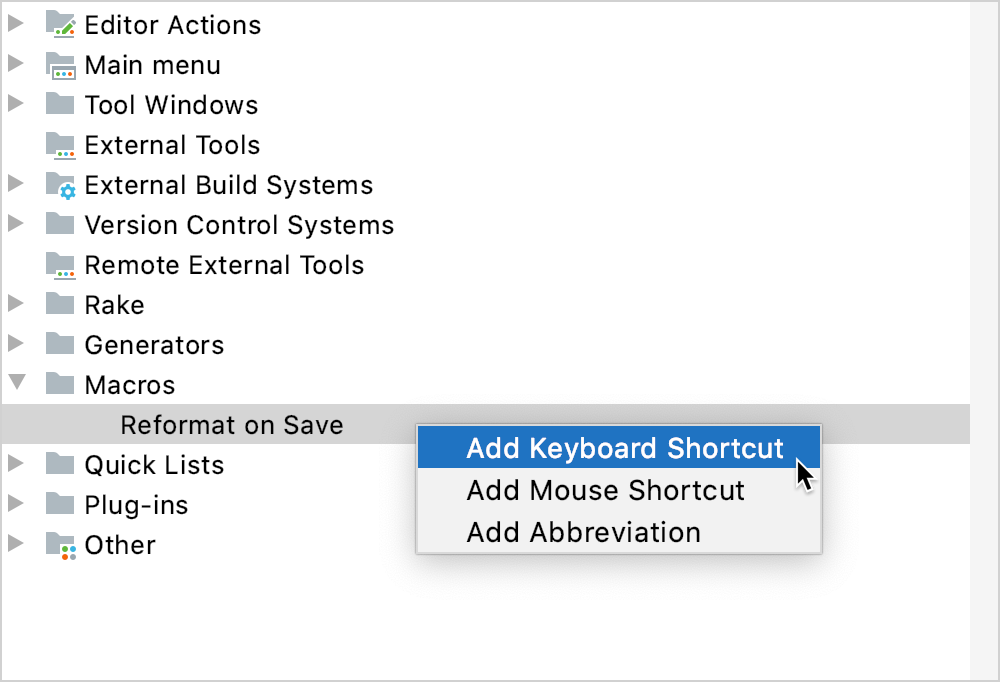
Expand the Macros node and select the created Reformat and Save macro.
Right-click the macro and choose Add Keyboard Shortcut in the context menu.
In the Keyboard Shortcut dialog, press Ctrl+S to be used as the shortcut and click OK.
RubyMine will warn you that the shortcut is assigned to another action. Click Remove to remove the Ctrl+S shortcut for the Save All action. You can always reassign it later if necessary.
Click OK to apply the changes.
Now, when you press Ctrl+S, RubyMine will invoke the new macro: reformat the current file and save your project.