Code Style. Ruby
Use this page to configure code style options for Ruby files. When you change these settings, the Preview pane shows how this will affect your code.
Tabs and Indents
Item | Description |
|---|---|
Use tab character | Use the Tab key for indentation. When the checkbox is cleared, RubyMine uses spaces instead of tabs. |
Smart tabs |
The Smart tabs checkbox is available if the Use tab character option is enabled. |
Tab size | In this field, specify the number of spaces included in a tab. |
Indent | In this field, specify the number of spaces to be inserted for each indent level. |
Continuation indent | Specify the indentation for lines that continue from the previous line, making it clear that they are part of the same statement or block of code. Continuation indents are used when a single statement is too long to fit on one line. |
Keep indents on empty lines | If this checkbox is selected, RubyMine will keep indents on the empty lines as if they contained some code. If this checkbox is cleared, RubyMine will delete the tab characters and spaces. |
Use indents relative to expression start | Use this checkbox to switch between the two possible indentation behaviors:
|
Indent visibility modifiers | Use the checkbox to configure indentation for visibility modifiers. By default, the checkbox is selected, and visibility modifiers are indented. |
Indent methods after visibility modifiers | Select the |
Spaces
Use this tab to specify where you want RubyMine to insert spaces automatically. Select the checkboxes next to the description of relevant locations and check the results in the Preview pane.
Wrapping and Braces
Visual guides | Allows you to specify the position of visual guides that help you control the width of the code. If you want to specify several visual guides, enter numbers separated by a comma, for example, 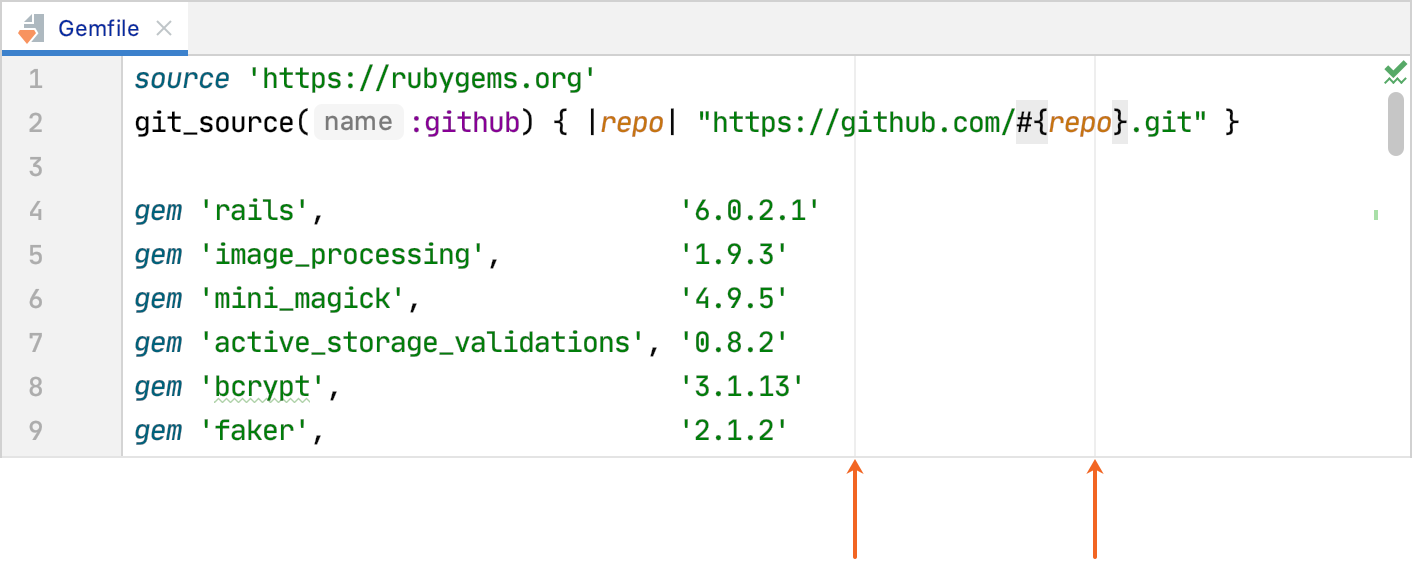 |
Keep when reformatting | Use the options to configure exceptions that RubyMine will make when reformatting the source code. By default, the Line breaks checkbox is selected. RubyMine in this case will ignore line breaks when reformatting the source code. If your code contains lines that are shorter than a standard convention, you can convert them by disabling the Line breaks checkbox before reformatting. |
List items | Use these options to format multiline code constructs. For example, if Align when multiple is enabled, RubyMine aligns hash items.
options = {:font_size => 10,
:font_family => "Arial"}
|
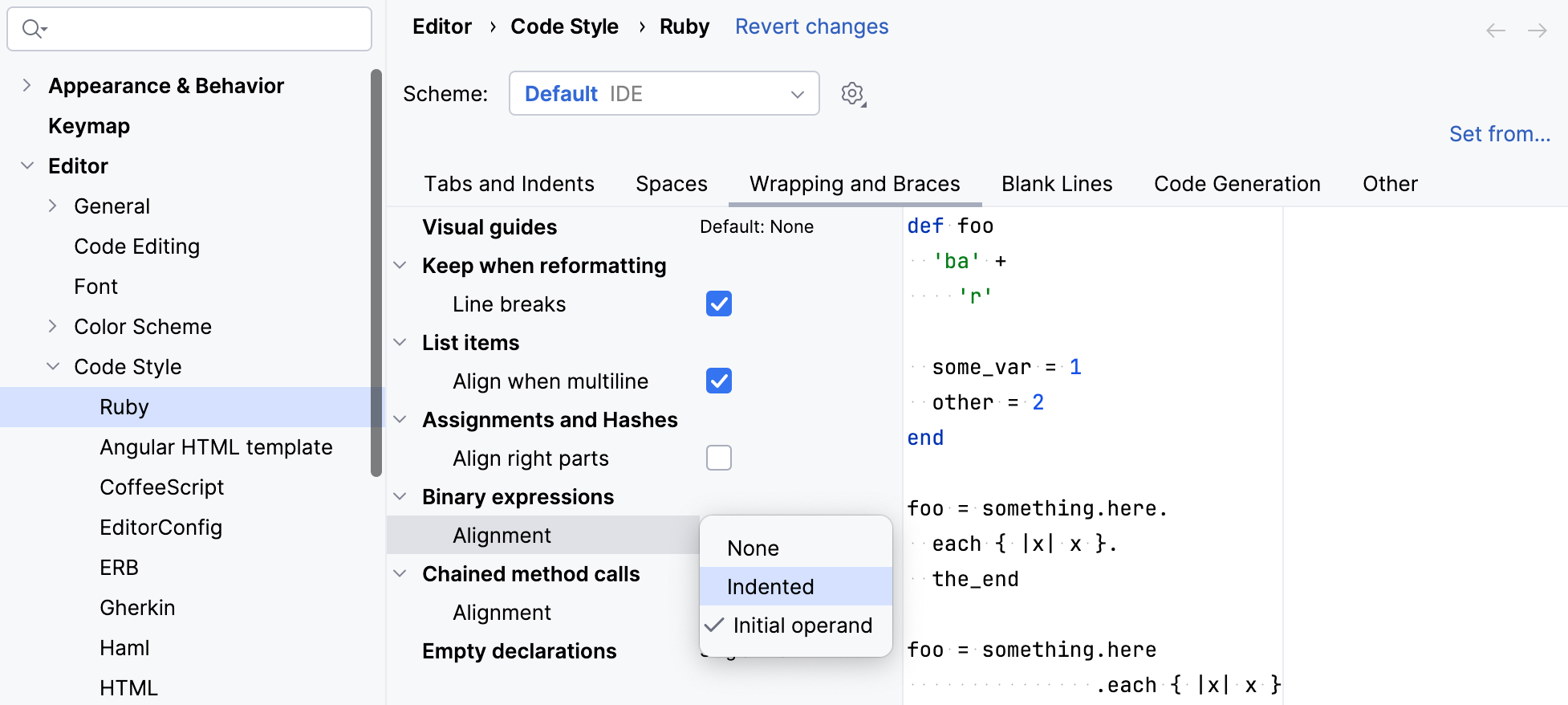
Binary expressions | This setting is designed to adhere to RuboCop style checks when formatting binary expressions. Used as a dropdown, it provides three options:
 |
Assignments and hashes | Use these options to format variable assignments and hash values. For example, if Align right parts is enabled, RubyMine aligns hash values.
options = {:font_size => 10,
:font_family => "Arial"}
|
Chained method calls | Use the options to format multiline chained method calls. For example, the Alignment option allows you to align chained method calls by the initial receiver or leading dots.
|
Empty declarations | Specify how to format declarations of empty classes, methods, and modules.
|
Blank Lines
Use this tab to define where and how many blank lines you want RubyMine to retain and insert in your code after reformatting. The results are displayed in the Preview pane.
Keep Maximum Blank Lines | In this area, specify the number of extra blank lines to be kept after reformatting. |
Minimum Blank Lines | In this area, configure whether to have or not to have extra empty lines after the blocks of In this area, configure whether to have or not to have extra empty lines around top-level blocks and nested selectors. In the field next to each option, specify the minimum number of extra blank lines to be left. |
Other
Use external formatter | The setting allows RubyMine to use RuboCop running in server mode as an external formatter. Once enabled, make sure to select RuboCop from the Select external formatter dropdown list. |
Code Generation
Add parentheses around method arguments | Specify whether to add parentheses around arguments of a generated method. For example, this option is in effect for methods generated from usage or overridden method stubs. |
Convert {} blocks to do..end by Enter | Enable this option to convert |
Set from...
Click this link to reveal the list of languages to be used as the base for the current language code style. Only the settings that are applicable to the current language are taken. All the other settings are not affected.
This link appears in the upper-right corner of the language-specific code style page, when applicable.
Click Reset to discard changes and return to the initial set of code style settings.