File type associations
For language-specific features (such as syntax highlighting and code analysis) in files representing different languages and technologies, RubyMine maintains a list of file types, each of which links a language service with one or more file name patterns.
The default list of file types covers all relevant file name patterns, but you can add new file types for your custom language files and change the associated file name patterns for existing file types.
When you open a file in the editor, RubyMine chooses the file type and the corresponding language service according to the file name pattern. If the file name does not match any of the patterns registered for file types, you can associate the file name pattern with a specific file type.
Apart from that, you can make RubyMine the default application for opening specific file types from the file manager on your operating system.
Add a custom file type
If you work on a language that is not supported by default and there are no plugins for it, you can configure a simple language service for files associated with this language — you will enjoy syntax highlighting for keywords, comments, and braces and have some basic editor helpers such as adding line/block comments with Ctrl+//Ctrl+Shift+/ and extending/shrinking selection according to the structure with Ctrl+W/Ctrl+Shift+W.
Press Ctrl+Alt+S to open settings and then select .
In the Recognized File Types section, click
 , specify the name of the new type, and provide a description.
In the Syntax Highlighting section, configure case sensitivity, brace matching settings, and specify ways of defining comments:
Line comment: specify characters that indicate the beginning of a single-line comment.
Only at line start: characters that indicate the beginning of a line comment are recognized as a comment if they are located at the beginning of a line.
Block comment start, Block comment end: specify characters that indicate the beginning and the end of a block comment.
Hex prefix: specify characters that indicate that the subsequent value is a hexadecimal number (for example,
0x).Number postfixes: specify characters that indicate which numeric system or unit is used. A postfix is a trailing string of characters (for example,
e-3, kg).Support paired braces, Support paired brackets, Support paired parens, Support string escapes: select these checkboxes to highlight paired braces, brackets, parentheses, and string escapes.
In the Keywords section, you can specify up to four lists of keywords. Keywords of each list will be highlighted differently in the editor and will be auto-completed.
The Ignore case checkbox indicates whether keywords in files of the custom format are case-sensitive.
You can customize colors for syntax highlighting of language-specific keywords, comments, and other identifiers on the settings page.
Configure associations between file name patterns and file types
Associate a file name pattern with a file type
If RubyMine cannot identify the type of the file that you are trying to open or create, it displays the Register New File Type Association dialog where you can choose the way you want to process this file.
If the dialog does not appear automatically, right-click the file in the Project tool window and select Associate with File Type… from the context menu or choose from the main menu.
In the Register New File Type Association dialog, select the necessary options:
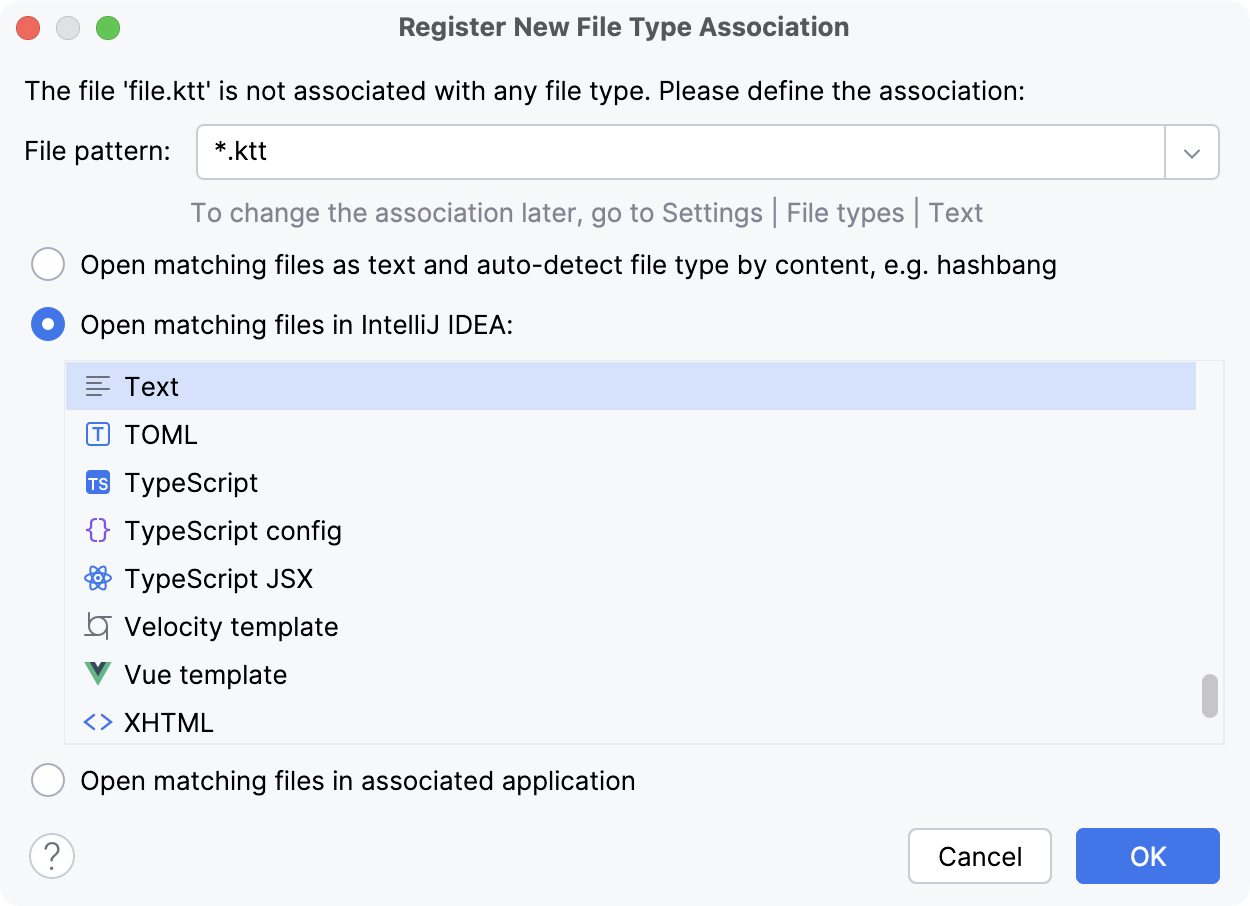
From the File pattern list, select whether you want to specify a type for the current file (file.extension) or for all files with this extension (*.extension).
Select one of the following options:
Open matching files as text and auto-detect file type by content: open the file without an extension as a text file and identify its type by the content, for example, by the shebang line.
Open matching files in RubyMine: associate the file with one of the existing file types. You can change this association later in the settings.
Open matching files in associated application: open the file in the default system application configured in your operating system. For example, .pdf files are opened in the default PDF viewer.
If necessary, you can check and configure all file name patterns associated with system applications.
Click OK to apply the settings.
Change file name patterns associated with a file type
Press Ctrl+Alt+S to open settings and then select .
From the Recognized File Types list, select the file type that you want to associate with other file name patterns.
Use the File name patterns section to make the necessary changes. You can add a new pattern (
), remove an existing one ( ), or modify an existing pattern (
 ).
).
If your project contains files in proprietary formats, such as .pdf and .docx, RubyMine will open these files using the default application configured in your operating system. When a specific proprietary file format is not recognized, or you want to open certain files with the system application, you can add the necessary associations.
Configure file name patterns associated with system applications
Press Ctrl+Alt+S to open settings and then select .
In the Recognized File Types list, select Files opened in associated applications.
In the File name patterns section on the right, click
and specify a filename pattern that should be associated with an external application.
If a file is correctly associated with a specific file type by its file name pattern, but you want to process this file differently, you can override the file type association for this file only — other files matching that pattern will not be affected.
Override file type for a specific file
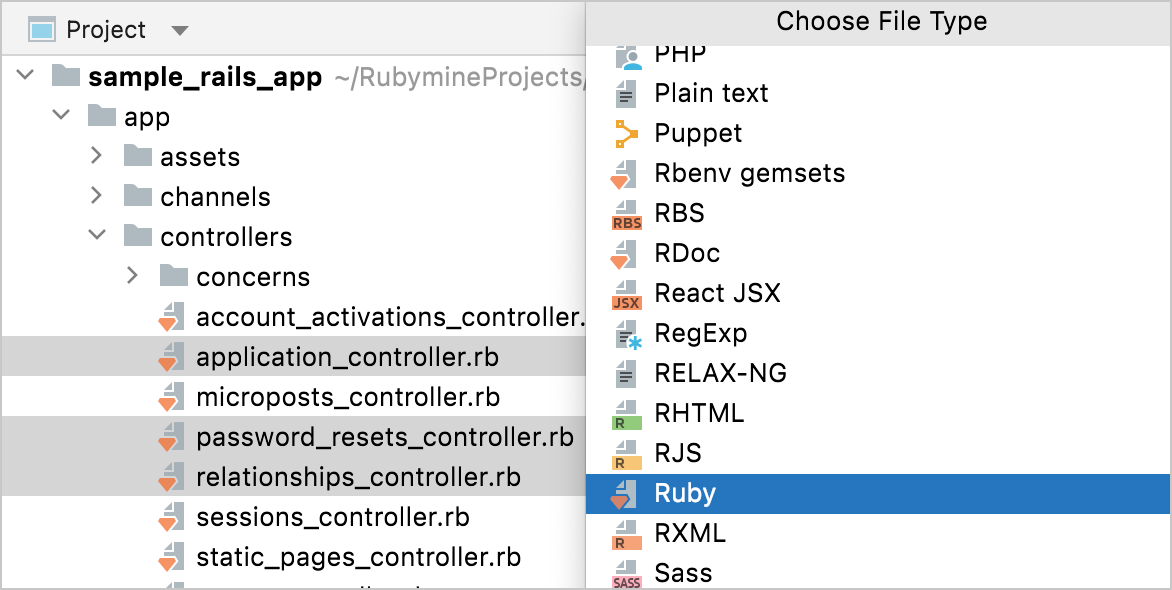
In the Project tool window (Alt+1) , select one or more files that should have another file type association, right-click the selection and choose Override File Type.
From the list that opens, select a new file type.
To restore the original file type association according to the file name pattern, right-click the file or files again and select Revert File Type Override from the context menu.
Make RubyMine the default app for specific file types
You can make RubyMine the default application for opening specific file types from the default file manager on your operating system.
Press Ctrl+Alt+S to open settings and then select .
Click Associate File Types with RubyMine and select the file extensions you want to open with the IDE.
Click OK and close the dialog.
Ignore files and folders
RubyMine also maintains a list of files and folders that are completely excluded from any kind of processing. Out of the box, this list includes temporary files, service files related to version control systems, and so on:
Modify the list of ignored files and folders
Press Ctrl+Alt+S to open settings and then select .
Switch to the Ignored Files and Folders tab.
You can add a new extension (
), remove an existing one (), or modify an existing extension ().Apply the changes and close the dialog.
Configure shebang commands for file types
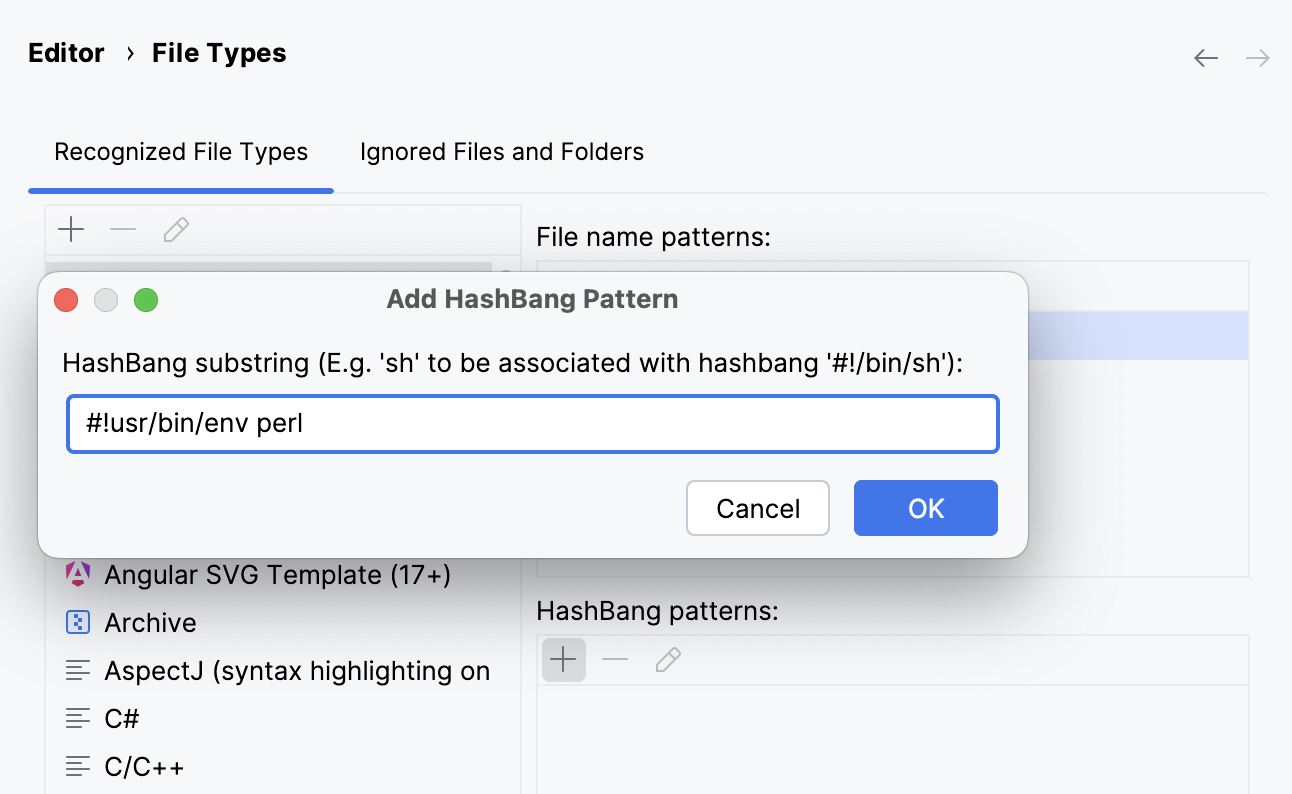
RubyMine can recognize file types by the path specified on the shebang line. A shebang is a combination of characters in a script file followed by a path to the interpreter program that should execute this script. It starts with #! and it is always located on the first line of a script file.
Press Ctrl+Alt+S to open settings and then select .
From the Recognized File Types list, select the file type for which you want to configure a command.
In the HashBang patterns area, click
(Add HashBang Pattern).In the dialog that opens, specify the pattern that the IDE will use to recognize a file type, then click OK.
Apply the changes and close the dialog.