Generate code
Complete paired elements
RubyMine can automatically add various closing elements to your code, for example, brackets, quotes, XML and HTML tags, or tags that wrap Ruby code within views (<% %>).
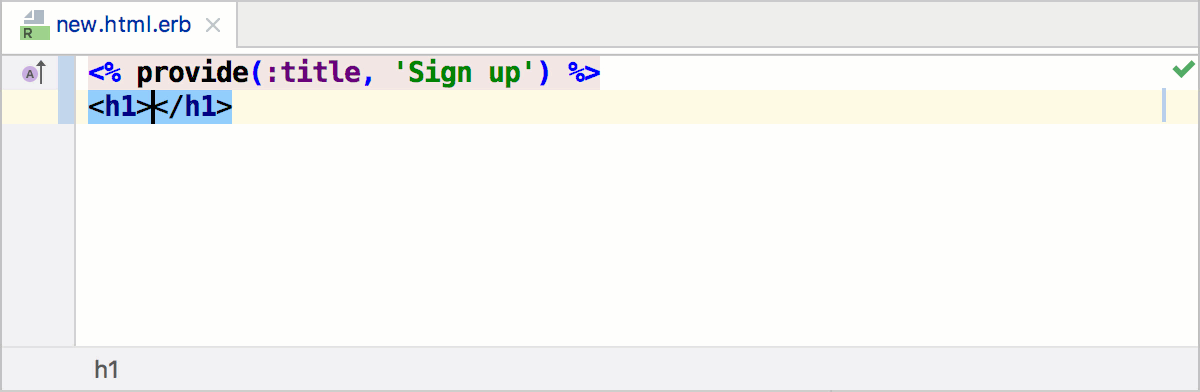
To enable or disable whether to add closing elements, open the Settings dialog Ctrl+Alt+S, click General under Editor, and then Smart Keys. For example, you can use the following options:
Insert pair brackets
Insert pair quote
Generate methods from usage
You can generate an empty stub for a method that you want to use but have not yet defined.
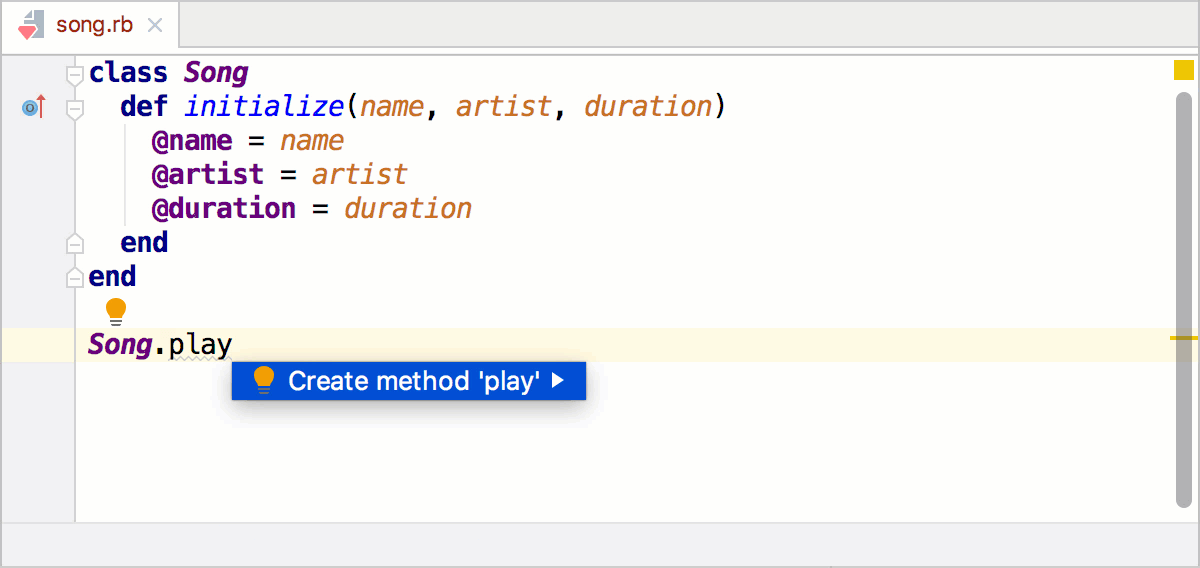
To do this, perform the following steps:
Type a name that references a non-existent method. RubyMine highlights the reference.
Press Alt+Enter, choose the Create method '<name>' from the suggestion list, and press Enter.
Create attributes
RubyMine lets you quickly add accessor methods for instance variables using the attr_reader, attr_writer, and attr_accessor attributes.
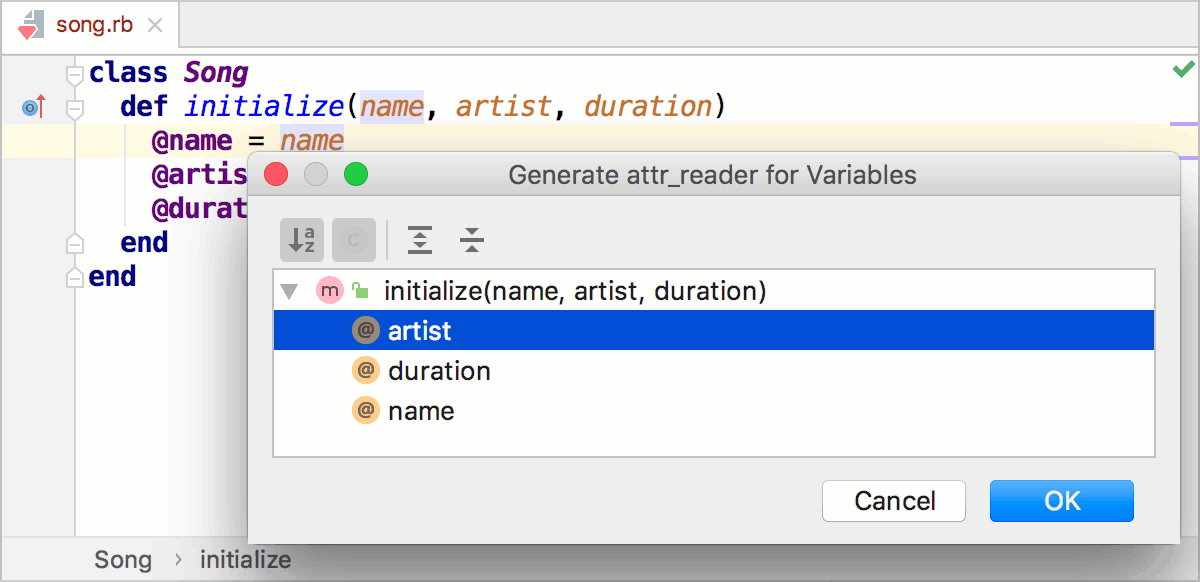
To do this, perform the following steps:
Place a caret inside a class and press Alt+Insert.
In the popup that opens, select Reader, Writer, or Accessor.
Choose the required instance variable in the invoked dialog and click OK.
Override methods of a superclass
You can override any method of a parent class by generating the corresponding method stub in a child class.
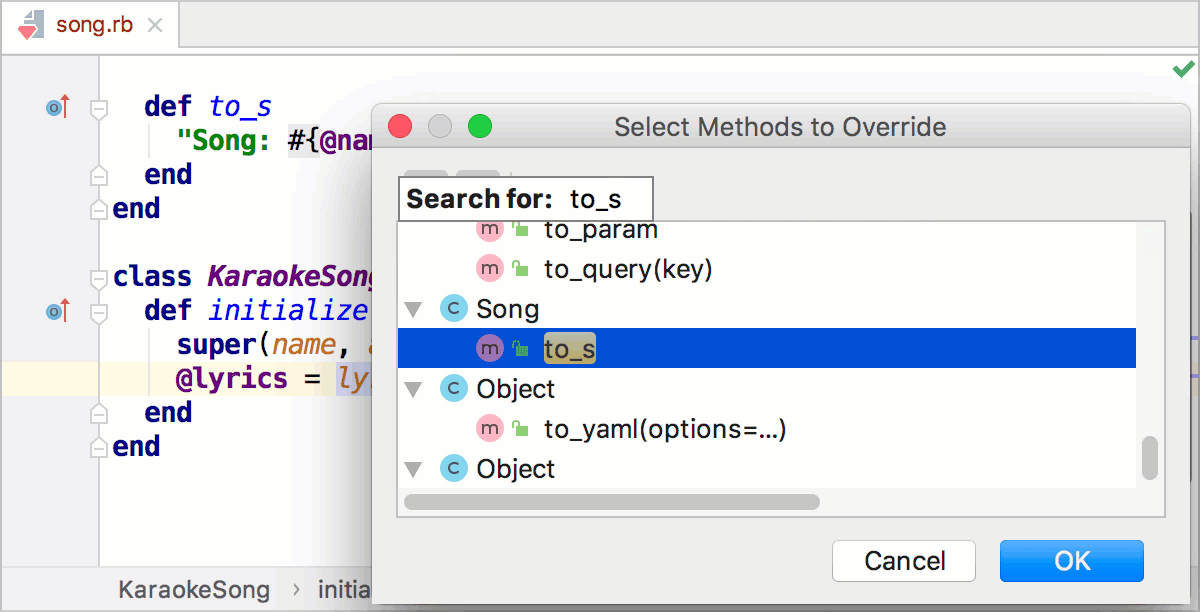
Perform the following steps to do this:
Place a caret inside a child class and do one of the following:
On the Code menu, click Override methods (Ctrl+O).
On the Code menu, click Generate (Alt+Insert) and select Override methods.
Choose the desired method in the Select Methods to Override dialog.
Implement the created method.
Unwrap and remove statements
RubyMine lets you quickly unwrap or extract expressions from enclosing statements.
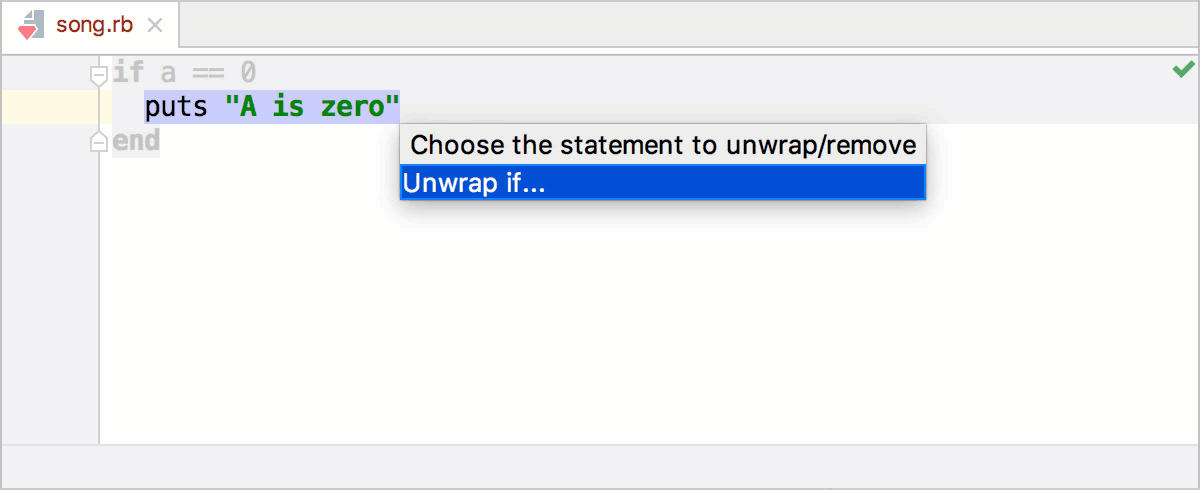
This action is available for:
Ruby
JavaScript
XML and HTML tags
To unwrap or remove a statement:
Place the caret at the expression you want to extract or unwrap.
Choose Code | Unwrap/Remove from the main menu or press Ctrl+Shift+Delete. RubyMine shows a popup with all the actions that are available in the current context.
Click the desired action and press Enter.
Create code constructs using live templates
Live templates can be used to insert frequently-used constructs into your source code, for example, loops, conditions, various declarations, print statements, tags, and so on.
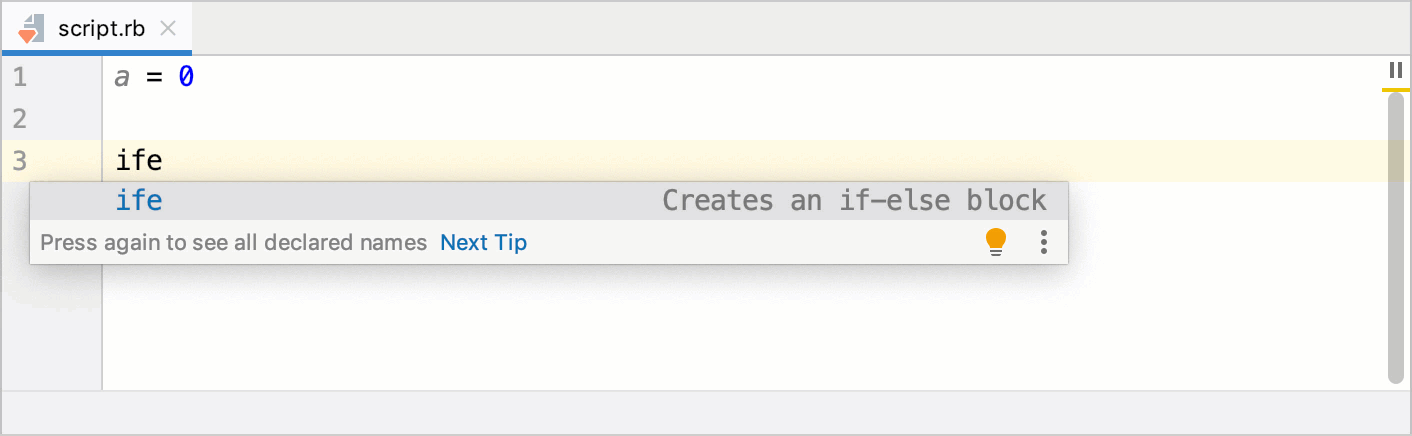
For more information, refer to Live templates.