Create Rails application elements
RubyMine helps you populate Rails applications with the stubs of all the required elements: controllers, views, models, and so on. You can launch Rails generators in several ways:
Press Ctrl twice and start typing a required command or its part (for example, rails g controller). Then, select this command from the suggestion list and press Enter.
Use the menu command.
In the main menu, go to Alt+Insert and select Rails Generator.
In this topic, we’ll show you several examples on how to create Rails application elements.
Create controllers and actions
To generate a controller and optionally its actions, do the following:
Press Ctrl twice and start typing rails g controller. Select
rails g controllerand press Enter.In the invoked Add New Controller dialog, specify the controller name. Optionally, add the action names separated by spaces (for example, new create). Click OK.
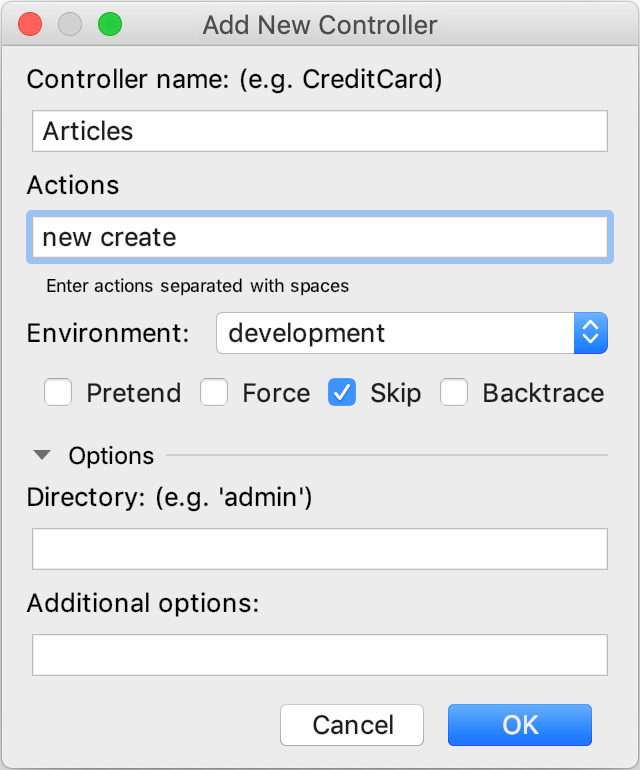
RubyMine generates required files (a controller, view, and other) and displays output in the Run tool window.
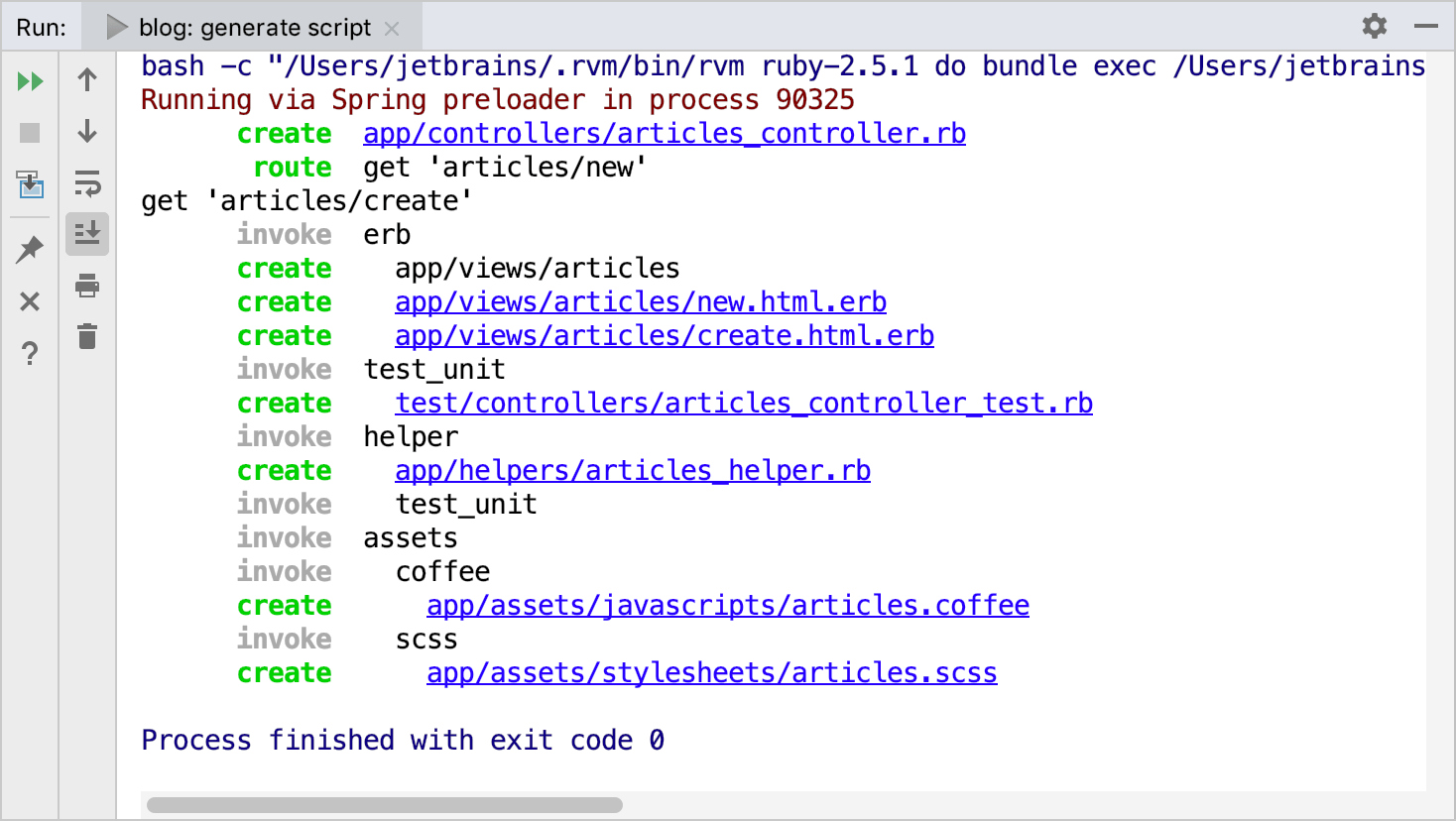
You can click any file to quickly open it in the editor.
Create views from actions
You can create a view for a specified controller action right in the editor. To do this:
Open a controller file in the editor.
Locate the desired action and click the
 icon in the left gutter of the editor.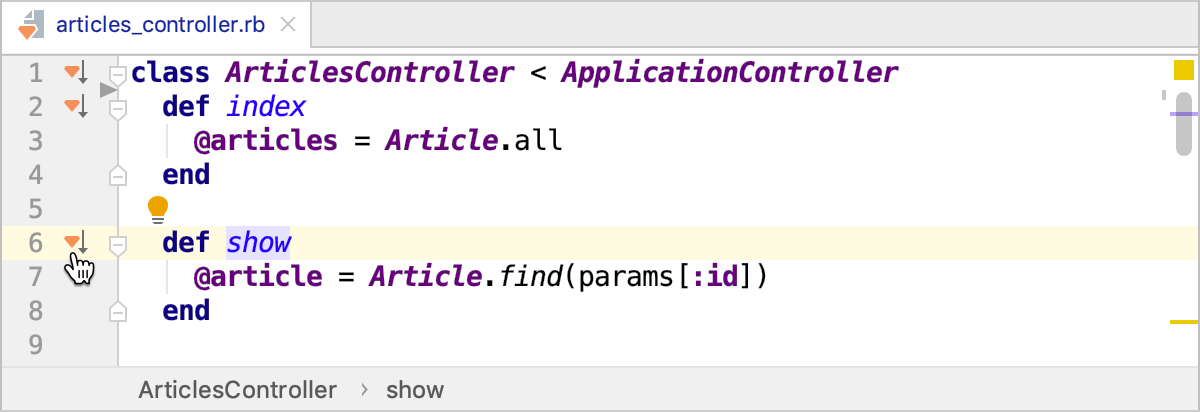
If a view associated with the method exists, it is opened in the editor. If a view doesn't exist, RubyMine suggests creating a new one.
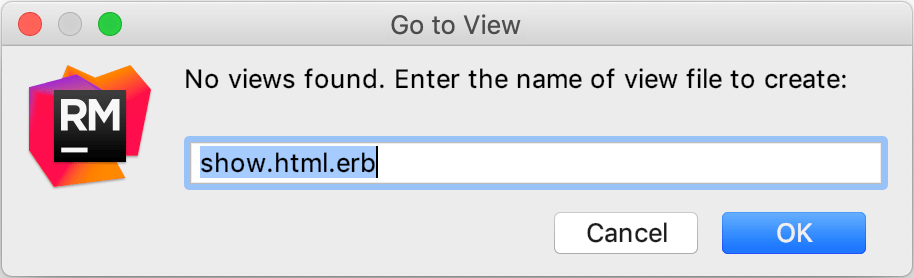
Specify the name of the view file and click OK. Note that you can create ERB or Haml view.
Create models
To create a model, perform the following steps:
Press Ctrl twice and start typing rails g model. Select
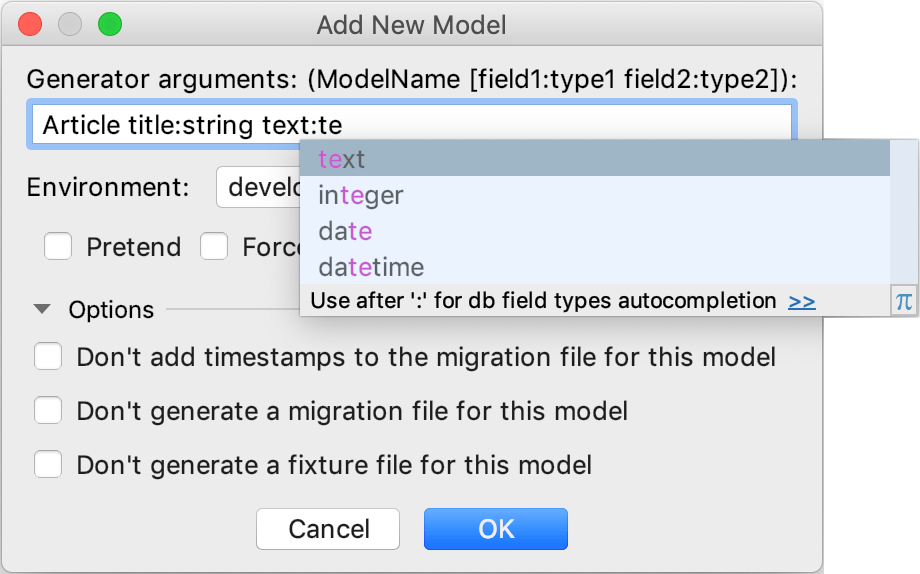
rails g modeland press Enter.In the invoked Add New Model dialog, specify the model name, attributes and its types (for example, Article title:string text:text). Click OK.
RubyMine generates required files (a model and migration) and displays output in the Run tool window.
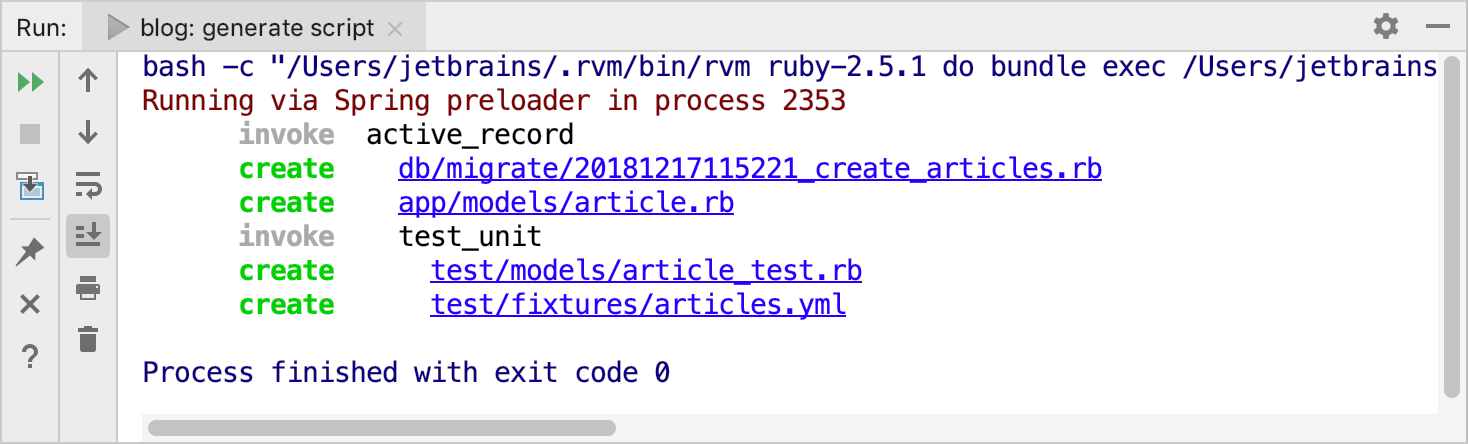
You can click any file to quickly open it in the editor.