RubyMine keyboard shortcuts
RubyMine has keyboard shortcuts for most of its commands related to editing, navigation, refactoring, debugging, and other tasks. Memorizing these hotkeys can help you stay more productive by keeping your hands on the keyboard.
All default shortcuts are configurable and you can also assign shortcuts to any action that does not have them by default.
The following table lists some of the most useful shortcuts to learn:
Shortcut | Action |
|---|---|
Double Shift | Quickly find any file, action, class, symbol, tool window, or setting in RubyMine, in your project, and in the current Git repository. |
Ctrl+Shift+A | Find a command and execute it, open a tool window, or search for a setting. |
Double Ctrl | Run Ruby scripts and Rails applications, Rake tasks, Rails generators, and so on. |
Alt+Enter | Quick-fixes for highlighted errors and warnings, intention actions for improving and optimizing your code. |
F2 Shift+F2 | Jump to the next or previous highlighted error. |
Ctrl+E | Select a recently opened file from the list. |
Ctrl+Alt+L | Reformat the whole file or the selected fragment according to the current code style settings. |
Ctrl+Alt+Shift+T | Refactor the element under the caret, for example, safe delete, copy, move, rename, and so on. |
Ctrl+W Ctrl+Shift+W | Increase or decrease the scope of selection according to specific code constructs. |
Ctrl+/ Ctrl+Shift+/ | Add/remove line or block comment Comment out a line or block of code. |
Ctrl+B | Navigate to the initial declaration of the instantiated class, called method, or field. |
Alt+F7 | Show all places where a code element is used across your project. |
Choose the right keymap
To view the keymap configuration, open the Settings dialog Ctrl+Alt+S and select Keymap.
Use a predefined keymap
RubyMine automatically suggests a predefined keymap based on your environment. Make sure that it matches the OS you are using or select the one that matches shortcuts from another IDE or editor you are used to (for example, Eclipse or NetBeans).
When consulting this page and other pages in RubyMine documentation, you can see keyboard shortcuts for the keymap that you use in the IDE — choose it using the selector at the top of a page.
Install a keymap from a plugin
Besides the default set of keymaps, you can install keymaps from plugins (such as, keymaps for GNOME and KDE): open the Settings dialog Ctrl+Alt+S, select Plugins, switch to the Marketplace tab and search for keymap.
Tune your keymap
You can modify a copy of any predefined keymap to assign your own shortcuts for commands that you use frequently.
Import custom keymap
If you have a customized keymap that you are used to, you can transfer it to your installation.
Learn shortcuts as you work
RubyMine provides several possibilities to learn shortcuts:
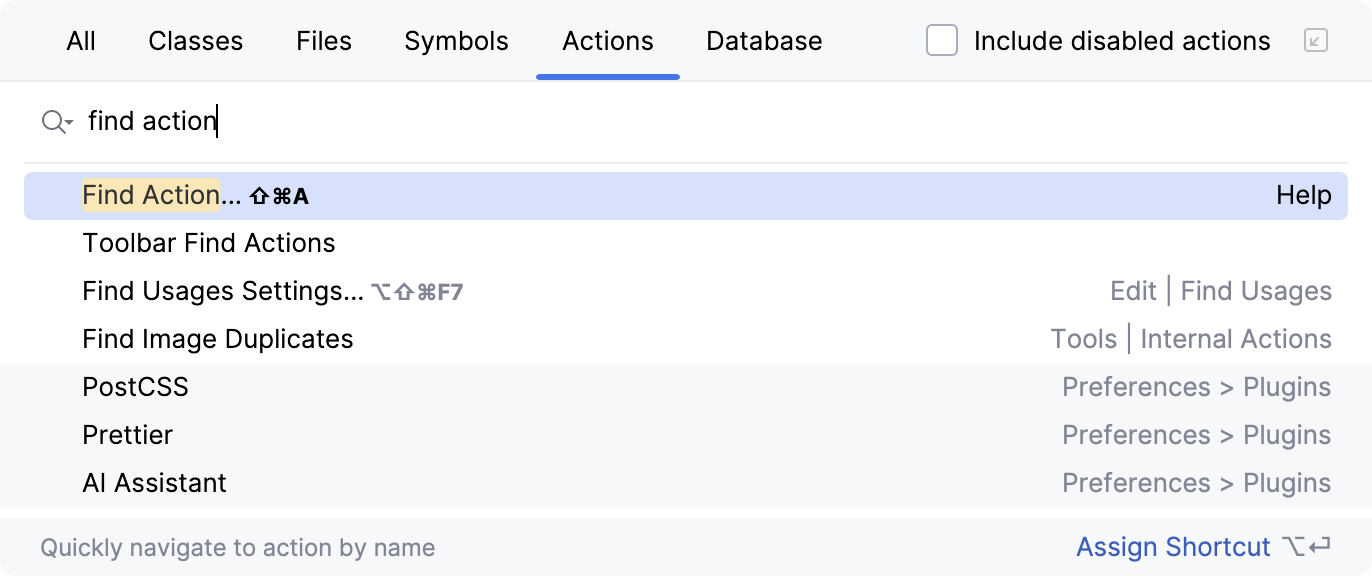
The Find Action lets you search for commands and settings across all menus and tools.
Press Ctrl+Shift+A and start typing to get a list of suggested actions. Then select the necessary action and press Enter to execute it.
Key Promoter X is a plugin that shows a popup notification with the corresponding keyboard shortcut whenever a command is executed using the mouse. It also suggests creating a shortcut for commands that are executed frequently.
If you are using one of the predefined keymaps, you can print the the default keymap reference card for macOS or Windows/Linux and keep it on your desk to consult it if necessary. This cheat sheet is also available under .
To print a non-default or customized keymap, use the Keymap exporter plugin.
Use advanced features
You can further improve your productivity with the following useful features:
- Quick Lists
If there is a group of actions that you often use, create a quick list to access them using a custom shortcut. For example, you can try using the following predefined quick lists:
Refactor this Ctrl+Alt+Shift+T
VCS Operations Alt+`
- Smart Keys
RubyMine provides a lot of typing assistance features, such as automatically adding paired tags and quotes, and detecting CamelHump words.
- Speed search
When the focus is on a tool window with a tree, list, or table, start typing to see matching items.
- Press twice
Some actions in RubyMine provide more results when you execute them multiple times. For example, when you invoke basic code completion with Ctrl+Space on a part of a field, parameter, or variable declaration, it suggests names depending on the item type within the current scope. If you invoke it again, it will include classes available through module dependencies. When invoked for the third time in a row, the list of suggestions will include the whole project.
- Resize tool windows
You can adjust the size of tool windows without a mouse:
To resize a vertical tool window, press Ctrl+Alt+Shift+Left and Ctrl+Alt+Shift+Right
To resize a horizontal tool window, press Ctrl+Alt+Shift+Up and Ctrl+Alt+Shift+Down