Search everywhere
You can find any item in the project or outside of it by its name. You can search for files, actions, classes, symbols, settings, UI elements, and anything in Git from a single entry point.
For more information about searching text within your project, refer to Search and replace a target within a project.
Search everywhere
In the main menu, go to or press Shift twice to open the search window. By default, RubyMine displays the list of recent files.
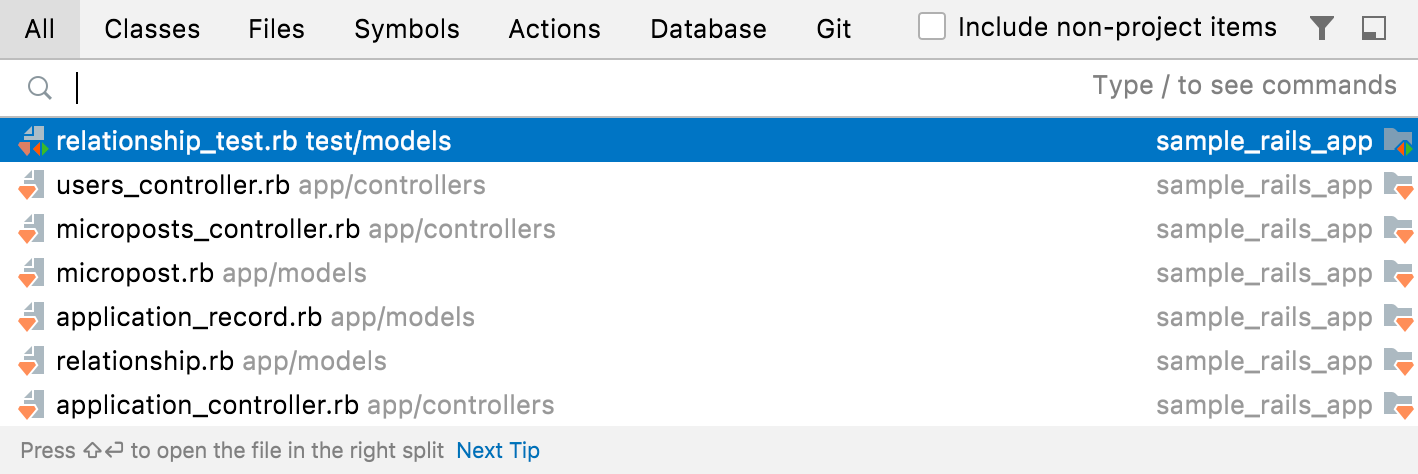
Pressing double Shift again or Alt+N for mnemonics will select the Include non-project items checkbox and the list of search results will extend to external items.
If you switch to other tabs, select the All Places to extend the search results to non-project items.
Start typing your query. You can use synonyms in your search. For example, typing
toggle presentation modeto search for the presentation mode action will displayEnter Presentation Modein results.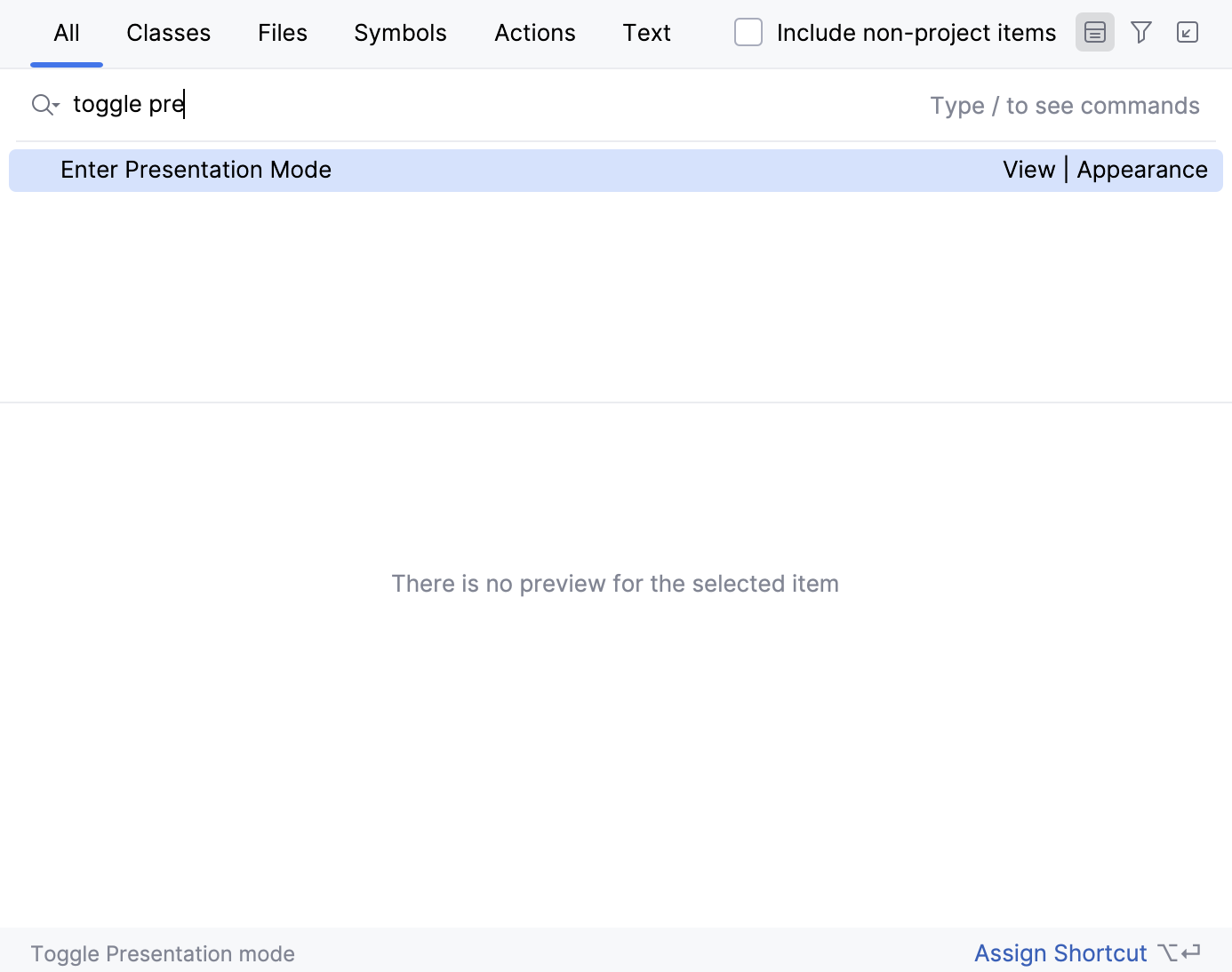
RubyMine lists all the found results where your query is found. Press Ctrl+Down to jump to the bottom of the list for
more...items or Ctrl+Up to return to the top of the search results.Press Tab to switch the context of your search to classes, files, symbols, actions, and so on.
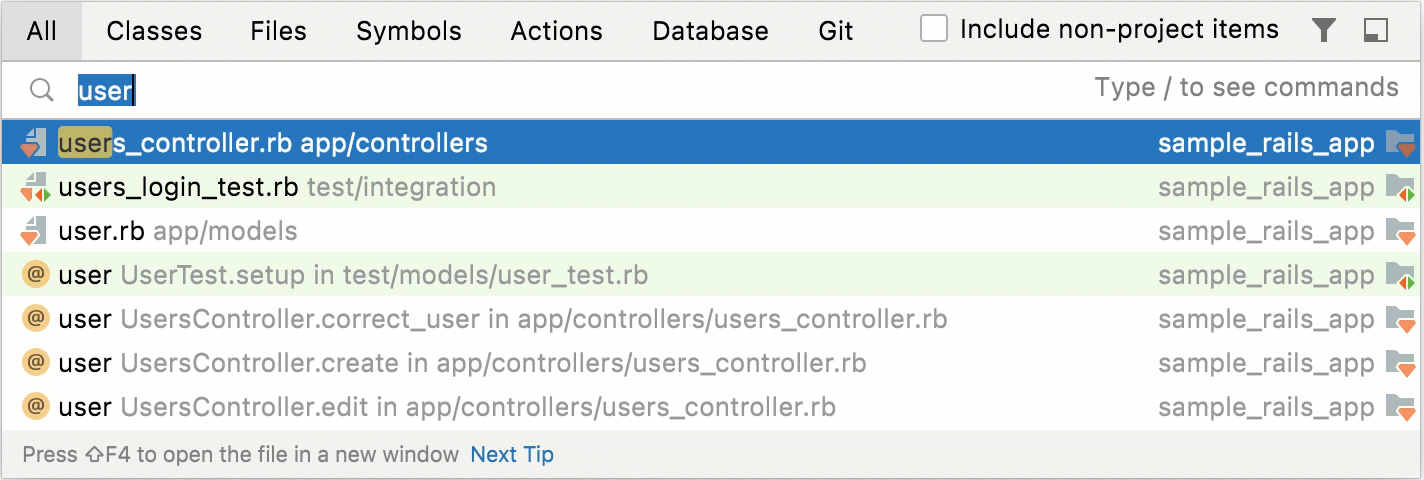
You can use the following shortcuts to open the search window with the needed scope right from the start:
Ctrl+N: finds a class by name.
Ctrl+Shift+N: finds any file or directory by name (supports CamelCase and snake_case).
Ctrl+Alt+Shift+N: finds a symbol.
Ctrl+Shift+A: finds an action by name. You can find any action even if it doesn't have a mapped shortcut or appear in the menu. For example, Emacs actions, such as kill rings, sticky selection, or hungry backspace.
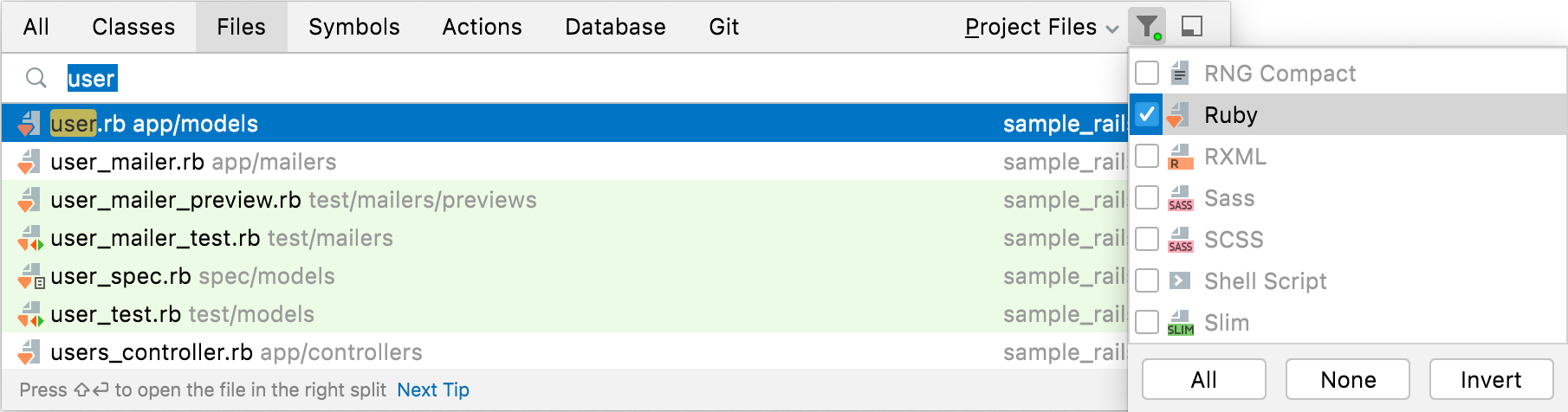
To narrow down your search, click the Filter button ( ) on the window toolbar and select the appropriate option.
For example, when you search for files, you can exclude some file types from your search.
To see the results of your search in the , click the Open in Find Tool Window button ( ) on the window toolbar. This button is disabled when you search in the Actions tab.
Search for settings and plugins
You can search for a list of settings, their options, and plugins that you can quickly access, enable, or disable.
Press Shift twice to open the search window and type
/. RubyMine lists the available groups of settings.Select the one you need and press Enter.
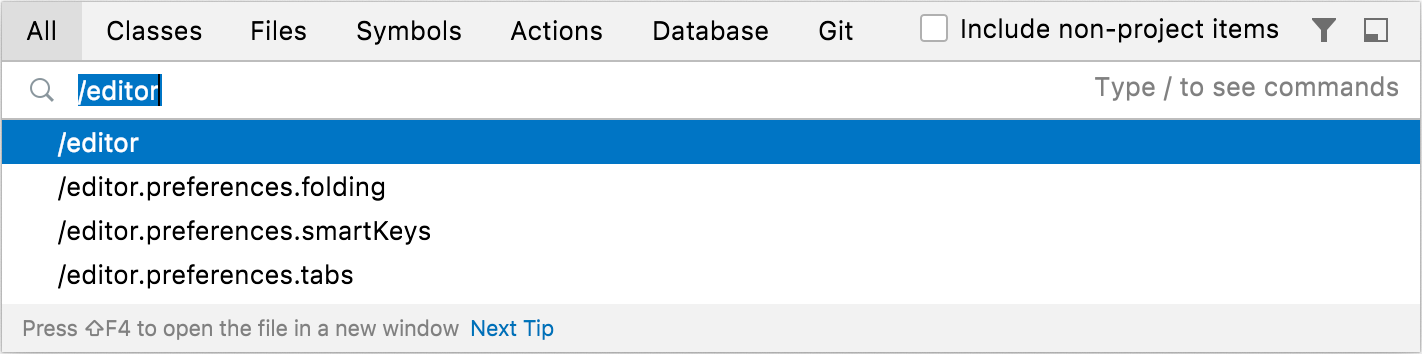
As a result, RubyMine gives you quick access to the selected setting and its options.
You can also search for plugins and enable or disable them. Type
/pluginsin the search field, in the list of the search results use ON/OFF control keys to enable or disable the needed plugin.Other tags include
/appearance,/system,/inspections,/registry,/intentions,/templates, and/vcs.
Search for Rails URLs
RubyMine recognizes Rails URLs as symbols.
Press Shift twice to open the search window.
Type
"/url/"and part of the URL mapping you want to search for.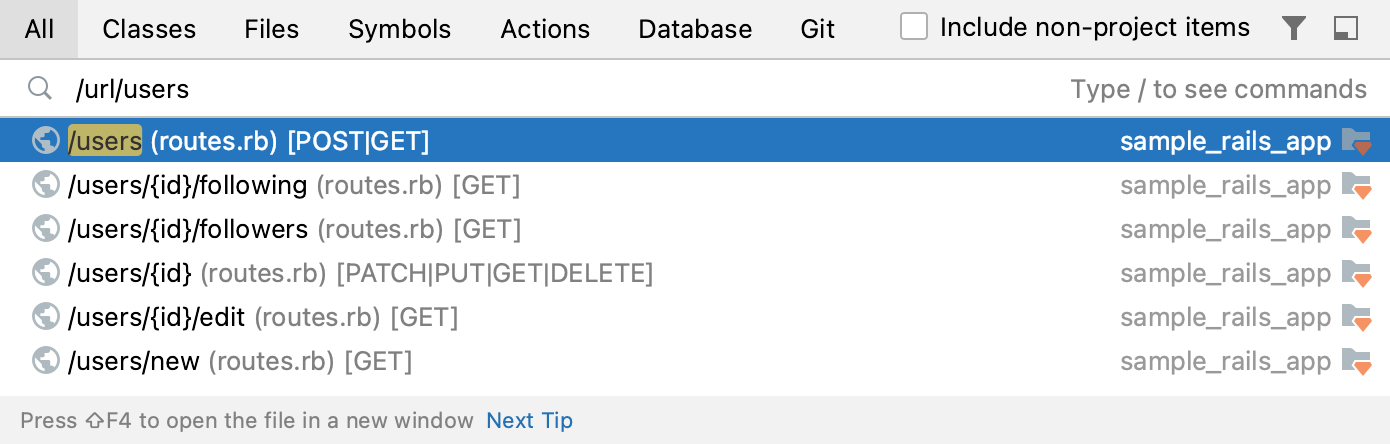
Search for actions
You can search for actions. For example, you can search for a VCS action and access its dialog.
Press Shift twice to open the search window.
In the search field, type, for example,
push.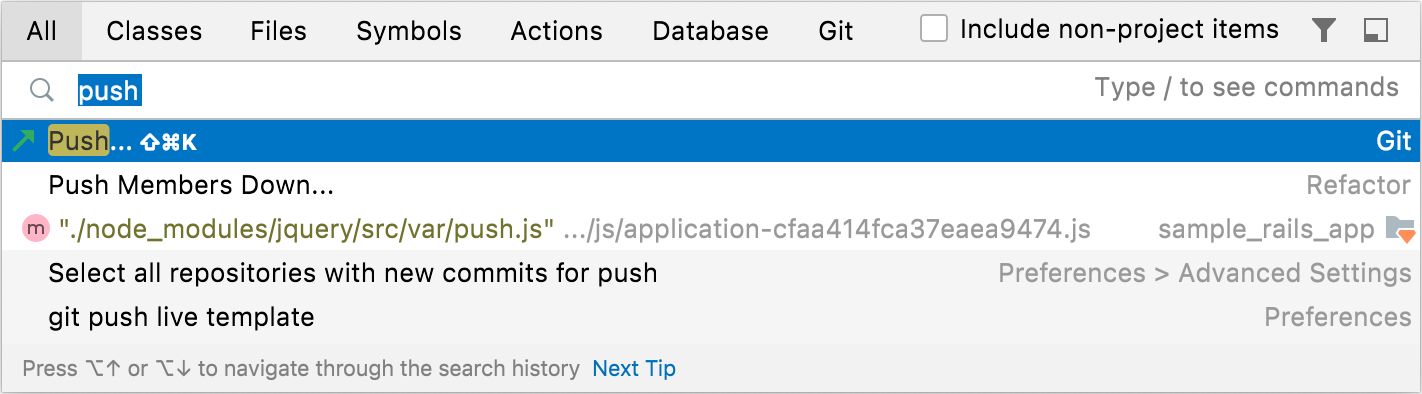
RubyMine displays the Push action in the Actions section together with the Ctrl+Shift+K shortcut, which lets you access the Push dialog.
If the action doesn't have a shortcut, you can assign it without leaving the Search Everywhere window.
After typing the action name in the search field, select it in the search results, press Alt+Enter and in the dialog that opens specify a new shortcut.
Search for abbreviations
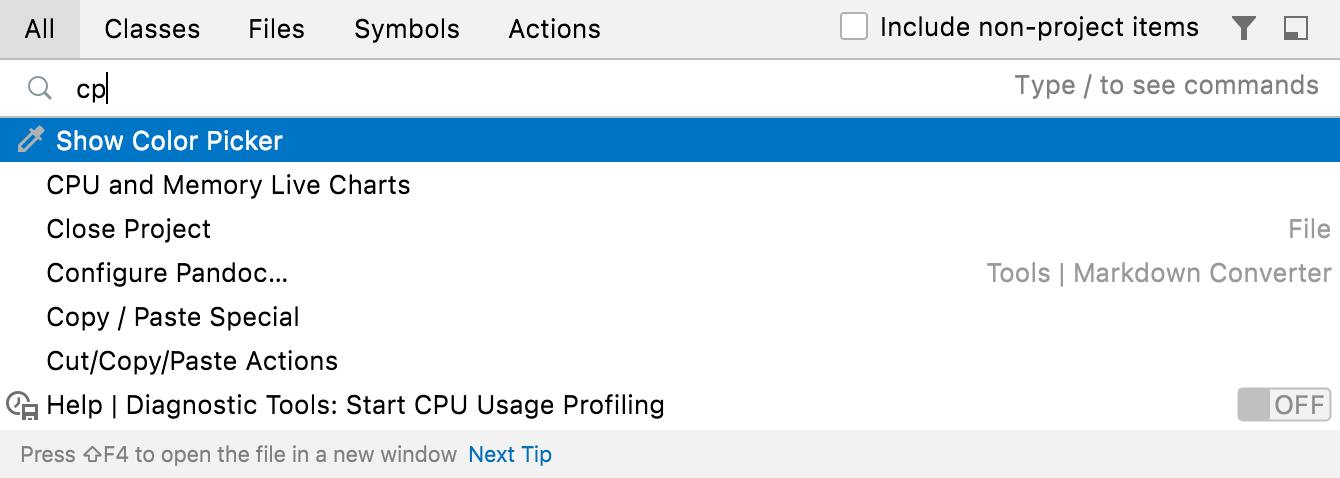
You can assign a short code for the action and use it to search for such action and quickly access it. For example, assign an abbreviation for Color Picker.
In the Settings dialog (Ctrl+Alt+S) , go to Keymap. From the options on the right, select .
From the context menu, select Add abbreviation.
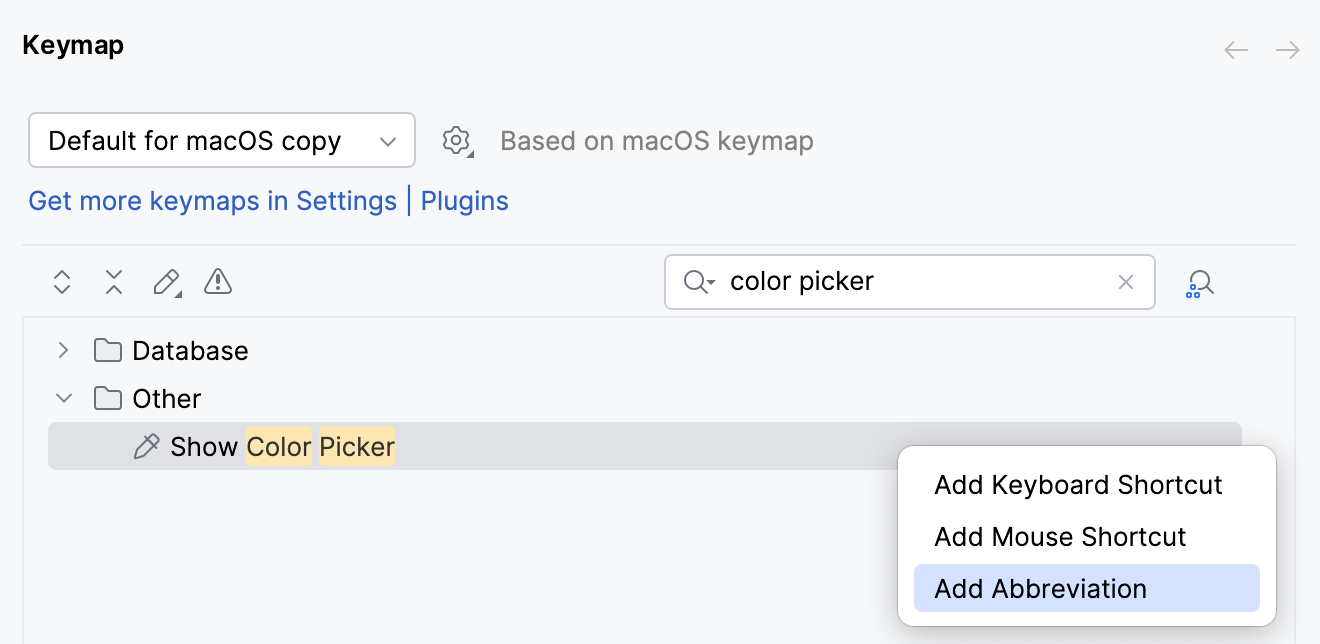
In the dialog that opens, specify the abbreviation you are going to use, for example, cp and click OK.
Press Shift twice to open the search window.
When you type cp in the search field, RubyMine will display the item to which you have assigned your abbreviation. Press Enter to access the Color Picker dialog.
Evaluate mathematical expressions
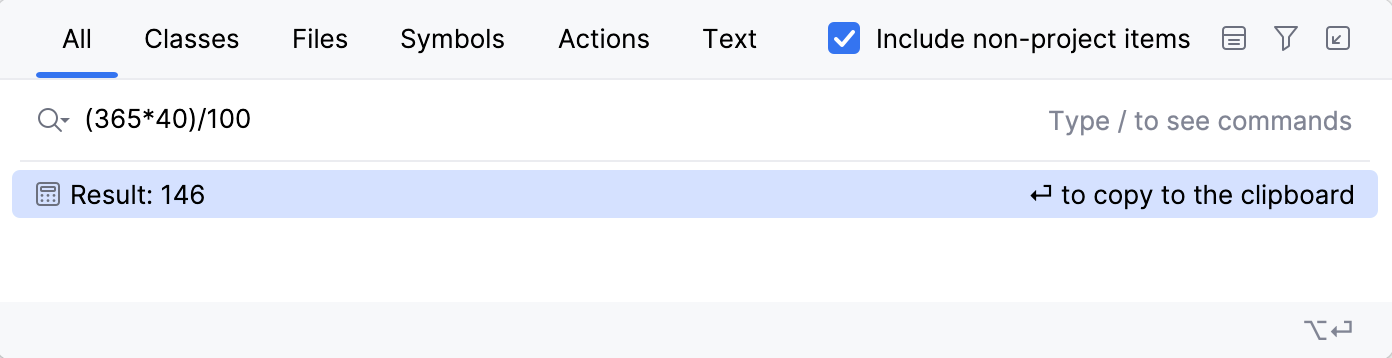
You can quickly type and evaluate simple mathematical expressions. RubyMine also supports HEX, binary, and octal expressions.
Press Shift twice to open the search window.
Enter an expression you want to evaluate, RubyMine will display the answer in the search results.
You can use basic arithmetic operators —
+,-,*,/, as well as^for power — and basic math functions:sqrt(),sin(),cos(),tan().
Manage text search in Search Everywhere
The text search is available by default within the Text tab. Within this tab, you can search for text queries, matching words, including case-sensitive scopes, and regex.
The text search results are also available on the All tab at the bottom of the list. They are displayed when there are few or no other search results available for a given query. You can disable the text search at any time through Advanced Settings.
Press Ctrl+Alt+S to open settings and then select .
Scroll down to the Search Everywhere section and disable Show text search results in Search Everywhere.
Apply the changes and close the dialog.
Manage tabs for Search Everywhere
You can add more tabs to the Search Everywhere window or disable them through Advanced Settings.
For example, you can enable the Git tab to search for Git branches or commits.
Press Ctrl+Alt+S to open settings and then select .
On the Advanced Settings page, in the search field, start typing
Search Everywhereto see options and tabs that are available.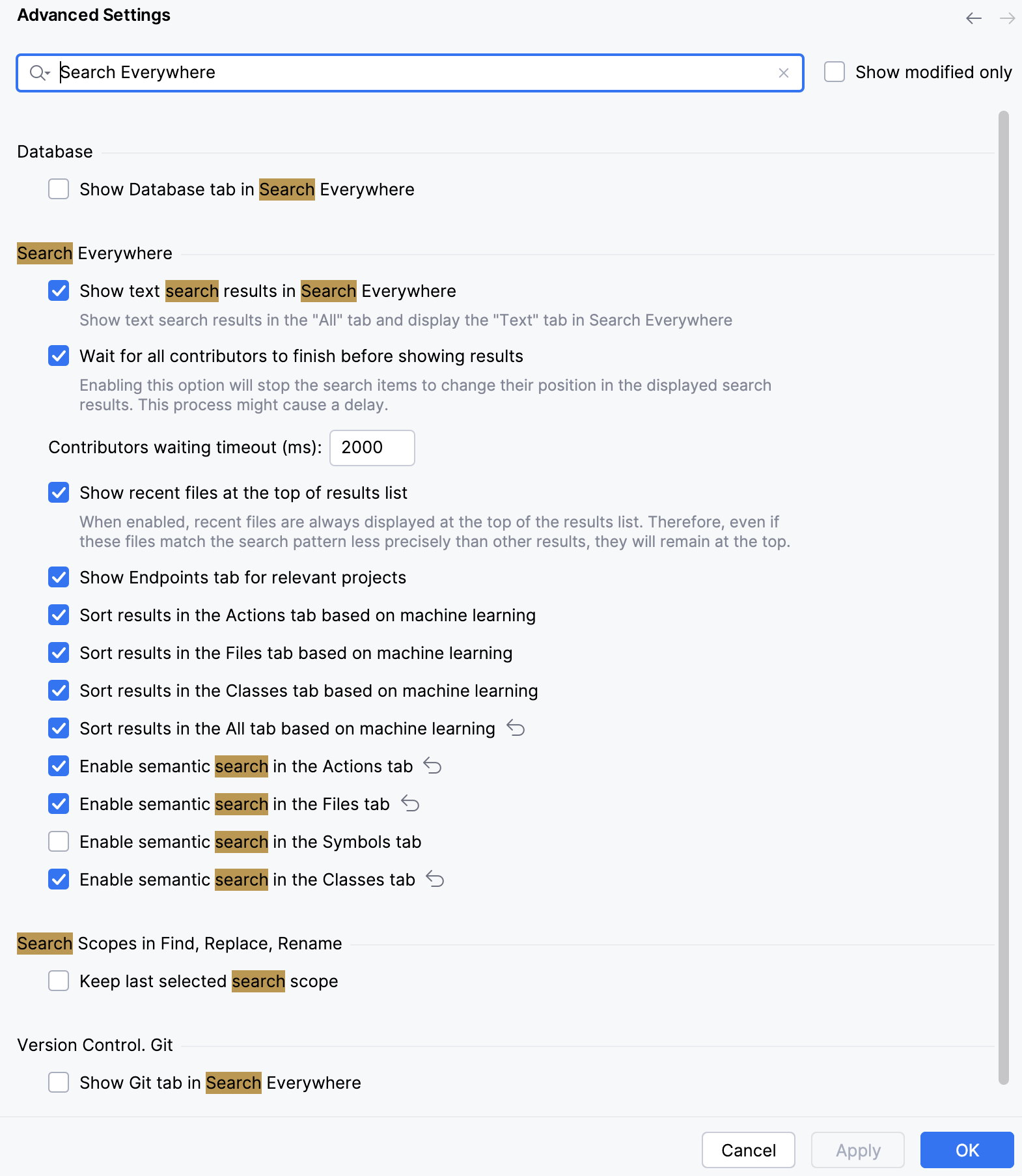
Select the appropriate option and click OK to save the changes.