Deploy apps using Deployment configurations
RubyMine provides the capability to deploy applications to remote servers using deployment configurations. In this topic, we'll show you how to set up a remote deployment server, browse its file system right from the IDE, and upload your web application to this server.
Prerequisites
Before deploying your application to a remote server:
Enable SSH access on a server
Add an SSH configuration to the IDE settings for accessing a server
Configure a deployment server
You can configure the deployment server as follows:
Open Settings Ctrl+Alt+S and go to the page.
Click
 and select a file transfer protocol, for example, SFTP.
In the Create New Server dialog, specify the configuration name and click OK.
Specify the following settings in the Connection tab:
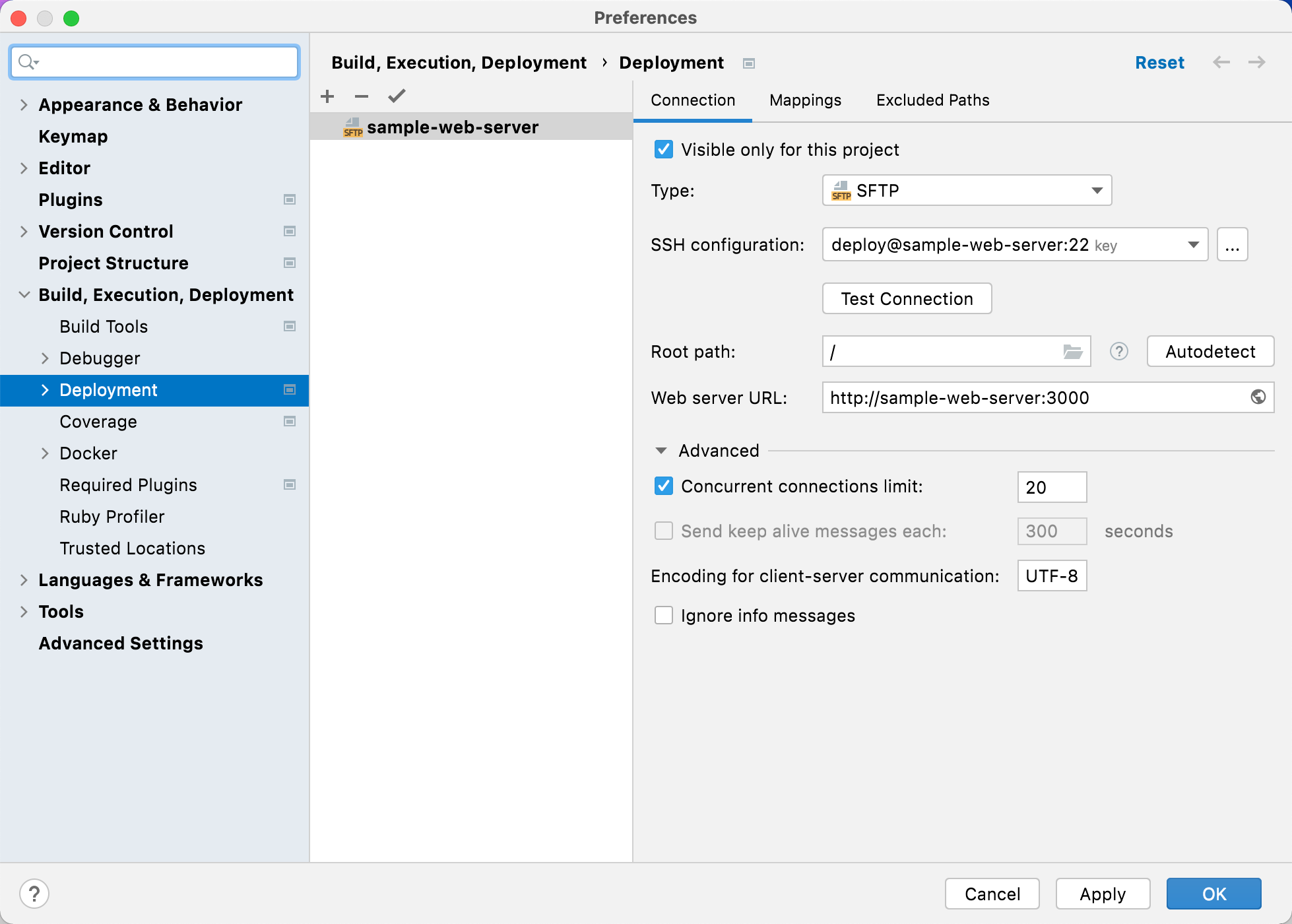
Visible only for this project: enable this option if you do not want to share the configuration between projects.
Type: specify the way to access the server.
SSH configuration: select the existing SSH configuration used to access the server or click the ellipsis button to add a new one.
Root path: leave the default / path to point at the root folder on the server.
Web server URL: specify the root URL address.
Switch to the Mapping tab to specify where to deploy your application:
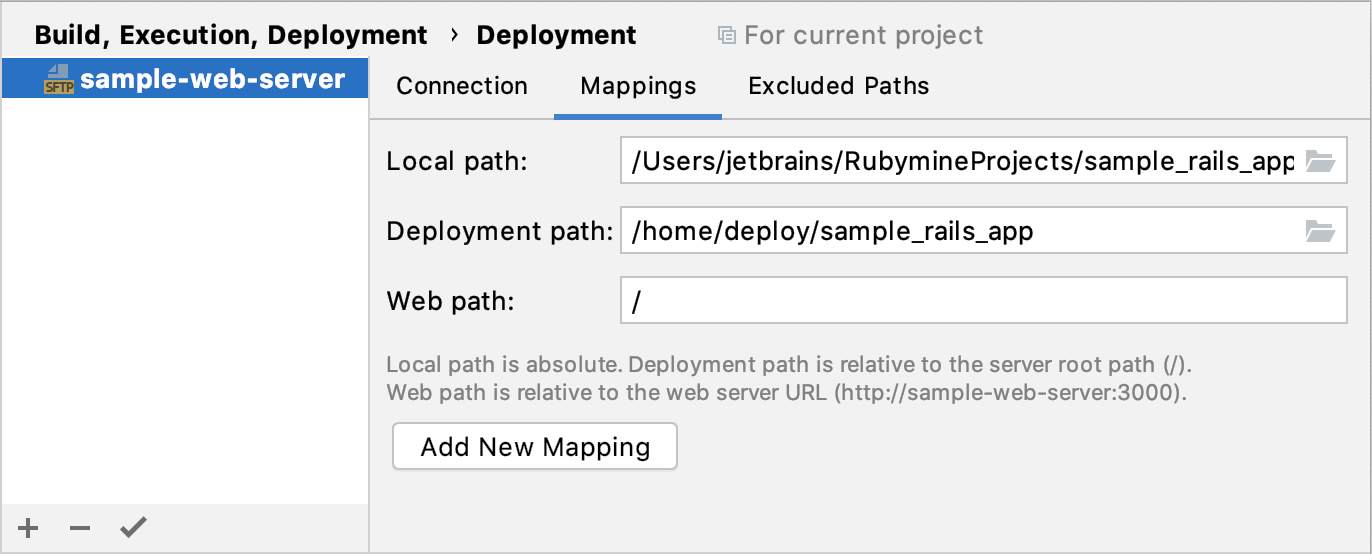
Local path: specify the path to the project root on a local machine, for example, /Users/jetbrains/RubymineProjects/sample_rails_app.
Deployment path: specify the deployment folder on your server. In our case, it will be /home/deploy/sample_rails_app.
(Optional) On the Excluded Paths tab, you can configure a list of local and remote folders that you do not want to be involved in upload/download.
Browse a remote host
After you've configured the deployment server, you can browse its file system right from the IDE:
Select from the main menu.
In the invoked Remote Host tool window, you can perform various actions, for example:
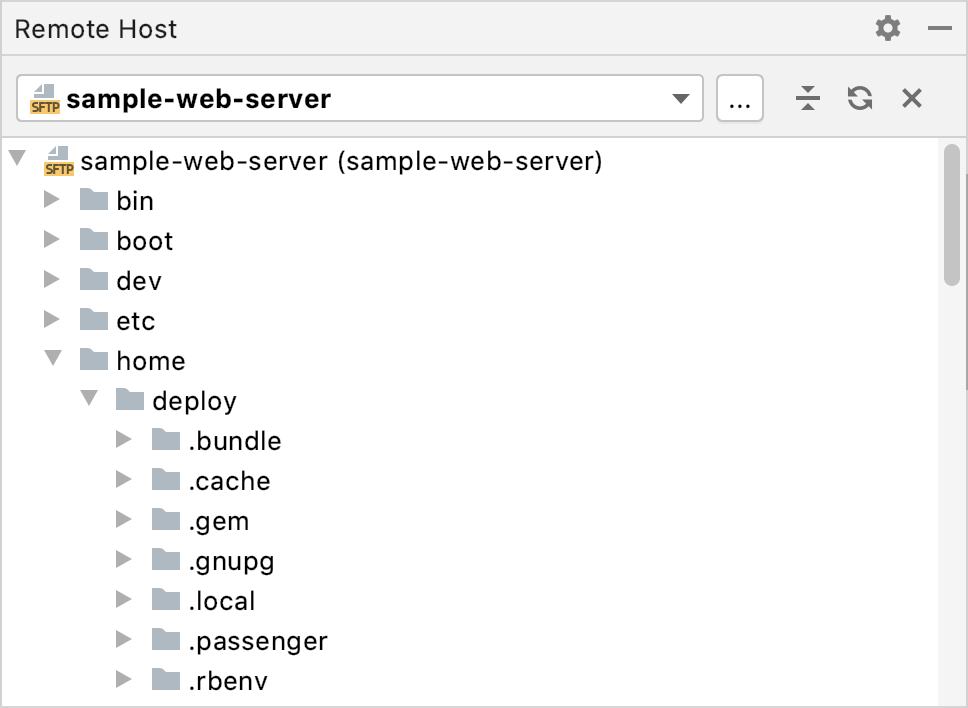
Drag files between the remote server and local machine (by using the Remote Host and Project Alt+1 tool windows).
Create and remove files and directories.
Compare and synchronize files of the local and remote projects.
Upload your app to a server
After you've configured a deployment server, you can upload your project to this server:
In the Project view Alt+1, right-click the root project directory and select .
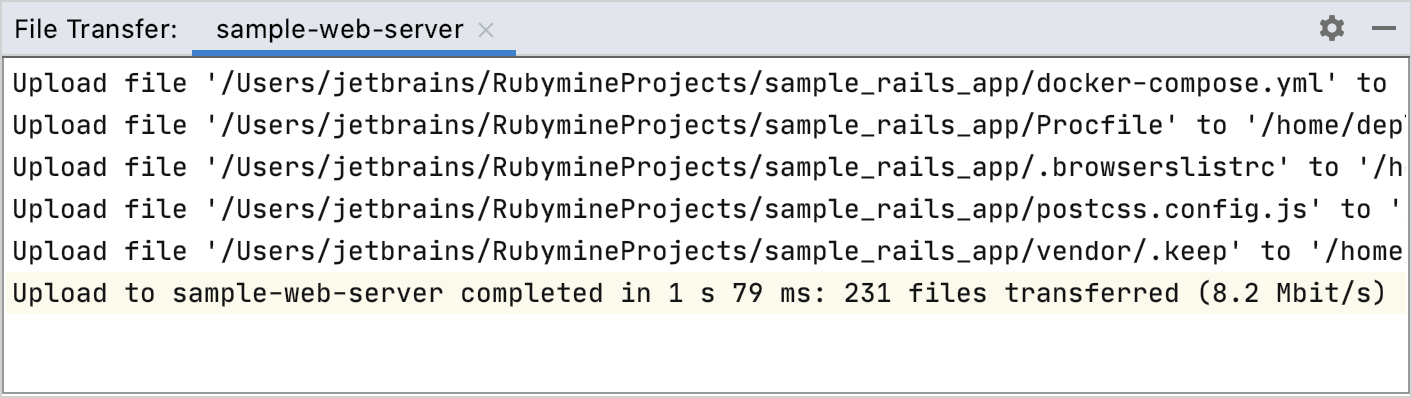
Wait until RubyMine copies the project files to the remote host. You can see the deployment status in the File Transfer tool window ().
For more information about synchronizing changes between the local and remote projects, refer to Synchronize changes.
Synchronize changes
After you've made changes in your local project, you need to upload new files to the remote server. RubyMine allows you to compare local and remote files/directories, synchronize changes manually, or enable automatic upload.
Synchronize changes manually
In the Project view Alt+1, select the required file or directory for synchronizing. For example, if you want to synchronize the entire project, select the project root.
Go to .
In the invoked dialog, you can select individual files and compare their local and remote versions.
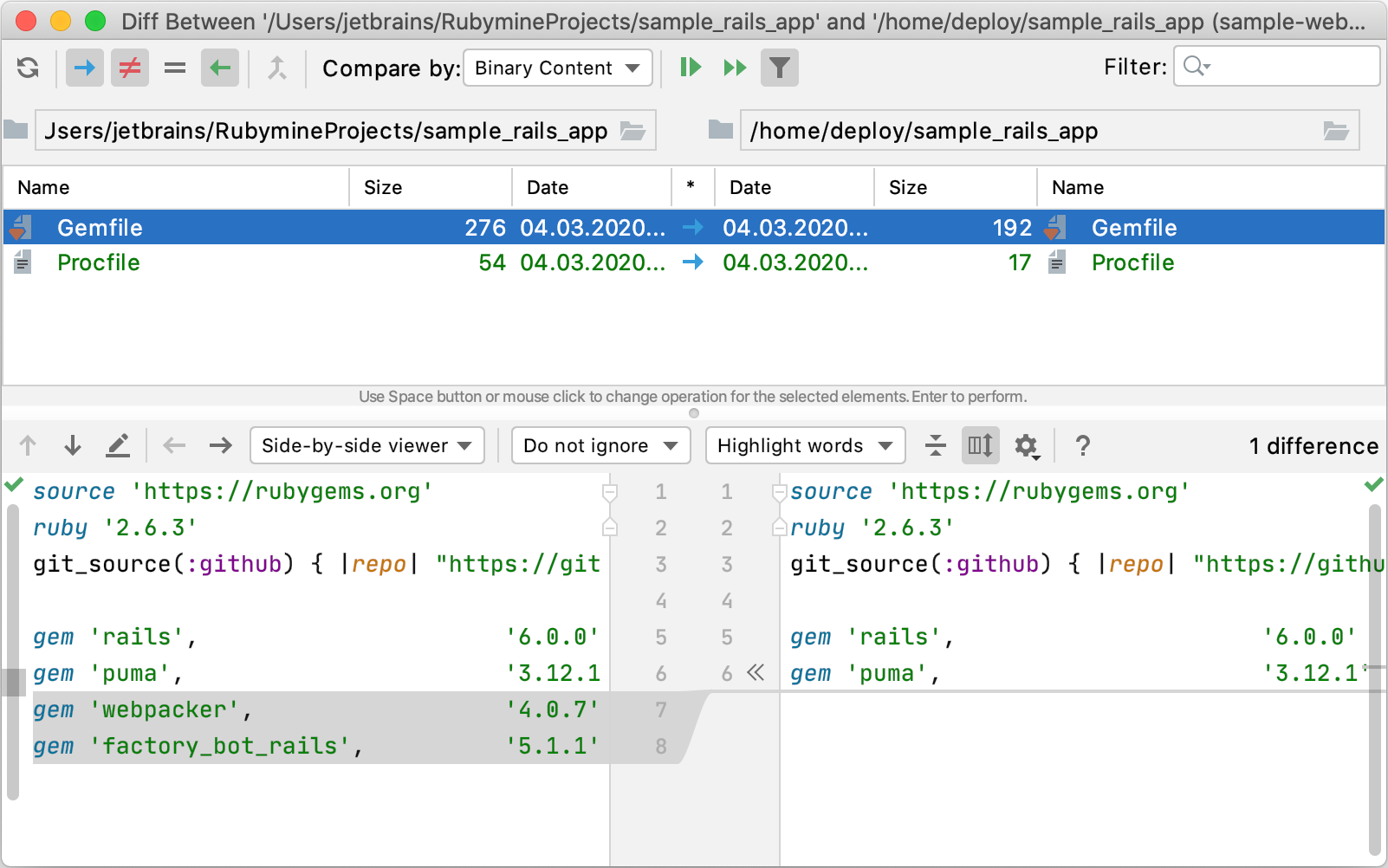
Use the
 button Enter to upload changes for the selected file.
  Ctrl+Enter allows you to upload all files at once.
Enable automatic uploading
Specify the default upload server. Open , select the desired server, and click
 .
.Go to the page and set the Upload changed files automatically to the default server option to Always, or On explicit save action.
Disable uploading external changes
By default, RubyMine also uploads the files if they are changed by some external process, such as a VCS branch change, compilation of SASS or LESS, or a File Watcher. To change this behavior:
Open Settings and go to the page.
Set Upload changed files to the default server to Always and enable the Skip external changes option.
Configure deployment options
To configure deployment options, open Settings Ctrl+Alt+S and go to the page. Use this page to specify additional configuration settings for uploading and downloading project files to and from local and remote servers.
Options
Item | Description |
|---|---|
Exclude items by name | In this field, specify patterns for the names of files and folders that you do not need to be deployed. Use semicolons For example, if you have a folder stylesheets with three files style.css, style1.css, and style2.scss, then Learn more from Regular-Expressions.info. The exclusion is applied recursively. This means that if a matching folder has subfolders, the contents of these subfolders are not deployed either. |
Operations logging | Use this list to specify how much detailed logging you need to have. The available options are:
|
Overwrite up-to-date files | If this checkbox is selected, all files will be uploaded no matter whether they have been changed since the previous upload or not. Otherwise, if this checkbox is not selected, only the files that have been changed since the previous upload will be uploaded. |
Use a temporary file during upload | Select this checkbox to use a temporary name for the changed file that is being uploaded to the server, and only rename it back after the upload operation has been successfully completed. |
Preserve file timestamps | Select this checkbox to prevent resetting timestamps of files on upload. |
Delete target items when source ones do not exist (when transferring from Project view or Remote Host view) | If this checkbox is selected, any file in the destination directory will be removed if the file with this name is not involved in the current upload. This option is applicable when synchronization if performed from the Project tool window or from the Remote Host tool window. |
Create empty directories | Select this checkbox to have an empty directory on the server created automatically if a new local directory has been created in your project since the last upload in the source folder. |
Prompt when overwriting or deleting local items | Select this checkbox to have RubyMine prompt for confirmation before overwriting or deleting local items for synchronization during download. |
Confirm uploading files | Select this checkbox to have RubyMine prompt for confirmation before uploading local items to a remote host. |
Upload changed files automatically to the default server | From this list, choose when you want RubyMine to automatically upload a file to the default server or server group. The available options are:
The default server configuration or a server group is appointed on the Deployment page by selecting the desired item in the list and clicking the Use as Default toolbar button |
Skip external changes | Select this checkbox to exclude local changes that were made using a third-party tool (a VCS, a script, and so on) from automatic upload. The checkbox is available only when the Always or On explicit save action option is selected in the Upload changed files automatically to the default server list. |
Delete remote files when local are deleted | Select this checkbox to have RubyMine automatically delete remote files during automatic uploads in case the local ones are deleted. The checkbox is available only when the Always or On explicit save action option is selected in the Upload changed files automatically to the default server list. Note that this option serves as an extra safety measure and may result in unwanted files remaining on the remote server. As an example, consider a local file FILE.md, which is renamed to RENAMED.md. Since renaming a file is technically indistinguishable from deleting the file and creating a new one, the following will happen after automatic upload:
|
Preserve original file permissions | If enabled, RubyMine will preserve the original local files' permissions when uploading files on remote hosts over FTP/FTPS. The option is only available for macOS and Linux. |
Override default permissions on files | Select this checkbox to change the default permissions assigned to uploaded files on remote hosts. Click Browse |
Override default permissions on folders | Select this checkbox to change the default permissions assigned to uploaded folders on remote hosts. Click Browse |
Warn when uploading over newer file | Use this list to define the version-control policy to apply when uploading files to remote hosts. Depending on this choice, RubyMine either checks whether any changes have been made to the corresponding files on the remote host since you downloaded them or just overwrites the remote files.
|
Notify of remote changes | Select this checkbox to receive notifications about changes on the remote host. The checkbox is available only when the Compare timestamp and size or Compare content option is selected in the Warn when uploading over newer file list. |
 to open the