Resolve conflicts in Subversion
Install the Subversion plugin
This functionality relies on the Subversion plugin, which you need to install and enable.
Press Ctrl+Alt+S to open settings and then select .
Open the Marketplace tab, find the Subversion plugin, and click Install (restart the IDE if prompted).
If a conflict occurs in a file under the Subversion version control, conflict markers are added to the conflicting file, and three auxiliary unversioned files are created in your local working copy:
filename.mine: the copy of your local file without conflict markers.
filename.rOld: the base revision you have last synchronized to.
filename.rNew: the latest version on the server.
Conflicting files are marked with red in the Commit window. In the Update Info tab, they are grouped in the Merged with conflicts list and are also marked with red.
You can resolve conflicts in two ways:
Semi-automatically, using a merge tool.
Manually in the editor. After that, you need to manually mark the processed files as conflicts-free.
Resolve a text conflict using the merge tool
In the Version Control tool window Alt+9, select the conflicting file:
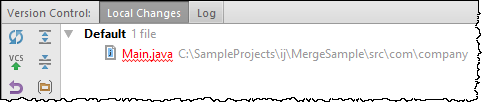
On the main VCS menu, or From the context menu of the selection, choose Subversion | Resolve Text Conflict. The Conflicts dialog appears.
If you want to accept the server version and overwrite your local changes, click Accept Theirs. If you want to force your changes to the repository, click Accept Yours. Clicking Merge opens the merge tool, where you can accept or discard each change individually. As a result, the file is automatically marked as resolved, and auxiliary files are deleted.
Once the conflicts have been successfully resolved, commit your local version to the repository.
To resolve a text conflict manually
Open the conflicting file in the editor.
Do one of the following:
Edit the contents within the conflict markers as required.
Copy one of the auxiliary files on top of your working file.
Mark a file as resolved
Do one of the following:
Select the file in the Project tool window (Alt+1) or in the Version Control tool window Alt+9, and choose Subversion, and then choose Mark Resolved from the context menu of the selection.
With the conflicting file opened in the editor, right-click the mouse anywhere in the editor tab. From the context menu choose Subversion, and then choose Mark Resolved.
From the context menu, choose VCS | Subversion | Mark Resolved..
In the Mark Resolved dialog that opens select the file.
Click the Mark Resolved button.