Run applications
You can run applications right from RubyMine. Before you start, make sure to configure a Ruby interpreter for your project.
Quick way
Run from the editor
If you are not going to pass any parameters to your program, and your program does not require any specific actions to be performed before start, you can run it right from the editor.
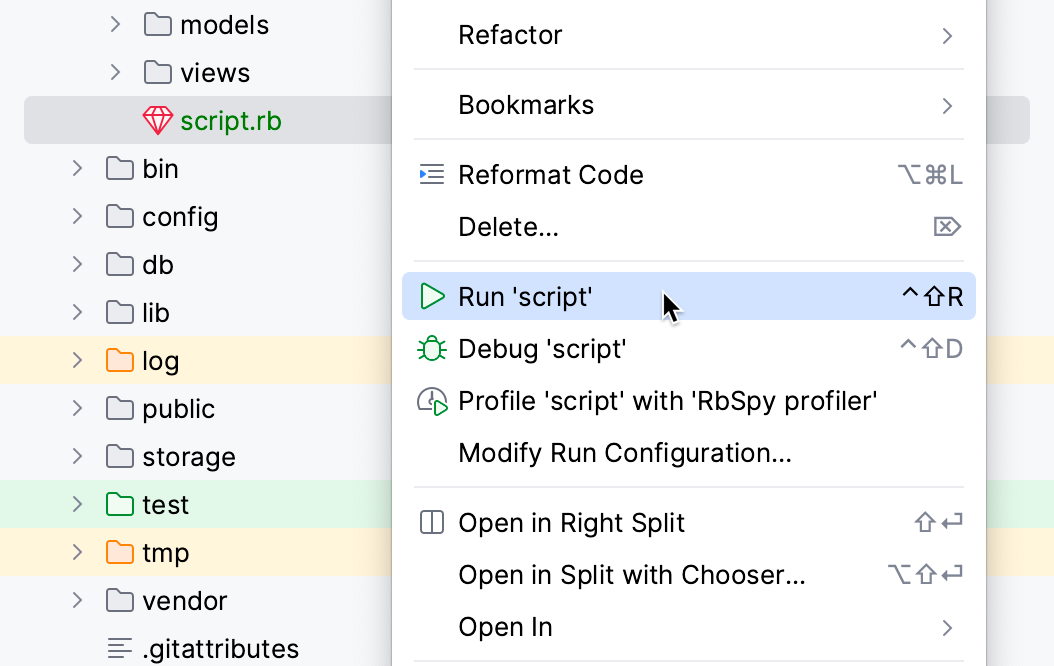
To run a script, open it in the editor or select it in the Project tool window, and then select Run <script file name> from the context menu.
To run a test, click the gutter icon next to it or press Ctrl+Shift+F10. The gutter icon changes depending on the state of your test, refer to Performing tests.
Run the current file
You can run single files using a dedicated option on the toolbar. The run and debug buttons are active and allow you to instantly run the currently opened file.
In the editor, open the file that you want to run.
Click
 next to the Current File option on the toolbar.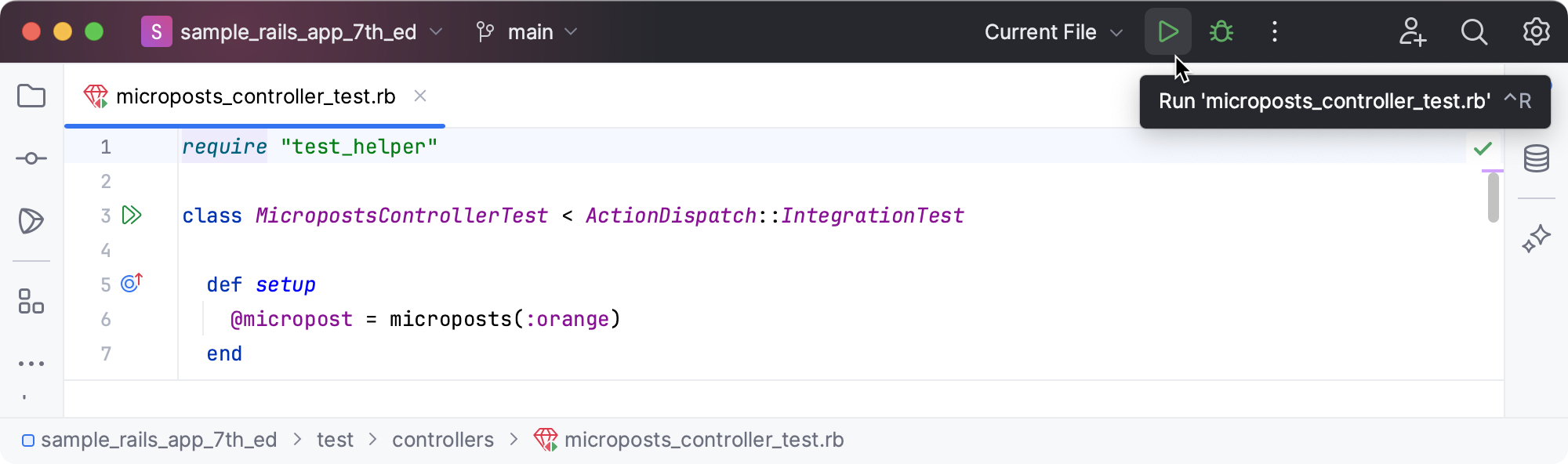
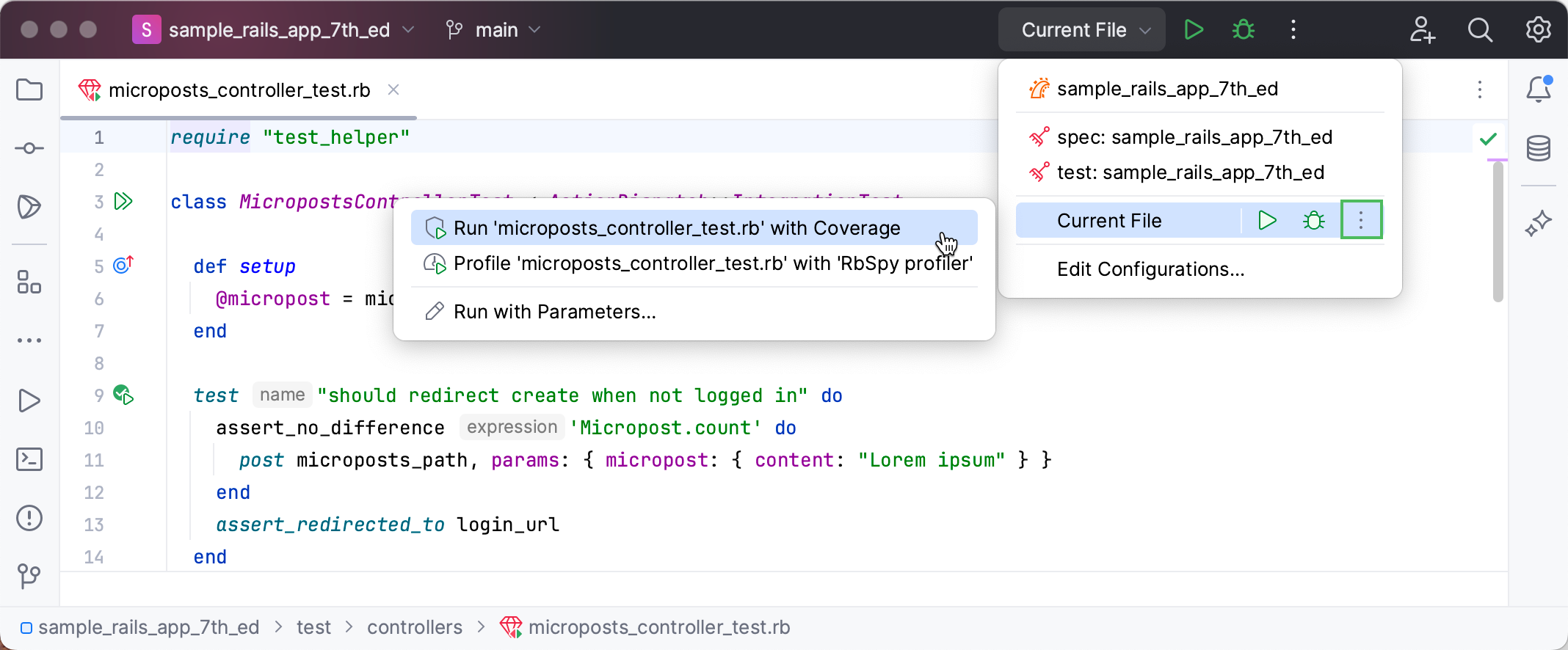
You can access the other run modes by expanding the list. From the widget that opens, you can debug the code, run it with coverage, profile it, or open the run configuration to specify more options.
Customizable way
Use a run/debug configuration
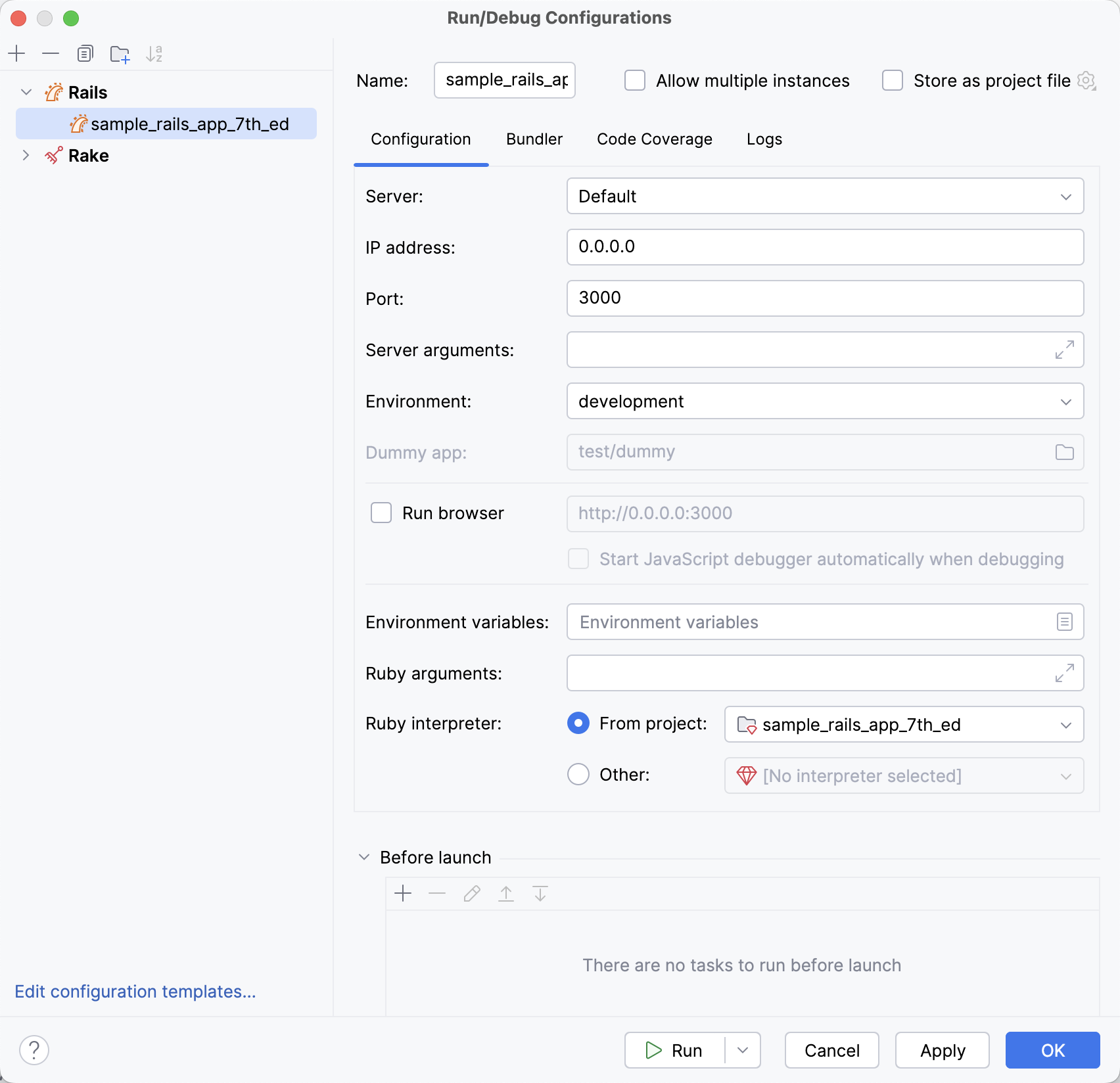
If you are going to pass parameters to your program, add VM options (for example, to allow remote debugging), or otherwise customize the startup of your program, use a run/debug configuration.
Edit and save a temporary configuration, or create a new run/debug configuration from a template and use one of the following options to run it:
If the run configuration is already selected in the Run widget, click
 next to it or press Shift+F10.
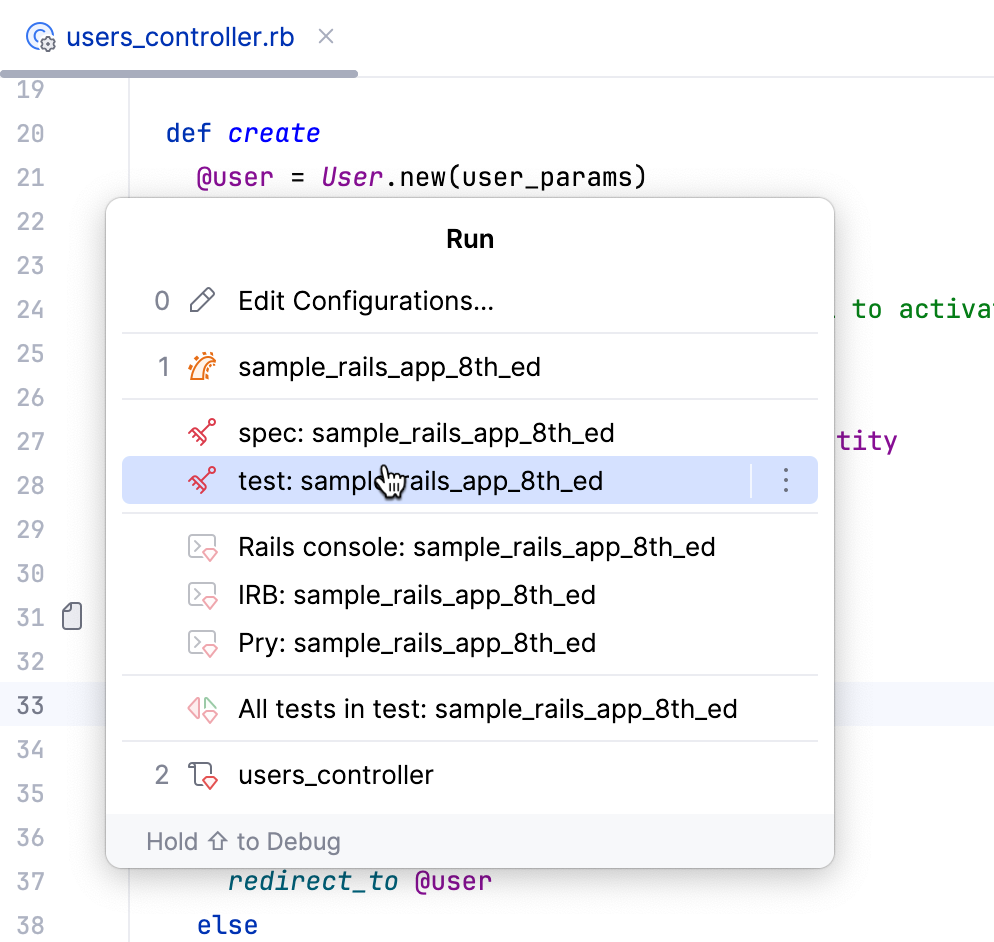
If you want to select another run configuration, click the Run widget. In the menu that opens, click
next to the run configuration you want to launch.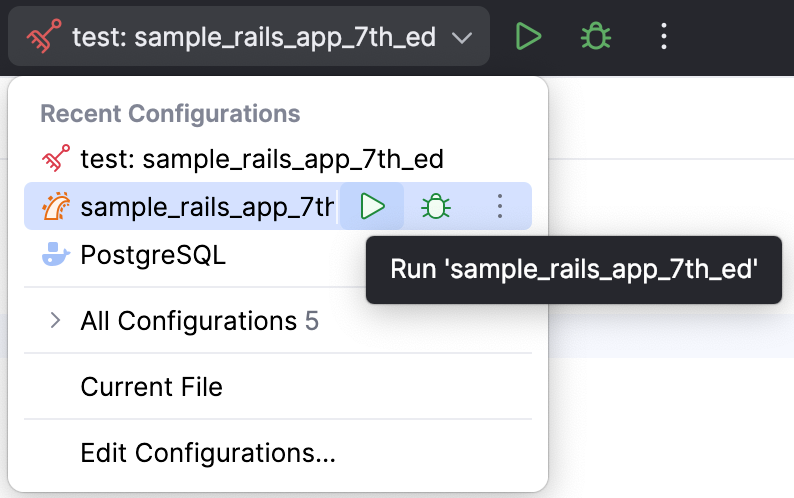
Press Alt+Shift+F10 and select the configuration on the pop-up window that opens.
Click Run from the Run/Debug Configurations dialog.
When the application starts, you can view its output and interact with it in the Run tool window. Every run/debug configuration creates a separate tab when you run it.
For more information about tool windows and how to manage them, see the Tool windows topic.
Re-run applications
On the toolbar of the Run tool window, click
 or press Shift+F10.
Stop and pause applications
When you stop a program, its process is interrupted and exits immediately. When you pause a program, it continues running in the background, but its output is suspended.
Stop a program
In the Run tool window, click
 on the toolbar. Alternatively, press Ctrl+F2 and select the process to stop.
Pause the program output
Right-click in the Run tool window and select Pause Output from the context menu. Use the same toggle to resume the program.
Show running processes
You can view the list of all active run or debug sessions and navigate between them.
Go to Run | Show Running List. In the top-right corner of the editor, RubyMine shows a list with all active applications.