Data editor and viewer
Enable the Database Tools and SQL plugin
This functionality relies on the Database Tools and SQL plugin, which is bundled and enabled in RubyMine by default. If the relevant features are not available, make sure that you did not disable the plugin.
Press Ctrl+Alt+S to open settings and then select .
Open the Installed tab, find the Database Tools and SQL plugin, and select the checkbox next to the plugin name.
Overview
The data editor and viewer, or data editor, provides a user interface for working with data. In the data editor, you can sort, filter, add, edit, and remove the data as well as perform other associated tasks.
In RubyMine, the data editor and viewer lets you work with database object data, query result sets, and also User files data.
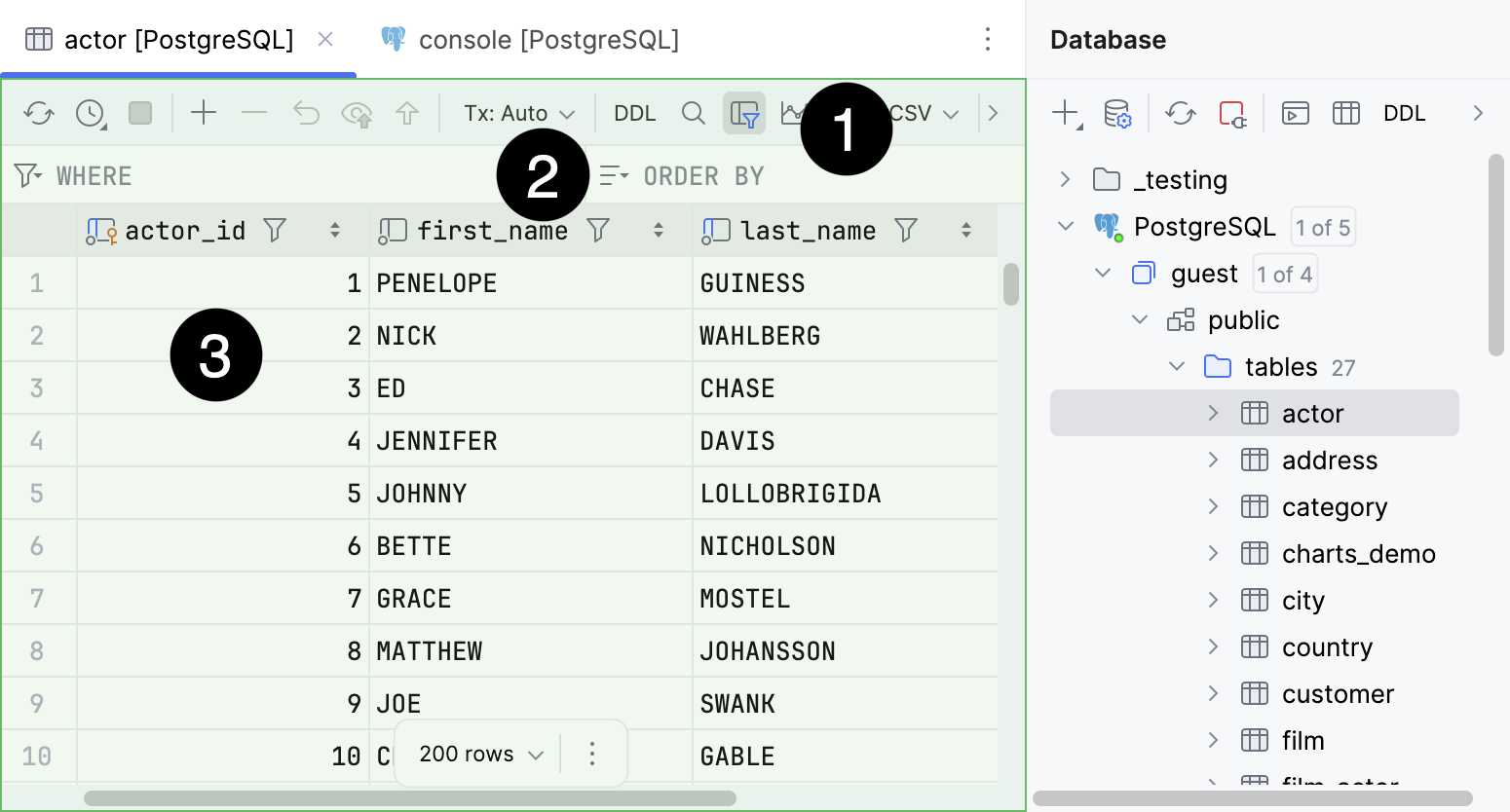
The database object data in a Table view.
For more information about Database tool window, refer to Database tool window.
The query result set in a Table view.
For more information about a Result tab of a Services tool window, refer to Result tabs.
The query result set in a Table view.
For more information about In-Editor Results, refer to In-Editor Results.
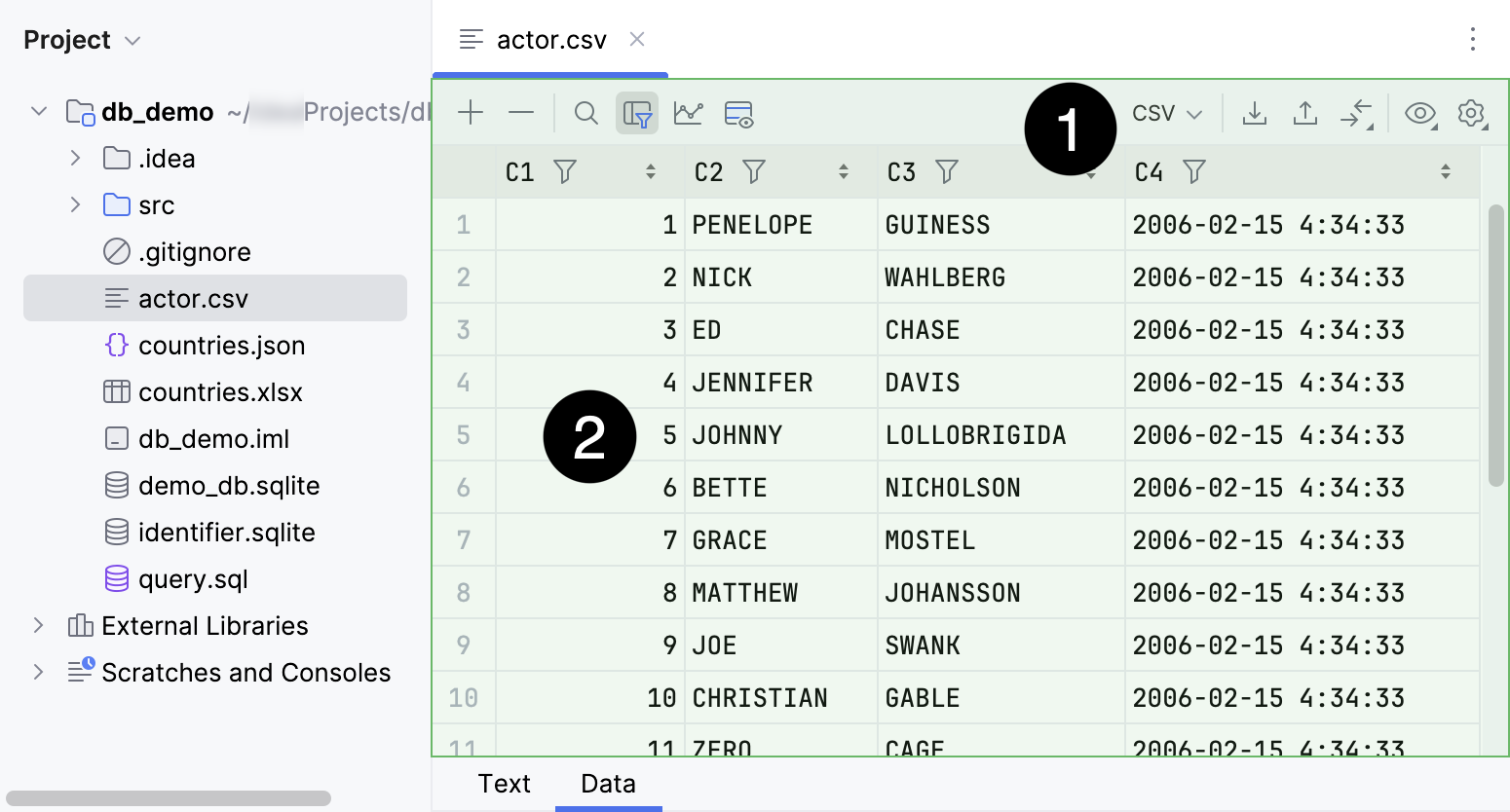
Toolbar.
User file data.
For more information about working with the contents of user files, refer to Edit DSV files as tables and Data loaders.
The default view mode is Table. In this mode, you can filter and sort data, edit value of the cells directly, and work with rows of the data table.
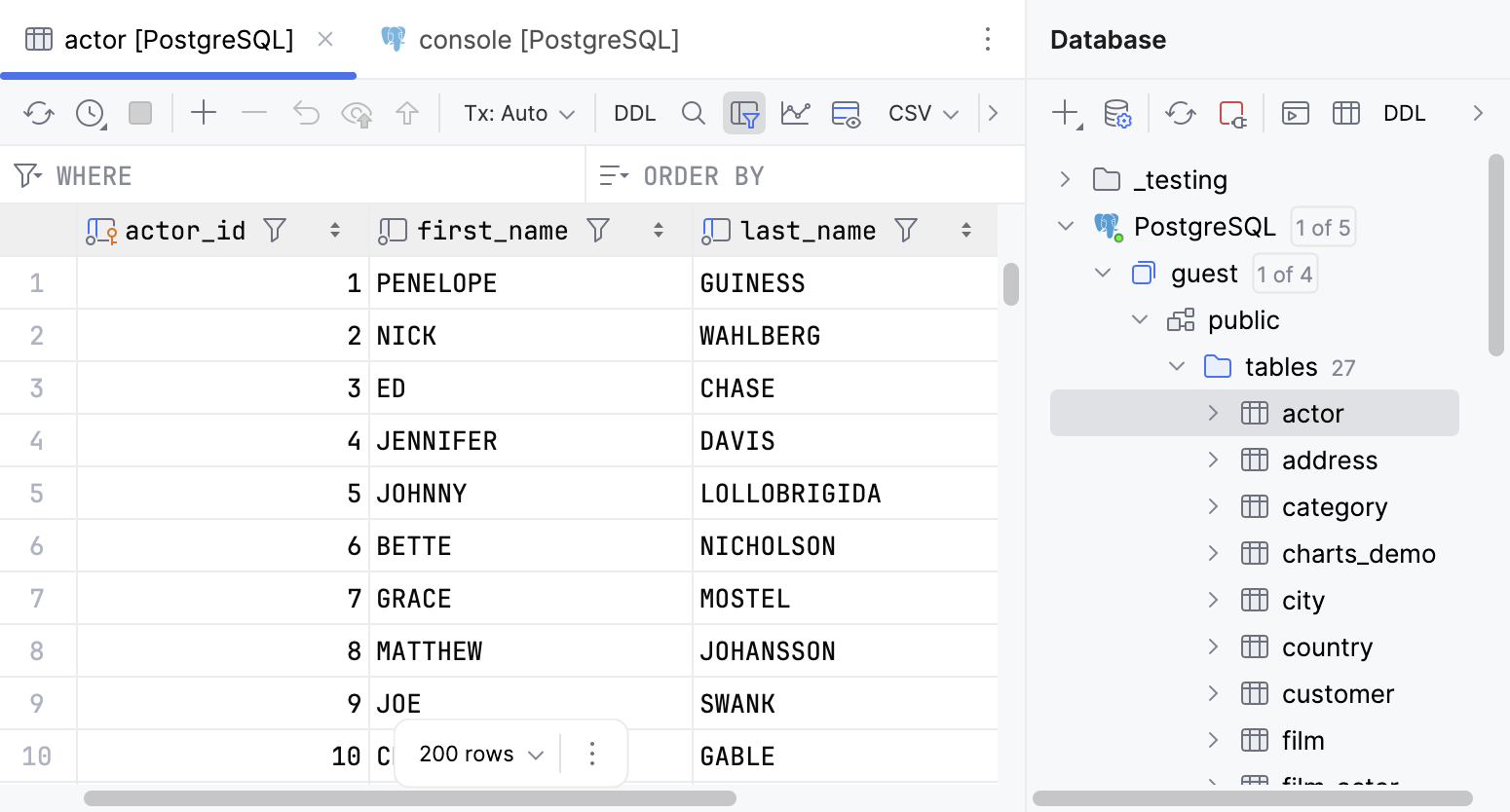
Open database object data
To open database object data in data editor, in the Database tool window, do one of the following:
Double-click a database object.
Select a database object and press F4.
Select a database object and click
 Edit Data on the toolbar.
Right-click an object and select Edit Data.
View query result set
To view a query result set in data editor, in a query console, do one of the following:
Run an SQL query. The data editor opens in a Result tab of the Services tool window.
Click
 In-Editor Results on the toolbar and run a query. The data editor opens in the query console in-editor results pane.
For more information about a Result tab of a Services tool window, refer to Result tabs.
For more information about In-Editor Results, refer to In-Editor Results.
View user files data as a table
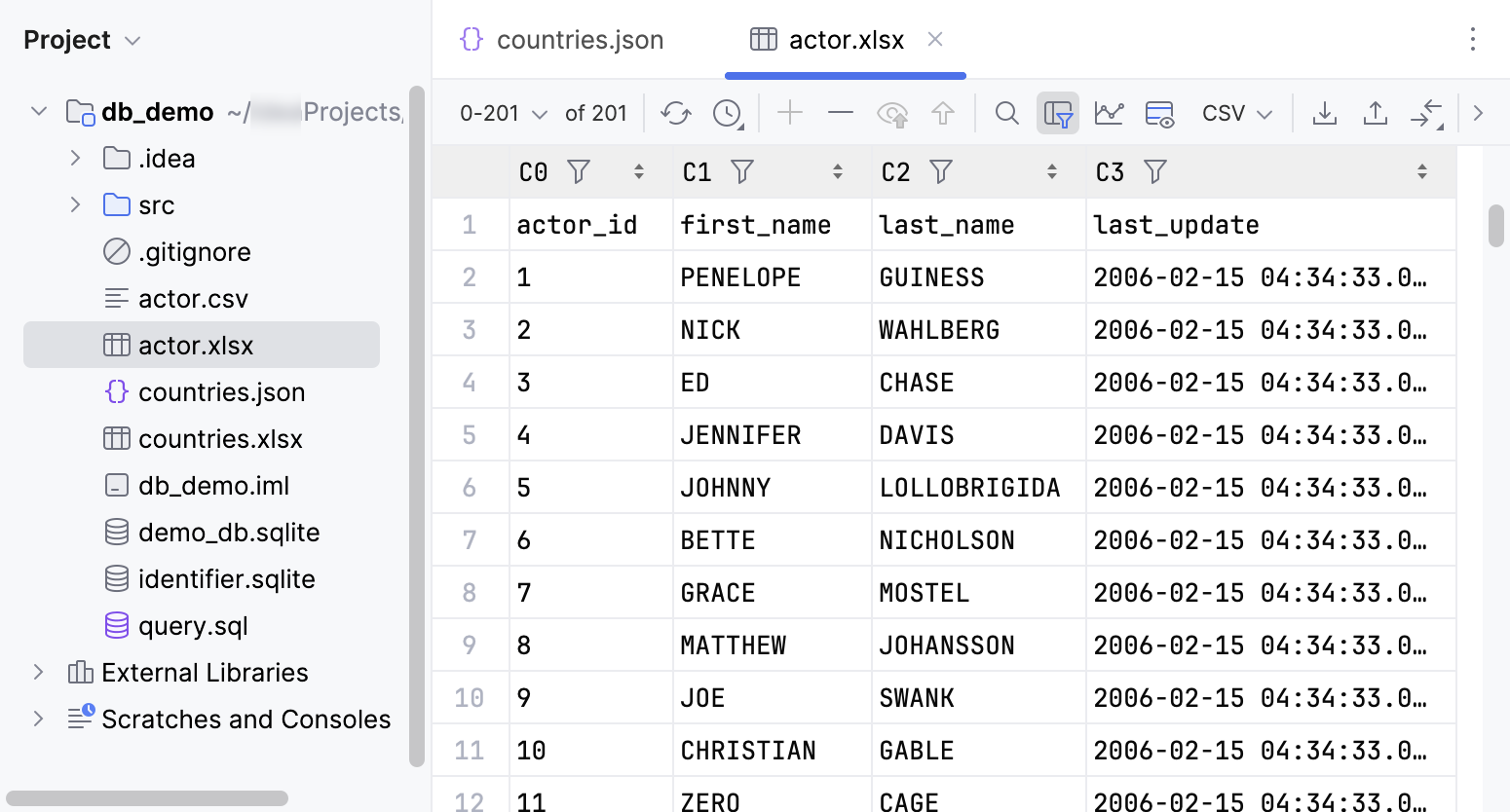
For tabular data user files of supported formats, do the following:
In the Project tool window, click the tabular data file that you want to view as a table.
For such files, the table view is read-only.
For DSV user files, do the following:
In the Project tool window, click the DSV file that you want to view and edit as a table.
Right-click inside a delimited text file and then click Edit as Table. Alternatively, you can click the Edit as Table icon in the editor.
In the Configure CSV Format for <file_name> dialog that opens, specify format settings and click OK.
The dialog has three predefined formats (CSV, TSV, and Pipe-separated) and lets you create a custom format. For example, you may require comma-separated values with semicolons as row separators.
Once you confirm the format settings, the Data tab will present data in a table format correspondingly. If you want to use different format settings, repeat the previous procedure and open the data editor again.
Close data editor
To close data editor, click
 Close next to the corresponding tab title.
Work with data
View data
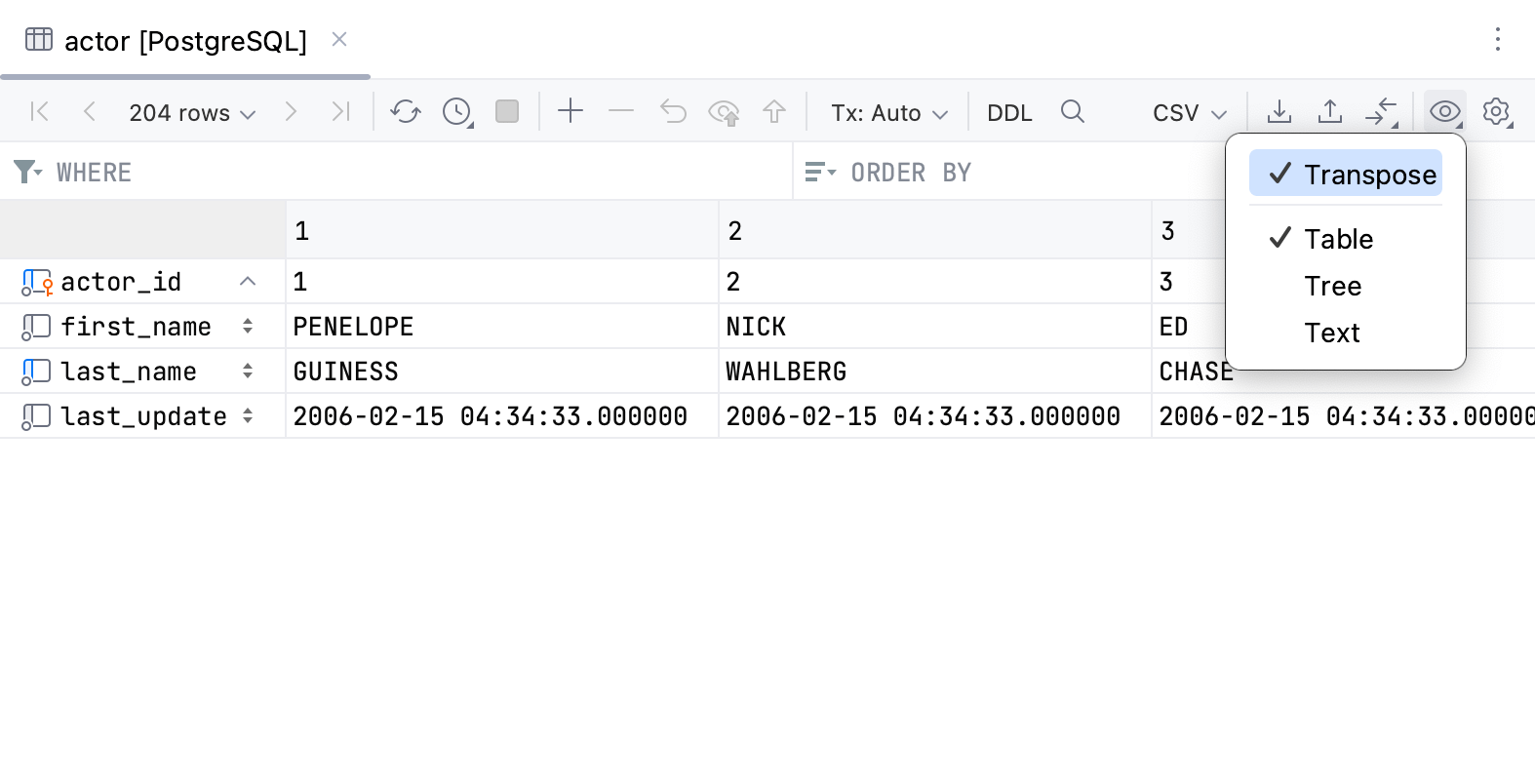
You can browse and edit data in three modes: Table, Tree, Text, and Transpose. In the Table mode, you can also transpose the view. Use the value editor to view and edit the contents of a separate cell.
For full information on data view modes and other features, refer to View data.
Compare data
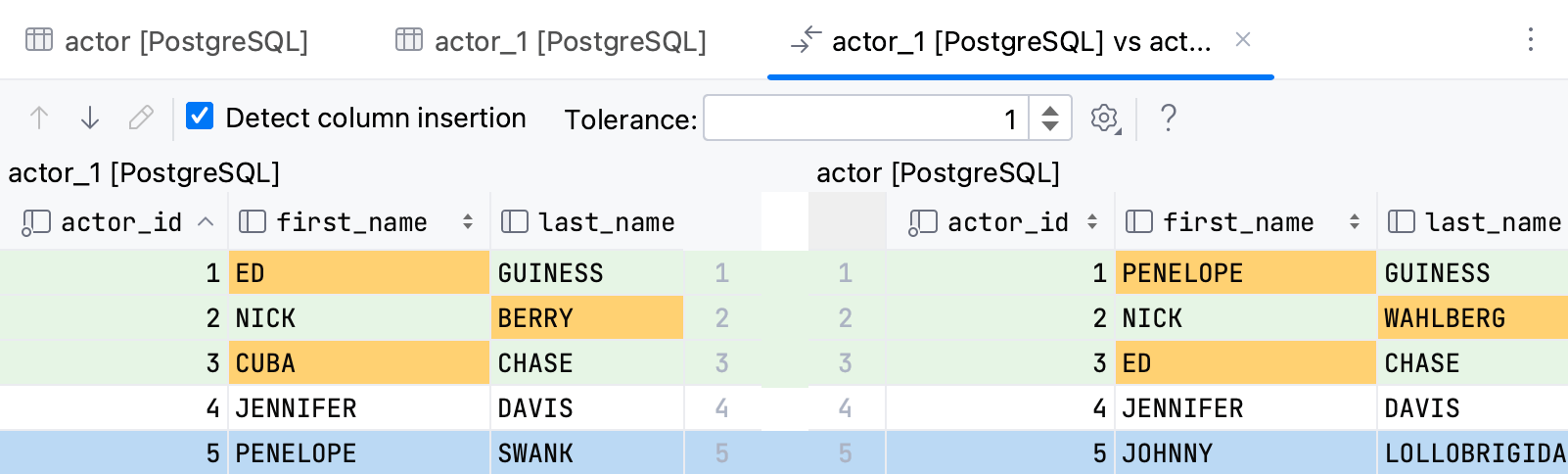
Compare the data of two database objects. For comparison, you can define how many columns should differ to consider two columns equal. You can also select to ignore the extra column in either one of the objects.
For full information, refer to Compare the data of database objects.
Sort data
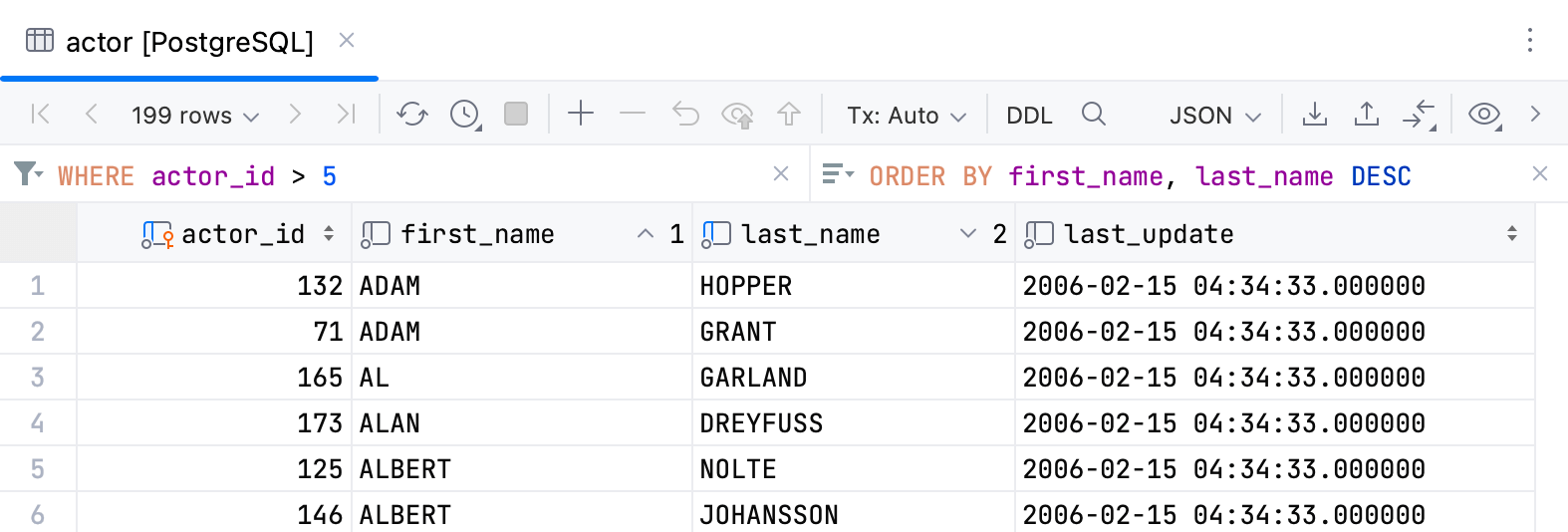
You can sort data by clicking a column's header, or by entering a sorting query into the corresponding field. By default, each time you sort data, RubyMine sends a new ORDER BY query to the database. You can also change the setting and sort data on the client side.
For more information about sorting data, refer to the Sort data topic.
Filter data
Use one of the following ways to filter data:
Specify filtering conditions.
Run a search on the table.
Enter a filtering query into the corresponding field.
For more information about filtering data, refer to the Filter data topic.
Export data
RubyMine uses data extractors to export data in various formats to a file or the clipboard. Each time you export or copy data, the copied data format is defined by the selected data extractor.
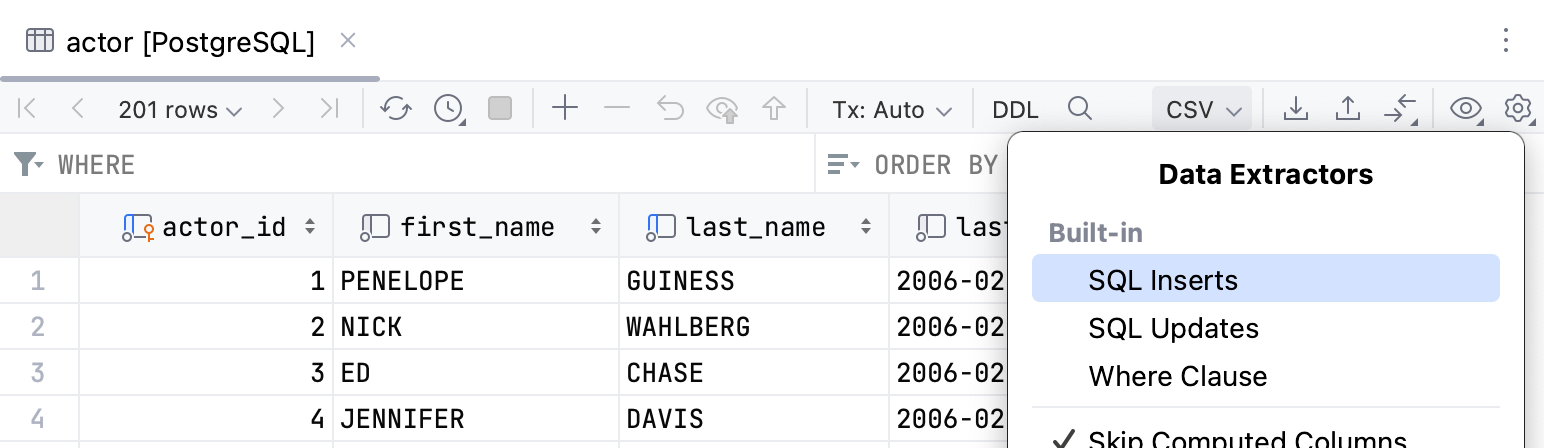
You can use a built-in data extractor, configure a custom extractor based on CSV or DSV format, and create a custom data extractor using a provided API.
The last selected extractor becomes the default one for newly opened editor tabs. For MongoDB, the default extractor is always JSON.
For more information about data extractors, refer to the corresponding page.
For more information about exporting data in RubyMine, refer to Export data.
Rows
Manipulate the rows by adding, deleting, cloning them, and so on. You can also navigate between related rows, between subsets of rows, or go to a specified row.
For full information on these and other features, refer to Rows.
Reference
Most of the available functions are accessed by using controls on the toolbar, context menu commands for the data cells, and associated keyboard shortcuts.
Toolbar controls
Icon | Action and shortcut | Description |
|---|---|---|
| First Page Previous Page Ctrl+Alt+Up Change page size Next Page Ctrl+Alt+Down Last Page | Available on the toolbar if the position is selected in the IDE settings (Ctrl+Alt+S) under . Use navigation icons and corresponding commands for switching between pages that show the table data and change the page size. A number of rows that you see on the toolbar are referred to as a result set page. If this number is less than the number of rows in the table, only a subset of all the rows is shown at a time. If all the rows are currently shown, navigation icons and the corresponding commands are inactive. You can see the limit between the navigation buttons. You can change it here by clicking and selecting the necessary limit or in settings.
To change the size of a result set page, click the Change page size button and select the size. Alternatively, open settings (Ctrl+Alt+S) and navigate to . In the Limit page size to field, type a new size of a result set page. Alternatively, to disable the page size restriction, clear the Limit page size to checkbox. |
| Reload Page Ctrl+F5 | Reload data for the table view to synchronize the data that you see in the editor with the contents of the database. Also, use the Reload Page button when you want to apply a new page size limit setting after its change. |
| Update Interval | Select, pause, or disable update interval for the current table. You can also set a custom one. |
| Cancel Running Statements Ctrl+F2 | Terminate execution of the current statement or statements. |
| Add Row Alt+Insert | Add a row to the table. To save a new row, click For more information about working with rows, refer to Tables. |
| Delete Row Ctrl+Y | Delete the selected row or rows. To select multiple rows, click numbers in the gutter. Also, you can press Ctrl and click the necessary rows. |
| Revert Selected Ctrl+Alt+Z | Revert changes that you made to a cell value. You can select a scope of different cells and revert values in this scope. For more information about reverting changes, refer to Submit changes to a database. |
| Preview Pending Changes | Preview DML of changes that you made to the table. |
| Submit Ctrl+Enter | Submit local changes to the database server. For more information about submitting and reverting changes, refer to Submit changes to a database. |
| Transaction Mode and Transaction Isolation | Select the isolation level for database transactions and the way the transactions are committed.
For more information about database transaction modes and isolation, refer to Submit changes to a database. |
| Submit and CommitCtrl+Alt+Shift+Enter | (For the Manual transaction mode.) Submit and commit the current transaction. This button is available only for the manual transaction mode. See also, transaction mode and isolation. |
| Roll Back | (For the Manual transaction mode.) Roll back changes. This button is available only for the manual transaction mode. See also, transaction modes and isolation. |
| Go to DDL | Open DDL of the object in the editor. |
| Find on Current Page Ctrl+F | Opens a search field for the current page of results. |
| Enable Local Filter | Enables a local filter for every column of the grid. For more information about local filter, refer to the Filter data topic. |
| Record View | View and edit values of a certain record in a side panel. For more information about the action, refer to the View data topic. |
| Show Geo Viewer | Enables a graphic viewer to explore geospatial data in your database. For more information about the Geo viewer, refer to the Using Geo viewer for geographical data in PostgreSQL. |
| Show Chart | Opens data visualization. For more information about about charts, refer to Visualize data. |
| Data Extractors | Select an output format for your data. For the list of available formats and full information about data extractors, refer to the Data extractors topic. Also, you can configure the following options:
For more information about data extractors, refer to the Data extractors topic. |
| Export Data | Export the table data to the clipboard or save to a file. |
| Copy to Database | Copy the data to another table, schema or database. Select the target schema (a new table will be created) or table (the data will be added to the selected table). In the dialog that opens, specify the data mapping info and the settings for the target table. |
| Compare Data | Compare the current table with a table from the list. |
| View as | Select the mode for browsing and editing table data.
For more information about viewing data, refer to View data. |
| Show Options Menu | The Show Options Menu list includes the following options:
|






Context menu
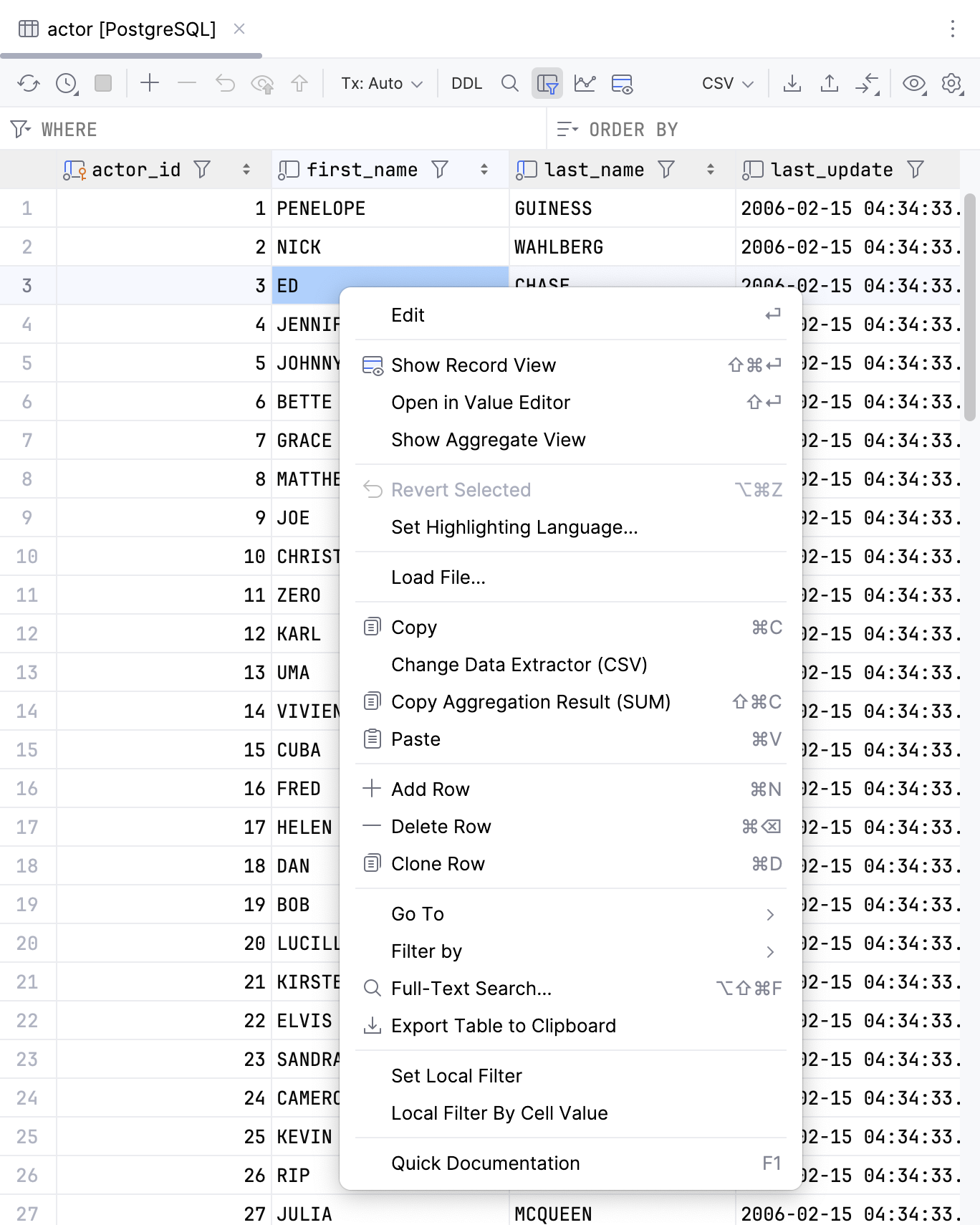
You can find all basic actions for working with cells under the context menu. To call the context menu, right-click the cell that you want to modify. The following table lists all the actions.
Action | Shortcut | Description | |
|---|---|---|---|
Edit | Enter | Edit a value in the selected cell or cells. Alternatively, you can double-click the cell and start typing a value. The Edit command is unavailable for read-only values.
For more information about editing cells, refer to Cells. | |
| View and edit values of a certain record in a side panel. For more information about the action, refer to the View data topic. | ||
Open in Value Editor | Shift+Enter | Open in a separate value editor where you can edit data that is stored in the cell. For more information about the editor, refer to Value editor. | |
Show Aggregate View | Open the aggregate view where you can select values of multiple cells and get a single summary value. For more information about the view, refer to Aggregate view. | ||
| Ctrl+Alt+Z | Revert changes that you made to a cell value. You can select a scope of different cells and revert values in this scope. For more information about reverting changes, refer to Submit changes to a database. | |
Set Highlighting Language | Select a language that the IDE should use to highlight data in a cell. | ||
Change Display Type | Select how the IDE should display binary data in the column. 16-byte data is displayed as UUID by default. | ||
Set DEFAULT | Ctrl+Alt+D | Set the current cell value to the default value or the value that you specified for the column. For more information about viewing or set a default value, refer to Manage default and NULL values for a cell. | |
Set NULL | Ctrl+Alt+N | Set the current cell value to NULL. For more information about allowing a NULL value, refer to Manage default and NULL values for a cell. | |
Generate UUID | Generates the UUID for the selected cell. | ||
Load File… | Load a file into the field. | ||
Save LOB… | For the cells that contain a binary large object (LOB). Save content of a cell into a file. | ||
| Ctrl+C | Copy selection to the clipboard. | |
Change Data Extractor | Change the data extractor currently selected from the Data Extractors list on the toolbar. | ||
| Copy a summary value for a range of cells. By default, RubyMine copies the | ||
| Ctrl+V | Paste the contents of clipboard into the table. | |
| Add a row to the end of a table. | ||
| Alt+Delete | Delete selected rows. | |
| Create a duplicate of the selected row and adds the duplicate to the end of a table. | ||
Go To | Navigation Bar | Alt+Home | Jump to a navigation bar. |
Database | Alt+Shift+B | Open the selected object in the Database tool window. | |
Related Symbol… | Ctrl+Alt+Home | Navigate to one of the related objects. | |
DDL | Ctrl+Alt+Home | Open an object definition (DDL). | |
Row… | Ctrl+G | Jump to a specified row. In the Go to Row dialog, specify the column and row number (use the | |
| F4 | Navigates to the related records:
If more than one record is referenced or referencing the current one, select the target record in the popup that appears. The action is not available if there are no related records. For more information about related data, refer to Navigate between related rows. For more information about action behavior options, refer to Advanced Settings. | |
| F4 | Opens URL in OS default browser. Requires the links opening URL Click Settings enabled in the Tools | Database | Data Editor and Viewer settings page Ctrl+Alt+S. | |
| F4 | Open file URI in OS default file browser. For example, Requires the links opening URL Click Settings enabled in the Tools | Database | Data Editor and Viewer settings page Ctrl+Alt+S. | |
Filter by | Select a filter that you want to a column. | ||
| Ctrl+Alt+Shift+F | Open a search window where you can search for data in your database or a group of databases. For more information about full-text search, refer to Full-text search in databases. | |
| Copy the whole table to the clipboard. This action does not depend on Limit page size to setting. | ||
Switch Session | Open a window to select another session or create a new one. For more information about sessions, refer to Sessions. | ||
Quick Documentation | Ctrl+Q | Show information about selected objects. For different database objects, Quick Documentation shows corresponding information. For example, for a group of cells, you will see a summary for the selection. You can preview it in a regular or in a transposed view and also see the related records by their foreign keys. | |
 Copy
Copy Paste
Paste Add Row
 Delete Row
 Clone Row
 Related Rows
 Open URL
 Open File
 Full-Text Search…