Keymap
Use this page to search for shortcuts and actions in the selected keymap, create, edit, and remove custom keymaps, and change shortcuts associated with actions in custom keymaps. Predefined keymaps are not editable. When you change shortcut associations for a predefined keymap (listed in bold), WebStorm creates a copy of that keymap, which you can modify (listed in a regular font with an indent below the parent keymap).
Keymap scheme actions
Click  to select an action for the selected keymap:
Item | Description |
|---|---|
Duplicate | Create a child keymap based on the selected one. It is created automatically when you modify a predefined keymap. |
Rename | Change the name of a custom keymap. |
Restore Defaults | Abandon all the changes made to a custom keymap and restore the configuration of the parent keymap. |
Delete | Remove the selected custom keymap from the list. |
Keymap toolbar
Item | Tooltip and shortcut | Description |
|---|---|---|
| Expand All Ctrl+NumPad + | Expand all nodes in the content pane of actions. |
| Collapse All Ctrl+NumPad - | Collapse all nodes in the content pane of actions. |
| Edit Shortcut Enter | Change shortcuts for the selected action. It is possible to add new shortcuts and remove existing ones. Alternatively, you can right-click the necessary action. 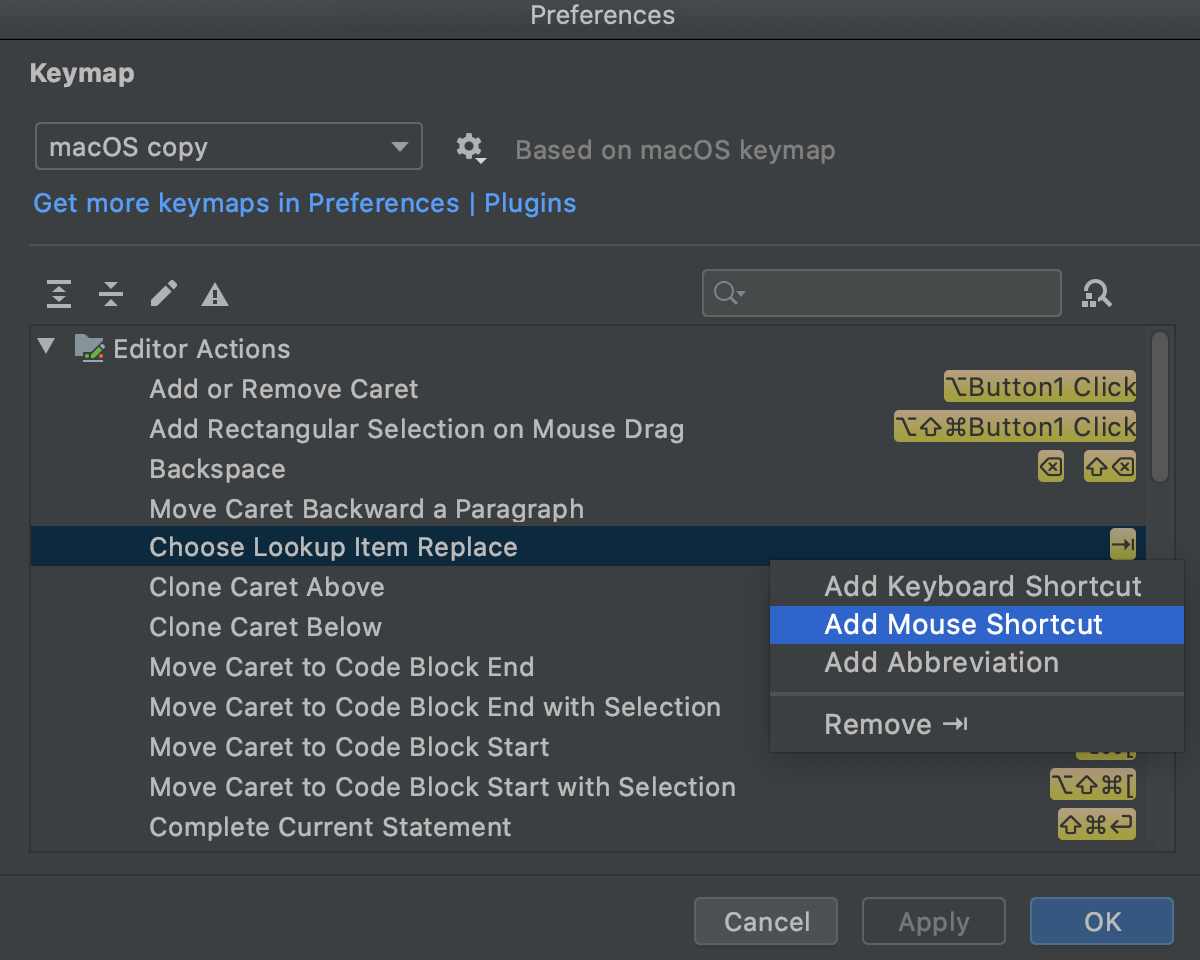
|
| Show conflicts with system shortcuts | List only those shortcuts that conflict with system hotkeys. Change them to avoid conflicts. Or you can change the corresponding system shortcuts (if possible). |
| Search through the content pane of actions. As you type a search string, the actions that match the search pattern are displayed. The previously used search patterns are stored in the search history list. To add the search string to the history list, press Enter. Click Click | |
| Find Action by Shortcut | Click this button to open the Find Shortcut dialog to filter out the desired actions by keystrokes. For more information about specifying keyboard shortcuts, refer to Configure keyboard shortcuts. The actions with shortcuts that match the specified criteria are shown in the content pane of actions. |
| Clear Filtering | Click this button to restore the initial list of actions in the content pane. |



 to reveal the history list of the previous searches.
 to clear the current search pattern from the field.
Other options
Option | Description |
|---|---|
Show F1, F2, etc. keys on the Touch Bar | The option is available only on Apple MacBook Pro models with a Touch Bar. It is disabled by default, so you have to hold down the Fn key to see function keys. Enable it to always show function keys on the Touch Bar instead of controls specific to WebStorm. For more information, refer to Touch bar. |
Use national layout for shortcuts | The option is available only when using a non-English Latin keyboard layout and when the Keymap Nationalizer plugin is installed. On macOS and Windows, it is enabled by default, and all characters are interpreted as determined by the layout. For Windows, this behavior is hard-coded, and you can't disable it. On Linux, it is disabled by default, and keys with special characters are interpreted as if you were using an English keyboard layout. For example, pressing the minus key |
Use US non-alphanumeric keys for shortcuts | The option is available on Windows when using a Cyrillic layout. It is disabled by default. Enable it to map IDE actions to OEM keyboard characters as if it were an English keyboard layout. |