Log tab
This tab is only available if you are using Git or Mercurial for version control.
This tab shows all local and remote branches as well as all changes committed to all branches or to a specific branch or repository.
The tab contains the following panes:
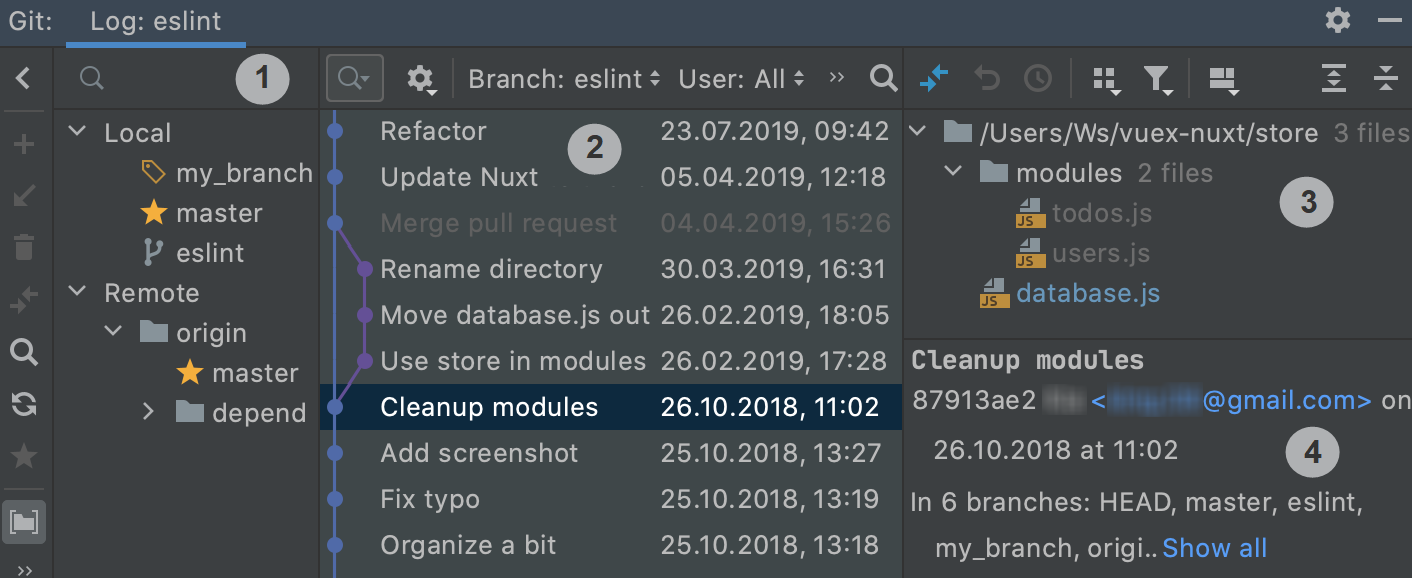
The Branches pane is located on the left and shows all local and remote branches. From this pane, you can switch between branches, create new branches and delete the ones you don't need anymore, filter the log by branch, and more.
The Commits pane is located in the central part of the tool window and shows the commits to all or to the selected branches.
The Changed Files pane is located on the right of the tool window and shows the list of files that were modified within the selected commit.
The Commit Details pane is located on the right under the Changed Files pane and shows the details of the selected commit.
Branches Pane
The Branches pane lists all local and remote branches, and lets you perform all branch operations.
Branches pane toolbar
Icon | Action | Description |
|---|---|---|
| Hide Git Branches | Hide the Branches pane. |
| New Branch | |
| Update Selected | Fetch changes from the selected branch. |
| Delete Branch | Delete the selected branch |
| Compare with Current | Compare the selected branch with the branch that is currently checked out. |
| Show My Branches | Filter the list to only display branches created by you. |
| Fetch All Remotes | Fetch changes from all remote branches. |
| Mark/Unmark as Favorite | Mark the selected branch as a favorite one. Favorite branches are displayed on top of the list. |
| Navigate Log to Selected Branch Head | Jump back to the |
| Branches Pane Settings | Select what action to perform on a single click:
Show Tags: displays tags as a separate node in the list of branches. |
| Group By Directory | Group the branches by directory. |
| Expand All / Collapse All | Expand/collapse the list |


Branches pane context menu
Item | Description |
|---|---|
Checkout | Checkout the selected branch. |
New Branch From <selected_branch> | |
Checkout and Rebase onto <current_branch> | Rebase the selected branch on top of the currently checked-out branch. |
Compare with <current_branch> | Compare the selected branch with the branch that is currently checked out. |
Show Diff with Working Tree | Compare the selected branch with the local state of the branch that is currently checked out. |
Rebase <current_branch> onto <selected_branch> | Rebase the currently checked-out branch on top of the selected one. This is equivalent to running |
Merge <selected_branch> into <current_branch> | Merge the selected branch into the currently checked-out branch. This is equivalent to running |
New Worktree from <selected_branch> | Create a Git worktree from the selected branch. |
Pull into <current_branch> Using Rebase | Fetch changes from the selected branch and rebase the current branch on top of these changes. |
Pull into <current_branch> Using Merge | Fetch changes from the selected branch and merge them into the current branch. |
Update | Pull changes from the selected branch. You can select multiple branches to update them in a batch. |
Push | Push outgoing commits to the selected branch. |
Rename | Rename the selected branch. |
Delete | Delete the selected branch. You can select multiple branches to delete them in a batch. |
Commits Pane
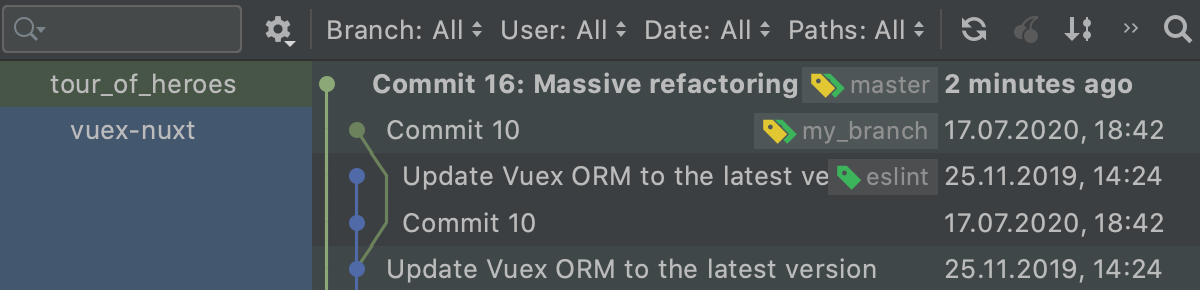
This area shows a list of all commits made to the selected branch, or to all branches. For each commit, the list shows the commit message, the author, and the commit timestamp. The latest commit in each branch is supplied with a label with the name of the branch in which it was performed.
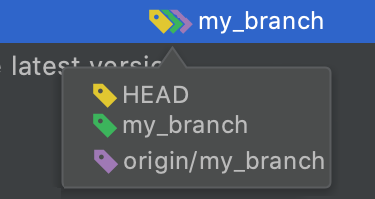
yellow: marks the current branch head
green: marks local branches
violet: marks remote branches
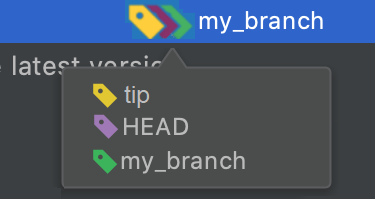
brown: marks closed branches
yellow: marks tips (the latest revision in the repository)
violet: marks bookmarks
green: marks open branches
Commits to the current branch are displayed against the light blue background, while commits to all other branches are shown against the white background.
Commits made by you are marked with bold.
The asterisk next to a commit marks commits where the author and the user who committed the changes are different.
Clicking an arrow takes you to the next commit in a long branch:
You can also press the Left and Right keys to jump to the parent/child commit. This is especially useful if you have commits to different repositories and multiple branches all mixed in the Log tab of the Version Control tool window Alt+9.
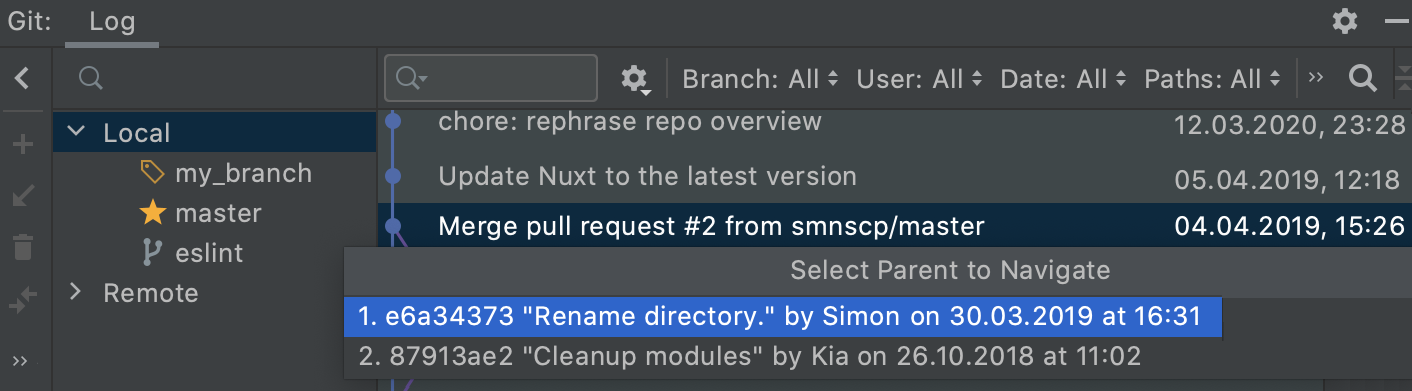
In multi-repository projects, the colored stripe on the left indicates which root the selected commit belongs to (each root is marked with its own color). Hover over the colored stripe to invoke a tip that shows the root path.
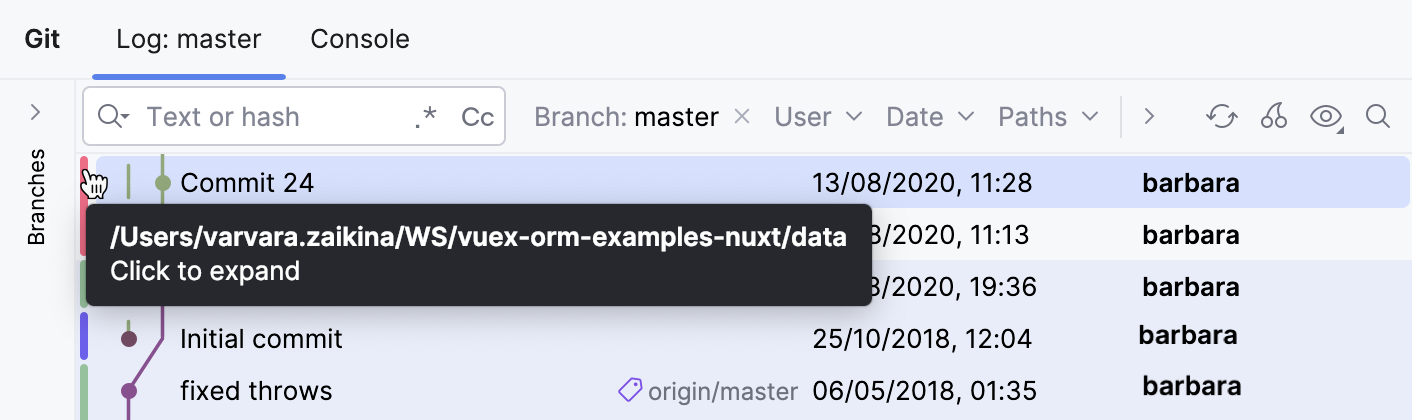
You can also enable the Show Root Names option if you want to expand the Roots column with full root names.
Committed changelists often correspond to issues in tracking systems. You can jump to such issues in a browser right from the Commits pane. This functionality is available if:
The pattern of the bug tracking system is specified in the Issue Navigation Settings Preferences dialog.
The corresponding issue number is mentioned in the commit message.
After issue navigation has been configured, issue numbers in commit messages are rendered as links. Clicking such link brings you to the corresponding page of your issue tracker.
Commits pane toolbar
Item | Tooltip and Shortcut | Description |
|---|---|---|
Search field | N/A | Use this field to search through the list of commits. You can enter full commit names or messages, or their fragments, revision numbers, or regular expressions. To finalize the search, press Enter or move the focus away from the search field. Click Click |
| Regex / Match Case | Click to select from the following text filter settings:
|
Branch | N/A | Filter commits by branch or favorite branches. If you want to see commits from all local and remote branches, select All. |
User | N/A | Filter commits by author. To view all commits by a specific author, click Select and start typing the author's name. To view commits by all users, select All. |
Date | N/A | Filter commits by a time-frame or a specific date. To view commits made on a specific date, click Select and specify the date. To view commits made on all dates, select All. |
Paths | N/A | Filter commits by the folder (for projects that have one root), or by the root and folder (for multi-rooted projects). To view commits to a specific folder, click Select Folders and specify the folder name. For multi-repository projects, you can also select the checkbox next to one or several roots in the Roots section. |
| Graph Options | Customize the way the commits' graph looks:
|
| Enable Git Log Indexing | When enabled, this option improves working with the history of changes across WebStorm:
|
| Refresh Ctrl+F5 | Refresh the list of commits. |
| Cherry-pick (Git) Graft (Mercurial) | Apply changes from the selected commit to the current branch. |
| Presentation Settings | Click to invoke the list of options that let you configure how data is presented in the Log tab of the Version Control tool window Alt+9. Show:
Highlight:
|
| Go to Hash/Branch/Tag Ctrl+F | Click this button and specify a hash, tag or branch you want to jump to. You can select a reference with the same name from different repositories. The name of each repository is displayed on the right along with its color indicator. |
 to display the previous search patterns.
 to clear the search.





Commits pane context menu
Item | Description |
|---|---|
Copy Revision Number | Copy the revision number of the selected commit to the clipboard. |
Create Patch | Create a patch based on the selected commit. |
Cherry-pick | Apply changes from the selected commit to the current branch. |
Checkout Revision | Check out the state of files recorded in the selected commit. |
Show Repository at Revision | Open a snapshot of your project at the selected revision in the Project view. |
Compare with Local | Compare the state of the repository at the selected commit with its current state in your local working copy. |
Reset Current Branch to Here | Reset the current branch head to the selected commit. In the Git Reset dialog that opens, select the mode in which the working tree will be updated. |
Revert Commit | Roll back the changes in the selected commit. A new commit will be created that reverts the changes in the selected commit. |
Undo Commit | Revert the changes in the selected commit. This command is only available for the commits made by you. |
Edit Commit Message | Modify the message of the selected commit. This action is only available for commits that haven't been pushed yet. |
Fixup | Add staged changes to the selected commit instead of creating a separate commit. Only the commit message of the original commit will be preserved. |
Squash Into | Add staged changes to the selected commit instead of creating a separate commit. The messages from both commits will be preserved. |
Drop Commits | Discard a pushed commit in the current branch without leaving any traces of the operation. |
Squash Commits | Combine selected commits for the sake of cleaner branch history. |
Interactively Rebase from Here | Edit the history of the current branch by performing an interactive rebase of all commits after the selected one. |
Push All up to Here | If you have some commits you've made but not yet want to push to a remote branch, select the last commit you want to push and then Push All up to Here. |
Add Commits to Remote Branch | Select commits and cherry-pick them to a remote branch of choice. |
Rebase <current_branch> onto Selected Commit | Rebase the currently checked-out branch onto the selected commit. |
Branch <branch_name> / Branches | This command appears for all branches that point to the selected commit (Branch <branch_name> if there is one branch, or Branches if there are multiple branches) and provides the same options as the ones available from the VCS widget and the context menu of the Branches pane. If the Control repositories synchronously option is enabled, and the selected branch exists in multiple repositories, an additional menu option named In All Repositories appears that allows you to perform the same operations in all repositories simultaneously. |
New Branch | |
New Tag | Add a new tag to the selected commit. |
Go to Child Commit | Jump to the next commit in this branch. |
Go to Parent Commit | Jump to the previous commit in this branch. |
View in browser | Open the page that corresponds to the selected commit in the browser. |
Item | Description |
|---|---|
Copy Revision Number | Copy the revision number of the selected commit to the clipboard. |
Create Patch | Create a patch based on the selected commit. |
Graft (Mercurial) | Apply changes from the selected commit to the current branch. |
Update to Revision | Change your working copy parent revision to the selected commit. New commits will carry on from the revision (commit) you update to. |
New Branch | Create a new branch based on the selected commit. |
New Tag | Add a new tag to the selected commit. |
Branch <branch_name> / Branches | This command appears for all branches that point to the selected commit (Branch <branch_name> if there is one branch, or Branches if there are multiple branches) and provides the same options as the ones available from the VCS widget and the context menu of the Branches pane. If the Control repositories synchronously option is enabled, and the selected branch exists in multiple repositories, an additional menu option named In All Repositories appears that allows you to perform the same operations in all repositories simultaneously. |
MQ | Use this submenu to manage Mercurial Queues:
|
Changed files pane
This pane shows a list of files that were modified within the currently selected commit.
Changed files pane toolbar
Item | Tooltip and Shortcut | Description |
|---|---|---|
| Show Diff Ctrl+D | Open the Diff Viewer for files where you can compare the local version of the selected file with its repository version. |
| Revert Selected Changes | Roll back the changes in the selected file. |
| History Up to Here | Open the History tab for the selected file that lets you explore the history of all file revisions. |
| View Options | Group the modified files by directory or module. Configure layout:
|
| Expand All/Collapse All Ctrl+NumPad + | Click this button to expand/collapse all nodes. Note that these buttons are only available only when tree-view is enabled. |


Context menu commands
Item | Description |
|---|---|
Show Diff Ctrl+D | Click to open the Diff Viewer for files where you can compare the current and the previous revision of the selected file. |
Show Diff in a New Window | Click to open the Diff Viewer for files in a separate window. |
Compare with Local | Compare the revision of the file in the selected commit with its current local version. |
Compare Before with Local | Compare the reversion of the file before the selected commit with its current local revision. |
Edit Source F4 | Open the local copy of the selected file for editing. |
Open Repository Version | Click to open the repository version of the selected file for editing. |
Revert Selected Changes | Click to roll back the changes in the selected file. This option is useful when you only need to revert specific files instead of discarding an entire commit. Changes that revert the selected file will be placed in the active changelist. |
Cherry-Pick Selected Changes | Click to apply the selected changes to the current branch. |
Extract Selected Changes to Separate Commit | If you want to split the already committed changes into several commits, you can extract the changes in selected files into a separate commit. |
Drop Selected Changes | If you have committed changes in several files and now want to roll back some of these changes before pushing your commit, you can drop only some of these changes instead of dropping an entire commit. |
Create Patch | Create a patch from selected files. |
Get from Revision | Roll back the file to the state in the selected revision. |
History Up to Here | Open the History tab for the selected file that lets you explore the history of all file revisions. |
Show Changes to Parents | Display changes to both parents for a merge commit to review merge results and see how exactly conflicts were resolved during a merge. |


Commit Details
This area is displayed when the Show Details  option is enabled.
This area shows the details on the commit selected in the commit list, such as the commit message, hash, author, the link to the author's email, date, time, GPG signature, root and branches.
If the selected commit is contained in more than six branches, only the first six are displayed, and the Show All link appears that you can click to expand a complete list of branches.
If a commit message references another commit, you can click this commit's hash to jump to it in the log.