Opening, reopening, and closing projects
Open a project
Click Open on the Welcome screen or select from the main menu.
In the Select Path dialog, select the directory that contains the project to open.
Specify whether you want to open the project in a new window, or close the current project and reuse the existing window. For more information, refer to Opening multiple projects.
Open a project from the command line
In the command prompt, type:
webstorm <path_to_the_project_folder>
Reopening recent projects
WebStorm keeps the history list of the recent projects, from which you can select the desired one.
When WebStorm starts, the most recent project reopens by default (unless this option is disabled on the System Settings page of the Settings dialog (Ctrl+Alt+S) .
Call from the main menu and select the desired project from the list.
Specify whether you want to open the project in a new window or reuse the current window.
On the Welcome screen, click Projects in the left-hand pane and then select the project of interest in the right-hand pane where the list of your recent projects is shown. Start typing in the Search projects field to filter the list of recent projects.
Reopen a project with Run Anything
Press Ctrl twice or click
 on the Navigation bar and type
 openin the search field of the Run Anything popup that opens. Then select the required project from the list, and press Enter.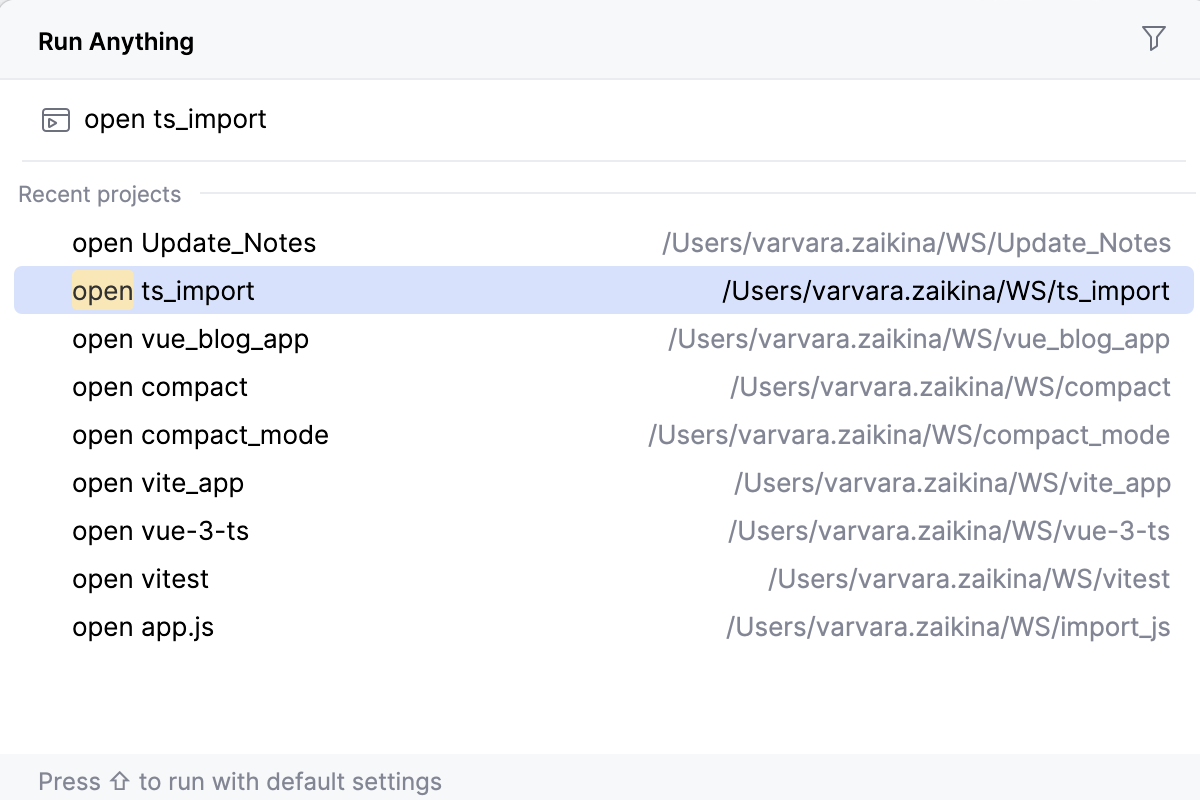
Run Anything is also a quick way to launch applications and to run npm or yarn scripts, learn more from Run Anything and Running npm and yarn scripts.
To see all available commands, type
?.
Remove a project from the list of recent projects
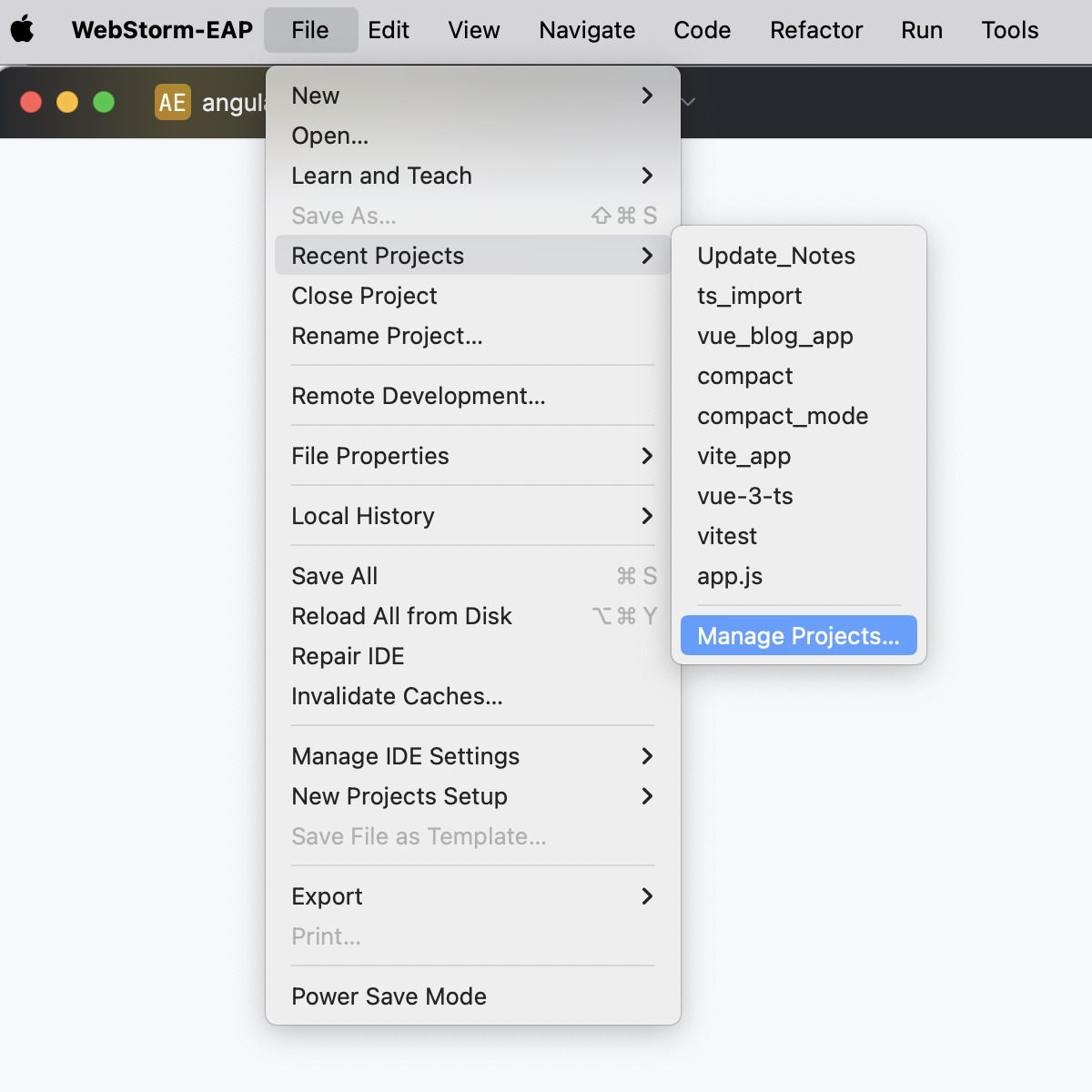
Go to and click Manage Projects at the very bottom of the list of recent projects. From the list of recent projects, select the project to remove and then select Remove from Recent Projects from its context menu.
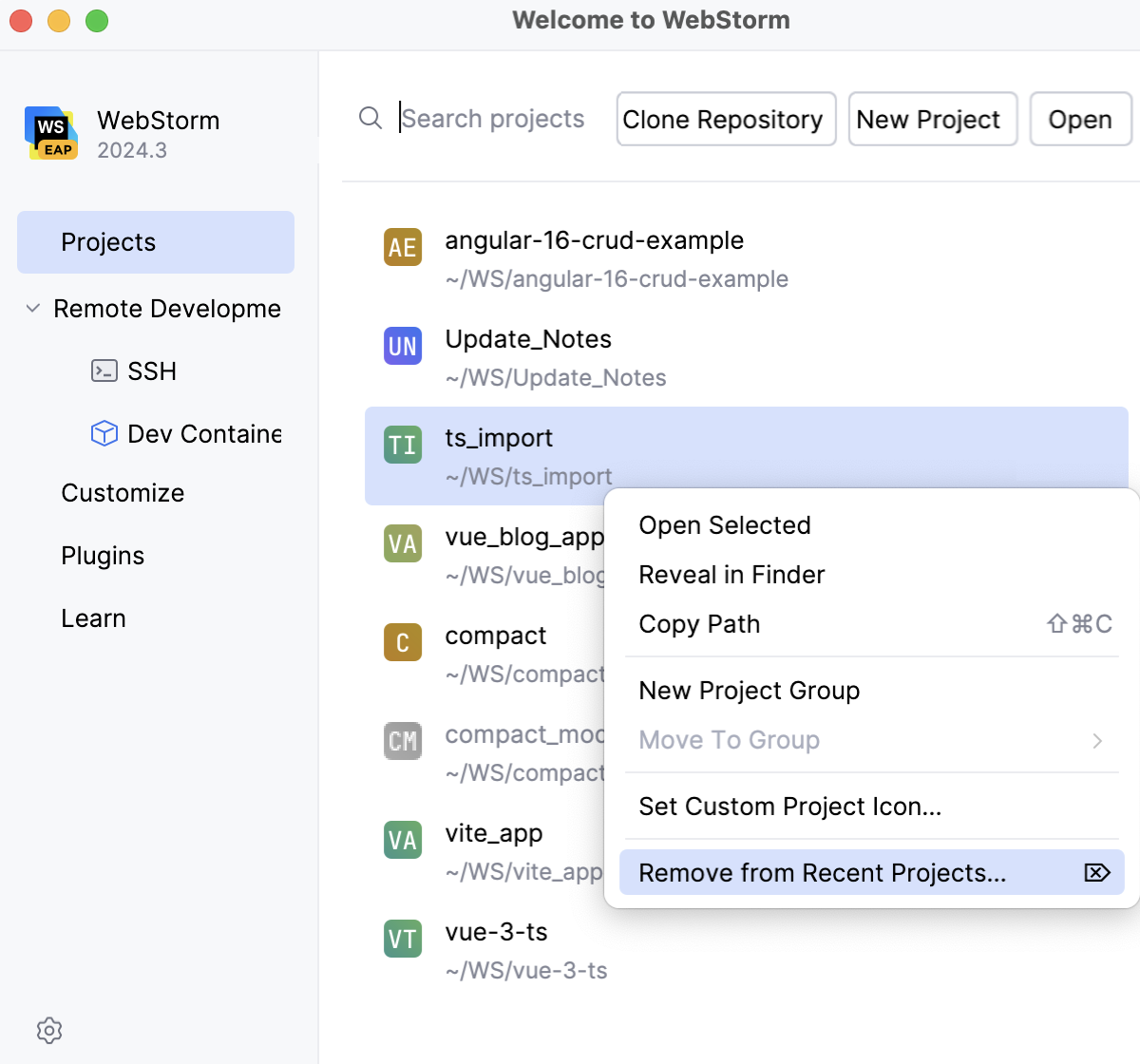
On the Welcome Screen, click Projects in the left-hand pane, select a project from the list in the right-hand pane, and then select Remove from Recent Projects… from its context menu.
Alternatively, click
 and select Remove from Recent Projects… from the list.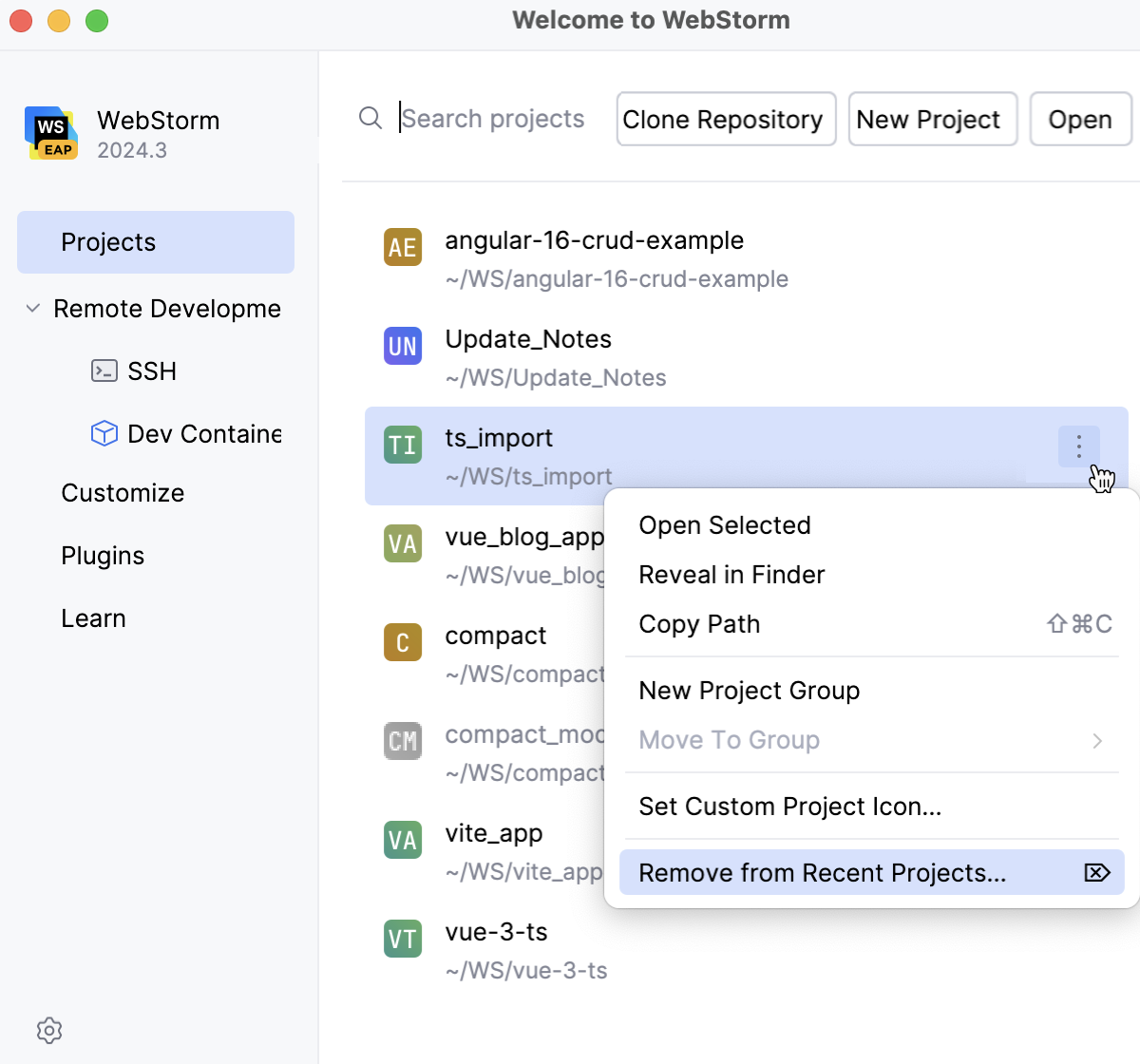
Closing projects
When you have only one open project and you close it, WebStorm displays the Welcome screen. In case of multiple projects, each one is closed with its window.
Close the current project
Go to .
Alternatively, close the window with the project by clicking
 in the upper-right corner. However, if you have only one project opened, this will actually close WebStorm.
Close all projects
Go to .
This action closes all projects that are currently opened in WebStorm.
Close all but the current project
Go to .
This action closes all opened projects except the current one.
Opening multiple projects
WebStorm suggests the following options to work with several projects simultaneously:
Each project is opened in its own window. The projects are independent and cannot share information, except for the Clipboard operations. All the projects run in the same instance of WebStorm and use the same memory space.
A newly opened project shares the window with the already opened project, which is considered the main project and is always shown first in the Project tool window. All the newly opened projects are attached to this main project.
Select from the main menu and then in the Select Path dialog, select the directory that contains the project to open.
By default, WebStorm displays a dialog prompting you to select whether you want to attach the new project to the currently opened one (Attach), open the project in a new window (New Window), or replace the currently opened project with the new one in the existing window (This Window).
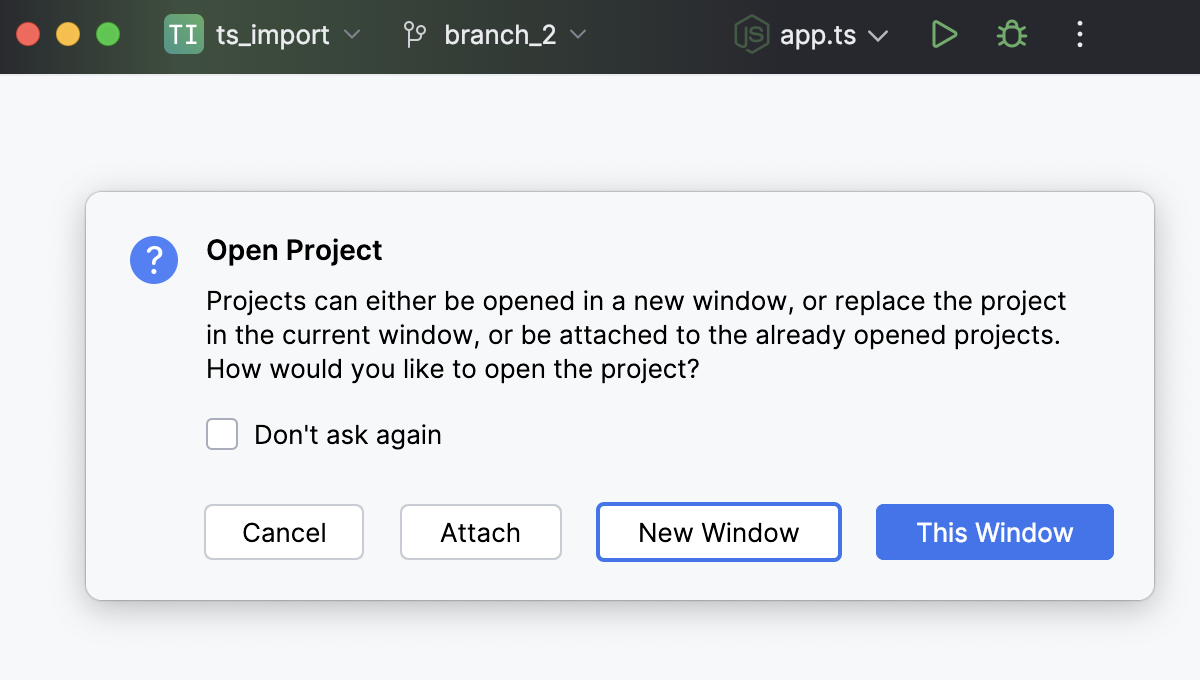
You can change or restore this behavior on the System Settings page of the Settings dialog as described in Change the project opening policy.
Change the project opening policy
In the Settings dialog (Ctrl+Alt+S) , go to .
Specify the default location for your projects in the Default project directory field. WebStorm will start with this folder when you open projects. This default location will be also suggested every time you create a new project.
In the Open project in area, select the project opening policy:
Ask: This option is selected by default. WebStorm displays a dialog where you can choose to open the project in a new window, reuse the existing window, or attach the new project to the currently opened one.
New window: Select this option to silently open each new project in a new window.
With this option selected, use the main menu command to attach a new project to the currently opened one.
Current window: Select this option to silently close the project opened in the current window and open a new project in it.
With this option selected, use the main menu command to attach a new project to the currently opened one.
Detach projects from a shared window
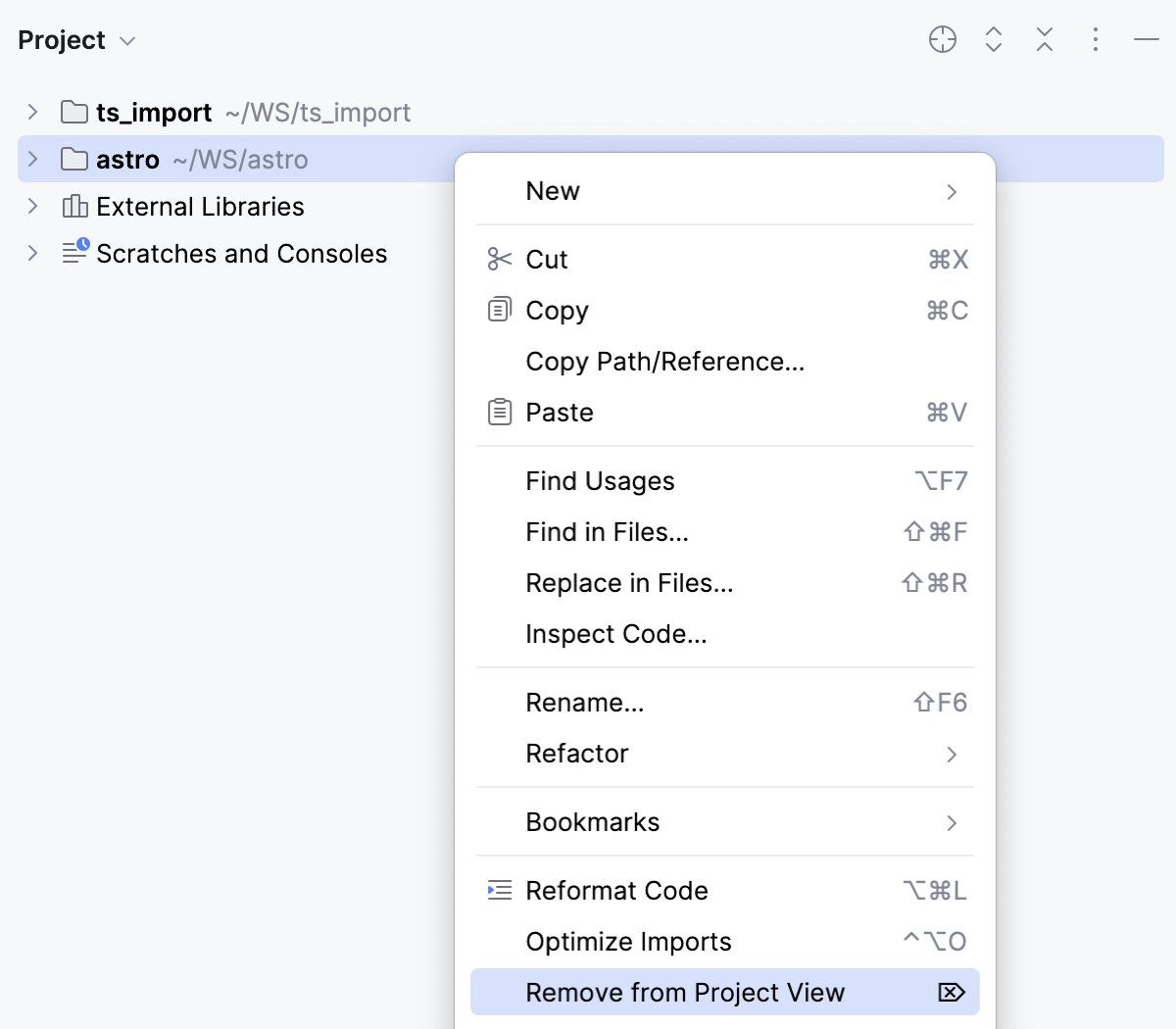
In the Project tool window, select the project to detach and click Remove from Project View in its context menu.
Merge project windows (macOS)
On macOS, you can merge all opened project windows into one, turning them into tabs.
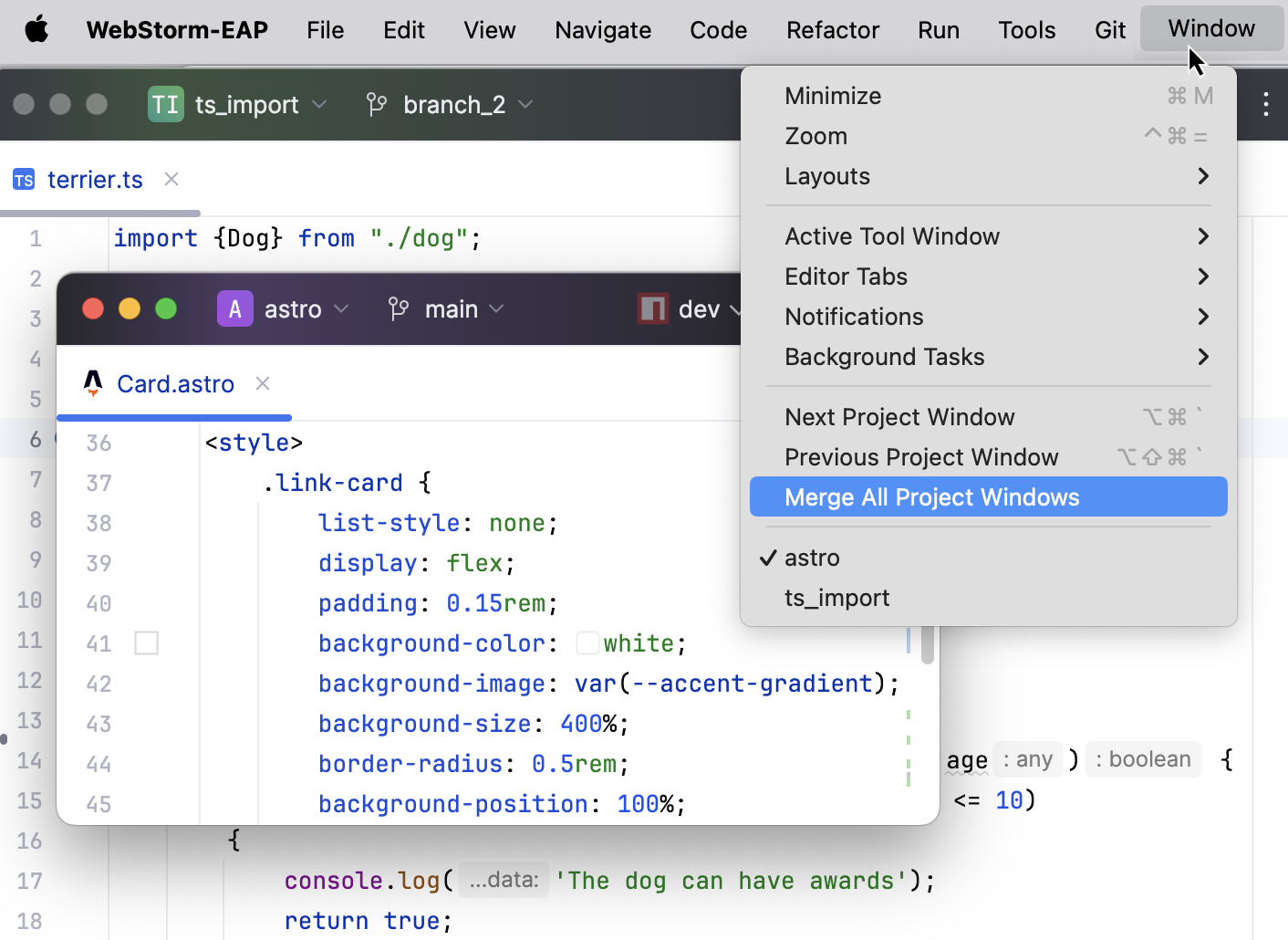
Open several WebStorm projects in separate windows.
Go to .
Drag a project's tab to work with the project in a separate window again.
Some known limitations
Symbols from the attached projects are visible from the main one, but not vice versa.
WebStorm will keep using the project settings (for example code style or inspections profile) of the main project.
The run configuration from the attached project will be ignored and new configurations will be saved in the .idea folder of the main project.
If you use TypeScript, the same version will be used in all the attached projects.
You can’t close the main project while keeping the attached project opened.