Upload and download files
WebStorm provides the following two ways to upload project files and folders to the configured deployment servers:
Manually, at any time through a menu command.
Automatically, every time a file is updated, or before starting a debugging session, or during a commit to your version control system.
For downloading files and folders, WebStorm supports only the manual mode.
WebStorm shows the logs in the File Transfer tool window.
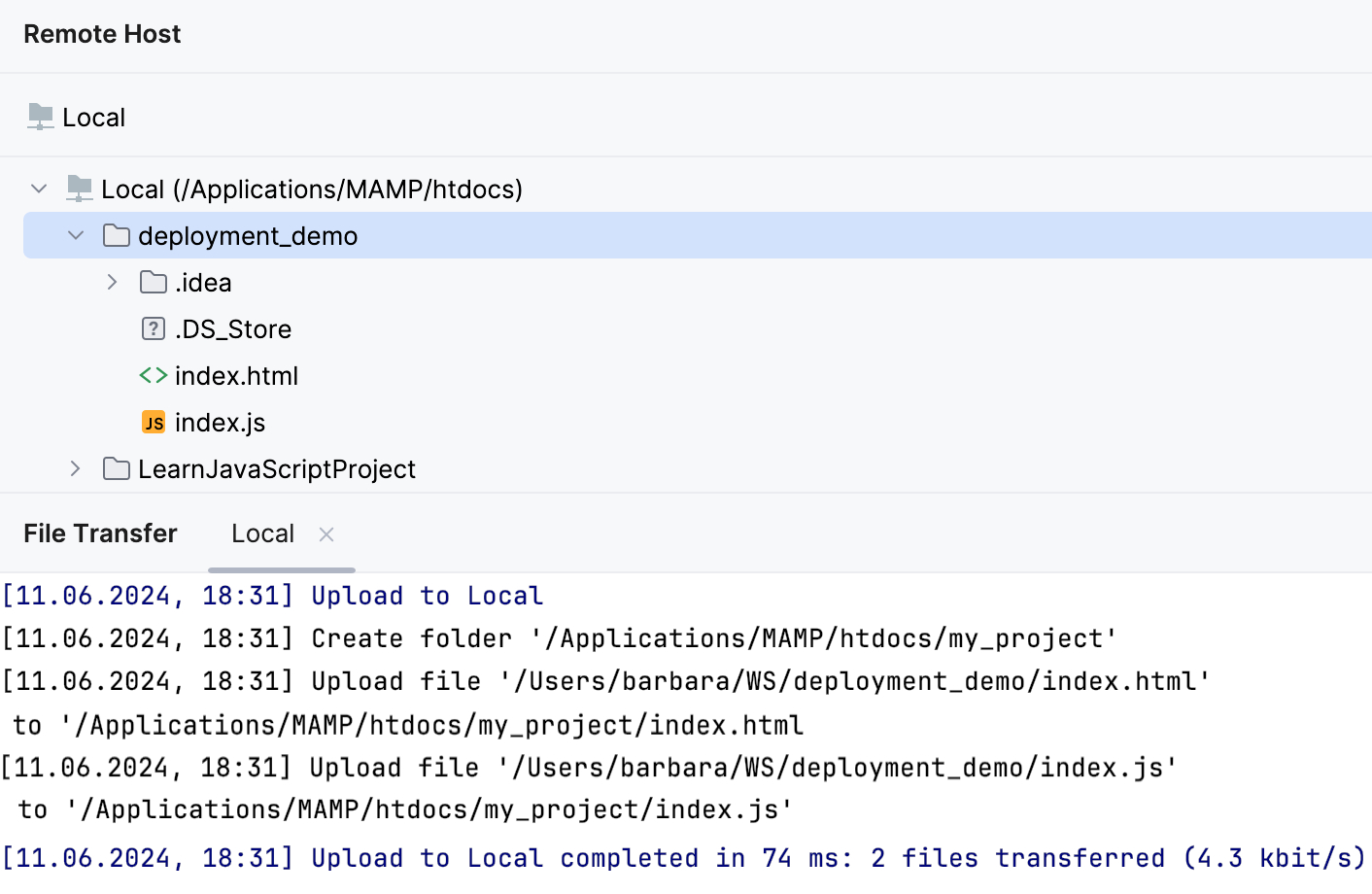
Upload a file or folder manually
In the Project tool window (Alt+1), right-click a file or folder, then select Deployment | Upload to from the context menu, and choose the target deployment server or server group from the list.
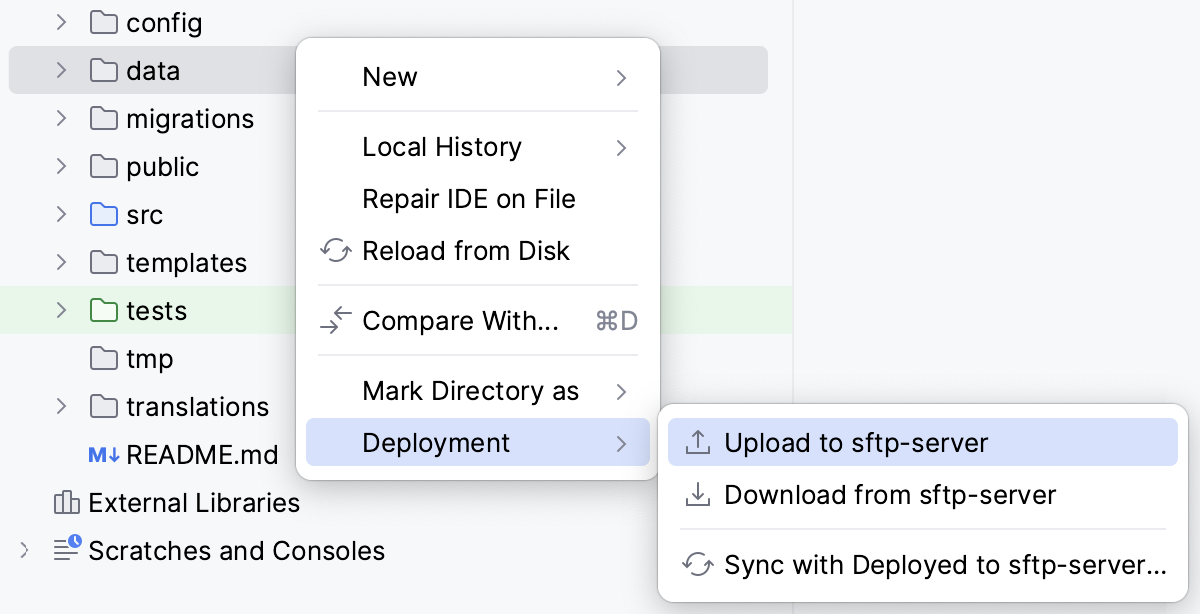
If the default server or server group is appointed, you can also select Upload to <default deployment server or server group>.
Upload locally changed files
Switch to the Commit window (Alt+0) to view the locally changed files.
Right-click a file, then select Deployment | Upload to from the context menu, and choose the target deployment from the list. If the default group is appointed, you can also select Upload to <default deployment >.
For more information, refer to Add files to Git and track changes.
Upload files after synchronizing with a VCS repository
Synchronize the contents of your local files with the VCS repository by pressing Ctrl+T or selecting from the main menu.
Switch to the Update Info tab of the Version Control tool window Alt+9.
Right-click a file, then select Deployment | Upload to from the context menu, and choose the target deployment from the list. If the default is appointed, you can also select Upload to <default deployment >.
Upload checked-in files immediately after commit
In the Commit window (Alt+0), click
 to open the commit setting context menu.
In the After Commit area of the menu, choose the target server or server group from the Upload files to list. Choose one of the existing configurations or create a new one: click
 and configure access to the relevant server, or set up a server group in the dialog that opens.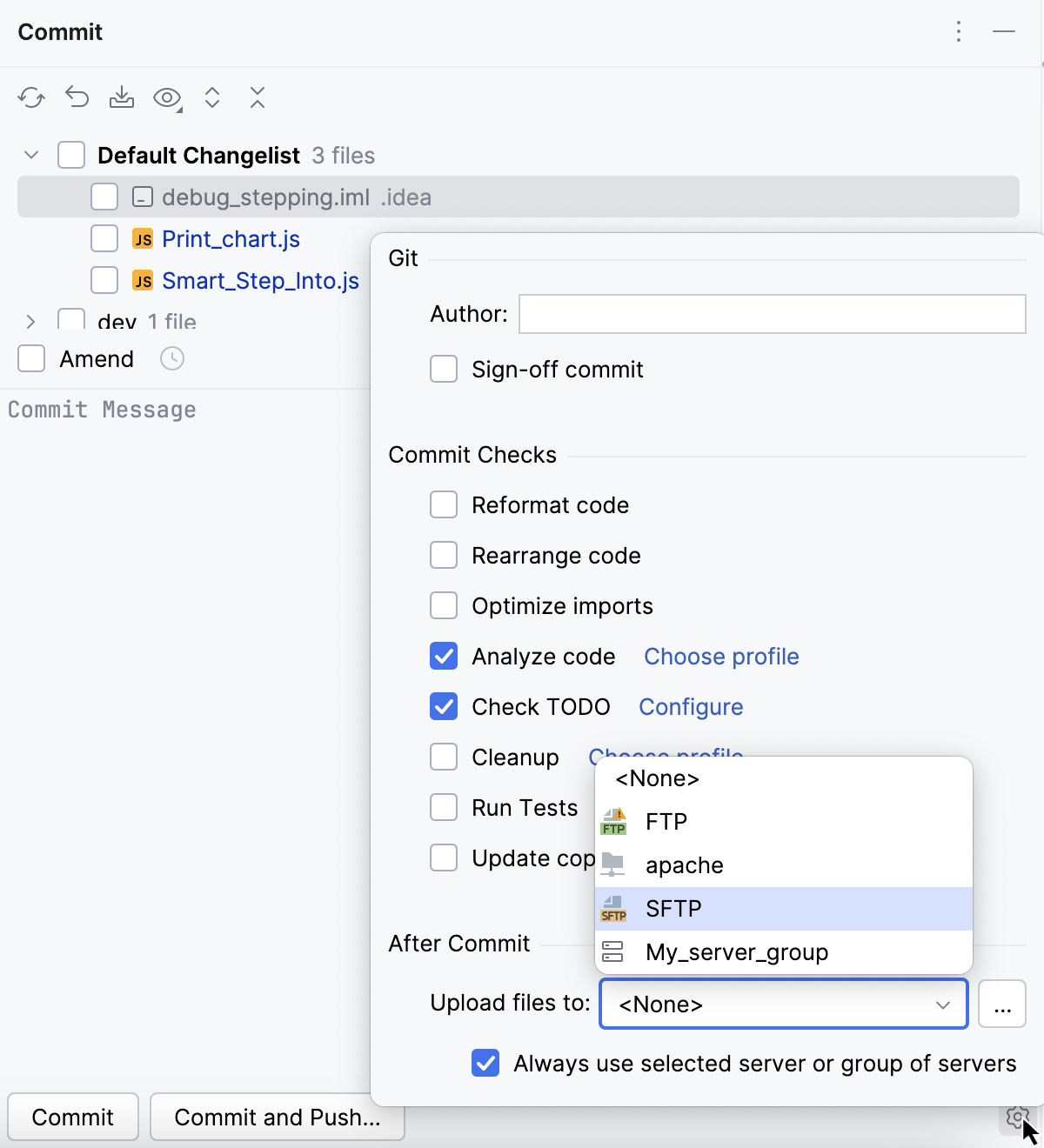
To have your selection applied automatically in the future, select the Always use selected server or group of servers checkbox.
Proceed with committing your changes.
Configure automatic upload of changed files to the default server or server group
WebStorm considers a local file changed as soon as it is saved either automatically or manually ( or Ctrl+S), see Write and edit source code. Changed files can be automatically uploaded only to the default deployment server.
Open the Options dialog by doing one of the following:
Go to .
In the Settings dialog (Ctrl+Alt+S) , go to .
From the Upload changed files automatically to the default server list, choose when you want WebStorm to upload changed files:
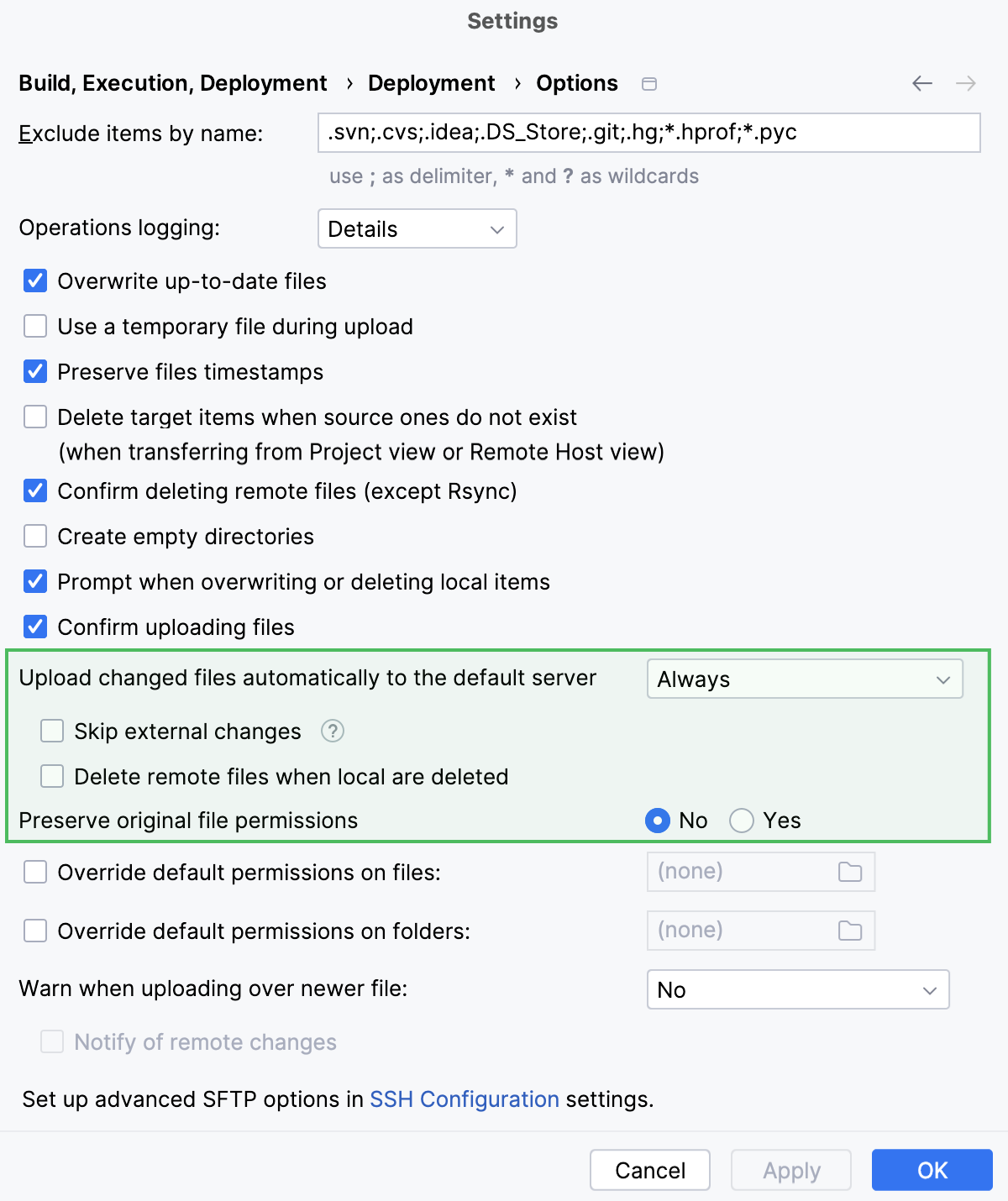
To upload any manually or automatically saved file, choose Always.
To upload only manually saved files, choose On explicit save action.
To suppress automatic upload, choose Never.
If you enabled automatic upload, optionally configure the scope it should apply to:
Select Skip external changes to exclude local changes that were made using a third-party tool (a VCS, a script, and so on) from automatic upload.
Select Delete remote files when local are deleted to have WebStorm automatically delete remote files during automatic uploads in case the local ones are deleted.
Note that this option serves as an extra safety measure and may result in unwanted files remaining on the remote server. As an example, consider a local file FILE.md, which is renamed to RENAMED.md. Since renaming a file is technically indistinguishable from deleting the file and creating a new one, the following will happen after automatic upload:
If the option is enabled, the remote server will only contain RENAMED.md.
If the option is disabled, the remote server will contain both FILE.md and RENAMED.md after automatic upload. You will probably need to delete FILE.md manually afterwards.
Download a file or folder
In the main menu, go to Tools | Deployment | Browse Remote Host.
In the Remote Host tool window that opens, select the required file or folder and choose Download from Here from the context menu of the selection.
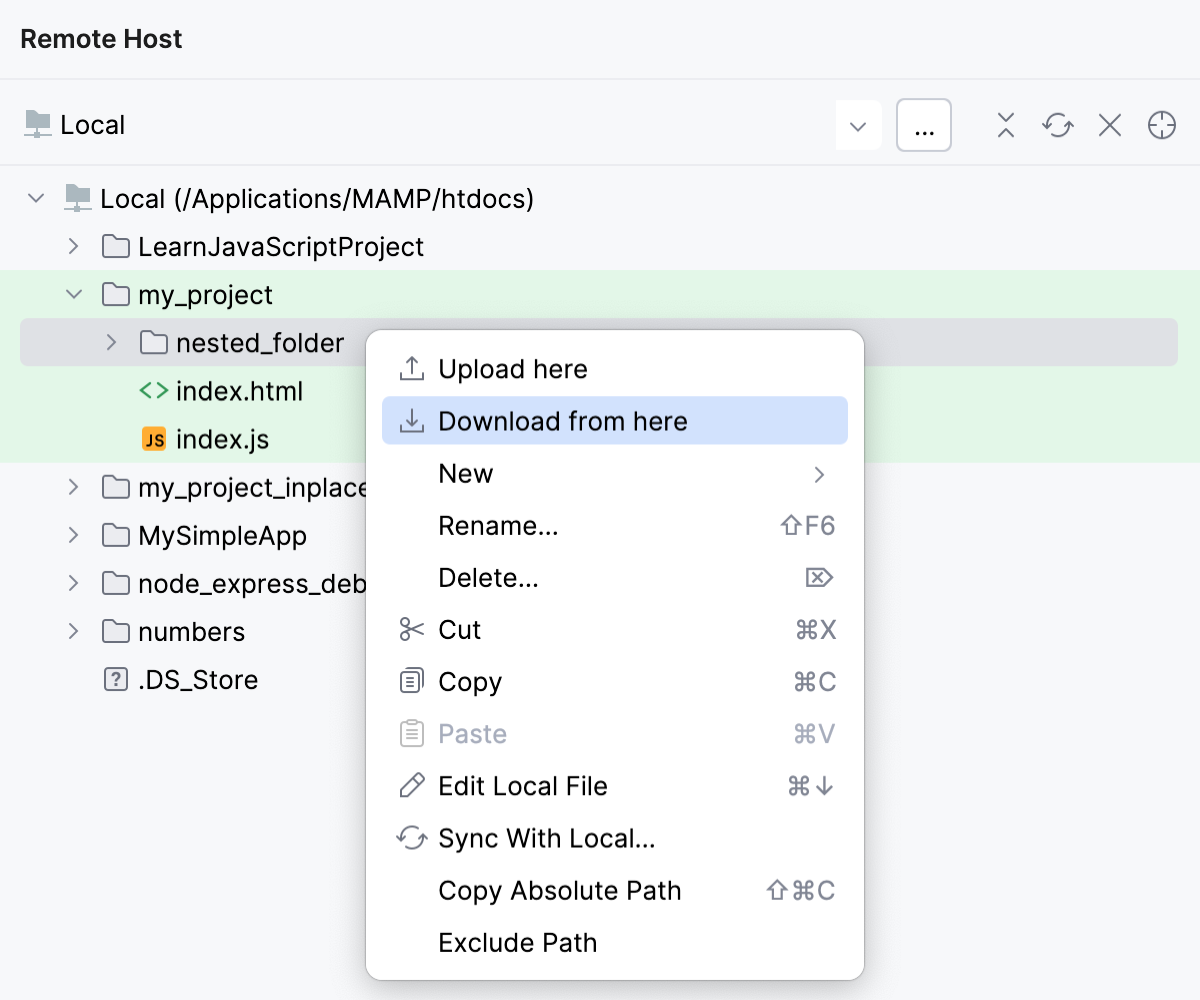
Download a file from the default deployment server
In the main menu, go to .
WebStorm will prompt you to overwrite local files, if any.