Emmet
The Emmet toolkit enhances coding with HTML, CSS, and JSX. You can use Emmet code templates without leaving WebStorm. To expand a template into the correct markup, type its abbreviation and press Tab. To replace Tab with another key, refer to Configure the abbreviation expansion key.
For example, in an HTML file, type table>tr*3>td*2 and press Tab to get a stub of a 3 × 2 table:
As a more complex example, let's type table#myid>tr.row$*3>td*2 and press Tab to get the same table but with the id attribute and a custom class for each table row:
For more information, refer to Emmet Cheat Sheet.
WebStorm supports such features as new syntax for writing RGBA colors, implied, default, and boolean attributes, the Update Tag action, and more.
Enable and configure Emmet
With WebStorm, you can use native Emmet templates plus more than 200 additional HTML, CSS, and XSL live templates that are listed under the Zen CSS, Zen HTML, and Zen XSL nodes on the Editor | Live Templates settings page Ctrl+Alt+S.
Press Ctrl+Alt+S to open settings and then select .
On the Emmet page that opens, choose the key to expand Emmet abbreviations with, by default Tab is selected.
To enable or disable Emmet in a specific language (HTML, CSS, or JSX), go to and toggle the Enable <Language> Emmet checkbox. Use the controls on the Emmet page to configure Emmet in various language contexts.
WebStorm lets you use and customize Emmet live templates, or you can add your custom templates. Suppose you have a template entry with the following template text:
To generate a list of entries, you just need to type “entry-list<entry[number=$]*5″ and press Tab. By default, the number attribute will be generated before type. To customize the position where it is generated, you need to add the ATTRS variable to your template, for example:
The ATTRS variable must have an empty string as the default value and should be skipped.
Use live templates with Emmet
Press Ctrl+Alt+S to open settings and then select .
On the Live Templates page that opens, expand the Zen HTML, Zen CSS, or Zen XSL template group and select the checkboxes next to the templates you want to use.
When you select a template in the list, the focus moves to the Template Text area where the fields show the settings of the selected template.
In the Template Text field, add the required text and variables to the template body.
Click the Edit Variables button. In the Edit Template Variables dialog that opens, specify the default variable values in the Default value field and select the Skip if defined checkbox where necessary.
Configure the abbreviation expansion key
By default, Emmet native abbreviations and additional live templates are expanded by pressing Tab. For additional live templates, WebStorm lets you re-define the default expansion key. Note that this custom setting does not override the default setting for native Emmet support; you will just get the ability to expand the template using either of these keys.
Configure the expansion key for native Emmet abbreviations
Press Ctrl+Alt+S to open settings and then select .
On the Emmet page that opens, choose the new expansion key instead of the default Tab from the Expand abbreviation with list.
Configure expansion keys for Emmet live templates
Press Ctrl+Alt+S to open settings and then select .
On the Live Templates page that opens, expand the Zen HTML, Zen CSS, or Zen XSL template group and select the desired template. The focus moves to the Template Text area.
From the Expand with list, choose the key to expand the template with.
Surround a block of code with an Emmet template
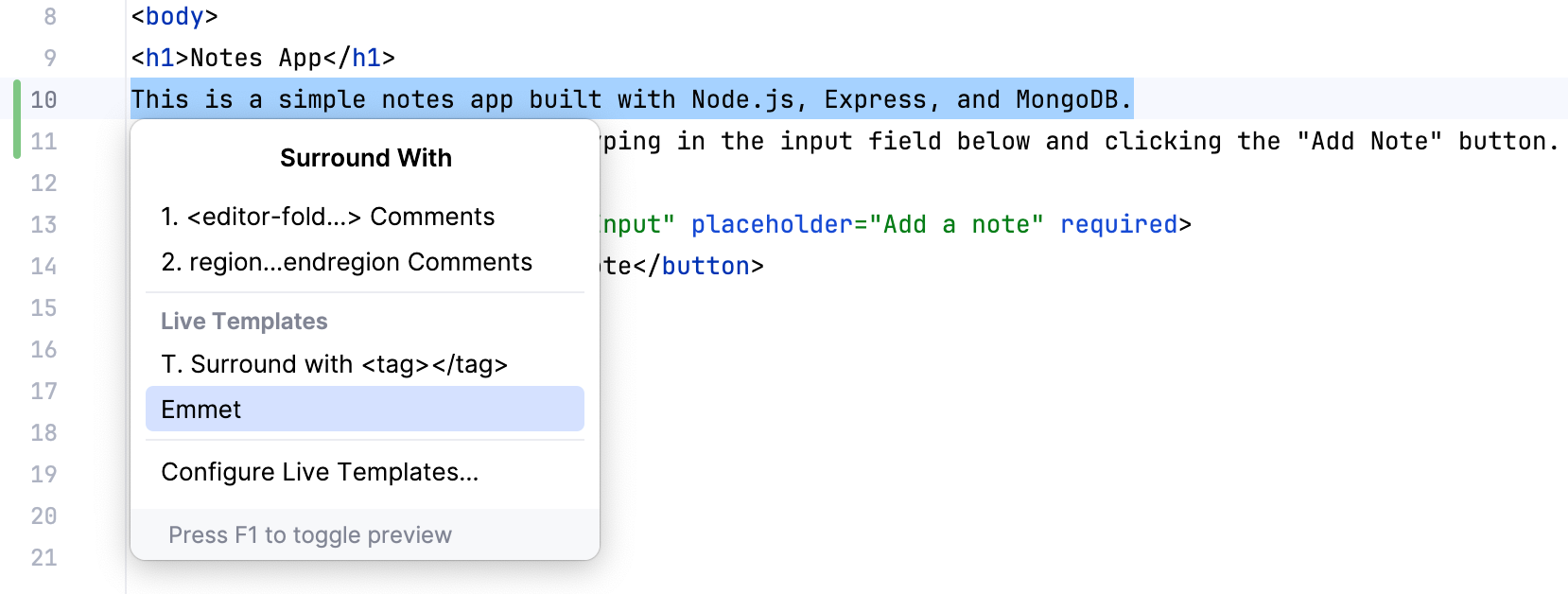
In the editor, select a block of code to surround and press Ctrl+Alt+J or select from the main menu .
From the list, select Emmet:
Type the Emmet abbreviation to use and press Enter.
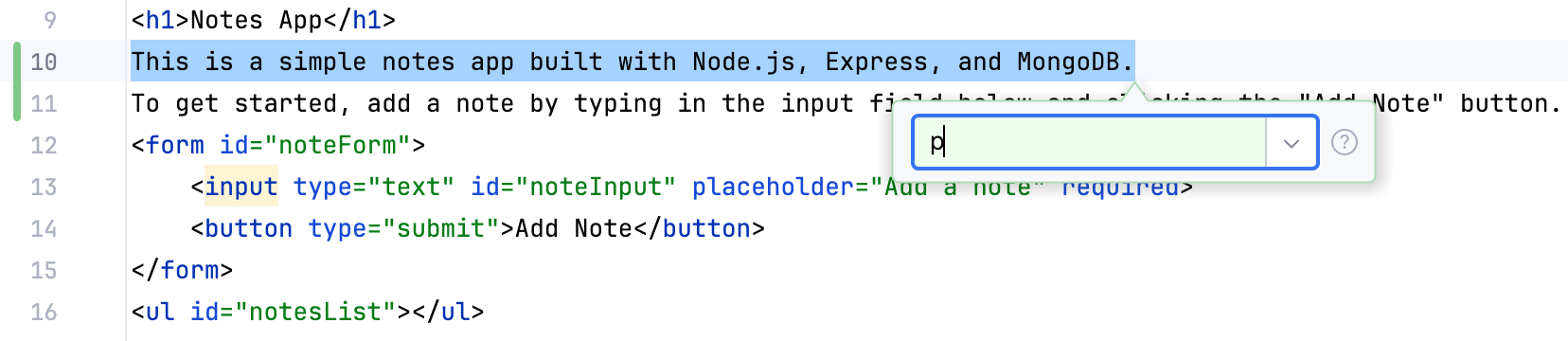
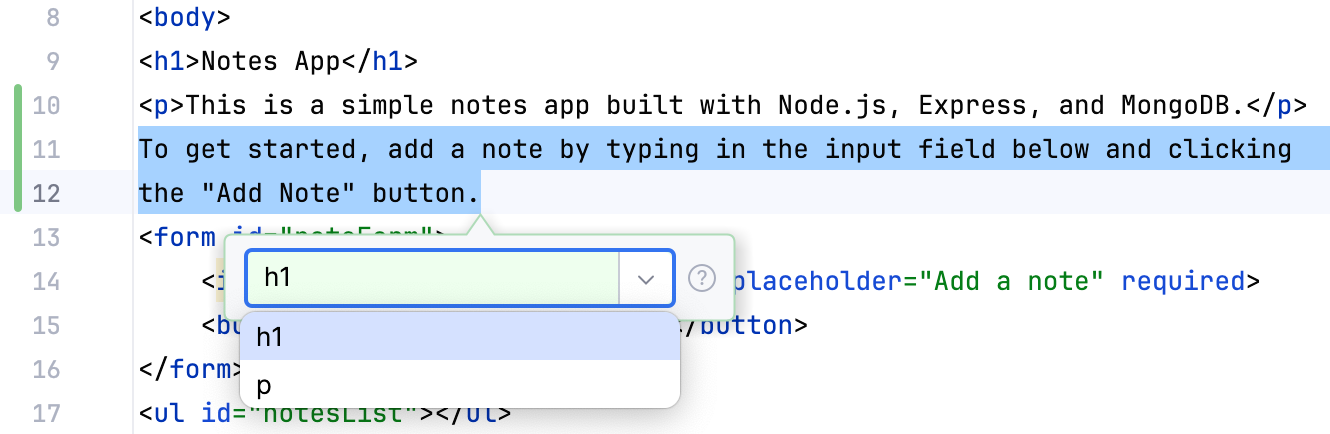
Note the list to the right. Click the down arrow to view the history of recently applied Emmet live templates:
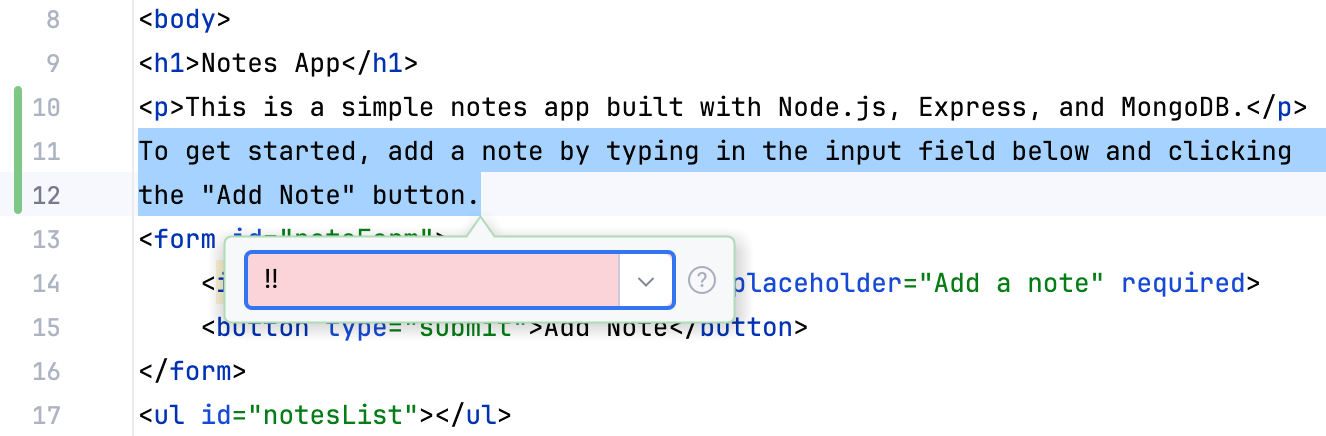
Also mind the color indication. If you type a valid Emmet abbreviation, the background is green. However, when a non-existent abbreviation is entered, the background turns red:
Navigate between edit points
In HTML and XML, you can navigate between edit points, that is, between those points of code where Emmet templates are applicable.
To move the caret to the previous edit point, choose , or press Alt+Shift+[.
To move the caret to the next edit point, choose , or press Alt+Shift+].