What's New in DataSpell 2025.3
Visualization cells, multi-agent support, and Jupyter improvements.
With the 2025.3 release, DataSpell continues its mission to make data analysts more productive with the help of AI. In addition to improving DataSpell’s own AI agent, this release expands your options by introducing direct access to Claude Agent from the IDE – with more agents coming soon. DataSpell 2025.3 also includes major visualization workflow enhancements and Jupyter improvements.
Read on to learn about all the new features.
Support for multiple agents in DataSpell
You can now choose between DataSpell AI agent and Claude Agent from the chat interface. Claude is perfect for coding-related tasks, while DataSpell AI agent remain focused on data-centric work such as analysis, transformation, and visualization. Simply open the AI chat, select the agent best suited to your task, and start working. This marks the beginning of our effort to bring additional agents to DataSpell, with more to come in future releases.
Visualization enhancements

In-chat visualization
You can now generate and view charts directly within the AI chat. This removes the need for temporary steps or switching context.
AI agent in DataSpell can:
- Understand your dataset.
- Generate visualizations as JSON-based specs.
- Display visualizations in the chat or as dedicated visualization cells.
Visualization cells in notebooks
Visualization cells offer a new no-code way to explore and present your data. You can now:
- Add visualizations without writing code.
- Instantly view plots inline.
Jupyter improvements
Data exploration and cleaning are the first steps when working with a new dataset. Once you start exploring it, you'll be able to identify issues, such as:
- Missing values
- Outliers
- Duplicates
- Formatting inconsistencies
- Correlated or redundant features
These problems are now detected automatically, and you'll get AI-powered suggestions to fix them. You can use the Fix with AI option to insert a new cell in the same Jupyter notebook with code generated to resolve it.
Databases

Query files
We recently introduced query files in DataGrip, replacing query consoles and improving the overall experience for running and storing queries. The improvements are now available in other JetBrains IDEs that have the Database Tools and SQL plugin installed.
As with DataGrip, the first time you launch DataSpell after the plugin update, you will see the Migration to Query Files dialog, prompting you to migrate consoles to query files. Click Migrate All to migrate all your consoles to query files in one go.
By default, for the IDEs that have database functionality provided by the Database Tools and SQL plugin, query files are located in .idea/dataSources/ after the automatic migration.
Connection to cloud providers
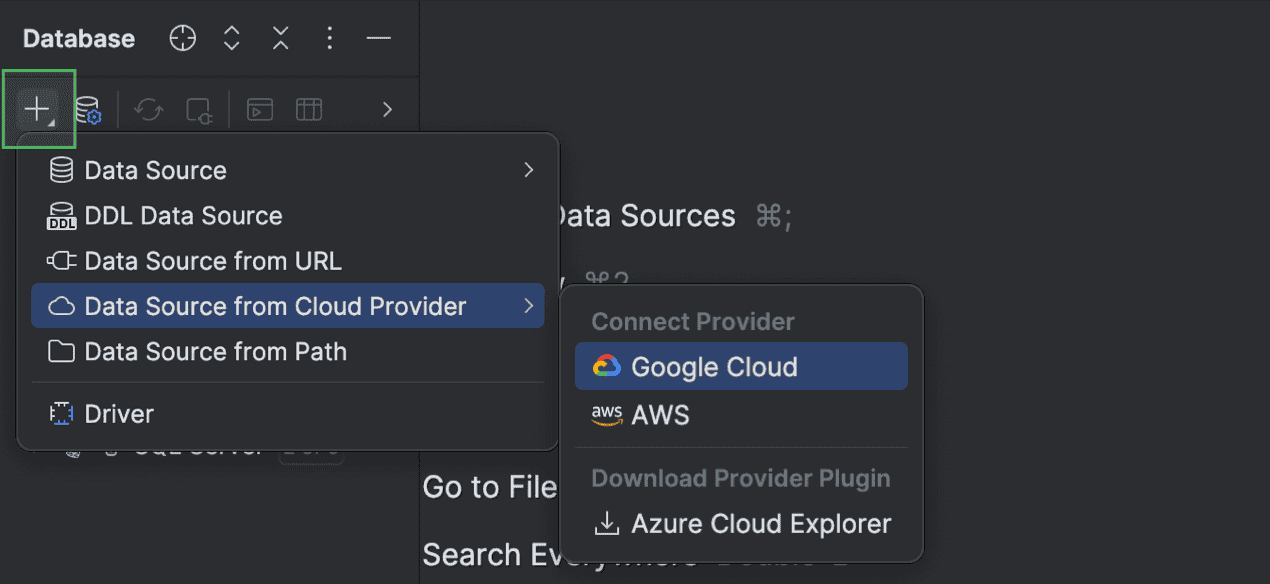
DataSpell now works with cloud database providers! In the new release, you can connect your AWS, Azure, and Google Cloud accounts to the IDE, browse the list of databases you have in those accounts, and choose the ones you'd like to connect to. DataSpell will create new data sources and fill in all connection details.
To connect to your cloud account, click New | Data Source from Cloud Provider and select your cloud provider.

All of the cloud accounts connected to your IDE are displayed in the Clouds tab of the Data Sources and Drivers dialog.
Islands theme becomes the default
DataSpell now uses the new Islands interface theme by default. The theme is available in both dark and light modes. This update is a visual refresh only, meaning that all functionality will remain the same.
To enable or disable the new theme, open the IDE Settings dialog and navigate to the Appearance & Behavior | Appearance settings page.
We hope you enjoy these updates!
We are still in the beginning stages of becoming an AI-first tool for data analysts, so we would appreciate all of your feedback and reactions. If you come across a bug or have a feature suggestion, please share it on our issue tracker.
Want to stay up to date on the latest features and receive DataSpell and data analysis tips? Subscribe to our blog and follow us on X!