Unity Profiler assistance
Rider improves the performance analysis of Unity applications by fetching and displaying Unity profiler snapshot data directly in the IDE. The profiler snapshot can be analyzed in the dedicated Unity Profiler window, which is synchronized with the Unity editor.
Rider also displays CPU data for class and method declarations as well as for specific usages right in its editor, allowing you to navigate performance bottlenecks.
Enable the Unity Support plugin
This functionality relies on the Unity Support plugin, which is bundled and enabled in JetBrains Rider by default. If the relevant features are not available, make sure that you did not disable the plugin.
Press Ctrl+Alt+S to open settings and then select .
Open the Installed tab, find the Unity Support plugin, and select the checkbox next to the plugin name.
Capture Unity profiler data
In the Unity Editor, open the Profiler window: .
Start the game by clicking the play button either in Unity Editor or in Rider.
Make the necessary actions in the game to invoke the parts of the script that you study.
Stop the game by clicking the play button once again. Now the profiler data are ready to analyze.
When the profiler snapshot is captured and fetched, you can study it directly in Rider, where it is synchronized with the Profiler window of the Unity editor.
Navigate to source code
Do one of the following:
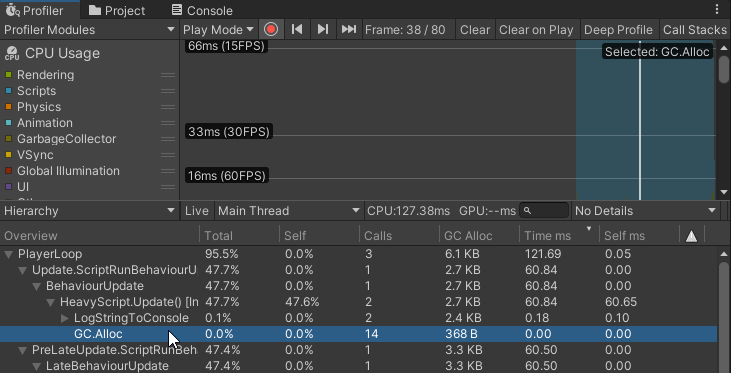
In the Unity editor, switch the Profiler window into the Hierarchy view, find the desired node in the profiler data tree, and double-click it:
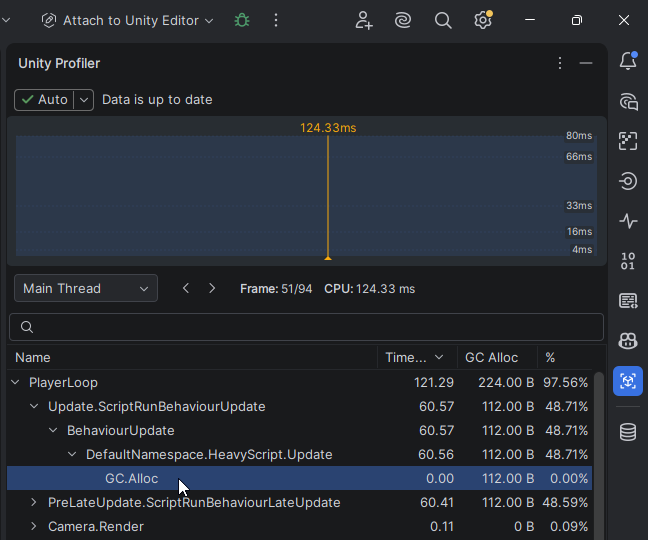
Switch to Rider, open the Unity Profiler window, find the desired node in the profiler data tree, and double-click it:
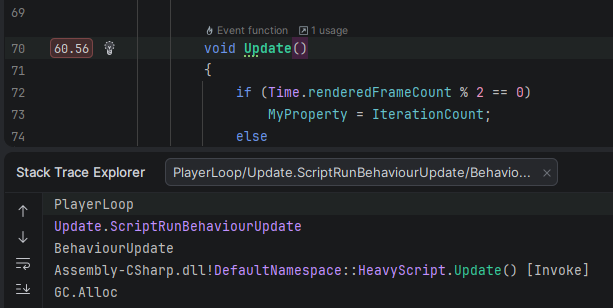
Rider will automatically navigate to the corresponding call in the editor. If you navigate from the Unity editor, Rider will also display the call stack that you can use to navigate other entities in the call hierarchy. Otherwise, you can navigate the call stack right in the Rider's Unity Profiler window.
Choose snapshot fetching mode
By default, JetBrains Rider automatically fetches the snapshot data from Unity profiler as soon as the snapshot is captured. However, fetching the snapshot in a resource-intensive setup may take some time. In this case, you can disable automatic fetching by choosing Manually in the Unity profiler snapshot fetching mode selector on the page of JetBrains Rider settings .
In the manual mode, JetBrains Rider alerts when new snapshot data is available, which is either when you capture a new snapshot in Unity or when you switch the snapshot frame in the Unity Profiler window. You can then fetch the data at any convenient moment by clicking the corresponding button in the Unity Profiler window:
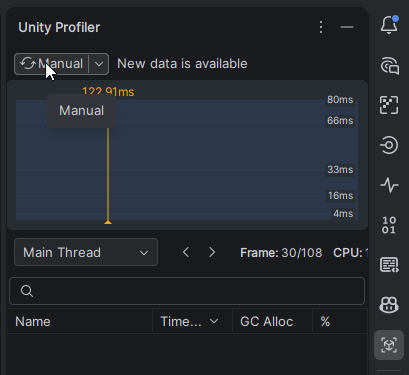
The widget at the top of the Unity Profiler window also allows you to quickly toggle the profiling mode.
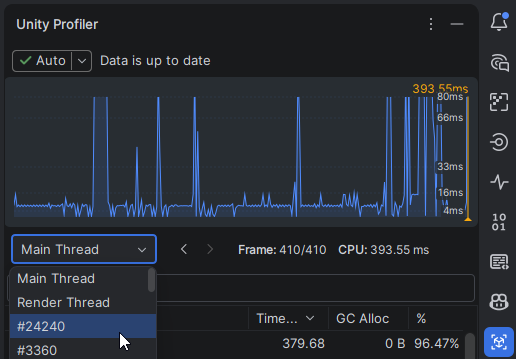
Switch snapshot threads
You can choose the desired thread right in the Unity Profiler window:
Visualize CPU usage data
Rider can use Unity Profiler data to display CPU usage right in the editor, next to the corresponding class or method.
For each frame you select in the profiler snapshot, Rider will show CPU data for the particular method. If the automatic fetching mode is enabled, the metrics will be updated each time you choose a new frame in the Unity Profiler window timeline. In the manual mode, you will need to click the editor widget to update the metrics.
By clicking the gutter mark, you can see the detailed information:
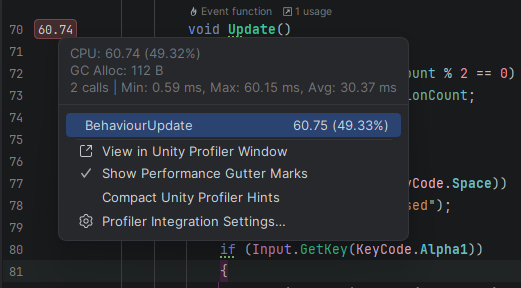
In the gutter mark menu, can choose View in Unity Profiler Window to locate the call in the snapshot tree.
Configure profiler gutter marks
Unity profiler gutter marks are enabled by default. If you need to toggle them, there are three ways to do so:
Click any mark and choose Show Performance Gutter Marks.
Click the three-dot menu in the Unity Profiler window and chooose Show Performance Gutter Makrs.
Use the Enable profiler highlightings checkbox on the Languages & Frameworks | Unity Engine settings page Ctrl+Alt+S.
By default, the gutter marks display the CPU load, which makes the makrers quite wide. You can click any mark and choose Compact Unity Profiler Hints to display narrow gutter marks, which are color-coded.
CPU data visualization limitations
Currently, only CPU data is fetched.
Unity Profiler doesn't distinguish multiple calls of the same method in one place, so the same information will be displayed for each call.
Troubleshooting
This section provides solutions to common issues you might encounter when working with Unity Profiler assistance in JetBrains Rider.
Why does the profiling data not appear in Rider?
If the profiling data from Unity Profiler does not appear in JetBrains Rider, check the following:
Ensure that Unity Editor is correctly connected to JetBrains Rider:
Follow the steps in Setting up Rider with Unity to confirm the Unity Editor is linked to your IDE.
Check the Unity Support plugin:
Go to the Plugins settings page Ctrl+Alt+S, and ensure the Unity Support plugin is enabled.
Verify profiler integration:
Ensure that Enable Unity profiler integration is enabled on the Languages & Frameworks | Unity Engine settings page Ctrl+Alt+S.
Why is only CPU data available?
Currently, JetBrains Rider only supports fetching CPU profiling data from Unity Profiler. Other data types such as GPU or memory usage are not yet integrated.
Why are metrics the same for multiple method calls?
The Unity Profiler does not distinguish multiple calls to the same method at the same location. As a result, JetBrains Rider displays the same performance metrics for each occurrence of the call.
Why is the Profiler data update delayed?
If you notice delays in updating profiler data in JetBrains Rider, consider the following:
Check the fetching mode: If you are using Manual fetching mode, you will need to manually trigger updates by clicking the editor widget.
Check connection stability: Ensure that the communication between Unity Editor and JetBrains Rider is stable. Reconnect if needed.