Code completion
Cloud completion powered by AI Assistant can autocomplete single lines, blocks of code, and even entire functions in real time based on the project context. The generated code is similar to how you would write code, matching your style and naming conventions.
Completion is available not only for code but also in commented lines, AI Chat, and commit messages. You can configure where you want to receive completion suggestions.
Work with cloud completion
To invoke code completion suggestions:
Start typing in the editor, AI Chat, or Commit Message field. The suggestions start to appear as you type.
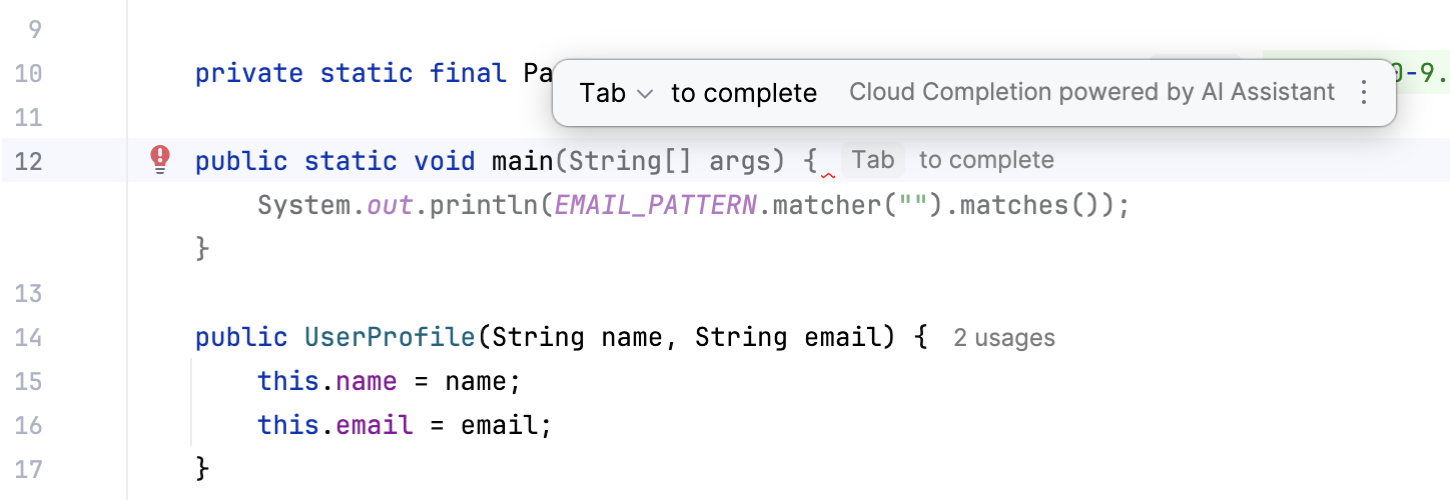
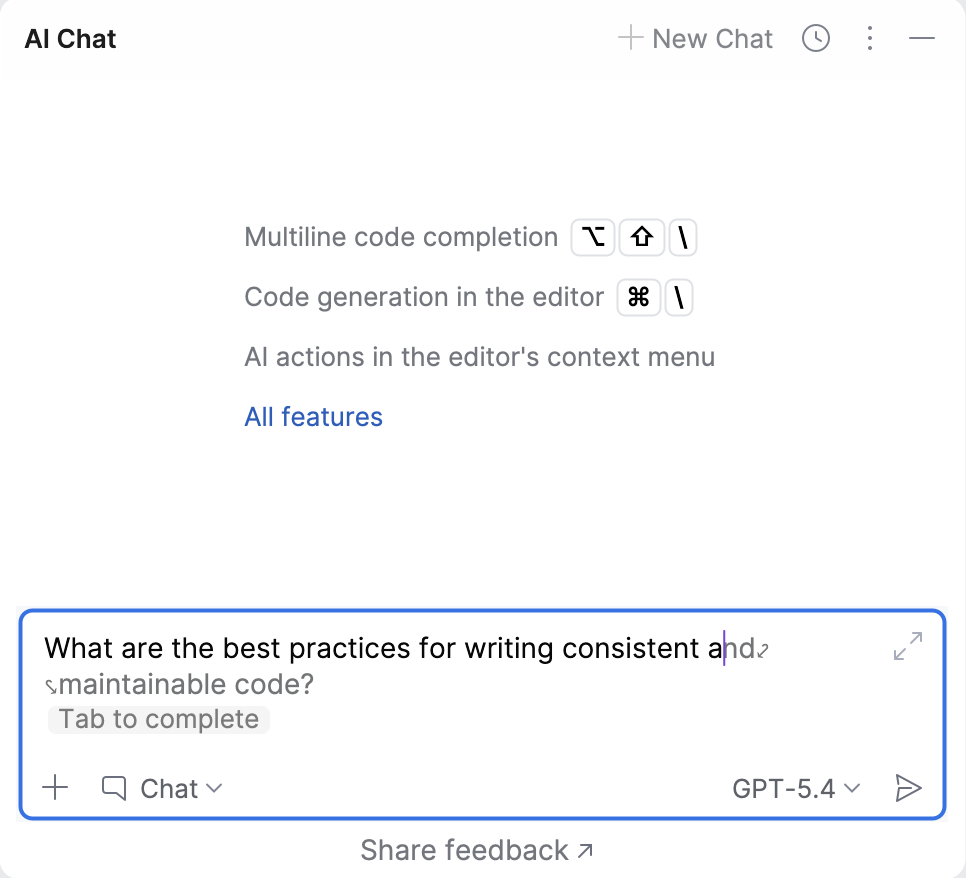
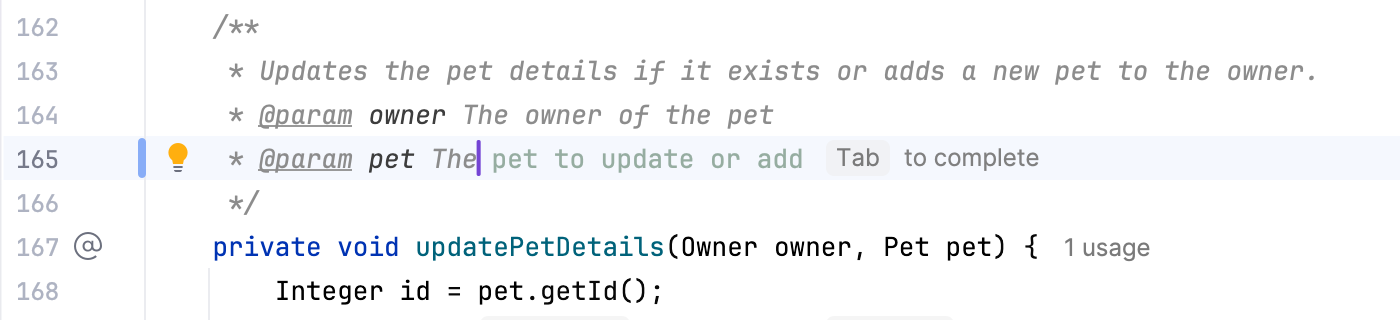
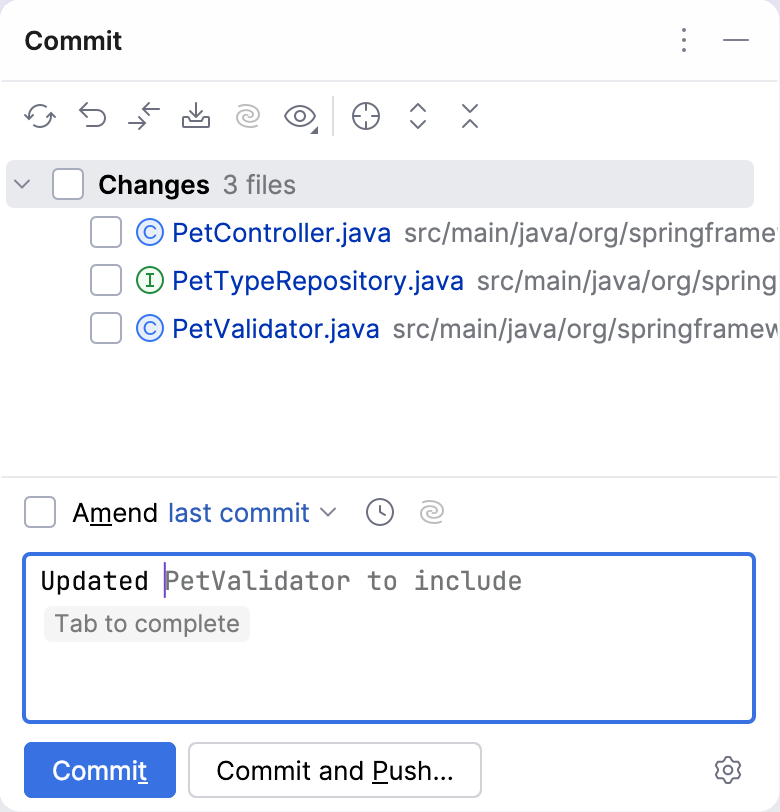
You can also trigger the code completion by pressing Alt+Shift+\.
To apply the suggestion:
Press Tab to accept the entire suggestion. You can configure a different shortcut for this action.
Press Ctrl+Right to accept a suggestion word by word.
Press End to accept a suggestion line by line.
To reject the suggestion, press Escape. Alternatively, continue typing or change the caret position either with the arrow keys or by a mouse click.
Configure cloud completion
The cloud completion option is enabled by default. To configure the way it works, press Ctrl+Alt+S to open the settings and go to .
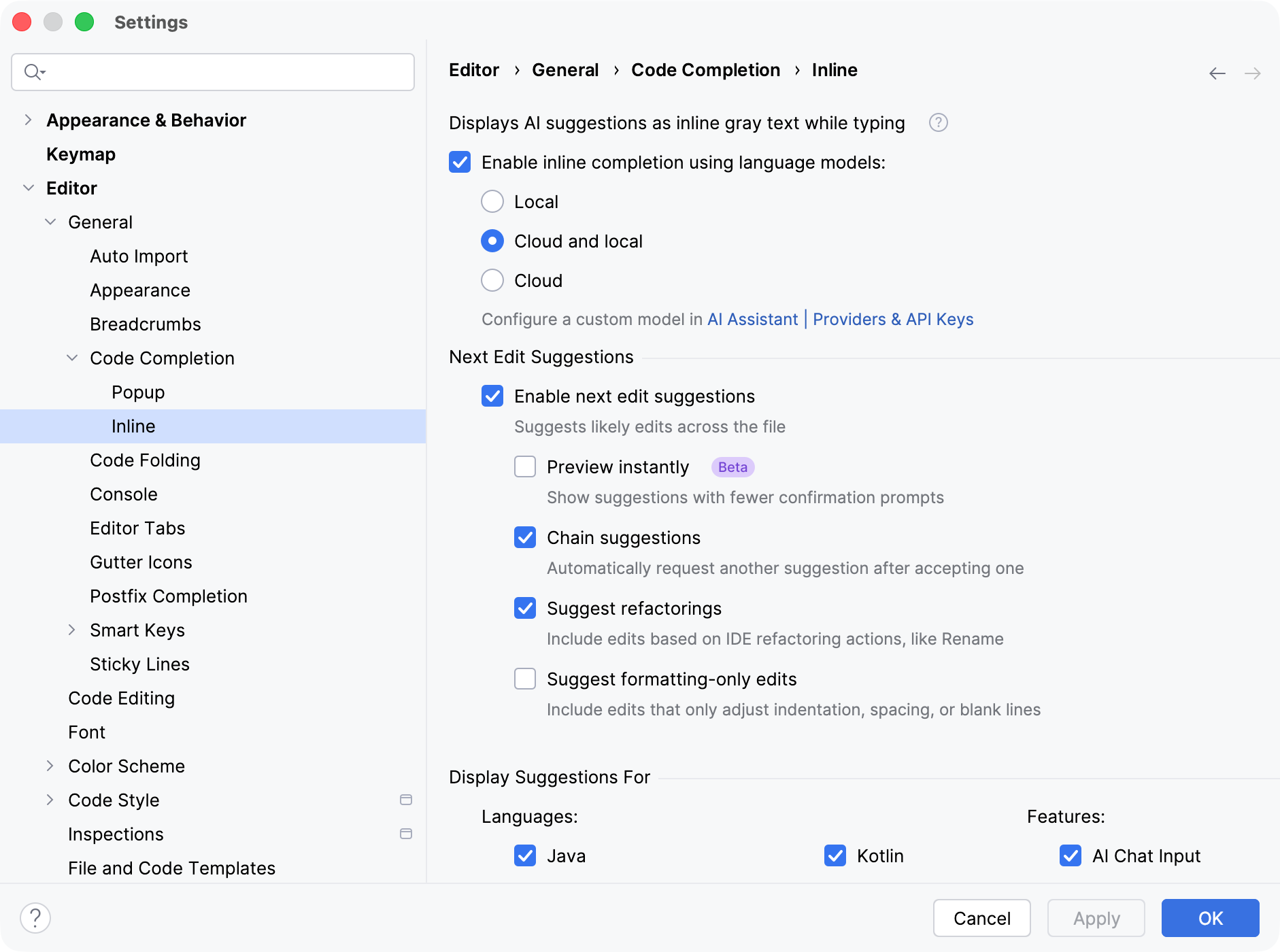
Enable the necessary options to personalize your experience with code completion.
Enable inline completion
In this section, you can enable or disable the inline code completion feature and define which language models you want to use for inline completion:
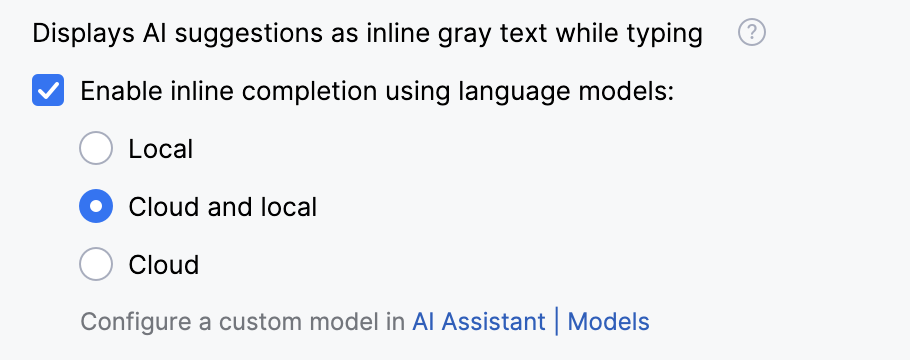
Item | Description |
|---|---|
Enable inline completion using language models | Enable inline code completion and select the models that you want to use for it:
|
Display Suggestions For
In this section, you can select the programming languages and features for which the suggestions are shown:
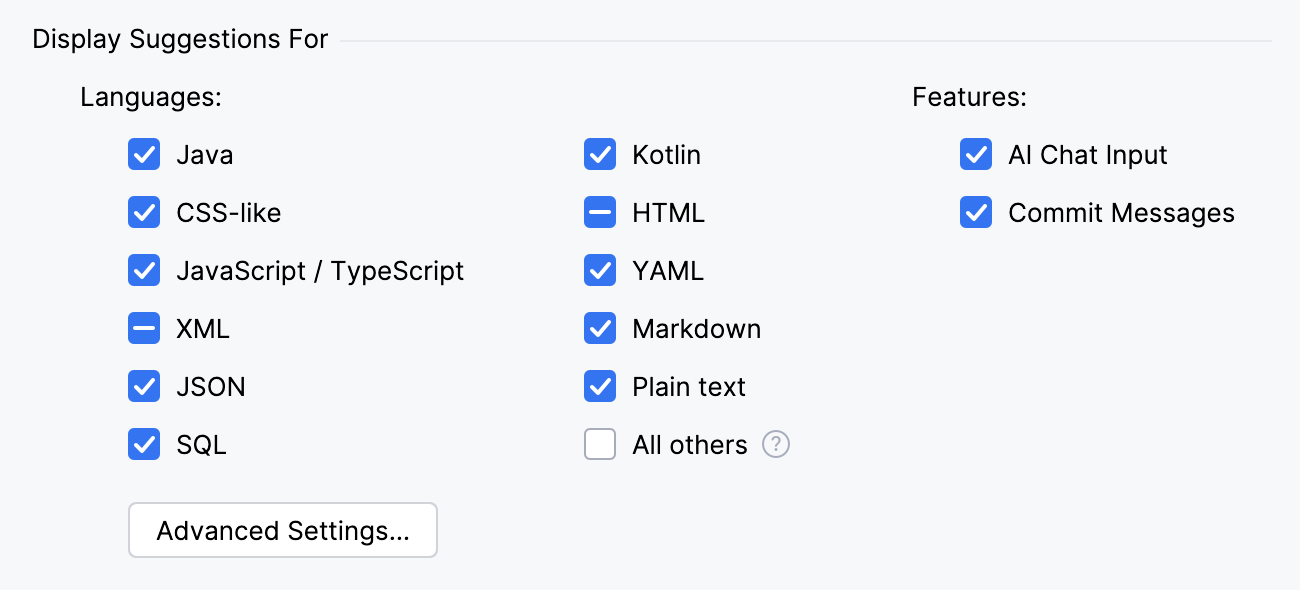
Item | Description |
|---|---|
Languages | Select the languages for which you want to receive suggestions. The code completion feature will be available when working in files of the corresponding types. The All others option covers other file types and is disabled by default. |
Features | Select where else you want to receive code completion suggestions:
|
Advanced Settings | Click this button to specify for which languages and features code completion is available. 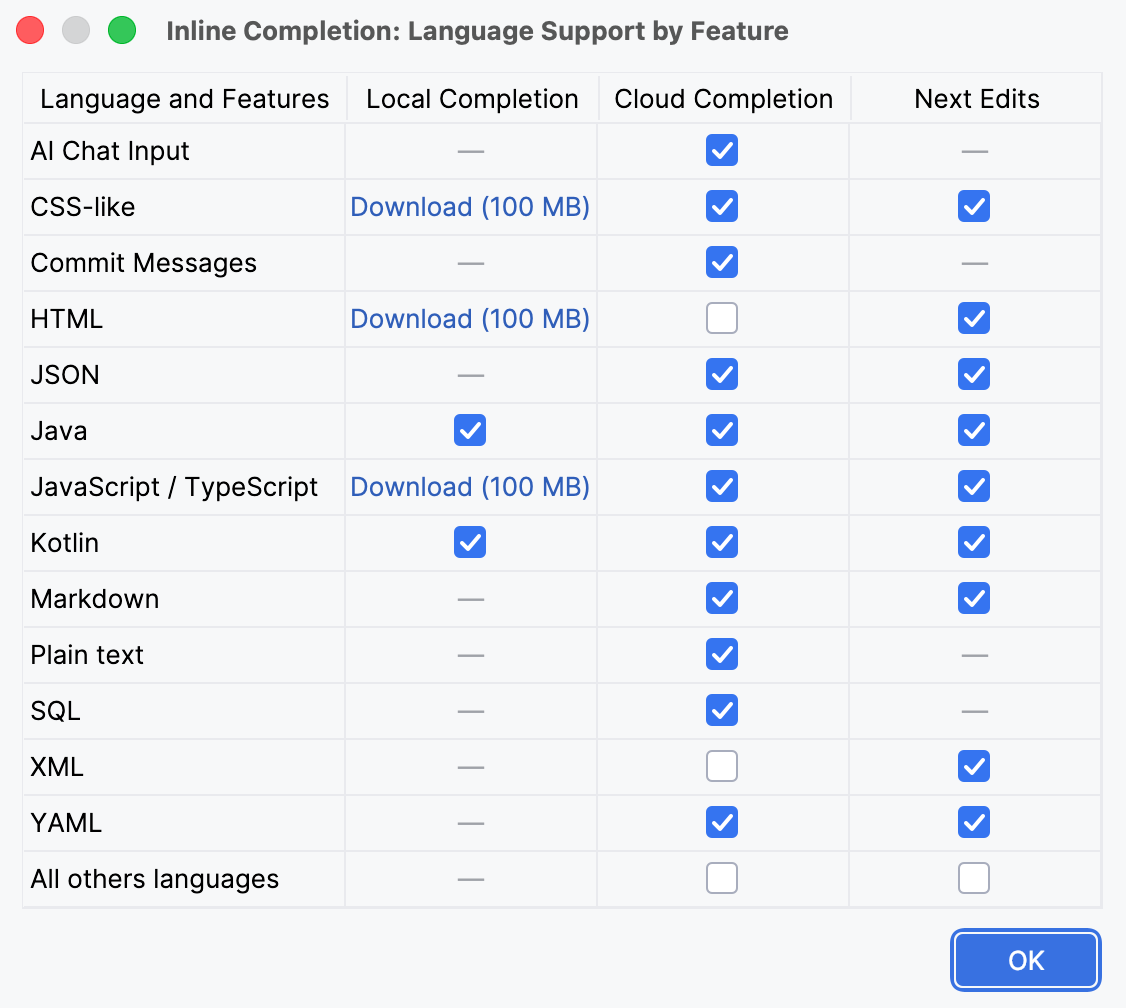 |
- Languages and corresponding file types
Language/Type
Extension
Java
javaKotlin
kt,ktsPython
py,ipynbRust
rs,rsxGo
goC/C++
c,h,cpp,cc,cp,hpp,h++C#
csRuby
rb,ruby,rbw,ruRBS
rbsERB
erb,rhtmlPHP
php,phtml,phpt,ctpScala
scala,sbtTerraform/OpenTofu
tf,hclXML
xmlJSON
jsonYAML
yml,yamlProperties
propertiesMarkdown
md,markdown,mkd,mkdn,rmdPlain text
txtHTML
html,htm,xhtml,xhtCSS-like
css,scss,sass,lessJavaScript/TypeScript
js,jsx,ts,tsx,es6,sjs,jsm,pac,vueSQL
sql,ddl,db2,udf- Languages and file types covered by the All others setting
Language / Type
Extension
Python/Cython
pyw,pyx,pxd,pxi,pydeRusty Object Notation
ronC++
cxx,c++,hh,hxx,ipp,tpp,inl,tccVisual Basic/VBScript/VBA
vb,vbs,vba,bas,frmF#
fs,fsi,fsxSwift
swiftPL/SQL
plsql,plb,pkb,pks,prcR
r,rdShell scripts
sh,bash,zsh,ksh,bats,command,tmuxWindows Batch
bat,cmdPowerShell
ps1,psm1,psd1Objective-C++
mmMake/ConTeXt
makefile,mk,mak,mkiv,mkii,mkviCMake
cmakeGYP
gypBazel
bzlTOML
tomlDocker
dockerfileBuild scripts (Dart, C#, Ruby, etc.)
tool,cake,builderreStructuredText
rstLaTeX
tex,sty,bib,dtx,insTemplates (Ruby, Elixir, .NET, etc.)
mustache,jinja,eex,rabl,cshtml,vbhtmlRuby DSLs
thor,rake,jbuilder,gemspecLaTeX components
cbx,bbx,lbxCassandra Query Language
cqlSAP HANA XS JavaScript
xsjslibRuby CocoaPods specification
podspec
Behavior
In this section, you can fine-tune specific aspects of the code completion feature:
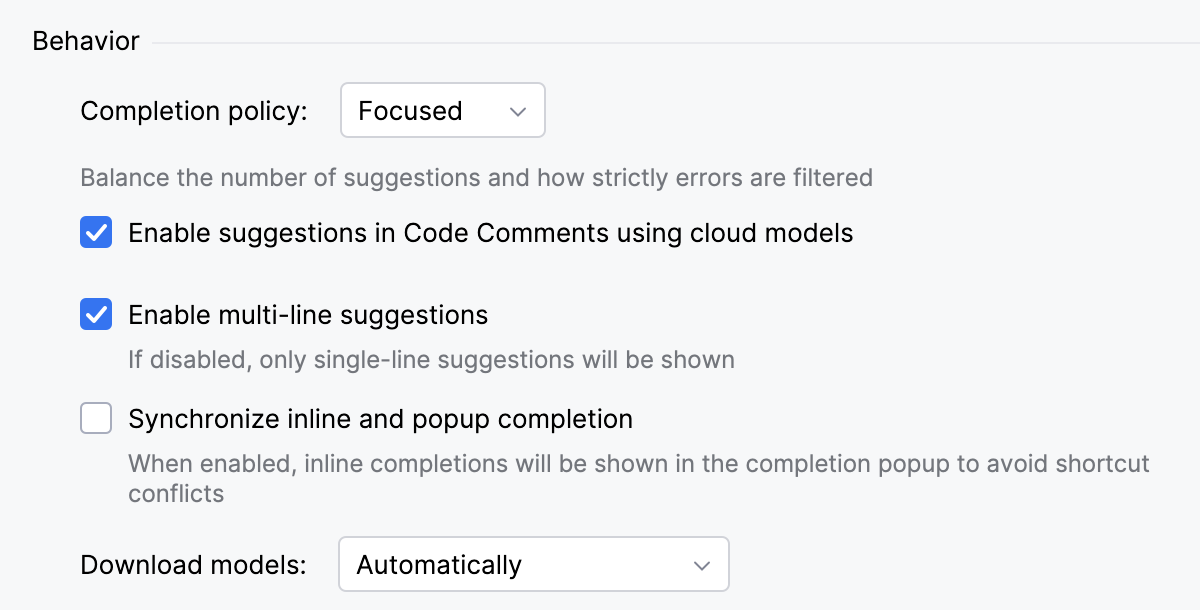
Item | Description |
|---|---|
Completion policy | This option allows you to control how many code suggestions you receive and how strictly they are filtered for accuracy and relevance. Select the number of suggestions you want to receive:
|
Enable suggestions in Code Comments using cloud models | Enable to receive suggestions in code comments. |
Enable multi-line suggestions | Clear this checkbox to leave only single-line suggestions. |
Synchronize inline and popup completions | Select this option to see suggestions listed in a popup that appears in the editor while you type. This way, you can avoid shortcut conflicts. 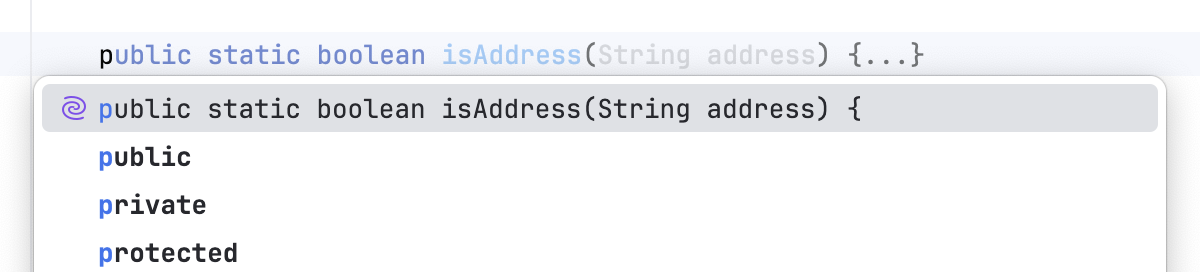 |
Download models | Select how language models are downloaded for languages that support local code completion:
|
Change the cloud completion shortcut
You can change the default cloud completion shortcut that you use to accept suggestions.
Hover over the suggestion.
In the popup that appears, click
 and select the key that you want to use for accepting suggestions
To assign your own shortcut, select Custom.
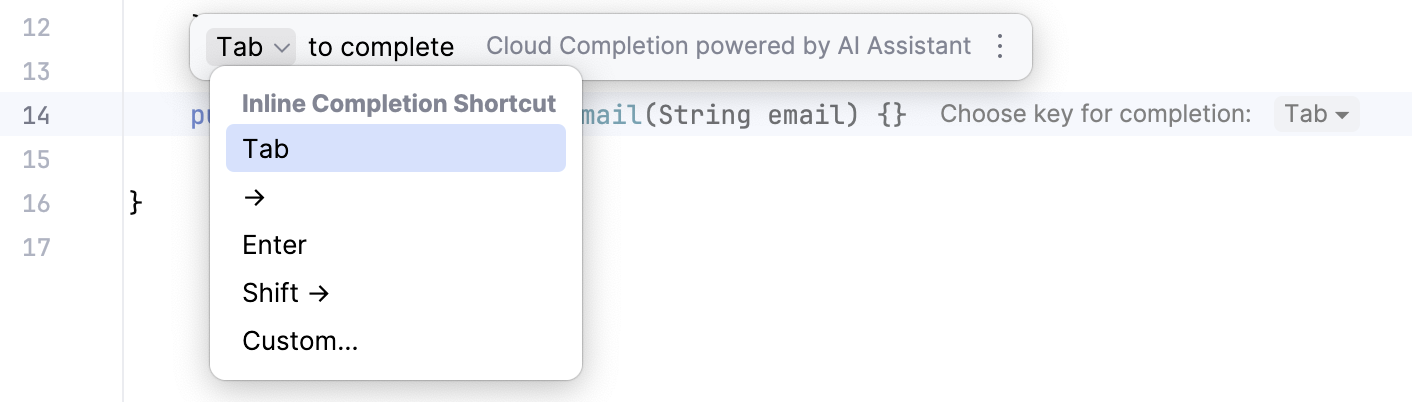
You can also change any code completion shortcuts in the anytime.
Collect AI completion logs
To analyze AI completion behavior or report inconsistencies to customer support, collect AI completion logs:
In the main menu, go to .
In the .vmoptions file, add the
-Didea.is.internal=trueVM option.In the main menu, go to or press Shift twice to open the search window.
Type Registry and press Enter.
Search for the
ml.completion.enable.diagnosticskey and enable it.Restart the IDE.
In the main menu, go to .
In the ML Diagnostics tool window, open the Logs tab.
Open any source file and start typing in the editor to trigger code completion suggestions.
Select the log entries in the Logs tab, copy them, and send to customer support.