Live watches
Live watches allow you to monitor global variables in real time without stopping the debugger or the program’s execution. This feature is particularly useful for embedded developers working with time-sensitive protocols, such as Bluetooth, or with physical processes that cannot be interrupted.
Configure a debug server
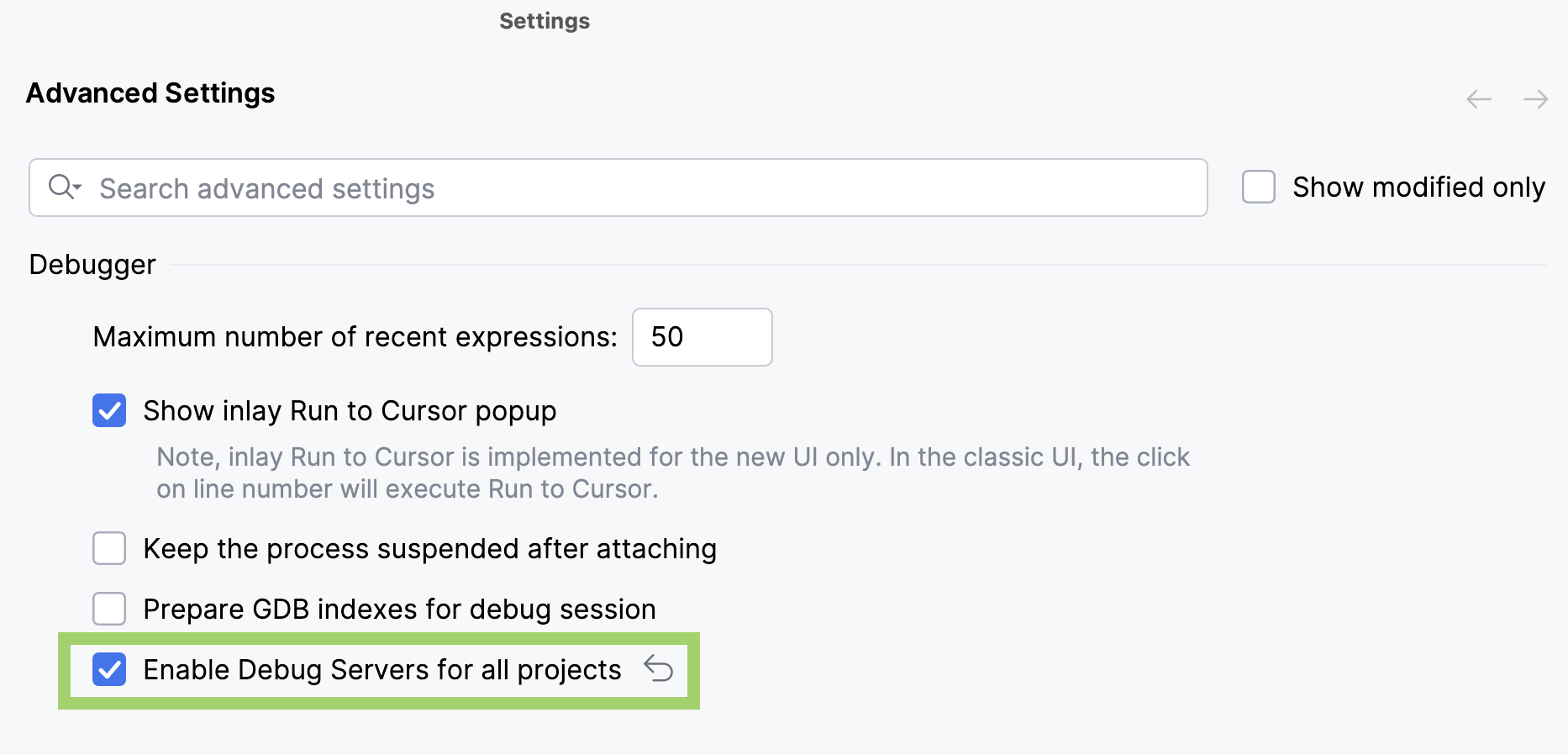
Enable debug servers in :
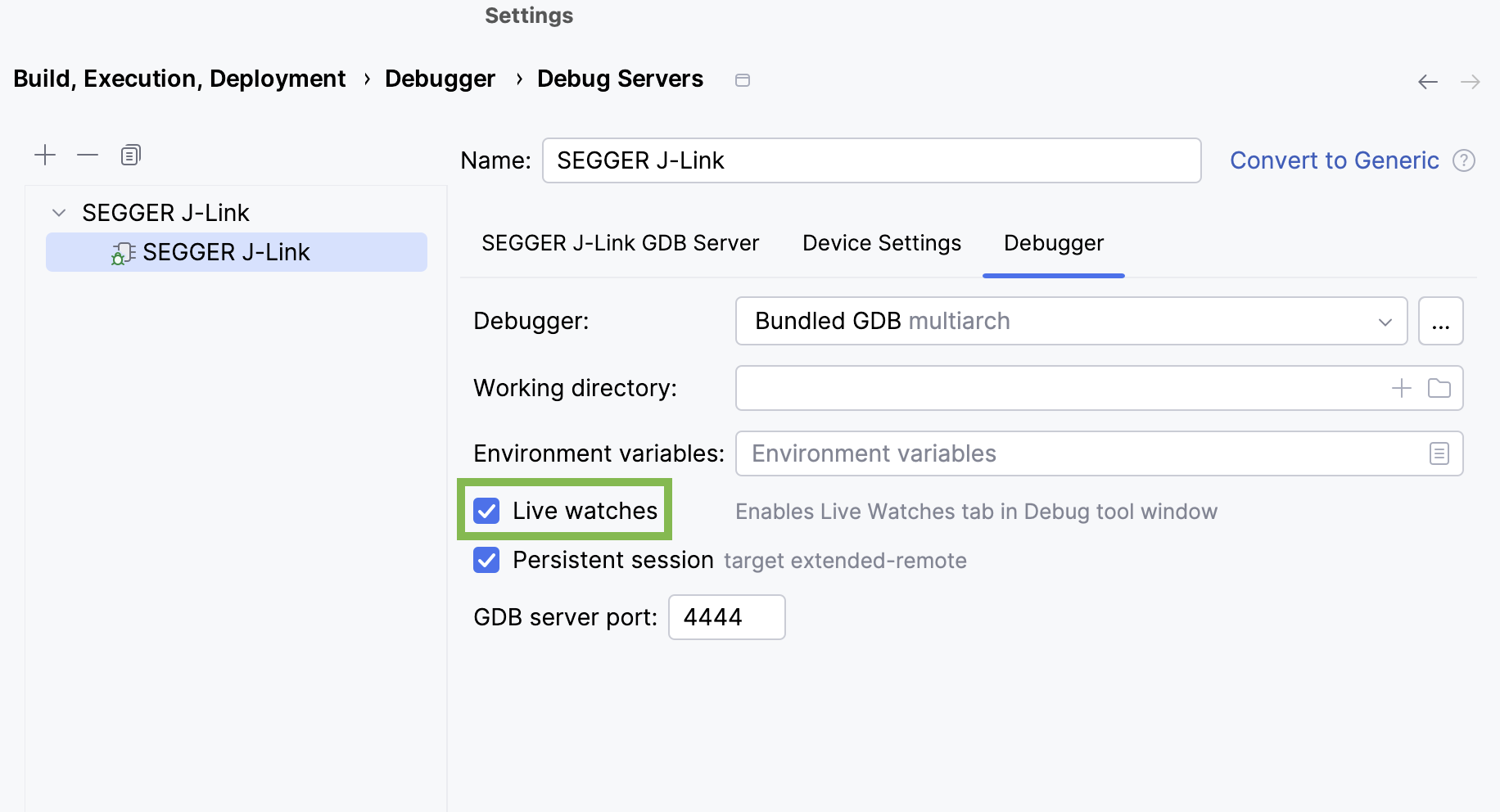
Go to and configure your debug server. Live watches are enabled by default for the SEGGER J-Link and ST-LINK debug servers in the tab:
Start debugging with live watches
Select the required run/debug configuration in the main toolbar switcher.
Run a debug session.
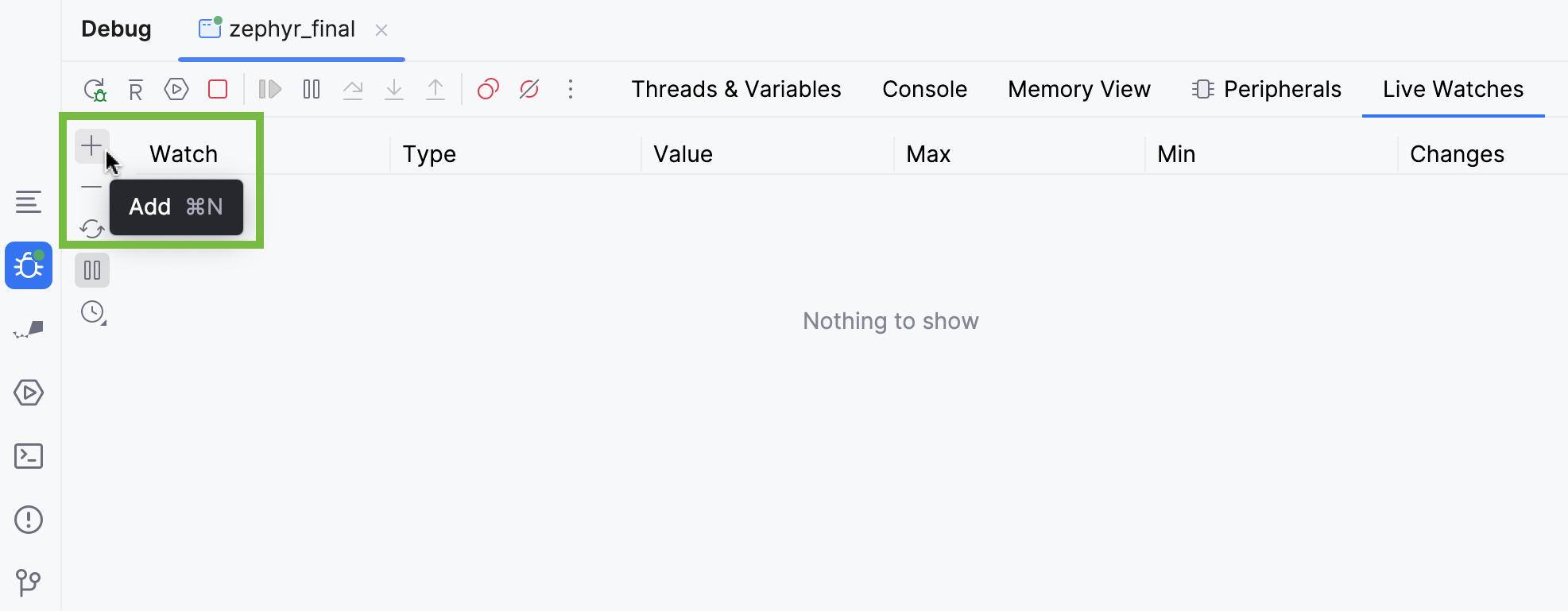
In the tool window, select the tab, then add a variable to watch:
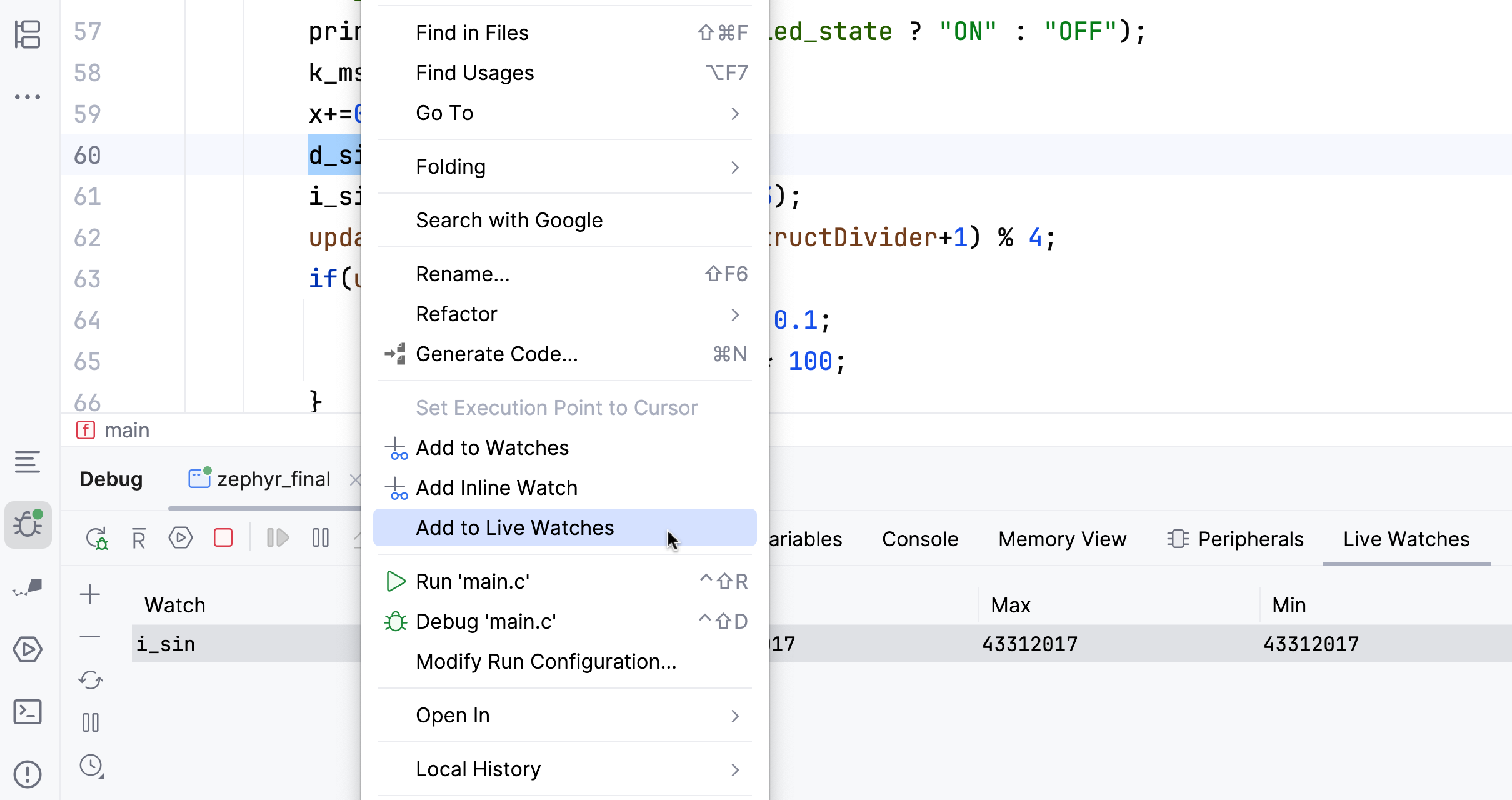
You can also add a variable by right-clicking it in the editor and selecting Add to Live Watches from the context menu:
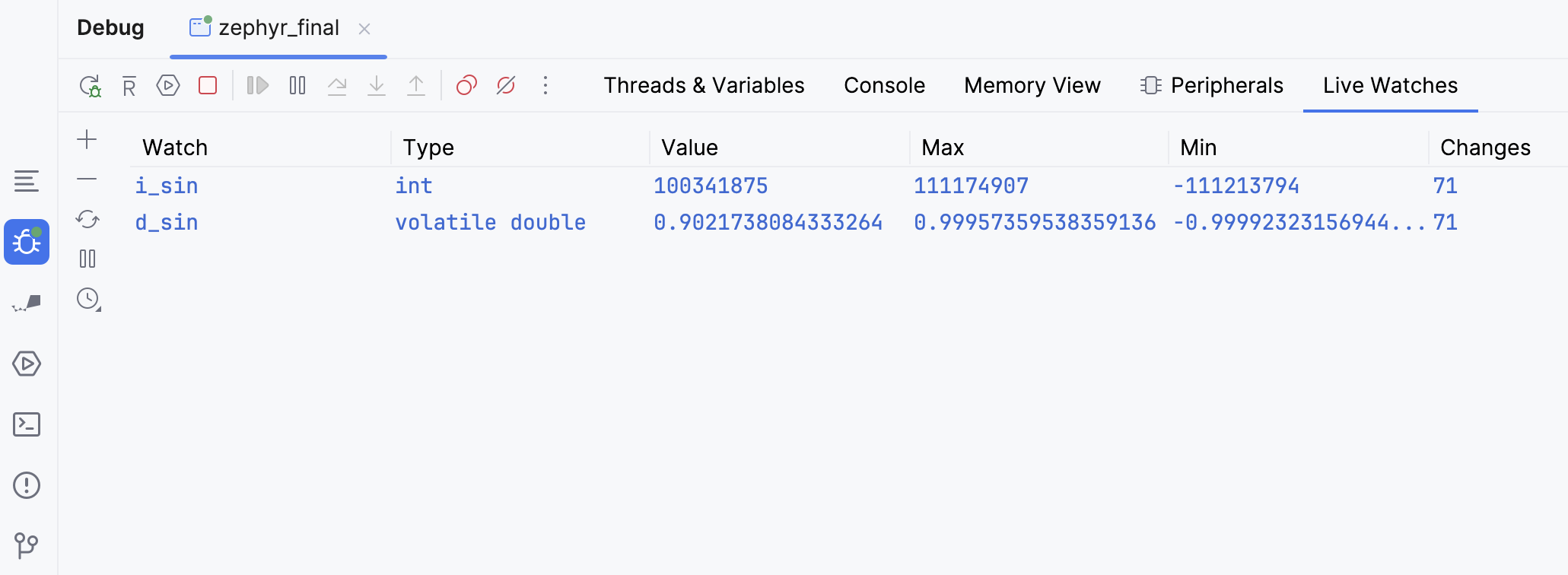
When live watches are active, you can view your variable type, its maximum and minimum values, and the number of value changes:
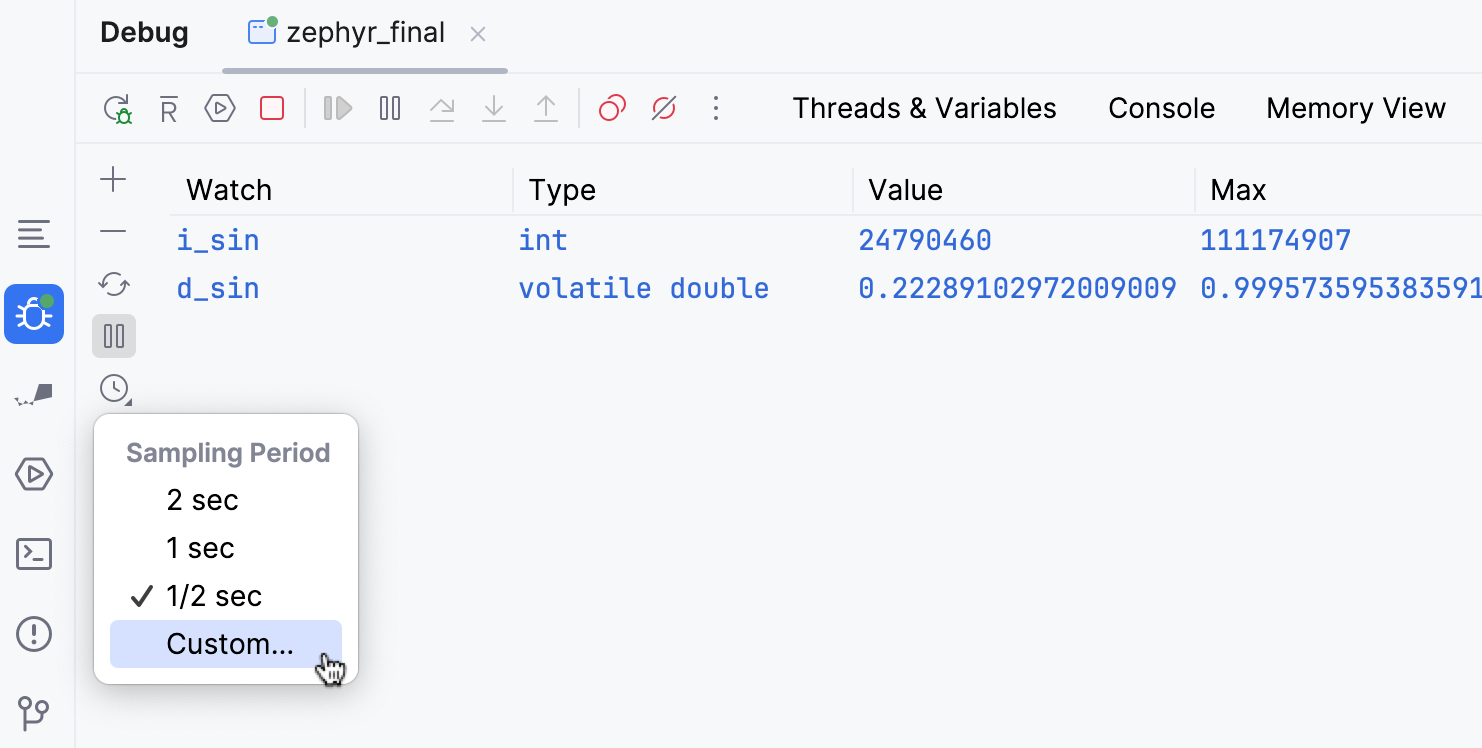
You can also configure a sampling period:
Share your feedback
We are currently improving and extending the functionality of live watches. If you encounter any issues or have any suggestions, share them in CPP-22056. You can also use Help | Submit Feedback… in the main IDE menu.