Out-of-Process mode
This long-anticipated architectural change decouples the ReSharper process from the Visual Studio one and lays the foundation for better stability and performance in the future.
Advantages | Disadvantages | |
|---|---|---|
In-Process | Stable and tight integration with Visual Studio via the in-process IDE API | Heavy analyses can slow down the UI |
Out-of-Process | Performs heavy analysis tasks outside the Visual Studio process, eliminates UI freezes, keeps typing smooth, and resolves many performance issues |
You can always learn whether the Out-of-Process mode is enabled and quickly toggle it via the status bar indicator:
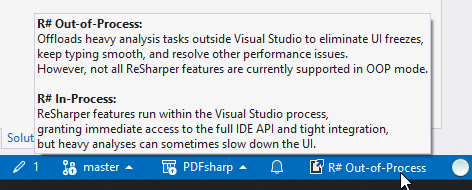
Toggle the Out-of-Process mode
Do one of the following:
In the main menu, select .
Go to the page of ReSharper options Alt+R, O, toggle the Run ReSharper in separate process checkbox, and then click Save and Restart.
Right-click the Out-of/In-Process indicator on the status bar and choose the corresponding action.
ReSharper will reinitialize without having to restart Visual Studio.
Current limitations
As of version 2026.2, debugger features, including Visual helpers for debugger, Predictive debugger, compiled modules debugging, breakpoints navigation will not work when the Out-of-Process mode is enabled.