Configuring Build Steps
A build step is the smallest unit of a CI/CD workflow. It defines a specific set of actions that are executed as a whole. Build steps belong to build configurations and pipeline jobs.
Build Steps in Configurations and Pipelines
TeamCity provides a wide range of build steps designed for specific build tools, such as .NET, Maven, NAnt, or Xcode.
The full set of steps is currently available for build configurations. Pipelines, introduced in version 2025.07, support a limited subset. However, you can use the script step to build any project type, as it can run commands with any tools installed on an agent machine.
Add Steps via TeamCity UI
Build Configurations
Open configuration settings and navigate to the Build steps settings tab.
Click Add build step to pick a build step manually, or Auto-detect build steps to let TeamCity scan a remote repository targeted by a VCS root and suggest appropriate steps.
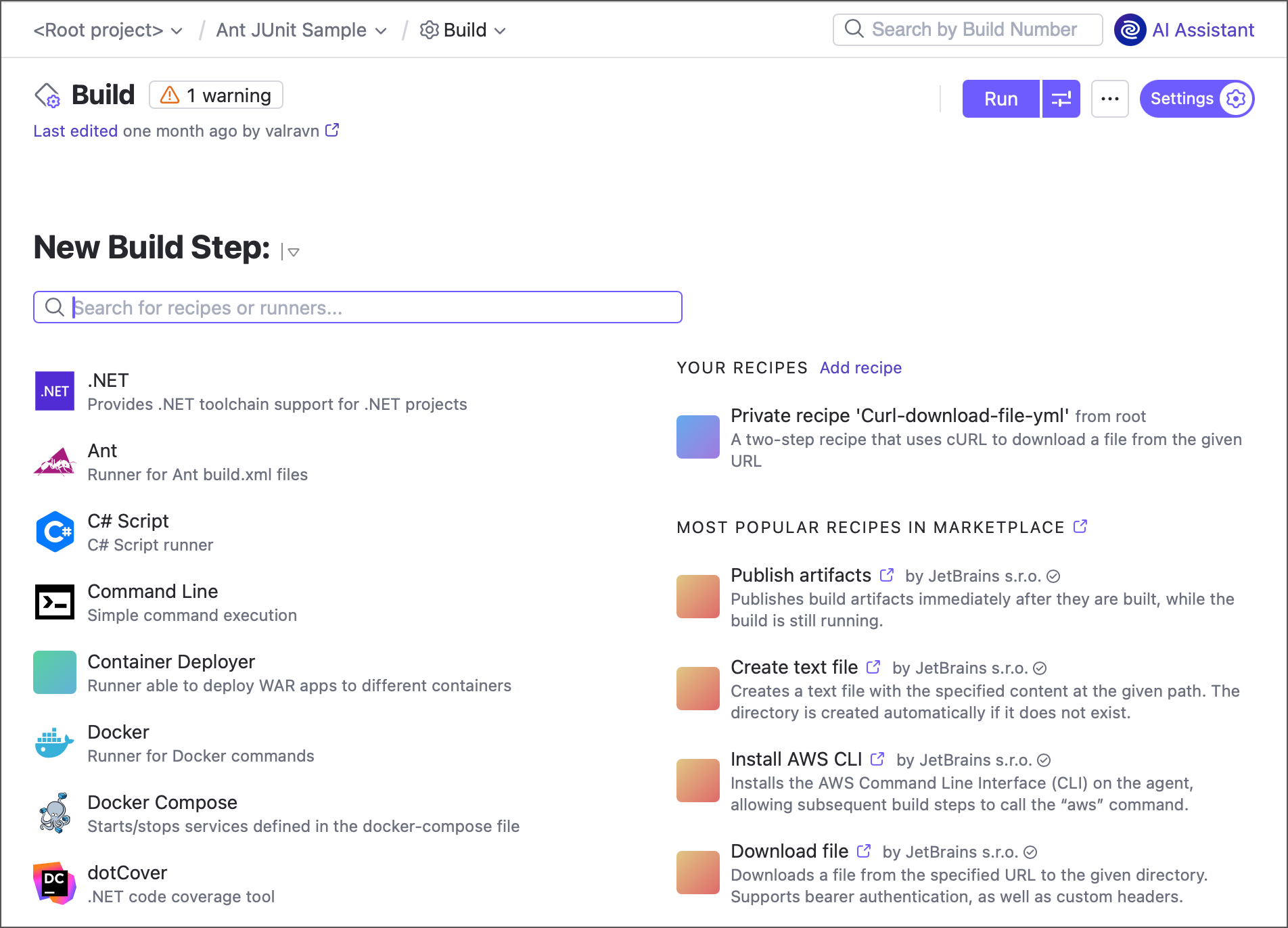
The New Build Step page includes two columns:
Default steps — predefined by JetBrains.
Recipes (formerly meta-runners) — custom XML or YAML steps created by the TeamCity community or your team.
Access to public recipes from JetBrains Marketplace depends on your project settings. See the following article to learn more: Working with Recipes.
Pipelines
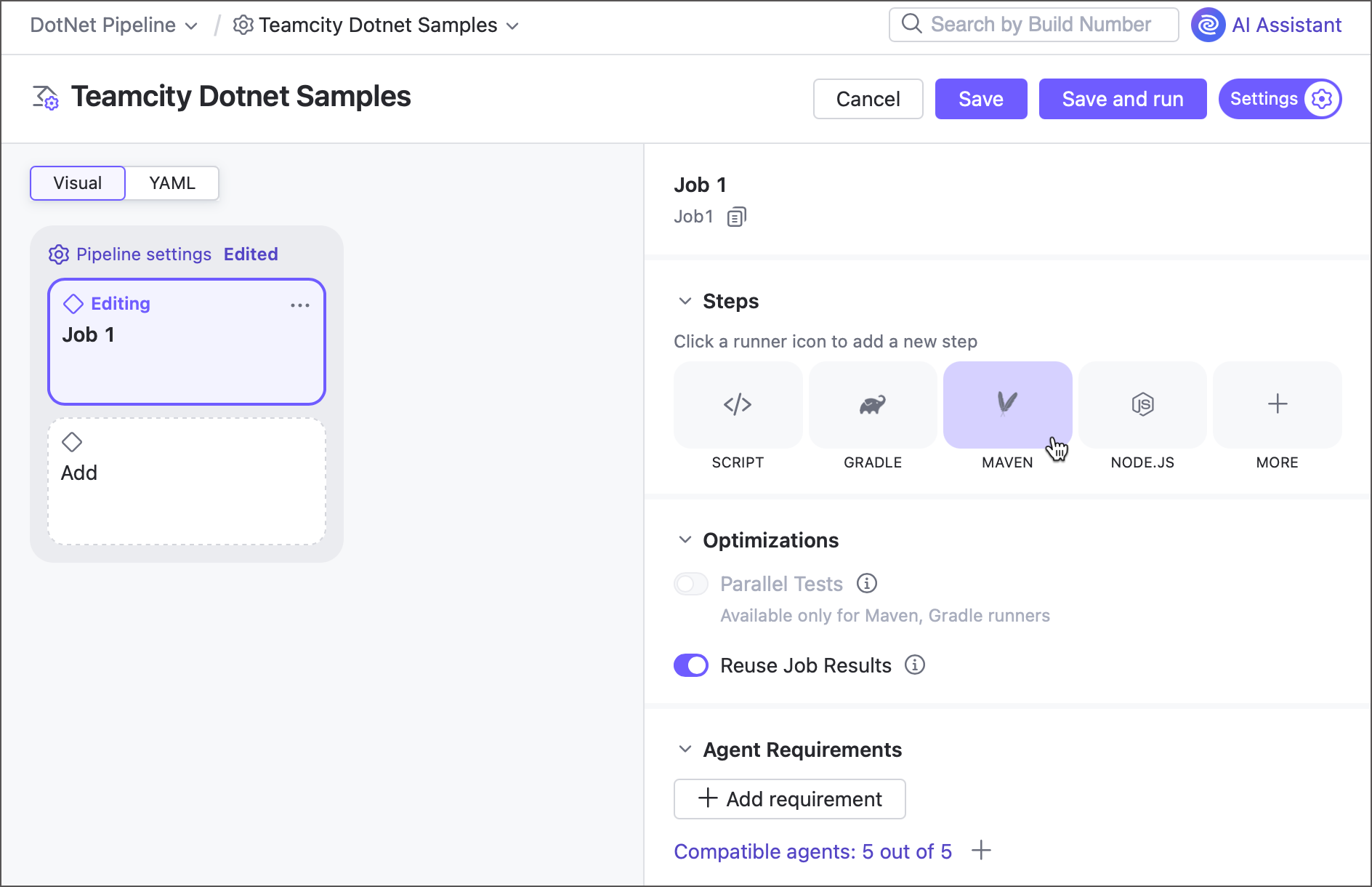
Open Job Settings and scroll to the Steps section in the side settings panel.
Click any tile to add a corresponding build step.
Add Steps in Code
TeamCity supports configuration-as-code in Kotlin DSL and YAML (currently only for pipelines) formats.
Step Execution Conditions
Build steps run top to bottom, in the order they appear in the UI or configuration code. By default, TeamCity runs all steps until one fails. If a step fails, the build is marked as failed and remaining steps are skipped.
You can override this behavior in build configurations by setting a custom execution policy that defines when a step should run.
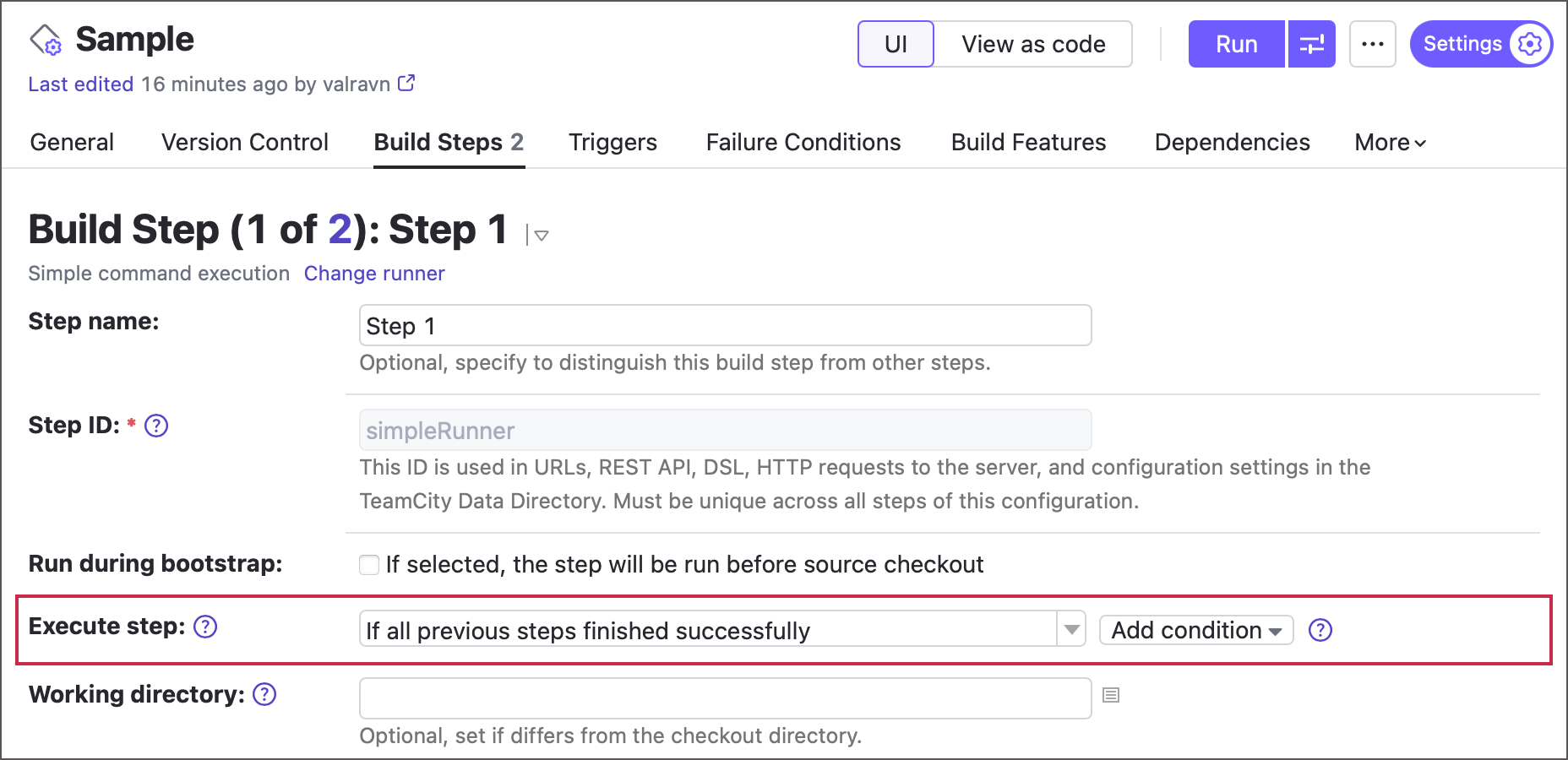
Execution conditions consist of two parts:
A general rule selected from a corresponding drop-down menu.
Optional additional conditions added via the Add condition menu.
General Execution Rules
Only if build status is successful — before starting the step, the build agent requests the build status from the server, and skips the step if the status is "failed". This considers the failure conditions processed by the server, like failure on test failures or on metric change. Note that this still may be not exact as some failure conditions are processed on the server asynchronously (TW-17015).
Only if build status is failed — same as above, but the agent skips the step if the build status is "success". This condition is useful for rollback or cleanup actions.
If all previous steps finished successfully — runs if all prior steps on the agent succeeded, without checking the build status reported by the server.
Even if some of the previous steps failed — runs regardless of prior step results or build status.
Always, even if build stop command was issued — ensures the step runs even if the build was canceled. For example, if two steps use this setting and the build is stopped during the first, the second will still execute. A second stop command fully terminates the build.
Additional Conditions
You can refine execution behavior with custom conditions. For example, skip steps in personal builds or non-default branches, or run OS-specific steps by checking the teamcity.agent.jvm.os.name parameter value.
See the following topic for more information: Build Step Execution Conditions.
Bootstrap Steps
A bootstrap step is performed right after a build is triggered, before a build agent checks out source files. This allows you to add a runner (typically the Command Line (Script) one) that performs initial setup and ensures the following steps run as expected.
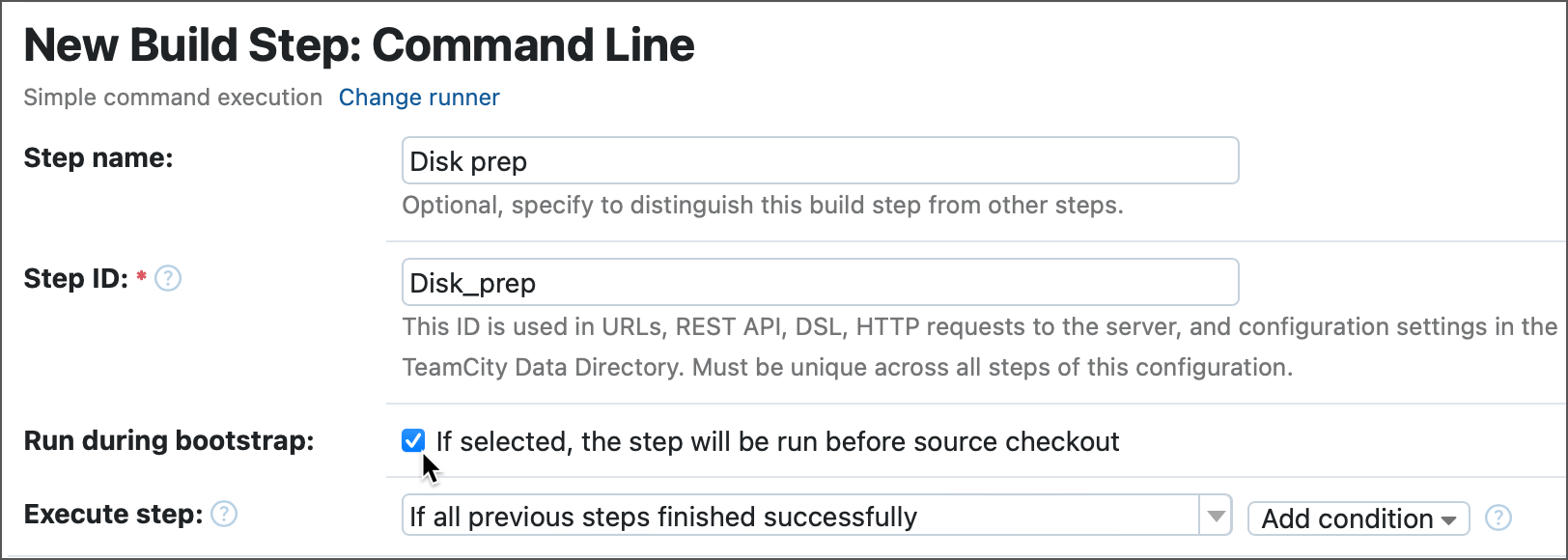
To enable bootstrap steps, first add the teamcity.internal.bootstrap.steps.enabled=true entry either to TeamCity Internal Properties or to the individual project (as this project's configuration parameter). This setting allows you to do the following:
Enable the Run during bootstrap option in step settings.
On the configuration's Build Steps page, click Reorder build steps and drag the required step before the "Preparation stage" block.
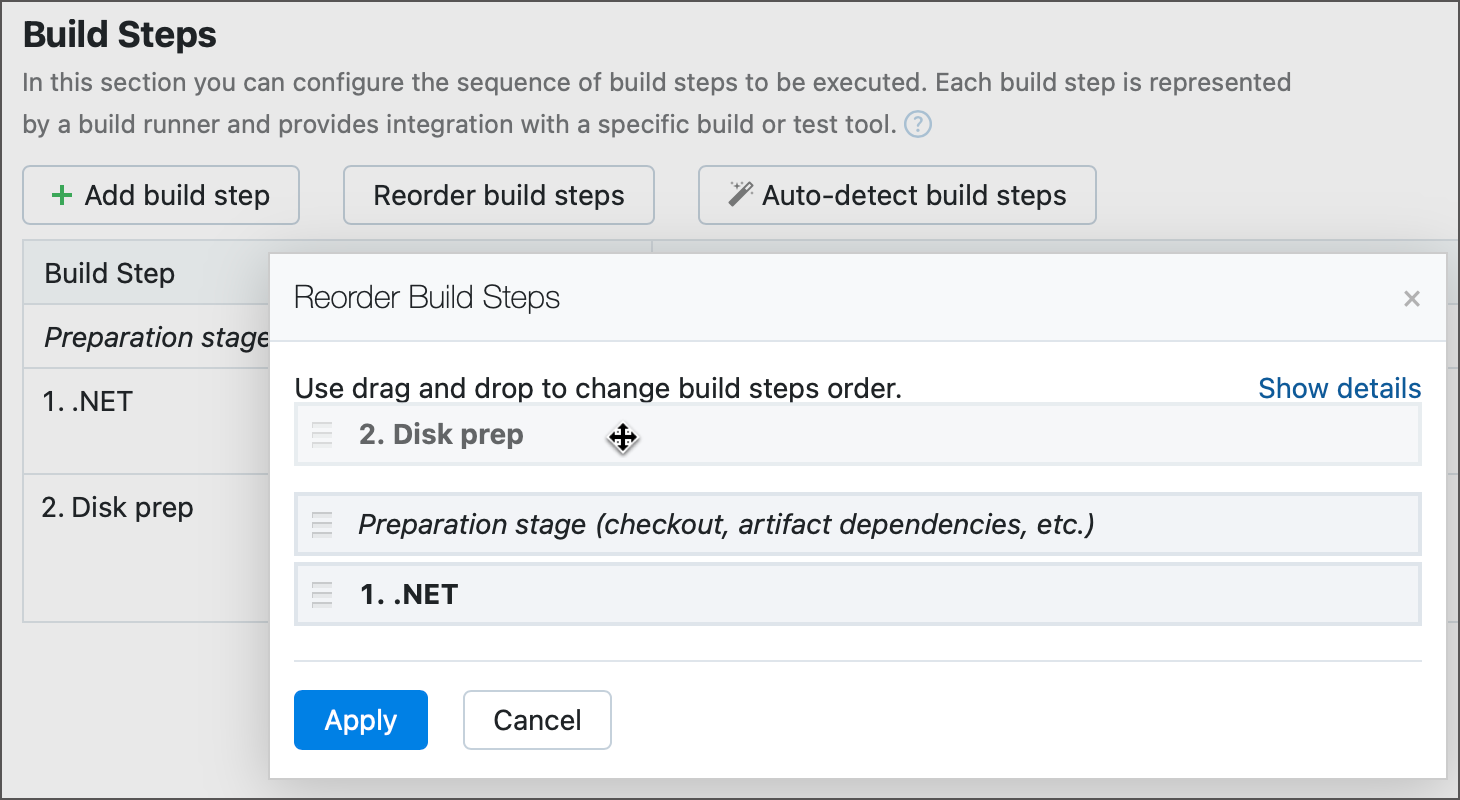
You can create a build configuration with a bootstrap step and turn this configuration into a template. Such template allows you to quickly create more configurations that perform required prerequisite actions before the actual building process starts.
Recipes are considered as a single step and thus cannot be split into parts performed before and after a checkout.
To turn a regular step into a bootstrap one in Kotlin DSL, add a teamcity.step.phase parameter and set its value to "bootstrap".
Agentless Build Steps
Agentless build steps are steps that can run without a build agent attached, in an external software.
Normally, a running build occupies a build agent until the very finish, even if its final steps are executed outside TeamCity. However, if a build does not need its agent for some remaining steps, it can detach from this agent. The agent becomes available and can be instantly assigned to another build.
This approach allows saving agents' work time and is optimal for configurations that use third-party tools for finalizing a build: for example, to run numerous tests or deploy a project. Such a build can finish outside TeamCity; the TeamCity server will detect its status reports directly, without using an agent as a mediator.
Let's consider an example build that consists of three steps: compilation, testing, and deployment. All of them are processed by an agent even though the deployment step is actually performed by the external software. The agent is just polling the external software and reporting build statuses to the TeamCity server.
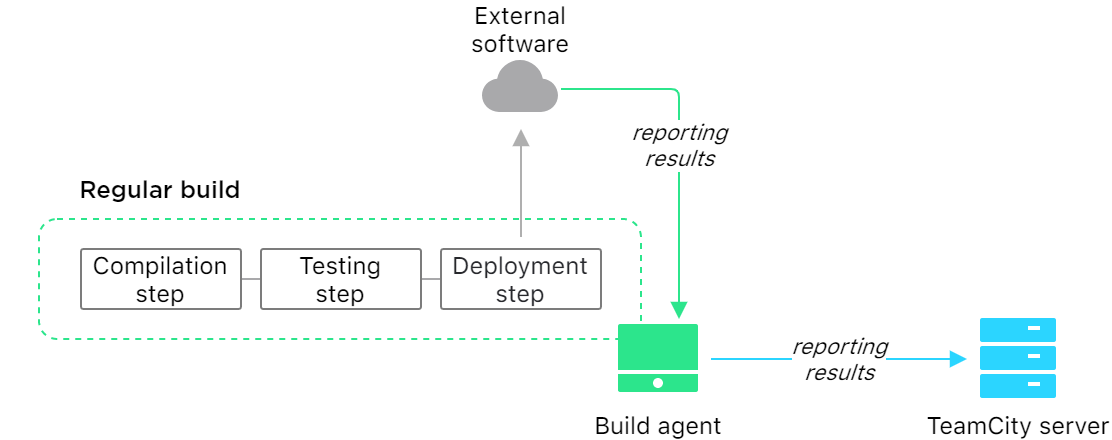
With the agentless approach, the agent does not need to handle the final deployment step and can run other builds from the queue. The TeamCity server will catch the following reports directly from the external tool.
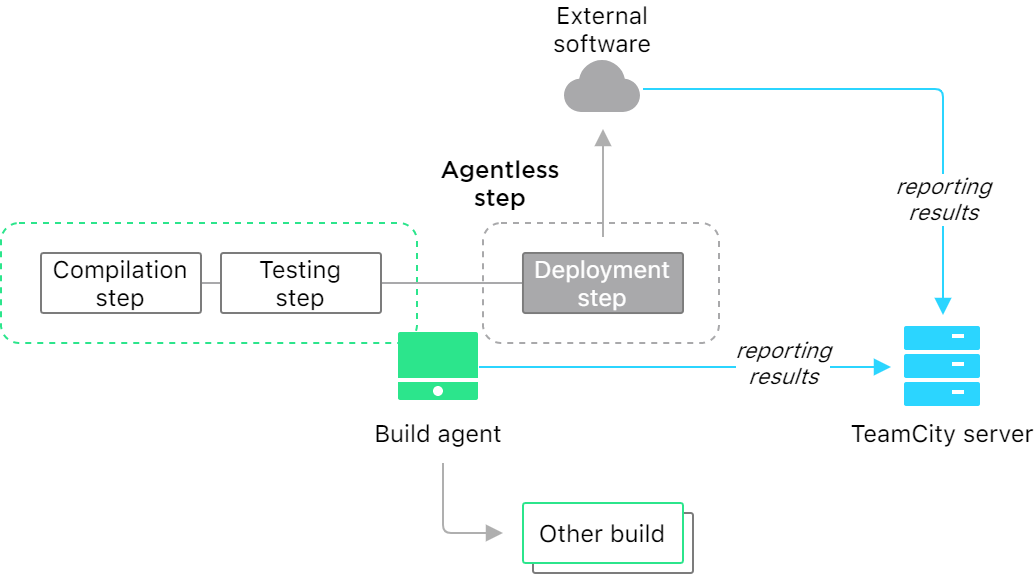
See also: Detaching Build from Agent
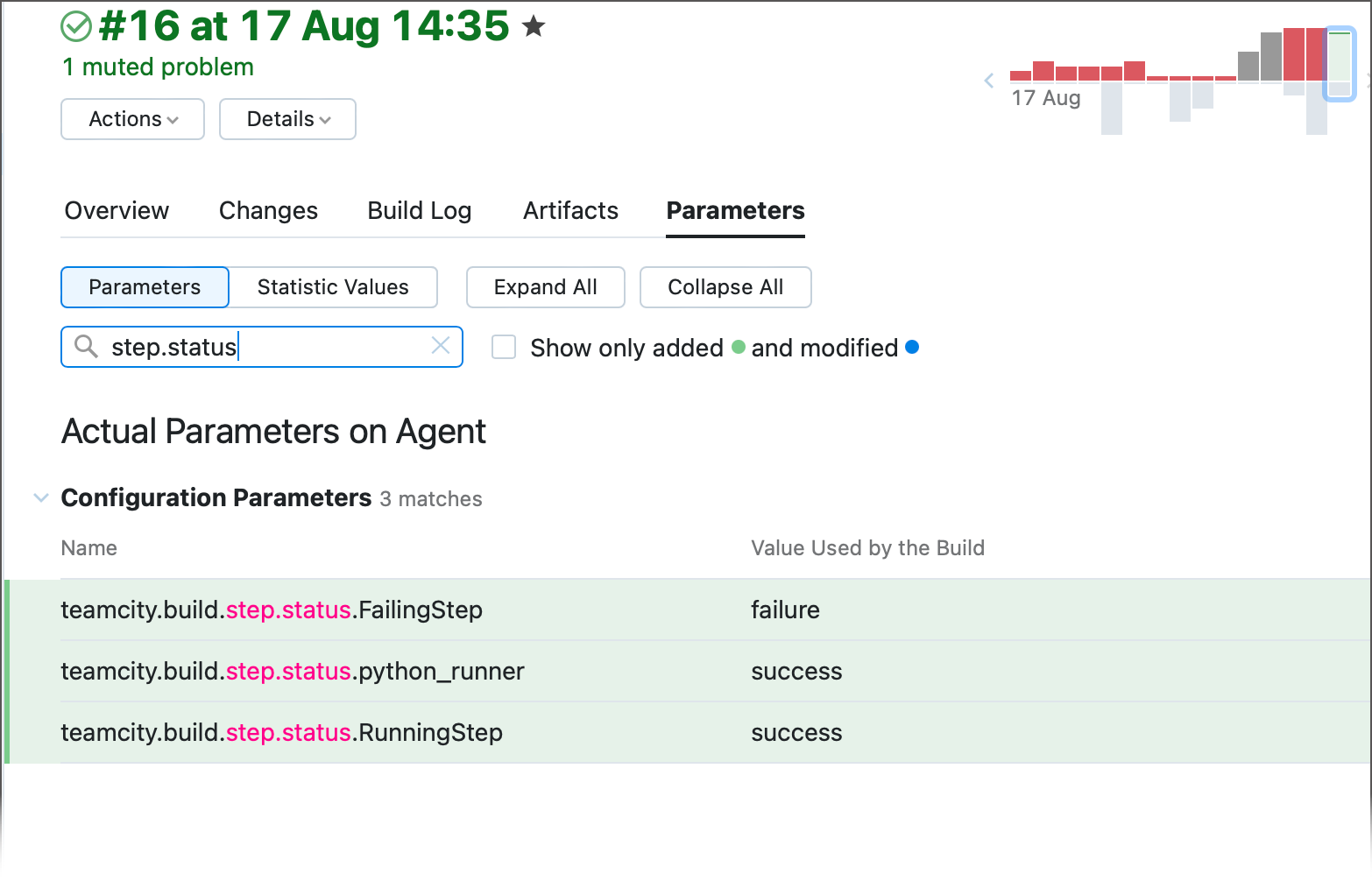
Step Status Parameters
TeamCity provides teamcity.build.step.status.<step_ID> parameters that report the status of the step with the given ID. These parameters can be used, for instance, for crafting fine-grained execution conditions.
Step IDs are shown below their names, and are editable only when you create them.
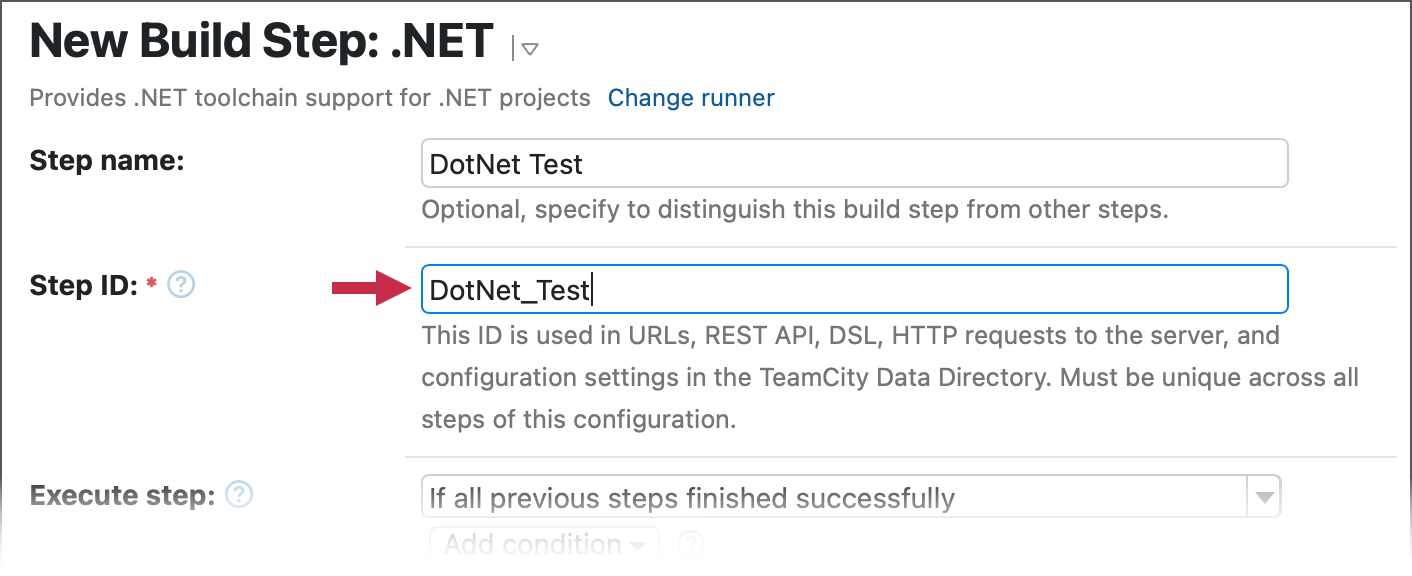
The available values of the teamcity.build.step.status.<step_ID> parameters are:
success— when a step finishes with no errors.failure— when a step failed. This status is reported even when all build problems were muted.cancelled— when a build was cancelled while this step was running.
The teamcity.build.step.status.<step_ID> parameters appear only after their corresponding steps finish, and are not available right from the moment a build starts. This means neither steps that are still running, nor skipped steps have their teamcity.build.step.status.<step_ID> parameters available.
You can check all step statuses in the Parameters Tab of the build results page...
...or via TeamCity REST API.
Additional Information
You can copy a build step from one build configuration to another from the original build configuration settings page.
You can reorder build steps as needed. Note that if you have a build configuration inherited from a template, you cannot reorder inherited build steps. However, you can insert custom build steps (not inherited) at any place and in any order, even before or between inherited build steps. Inherited build steps can be reordered in the original template only.
You can disable a build step temporarily or permanently, even if it is inherited from a build configuration template, using the corresponding option in the last column of the Build Steps list.