Add and customize prompts
You can define your own custom prompts or modify the built-in prompts used by AI Assistant for specific AI actions:
Custom prompts are added to the AI Actions menu and can be invoked manually when needed.
Built-in prompts are used when you invoke the corresponding AI action.
Add your own prompts
You can add your own prompts to the Prompt Library and use them from the AI Actions menu.
Do one of the following:
Right-click anywhere in the editor to open the context menu, select AI Actions, and click Add Your Prompts.
Press Alt+Enter, select AI Actions, and click Add your prompts.
Press Ctrl+Alt+S to open settings and then select .
Click
 to create a new prompt.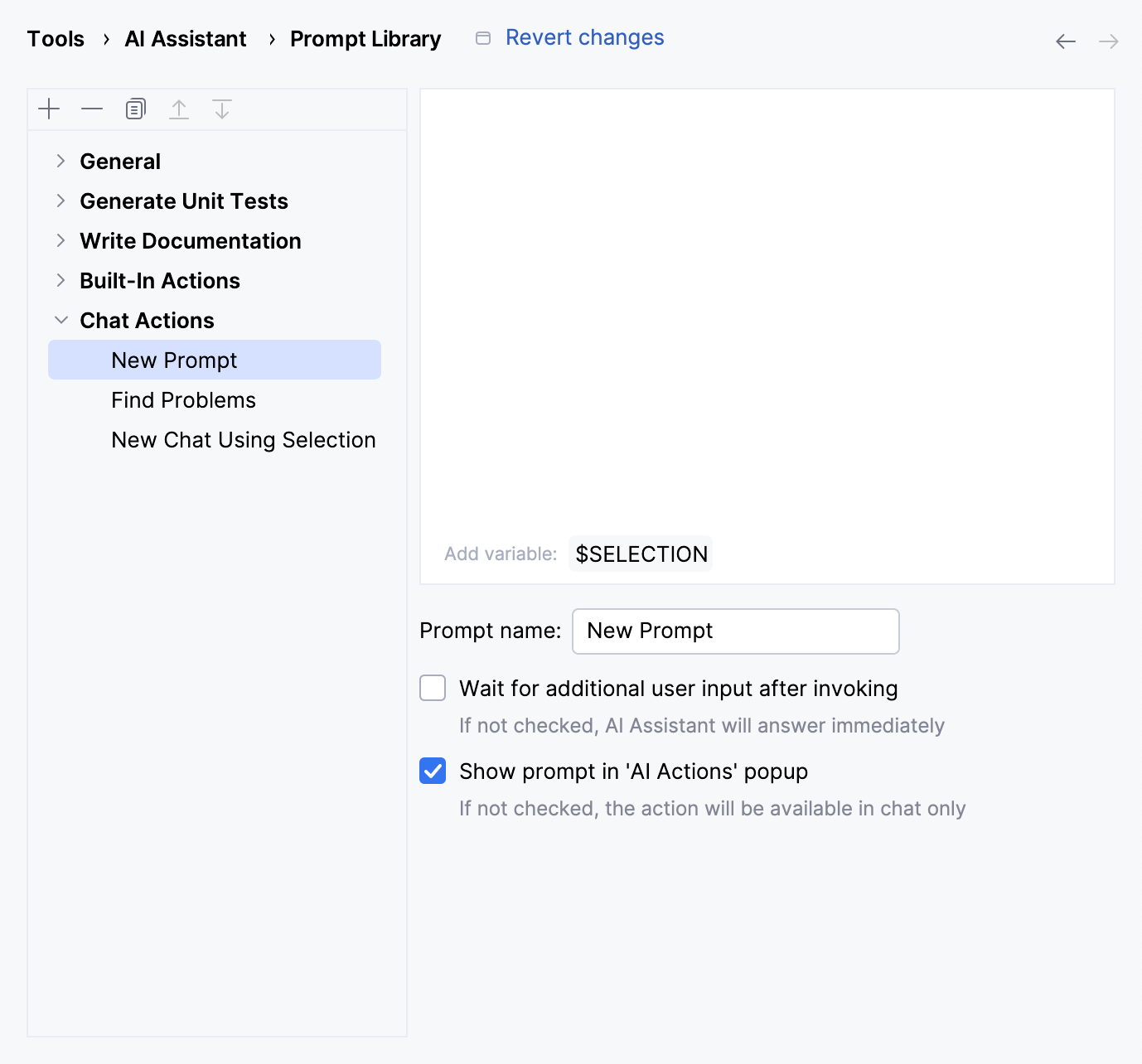
In the text field, write the prompt.
If needed, click the
$SELECTIONvariable to insert a Markdown-formatted code block containing the current code selection and its language name.Edit the Prompt name.
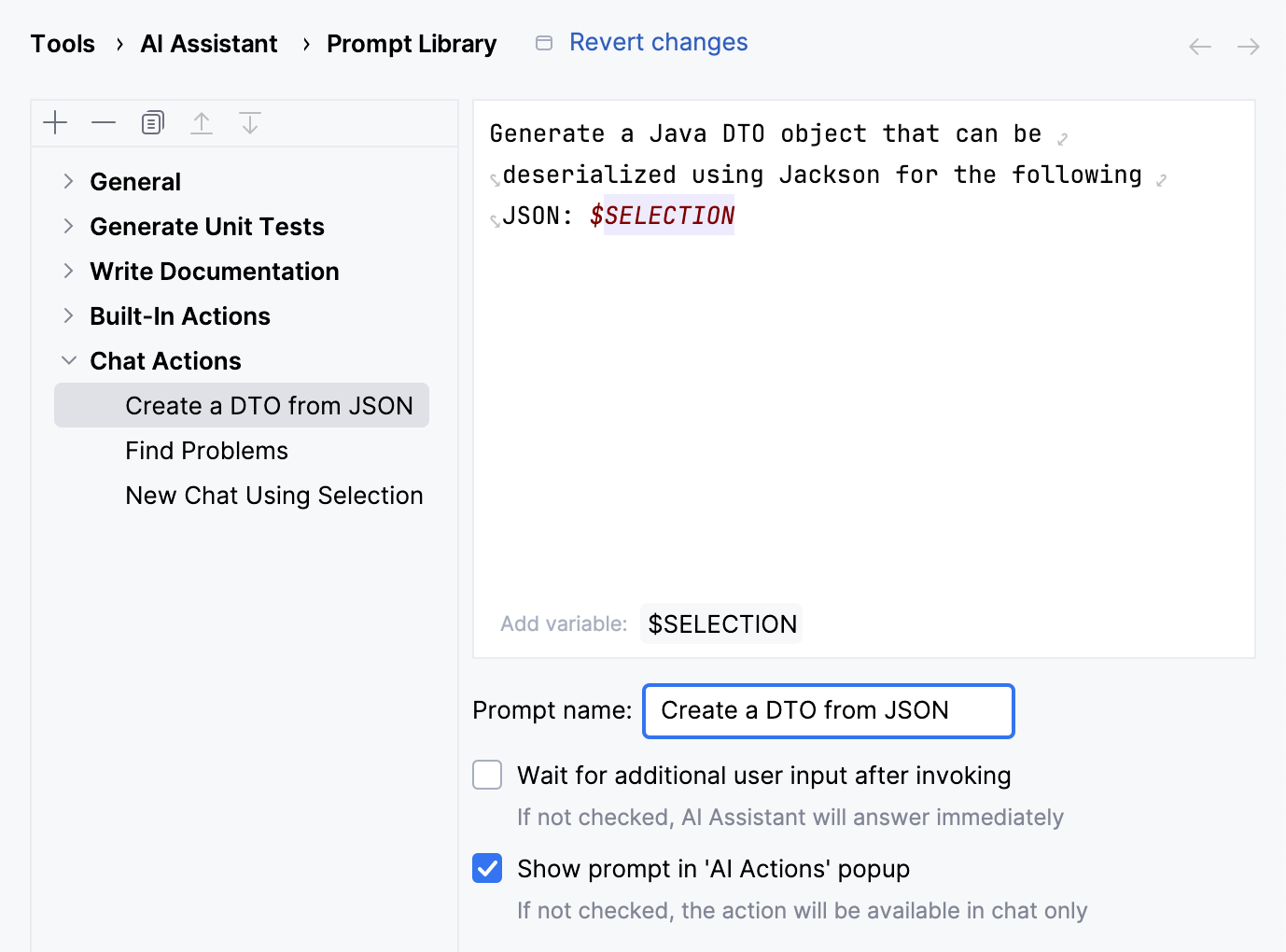
Enable the Wait for additional user input after invoking setting if you want AI Assistant to wait for additional input from you in the chat after invoking the prompt.
Leave the Show prompt in 'AI Actions' popup enabled if you want your new prompt to be listed in the AI Actions menu.
You can also move your custom prompts up or down using the
 and
and  buttons to change the order in which the prompts are displayed in the AI Actions popup.
Click Apply.
Once you create a prompt, it becomes available for use from the AI Actions menu that can be opened by right-clicking anywhere in the editor or pressing Alt+Enter.
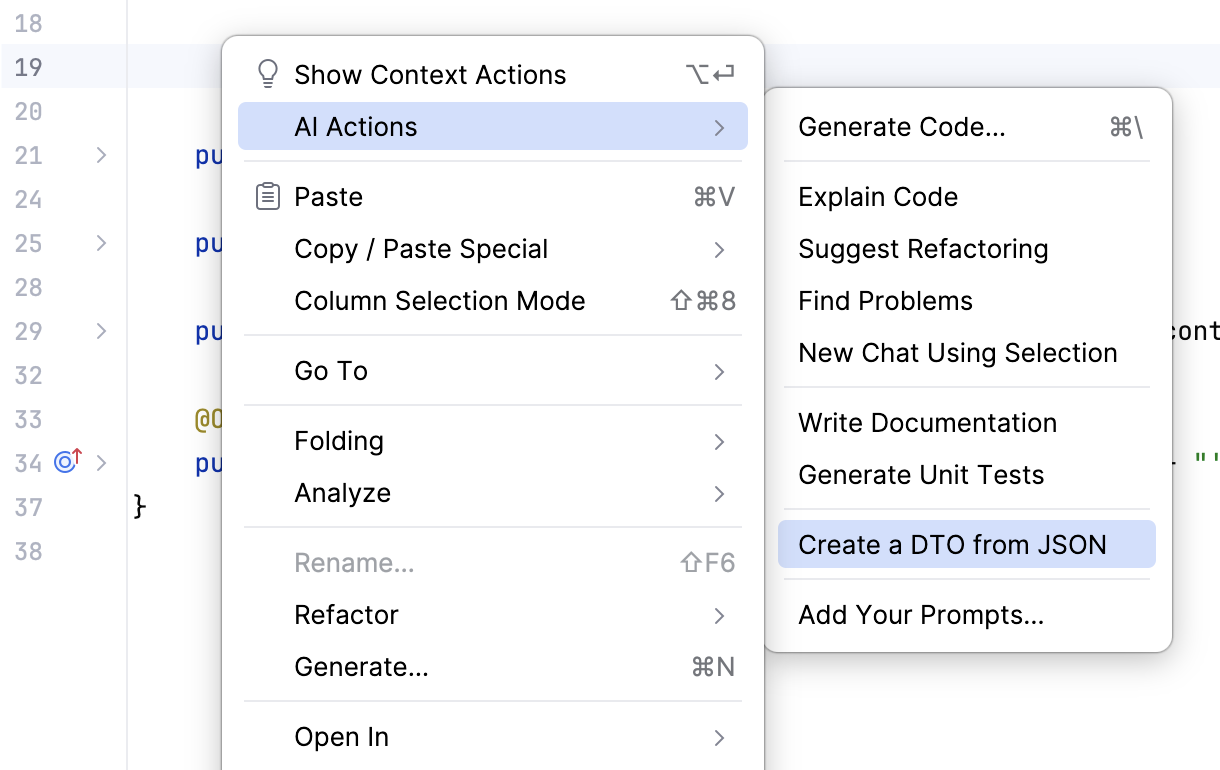
You can edit or delete it at any time.
Modify built-in prompts
You can adjust how AI Assistant behaves when using specific AI actions by modifying the prompts associated with them. For example, you can add custom guidelines for features such as commit message generation, unit test generation, and others.
Do one of the following:
Right-click anywhere in the editor to open the context menu, select AI Actions, and click Add Your Prompts.
Press Alt+Enter, select AI Actions, and click Add your prompts.
Press Ctrl+Alt+S to open settings and then select .
Select the action for which you want to modify the prompt.
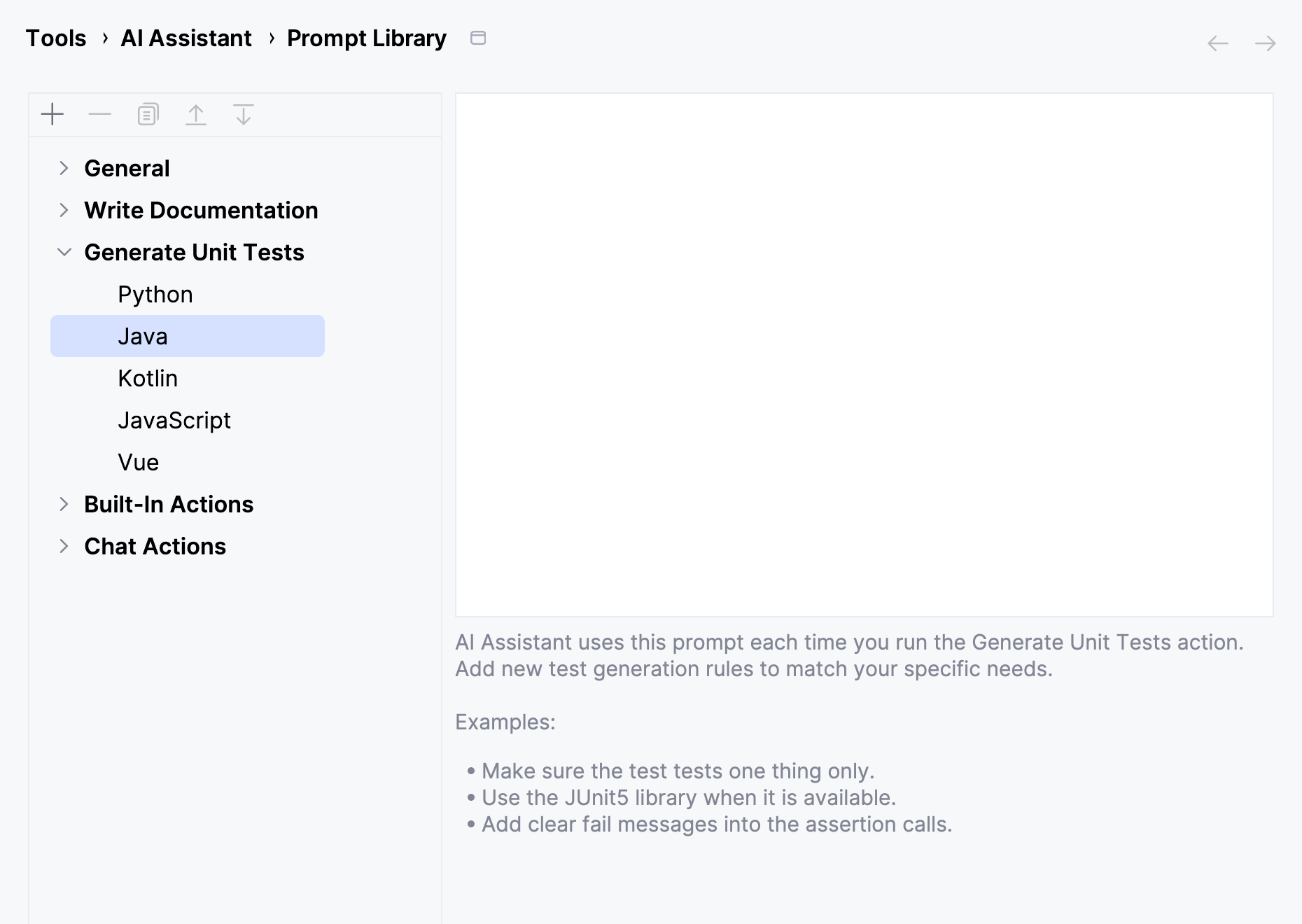
Add new instructions.
Click Apply.
The instructions you provide are appended to the default prompt, extending the behavior of the corresponding action.
Save a prompt written in AI Chat
If you want to save a prompt you have written in AI Chat, do the following:
Hover the mouse over the prompt and click
 .
.Select the
 Save Current Prompt option from the menu.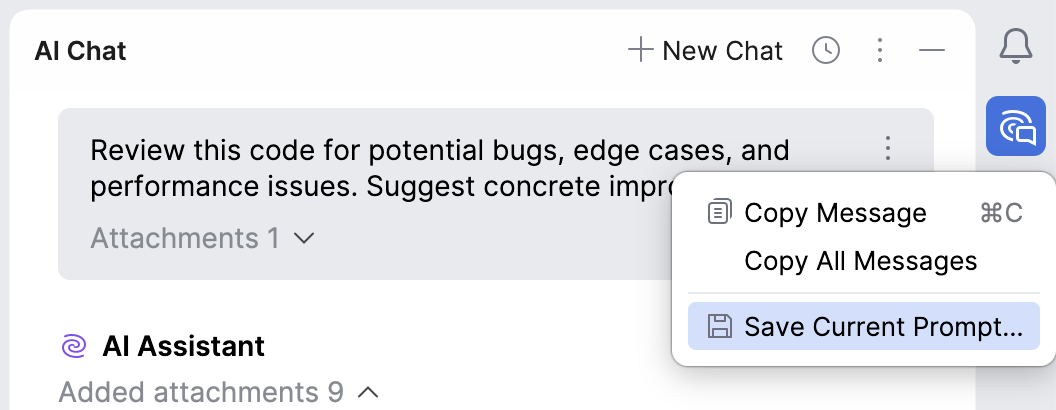
In the Prompt Library dialog, configure the prompt settings.
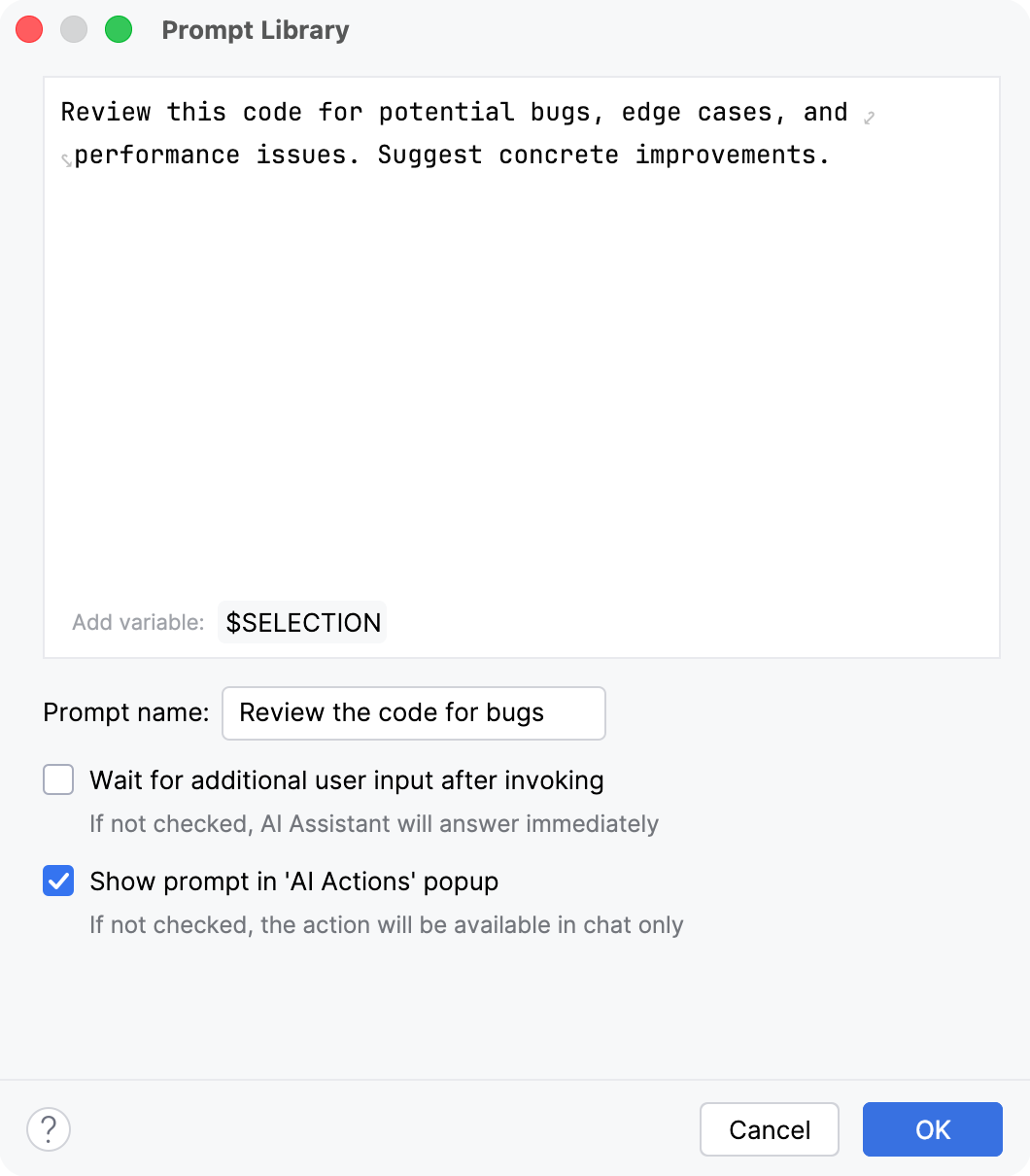
Click OK.
The saved prompt can be invoked from the AI Actions menu.