Skills
Skills are reusable units of functionality that extend an agent’s capabilities. Each skill provides a specific ability that the agent can use to perform tasks or handle specific types of requests. By adding skills, you can enable the agent to support a wider range of scenarios without changing its core behavior.
Currently, skills are supported by the following agents:


Import skills
If you are already using agents outside the IDE (for example, Claude Code or Codex) and have skills configured for them, AI Assistant will detect and suggest importing such skills into the IDE. This allows you to reuse your existing configuration for agents within the IDE.
To import skills, click Import to in the notification.
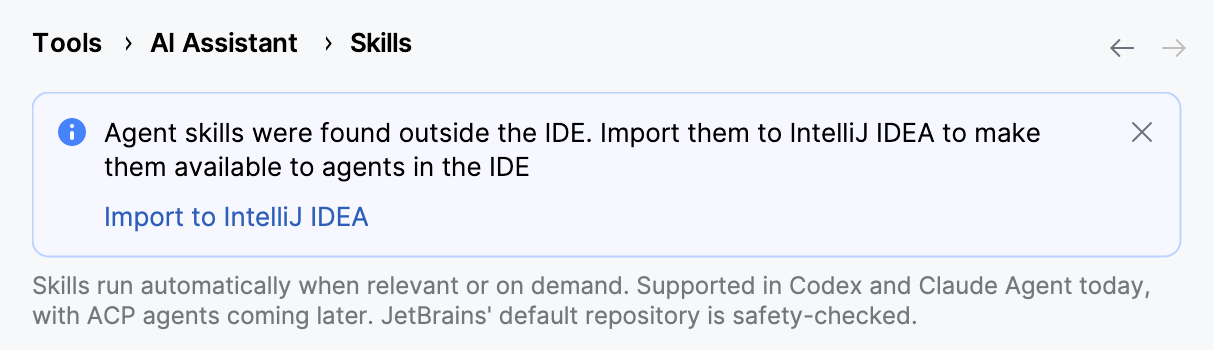
This action installs a skill into the IDE by importing it from the agent's global configuration on your machine (for example, from ~/.codex/skills or ~/.claude/skills).
Configure skills sources
Skills can be loaded from multiple sources. You can combine them to build a collection of skills tailored to your workflow.
You can add skills from the following sources:
Local directories – directories on your machine that contain skill definitions. All valid skills in the selected directory are automatically detected and listed for use.
External registries – remote sources that provide access to published skills. After you add a registry, its skills appear alongside local ones.
Add local skill directories
Navigate to .
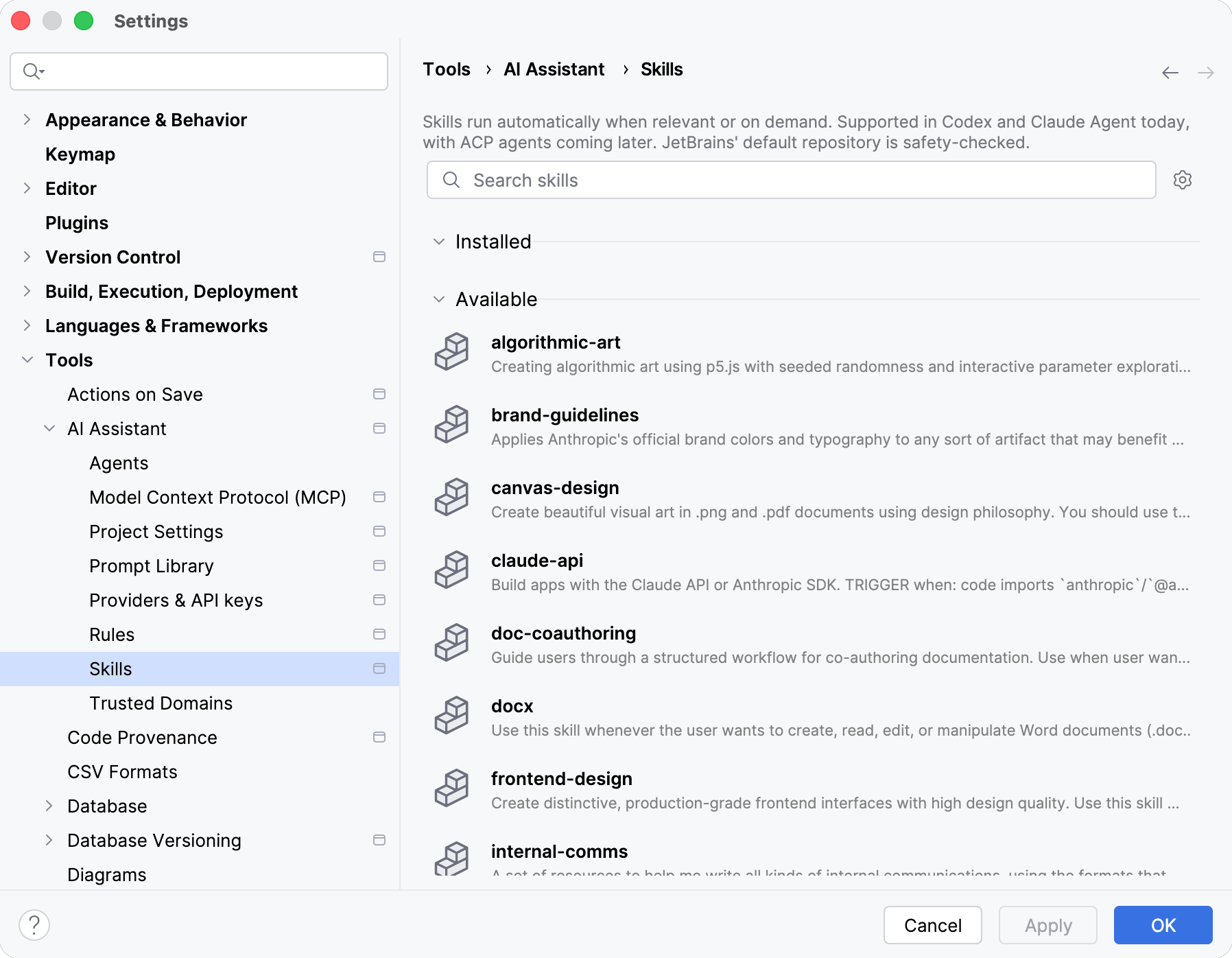
Click the
 Skills Settings button and select Manage Skill Directories.
In the Manage Skill Directories dialog, click
 in either the Global or Project section to add a new directory.
Skill directories added in Global are available across all projects, while those added in Project are available only in the current project.
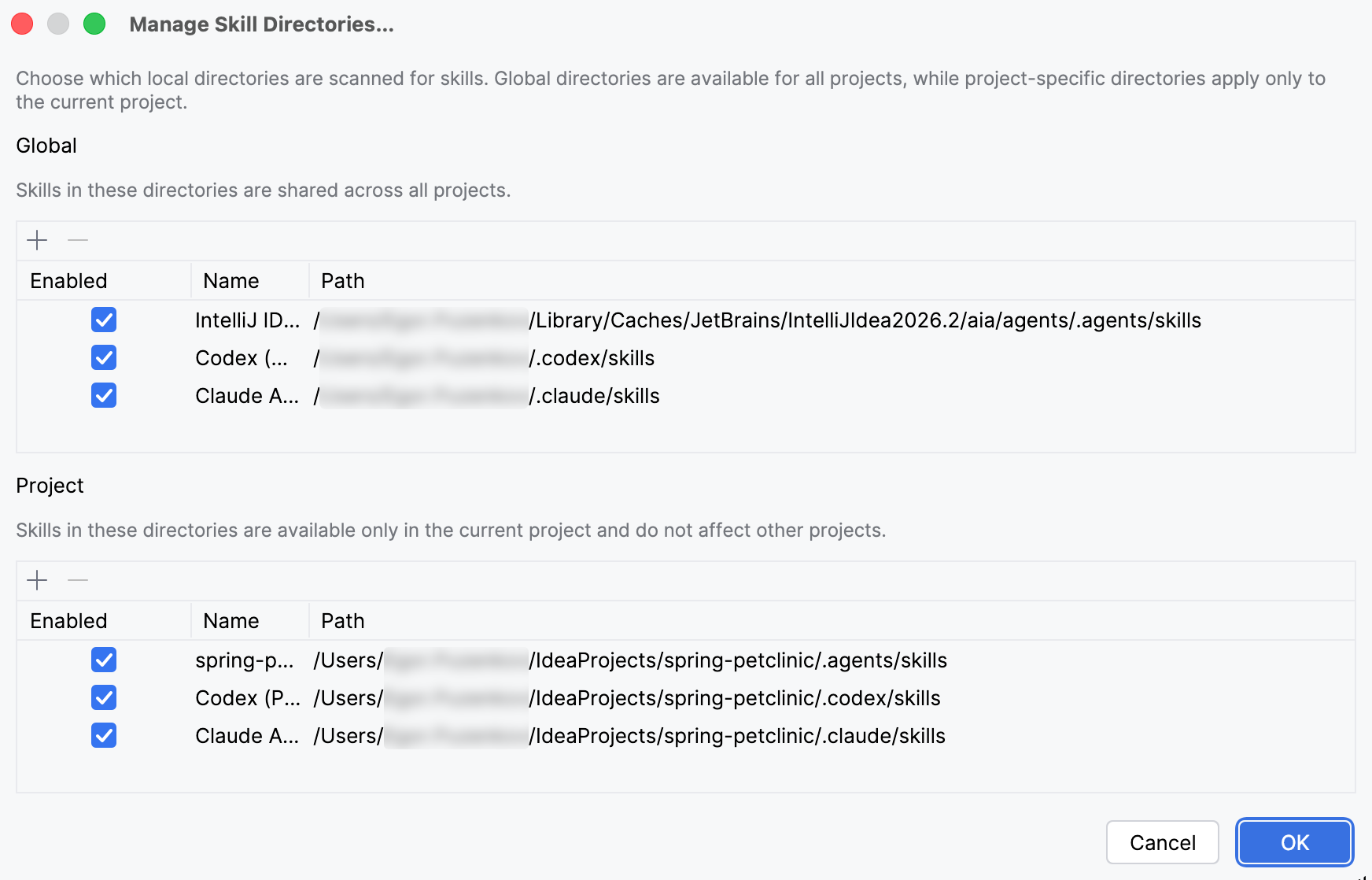
Specify a Name and the Path to the folder containing skills.
Click OK.
Add external skill registries
Navigate to .
Click the
Skills Settings button and select Manage External Registries.In the Manage External Skill Registries dialog, click
to add a new registry.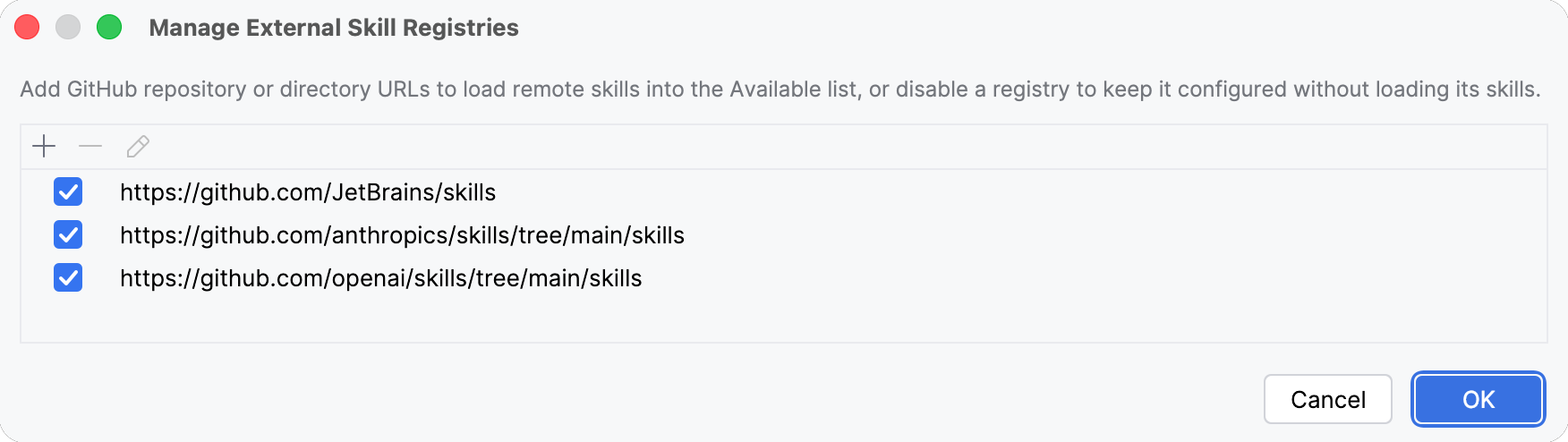
Specify the URL of a GitHub repository that contains skills.
Click OK.
Browse and discover skills
All skills from configured sources are displayed on the Skills page. Use the Search skills field to find specific skills or browse the list.
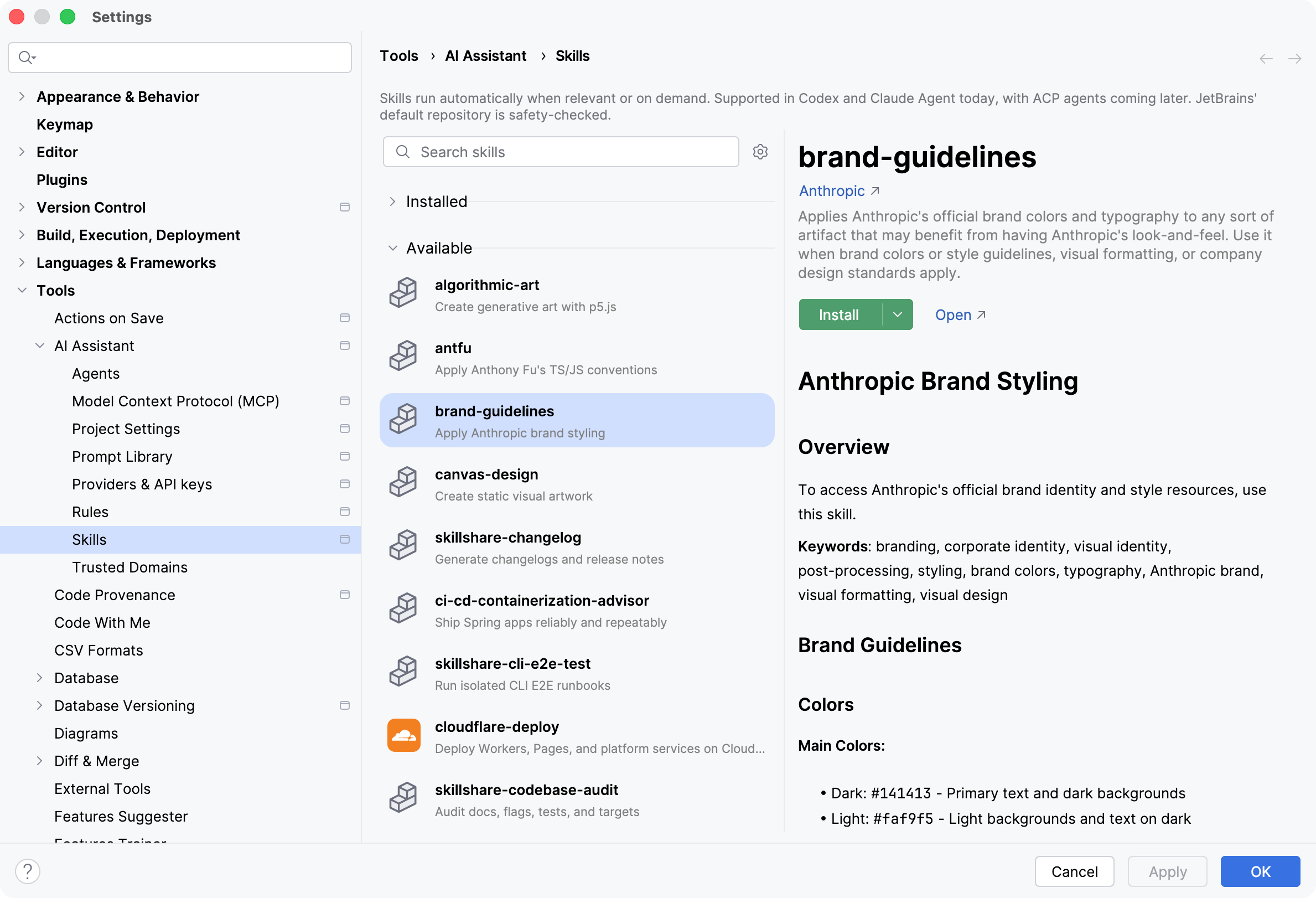
For each skill, you can view its name, description, and source. Use this information to evaluate whether the skill fits your needs before installing it.
Install skills
To use a skill, install it from the list. You can install skills at the following levels:
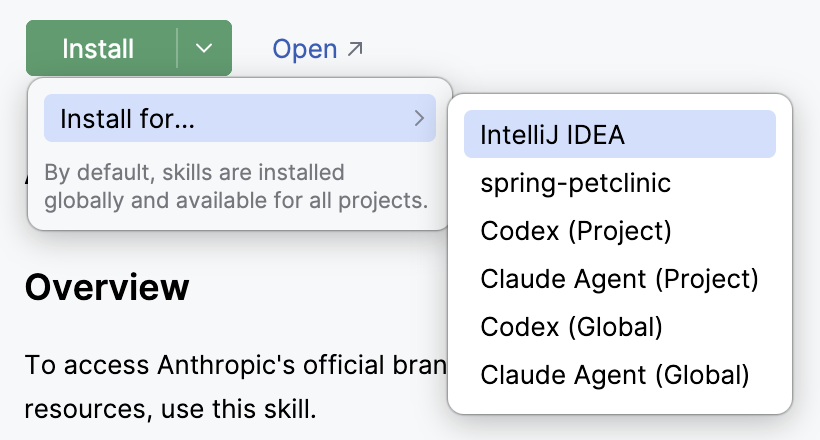
IDE – installs a skill into the IDE's internal storage. This makes the skill available across all projects in the current IDE and usable by supported agents.
The skill is installed to:
%LOCALAPPDATA%\JetBrains\<product><version>\aia\agents\.agents\skills
~/Library/Caches/JetBrains/<product><version>/aia/agents/.agents/skills
~/.cache/JetBrains/<product><version>/aia/agents/.agents/skills
Project – installs a skill into the current project. This makes the skill available only within this project.
The skill is installed to:
%USERPROFILE%\<projects-directory>\<project-name>\.agents\skills
~/<projects-directory>/<project-name>/.agents/skills
~/<projects-directory>/<project-name>/.agents/skills
Codex (Project) – installs a skill into Codex's project-level configuration. This makes the skill available to Codex within the current project.
The skill is installed to:
%USERPROFILE%\<projects-directory>\<project-name>\.codex\skills
~/<projects-directory>/<project-name>/.codex/skills
~/<projects-directory>/<project-name>/.codex/skills
Claude Agent (Project) – installs a skill into Claude Agent's project-level configuration. This makes the skill available to Claude Agent within the current project.
The skill is installed to:
%USERPROFILE%\<projects-directory>\<project-name>\.claude\skills
~/<projects-directory>/<project-name>/.claude/skills
~/<projects-directory>/<project-name>/.claude/skills
Codex (Global) – installs a skill directly into Codex's global configuration on your machine. This makes the skill available to Codex outside the IDE.
The skill is installed to:
%USERPROFILE%\.codex\skills
~/.codex/skills
~/.codex/skills
Claude Agent (Global) – installs a skill directly into Claude Agent's global configuration on your machine. This makes the skill available to Claude Agent outside the IDE.
The skill is installed to:
%USERPROFILE%\.claude\skills
~/.claude/skills
~/.claude/skills
To install a skill:
Select a skill from the list.
Do one of the following:
If you want to install the skill on the IDE level, either click the
button that appears on hovering over the skill, or click Install in the right pane.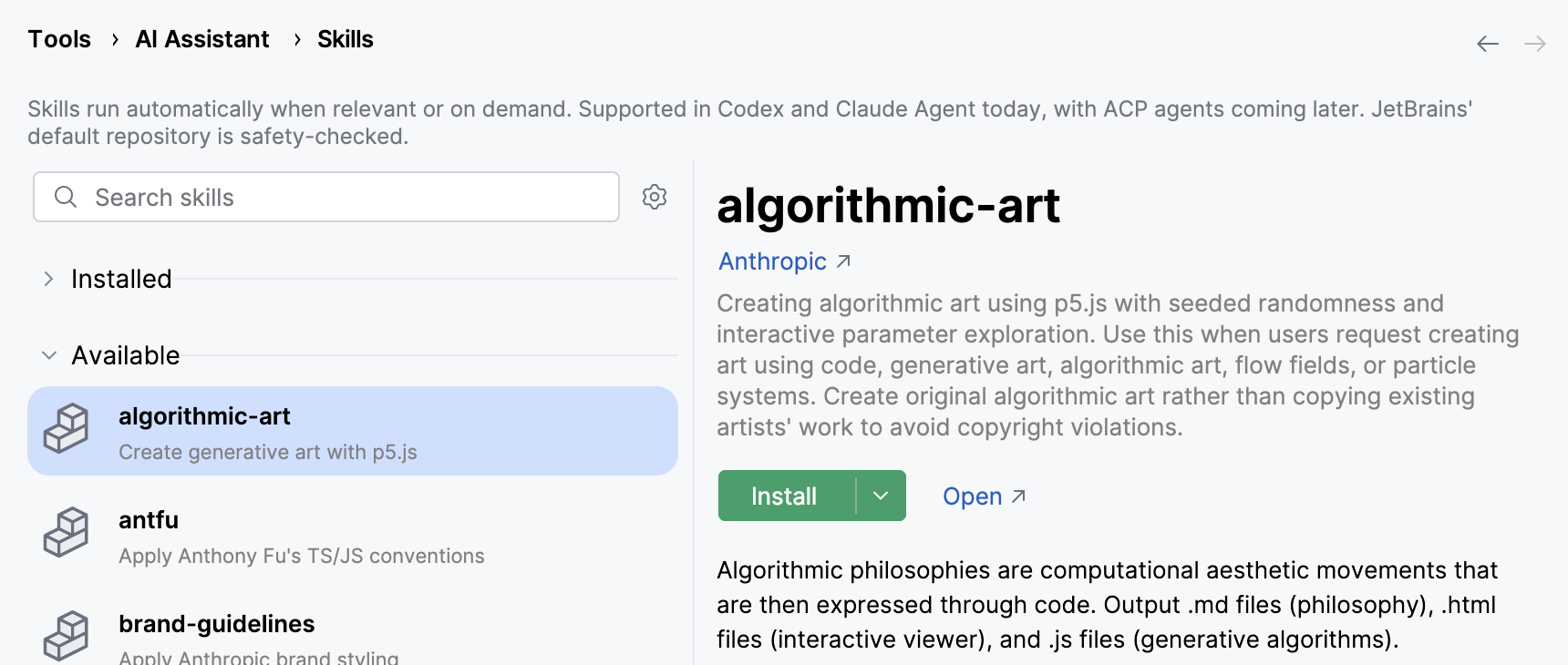
If you want to install the skill at a specific level, click
 near the Install button, select Install for, and choose the target level.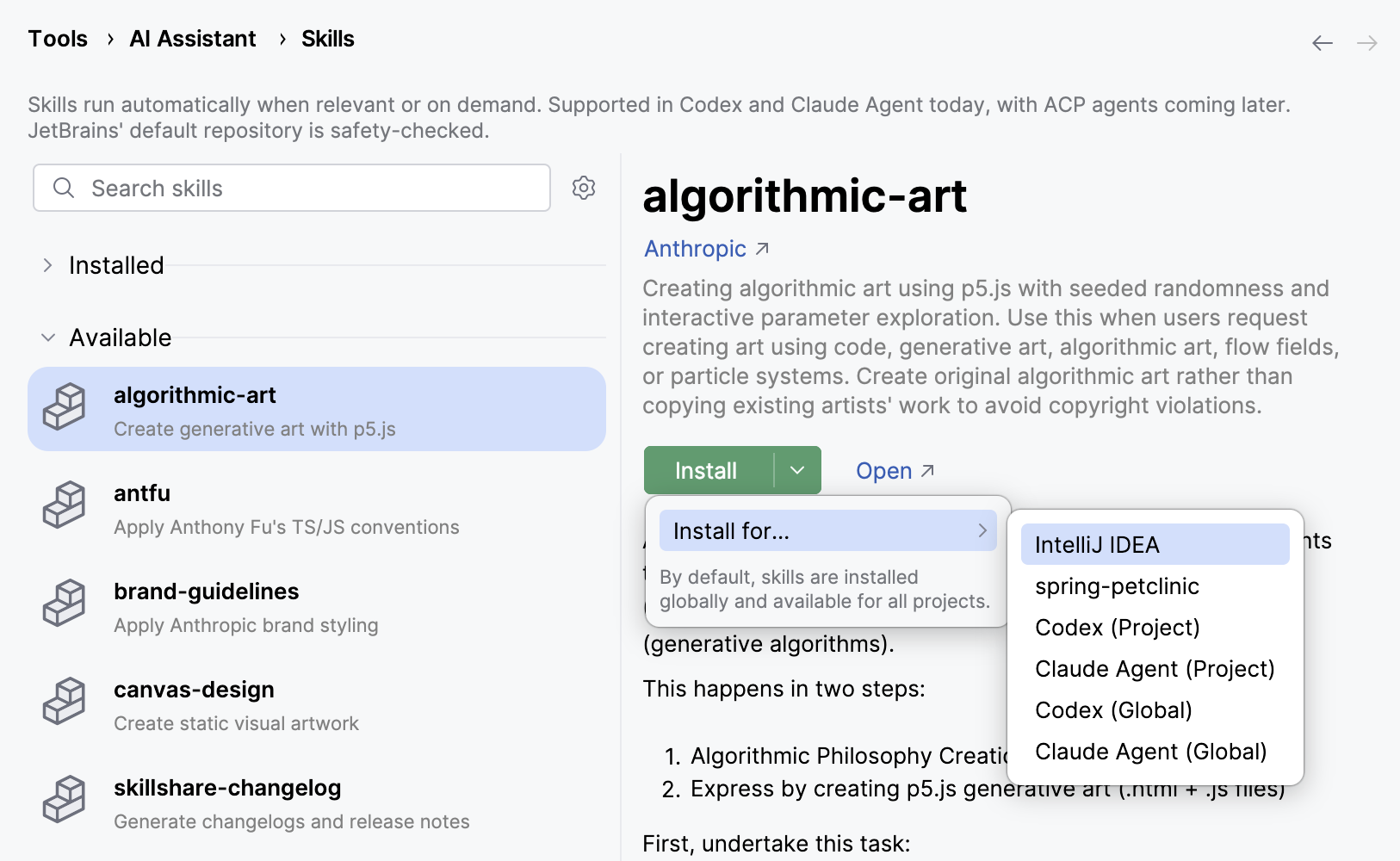
After installation, the skill becomes available to the agent. To verify it, click Try in chat.
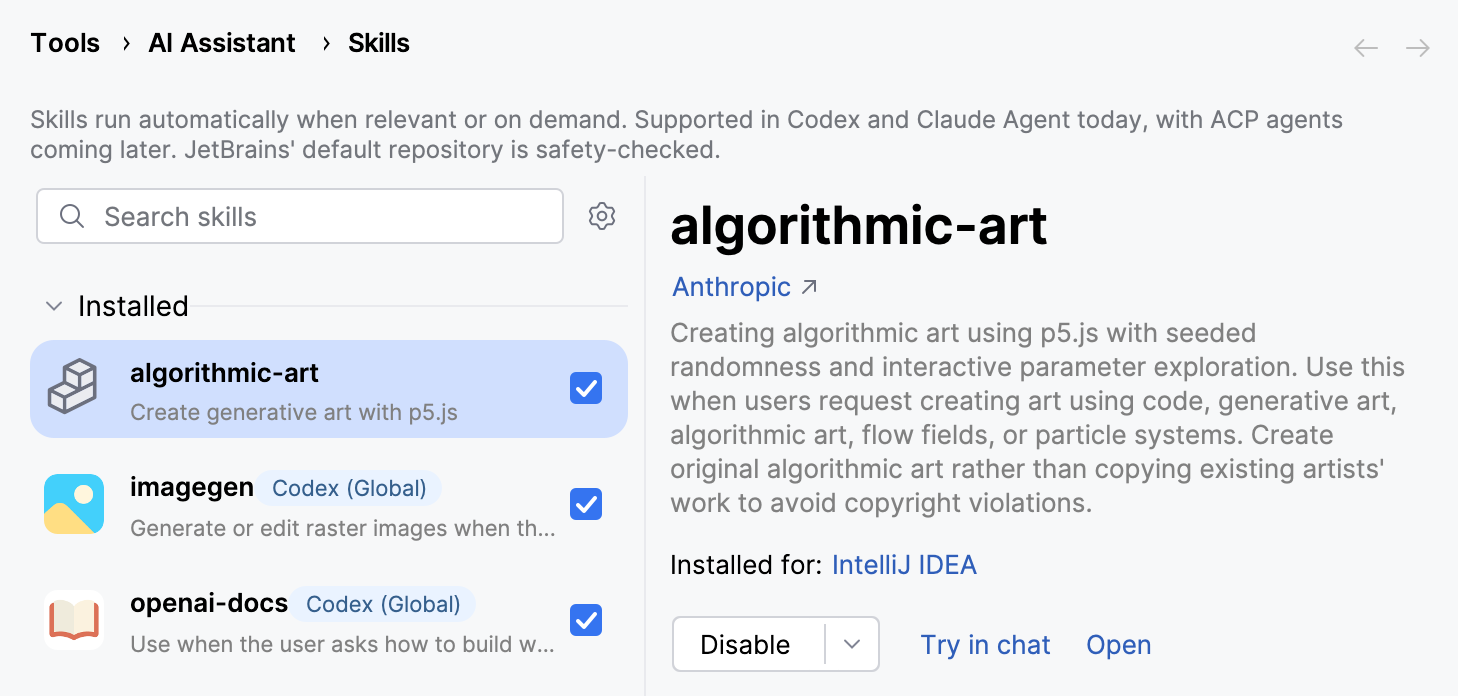
Manage installed skills
You can manage installed skills directly from the Skills page.
Disable skills
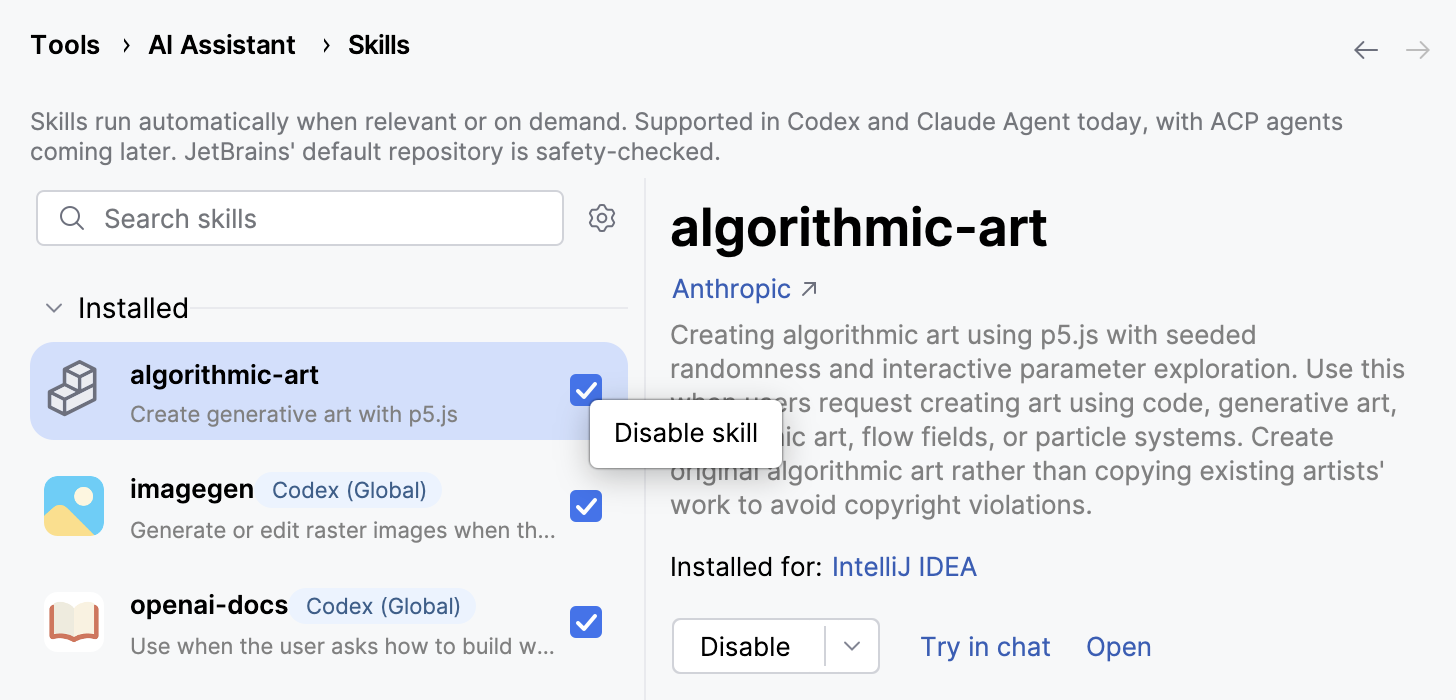
You can disable a skill to prevent it from being used by the agent. Disabled skills remain installed and can be re-enabled at any time.
To disable a skill, either clear the checkbox next to it or click Disable in the right pane.
Uninstall skills
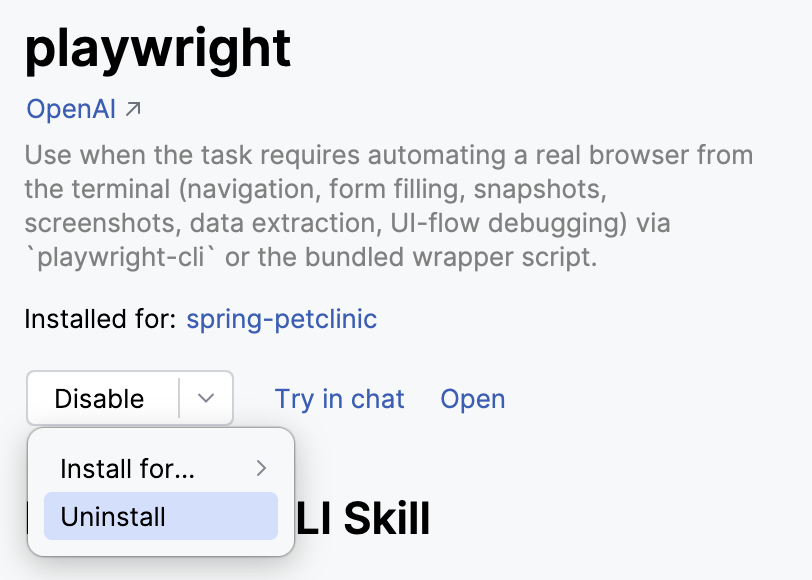
If you no longer need a skill, you can uninstall it.
To do this, select the skill, click near the Disable button and select Uninstall (or Uninstall from if the skill is installed at multiple levels).
Open skill location
You can open the directory where the skill is installed. Use this option to inspect the skill files, review its structure, or make manual changes if needed.
To open the location, select the skill and click Open in the right pane.
Use skills
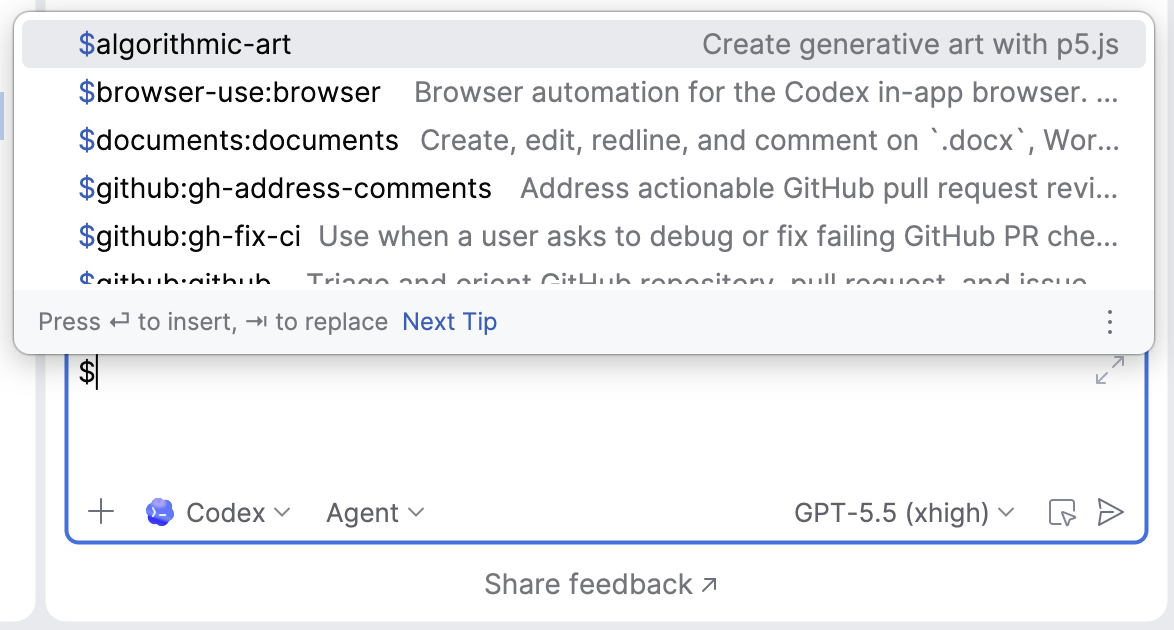
Agents can run installed skills either automatically, when they are relevant to a task, or you can invoke them manually in AI Chat by typing the $ sign followed by the name of the skill.