Switch to JetBrains Air in IDEs
 JetBrains Air in IDEs is a separate plugin for agentic development. It gives you one place to start coding agents, follow what they are doing, and review the changes they make. For more information, refer to the JetBrains Air in IDEs documentation.
You can switch to JetBrains Air in IDEs directly from AI Chat or the JetBrains AI widget. To prevent both plugins from running side by side, AI Assistant can be hidden after the switch. You can return to AI Assistant at any time.
To open the AI Chat tool window, click
 AI Chat on the right toolbar (in DataGrip, click
  More tool windows in the header and select AI Assistant).
 In the Introducing Air in JetBrains IDEs banner above the prompt field, click Try Now. This installs the plugin.
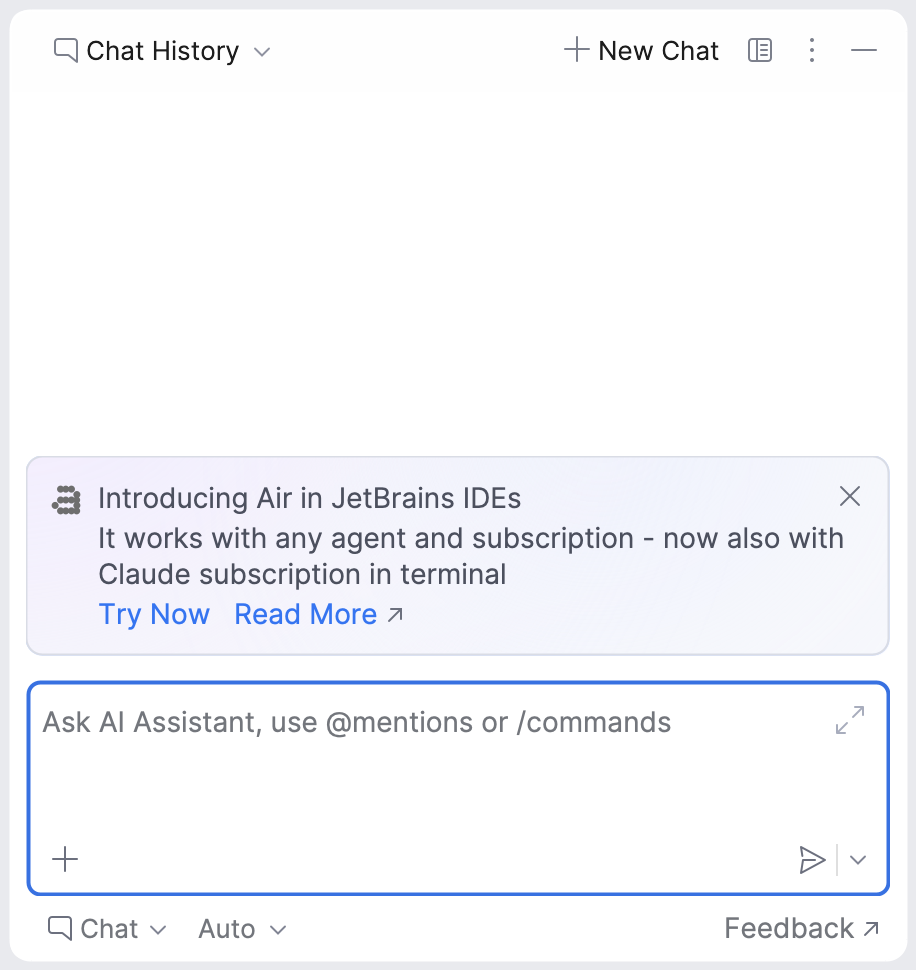
After the installation, JetBrains Air in IDEs opens a new session with an agent.
Click the
 JetBrains AI widget located in the toolbar in the window header.
In the Try Air section at the bottom of the widget, click Try Now. This installs the plugin.
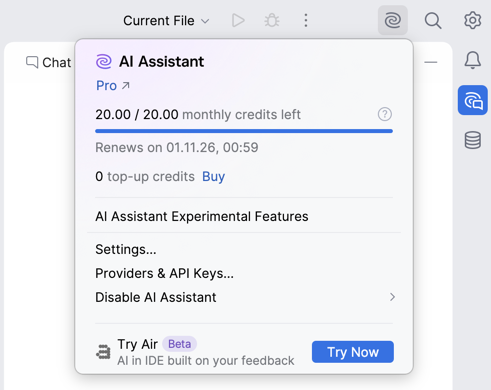
After the installation, JetBrains Air in IDEs opens a new session with an agent.
Return to AI Assistant
If you clicked Switch to Air in the AI Chat banner, AI Assistant stays hidden. The only way to bring it back is the Open AI Assistant action, which you can run from the Search Everywhere dialog or from the Agent Sessions tool window provided by the JetBrains Air in IDEs plugin. Either way, the IDE asks you to share feedback before AI Assistant becomes available again.
In the main menu, go to or press Shift twice to open the search window.
Select the Actions tab.
Type Open AI Assistant and select the suggested action.
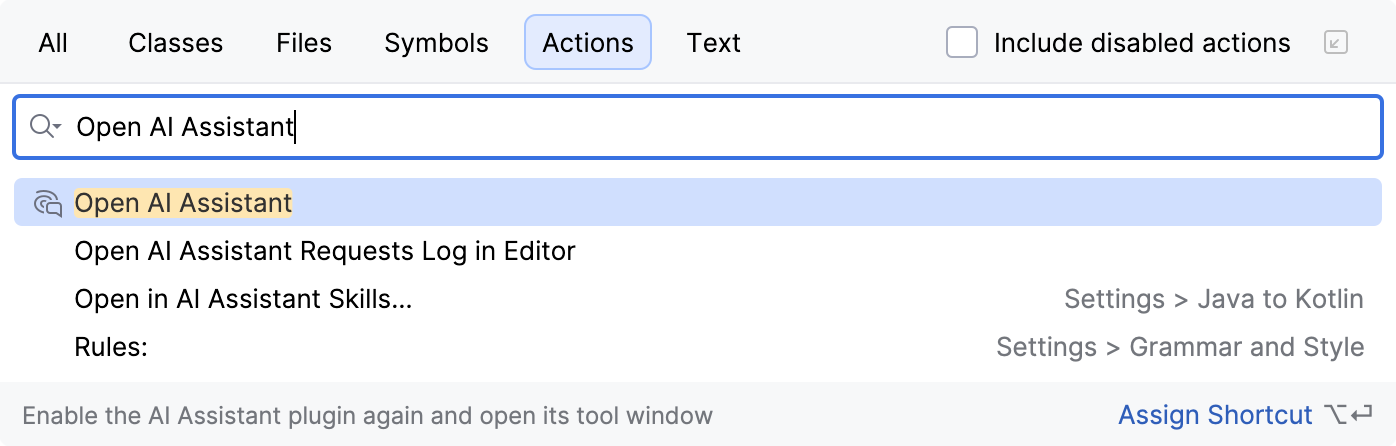
In the feedback form that opens, share your feedback and click Open AI Assistant.
Open the tool window by clicking the
Agent Sessions button in the left toolbar.In the Agent Sessions tool window, click
 Options.
Select Open AI Assistant.
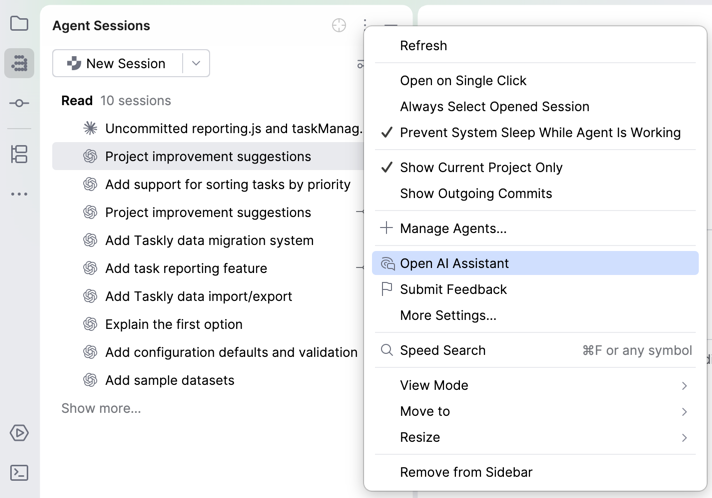
In the feedback form that opens, share your feedback and click Open AI Assistant.
AI Assistant becomes available in the IDE again.