Extend agent capabilities
Air in IDEs supports the following ways to extend agent capabilities:
MCP servers – give agents tools for working with external services, such as issue trackers, code hosting services, or databases.
Skills – give agents reusable instructions for specific kinds of tasks, such as a team workflow or a way to use IDE capabilities.
Connect external MCP servers
Air in IDEs passes the servers that you configure to every new session with an agent that supports Model Context Protocol (MCP).
Your MCP servers are defined in the mcp.json file:
C:\Users\<username>\.jetbrains\mcp\mcp.json
/Users/<username>/.jetbrains/mcp/mcp.json
/home/<username>/.jetbrains/mcp/mcp.json
To add, change, or remove a server, edit this file. It uses the common mcpServers format that other AI coding tools also use, so you can copy a server configuration from them without changes.
Air in IDEs supports local servers that use stdio and remote servers that use HTTP. SSE transport is not supported. An agent can use a server only if it supports the transport mechanism of the server.
The page lists your servers along with servers provided by your organization and installed plugins. Use this page to turn servers on or off.
Add an MCP server
Press Ctrl+Alt+S and select .
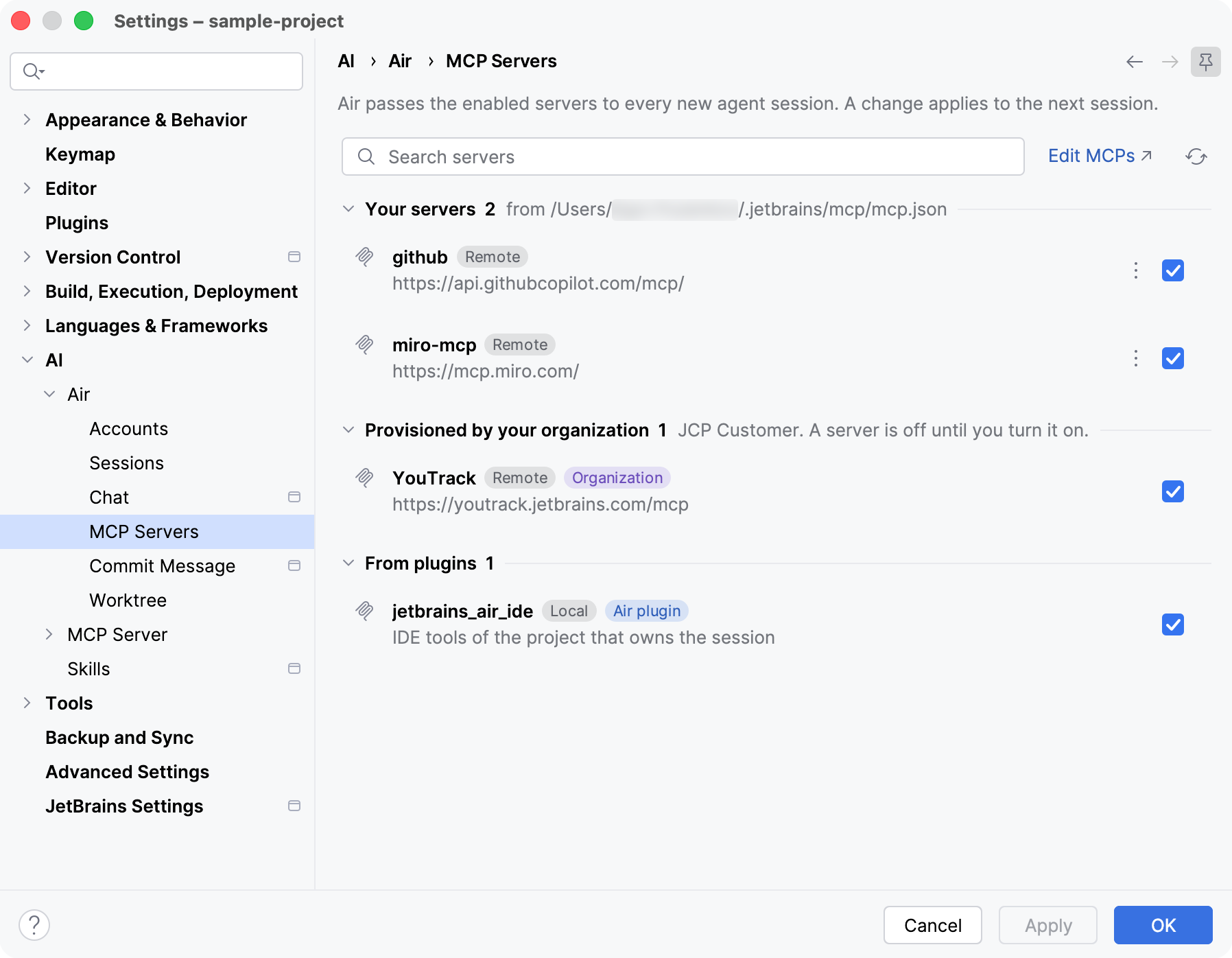
Click Edit MCPs. Air in IDEs opens mcp.json in the editor.
Add the server to the
mcpServersobject and save the file. A local server takes acommandwith itsargs, and a remote server takes aurl:{ "mcpServers": { "youtrack": { "url": "https://youtrack.example.com/mcp", "headers": { "Authorization": "Bearer token-goes-here" } }, "filesystem": { "command": "npx", "args": ["-y", "@modelcontextprotocol/server-filesystem", "/path/to/folder"] } } }On the settings page, click
 to reload the Your servers list.
Select the checkbox next to the server to turn it on, and click OK.
After you enable a server, agents can call its tools automatically when they determine that the tools are useful for the current task. A change applies to the next session that you start.
Manage MCP servers
On the page:
To change a server, click Edit MCPs, edit the entry of the server in mcp.json, and save the file. Then click
to reload the list.To remove a server, click Edit MCPs, delete the entry of the server from mcp.json, and save the file. Then click
to reload the list.To copy the configuration of a server, for example to use it in another tool, click
 next to the server and select Copy Configuration.
To turn a server off without removing it, clear the checkbox next to it and click OK. The server stays in the list, and you can select the checkbox again later to turn it back on.
Servers from your organization and plugins
Besides your own servers, the settings page shows servers that your organization manages and servers that installed plugins provide. These servers are not defined in your mcp.json file, so you cannot edit them, but you can turn each of them on or off:
Provisioned by your organization – servers that your organization sets up for you. They are off until you enable them manually.
From plugins – servers that installed plugins provide. For example, Air in IDEs provides the
jetbrains_air_ideserver, which gives agents access to IDE capabilities for the project associated with the session. It supplies the following tools:Code search and analysis
Inspections
Project information
File and editor operations
Build and run actions
Refactoring
Debugging
Install and use skills
A skill is a set of reusable instructions that tells an agent how to perform a specific kind of task. It can describe a workflow, provide domain knowledge, or explain how to use IDE capabilities, and it can include supporting files such as scripts and references.
The agent uses an installed skill automatically when the skill description matches the task. To make the agent follow a specific skill, attach it to your request manually, as described in Attach context.
Skills are managed on the page.
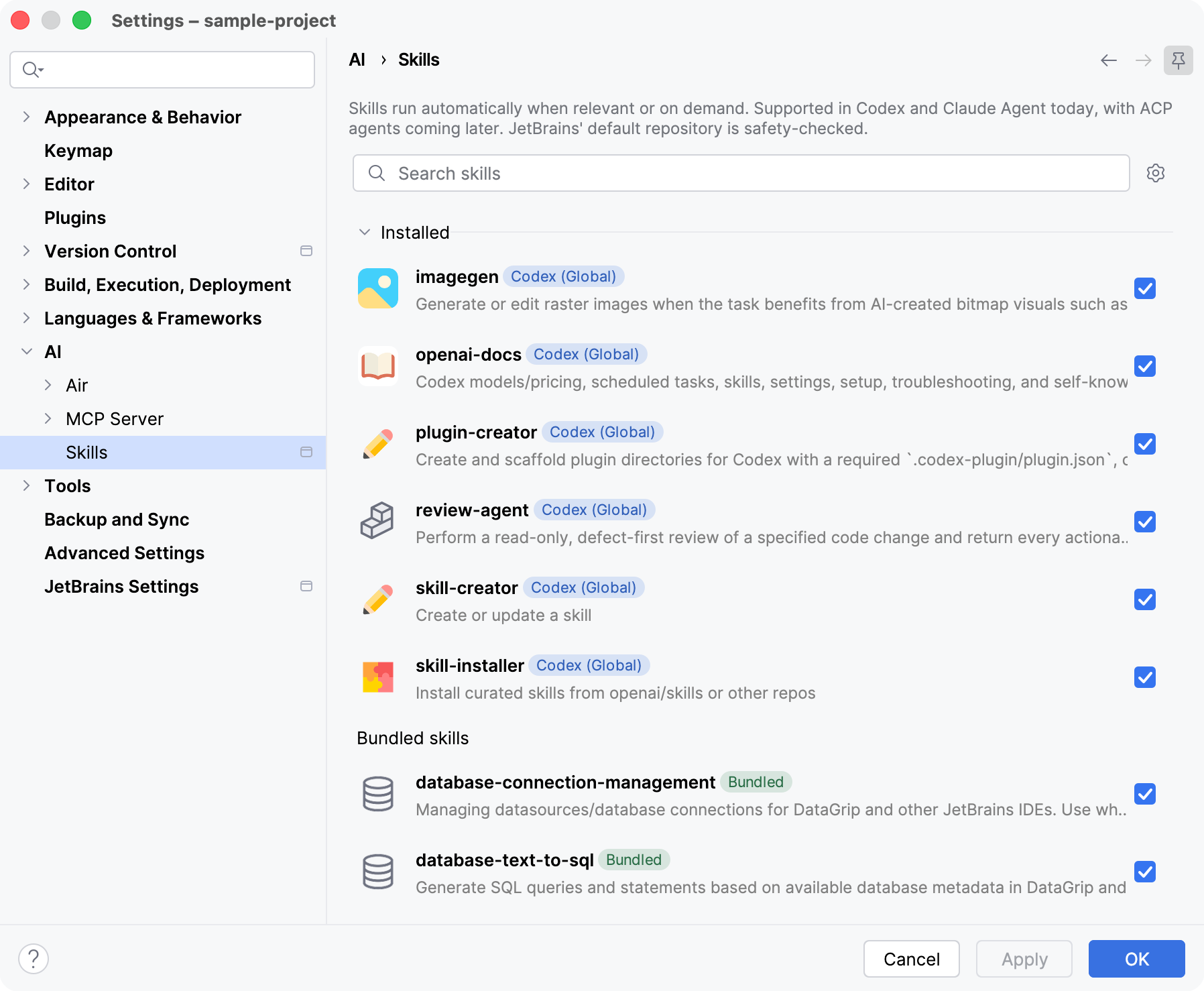
Some skills are bundled with the IDE and its plugins and are listed under Bundled skills. Which bundled skills you get depends on the IDE, the installed plugins, and the project.
Install a skill
Press Ctrl+Alt+S and select .
In the Available list, select a skill. The right pane shows its description and available installation options.
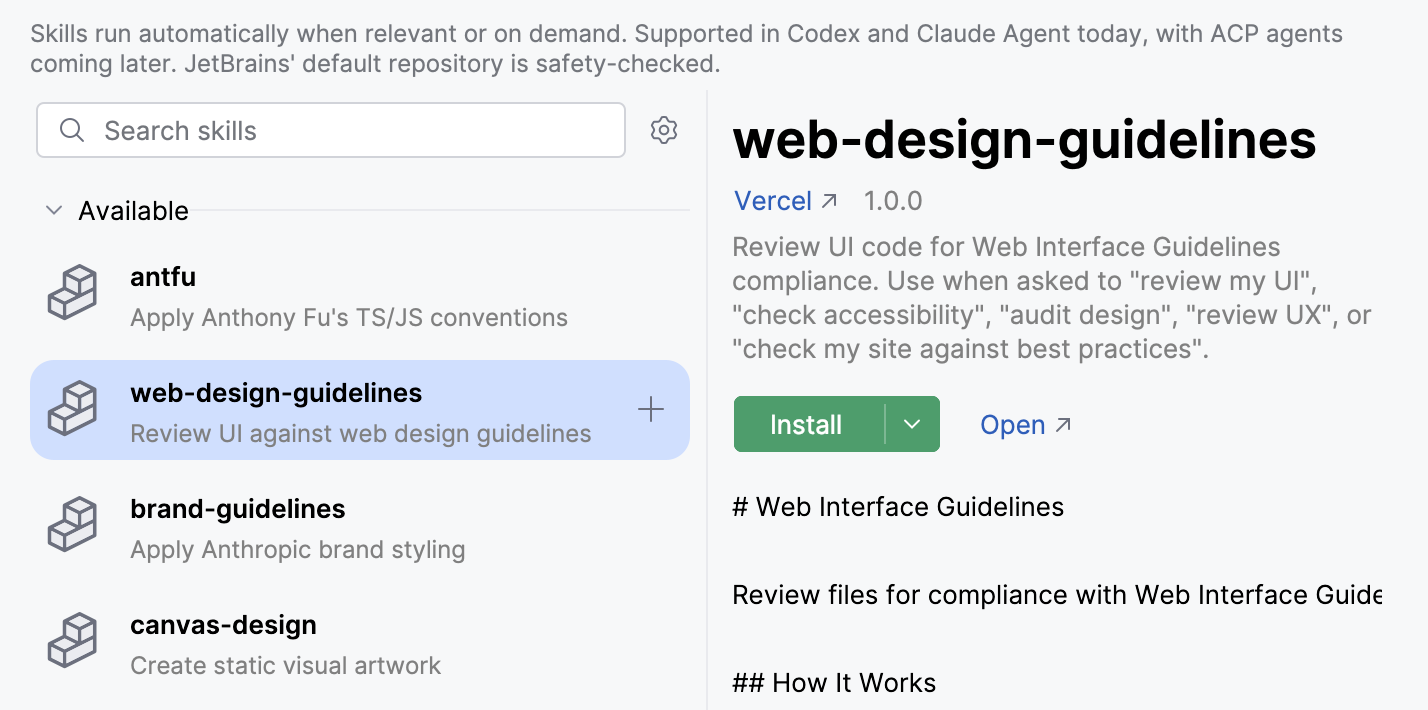
Do one of the following:
To install the skill for all projects in the IDE, click Install, or hover over the skill in the list and click
 .
.To install the skill to a different location, click
 next to Install, select Install for, and choose a target.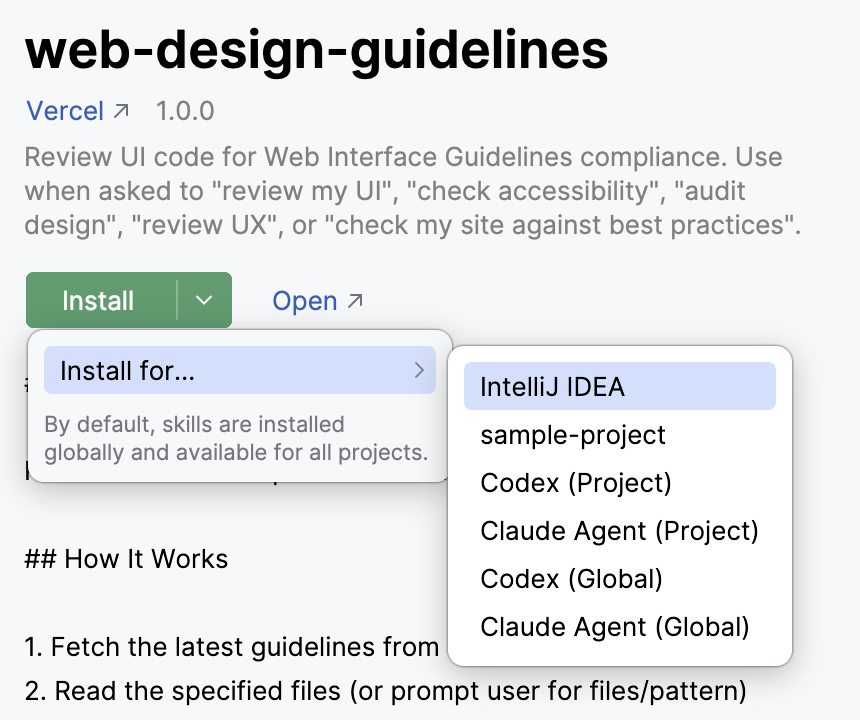
You can install the same skill to several targets. Installed skills show a tag for each target they are installed to.

Import skills from agents outside the IDE
If you already use Claude Agent or OpenAI Codex outside the IDE and have skills in their global directories, such as ~/.claude/skills or ~/.codex/skills, the Skills page shows a banner that suggests importing them.
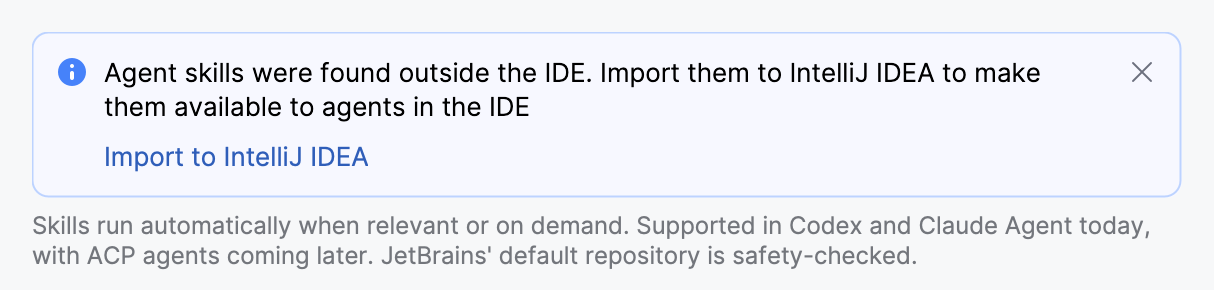
In the banner, click Import to <IDE name>.
Add skill directories
The Skills page lists skills from the local directories that the IDE scans. By default, these include the IDE skill storage and the global and project directories of Claude Agent and OpenAI Codex. To list skills from another directory on your machine, add it:
On the Skills page, click
 Skills Settings and select Manage Skill Directories.
Click
in the Global section to use the directory in all projects, or in the Project section to use it only in the current project.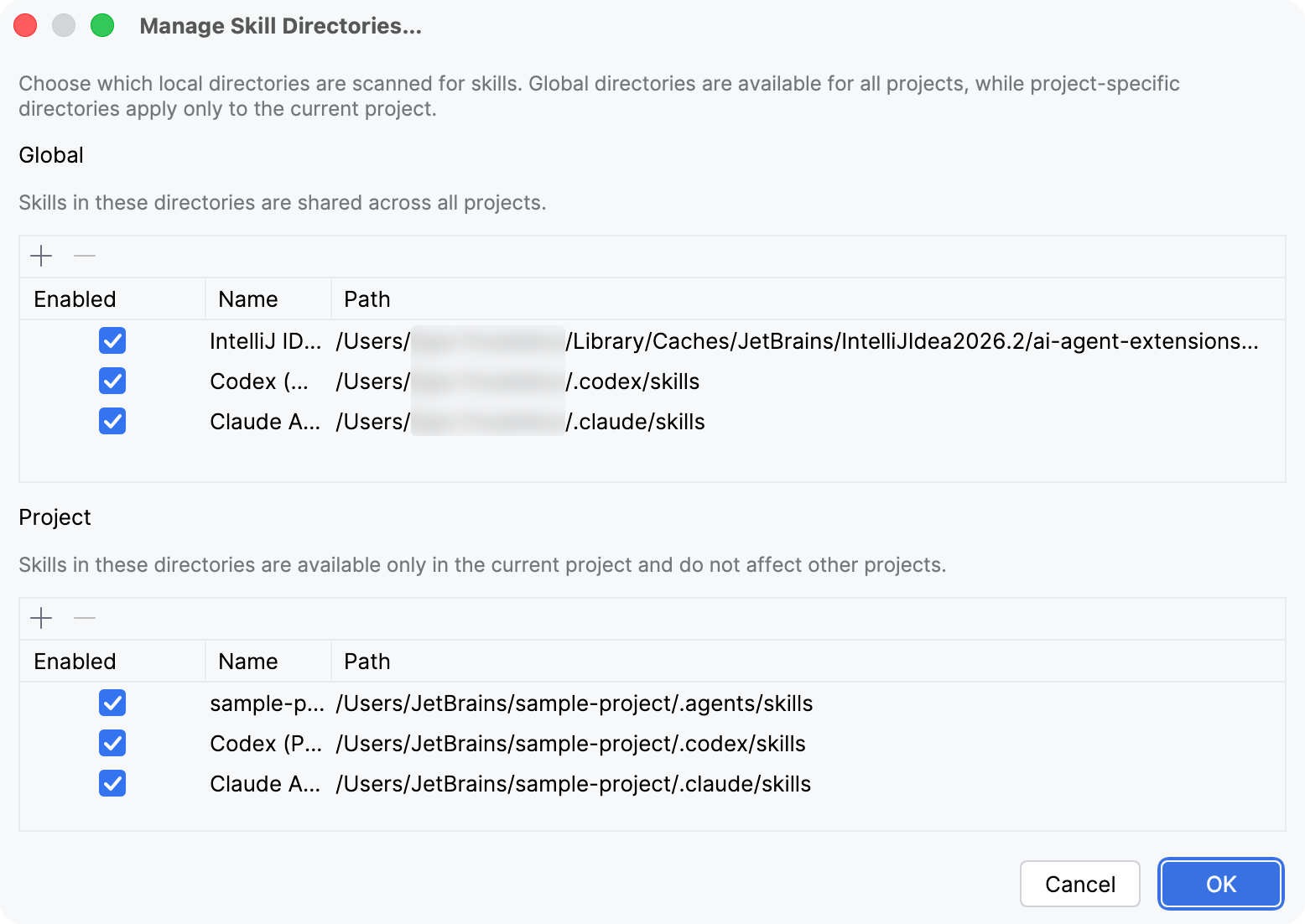
Specify a Name and the Path to the directory, and click OK.
To stop scanning a directory without removing it, clear its checkbox in the Enabled column.
Add external skill registries
A registry is a GitHub repository or directory with published skills. Skills from enabled registries appear in the Available list, and you install the ones you need. The default registry, https://github.com/JetBrains/skills, is safety-checked by JetBrains.
On the Skills page, click
Skills Settings and select Manage External Registries.Click
, specify the URL of a GitHub repository or directory that contains skills, and click OK.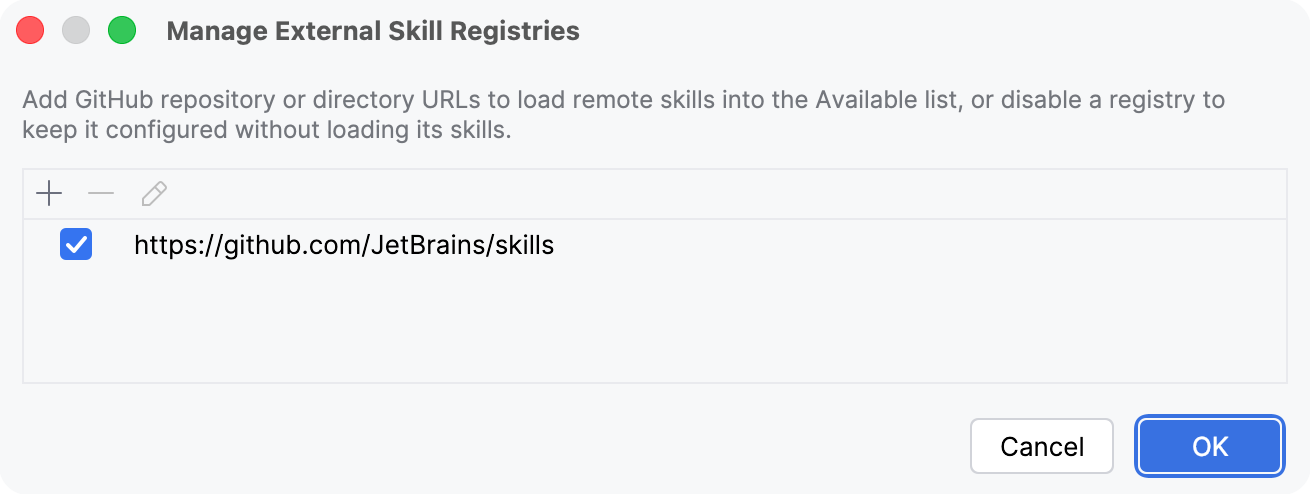
To keep a registry configured but stop loading its skills, clear the checkbox next to it.
Manage installed skills
On the Skills page, in the Installed list:
To disable a skill, clear the checkbox next to it, or select the skill and click Disable. A disabled skill stays installed, but agents do not receive it until you enable it again.
To uninstall a skill, select it, click
next to Disable, and select Uninstall. If the skill is installed to several targets, select Uninstall From and choose the target.To inspect the SKILL.md file and other files of a skill, select it and click Open.
Where skills are installed
The target that you choose when you install a skill defines which agents can use it and where:
<IDE name>, for example IntelliJ IDEA – the IDE skill storage. This is the default target. The skill is available in all projects that you open in this IDE.
C:\Users\<username>\AppData\Local\JetBrains\<product><version>\ai-agent-extensions\agents\.agents\skills
/Users/<username>/Library/Caches/JetBrains/<product><version>/ai-agent-extensions/agents/.agents/skills
/home/<username>/.cache/JetBrains/<product><version>/ai-agent-extensions/agents/.agents/skills
<project name> – the shared skill directory of the current project. The skill is available only in this project.
C:\Users\<username>\<projects-directory>\<project-name>\.agents\skills
/Users/<username>/<projects-directory>/<project-name>/.agents/skills
/home/<username>/<projects-directory>/<project-name>/.agents/skills
Claude Agent (Project) and Codex (Project) – the skill directory of the agent in the current project. The skill is available to that agent only in this project.
Claude Agent: C:\Users\<username>\<projects-directory>\<project-name>\.claude\skills
OpenAI Codex: C:\Users\<username>\<projects-directory>\<project-name>\.codex\skills
Claude Agent: /Users/<username>/<projects-directory>/<project-name>/.claude/skills
OpenAI Codex: /Users/<username>/<projects-directory>/<project-name>/.codex/skills
Claude Agent: /home/<username>/<projects-directory>/<project-name>/.claude/skills
OpenAI Codex: /home/<username>/<projects-directory>/<project-name>/.codex/skills
Claude Agent (Global) and Codex (Global) – the global skill directory of the agent. The skill is available to that agent in all projects, including when you run the agent outside the IDE.
Claude Agent: C:\Users\<username>\.claude\skills
OpenAI Codex: C:\Users\<username>\.codex\skills
Claude Agent: /Users/<username>/.claude/skills
OpenAI Codex: /Users/<username>/.codex/skills
Claude Agent: /home/<username>/.claude/skills
OpenAI Codex: /home/<username>/.codex/skills
Skills in agent-specific directories are discovered by the agent itself, according to its own rules. A project-level skill is part of the project files, so check it for sensitive information before you commit it.