Troubleshoot Air Mate
Find the problem you see in Slack or Air Teams below.
You can't connect a channel
Only the channel creator or a Slack workspace admin can connect Air Mate to a channel. Ask one of them to complete setup. If Air Mate posts no setup message after you invite it, mention @Air Mate in the channel.
Your project isn't available during setup
Check that you signed in to the right Air Teams organization and that you're an admin of the project. Installing the Slack app doesn't give you access to a project – ask a project admin to grant it or to complete setup. If setup asks you to switch the project to project AI credits, do that before you choose an Air Mate.
The setup link expired
Run /airmate reset in the conversation to get a new link, and use it before the time shown in the message. If an Air Mate is already connected there, reset disconnects it.
Air Mate doesn't reply
Open the Air Mate in Air Teams and check its status. If it's starting or restarting, wait for its ready message in Slack and send your request again. If it isn't running, a project admin can start it.
If it's running, mention @Air Mate explicitly – it doesn't answer every channel message. Also check that the project has AI credits left.
Air Mate can't reach a repository, secret, or service
For a repository, check the GitHub authorization and the selected repository or environment.
For a credential, check that it's a shared secret in the selected environment.
For an external service, check that its connector is added to the Air Mate and authorized.
For connection errors, check that the environment's network access allows the service's domains.
After you fix the settings, restart Air Mate – see Configure Air Mate.
Tools Air Mate installed are gone
If a run fails, the next one starts in a fresh cloud environment. Ask Air Mate to install the tools again, or put the setup in the environment's startup script so it runs on every start.
A scheduled task didn't post anything
Ask Air Mate to list the scheduled work for the conversation and check its schedule, time zone, and whether it's paused. A task that watches for a condition stays silent until the condition is met – ask it to check now and report the result.
Contact support
To reach support, open the user menu and select Contact Support.
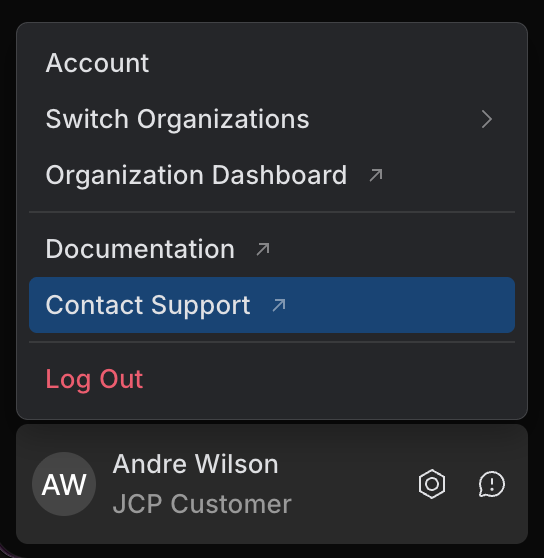
To help support investigate, include:
the project and the Air Mate name, and a link to the Slack message where the problem happened
the error message shown in Slack or Air Teams, and the time of the problem
what you expected to happen and what happened instead, with the steps to reproduce it
Don't include secrets or setup links.