Data source templates
Enable the Database Tools and SQL plugin
This functionality relies on the Database Tools and SQL plugin, which is bundled and enabled in CLion by default. If the relevant features are not available, make sure that you did not disable the plugin.
Press Ctrl+Alt+S to open settings and then select .
Open the Installed tab, find the Database Tools and SQL plugin, and select the checkbox next to the plugin name.
Enable the Backup and Sync plugin
This functionality relies on the Backup and Sync plugin, which is bundled and enabled in CLion by default. If the relevant features are not available, make sure that you did not disable the plugin.
Press Ctrl+Alt+S to open settings and then select .
Open the Installed tab, find the Backup and Sync plugin, and select the checkbox next to the plugin name.
Overview
You can store your data sources in your JetBrains Account as data source templates. If you need to reuse some data source settings in another IDE in which you are signed in to your account, you can use a template.
Data source templates include settings from the General and Advanced tabs of the Data Source and Drivers dialog, excluding the User and Password fields.
Save a data source as a template
In the Database tool window, open the General tab of the Data Sources section.
Select the data source you want to create a template from and click Save as Template.
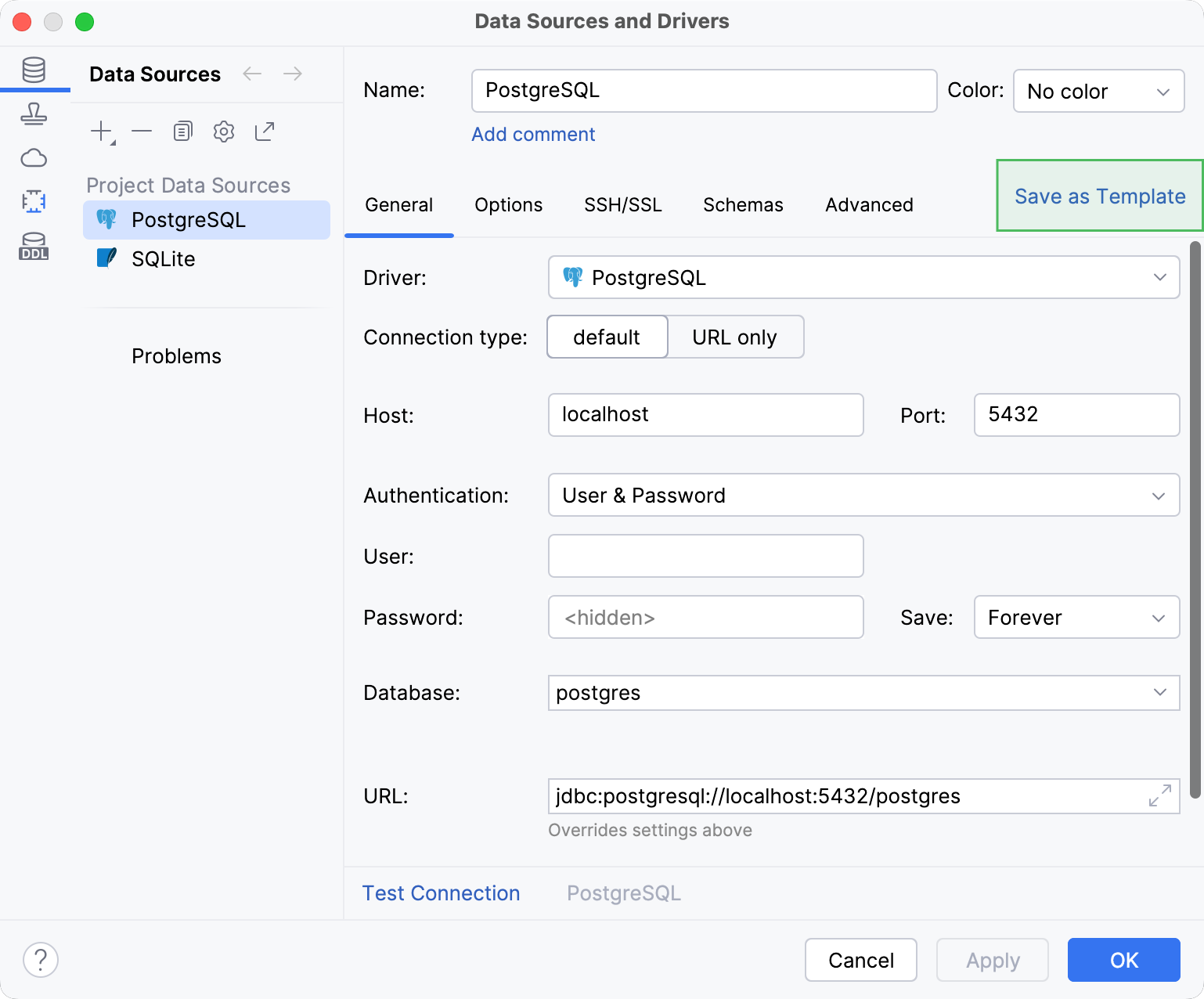
In the Save Data Source as Template dialog, specify the name for your new data source template and click OK.
CLion creates the new template in the Data Source Templates section.
Make sure your URL in the URL field does not contain your username or password.
Click OK to save your new data source template and close the dialog.
Create a data source from a template
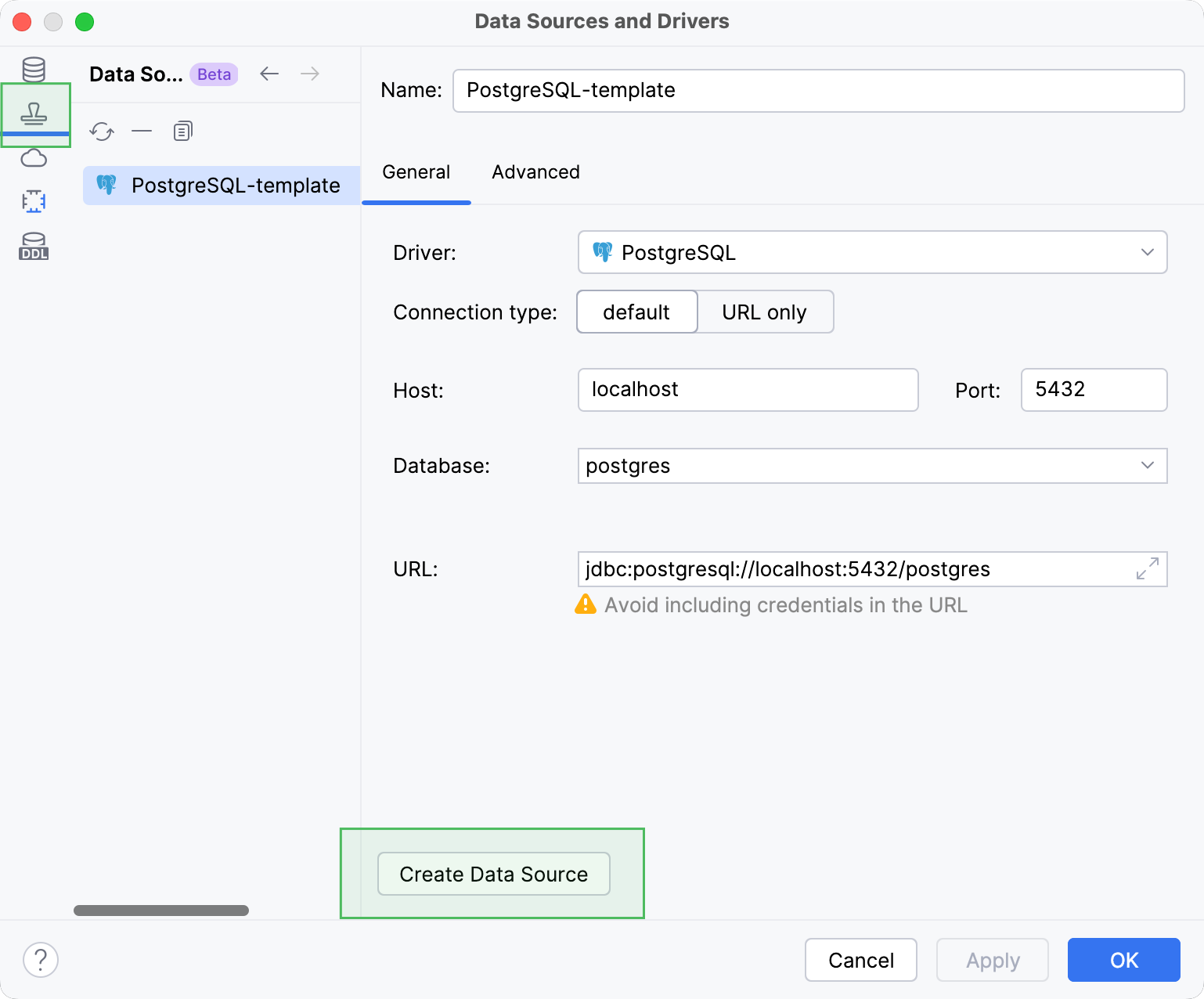
In the Database tool window, open the General tab of the Data Source Templates section.
Select the template you want to create a data source from and click Create Data Source.
CLion creates the new data source in the Data Sources section.