IDE zoom level
The zoom level defines the size of all user interface elements at once. Increasing or decreasing the default scale makes it easier to use CLion on screens of different sizes, or helps to meet your accessibility needs.
Zoom IDE
Go to and select Zoom IDE.
To preview different zoom levels, hover over the options in the popup.
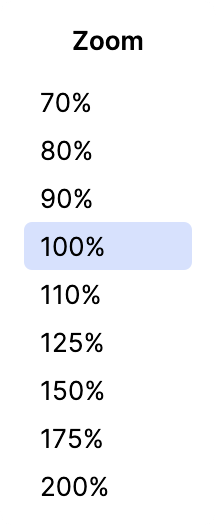
Click the preferred zoom level to apply the changes.
Press Ctrl+Alt+S to open settings and then select .
In the Accessibility section, click the Zoom field and enter your value.
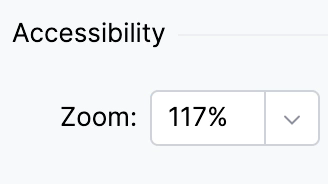
Click OK to apply the changes.
Reset to the default zoom level
Press Ctrl+Alt+S to open settings and then select .
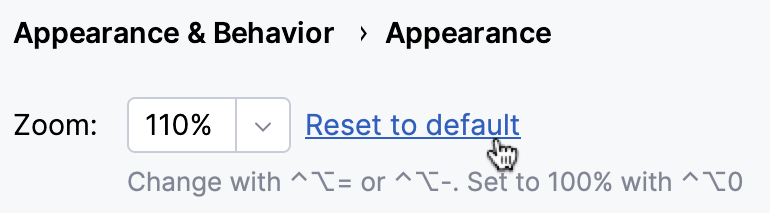
In the Accessibility section, click Reset to default next to the Zoom list.
24 February 2026