React
React is a JavaScript library for building complex interactive User Interfaces from encapsulated components. Learn more about the library from the React official website.
CLion integrates with React providing assistance in configuring, editing, linting, running, debugging, and maintaining your applications.
Before you start
Make sure you have Node.js on your computer.
Make sure the JavaScript and TypeScript and JavaScript Debugger required plugins are enabled on the Settings | Plugins page, tab Installed. For more information, refer to Managing plugins.
Install the React and Vite plugins on the Settings | Plugins page, tab Marketplace, as described in Installing plugins from JetBrains Marketplace.
Create a new React application
Generate a React application
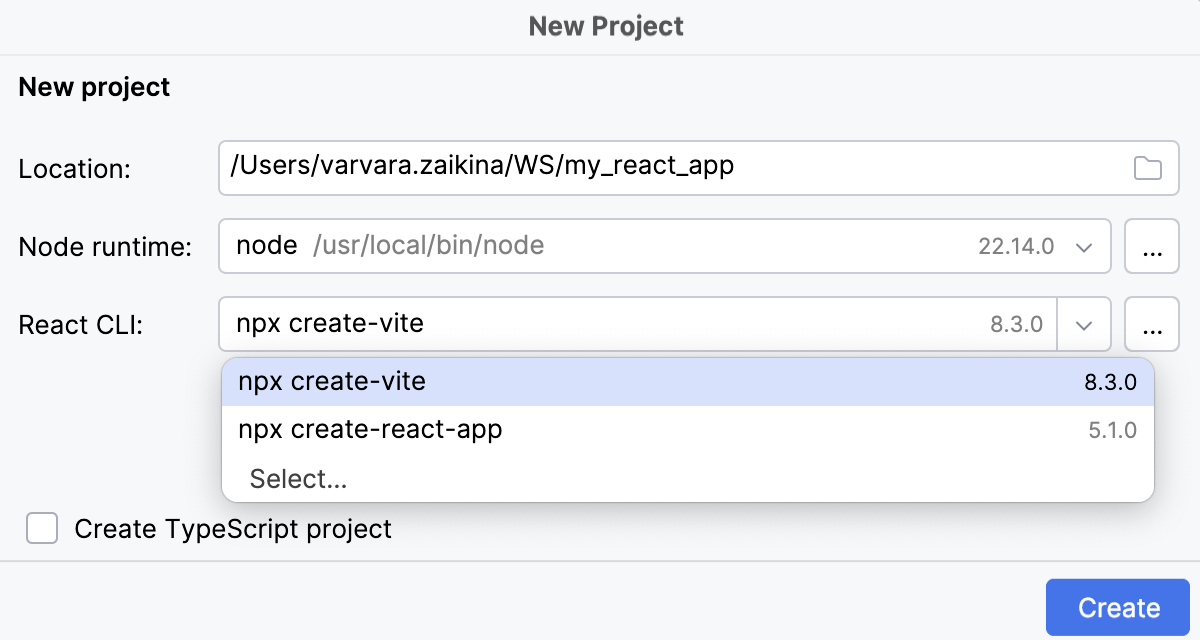
Click New Project on the Welcome screen or select from the main menu. The New Project dialog opens.
In the left-hand pane, choose React.
In the right-hand pane:
Specify the path to the folder where the project-related files will be stored.
In the Node runtime field, specify the Node.js runtime to use. Select a configured runtime from the list or choose Add to configure a new one.
From the React CLI list, select the generator to use.
Accept the default
npx create-viteto have your development environment preconfigured for using Vite.Select
npx create-react-appto have your development environment preconfigured for using webpack, Babel, and ESLint.To use a custom previously downloaded generator, click Select and specify the path to the generator in the dialog that opens.
Optional:
To use TSX instead of JSX, select the Create TypeScript project checkbox. CLion will generate .tsx files for your application and a tsconfig.json configuration file.
When you click Create, CLion generates a React-specific project with all the required configuration files and downloads the required dependencies. CLion also creates an npm start and a JavaScript Debug configurations with default settings for running or debugging your application.
Install React in an empty CLion project
In this case, you will have to configure the build pipeline yourself as described in Building a React application below. Learn more about adding React to a project from the React official website.
Create an empty CLion project
Click New Project on the Welcome screen or select from the main menu. The New Project dialog opens.
In the left-hand pane, choose Empty Project. In the right-hand pane, specify the application folder and click Create.
Install React in an empty project
Open the empty project where you will use React.
In the embedded Terminal (Alt+F12) , type:
npm install --save react react-dom
Start with an existing React application
To continue developing an existing React application, open it in CLion and download the required dependencies.
Open the application sources that are already on your machine
Click Open on the Welcome screen or select from the main menu. In the dialog that opens, select the folder where your sources are stored.
Check out the application sources from your version control
Click Clone Repository on the Welcome screen.
Alternatively, select or or from the main menu.
Instead of Git in the main menu, you may see any other Version Control System that is associated with your project. For example, Mercurial or Perforce.
In the dialog that opens, select your version control system from the list and specify the repository to check out the application sources from. For more information, refer to Check out a project (clone).
Download the dependencies
Click Run 'npm install' or Run 'yarn install' in the popup:
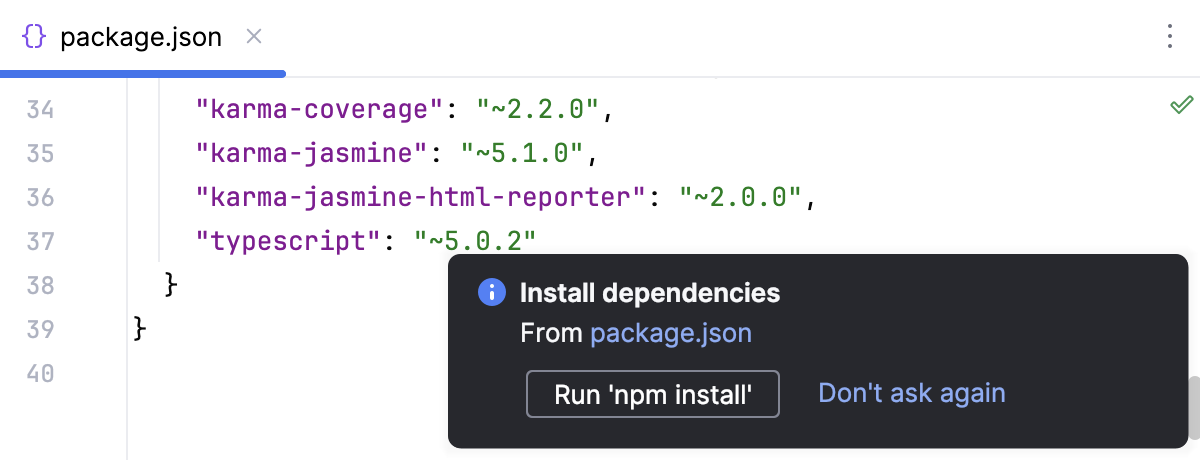
You can use npm, Yarn 1, or Yarn 2, refer to npm and Yarn for details.
Alternatively, select Run 'npm install' or Run 'yarn install' from the context menu of package.json in the editor or in the Project tool window (Alt+1) .
Project security
When you open a project that was created outside CLion and was imported into it, CLion displays a dialog where you can decide how to handle this project with unfamiliar source code.
Select one of the following options:
Preview in Safe Mode: in this case, CLion opens the project in a preview mode. It means that you can browse the project's sources but you cannot run tasks and script or run/debug your project.
CLion displays a notification on top of the editor area, and you can click the Trust project… link and load your project at any time.
Trust Project: in this case, CLion opens and loads a project. That means the project is initialized, project's plugins are resolved, dependencies are added, and all CLion features are available.
Don't Open: in this case, CLion doesn't open the project.
Learn more from Project security.
Code completion
CLion provides code completion for React APIs and JSX in JavaScript code. Code completion works for React methods, React-specific attributes, HTML tags and component names, React events, component properties, and so on. Learn more from the React official website.
To get code completion for React methods and React-specific attributes, you need to have the react.js library file somewhere in your project. Usually the library is already in your node_modules folder.
Complete React methods, attributes, and events
By default, the code completion popup is displayed automatically as you type. For example:
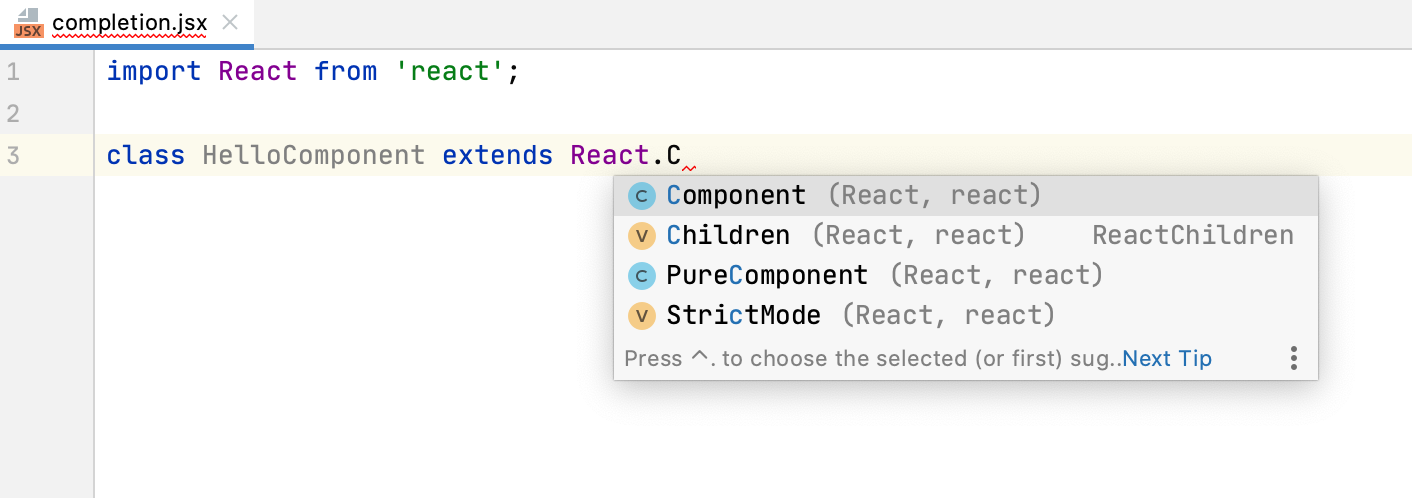
In JSX tags, CLion provides coding assistance for React-specific attributes, such as className or classID, and non-DOM attributes, such as key or ref. Moreover, auto-completion also works for names of classes defined in the project’s CSS files:
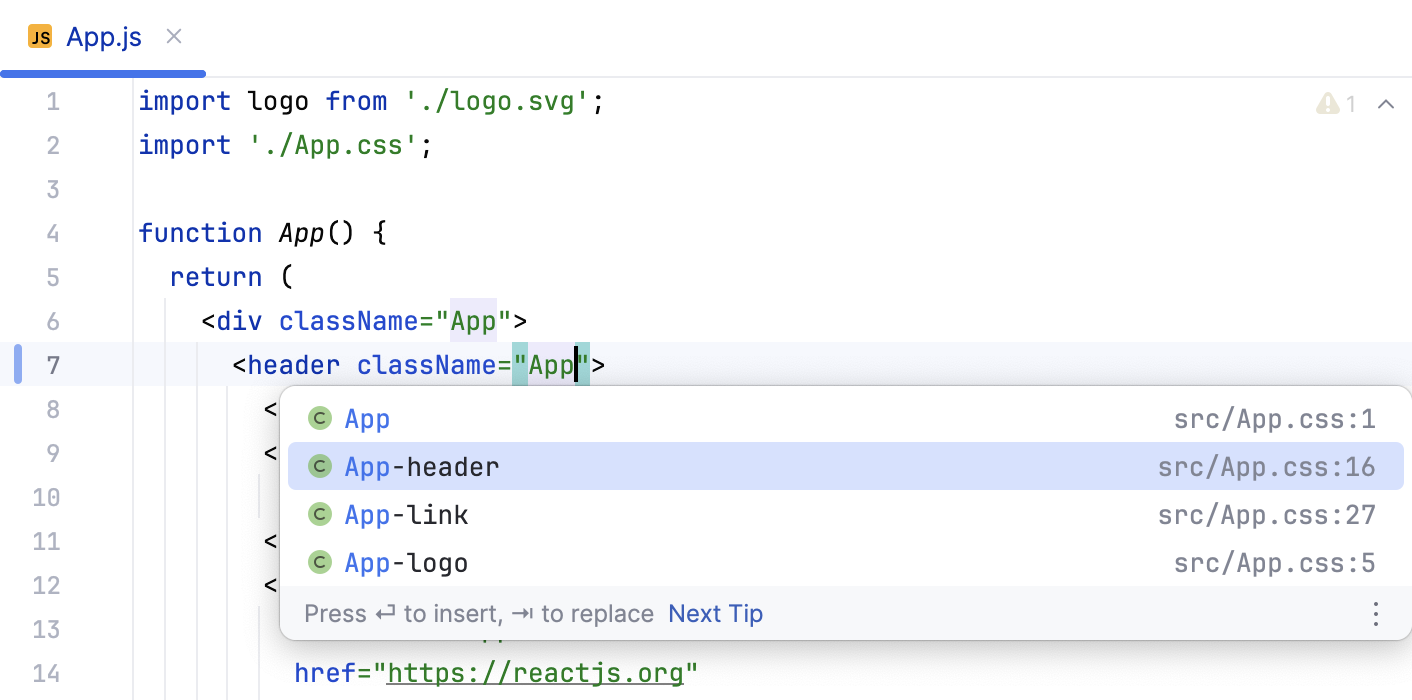
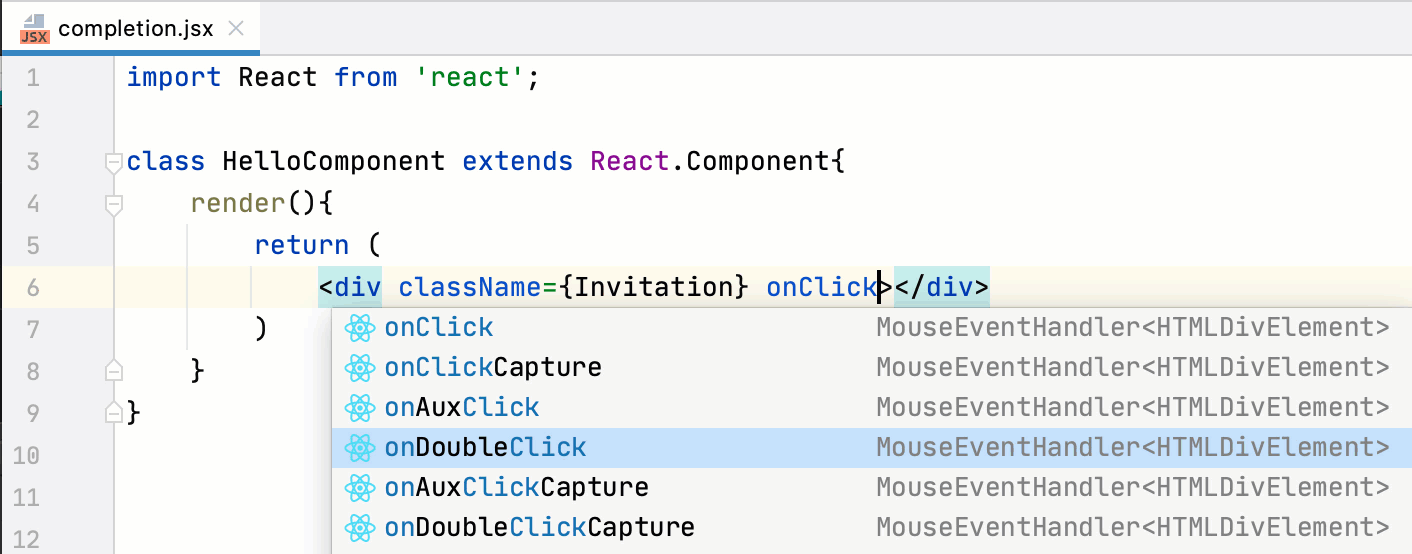
All React events, such as onClick or onChange, can also be completed automatically together with curly braces  ={} or quotes "".
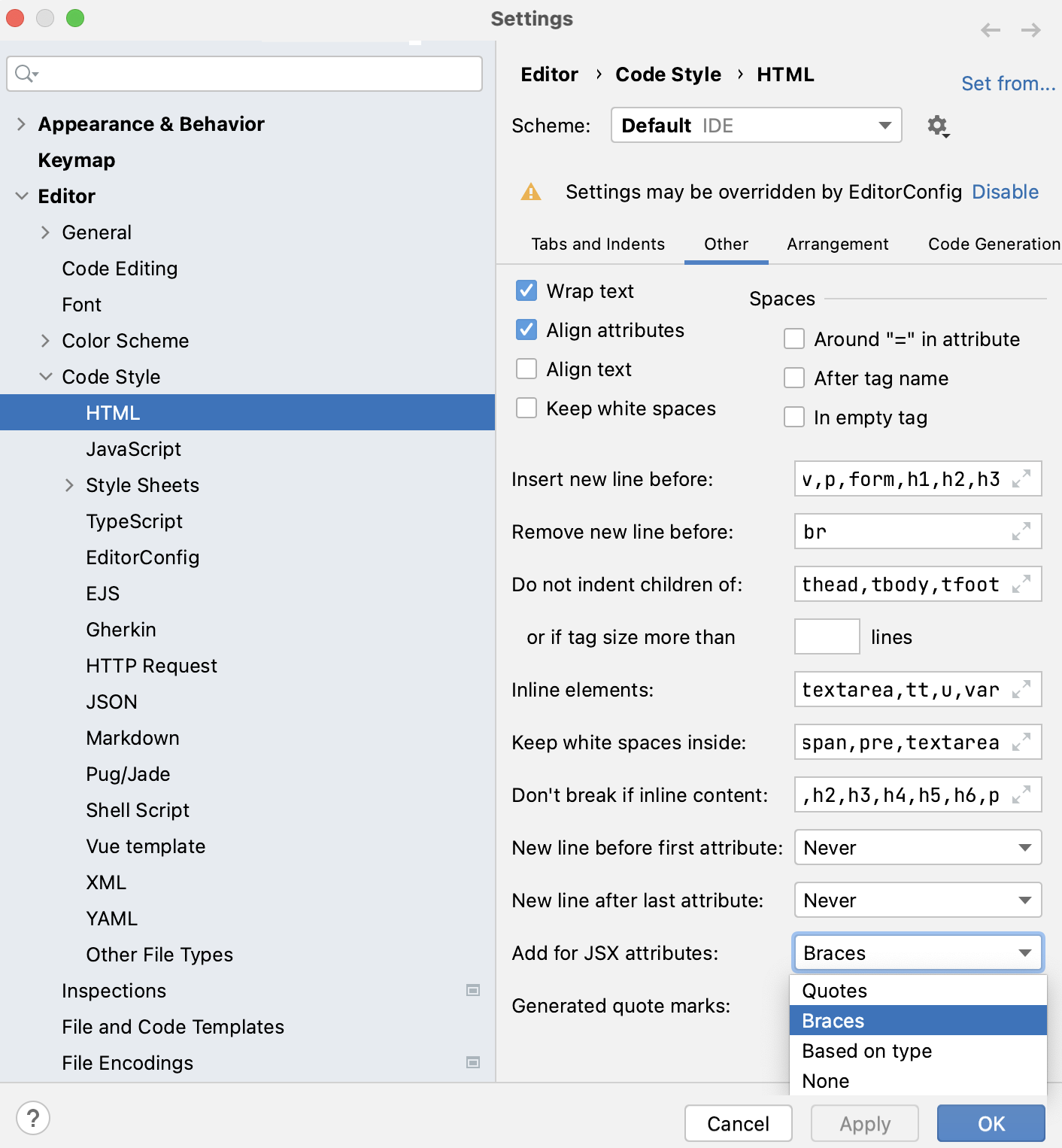
By default, curly braces are inserted. You can have CLion always add quotes or choose between quotes or braces based on the type from a TypeScript definition file (d.ts). To change the default setting, open the Settings dialog (Ctrl+Alt+S) , go to and select the applicable option from the Add for JSX attributes list.
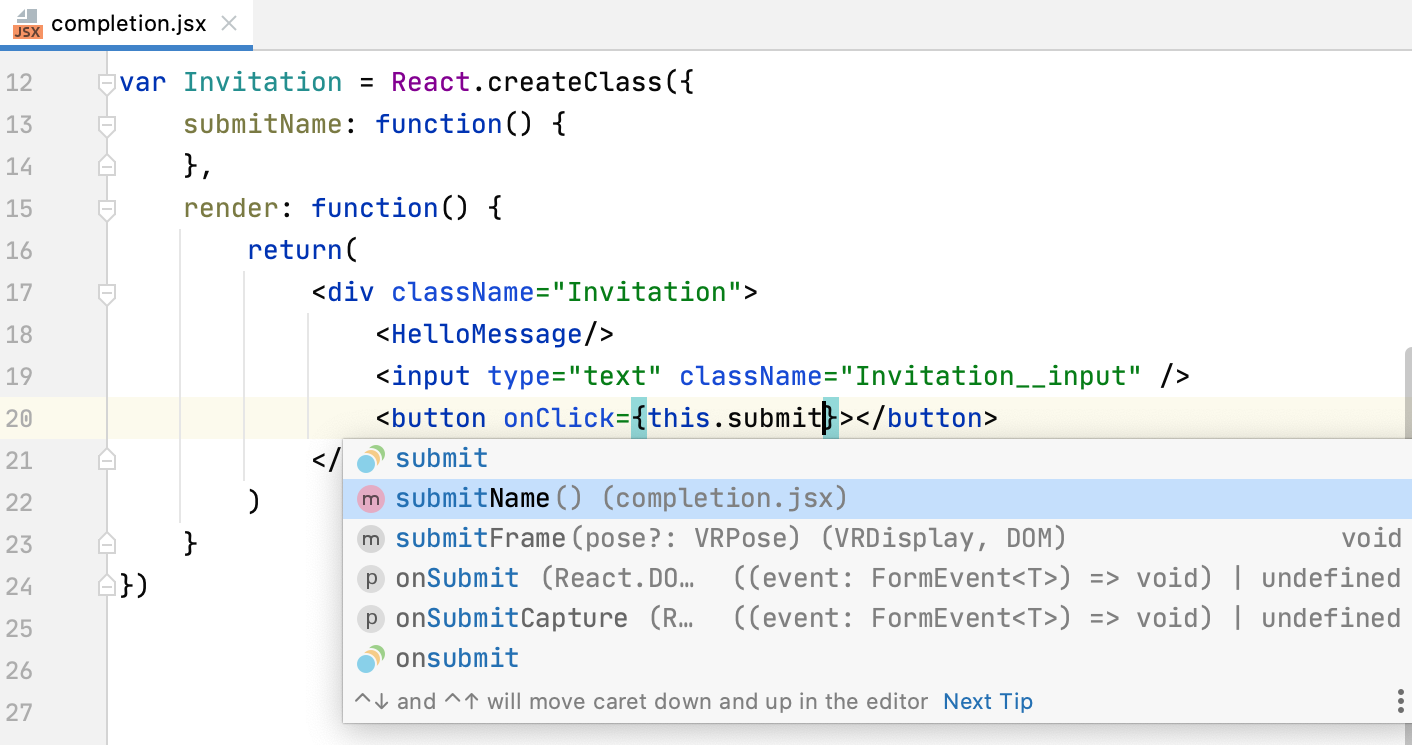
Completion also works for JavaScript expressions inside curly braces. This applies to all the methods and functions that you have defined:
Complete HTML tags and component names
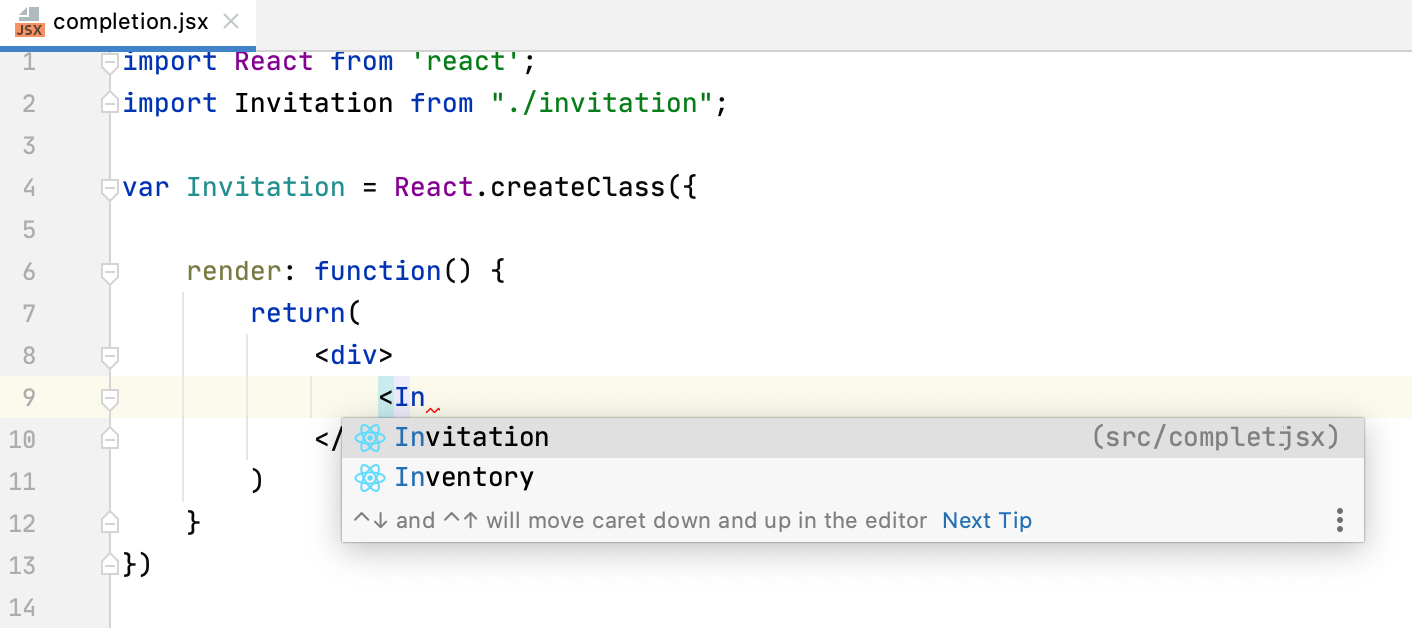
CLion provides code completion for HTML tags and component names that you have defined inside methods in JavaScript or inside other components:

Completion also works for imported components with ES6 style syntax:
Complete component properties
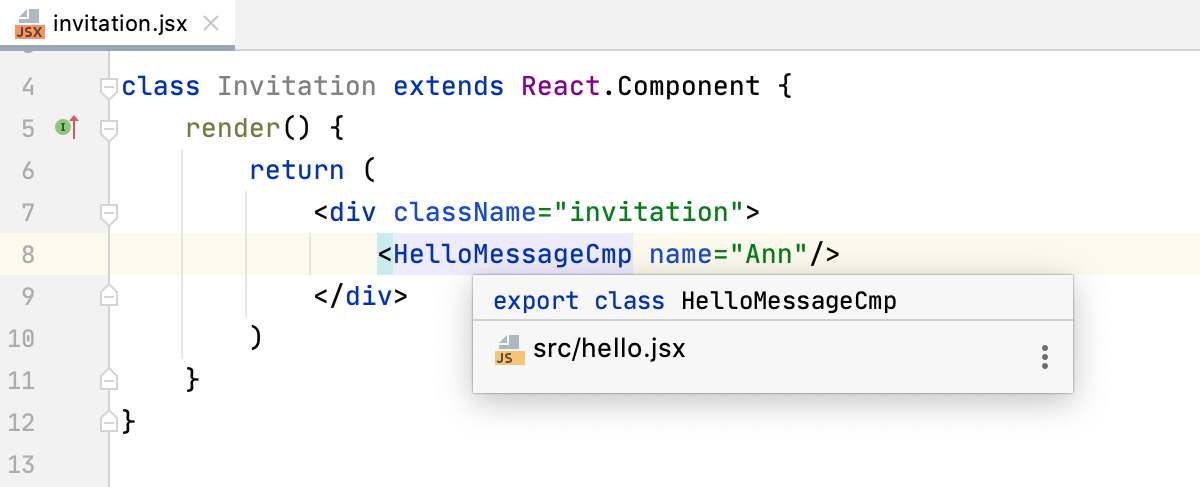
CLion provides code completion for component properties defined using propTypes and resolves them so you can quickly jump or preview their definitions:
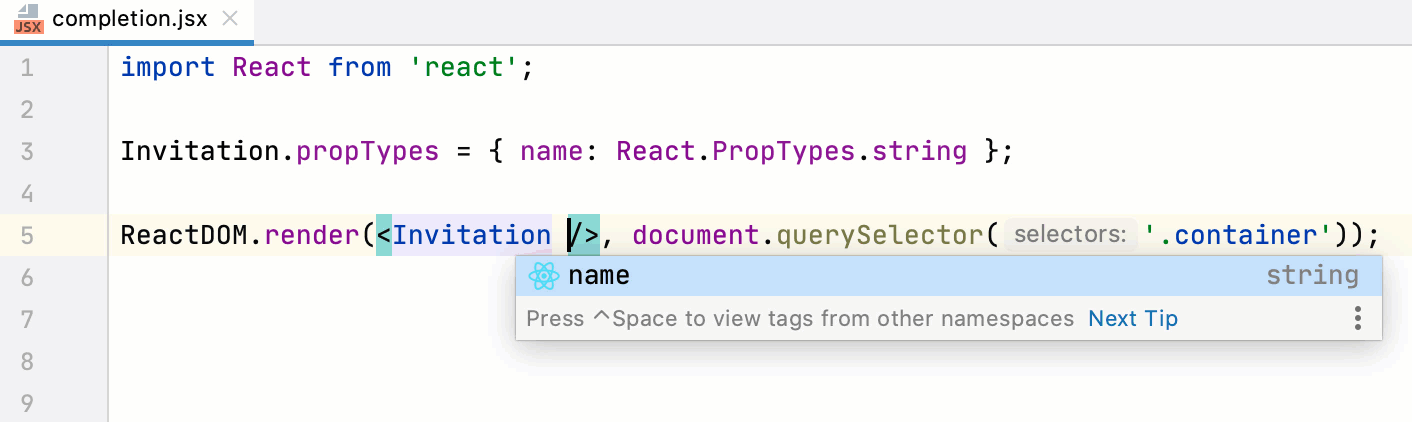
When you autocomplete the name of a component, CLion adds all its required properties automatically. If some of the required properties are missing in the usage of a component, CLion warns you about that.
Add state to functional components
CLion suggests a quick-fix to add useState hooks to functional React components by defining unresolved references in certain places. CLion automatically inserts import statements for the useState hook. The state type is inferred from the place where the reference is defined.
Place the caret at an unresolved reference, press Alt+Enter, and select Create <unresolved reference> state in < functional component name> component from the list.
Add props
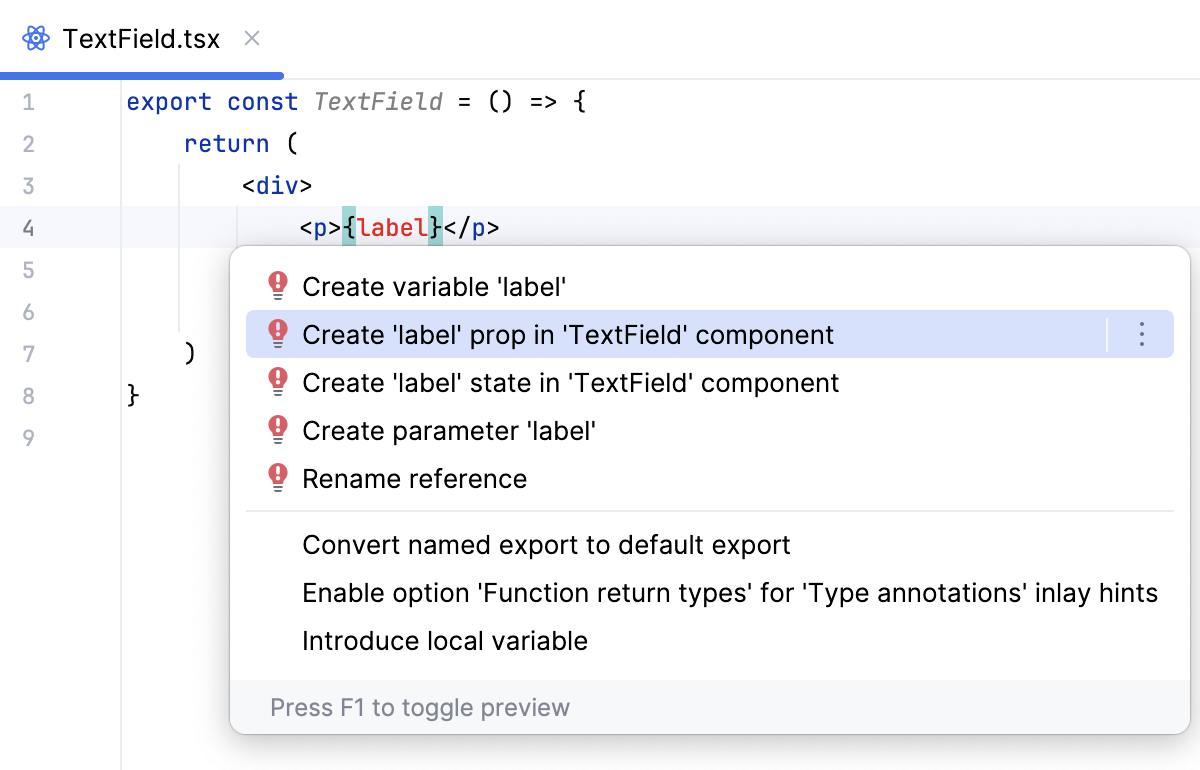
CLion suggests a quick fix to add new properties to React components by defining unresolved references in certain places.
CLion generates the code of components with the added properties. The type of a property is inferred from the place where the corresponding reference is defined.
The quick fix can be also applied in class-based components. In such cases, an unresolved reference is replaced with this.props.${reference_name} after a new property is inserted.
Place the caret at an unresolved reference, press Alt+Enter, and select Create <unresolved reference>prop in <component name> component from the list.
Transfer HTML attributes to JSX
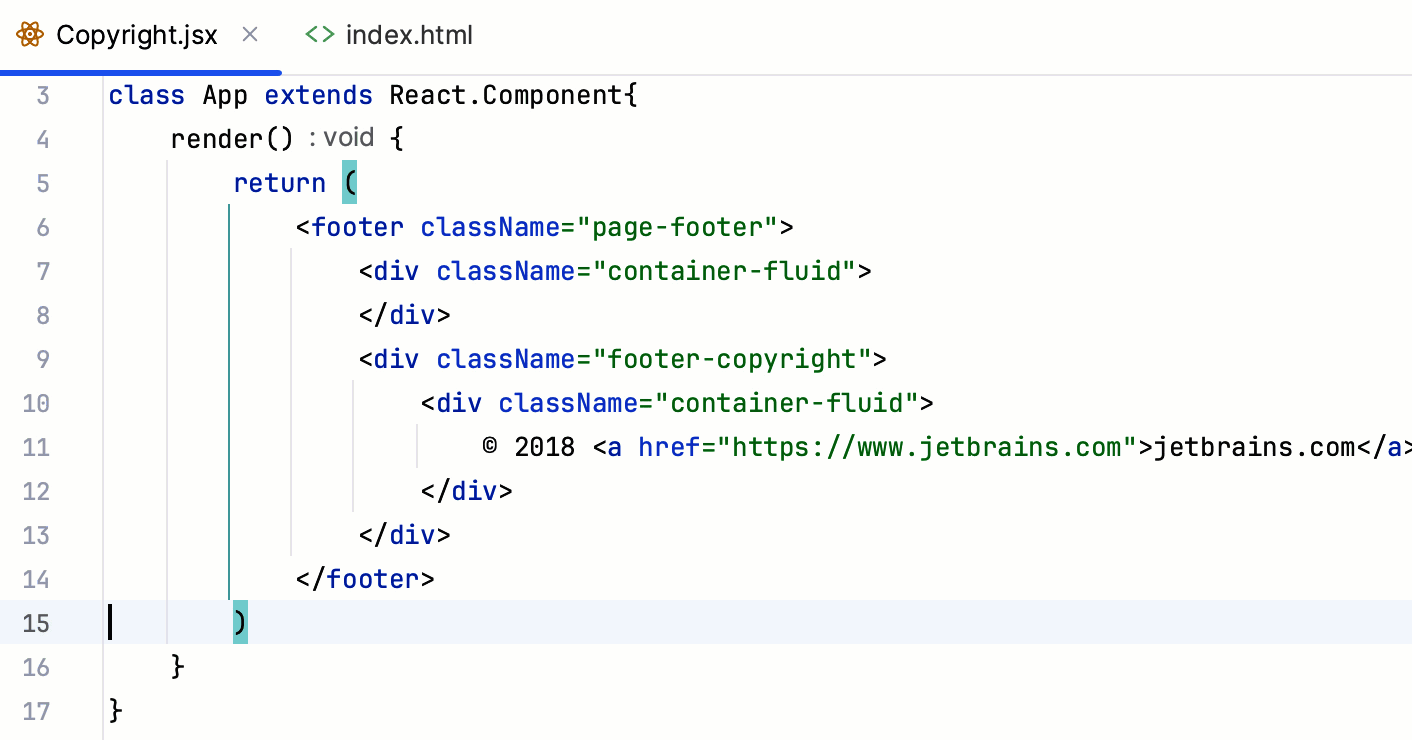
When you copy a piece of HTML code with class attributes or on-event handlers and paste it into JSX, CLion automatically replaces these attributes with React-specific ones (className, onClick, onChange, and so on.)
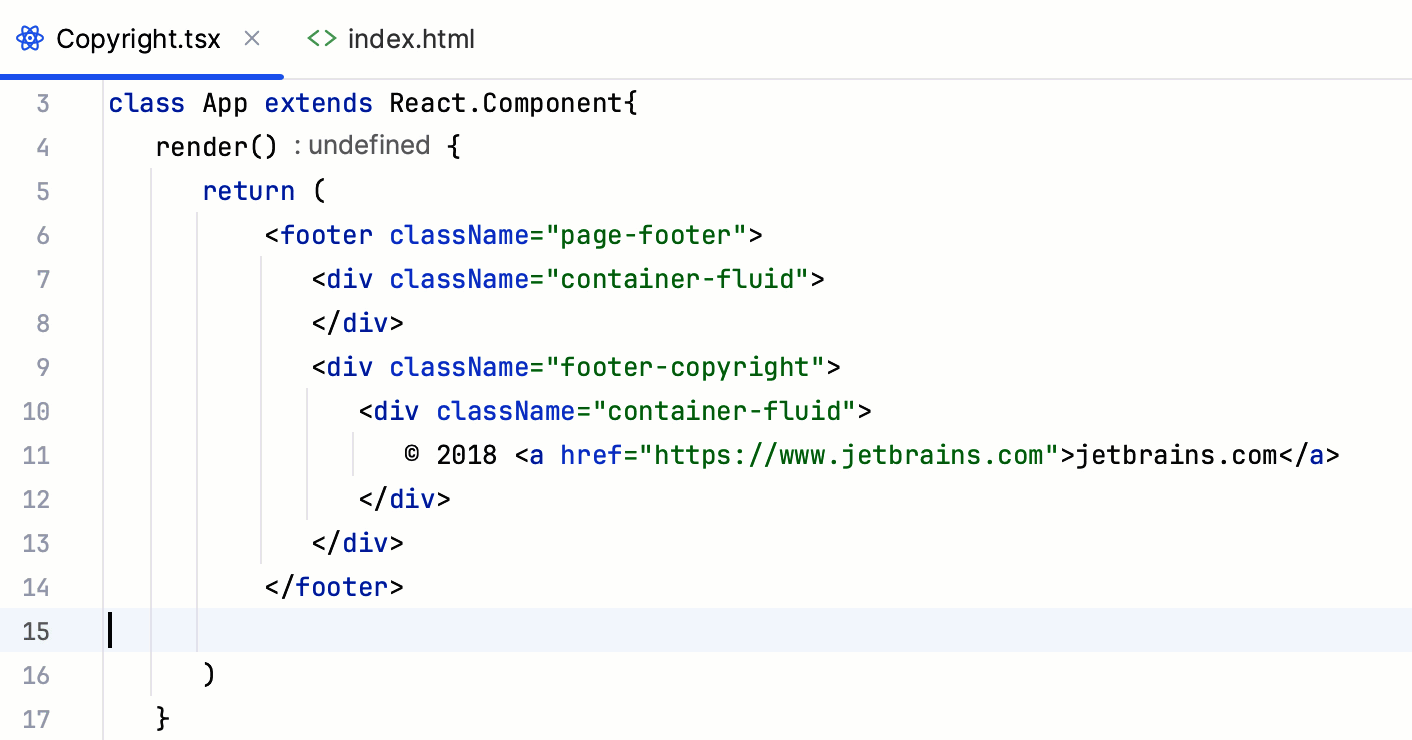
This also works for TSX:
When you copy a piece of HTML code that contains single tags and paste it into JSX, CLion automatically adds a slash / at the end of each single tag.
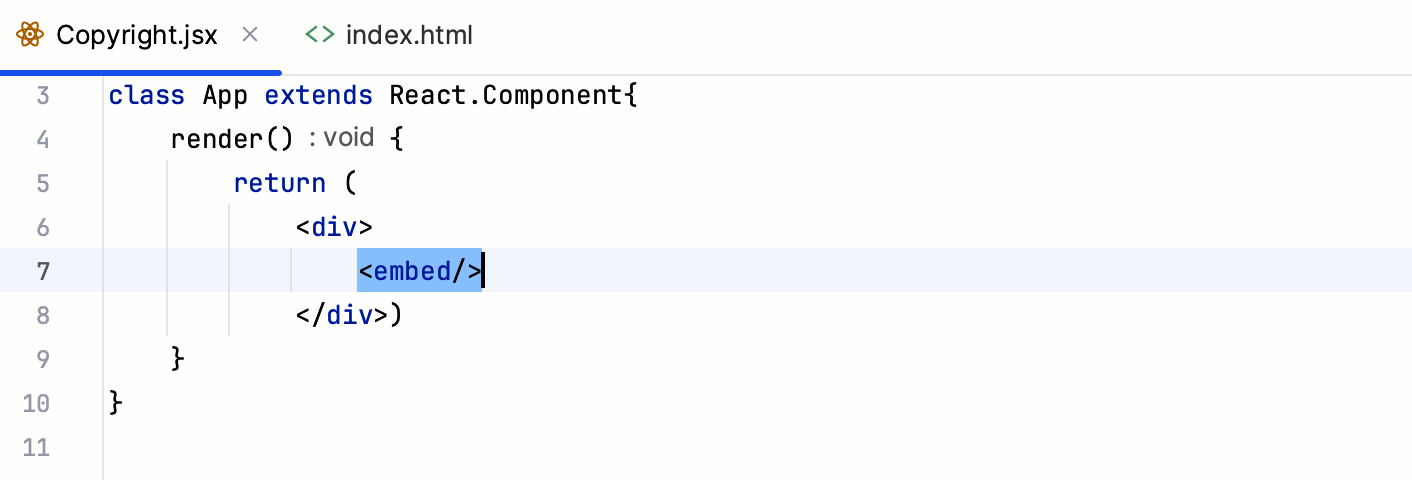
To copy HTML code to JSX or TSX as is, use Paste Simple Ctrl+Alt+Shift+V or open the Settings dialog (Ctrl+Alt+S) , go to , settings page and clear the Close HTML single tags when pasting code into JSX files and the Convert HTML attribute names when pasting into JSX files checkboxes.
React code snippets
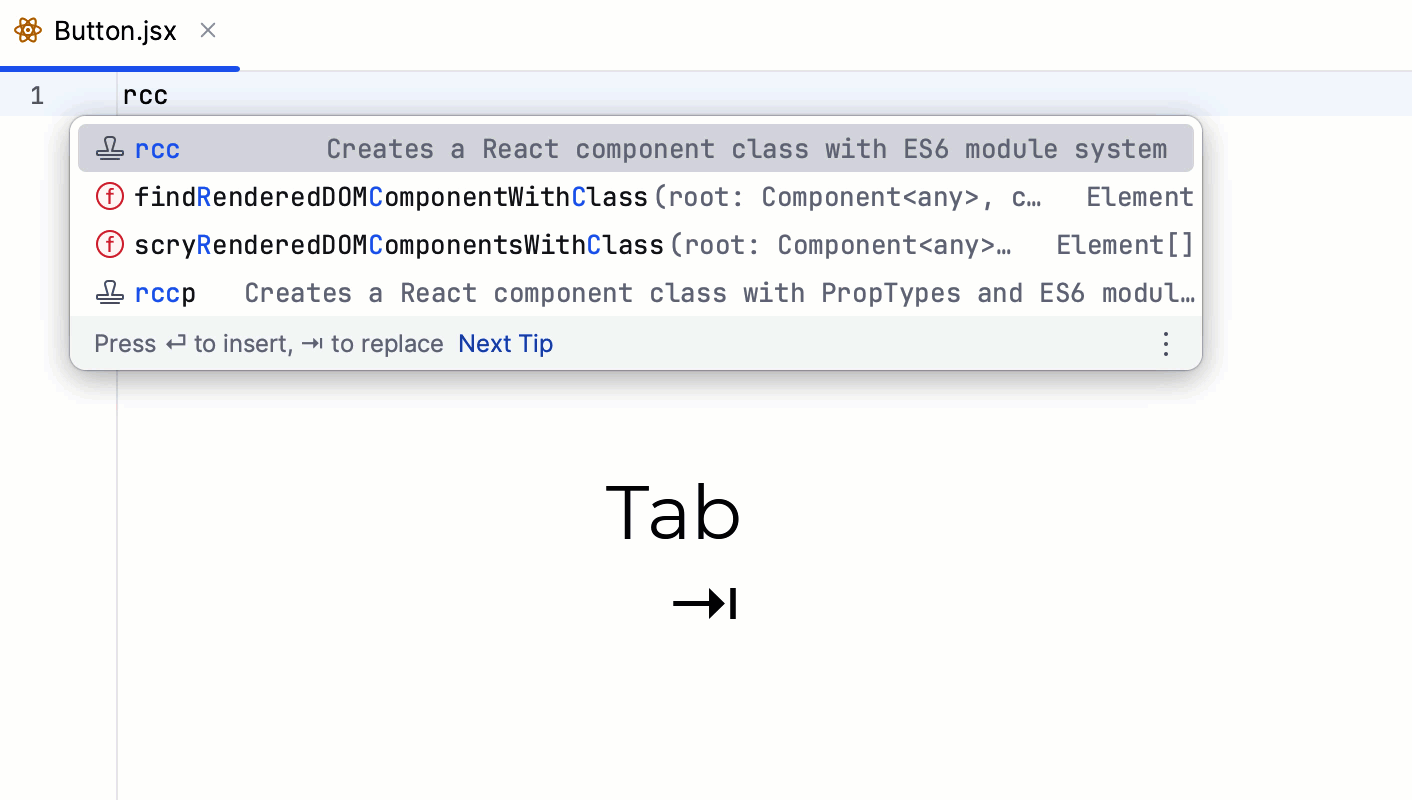
CLion comes with a collection of more than 50 code snippets that expand into different statements and blocks of code often used in React apps, including React Hooks. The example below shows how you can use the rcjc abbreviation to create a class that defines a new React component:
Create a React code construct from a snippet
Type the required abbreviation in the editor and press Tab.
Press Ctrl+J and choose the relevant snippet. To narrow down the search, start typing the abbreviation and then select it from the completion list.
For more information, refer to Live Templates.
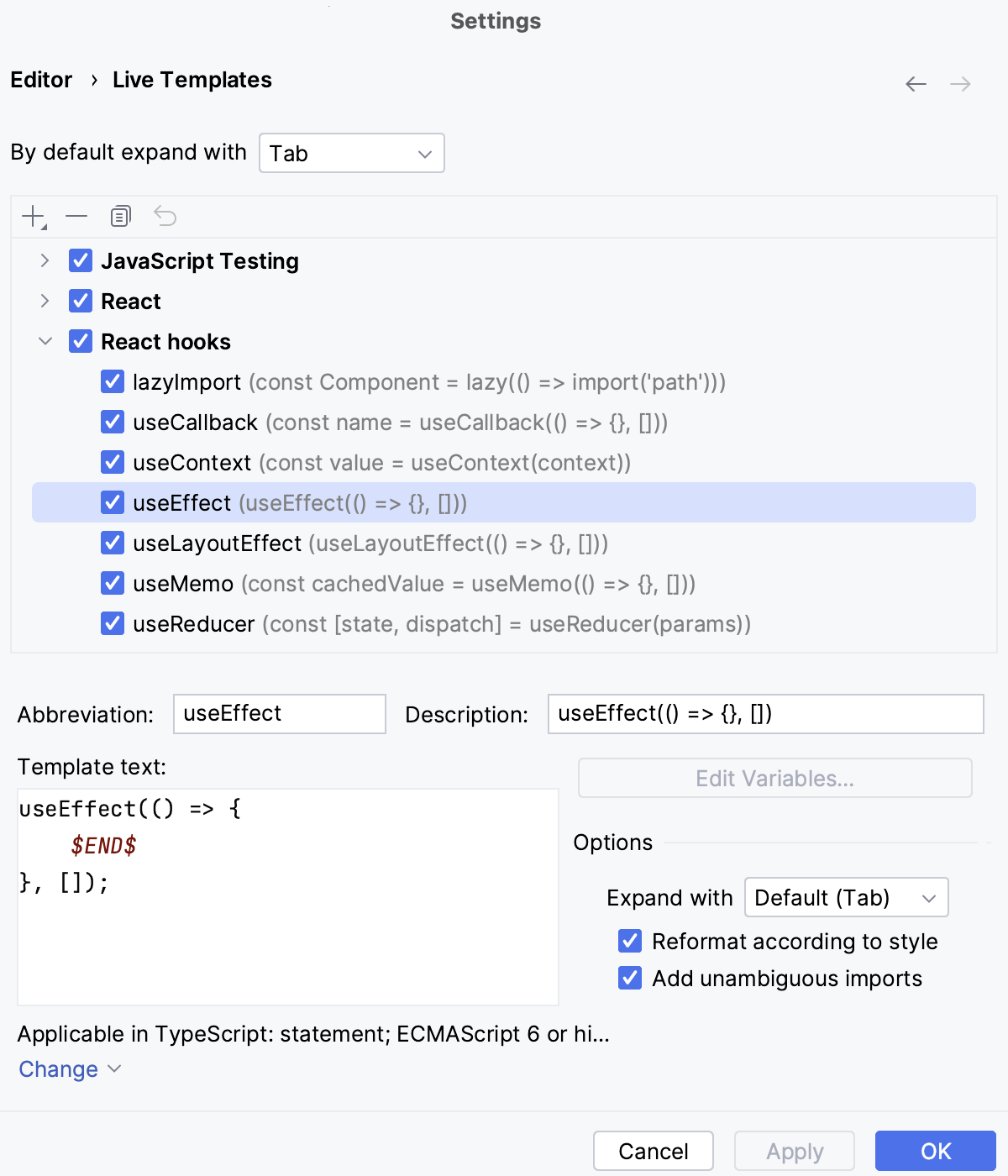
View the list of all available React snippets
In the Settings dialog (Ctrl+Alt+S) , click Live Templates under Editor, and then expand the React or React hooks node.
React directives
CLion recognizes and highlights the following React directives at the top of a file and within functions:
Emmet in JSX
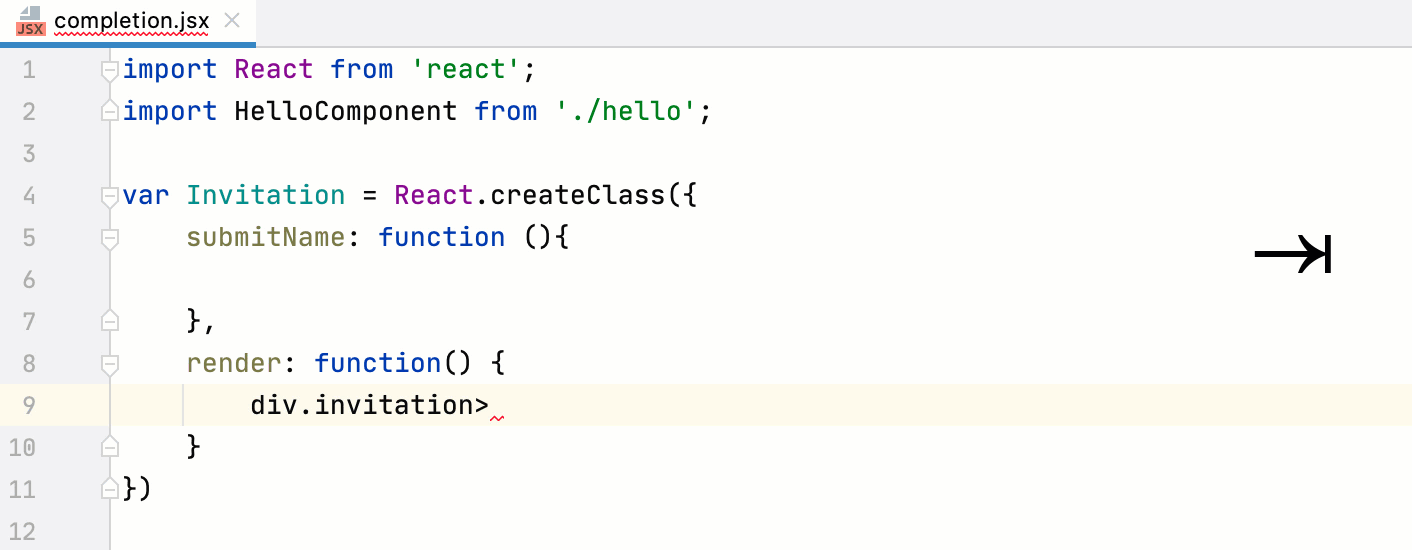
With CLion, you can use Emmet not only in HTML but also in your JSX code taking advantage of some special React twists. For example, the abbreviation div.my-class expands in JSX to <div className=”my-class"></div> but not to <div class=”my-class"></div> as it would in HTML:
Navigate through a React application
Besides the basic navigation, CLion helps you jump between React-specific code elements.
To jump to the declaration of a method or a JavaScript expression inside curly braces
{}, select the method or expression and press Ctrl+B.To jump to the declaration of a component, select the component name and press Ctrl+B.
To view component definition, press Ctrl+Shift+I. Learn more from Definition and type definition.
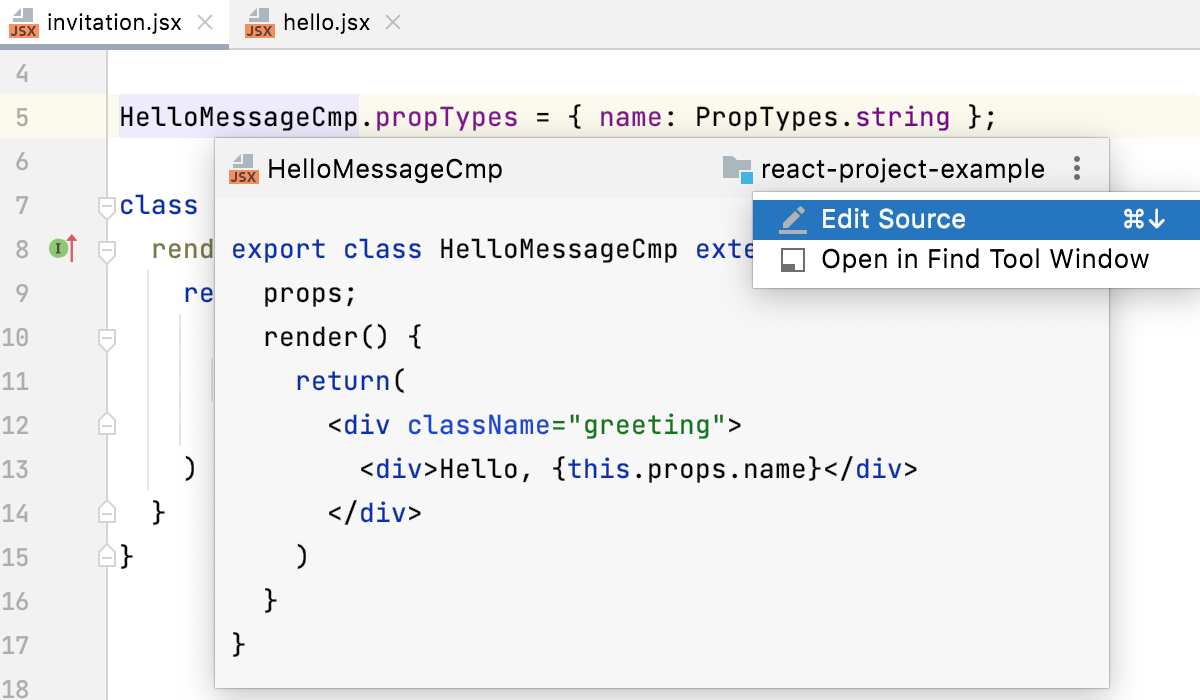
To view quick documentation for a component, press Ctrl+Q. Learn more from JavaScript documentation look-up.
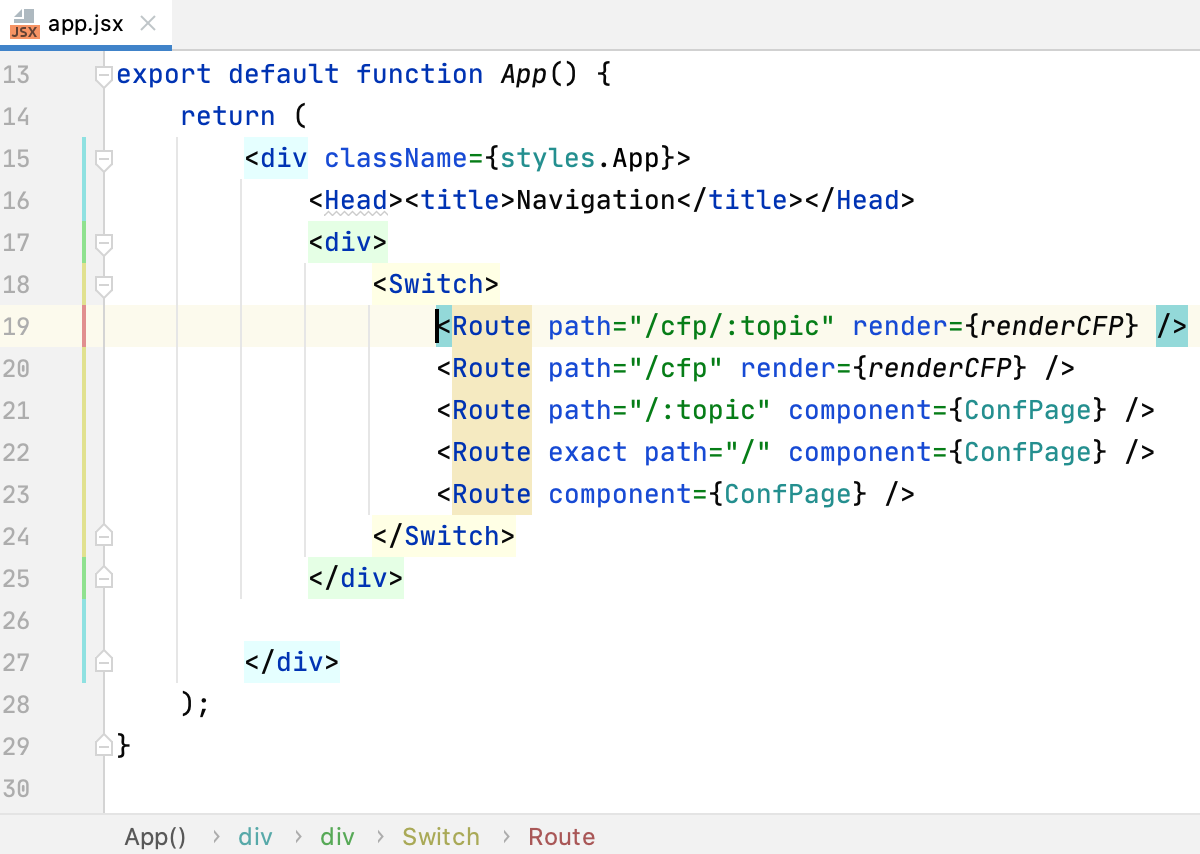
Navigate with the structure view
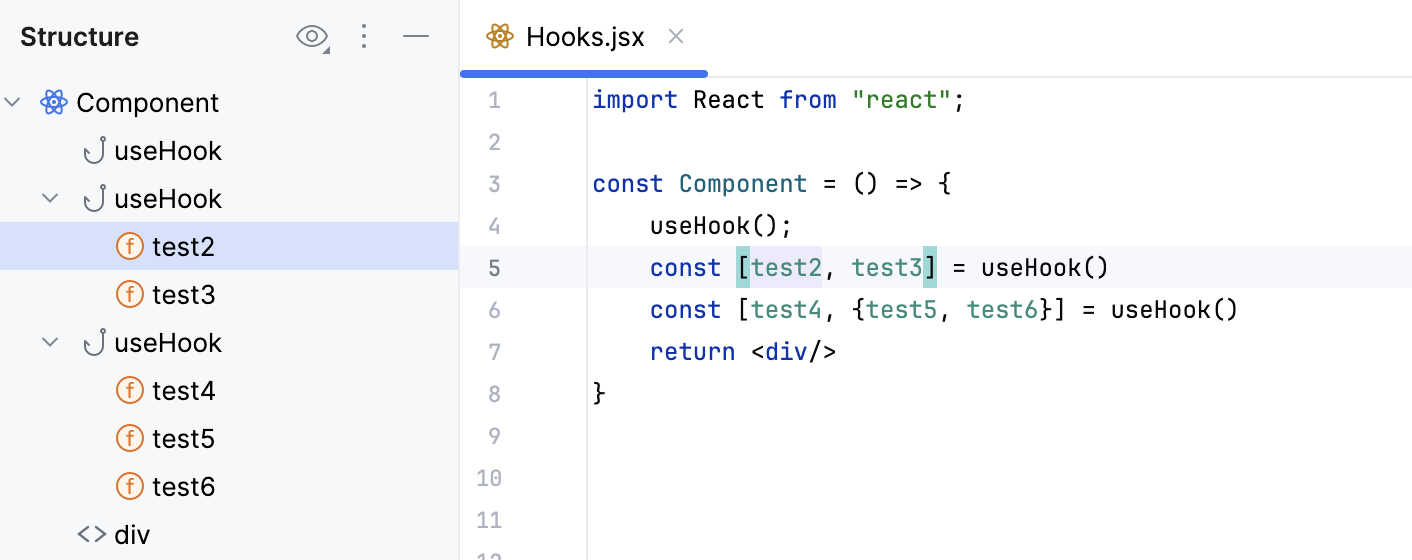
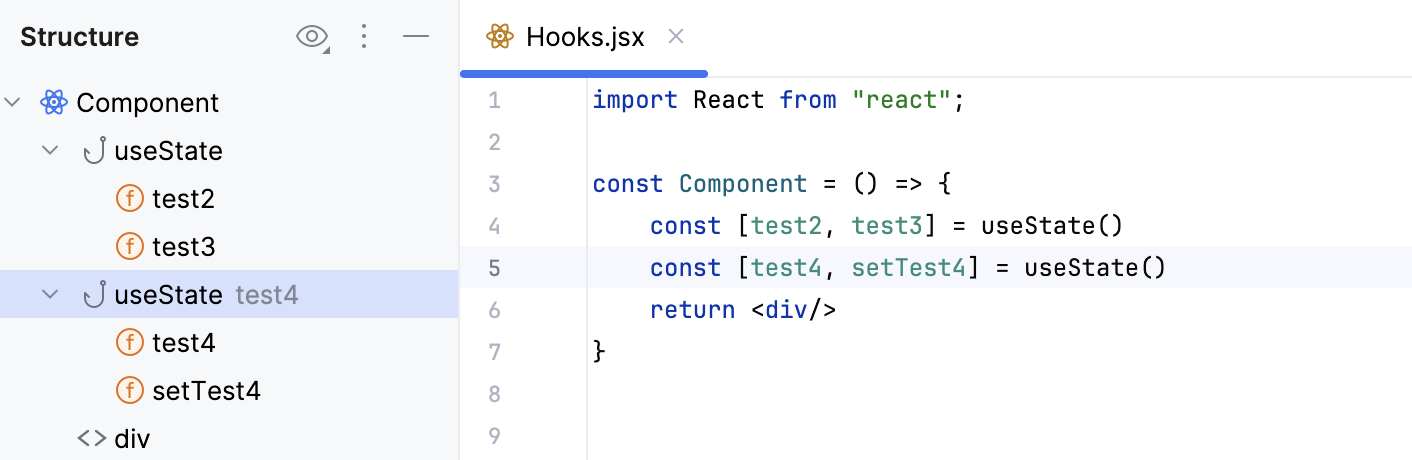
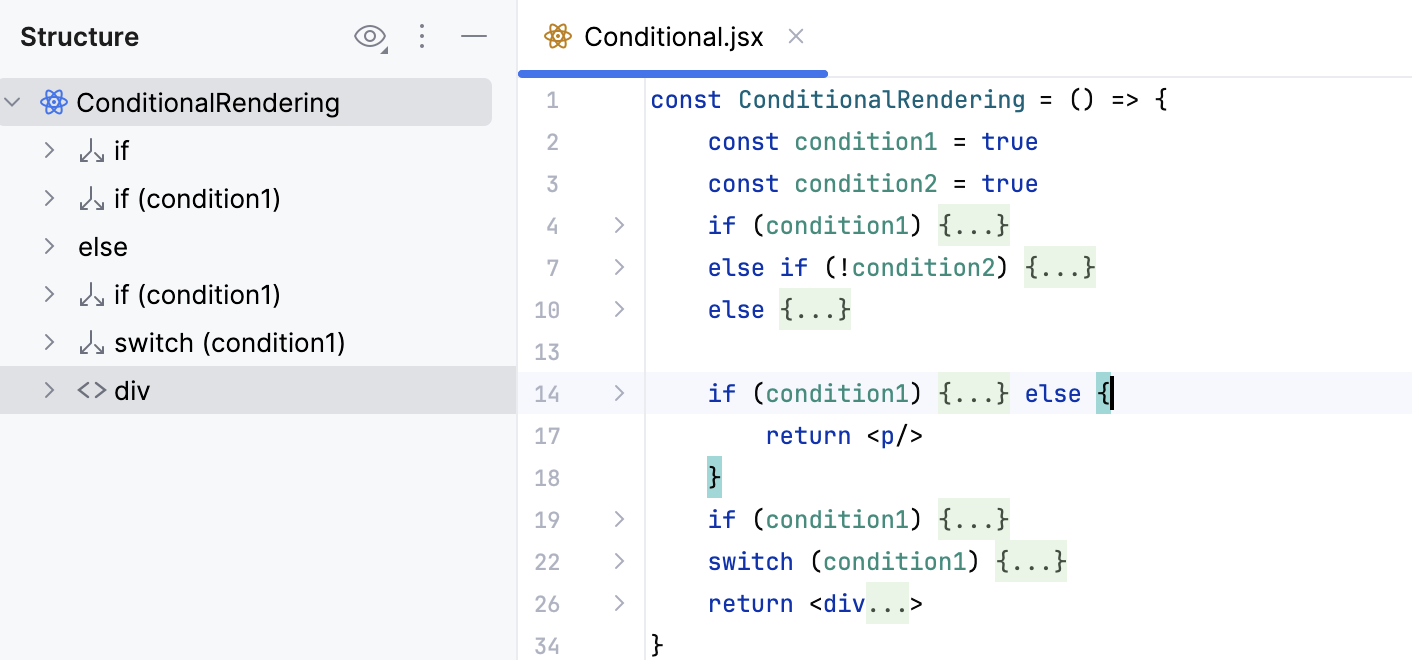
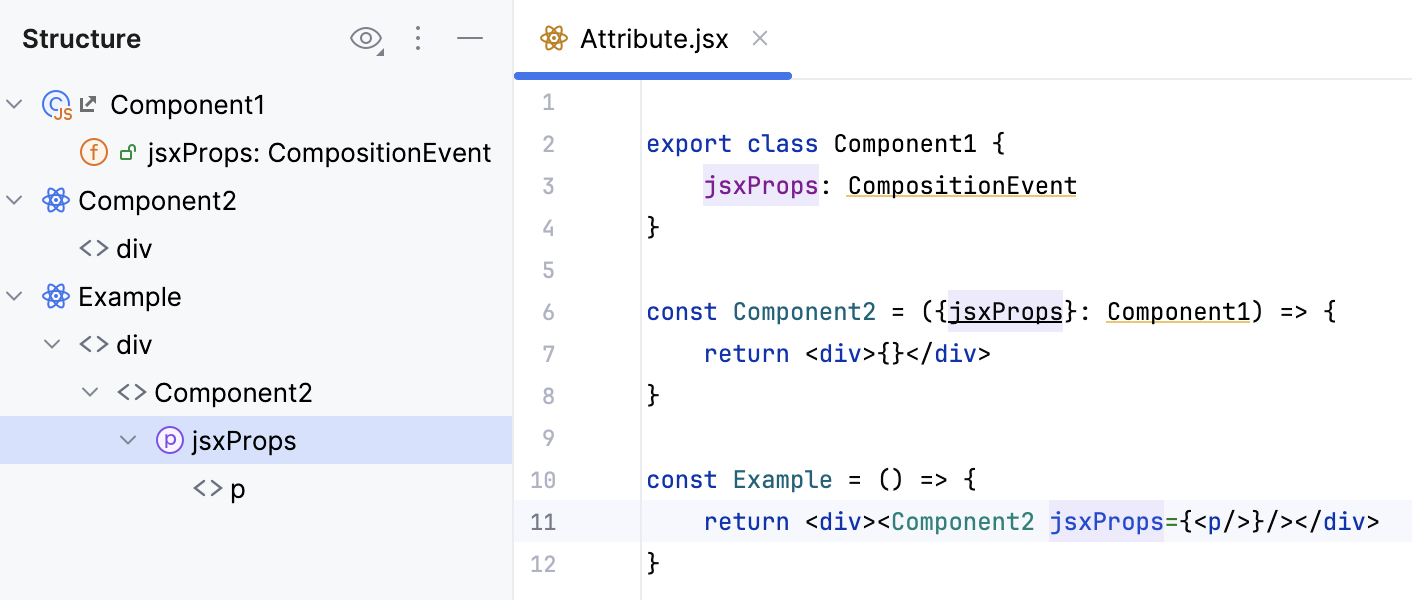
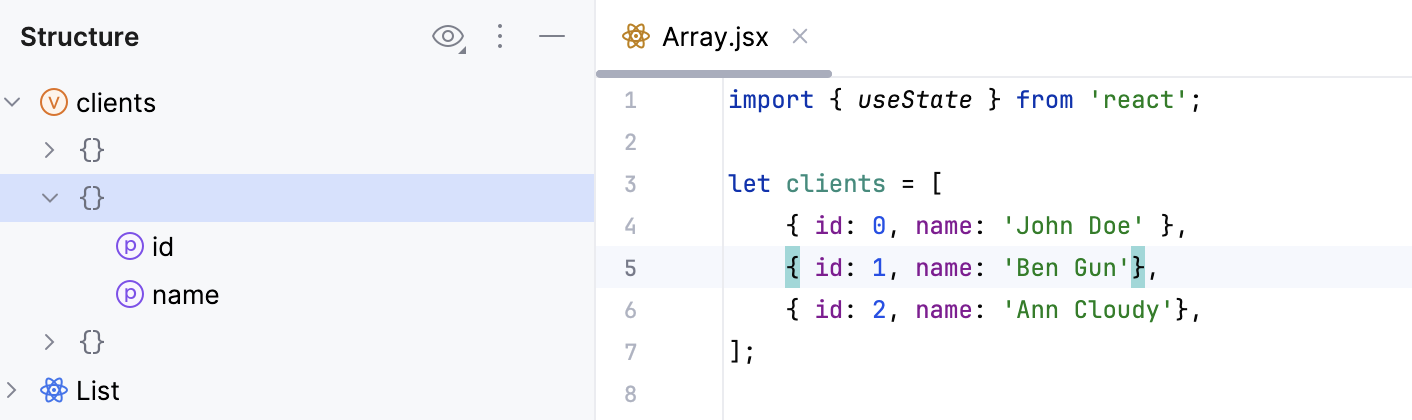
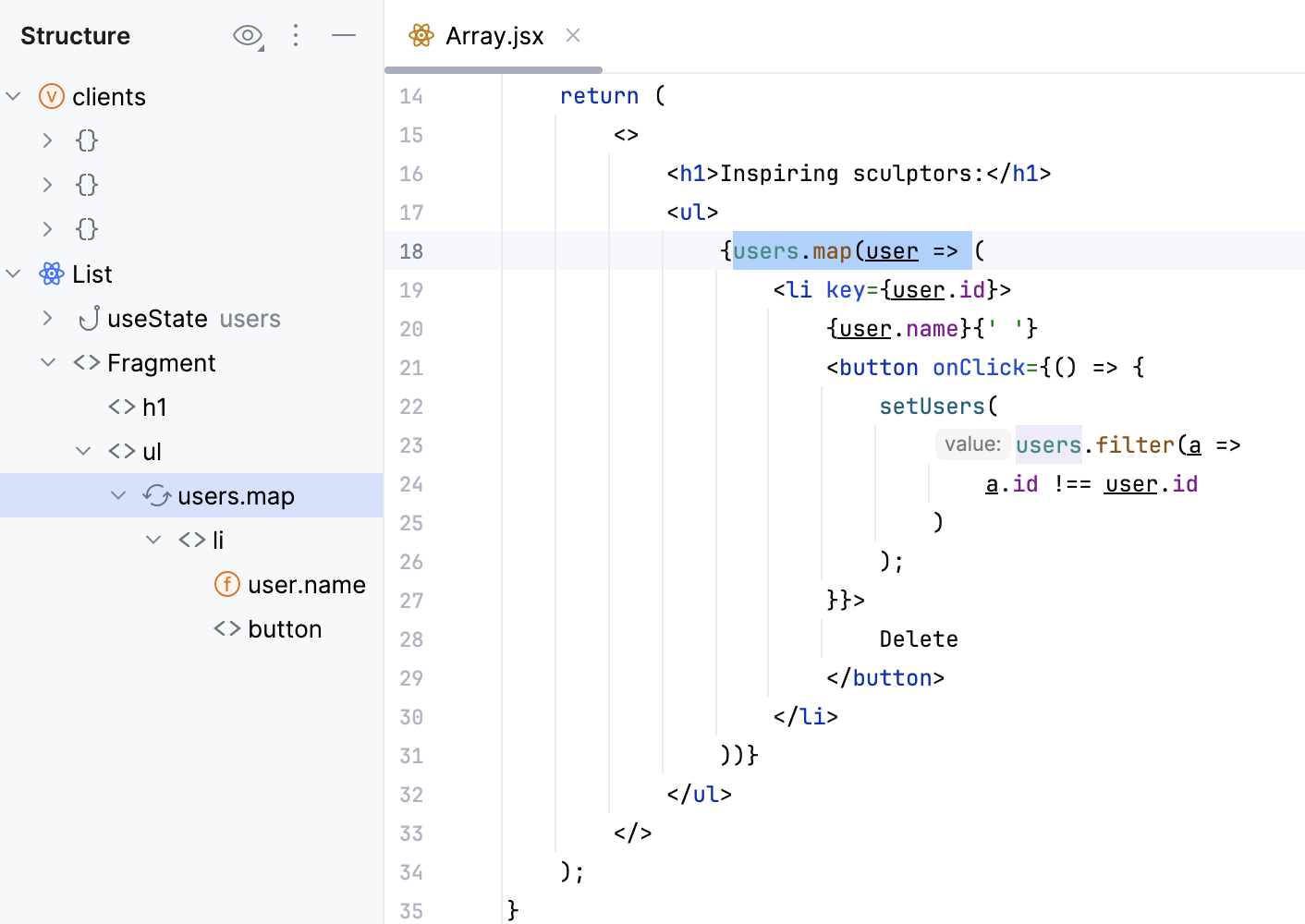
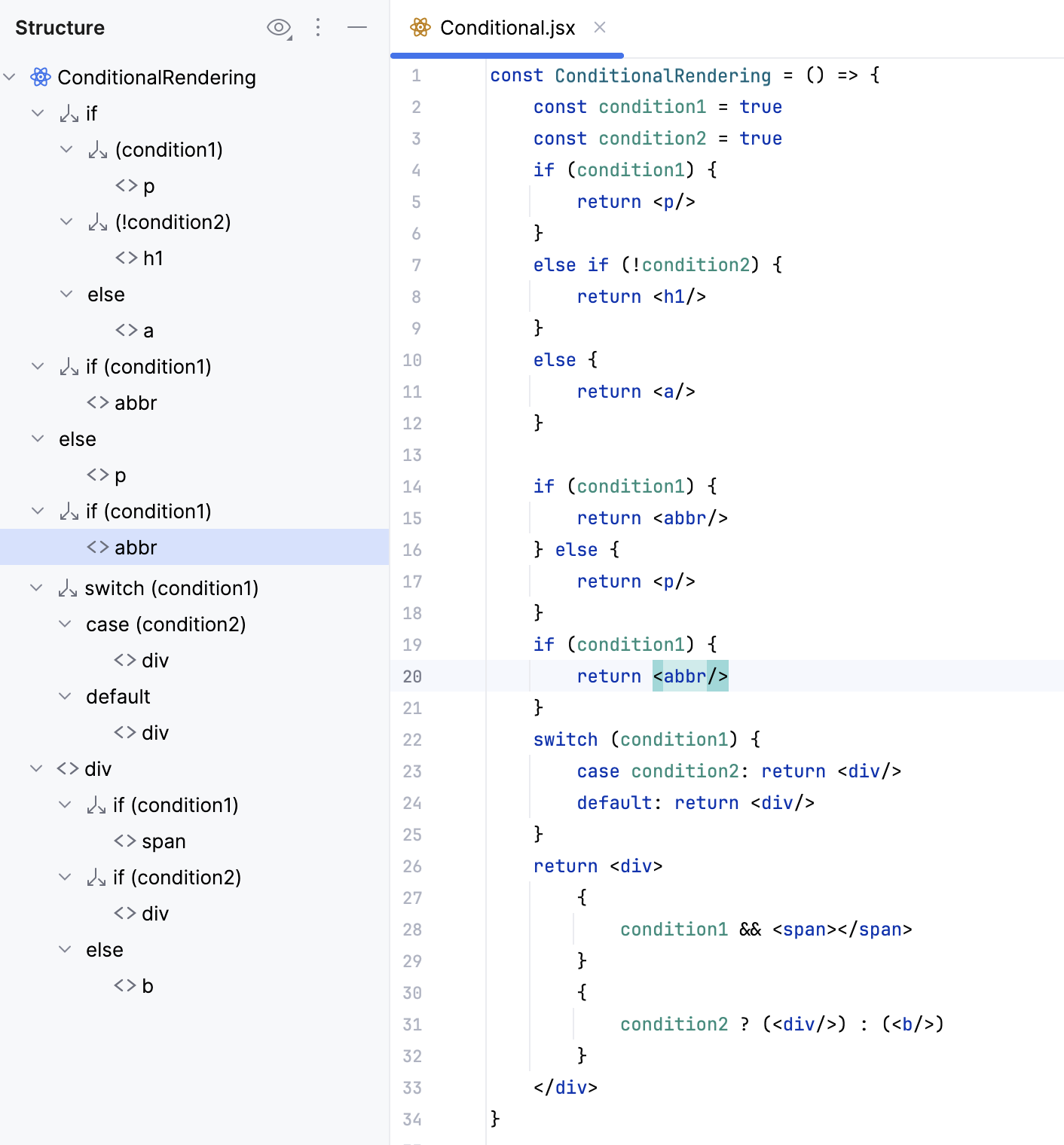
The Structure tool window and the Structure popup provide you with clearer insights into React code structures, facilitating easier navigation, and promoting better understanding of React components and related elements.
The Structure tool window shows the following React-specific nodes:
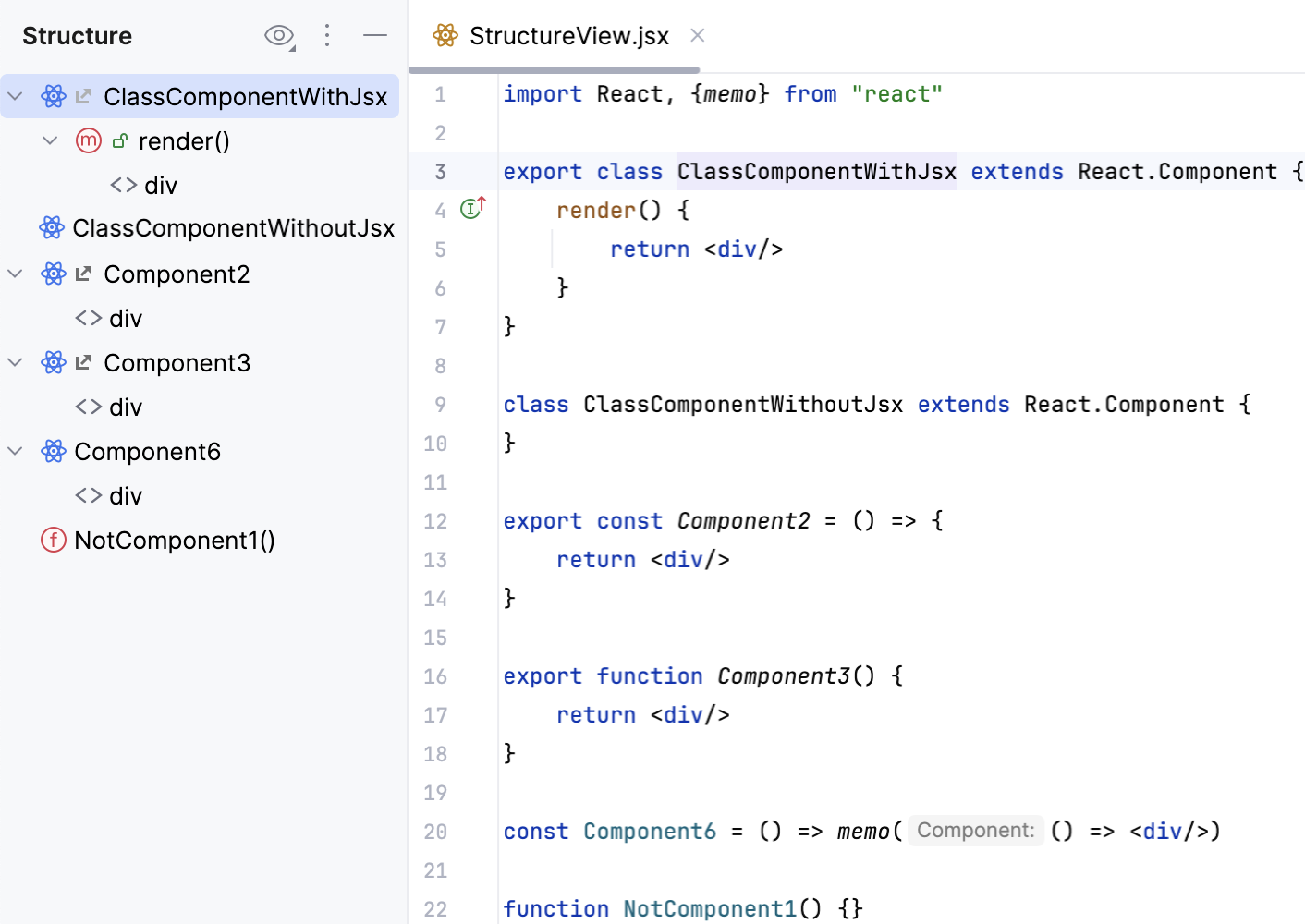
The variables initialized by a hook are shown as children under its node.
Lint a React application
All the CLion built-in code inspections for JavaScript and HTML also work in JSX code. CLion alerts you in case of unused variables and functions, missing closing tags, missing statements, and much more.
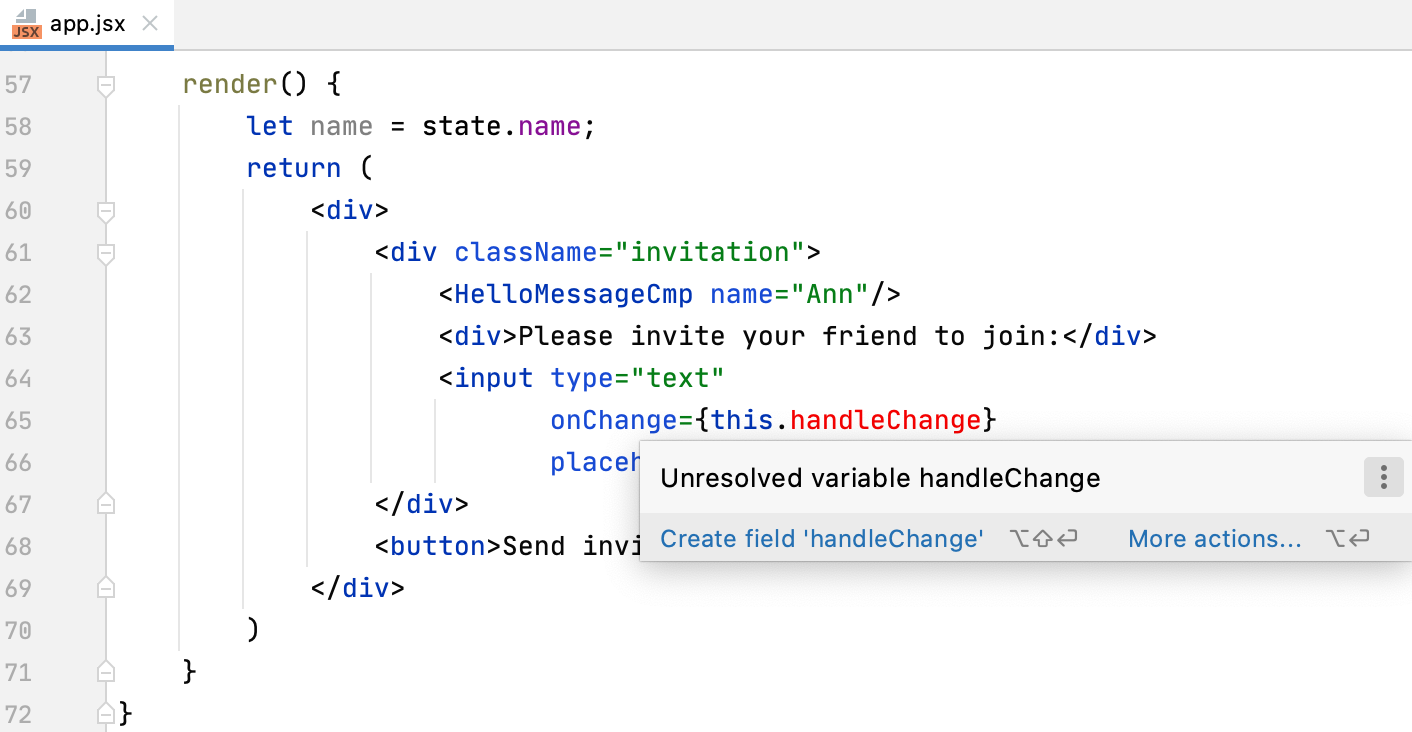
For some inspections CLion provides quick-fixes, for example, suggests adding a missing method. To view the quick-fix popup, press Alt+Enter.
To customize the list of inspections, open the Settings dialog (Ctrl+Alt+S) , go to Editor | Inspections, and disable the inspections you don’t want to see or change their severity levels. Learn more from Enable/disable and suppress inspections and Inspection severities.
ESLint
Besides providing built-in code inspections, CLion also integrates with linters, such as ESLint, for JSX code. ESLint brings a wide range of linting rules that can also be extended with plugins. CLion shows warnings and errors reported by ESLint right in the editor, as you type. With ESLint, you can also use JavaScript Standard Style as well as lint your TypeScript code.
For more information, refer to ESLint.
To have ESLint properly understand React JSX syntax, you need eslint-plugin-react. With this plugin, you are warned, for example, when the display name is not set for a React component, or when some dangerous JSX properties are used:
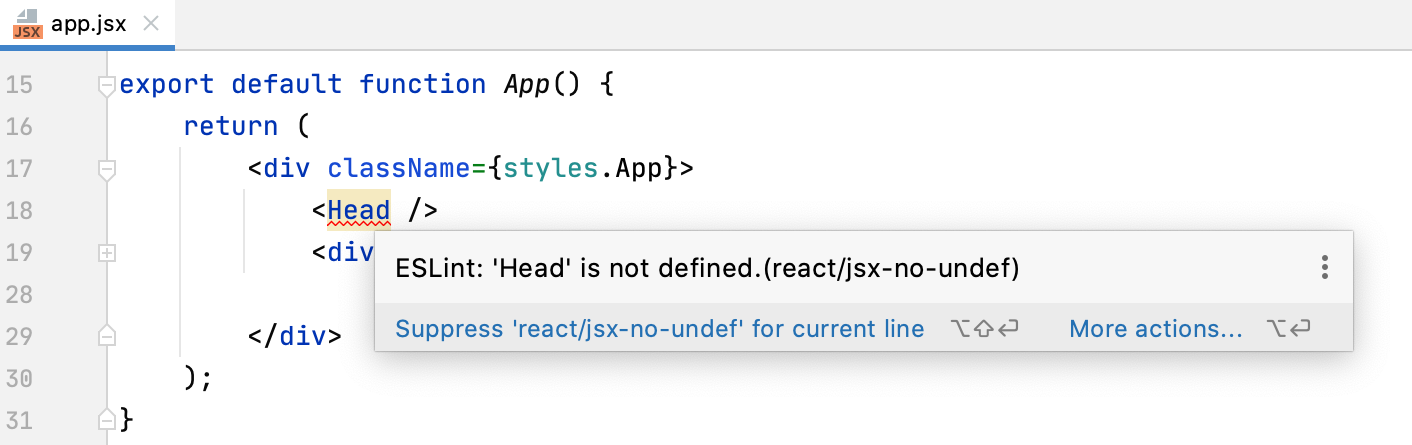
Install and configure ESLint in a React project
In the built-in Terminal (), type:
npm install --save-dev eslint npm install --save-dev eslint-plugin-reactAdd an ESLint configuration file to your project.
In the Settings dialog (Ctrl+Alt+S) , go to Languages & Frameworks | JavaScript | Code Quality Tools | ESLint, and select Automatic ESLint configuration. CLion will automatically locate ESLint in your project node_modules folder, and then use the default configuration from .eslintrc.* file or from
eslintConfigproperty in a package.json.Alternatively, select Manual ESLint configuration to use a custom ESLint package and configuration.
See Activating and configuring ESLint in CLion for details.
Example of .eslintrc structure (ESLint 1.x with react plugin)
In the
ecmaFeaturesobject, add"jsx" = true. Here you can also specify additional language features you’d like to use, for example, ES6 classes, modules, and so on.In the
pluginsobject, addreact.In the
rulesobject, you can list ESLint built-in rules that you would like to enable, as well as rules available via the react plugin.{ "parser": "babel-eslint", "env": { "browser": true, "es6": true, "jest": true }, "rules": { "arrow-parens": ["error", "as-needed", { "requireForBlockBody": true }], "react/jsx-props-no-spreading": "off", "react/jsx-sort-props": ["error", { "reservedFirst": ["key"] }], "react/require-default-props": "off", "react/sort-prop-types": "error", "react/state-in-constructor": ["error", "never"], "semi-spacing": "warn" }, "overrides": [ { "files": [ "sample/**", "test/**" ], "rules": { "import/no-unresolved": "off" } } ] }
Learn more about ESLint and react plugin configuration from the ESLint official website.
Build a React application
You need to set up the build process if you installed React in an existing CLion project. Learn about various ways to configure a build pipeline for your React application from React official website.
Use several frameworks within a project
Sometimes you may need to use other frameworks within one React project.
To get context-aware coding assistance in each file, create a configuration file .ws-context and specify which framework should be used in each particular file or folder. The settings from this file will override the default configuration.
In the project root, select New | File from the context menu and specify
.ws-contextas the file name.In
.ws-context, use two types of properties:<context-name>with the context value stringA GLOB pattern with a context details object
Use the following context values:
framework:vue,angular,react,svelte,astroangular-template-syntax:V_2,V_17nextjs-project:nextjsastro-project:astrovue-store:vuex,piniavue-class-component-library:vue-class-component,vue -property-decorator,vue-facing-decoratorjsdoc-dialect:jsdoc-typescript,jsdoc-closure
Use path nesting for simplicity.
The last segment of a GLOB path is the file name pattern, it only supports the
*wildcard.If the last segment is a
**it matches all nested directories and files.Top level context properties should have the
/**pattern.
When several patterns match the same file name, the following rules are used for disambiguation:
Choose the pattern with maximum number of path segments, excluding
**segments.Choose the pattern that is a pure file name pattern, which means that it does not end in
**or/.Choose the pattern that was defined first.
Example
Suppose you have a project with a number of frameworks used in various folders.
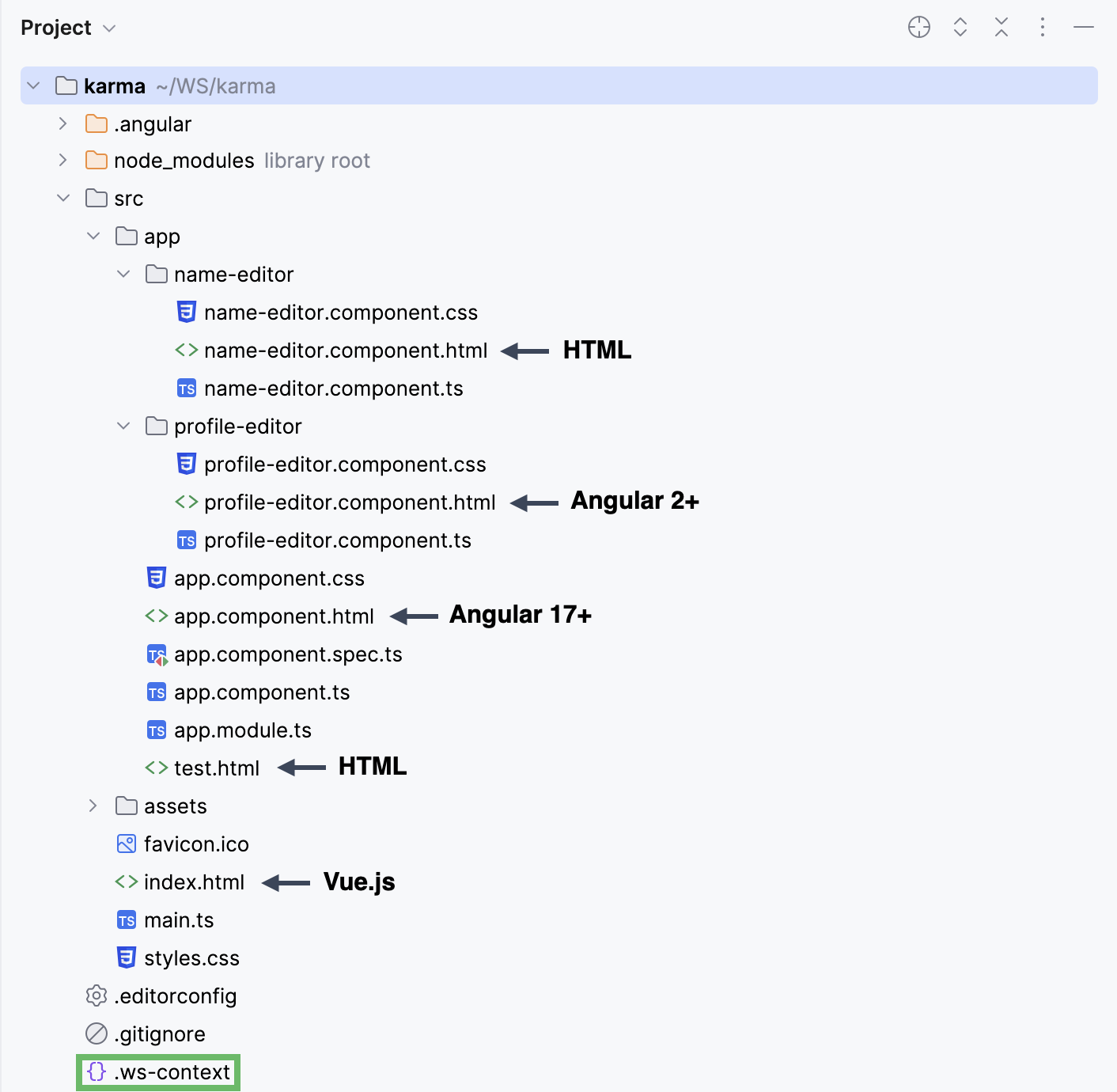
To get context-aware assistance for each file in the project, add the following code to .ws-context: