Parasoft C/C++test
You can run Parasoft C/C++test static analysis on your project directly from CLion by configuring it as an external tool, and then review the findings with the built-in SARIF Viewer.
CLion calls the C/C++test command-line launcher (cpptestcli), which reads the compilation database that CLion generates (compile_commands.json) and writes a report into your project.
Prerequisites
Parasoft C/C++test is installed on your machine, and you know the path to the
cpptestclilauncher (for example, /home/<user>/parasoft/cpptest/cpptestcli). For installation and license activation instructions, see the Parasoft C/C++test installation guide.A C/C++test settings file in your project (for example, cpptest.localsettings.properties) that accepts the EULA, provides the license, and lists the report formats. To use the SARIF Viewer, include
sarifin the report formats:report.format=html,xml,sarif report.location=./reports
Configure the external tools
Define one external tool per analysis scope, for example, one for single-file analysis, and another for project-wide analysis
Open .
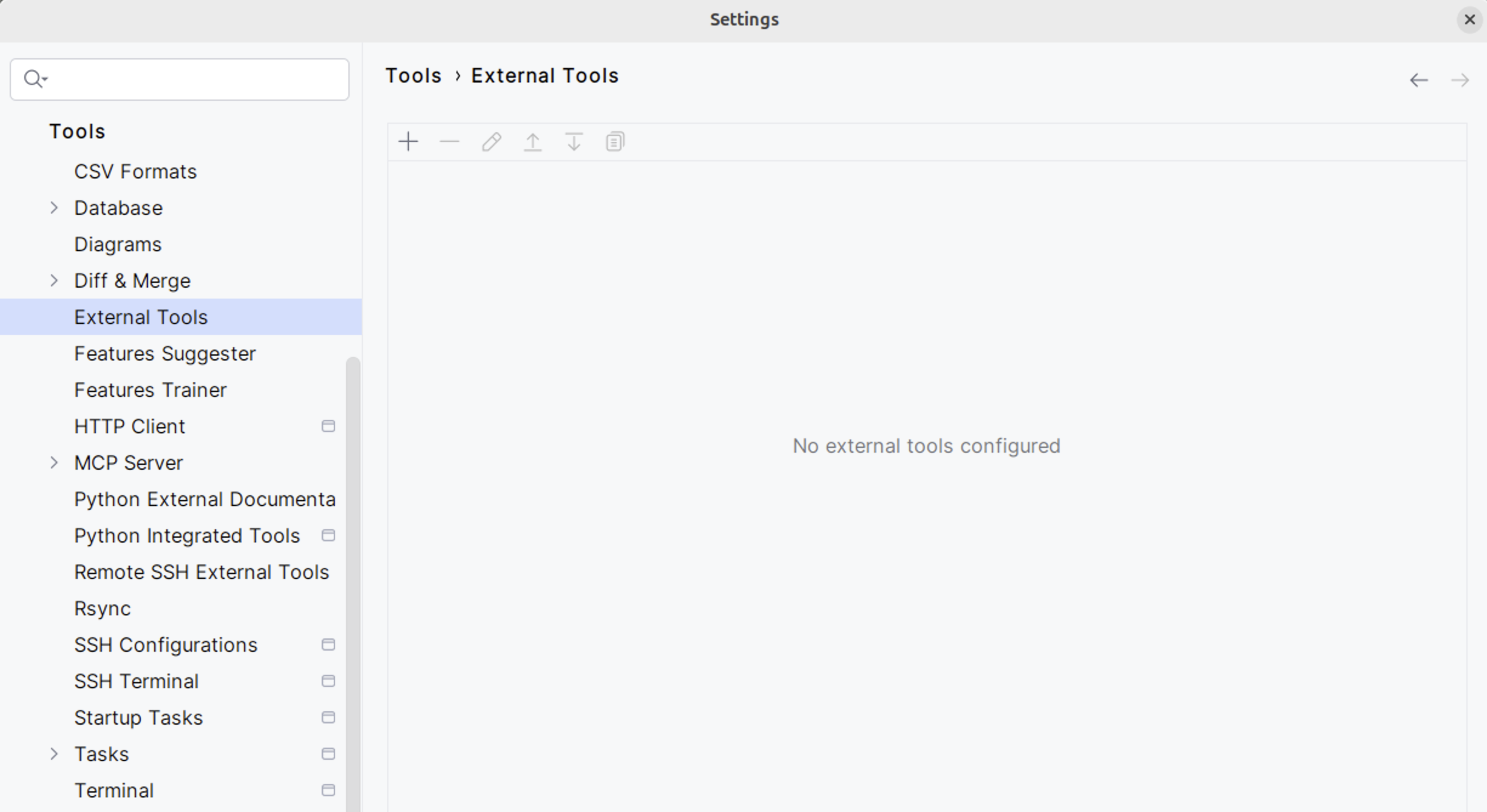
Click Add (
+).Fill in the required fields, then click OK.
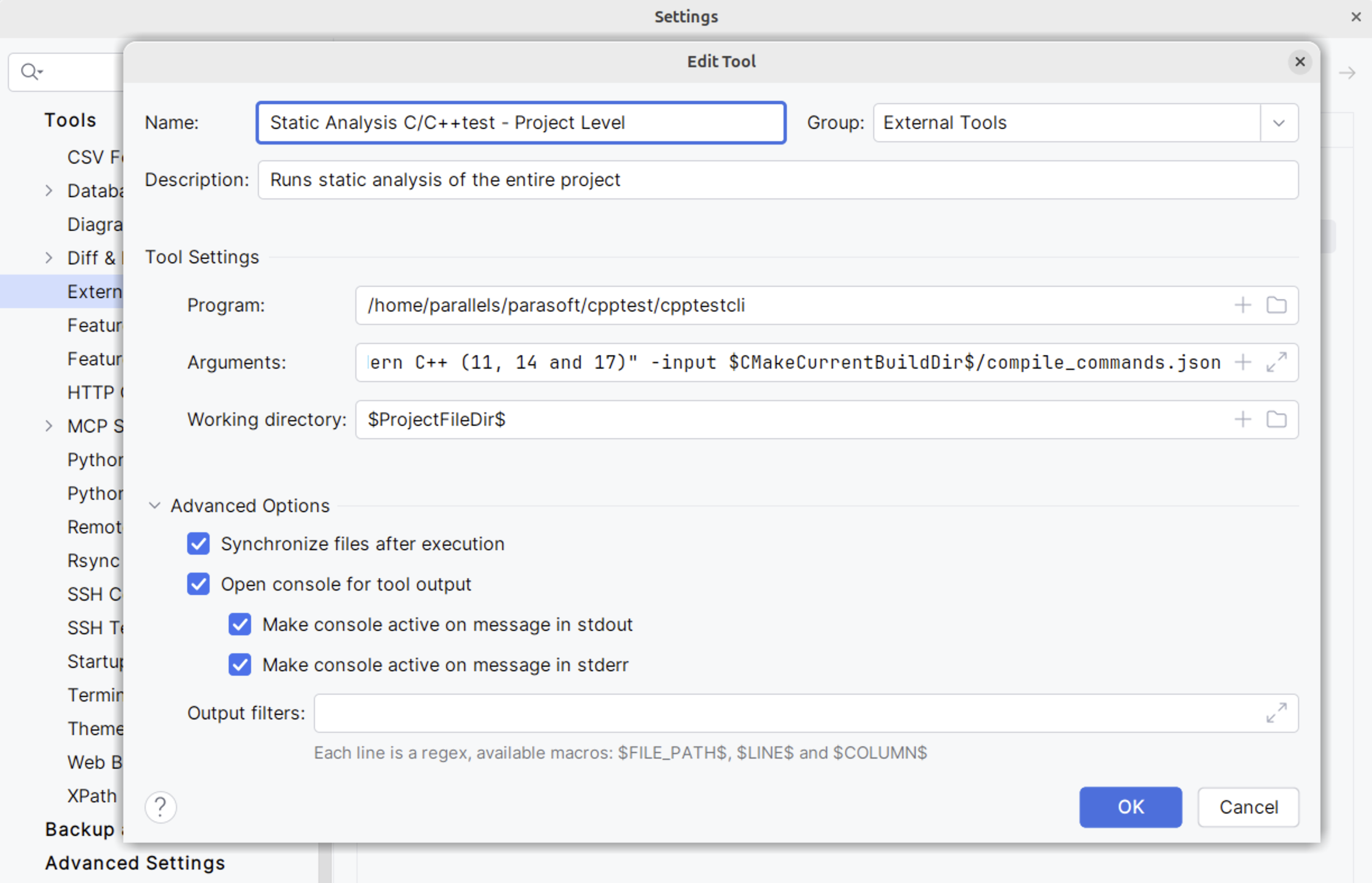
Arguments
Here is an example of arguments for single-file analysis:
-settings— your local configuration file with a license and report formats.-compiler— the compiler configuration id that matches your toolchain.-config— the test configuration. You can use a built-in configuration, as shown, or point to a .properties file, like"$ProjectFileDir$/[rules].properties". In the example above, the built-in configuration is the Parasoft built-in configuration for the Modern C++. If your license contains the MISRA C++ 2023 rules, for example, the configuration is-config "builtin://MISRA C++ 2023".-input— the compilation database, so cpptestcli knows the exact flags or includes used to build each file.-resource— the scope that restricts analysis to the current file. You do not need this argument for project-wide analysis because the project level is the default scope for cpptestcli.
Run the analysis
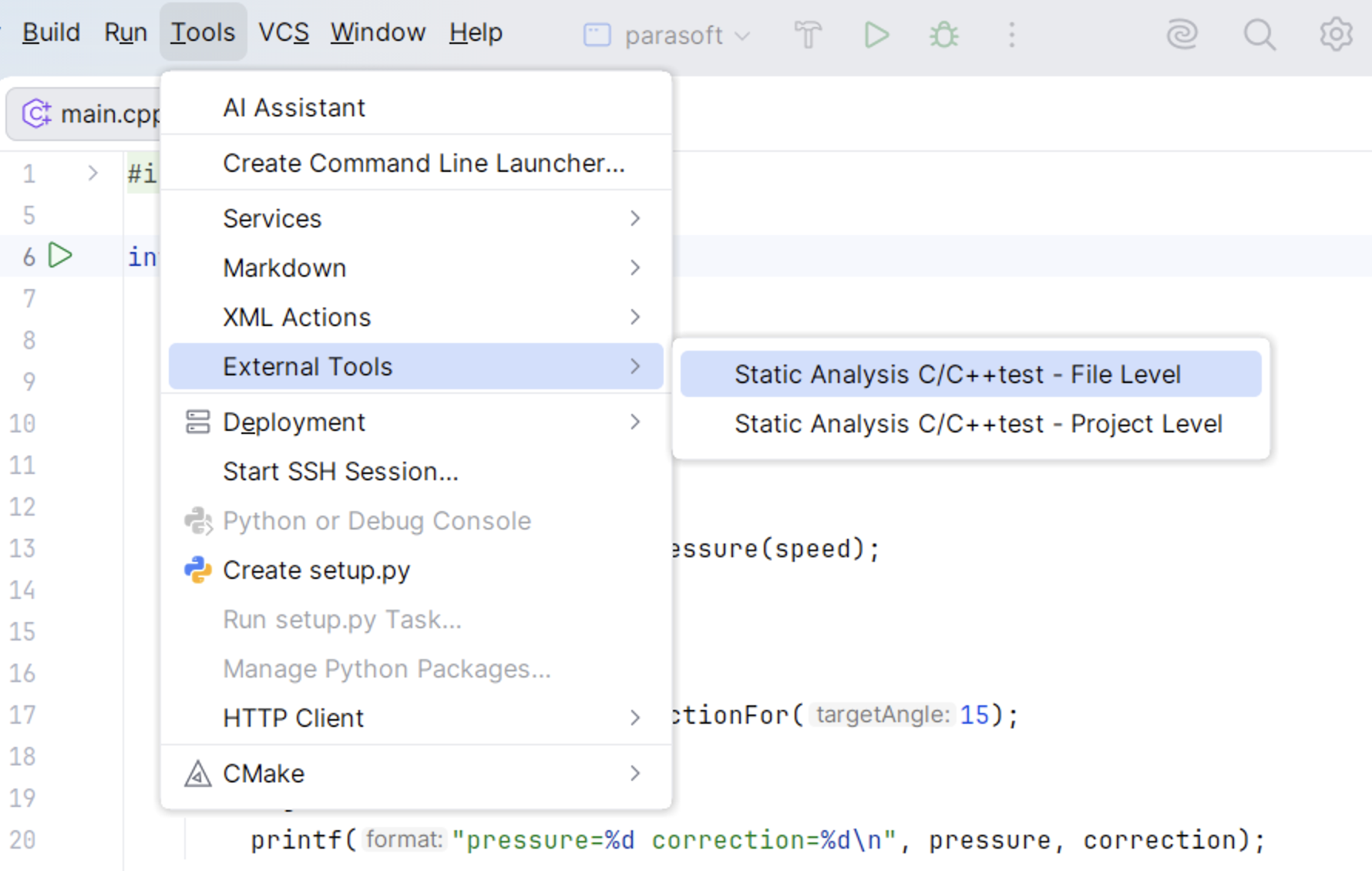
To run the analysis, select from the main menu.
The launcher output appears in the tool window.
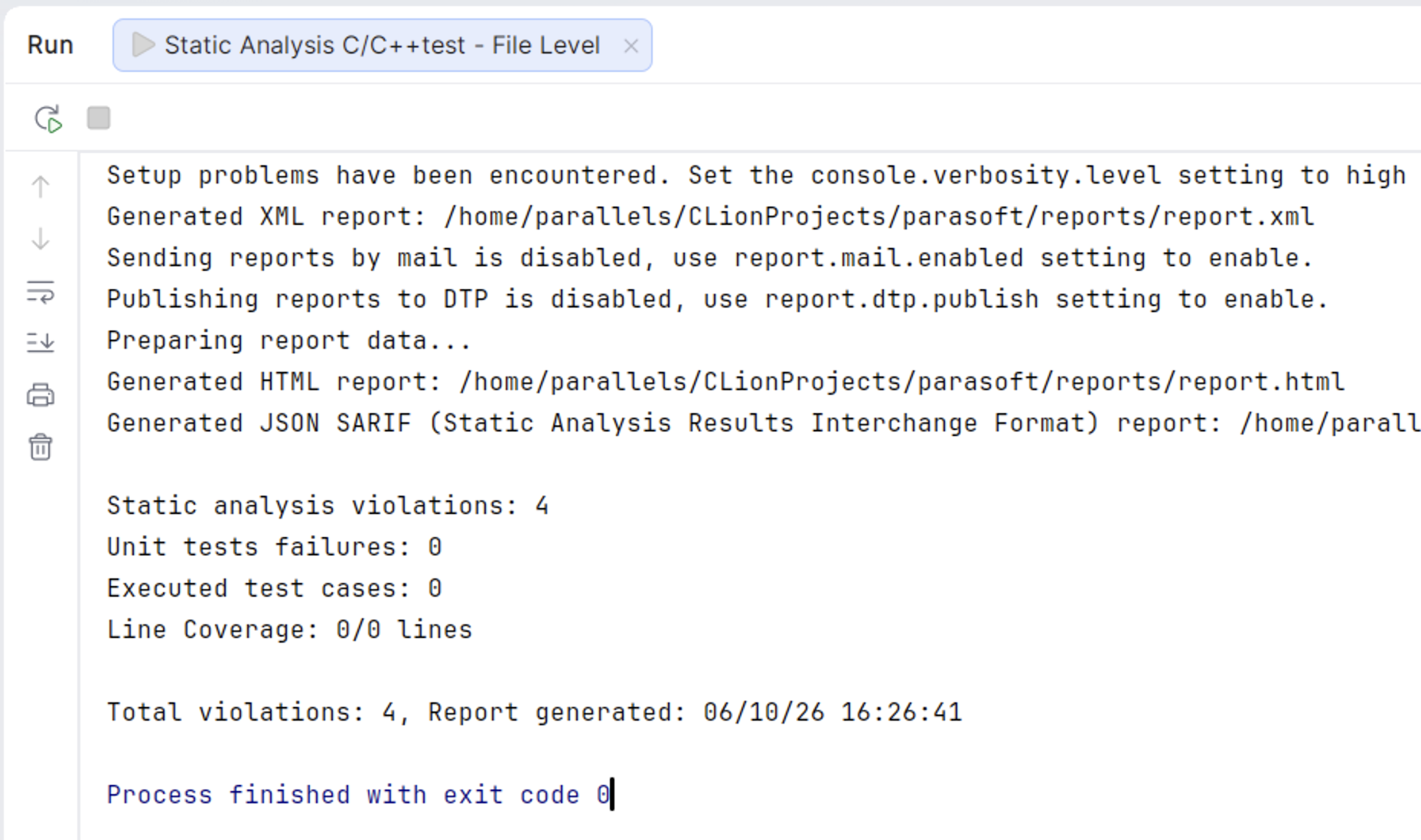
When the run finishes, C/C++test writes the reports to the -report directory (for example, reports/report.sarif, report.html, and report.xml). The SARIF report is overwritten on each run.
To run a tool with a keyboard shortcut, assign one in , under External Tools.
View the results in the SARIF Viewer
In the tool window, double-click the generated reports/report.sarif file. The findings open in the tool window, on the SARIF Results tab, grouped by tool and rule. Each result shows the rule message and its source location.
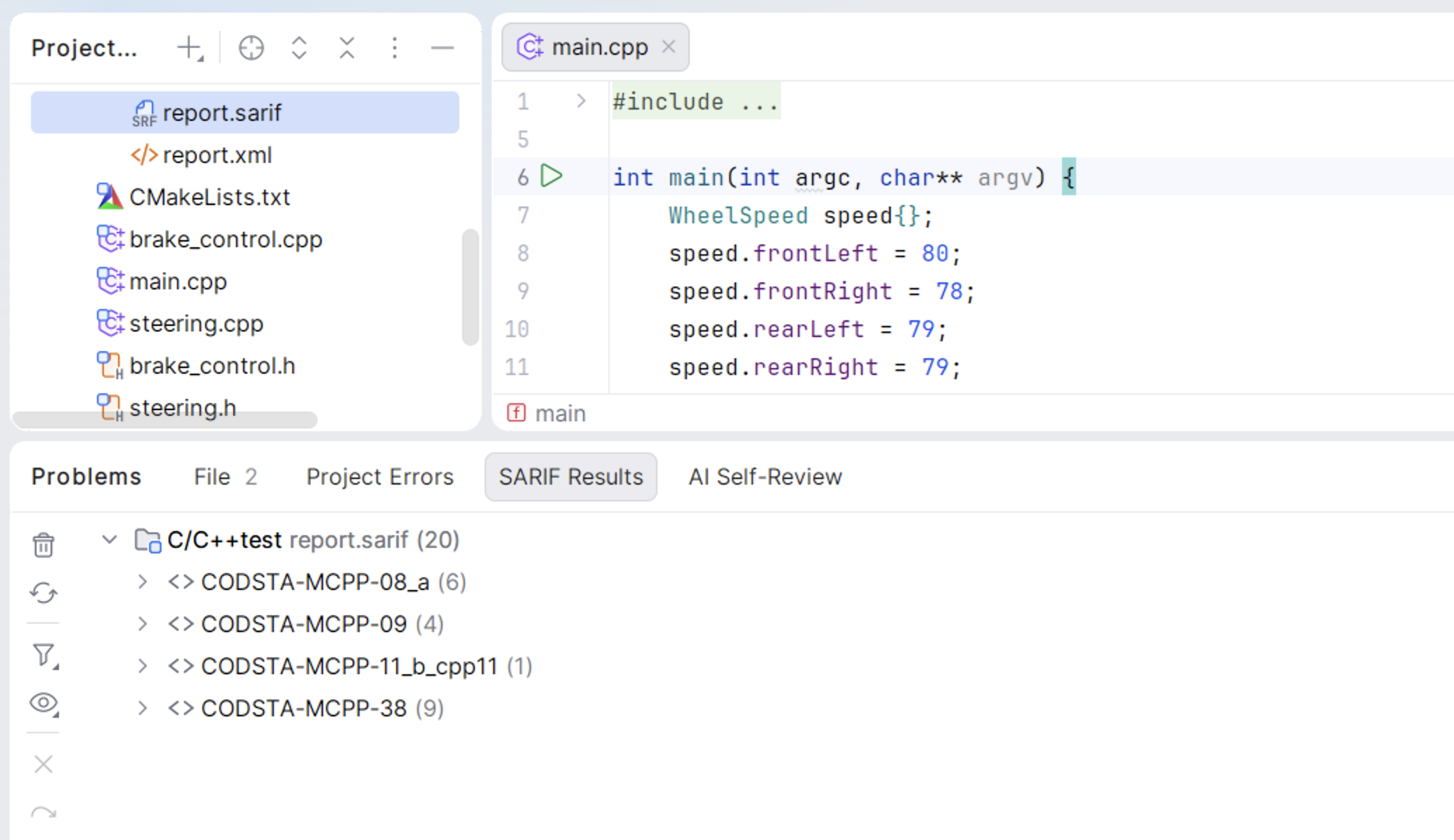
To open the code for a finding, double-click it, press Enter, or select Jump to Source from the context menu.
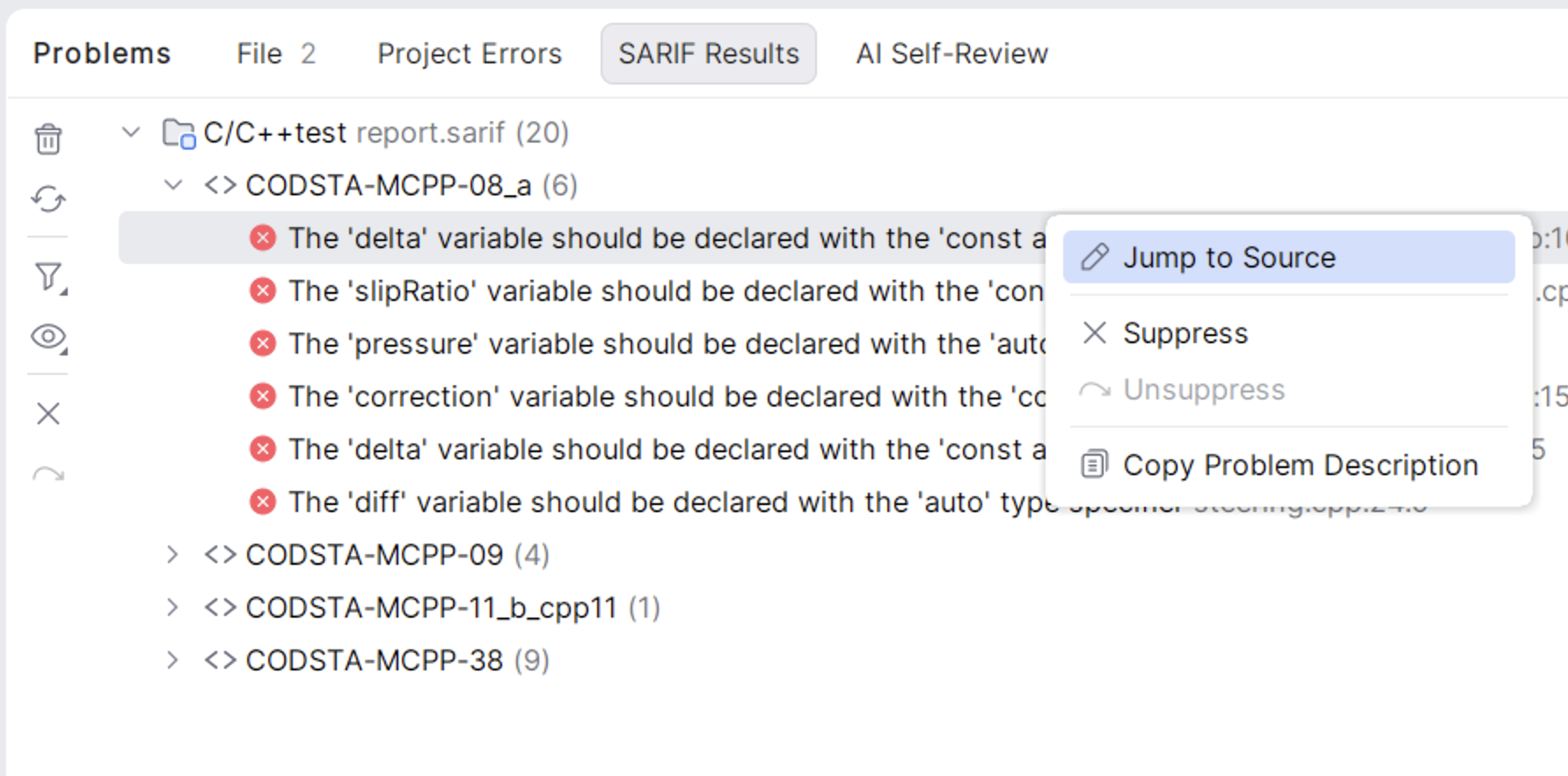
CLion remembers imported report paths and reloads them when you reopen the project.
For details, see SARIF Viewer.