Code style settings for C and C++
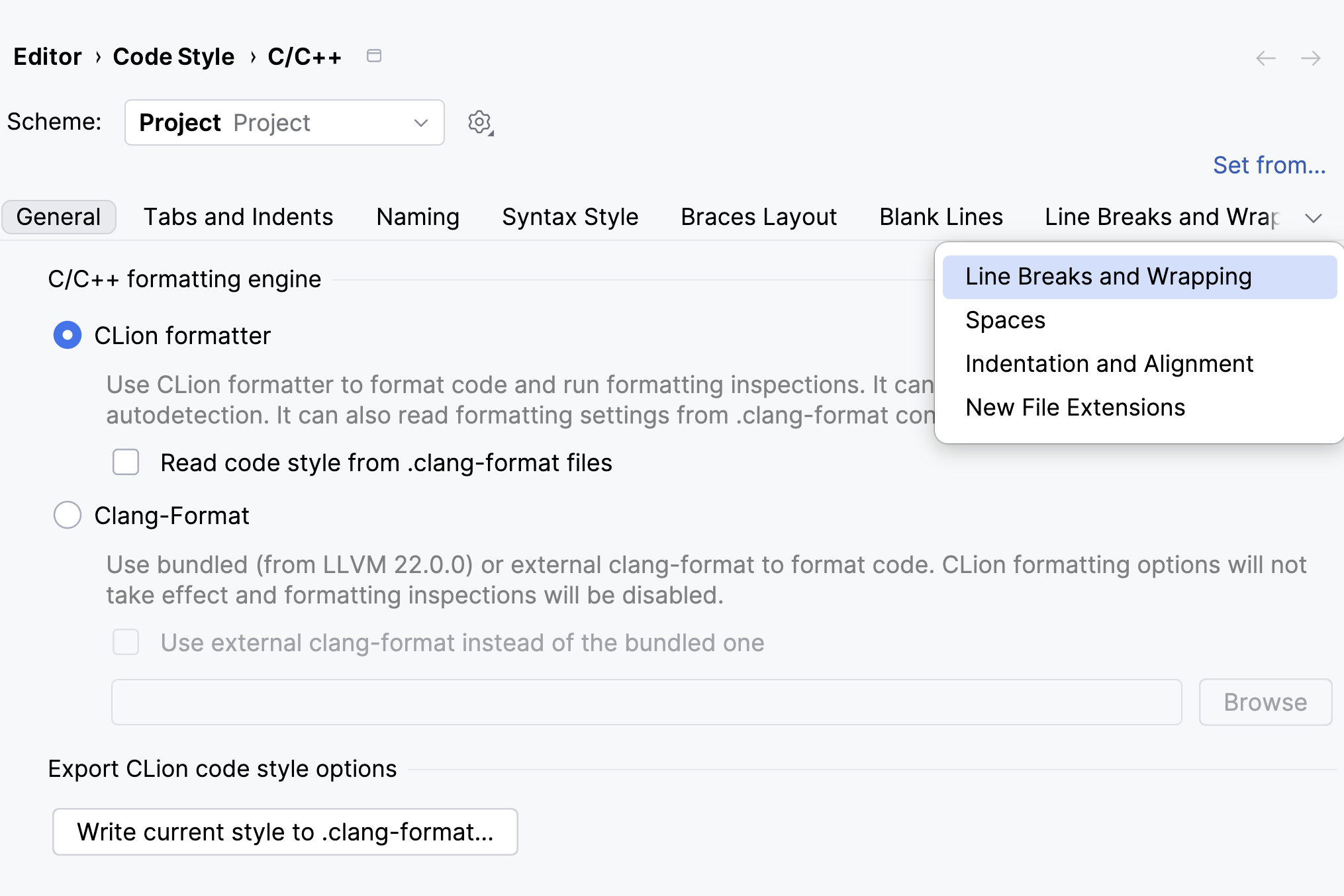
On this page, you can configure various aspects of code style for C and C++. Code style preferences are grouped in tabs described below.
General
C/C++ formatting engine | Use these options to select which formatting engine CLion uses when it formats and reformats your C and C++ code.
|
Write current style to .clang-format | Click this button to export code styles from CLion settings to a .clang-format file. |
Tabs and Indents
This tab helps you specify how CLion should format indents in your code when you type or when you reformat existing code.
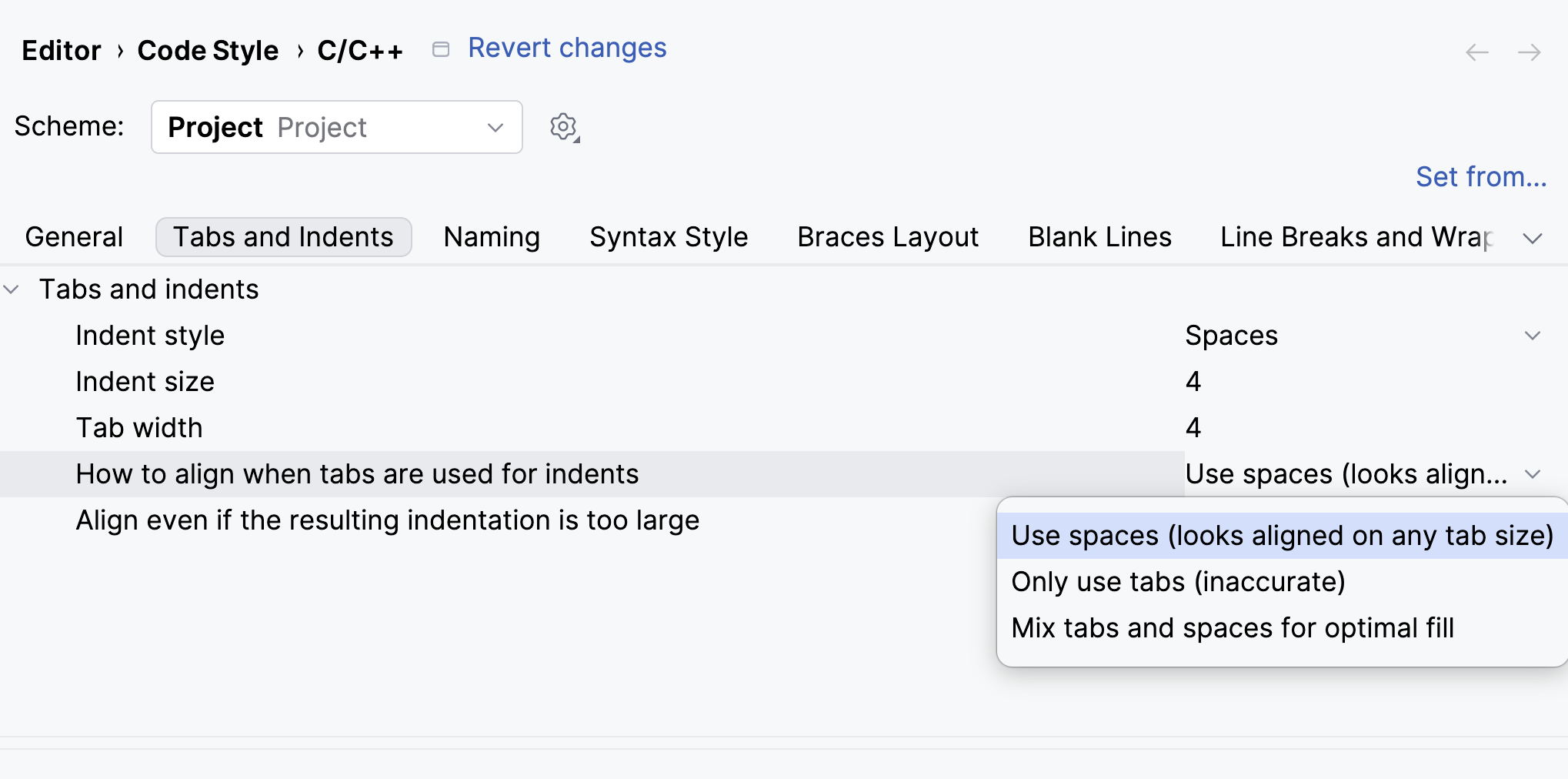
Indent style | Select whether CLion indents your code with spaces or with tabs. |
Indent size | Specify the number of spaces to be inserted for each indent level. |
Tab width | Specify the number of spaces included in a tab. |
How to align when tabs are used for indents | Select how CLion aligns code when Indent style is set to tabs. The available options are described below the table. |
Align even if the resulting indentation is too large | Select this checkbox to allow alignment even when the construct is located too far to the right, farther than two thirds of the Hard wrap at limit. |
- Use spaces (looks aligned on any tab size)
When this option is selected, CLion uses tabs for indents and spaces for alignment.
This is the recommended option because code aligned with second and third options may lose alignment when viewed in an editor with a different tab size.
- Only use tabs (inaccurate)
When this option is selected, CLion uses tabs for both indents and alignment, which may not result in precise alignment.
- Mix tabs and spaces for optimal fill
When this option is selected, CLion uses tabs for both indents and alignment and adds necessary spaces for precise alignment.
Naming
On this tab, you can configure symbol naming rules for C and C++. The tab also contains the Enable 'Inconsistent Naming' inspection checkbox and the Header guard style field.
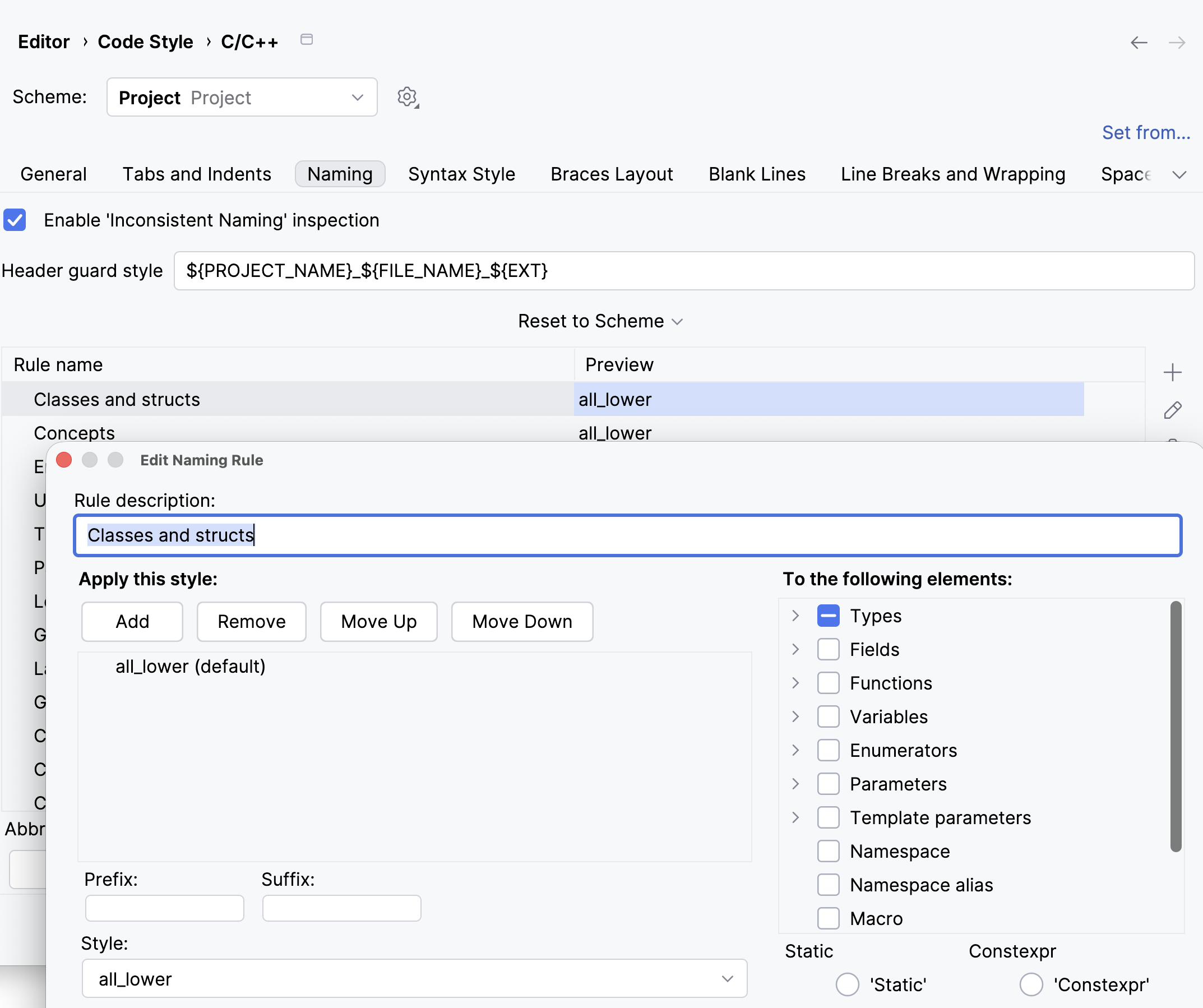
For more information about configuring the naming rules and checking your code against them, refer to naming conventions. For header guard templates, refer to header guards.
Syntax Style
Preferences configurable on this tab help you enforce code syntax style. These preferences are taken into account when CLion produces new code with code completion and code generation features, applies code templates and performs refactorings. They can also be applied to the existing code by using code cleanup with the corresponding settings.
For every preference, the Before and After panes at the bottom show how the selected value affects the code.
Sort include directives | Select this option to highlight any |
Type of slashes to use in include directives | Use this list to select the preferred path separator for include directives: forward slash or backward slash. |
Prefer to use forward declarations if possible | If this option is selected, auto-import puts the option to add a forward declaration before the option to insert an include directive. |
Use paths relative to the source file | You can use this option to configure when CLion may use relative paths in generated include directives. |
Use angle brackets instead of quotes | By default, generated include directives are added in quotes, if necessary, you can use this option to specify cases where generated include directives are added in angle brackets. |
Default pointer initializer | You can specify |
Use uniform initialization in member initializers | By default, CLion uses C++03 style when generating initializers (for example when you generate constructors or apply a quick-fix that inserts initializer into an existing constructor). You can select this checkbox to enable uniform initialization in the above-mentioned cases. |
Prefer uniform initialization in non-static data member initializers | This option lets you configure how CLion generates non-static data member initializers (NSDMIs) when applying its features. For example, when you apply a quick-fix Alt+Enter on the uninitialized
class test {
int field;
};
CLion generates a uniform initialization |
Sort member initializers by the order of initialization | This option lets you enforce the order of member initializers in constructor initializer lists. Class members are initialized in the order they are declared in their containing class, so to minimize confusion and errors the common practice is to keep member initializers in the same order. |
'auto' usage in variable types | Preferences in this section let you configure the usage of |
Position of cv-qualifiers | Preferences in this section let you configure whether the |
Function declaration syntax | Use this option to configure whether to use trailing or regular return types in function declarations. |
Prefer typedefs or type aliases | Use this option to specify the preferred way to define type synonyms: in the form of alias templates or type aliases. It also affects which syntax is used by the Introduce Typedef refactoring. |
Nested namespaces | Use this option to enforce the C++17 syntax for nested namespaces, which allows you to declare multi-level namespaces in a more concise manner. |
Overriding functions | Preferences in this section let you configure which specifiers should be required on overriding functions and destructors. |
Braces | Preferences in this section let you define which braces can be omitted around single nested statements under the |
Braces Layout
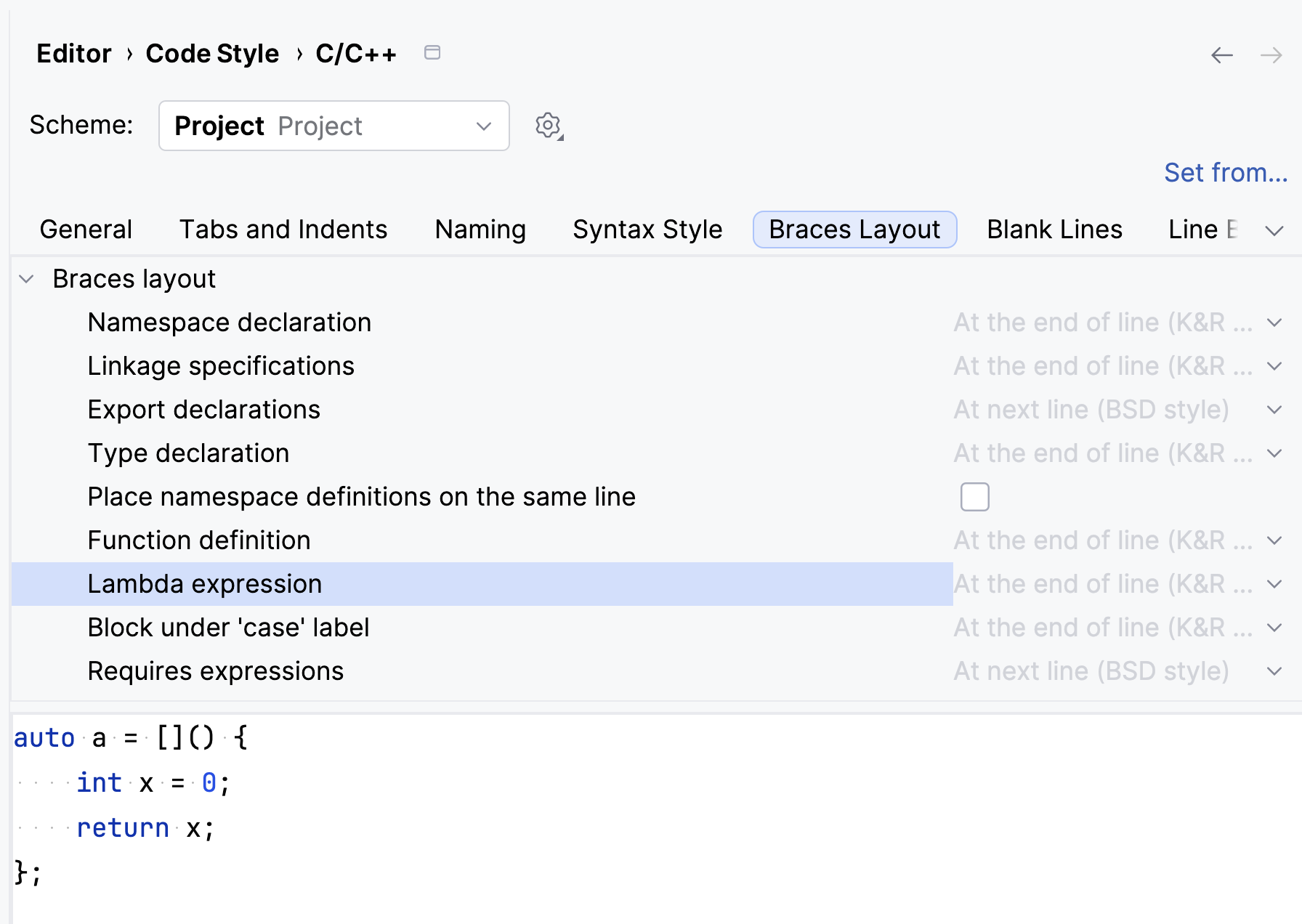
Use this tab to adjust the way CLion arranges braces when it generates new and reformats existing code. For example, you can place the braces of a namespace, type, or function definition at the end of the line or on the next line, and put namespace definitions on the same line.
For every item, there is a preview pane at the bottom part where you can observe changes after tweaking specific preferences.
Blank Lines
This tab lets you configure whether CLion should increase or decrease the number of blank lines around namespaces, members, regions and groups of import directives. You can adjust the values and check the preview pane at the bottom to see how your preferences affect the code.
Options in the Preserve existing formatting section are only applied when CLion reformats existing code whereas the Blank lines section contains options that also take effect when you type new code.
The options that you configure on this tab apply in the following cases:
When code is automatically formatted on editing or after pasting.
When code is generated with code completion and code generation features, when code templates are applied, and during refactorings.
When you reformat existing code.
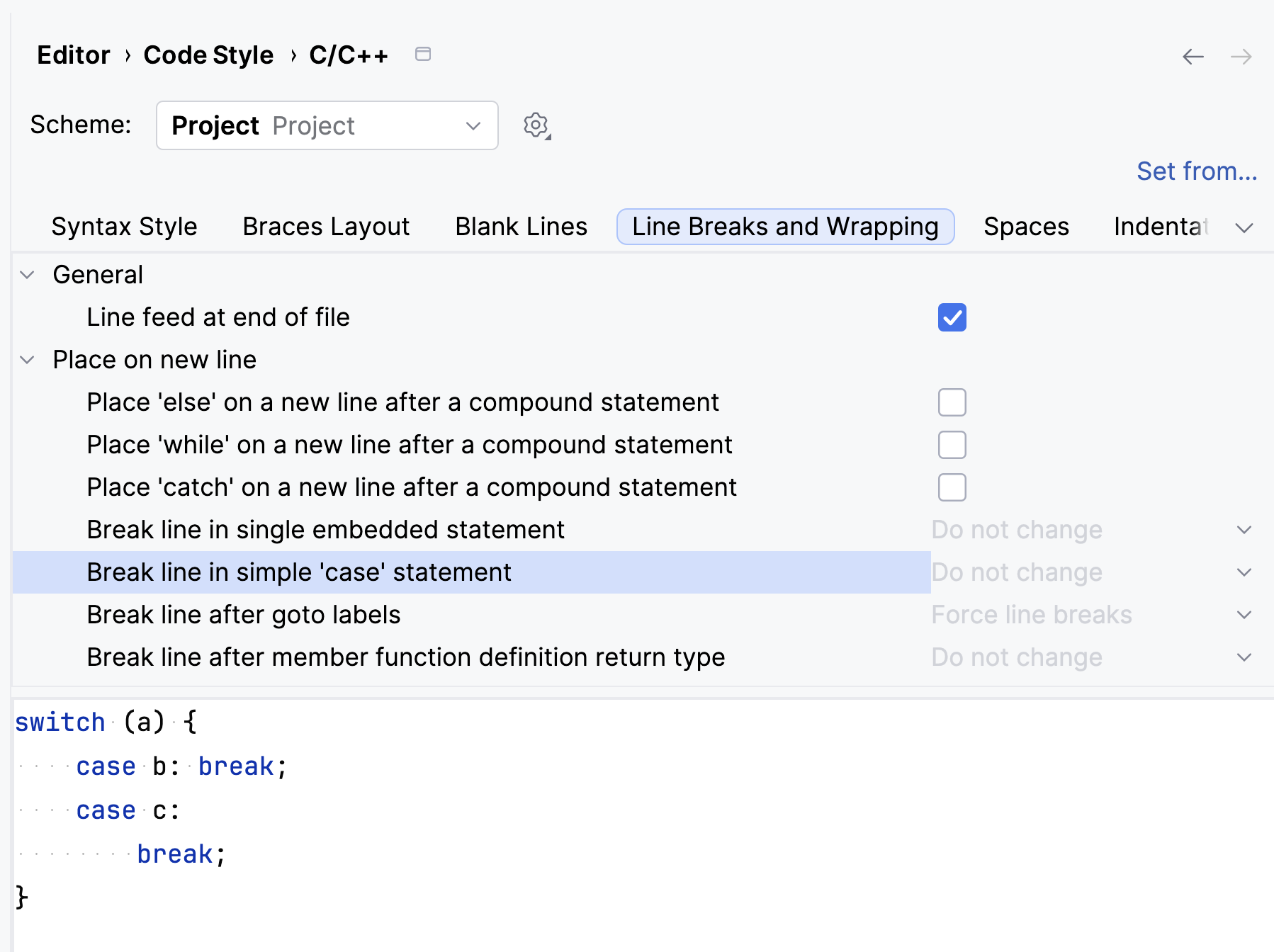
Line Breaks and Wrapping
Use this tab to configure line breaks in certain positions of source code. Options in this tab are applied when CLion reformats existing code or when you type new code. You can adjust the values and check the preview pane at the bottom to see how your preferences affect the code.
Spaces
Use this tab to configure how to insert or remove spaces in different code constructs. You can adjust the values and check the preview pane at the bottom to see how your preferences affect the code.
The options that you configure on this tab apply in the following cases:
When code is automatically formatted on editing or after pasting.
When code is generated with code completion and code generation features, when code templates are applied, and during refactorings.
When you reformat existing code.
Indentation and Alignment
You can use preferences on this tab to specify how CLion indents and aligns your code in specific cases. In the Indentation group, you can define how tabs and indents (which you can configure in ) are applied in specific cases.
In the Align multiple constructs group, you can define how code constructs that span multiple lines are aligned (you can specify the rules for breaking long lines in ).
The options that you configure on this tab apply in the following cases:
When code is automatically formatted on editing or after pasting.
When code is generated with code completion and code generation features, when code templates are applied, and during refactorings.
When you reformat existing code.
New File Extensions
Use this tab to configure the file extensions that CLion uses when you create new C and C++ files. Each entry in the list on the left pairs a source file extension with a header file extension and can set a naming convention for new file names. Entries such as .ixx or .cppm define a single extension without a header pair.
Use the toolbar above the list to add and remove entries. Select an entry in the list to configure the following preferences:
Source Extension | Select the extension for new source files, for example |
Header Extension | Select the extension for new header files, for example |
File Naming Convention | Select the naming convention that CLion applies to the names of new files. For more information about naming conventions, refer to naming conventions. |