# Find and replace text using regular expressions
When you want to search and replace specific patterns of text, use [regular expressions](https://www.regular-expressions.info/quickstart.html). They can help you in pattern matching, parsing, filtering of results, and so on. Once you learn the regex syntax, you can use it for almost any language.
The IDE uses Java Regular Expressions, which are the regular expressions included in the JDK that the IDE runs on. For more information about patterns, please refer to [Class Pattern at docs.oracle.com](https://docs.oracle.com/en/java/javase/17/docs/api/java.base/java/util/regex/Pattern.html). These expressions are mostly, but not entirely, PCRE (Perl Compatible Regular Expressions) compatible.
Procedure:
1. Press `Ctrl+R` (Windows), `⌘ R` (macOS), `⌘ R` (IntelliJ IDEA Classic (macOS)), `⌘ R` (macOS System Shortcuts), `Ctrl+R` (XWin), `Ctrl+R` (GNOME), `Ctrl+R` (KDE), `Alt+Shift+5` (Emacs), `Ctrl+H` (Sublime Text), `⌘ ⌥ F` (Sublime Text (macOS)), `⌘ ⌥ F` (Xcode), `Ctrl+H` (Visual Studio), `⌃ H` (Visual Studio (macOS)), `Ctrl+H` (ReSharper), `⌃ H` (ReSharper (macOS)), `Ctrl+R` (QtCreator), `Ctrl+R` (QtCreator (macOS)), `Ctrl+H` (NetBeans), `Ctrl+F` (Eclipse), `Ctrl+R` (Eclipse (macOS)) to open the search and replace pane.
> **Note:**
> If you need to search and replace in more than one file, press `Ctrl+Shift+R` (Windows), `⌘ ⇧ R` (macOS), `⌃ ⇧ R` (IntelliJ IDEA Classic (macOS)), `⌘ ⇧ R` (macOS System Shortcuts), `Ctrl+Shift+R` (XWin), `Ctrl+Shift+R` (GNOME), `Ctrl+Shift+R` (KDE), `Ctrl+Shift+R` (Emacs), `Ctrl+Shift+R` (Sublime Text), `Ctrl+Shift+R` (Sublime Text (macOS)), `⌘ ⌥ ⇧ F` (Xcode), `Ctrl+Shift+H` (Visual Studio), `⌘ ⇧ H` (Visual Studio (macOS)), `Ctrl+Shift+H` (ReSharper), `⌘ ⇧ H` (ReSharper (macOS)), `Ctrl+Shift+R` (QtCreator), `Ctrl+Shift+R` (QtCreator (macOS)), `Ctrl+Shift+H` (NetBeans), `Ctrl+Shift+R` (Eclipse), `Ctrl+Shift+R` (Eclipse (macOS)).
2. Enter a search string in the top field and a replace string in the bottom field.
Click  to enable regular expressions. If you want to check the syntax of regular expressions, hover over  and click the Show expressions help link.
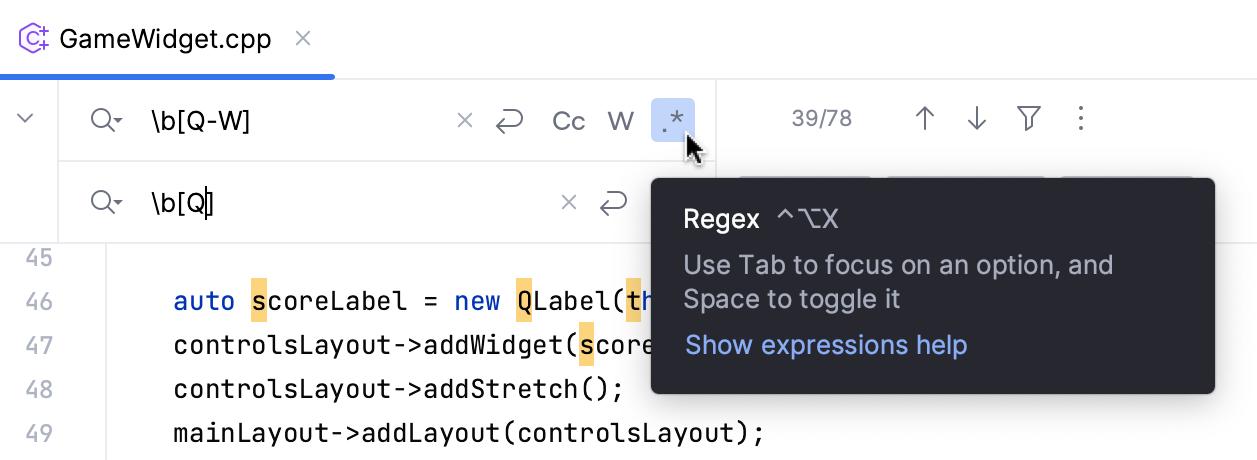
3. When you search for a text string that contains special regex symbols, CLion automatically escapes them with backlash `\` in the search field.
> **Note:**
> Keep in mind that if you copy (`Ctrl+C` (Windows), `⌘ C` (macOS), `⌘ C` (IntelliJ IDEA Classic (macOS)), `⌘ C` (macOS System Shortcuts), `Ctrl+C` (XWin), `Ctrl+C` (GNOME), `Ctrl+C` (KDE), `Ctrl+Insert` (Emacs), `Ctrl+C` (Sublime Text), `⌘ C` (Sublime Text (macOS)), `⌘ C` (Xcode), `Ctrl+C` (Visual Studio), `⌘ C` (Visual Studio (macOS)), `Ctrl+C` (ReSharper), `⌘ C` (ReSharper (macOS)), `Ctrl+C` (QtCreator), `⌘ C` (QtCreator (macOS)), `Ctrl+C` (NetBeans), `Ctrl+C` (Eclipse), `⌘ C` (Eclipse (macOS))) the string first and then paste (`Ctrl+V` (Windows), `⌘ V` (macOS), `⌘ V` (IntelliJ IDEA Classic (macOS)), `⌘ V` (macOS System Shortcuts), `Ctrl+V` (XWin), `Ctrl+V` (GNOME), `Ctrl+V` (KDE), `Shift+Insert` (Emacs), `Ctrl+Shift+V` (Sublime Text), `⌘ ⇧ V` (Sublime Text (macOS)), `⌘ V` (Xcode), `Ctrl+V` (Visual Studio), `⌘ V` (Visual Studio (macOS)), `Ctrl+V` (ReSharper), `⌘ V` (ReSharper (macOS)), `Ctrl+V` (QtCreator), `⌘ V` (QtCreator (macOS)), `Ctrl+V` (NetBeans), `Ctrl+V` (Eclipse), `⌘ V` (Eclipse (macOS))) it in the search field, the regex symbols will not be taken into account.
However, when you specifically search for metacharacters such as `.[{()\^$|?*+`, you need to escape them with backslash `\`, so they can be recognized.
For example, if you need to find `.` , type `\.` in the search field.
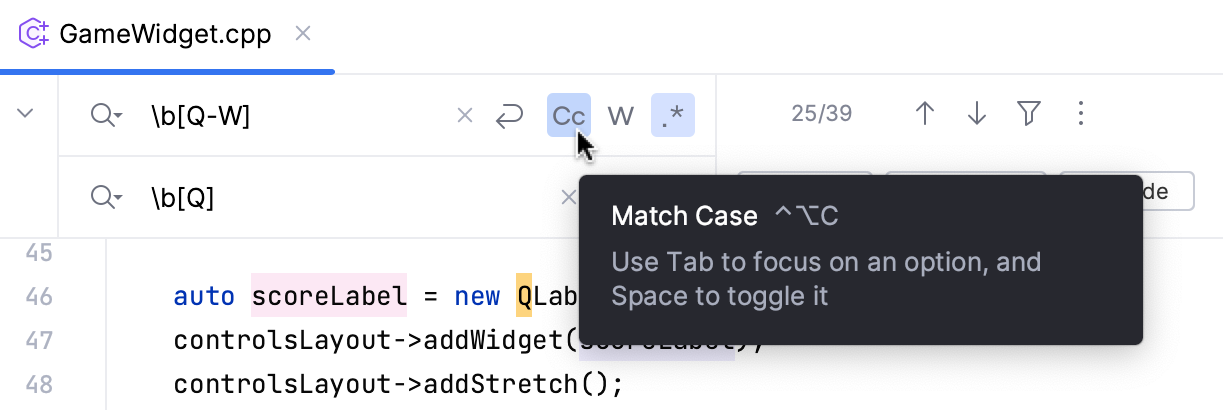
4. If  is unselected in the search field, CLion searches for both lower and upper cases.
Select  to match the case of the specified range.
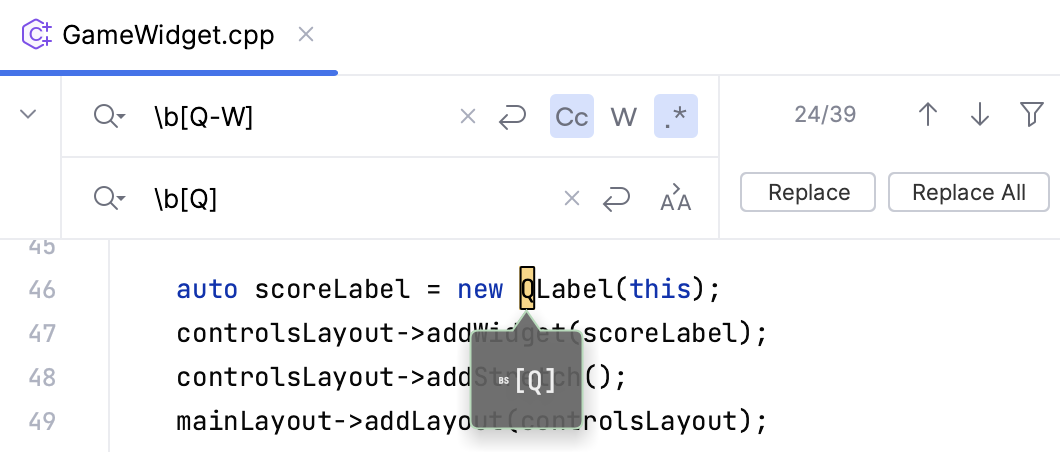
5. When you browse the occurrences, CLion displays the replacement hints, so you can view the potential results before clicking the Replace button.
> **Note:**
> See [RegEx syntax](regular-expressions.html) for more details.
## Use regex capturing groups and backreferences
You can put the regular expressions inside brackets in order to group them. Each group has a number starting with 1, so you can refer to (backreference) them in your replace pattern. Note that the group 0 refers to the entire regular expression. However, you can refer to the captured group not only by a number `$n`, but also by a name `${name}`.
For example, for the numbered capturing groups, use the following syntax:
Find field:
```
(.*?)
```
Replace field:
```
$1
```
For the named capturing groups, use the following syntax:
Find field:
```
(?.*?)</h2>
```
Replace field:
```
${title}
```
Procedure: Find and replace a captured group
Let's consider the following XML :
```XML
<new instance="ij" category="105" title="Multiline search and replace in the current file"/>
<new instance="ij" category="105" title="Improved search and replace in the current file"/>
<new instance="ij" category="105" title="Regexp shows replacement preview"/>
```
1. Open the search and replace pane `Ctrl+R` (Windows), `⌘ R` (macOS), `⌘ R` (IntelliJ IDEA Classic (macOS)), `⌘ R` (macOS System Shortcuts), `Ctrl+R` (XWin), `Ctrl+R` (GNOME), `Ctrl+R` (KDE), `Alt+Shift+5` (Emacs), `Ctrl+H` (Sublime Text), `⌘ ⌥ F` (Sublime Text (macOS)), `⌘ ⌥ F` (Xcode), `Ctrl+H` (Visual Studio), `⌃ H` (Visual Studio (macOS)), `Ctrl+H` (ReSharper), `⌃ H` (ReSharper (macOS)), `Ctrl+R` (QtCreator), `Ctrl+R` (QtCreator (macOS)), `Ctrl+H` (NetBeans), `Ctrl+F` (Eclipse), `Ctrl+R` (Eclipse (macOS)).
2. In the search field, enter parentheses `()` that would indicate a [capturing group](https://www.regular-expressions.info/brackets.html), for example: `\stitle="(.*)?"\s*(/>*)` .
3. In the replace field, [backreference](https://www.regular-expressions.info/backref.html) such groups by numbers starting with 1, for example:
```XML
$2<title>$1
```
.
4. CLion highlights the found occurrences based on your search specifications and displays hints with the replace string.
## Switch the character case
You can use regular expressions to change the case of characters that matches some criteria.
Procedure:
1. Open the search and replace pane `Ctrl+R` (Windows), `⌘ R` (macOS), `⌘ R` (IntelliJ IDEA Classic (macOS)), `⌘ R` (macOS System Shortcuts), `Ctrl+R` (XWin), `Ctrl+R` (GNOME), `Ctrl+R` (KDE), `Alt+Shift+5` (Emacs), `Ctrl+H` (Sublime Text), `⌘ ⌥ F` (Sublime Text (macOS)), `⌘ ⌥ F` (Xcode), `Ctrl+H` (Visual Studio), `⌃ H` (Visual Studio (macOS)), `Ctrl+H` (ReSharper), `⌃ H` (ReSharper (macOS)), `Ctrl+R` (QtCreator), `Ctrl+R` (QtCreator (macOS)), `Ctrl+H` (NetBeans), `Ctrl+F` (Eclipse), `Ctrl+R` (Eclipse (macOS)). Make sure that  is selected in the search field.
2. In the search field enter the search pattern.
3. In the replace field, depending on what you want to achieve, enter one of the following syntax:
* `\l` changes a character to lowercase until the next character in the string. For example, `Bar` becomes `bar`.
* `\u` changes a character to uppercase until the next character in the string. For example, `bar` becomes `Bar`.
* `\L` changes characters to lowercase until the end of the literal string `\E`. For example, `BAR` becomes `bar`.
* `\U` changes characters to uppercase until the end of the literal string `\E`. For example, `bar` becomes `BAR`.
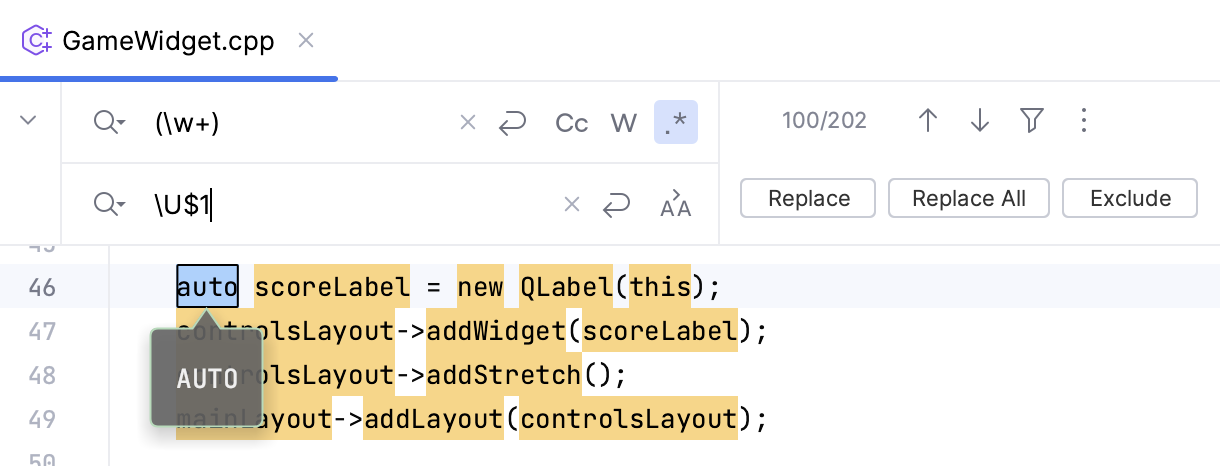
For more information, refer to the [RegEx syntax](regular-expressions.html) reference table.
## See also
### Getting Started
[Editor basics](using-code-editor.html)
### Reference
[Regular expression syntax reference](regular-expressions.html)
### Procedures
[Find and replace in file](finding-and-replacing-text-in-file.html)