DDL data sources
DDL data sources
SQL files that contain data definition language statements (DDL statements) can be used as data sources. As a result, you can reference all tables, columns and other objects defined in such files in the editor.
Check the following video that shows how to work with DDL data sources.
When you create a DDL data source, the folder with SQL files for this data source is automatically attached in the Files tool window.
You can do the other way around: attach a directory with SQL files that contain DDL statements and drag them from the Files tool window to the Database tool window.
Create DDL data sources from existing data sources
In the Database tool window (), right-click a data source that you want to dump to a DDL data source and select .
To configure code settings for the DDL data source, see Configuring DDL generation settings.
If you already have a DDL data source for the selected data source, you can choose whether to dump DDL files to the existing DDL data source or create a new one.
In the Data Sources and Drivers dialog, click Add directories or DDL files.
In the file browser, navigate to the directory that will store DDL files of a data source and click Open.
Click OK.
When you dump files to a DDL data source, the folder with these SQL files is automatically attached in the Files tool window.

Adding DDL files to a DDL data source
Open data source properties. You can open data source properties by using one of the following options:
Navigate to .
Press Ctrl+Alt+Shift+S.
In the Database tool window (), click the Data Source Properties icon
 .
.
On the Data Sources tab in the Data Sources and Drivers dialog, click the Add icon (
 ) and select DDL Data Source.
In the DDL Files pane, click the Add button (
).In the file browser, navigate to the SQL file or files with DDL statements and click Open.
Click the Dialect link and select a dialect that you want to use for added SQL files.
Apply settings and click OK.

Creating objects in the DDL data source
In the Database tool window (), right-click a node of the DDL data source and navigate to New. In the list of objects, select the object that you want to create.
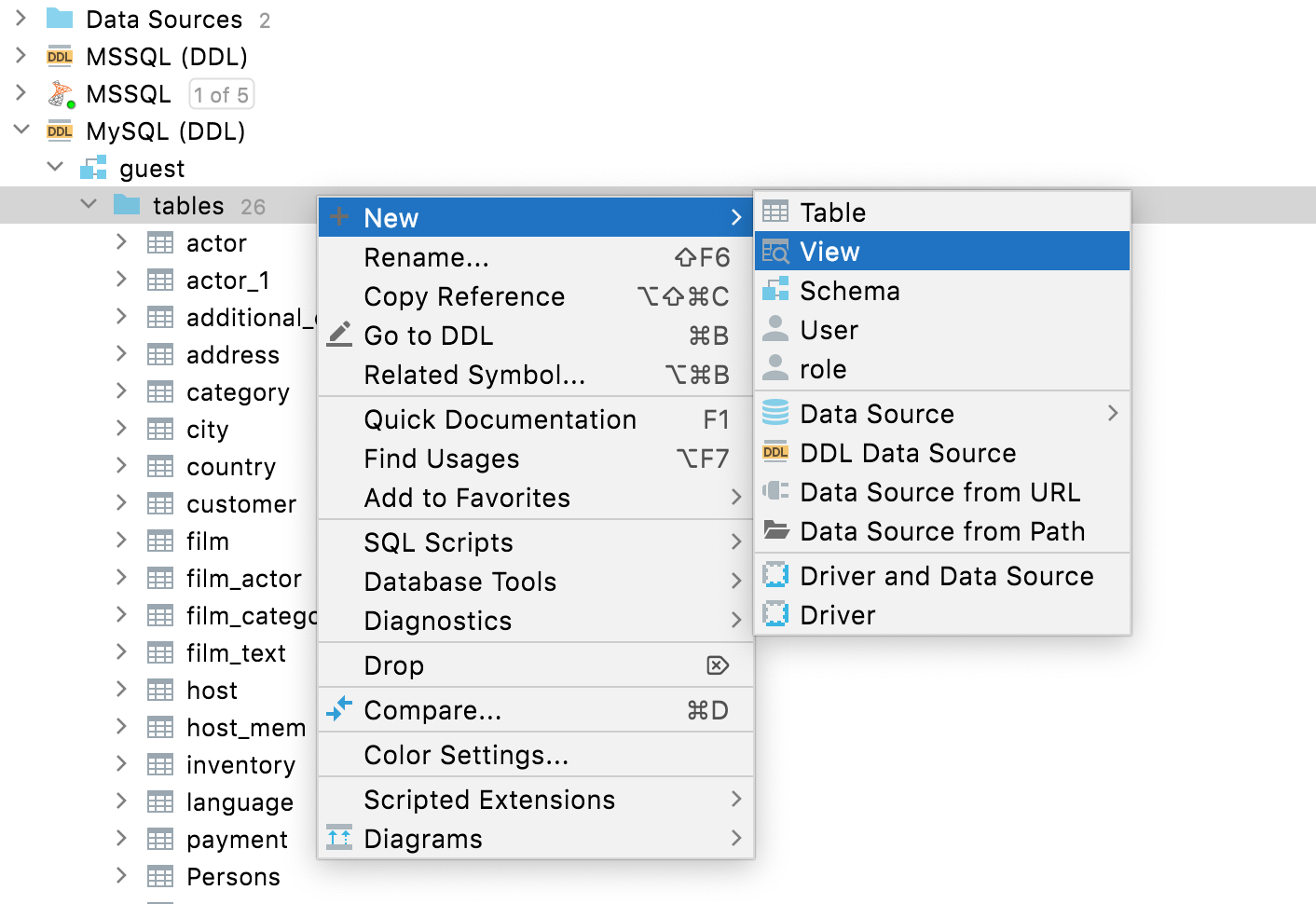
Configuring DDL generation settings
You can configure code settings for files that are generated for the DDL data source.
Open data source properties. You can open data source properties by using one of the following options:
Navigate to .
Press Ctrl+Alt+Shift+S.
In the Database tool window (), click the Data Source Properties icon
.
On the Data Sources tab, select the DDL data source.
Click the Generation tab.
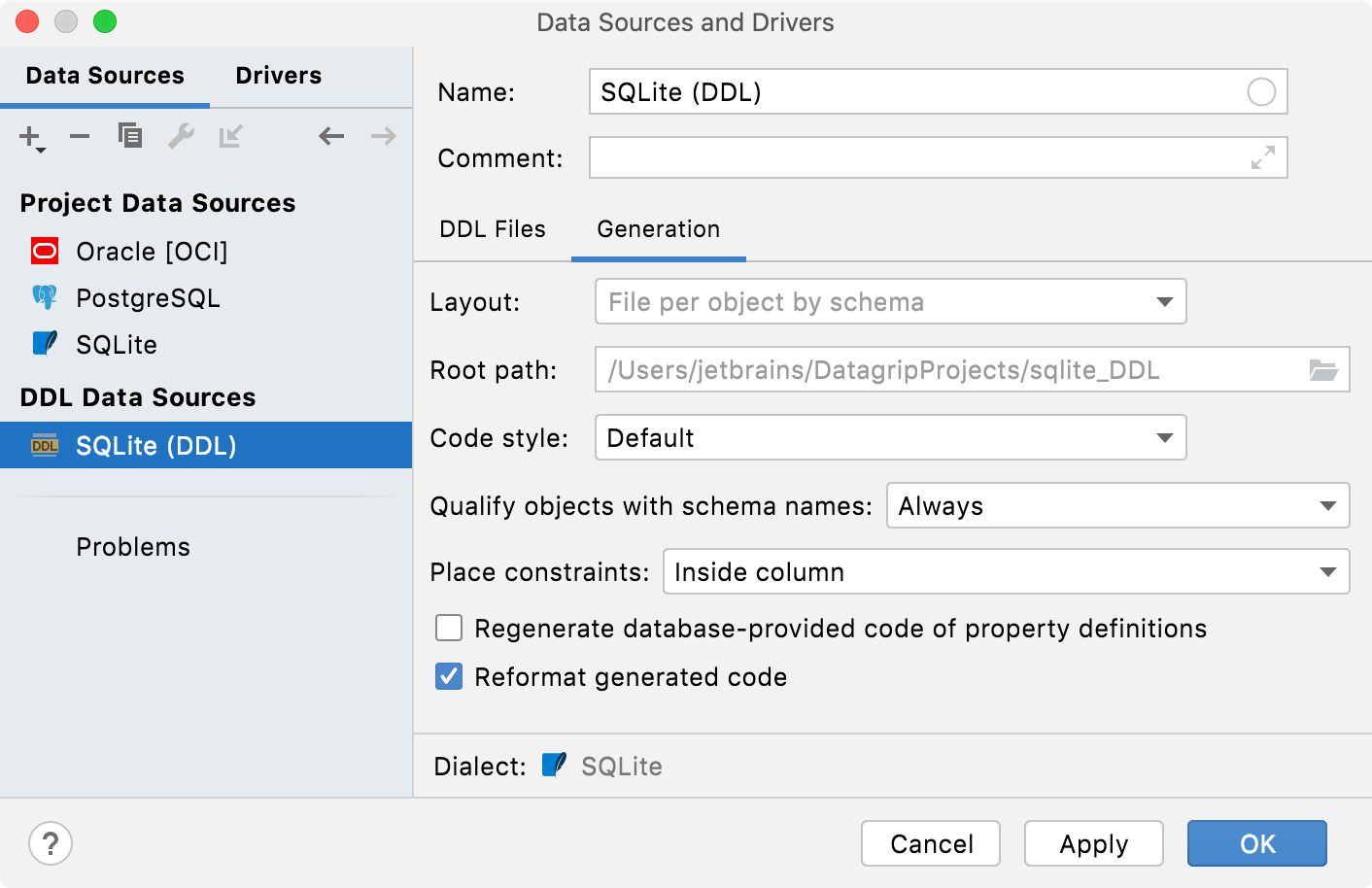
Settings of the Generation tab
Option | Description |
|---|---|
Layout | Defines the way how to store and generate DDL files.
|
Root path | Defines the root directory for DDL files. |
Code style | Applies the code style to generated DDL files. |
Qualify objects with schema names | Adds a schema name to the table name. You can qualify a table when you have two and more tables with identical names in different schemes. This option has the following parameters:
|
Place constraints | Defines where to place FOREIGN KEY, UNIQUE, CHECK, and other constraints.
|
Regenerate database-provided code of property definitions | Regenerate property definitions that are provided as a part of source code by the database. |
Reformat generated code | Reformat generated code with the current code style profile. This option affects generated code only and does not affect the code received directly from the server. |


