Reformat and rearrange code
DataGrip lets you reformat your code according to the requirements you've specified in the Code Style settings. However, if you use EditorConfig in your project, options specified in the .editorconfig file override the ones specified in the code style settings when you reformat the code.
To access the settings, in the Settings/Preferences dialog Ctrl+Alt+S, go to . See Code style for details.
You can reformat a part of code, the whole file, group of files, a directory, and a module. You can also exclude part of code or some files from the reformatting.
Reformat a code fragment in a file
In the editor, select a code fragment you want to reformat.
From the main menu, select or press Ctrl+Alt+L.
Reformat a file
Either open your file in the editor and press Ctrl+Alt+Shift+L or in the Project tool window, right-click the file and select .
In the dialog that opens, if you need, select the following reformatting options:
Code cleanup: select this option to run the code cleanup inspections.
Click OK.
If you want to see the exact changes made to your code during the reformatting, use the Local History feature.
Reformat line indents
You can reformat line indents based on the specified settings.
While in the editor, select the necessary code fragment and press Ctrl+Alt+I.
If you need to adjust indentation settings, in the Settings/Preferences dialog Ctrl+Alt+S, go to .
On the appropriate language page, on the Tabs and Indents tab, specify the appropriate indents options and click OK.
Automatically reformat code on save
You can configure the IDE to reformat code in modified files automatically when your changes are saved.
In the Settings/Preferences dialog Ctrl+Alt+S, select .
Enable the Reformat code option.
Additionally, you can click Configure scope… to specify the patterns of filenames and directories that you want to exclude from reformatting.
Exclude files from reformatting
You can exclude a group of files and directories from reformatting and import optimization.
In the Settings/Preferences dialog Ctrl+Alt+S, go to .
Switch to the Formatter tab and in the Do not format field, enter the files and directories that you want to exclude using a glob pattern.
You can specify several glob patterns separated with a semicolon
;. If you click , the field will expand, and each pattern will be shown on a separate line.
Apply the changes and close the dialog.

Exclude code fragments from reformatting in the editor
In the Settings/Preferences dialog Ctrl+Alt+S, go to .
Switch to the Formatter tab and enable the Turn formatter on/off with markers in code comments option.
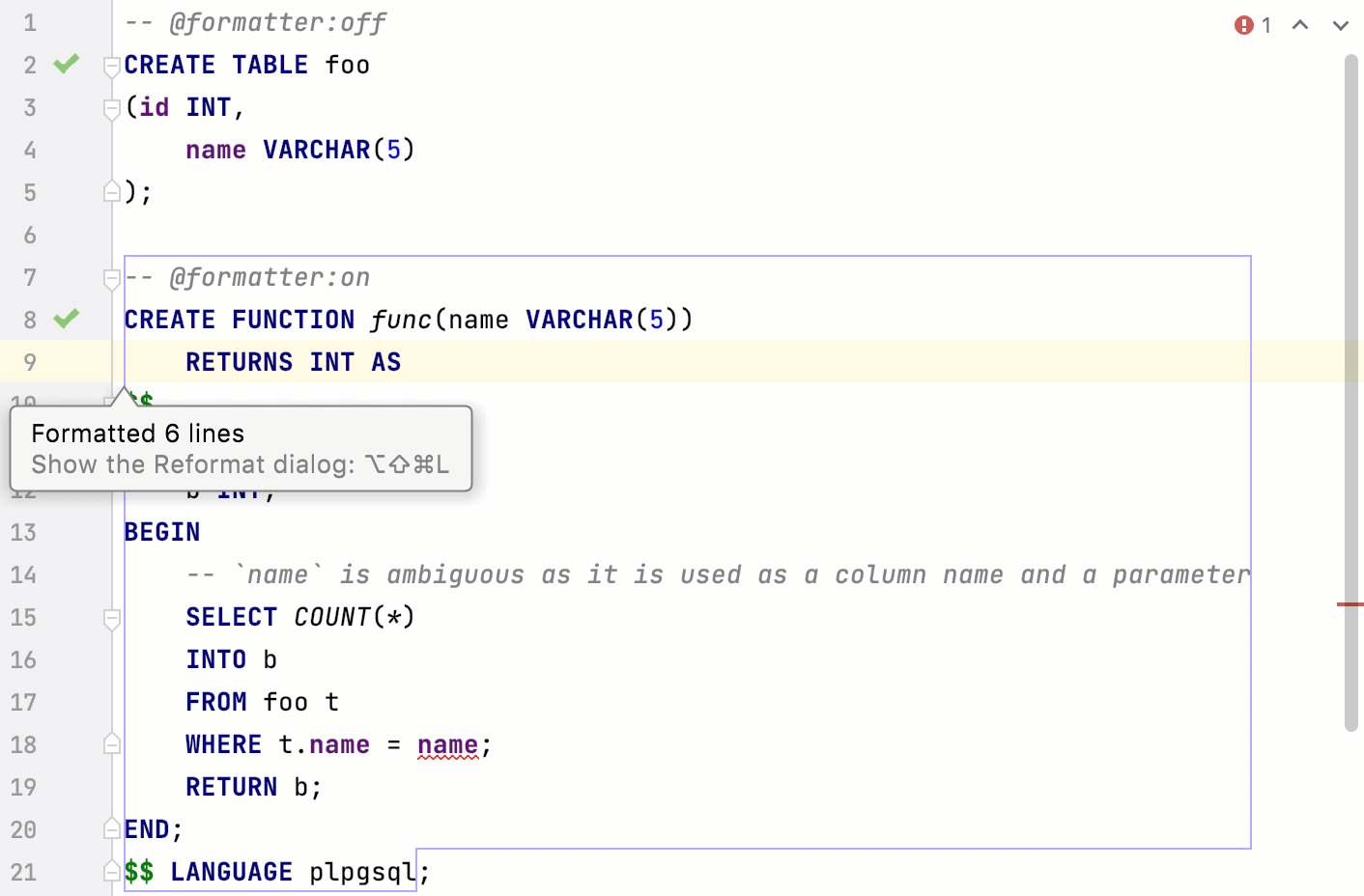
In the editor, at the beginning of a region that you want to exclude, create a line comment Ctrl+/ and type
@formatter:off. At the end of the region, create another line comment and type@formatter:on.The code between the markers won't be reformatted.