Advanced completion
Type-matching completion
Smart type-matching code completion filters the suggestion list and shows only the types applicable to the current context.
Invoke type-matching completion
To invoke type-matching completion, start typing and press Ctrl+Shift+Space or select from the main menu.
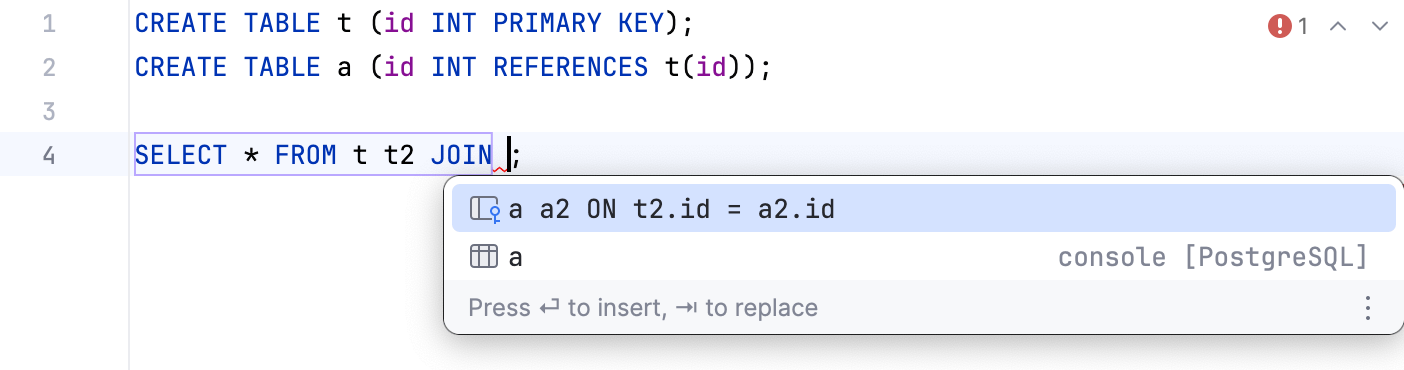
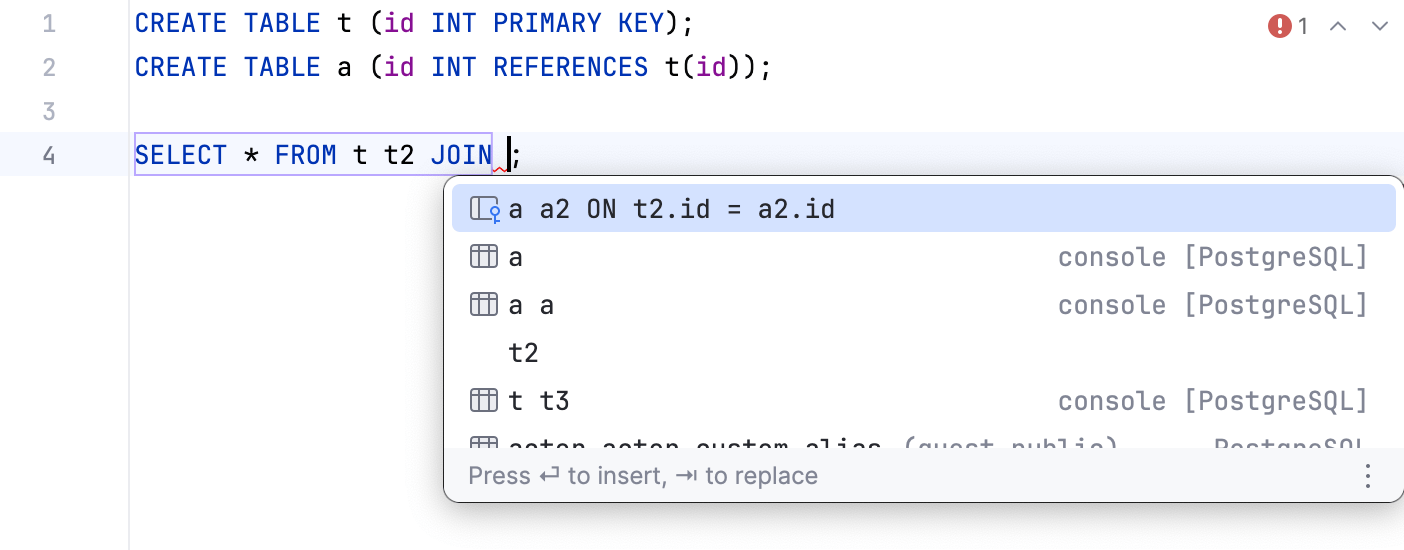
The following example shows different suggestion lists for basic (Ctrl+Space) and smart type-matching completion Ctrl+Shift+Space.
Type-matching completion Ctrl+Shift+Space
Basic code completion Ctrl+Space
Statement completion
You can create syntactically correct code constructs by using statement completion. It inserts the necessary syntax elements (parentheses, braces, and semicolons) and gets you in a position where you can start typing the next statement.
To invoke statement completion, start typing a code construct and press Ctrl+Shift+Enter.
Hippie completion
Hippie completion is a completion engine that analyses your text in the visible scope and generates suggestions from the current context. It helps you complete any word from any of the currently opened files.
Expand a string at caret to an existing word
Type the initial string and do one of the following:
Press Alt+/ or choose to search for matching words before the caret.
Press Alt+Shift+/ or choose to search for matching words after the caret and in other open files.
The first suggested value appears, and the prototype is highlighted in the source code.
Accept the suggestion or hold the Alt key and keep pressing \ until you find the word you need.
The following example shows hippie completion for the value in the INSERT statement:
Completion of tags and attributes
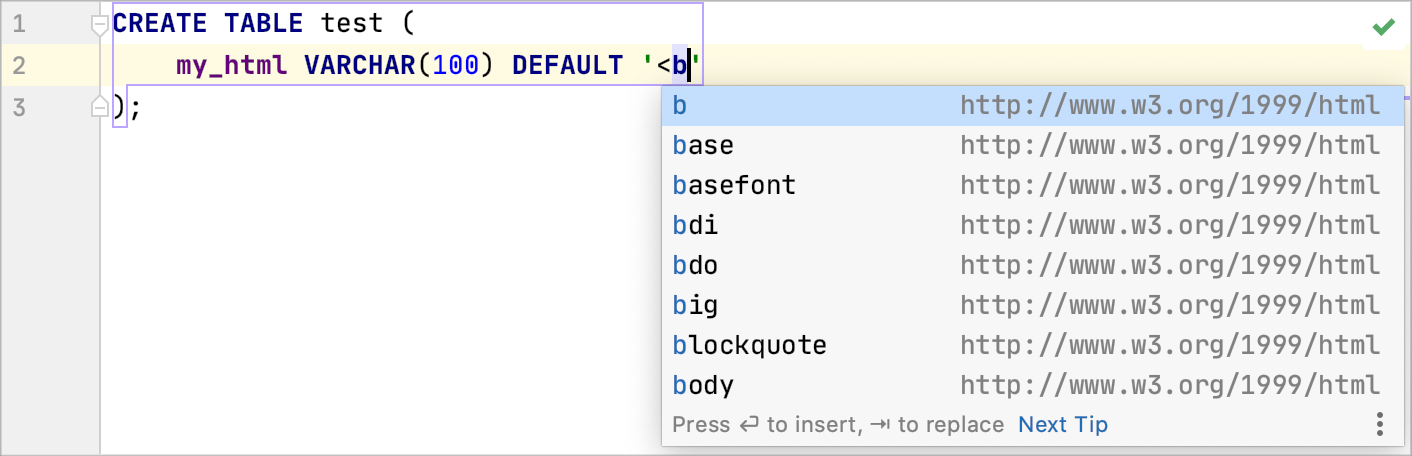
DataGrip automatically completes names and values of tags and attributes in HTML/XHTML, XML/XSL, and JSON.
Completion of tags and attribute names is based on the DTD or Schema the file is associated with. If there is no schema association, DataGrip will use the file content (tag and attribute names and their values) to complete your input.
Complete tag names
Type the opening
<and then start typing the tag name. DataGrip displays the list of tag names appropriate in the current context.Use the Up and Down keys to scroll through the list.
Press Enter to accept a selection from the list. If your file is associated with a schema or a DTD, DataGrip automatically inserts the mandatory attributes according to it.