Create and merge GitHub pull requests
Pull requests are used in open-source projects or in some corporate workflows to manage changes from contributors and to initiate code review before such changes are merged.
By creating a pull request, you tell others about the changes you want to push to the original repository so that the maintainers of that repository can review your changes, discuss them, and integrate them into the base branch.
As a pull request author, you can manage your pull request lifecycle directly within DataGrip:
Create a pull request.
View details of your pull request in the Pull Requests tool window.
Work with received feedback and comments from your reviewer.
Merge or close your pull request.
Create a pull request
In the main menu, go to . The Pull Requests tool window opens with a pull request draft.
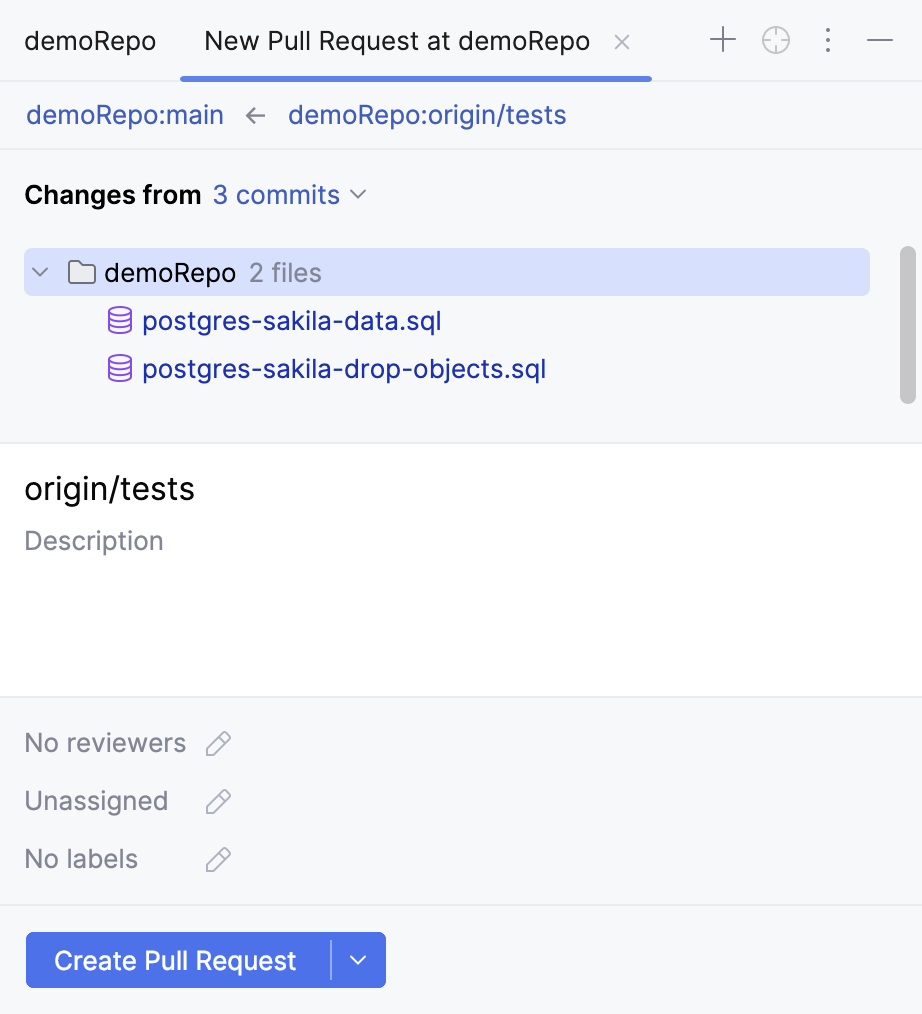
Alternatively, open the Pull Requests tool window and click
 Create Pull Request in the top-right corner.
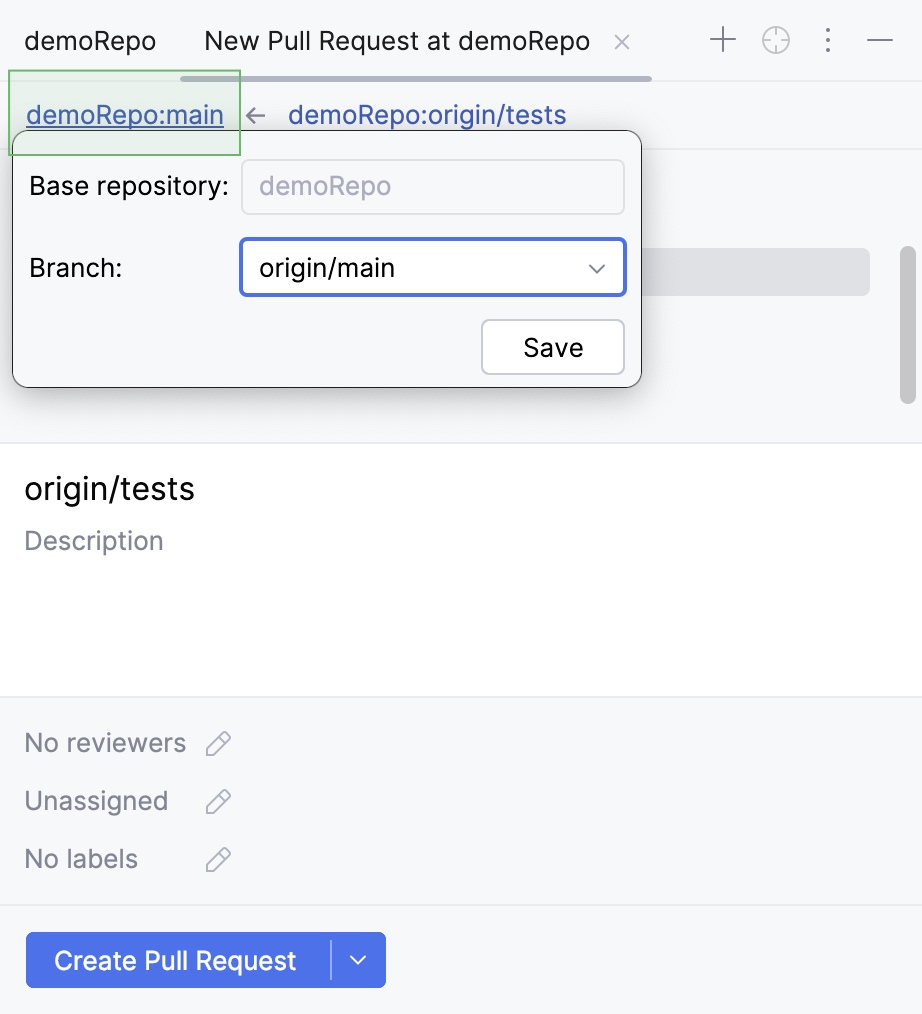
The repository on the left is the base repository that will receive the updates.
Click its name and select the branch to which you want to apply your changes.
The repository on the right is the head repository with the changes that will be added to the base repository.
Click its name and select the branch that contains the changes you want to apply.
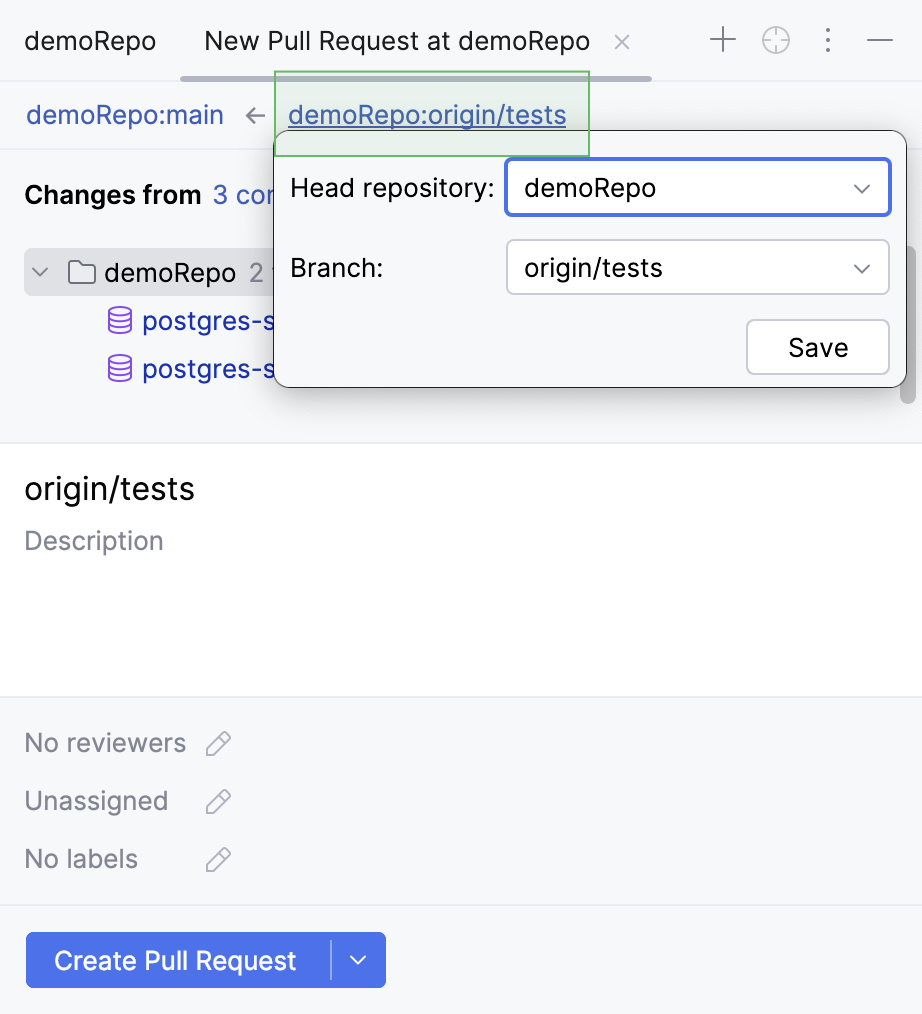
If you have a project that uses multiple remote repositories, you can change the head repository in this popup as well.
Double-click the name of any file to open the Diff view and review the changes you are about to submit.
Specify the name for your pull request in the Title field, and, optionally, provide a description of the changes to be applied through your request.
Optionally, add reviewers, assign your pull request to someone, or add a label to your pull request.
Click Create Pull Request.
If you are not yet ready to push your pull request, you can save it as a draft.
Click
 next to the Create Pull Request button.
In the menu that opens, select Create Draft Pull Request.
Your pull request will appear in the GitHub repository as a draft. You can come back to it later by choosing in the main menu.
If you have a pull_request_template.md file, DataGrip should add the template description to your pull requests. For more information about templates, refer to GitHub documentation.
View details of your pull request
After creating a pull request, you can always find it in the Pull Requests tool window.
To open the Pull Requests tool window, select in the main menu.
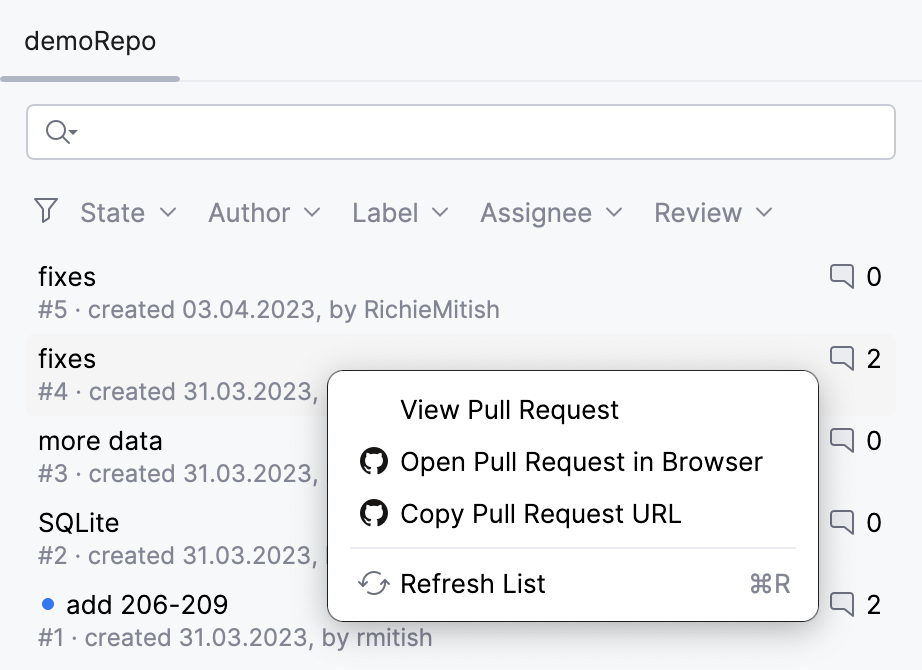
In the Pull Requests tool window, you can:
Filter requests by state, author, label, assignee, and review status.
Sort pull requests by their activity status: newest, oldest, most or least commented, recently or least recently updated.
Jump to a pull request on GitHub: select a pull request and choose Open Pull Request in Browser from the context menu.
When you double-click a pull request from the list, you can see the overview and timeline tabs.
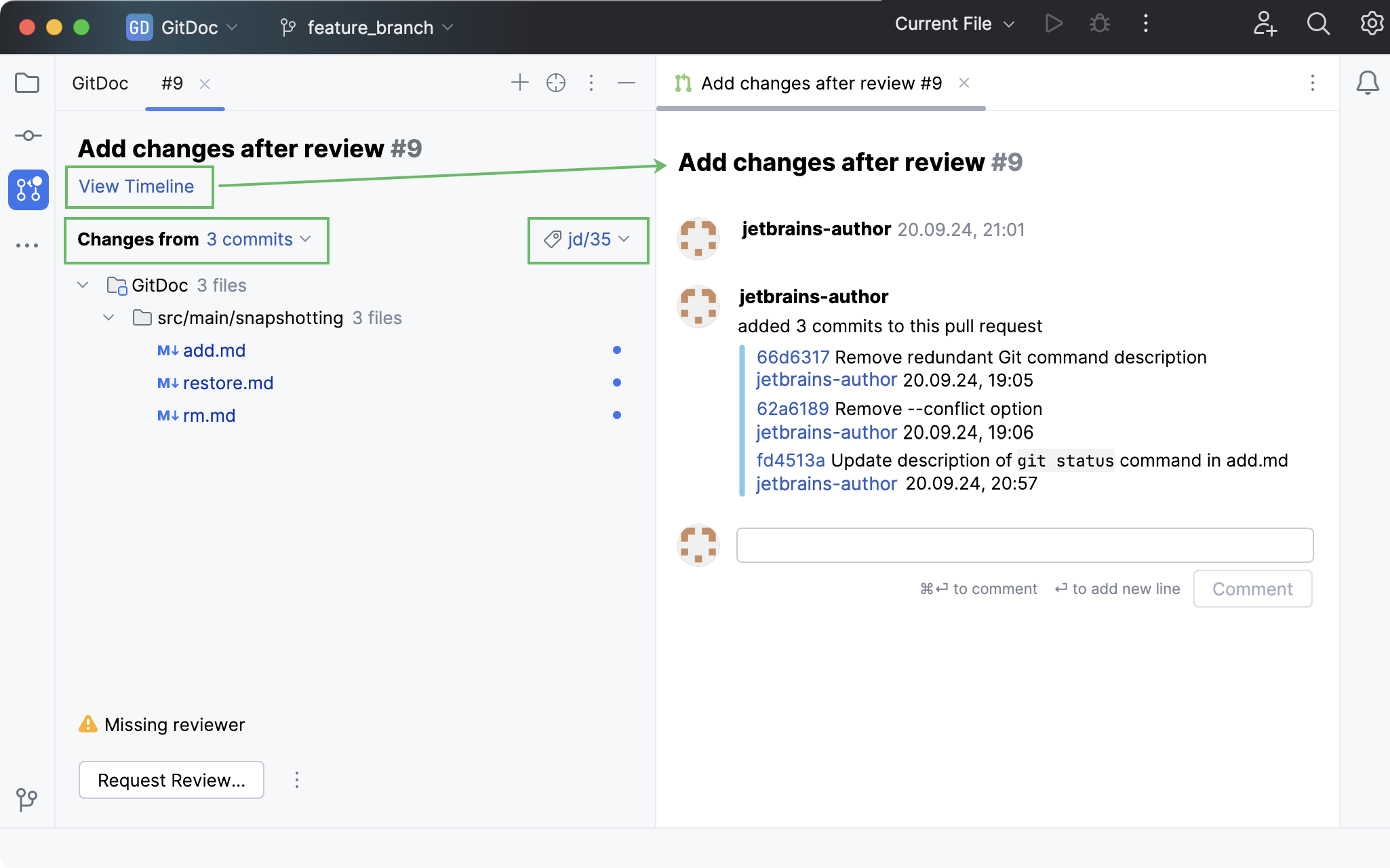
In this view, you can:
View the timeline of a selected pull request to track its progression.
Select a particular commit to filter the list of changes.
Create a local branch based on incoming changes: open a pull request, click the branch with incoming changes, and choose Checkout 'branch name' in the context menu.
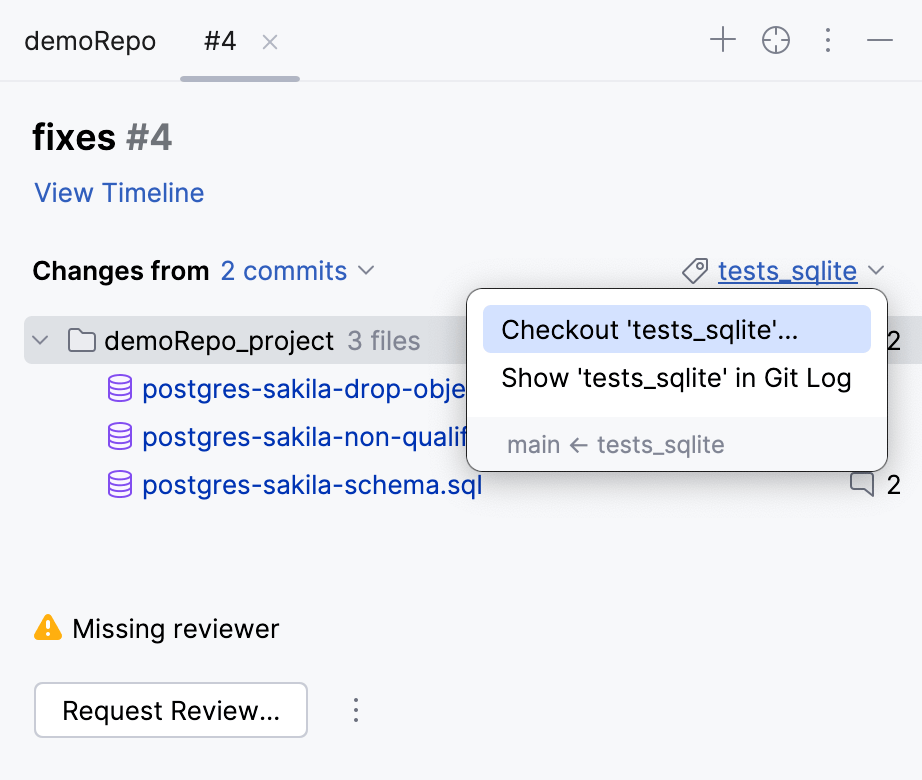
To learn about more options, refer to Review a pull request.
Work with received feedback
When you send your pull request for a review, you can get comments or suggestions with regard to your changes. You can view and apply them directly from DataGrip.
In the main menu, go to .
In the list of pull requests, select the one you want to work with and double-click it.
DataGrip opens an overview of the selected pull request.
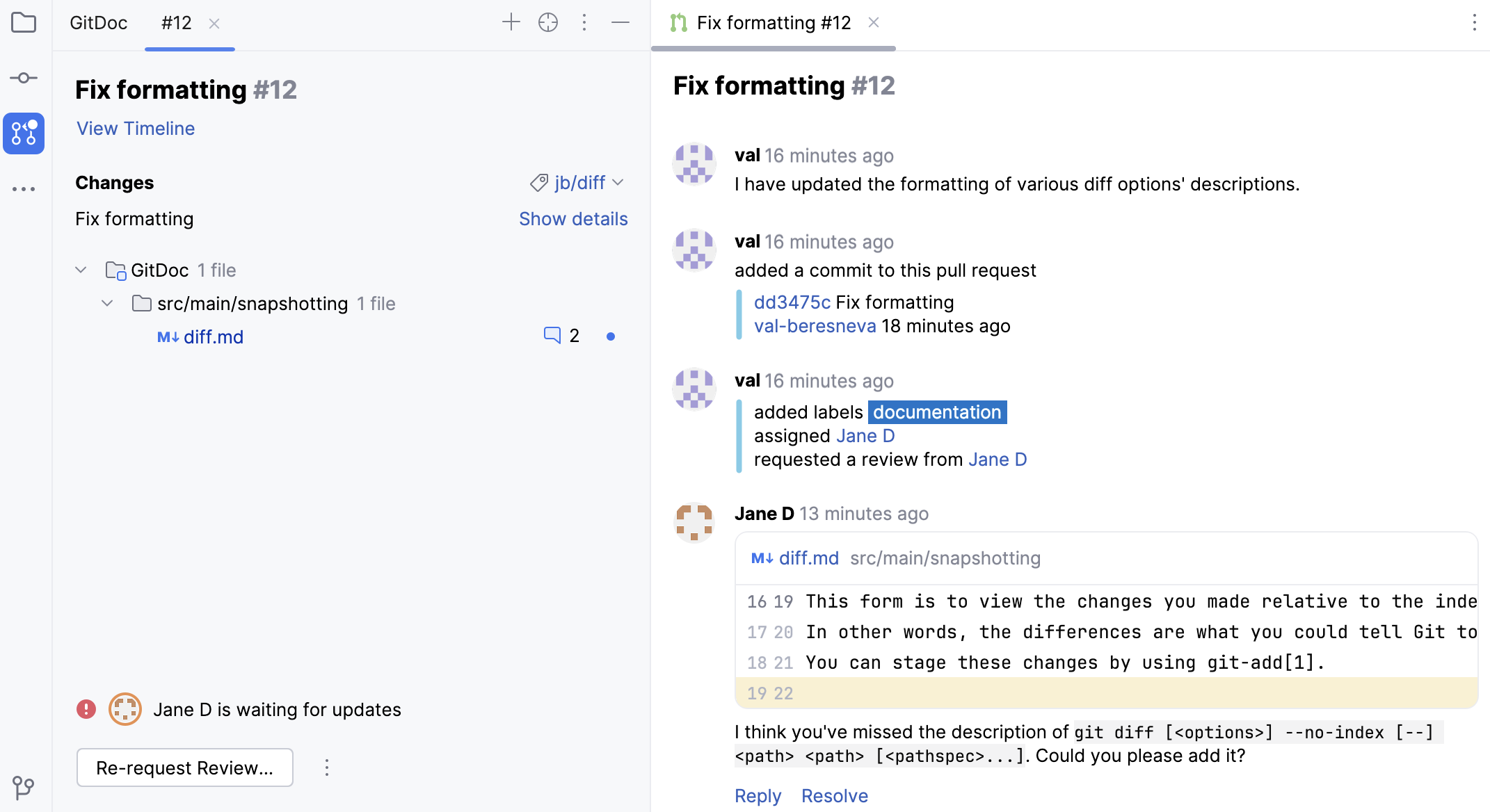
Click the branch with incoming changes and choose Checkout 'branch name' in the context menu.

By checking out the branch, you get the full context to test the changes suggested by your reviewer and check how they work.
After the successful checkout, DataGrip starts the Review mode. That means you can see the highlighted changes and comments not only in the Diff tab (Ctrl+D), but right in the editor (F4).
Select the file you want to investigate, right-click it and select Jump to Source F4 from the context menu.
In the file that opens, pink markers in the gutter indicate the changes you have made and the comments left by your reviewer.
You can resolve a comment, reply to it, or leave your reaction.
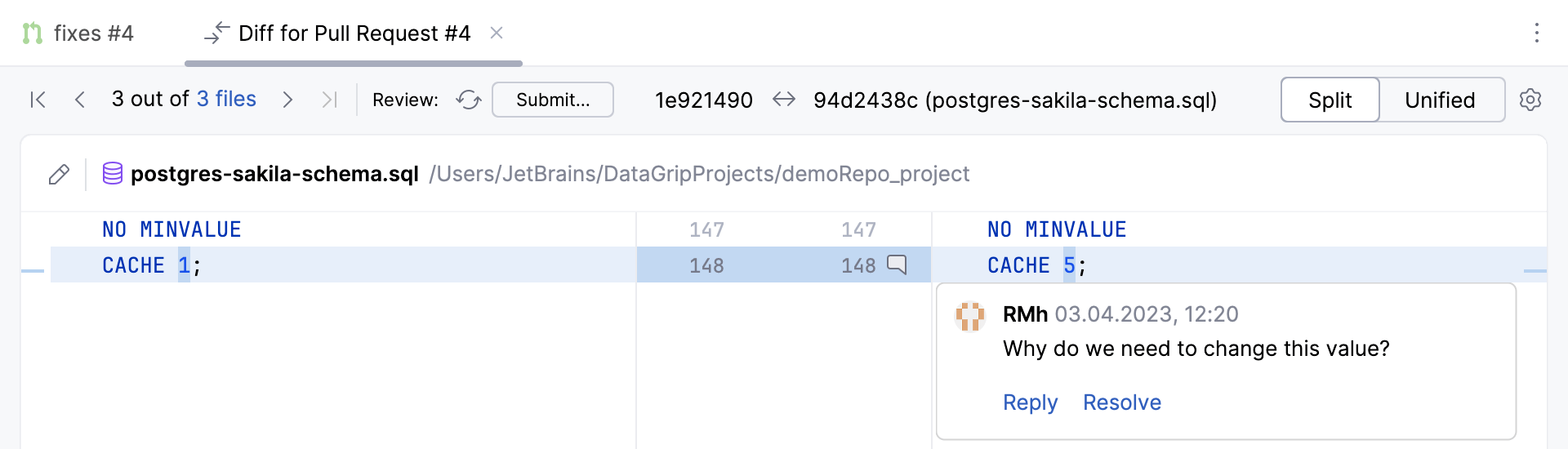
Navigate between the comments by using
 /
/ in the upper toolbar or pressing Ctrl+Alt+Up/Ctrl+Alt+Down.
If the reviewer has left a suggestion, you will see the diff between your code and suggested one and can either Apply locally (applies a patch to the working copy) or Commit (opens a commit message pop-up).
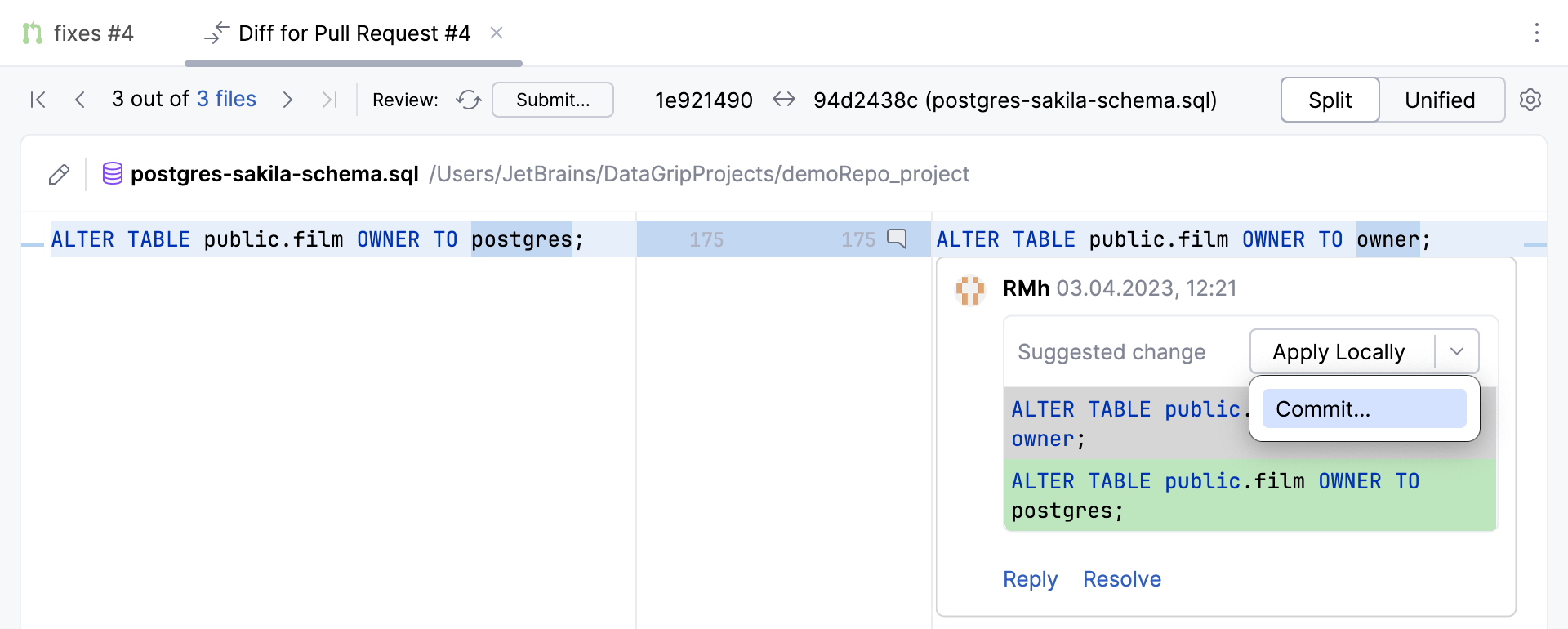
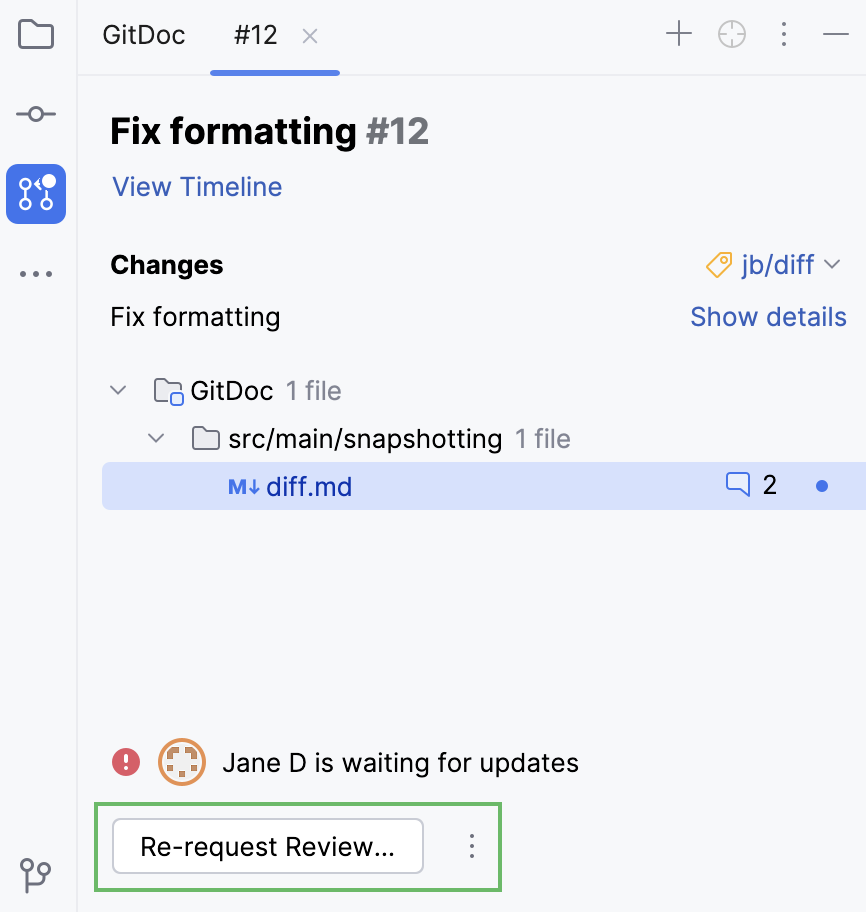
After you finished working on the pull request, you can re-request review, merge the pull request, or close it.
Merge or close a pull request
If you have push access to the repository, you can merge your pull request when work is complete.
In the main menu, go to .
In the list of pull requests, select the one you want to work with and double-click it.
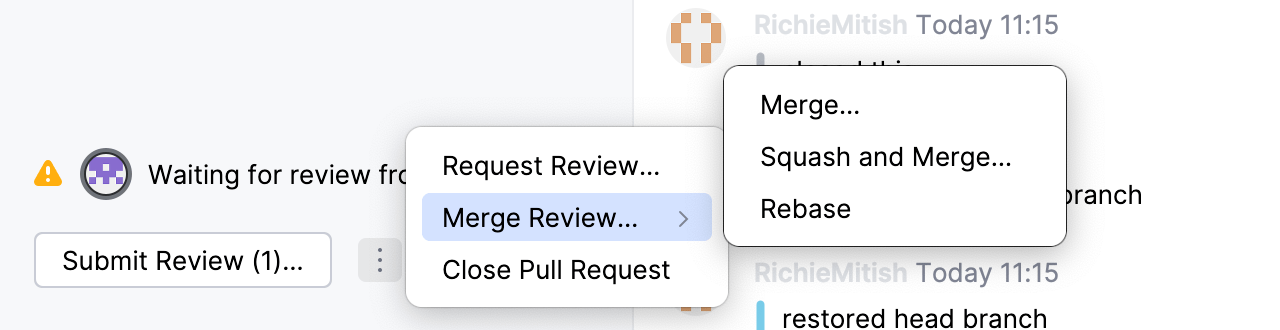
At the bottom of the overview, there is a button with merge options that differ depending on the stage of the review process and your push access rights.
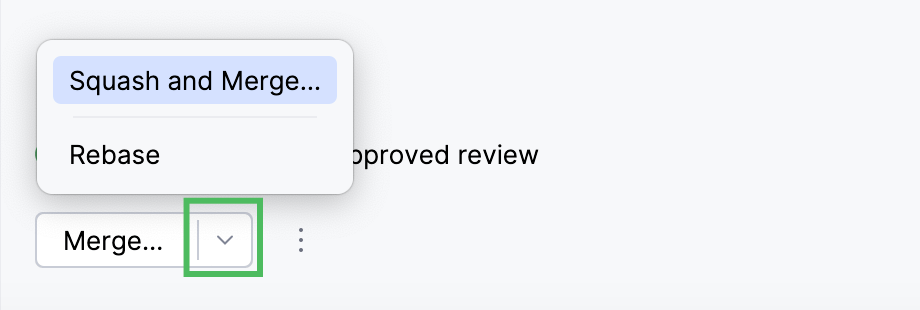
If you have approved the updates after your review, you can merge the pull request by clicking Merge.
For more merge options, click
and select Squash and Merge to squash the commits with your changes into one before merging them or Rebase to rebase the commits from the pull request branch and add them to the base branch.Click
 More and select Request Review if you need another opinion on this pull request or Close Pull Request if you do not want to merge it.
If you are ready to merge the pull request without submitting your review, in the pull request overview, click
and select Merge, Squash and Merge, or Rebase.