Sticky lines
The sticky lines (or sticky scroll) feature enhances your coding experience by maintaining the visibility of parent statement as you scroll through the file, offering immediate context to your code. You can also promptly navigate through the code by clicking a sticky line.
You can also click any of the sticky lines to scroll the editor to the corresponding statement.
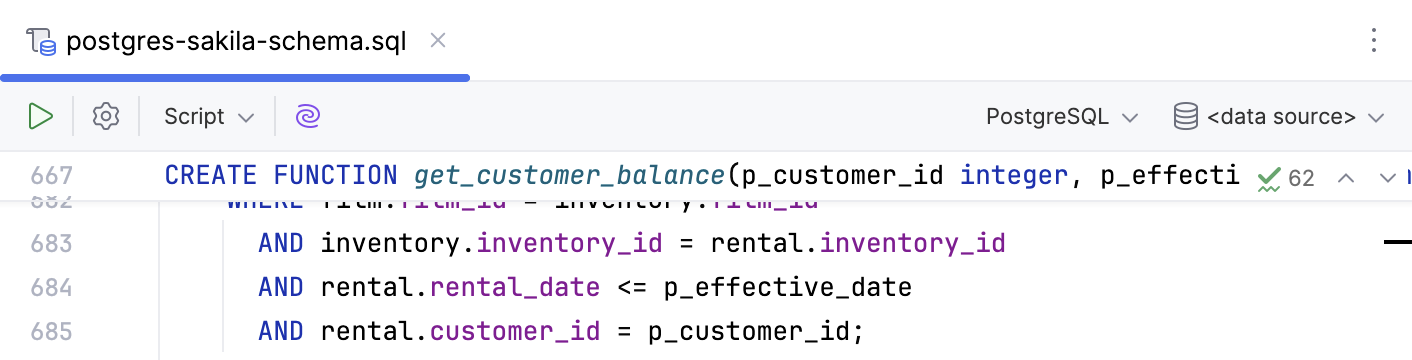
By default, the maximum number of sticky lines is set to 5.
Configure number of sticky lines
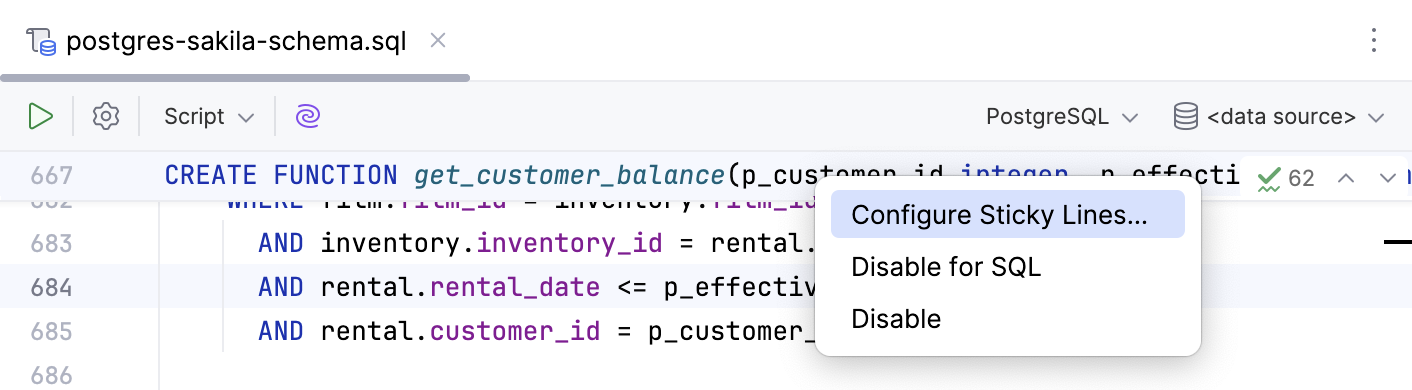
Right-click the sticky lines in the editor and click Configure Sticky Lines.
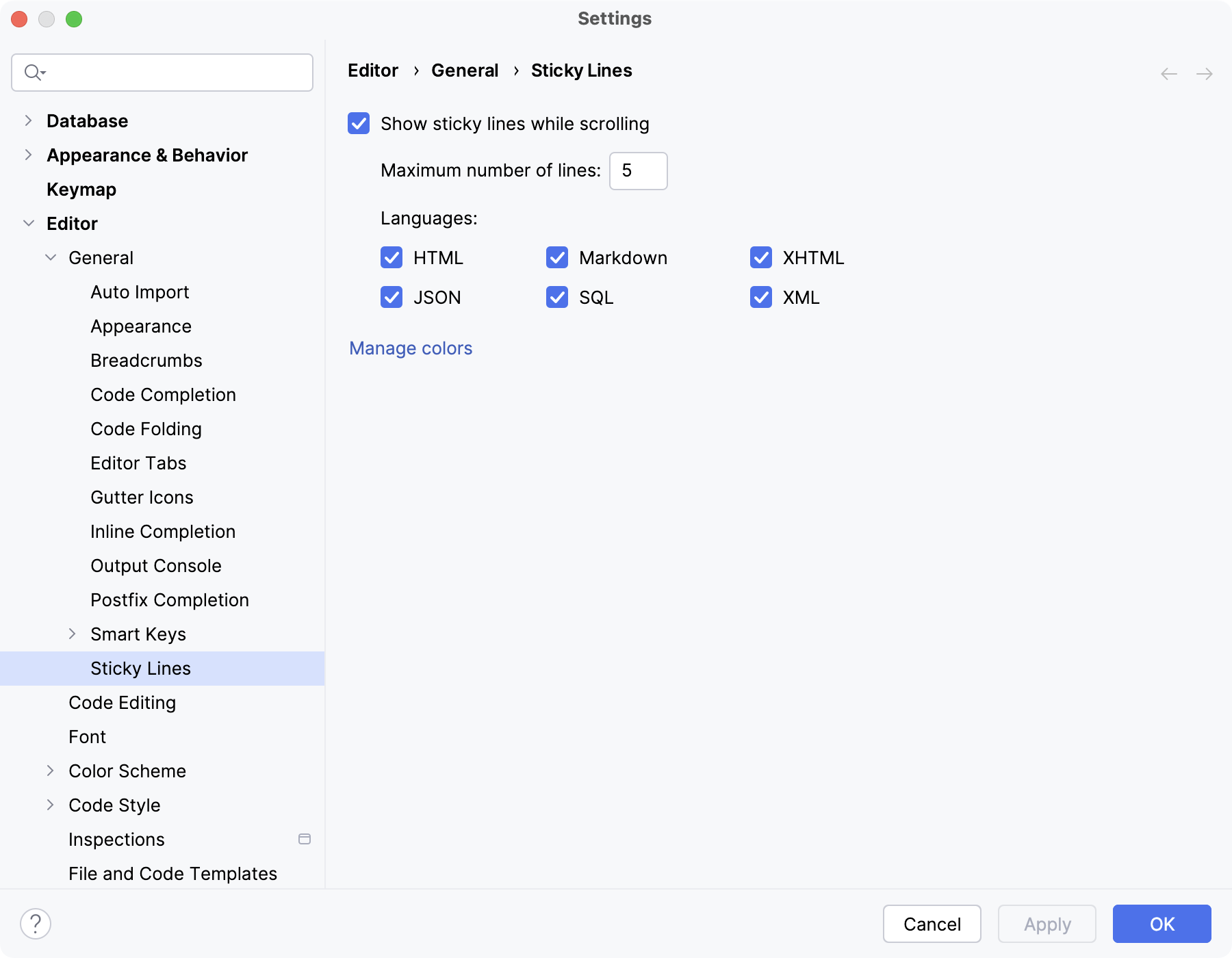
Press Ctrl+Alt+S to open settings and then select . Next to the Maximum number of lines field, enter the desired number of sticky lines.
Disable sticky lines
By default, the Show sticky lines feature is enabled. You can choose to disable the feature for all languages or for specific languages.
Disable sticky lines for all languages
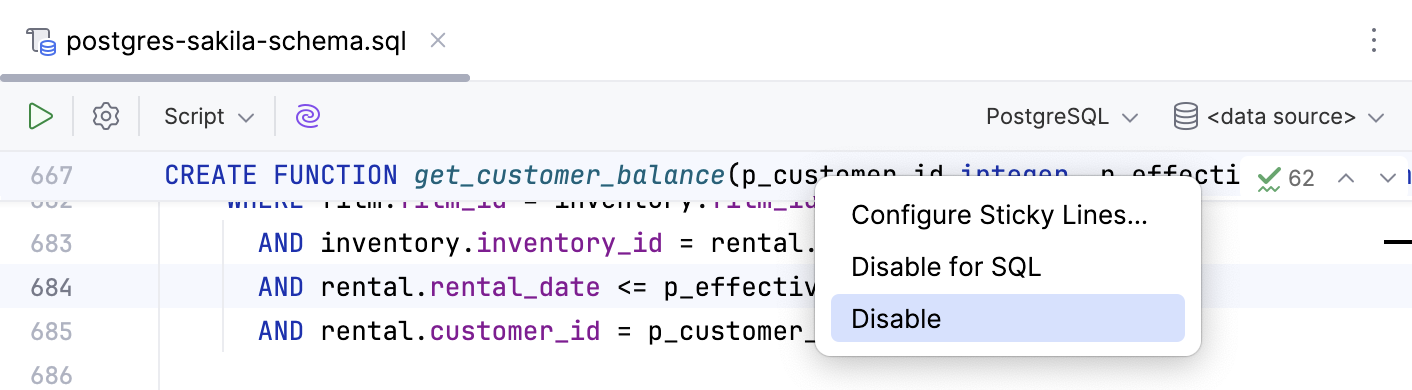
Right-click the sticky lines in the editor and click Disable.
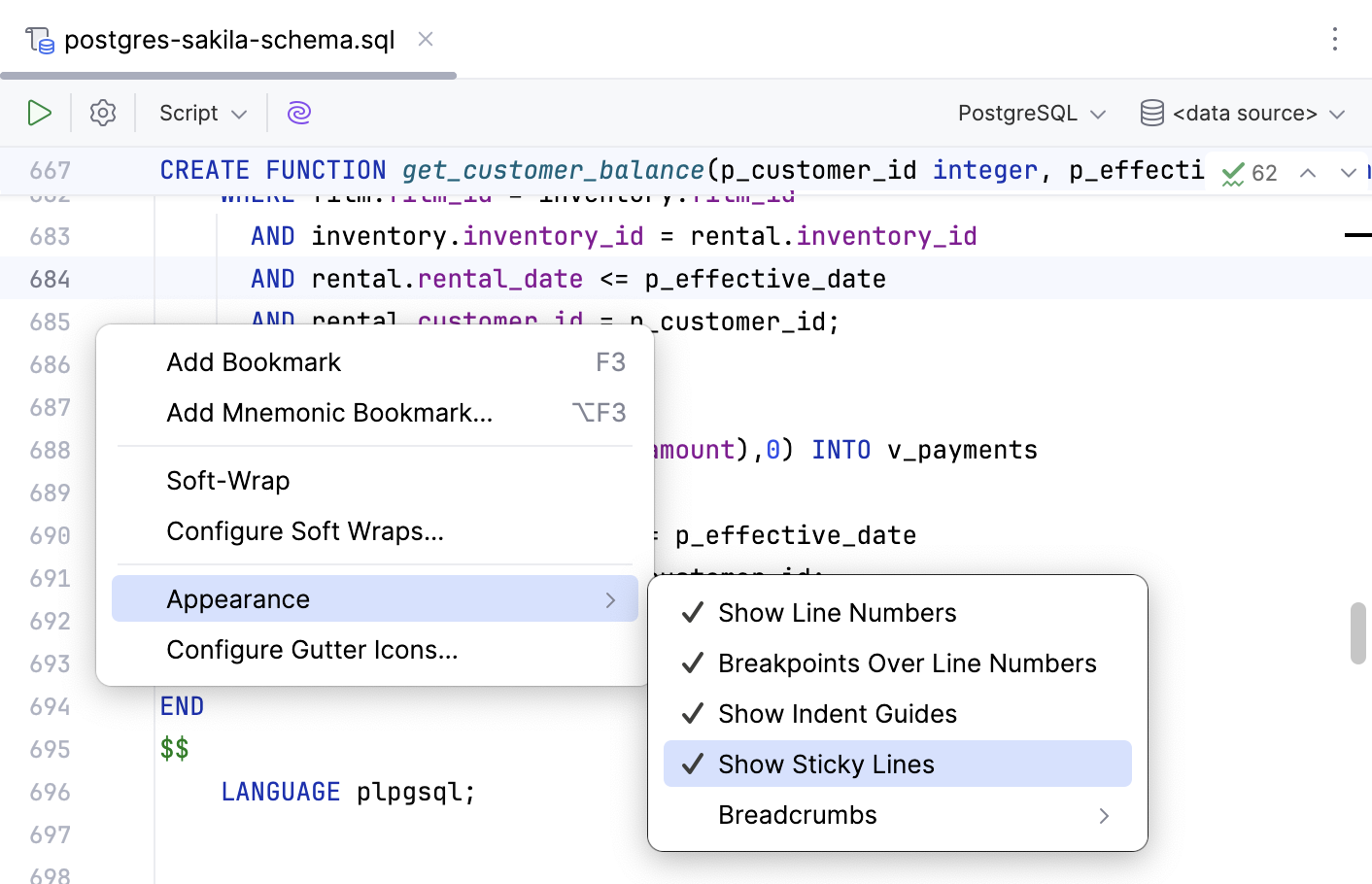
Right-click the gutter, select Appearance, and then deselect Show Sticky Lines.
Press Ctrl+Alt+S to open settings and then select . Clear the Show sticky lines while scrolling checkbox.
Disable sticky lines for specific languages
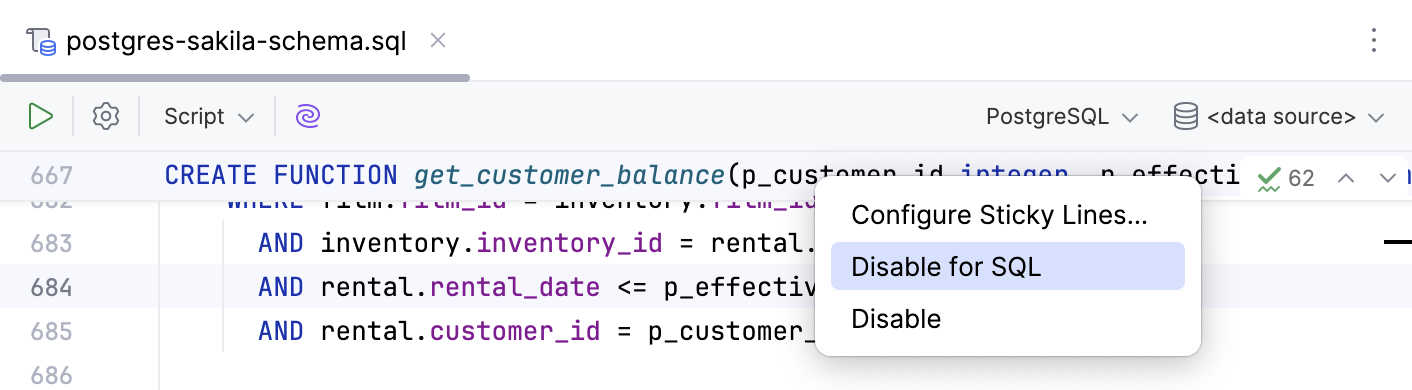
Right-click the sticky lines in the editor and click Disable for <language>. The option will list the language you are currently viewing.
Press Ctrl+Alt+S to open settings and then select . In the Languages section, deselect the checkbox next to the language to disable sticky lines for it.
Change sticky lines color settings
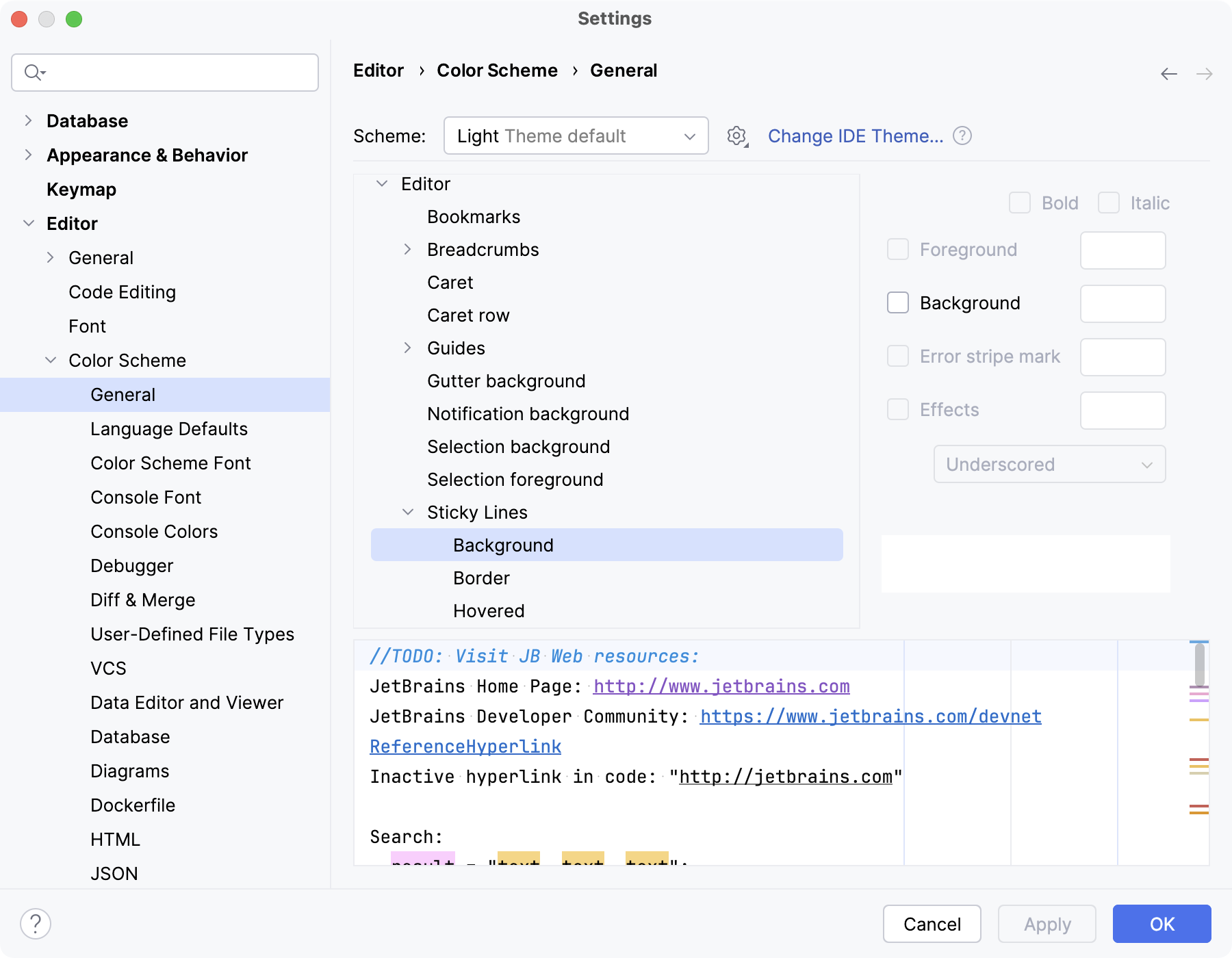
Press Ctrl+Alt+S to open settings and then select . Edit the color for the background, border, or hovered state.